How to Get Bank of America Statements into Excel
— Personal & Business
A Bank of America statement is not a single document format. A personal Advantage Plus Checking PDF from BofA Online Banking looks different from a Business Advantage Checking statement with Cash Flow Manager data, which looks different again from a combined household statement that includes Merrill Lynch investment accounts. Each is a valid "Bank of America statement." Each arranges transaction rows across pages with different column widths, description styles, and summary block placements. The challenge is not that BofA statements are hard to read — it is that the bank uses at least five distinct layout variants for personal checking, savings, business checking, credit card, and combined statements, and template-based extraction tools must be retrained for each one.
Key Takeaways
- A Bank of America statement is not one document format — personal checking, business checking, savings, credit card, and combined Merrill Lynch statements each use a distinct layout with different column widths and summary block placements.
- Template-based extractors require separate retraining for each BofA layout variant; format-independent AI reads any BofA statement by understanding field meaning, not pixel position.
- Preferred Rewards bonus interest, Cash Flow Manager data, and running balance continuity across page breaks are all captured in a single extraction pass with no per-account configuration.
When Bank of America's CSV Export Doesn't Solve the Problem
Bank of America provides a CSV download option through its online banking portal — navigate to an account, click the download icon, select "Comma Delimited (.CSV)" or "Microsoft Excel (.XLSX)" from the file type dropdown, and choose a date range. The download covers up to 18 months of transaction history for most checking and savings accounts, with the option to filter by custom date range or preset periods. For current-month catch-up work, this is the fastest route.
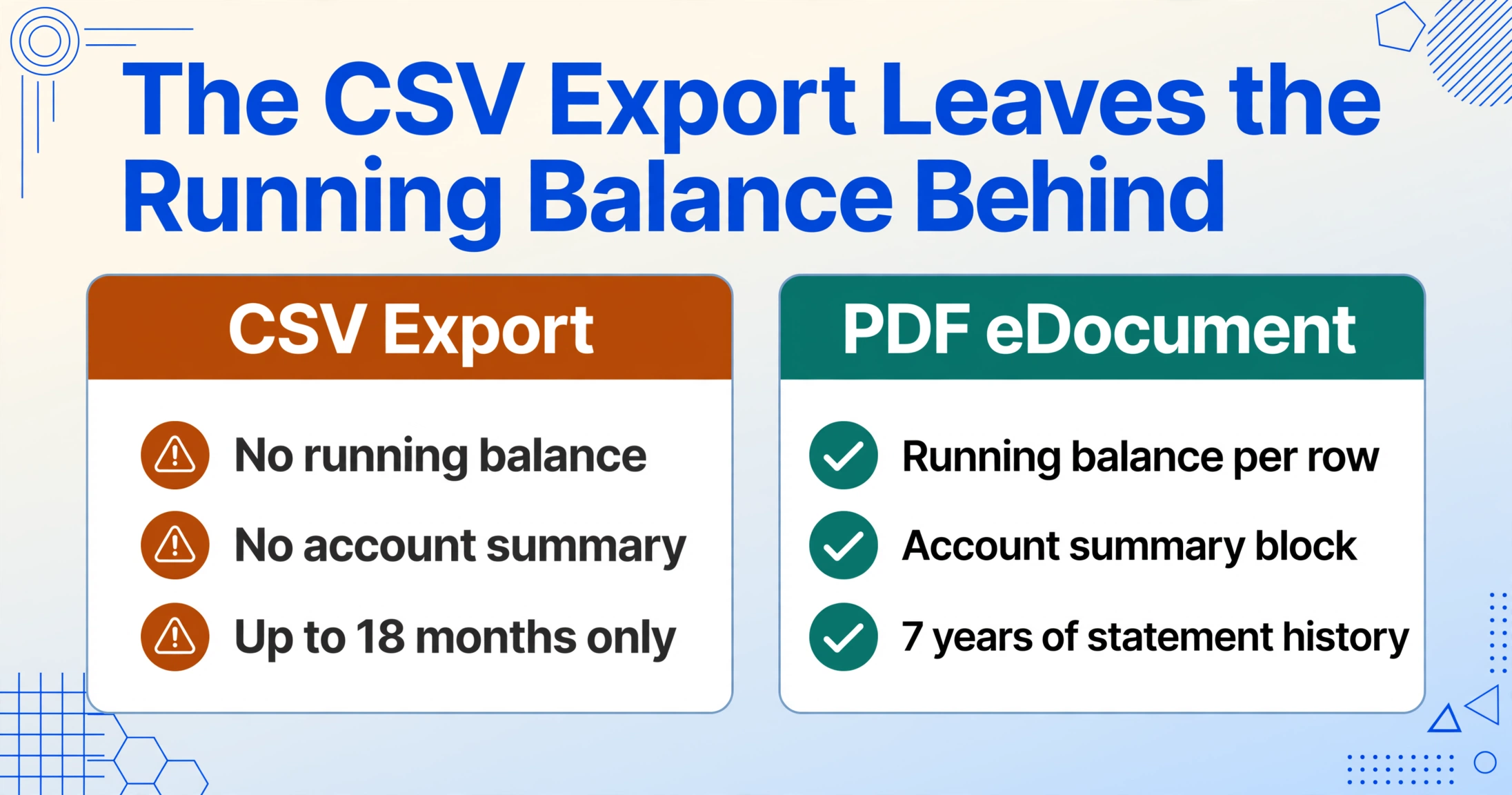
The limitation surfaces when you need formal monthly statements. BofA stores up to seven years of official PDF statements under the "Statements & Documents" — or eDocuments — section of each account. These are the documents that show the full statement structure: opening and closing balances, running balance per transaction, check images, account summary blocks, and any Preferred Rewards bonus interest or service fee credits. The CSV export captures transaction rows only — no running balance column, no year-to-date totals, no interest information, no account summary. For reconciliation, audit preparation, or tax filing, the formal PDF statement is the authoritative record, and it arrives as a human-readable PDF with no structured data layer underneath.
A common workaround is downloading separate CSVs for each account and merging them manually. But BofA's CSV output uses different column conventions across account types — a personal checking CSV labels columns "Date/Description/Amount" while a business checking CSV may use "Posted Date/Reference Number/Payee/Amount" — meaning a merge operation requires column normalization before the data can sit in the same spreadsheet. The formal PDFs, which follow consistent BofA layout conventions across account types, are the better source for cross-account consolidation — provided you have a way to extract them.
What Makes Bank of America Statements Format-Specific
Bank of America statements share a common brand structure — blue summary bars, consistent typography, the familiar BofA logo at the top — but the underlying layout varies in ways that matter for data extraction. A person managing both personal and business accounts at BofA will encounter at least three distinct statement formats, plus combined statements that layer multiple accounts into a single PDF.
Advantage Account Tiers and Page Header Structure
Every personal BofA statement identifies the account type prominently in the header area — Advantage SafeBalance, Advantage Plus, or Advantage Relationship. These account tiers determine the fee structure and minimum balance requirements, and the statement header prints the specific tier name alongside the account number. Below the header, a summary block shows the beginning balance, total deposits and additions, total withdrawals and subtractions, service fees (if any), and the ending balance. For Advantage Relationship accounts, this summary block also reflects the Preferred Rewards interest rate boost applied during the statement period.
The summary block uses BofA's distinctive "Total deposits and other additions" / "Total withdrawals and other subtractions" labeling — not the "Deposits" / "Withdrawals" shorthand used by other major banks. This exact phrasing creates a reliable anchor for extraction: a tool that understands these phrases as section markers can separate the summary from the transaction table without relying on position.
Preferred Rewards Bonus Interest and Fee Credits
BofA's Preferred Rewards program — Gold ($20K–$50K combined balance), Platinum ($50K–$100K), and Platinum Honors ($100K+) — applies bonus interest rates and fee waivers that appear as separate line items on the statement. A Preferred Rewards statement will show a line like "INTEREST PAID PREFERRED REWARDS BONUS" alongside the standard interest earned, often as an adjacent row in the transaction list or as a separate entry in the "Interest Detail" section at the bottom of the statement. For tax and reconciliation purposes, these two interest components should be extracted as distinct rows or columns — not merged into a single "interest" value.
Similarly, Preferred Rewards fee credits — such as the monthly ATM fee reimbursement for Platinum Honors members — appear as statement credits in the transaction list, typically formatted as "PREFERRED REWARDS ATM FEE REBATE" followed by the credit amount. These credits are easy to miss during manual entry because they appear as negative amounts (credits) in a column that mostly contains debits.
Merchant Category Codes and Description Formatting
BofA formats transaction descriptions differently from other major US banks. A BofA debit card purchase appears as "MERCHANT NAME*CITY STATE" followed by a reference number — for example, "AMAZON.COM*AB12CD3 04/12 PURCHASE 888-555-1234 WA." A Chase statement would display the same transaction as "DEBIT CARD PURCHASE 04/12 AMAZON.COM ABCD123 REF# 45678." The key difference: BofA appends merchant category information (MCC) at the end of the description string — visible as a merchant phone number or abbreviated category code — while Chase integrates the transaction type at the beginning. Description columns that split on the wrong delimiter will fragment a BofA transaction row into unusable pieces.
ACH transactions, wire transfers, and electronic deposits use different description patterns. Direct deposits appear as "DIRECT DEPOSIT EMPLOYER NAME" or, for payroll through a processing service, as "ACH CREDIT DES:SALARY ID:XXXXXX." Wire transfers show "DOMESTIC WIRE INCOMING" or "WIRE TRANSFER SENDER NAME." BofA also stamps mobile check deposits with a distinctive format: "MOBILE DEPOSIT — CHECK #XXXX" followed by the deposit date and amount. Each of these description variants carries information — check numbers, reference codes, transaction type — that belongs in separate output columns.
Merrill Lynch Integration on Combined Statements
Personal account holders with both BofA banking and Merrill Lynch investment accounts may receive a combined "Wealth Management Banking" statement that presents banking activity and investment account snapshots in a single PDF. These combined statements are structured in sections — the banking section follows the standard personal checking layout, while the investment section appears after a page break with its own header, account numbers, and asset summary. For extraction purposes, the combined statement introduces section ambiguity: an extraction tool that does not detect the section boundary will treat Merrill Lynch data — holdings summaries, trade confirmations, advisor notes — as transaction rows belonging to the checking account. A semantic extraction engine must recognize that the document contains two distinct account types and separate them into different output contexts.
Business Statements and Cash Flow Manager Data
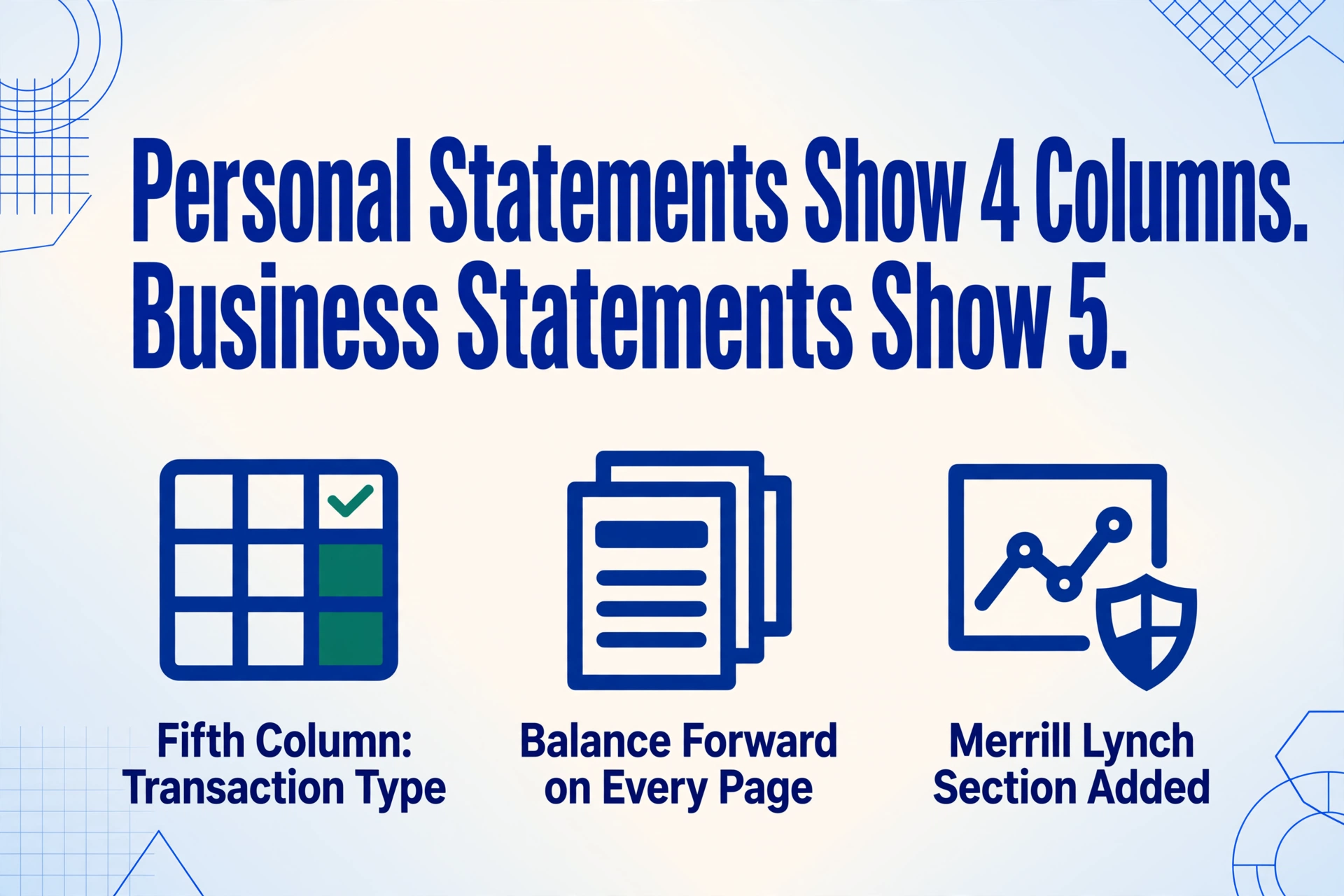
Business Advantage Checking and Business Interest Checking statements differ from personal statements in several meaningful ways. The transaction table includes an additional "Transaction Type" column that separates debit card transactions, checks, and electronic transfers. Multi-page business statements repeat the column header on each new page and include a "Balance Forward" line at the top of each subsequent page — a row that carries the running total from the previous page but can confuse position-based extraction into treating it as a new transaction.
Business accounts enrolled in BofA's Cash Flow Manager tool receive an additional data section appended after the standard transaction table. This section projects upcoming cash position, categorizes recent transactions by type (credits vs debits), and may include invoicing and payment summary data from business-to-business transactions. The Cash Flow Manager section uses a different layout — often a compact summary card style rather than a full transaction table — and an extraction tool that stops reading at the end of the main transaction table will miss this supplementary data entirely.
eDocuments: How BofA Names and Organizes Online Statements
Bank of America brands its paperless statements as eDocuments. In the "Statements & Documents" section of online banking, each statement is labeled by account type and month — for example, "CONSUMER CHECKING — ADVANTAGE PLUS 1234" for personal or "BUSINESS CHECKING — BUSINESS ADVANTAGE CHECKING 5678" for commercial accounts. Business customers may also see separate eDocuments for Cash Flow Manager reports and merchant services summaries alongside their core statement PDFs.
The eDocuments naming convention is important for batch processing: if you download 12 months of BofA statements for a year-end reconciliation, the file names follow a consistent pattern that allows an extraction tool to group statements by account and maintain chronological order without manual file renaming.
Three Ways to Get BofA Transaction Data Into Excel
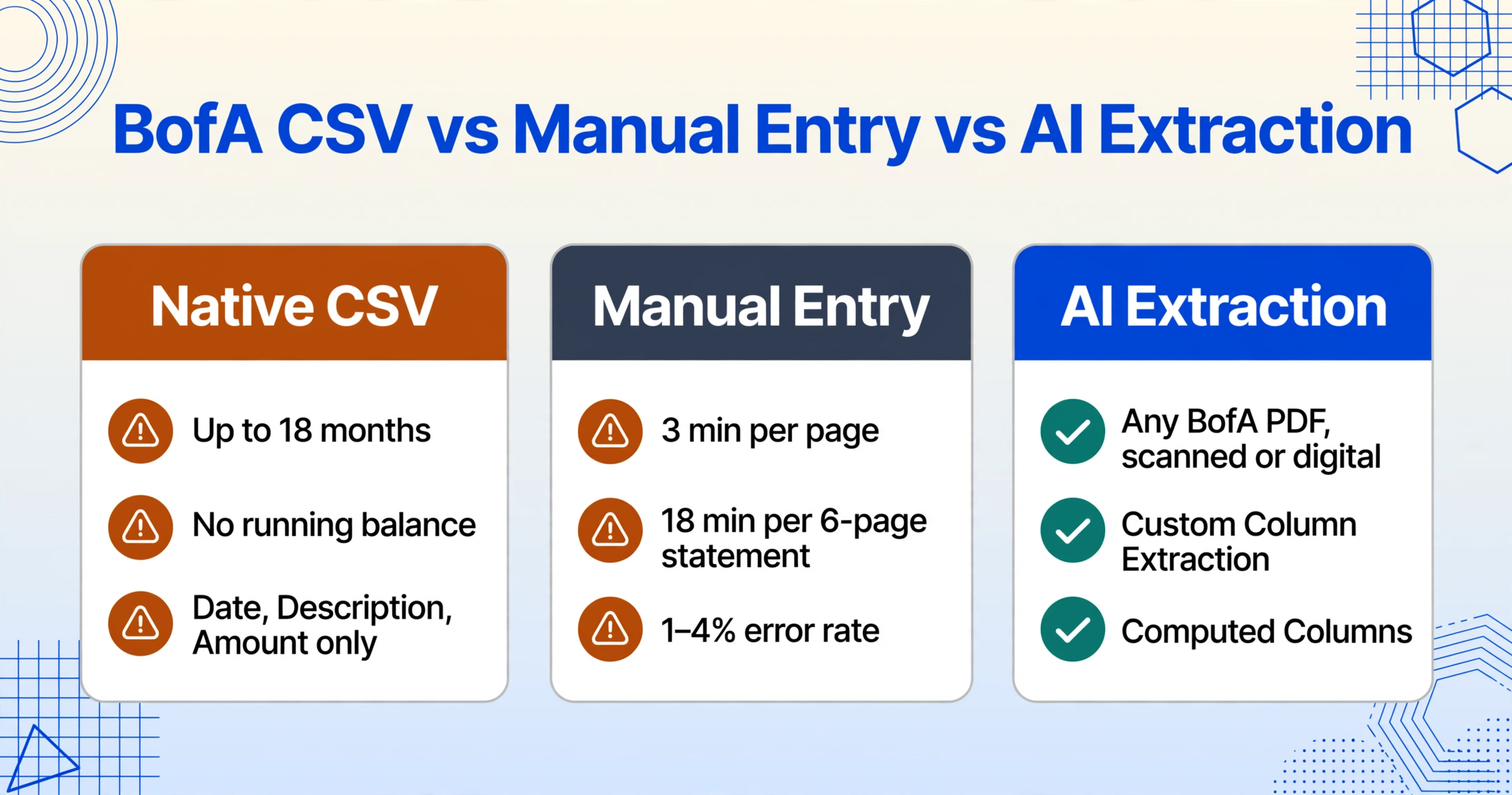
Each method corresponds to a different scenario. Which one applies depends on how far back your data goes and what format you have.
Method 1: Native CSV from Online Banking (Recent Periods)
Log in to bankofamerica.com, select the account, click the download icon, choose "Microsoft Excel (.XLSX)" or "Comma Delimited (.CSV)," pick a date range, and download. The output opens directly in Excel with columns for Date, Description, and Amount — but no running balance, no transaction type column, and no interest detail. Available for up to 18 months of recent activity on most accounts, but excludes formal statement-level data like the account summary block, check images, and Preferred Rewards entries.
Method 2: Manual Data Entry from PDF eDocuments (All Periods)
Open each BofA eDocument PDF, read each transaction row, and type the date, description, and amount into Excel. At roughly 3 minutes per page — the widely accepted benchmark for manual bank statement transcription — a standard 6-page BofA business checking statement uses 18 minutes of typing. A year of monthly statements for one account consumes 3 to 4 hours. Manual entry error rates for trained bookkeepers consistently fall between 1% and 4% per field, per industry data published in the Journal of Medical Internet Research. On a single 200-row BofA statement, a 2% error rate means four miskeyed entries — each of which must be hunted down when the ending balance does not match.
Method 3: AI Extraction (Any BofA PDF, Any Age, Any Account Type)
Upload the BofA statement PDF to an AI extraction tool that uses vision-based document understanding — not template matching or zonal OCR. A semantic-based extraction engine reads the document the same way a human does: it identifies the "Total deposits and other additions" label, locates the corresponding value, maps the transaction table columns by understanding what each header means ("Date," "Description," "Amount," "Balance"), and preserves the running balance continuity across page breaks. A multi-page BofA business statement with Cash Flow Manager data processes in roughly 60 seconds. The output includes every transaction row with its running balance, account summary fields, and supplementary data such as Preferred Rewards interest — all in a structured Excel file where opening balance + deposits − withdrawals = closing balance.
How to Convert Any BofA Statement PDF to Excel
The workflow below works for every Bank of America account type — personal Advantage SafeBalance, Advantage Plus, Advantage Relationship, Business Advantage Checking, Business Interest Checking, and combined Merrill Lynch statements. The column names you enter define the output table; you are not limited to what the statement shows, and you can add computed columns or inferred classification columns alongside direct extract fields.
Download the eDocument PDF from Online Banking
Log in to bankofamerica.com, navigate to the account, and click "Statements & Documents" (or "eDocuments" on the mobile view). Select the statement period you need — BofA maintains seven years of statement history for most accounts — and click the blue link to view or download the PDF. Personal statements will be labeled by account tier and the last four digits of the account number; business statements include the business name and account type. Download the PDF to your computer. Scanned paper statements or photographed statements work as well — digital and scanned documents undergo the same extraction process.
Define Your Output Columns
Open ImageToTable.ai's guest demo or logged-in workspace. Enter the column names you want in your output table — for example: "Transaction Date," "Description," "Debit Amount," "Credit Amount," "Running Balance," "Check Number," "Transaction Type." Custom Column Extraction works by typing what you want the AI to find: the tool reads the document semantically and locates each value by understanding what it means — not by matching a predefined position on the page. You can also add inferred columns like "Category" with options (e.g., "Income/Transfer/Dining/Utilities/Shopping") — the AI will classify each row based on the merchant description and amount, even though BofA's statement does not include a category column.
Upload and Let the AI Extract Every Row
Upload the BofA PDF. Because the extraction engine is format-independent — it reads layout semantically rather than positionally — the same setup handles an Advantage SafeBalance checking statement, a Business Advantage Checking statement with Cash Flow Manager data, and a combined Wealth Management Banking statement without any per-account configuration. The AI processes the document in 5-10 seconds per page, extracting every transaction row across pages, preserving running balance continuity at page breaks, and capturing summary block values such as total deposits, total withdrawals, year-to-date interest, and Preferred Rewards bonus interest. If you uploaded multiple files, they process as a batch and merge into one output table.
Verify with Bbox and Export to Excel
Before exporting, use the Review Mode to confirm accuracy: hover over any extracted cell and the tool highlights the exact region on the original document where that value came from — useful for checking Preferred Rewards bonus interest entries or verifying that the running balance column carried correctly across a page break. Export as Excel (.xlsx) or CSV once verified. The output preserves every row and column you defined, with the running balance column intact — allowing you to run the standard reconciliation check (opening balance + deposits − withdrawals = closing balance) as a formula in Excel before importing the data into QuickBooks, Xero, or your accounting template.
Files are processed securely and not stored.
Personal vs Business BofA Statements: Key Format Differences
If you manage both personal and business accounts at Bank of America, you are working with two statement formats that share a common brand but diverge in structure, column layout, and supplementary data — and the extraction approach should account for both.
Personal Statement Format
Personal Advantage Checking statements (SafeBalance, Plus, Relationship) use a straightforward layout: a summary block at the top with beginning balance, total deposits, total withdrawals, fees, and ending balance; a single chronological transaction table with columns for Date, Description, Amount, and Balance; and an interest detail section at the bottom. The description column uses BofA's standard format — merchant name, city, state, and reference code. The running balance column appears consistently on the right. Combined Wealth Management Banking statements add a Merrill Lynch investment section after the banking section, separated by a page break and distinct header styling.
Business Statement Format
Business Advantage Checking and Business Interest Checking statements add several structural elements that personal statements lack. The transaction table includes a "Transaction Type" column — a fifth column that specifies whether the row is a debit card purchase, a check, an ACH transfer, or a wire. Multi-page business statements repeat the column header on each page and place a "Balance Forward" line at the top of each subsequent page. Accounts enrolled in Cash Flow Manager receive an additional summary section after the transaction table — this section projects forward cash position and categorizes recent activity, and it uses a card-style layout rather than a transaction table format. Business credit card statements follow a third layout entirely, dividing transactions into Purchases, Payments, and Fees sections.
The practical implication: if you use the same AI extraction tool for both personal and business BofA statements, the tool must recognize that the presence of a "Transaction Type" column signals a business account layout and adjust its column mapping accordingly. A format-independent extraction engine handles this automatically because it reads column headers and understands their meaning — "Transaction Type" maps to a transaction classification column, "Balance Forward" is a page continuation marker, and "Cash Flow Manager" introduces a supplementary data block. A position-based tool that expects all statements to have the same five-column layout will misalign data when the business format introduces a sixth column.
What Changes When You Are Processing Multiple BofA Statements at Once
A single BofA statement costs 15 to 25 minutes of manual entry. A year of monthly statements across three accounts — checking, savings, and a business account — costs hours that multiply across every account relationship you manage. The compounding problem is well documented: a Reddit user in r/Bookkeeping described reducing reconciliation time from "three hours to under an hour" per account after switching to automated extraction. For a deeper breakdown of the per-statement and per-year time costs, see Manual vs AI bank statement entry for Google Sheets.
Processing multiple BofA statements as a batch introduces three challenges that single-statement extraction does not face:
Different account types in the same batch. You might upload a personal Advantage Plus checking PDF, a Business Advantage Checking PDF with Cash Flow Manager, and a Merrill Lynch combined statement in a single batch. A tool that expects a single unified layout will produce inconsistent results. A format-independent engine processes each document independently, identifying each statement's structure on its own terms before merging the results into a unified output table.
Cross-page running balance continuity at scale. Business BofA statements regularly run 6 to 12 pages. When processing 12 monthly business statements in a batch, the extraction engine must maintain running balance continuity across roughly 72 to 144 individual pages. If the engine treats each page as an independent table, every page break introduces a running balance discontinuity that renders the output unreconcilable. For a detailed walkthrough of handling this at year-end scale, see batch 12 months of bank statements into one reconciliation spreadsheet.
eDocument organization. BofA's eDocuments naming convention uses a consistent pattern — account type, last four digits, month, and year — which allows batch processing tools to group statements by account and maintain chronological order without manual file sorting. This reduces the administrative overhead of organizing files before extraction. For a broader overview of the extraction workflow, start with the complete guide to bank statement data extraction.
Frequently Asked Questions
Can I just download a CSV from Bank of America instead of extracting from PDF?
Yes — for recent transactions up to 18 months, the CSV export from BofA Online Banking is the quickest path to structured data. However, the CSV does not include the running balance column, check images, Preferred Rewards bonus interest entries, year-to-date totals, or the account summary block. The formal PDF eDocument is the complete record, and extracting it preserves fields that the CSV omits.
Does ImageToTable.ai handle password-protected BofA PDFs?
Yes. If your BofA eDocument PDF is encrypted — which is common for business statements and combined Wealth Management Banking statements — the tool can process it. Save the PDF password in your account settings ahead of time, and the system will try it automatically against incoming encrypted files. See the Email Inbox feature documentation for the password manager setup.
What if I only have a printed paper Bank of America statement — no digital PDF?
Scan the paper statement or take a photo with your phone. ImageToTable.ai accepts JPG, PNG, and scanned PDF inputs, and the extraction process is identical to digital PDF processing. The vision model reads the document content from the image, so paper statements, photographed statements, and native digital downloads all produce the same structured output.
Does BofA's two-column check layout affect extraction accuracy?
Bank of America statements use a two-column layout for the check clearing section — the check number and amount appear on the left, and a miniature image of the cleared check appears on the right. Template-based tools that parse the PDF as a single column will merge the check image metadata into the adjacent debit row, creating phantom columns. A vision-based extraction engine that understands page structure separates the check image section from the transaction table, treating each as a distinct visual element.
Can the tool separate Preferred Rewards bonus interest from base interest?
Yes — if you define separate output columns — for example, "Standard Interest Earned" and "Preferred Rewards Bonus Interest" — the AI will read the statement's interest detail section and populate each value in its corresponding column. BofA statements typically list these as separate rows or adjacent entries in the interest section, and a semantic extraction engine recognizes them as distinct fields rather than merging them into a single interest value.
How does extraction work with a combined BofA + Merrill Lynch household statement?
A combined Wealth Management Banking statement contains two distinct sections — the banking section with standard checking/savings transaction data, and the investment section with portfolio summaries and account values. The AI detects the section boundary by recognizing the change in header format and layout structure. Banking transactions are extracted into the main output table; Merrill Lynch data can be captured as additional columns or exported separately depending on your column configuration. The tool does not treat investment account data as banking transactions, which prevents the misclassification that template-based extractors commonly produce.
Want the full workflow? Our guide to converting bank statement PDFs to Excel covers multi-page statements, running balance validation, and batch processing for any bank — step by step.