How to Convert Citibank Statements to Excel
for Bookkeeping
A Citi checking statement and a Citi credit card statement use completely different layouts — different column structures, different date formats, different transaction description rules. A Citi Priority statement adds a tier-specific header that basic checking statements do not show. A Citi Business statement with "Account Analysis" formatting places running balances in a separate section rather than alongside each transaction row. The bank's own CSV export covers the last 18 to 24 months of activity, but the formal monthly PDF statements — which Citi stores online for up to seven years — are PDF only. Converting those PDFs into bookkeeping-ready Excel data requires understanding exactly how Citi's format works and using an approach that adapts to each statement type without reconfiguration.
Key Takeaways
- Citi checking, credit card, and business statements use completely different layouts — a single customer relationship can span three to four distinct formats with different column structures and date conventions.
- Citi Business checking places the running balance in a separate "Balance and Float" table instead of alongside transaction rows — most extraction tools leave the balance column entirely empty as a result.
- Citi's transaction descriptions uniquely embed the merchant city and state — a free expense categorization signal that no other major US bank provides, and a capability that template-free extraction preserves naturally.
Why Citibank's Own Export Options Fall Short for Bookkeeping
Citi's online banking portal at online.citi.com provides a straightforward way to view and download transaction data. For checking accounts, you can navigate to the account details page, select a date range, and download activity in CSV format. The online statements section provides PDF downloads of formal monthly statements going back up to seven years.
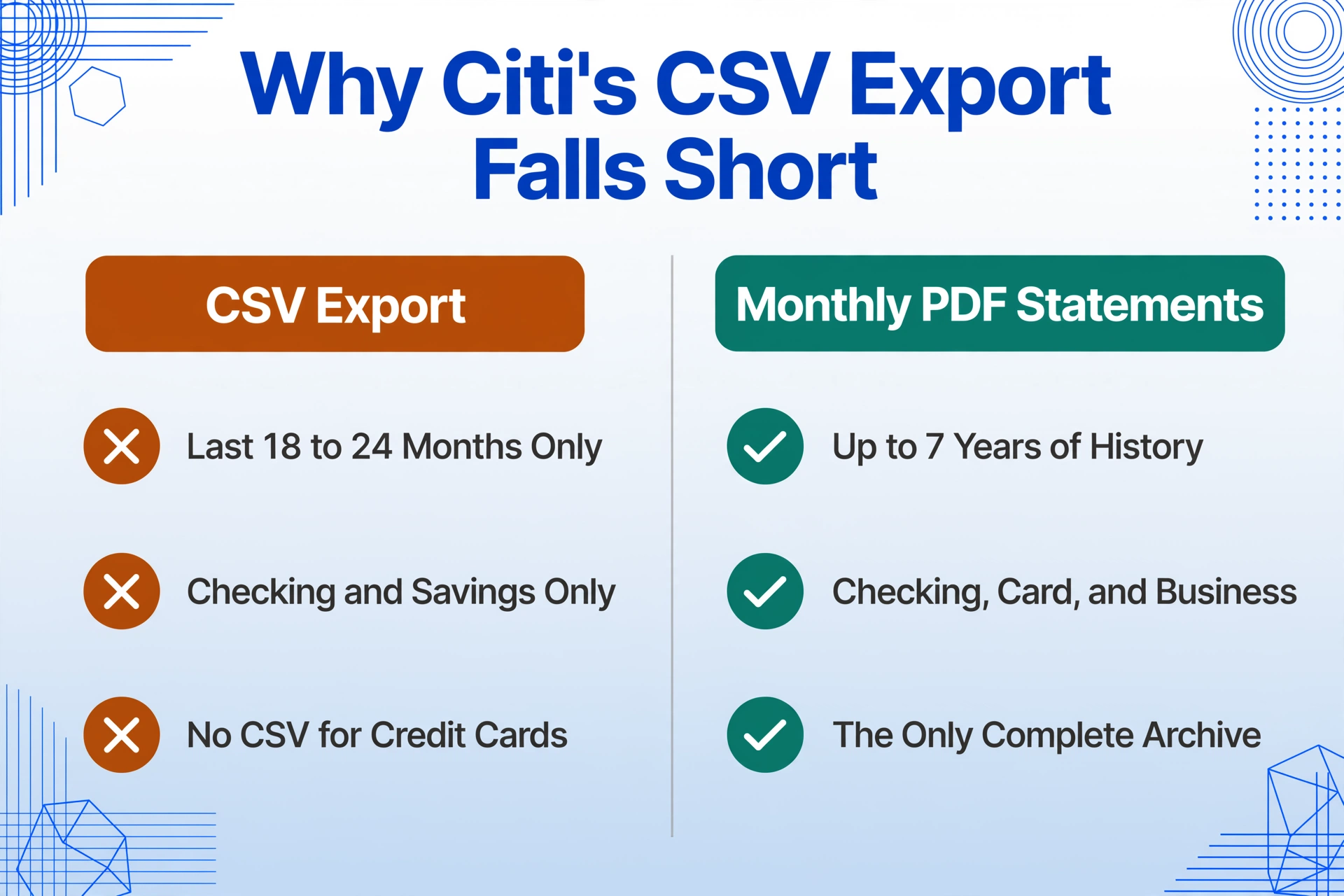
The CSV export has two hard limitations for bookkeeping. First, it covers a rolling window of approximately 18 to 24 months — sufficient for current reconciliation, but useless for retrieving historical data from prior years or for year-end audits that require a full multi-year transaction archive. Second, the CSV export is only available for checking and savings accounts; Citi credit card accounts do not offer a CSV download at all. The only way to get credit card transaction data older than the current statement cycle is through the formal PDF statement. Business checking statements — especially those using Citi's "Account Analysis" format — also lack CSV export in many cases, leaving the PDF as the sole data source.
For a bookkeeper reconciling a client's three Citi accounts — a basic checking account, a Citi ThankYou credit card, and a Citi Business checking account — the formal monthly PDFs are the only complete source of historical data. And those PDFs arrive in three different layouts. The data entry challenge is not just that the data is locked inside a PDF; it is that each account type requires a different extraction strategy because each one structures its transaction information differently on the page.
The r/excel community regularly fields questions from Citi customers who discover that copy-pasting from a Citi PDF directly into Excel produces garbled text — dates merged with descriptions, amounts separated from their row. This is because Citi's PDFs use complex vector graphics and embedded fonts that preserve print layout but do not map cleanly to spreadsheet columns.
What Makes Citi Statements Different from Other Bank Statements
Citi's statement formats have several distinctive characteristics that a good extraction workflow must handle. These are not the same challenges you would encounter with Chase, Bank of America, or Wells Fargo — each bank has its own approach to transaction presentation, and Citi's is notably uneven across its account tiers and product lines.
Citi Priority and CitiGold: Tier-Specific Header Differences
Citi distinguishes its retail banking tiers primarily through the statement header area. A Basic Checking statement carries a simple header with the account number, statement period, and customer name. A Citi Priority statement adds a branded "Citi Priority" banner at the top, includes a relationship summary showing combined balances across linked accounts, and may display a dedicated "Relationship Tier" indicator. A CitiGold statement goes further, adding wealth management contact information, a premium account number format, and a "Client Relationship Summary" section that lists linked investment and retirement accounts alongside the checking balance.
These tier-specific headers are not just cosmetic. They add extra text blocks before the transaction table begins, which means a position-based OCR tool trained on Basic Checking statements will misalign its column detection when processing a CitiGold statement — the transaction table starts lower on the page. A format-independent AI extraction engine that reads the document by understanding content rather than measuring pixel offsets handles the variation automatically.
Transaction Descriptions with Merchant Location (City/State)
One of the most useful Citi-specific format features — and one that most extraction guides miss — is that Citi checking statements include the merchant's city and state in the transaction description. A typical Citi checking statement shows entries like:
03/15  AMAZON.COM          SEATTLE WA        $42.50
03/15  SHELL OIL #1234      MIAMI FL          $58.23
03/17  WHOLEFDS MK 12345    NEW YORK NY       $127.40
03/18  ACH PAYROLL DEP      ELECTRONIC        $3,450.00
03/20  CHECK #1042                             $500.00
This city/state data — embedded in the description column — is a built-in expense categorization signal that no other major US bank includes in its transaction descriptions. Chase places the merchant name and a truncated reference code in its "DEBIT CARD PURCHASE" format but omits the location. Bank of America includes the merchant phone number instead of a city. Citi's inclusion of the merchant's geographic location means that a bookkeeper can, during extraction, define a computed column that extracts the state abbreviation from the description and uses it to categorize expenses by region — a valuable capability for multi-location businesses, sales tax analysis, and expense audits.
Citi Credit Card Statements: Payment Due Boxes, ThankYou Points, and Easy Deals
Citi credit card statements — for the Citi Double Cash, Custom Cash, Premier, Rewards+, and Citi ThankYou Preferred cards — follow a fundamentally different layout from checking statements. The most visually prominent feature is the payment information box: a large colored rectangle, typically blue or red, positioned at the top of the first page, displaying the Payment Due Date, Minimum Payment Due, and Total New Balance in bold type. This box is a critical data element for bookkeeping — the due date determines whether a payment is late, and the minimum payment versus total balance affects cash flow planning — but it sits above the transaction area and is not part of the transaction table. A template-based extraction tool that expects the transaction data to start at a fixed position on the page will either misread the payment box text as a transaction row or skip the statement metadata entirely.
Citi ThankYou Points add another distinctive element. On credit card statements from ThankYou-enabled cards, a "ThankYou Points Summary" box shows the points earned during the billing cycle, the year-to-date points total, and the points redemption value. These point values are not monetary transactions — they are loyalty program data that should not appear in the transaction table but should be captured separately as statement-level metadata. If you need to track rewards earnings for business expense reconciliation (e.g., points earned on business purchases), extracting the ThankYou Points data as a separate field alongside the transaction list saves a manual lookup step.
Citi Easy Deals — Citi's merchant offer program — appears on credit card statements as statement credits with distinctive descriptions. A transaction entry like "EASY DEALS CREDIT - LYFT RIDE CREDIT $10.00" or "CITI EASY DEALS - AMAZON $15.00 CR" looks like a positive transaction to a naive extraction engine but is actually a merchant-funded rebate, not a deposit or payment. Distinguishing statement credits from actual deposits requires understanding what "EASY DEALS" means in the Citi statement context.
Citi Business Checking: Account Analysis Format
Citi Business checking statements — for accounts opened under CitiBusiness or Citi Commercial Banking — present a unique challenge. Business statements may use the standard personal checking layout for straightforward transaction reporting, but higher-volume business accounts (particularly those with "Account Analysis" billing) receive a statement that places the running balance in a separate summary section rather than alongside each transaction row. The transaction table shows only the debit or credit amount; the cumulative balance appears in a separate "Balance and Float" table at the bottom of the statement.
This structural difference — where the balance column is not adjacent to the transaction rows — destroys the output of any extraction tool that assumes a standard "date, description, debit, credit, balance" column layout. A format-dependent tool produces a table where the balance column is empty for every transaction row. An extraction engine that reads the statement semantically — recognizing that the "Balance and Float" table contains the running balance data for the transaction table above it — can reconstruct the complete transaction record by joining the two table sections.
How to Convert Any Citi Statement PDF to Excel
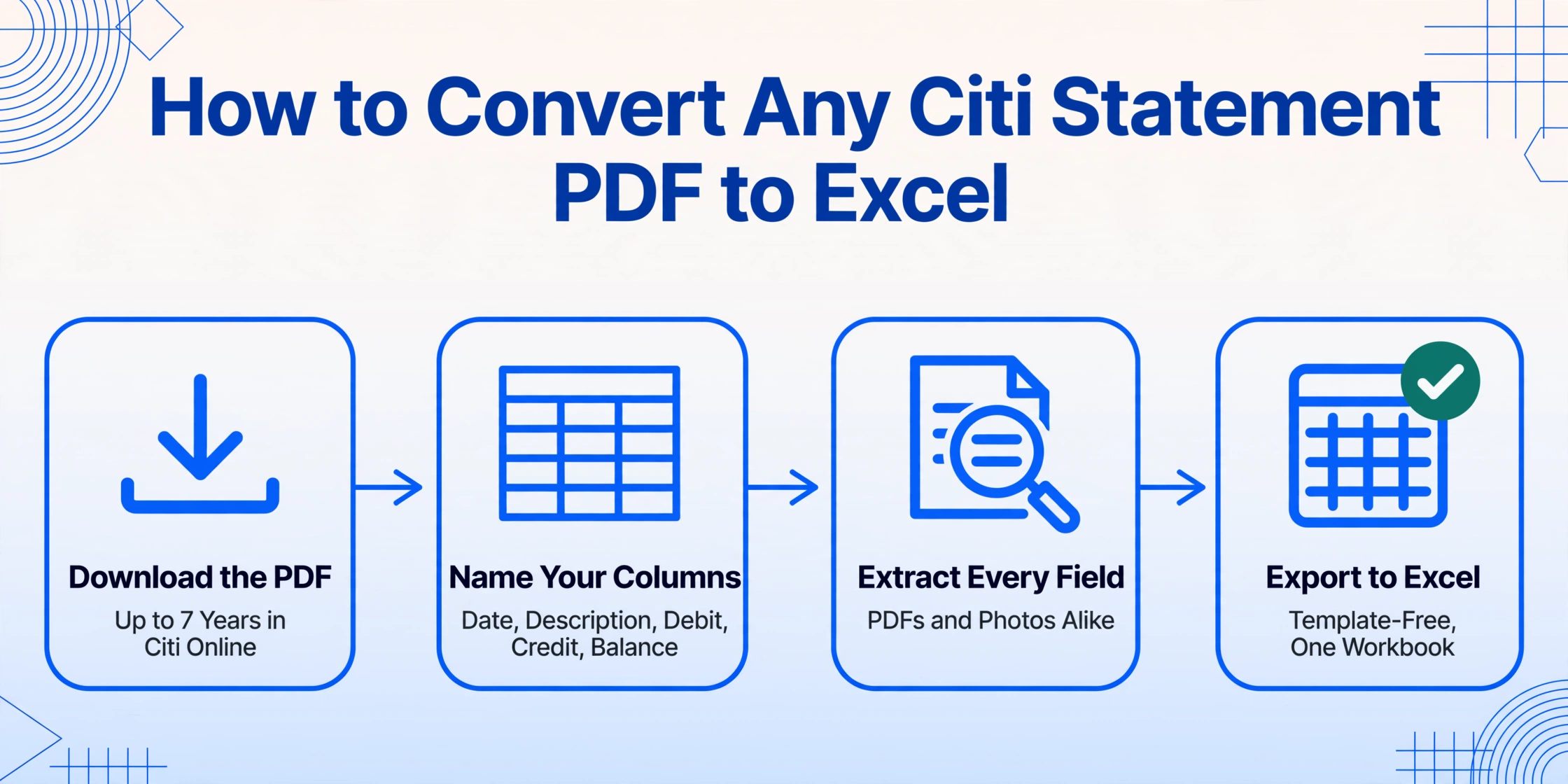
The workflow below works for every Citi account type: personal checking, Priority, CitiGold, credit card, and business. Because the extraction tool reads the document by understanding what each field means — not by memorizing where each column sits on the page — no template changes are needed when switching between account types.
Download the Statement from Citi Online
Log in to online.citi.com, navigate to your account, and go to "Statements & Documents." Select the statement month and click the download icon. Citi stores statements online for approximately seven years. Save the PDF to your computer. If you have a paper statement, scan or photograph it — the extraction process handles both digital PDFs and images of printed statements equally, because it reads the document visually rather than relying on a text layer.
Name the Columns You Want Extracted
In the extraction tool's interface, enter the column names that define your output table. For a Citi checking statement: Date, Description, Debit, Credit, Balance. For a Citi credit card statement where you need the two-date split: Transaction Date, Post Date, Description, Amount, Payment Due Date. You can also add computed columns such as Merchant State to extract the city/state location from the description field automatically. If you define an inferred column like Category (options: Meals/Transport/Office/Utilities/Other), the AI classifies each transaction during the same extraction pass — no post-processing step needed.
Upload and Process
Upload the Citi statement PDF. Processing takes approximately 5 to 10 seconds per page. The AI identifies the statement type from the header — Basic Checking, Citi Priority, CitiGold, credit card, or Business Account Analysis — and applies the appropriate reading strategy. Tier-specific headers and payment due date boxes are recognized as metadata, not transaction data, and are excluded from the transaction rows. For Citi credit card statements, ThankYou Points and Easy Deals credits are flagged as separate data categories rather than lumped into a generic "amount" column.
Export to Excel
The structured output is available as Excel (XLSX), CSV, or JSON. For Citi Business statements in Account Analysis format, the AI has already reconstructed the running balance column by joining the transaction table with the Balance and Float summary, so the output has a complete "Balance" column for every row — no manual assembly needed. From here, the data is ready for import into QuickBooks, Xero, FreshBooks, or your bookkeeping spreadsheet. Citi's merchant location data is preserved in the description column, giving you a geographic dimension for expense analysis that no other bank statement extraction method provides.
To see this workflow in action on a real bank statement, the embedded demo below lets you upload a document and define your columns directly in the browser:
Files are processed securely and not stored.
Batch-Processing Multiple Citi Accounts
Single-statement extraction solves the immediate problem. Batch processing — uploading a full year of monthly statements from multiple Citi accounts at once — is where the time savings compound into a fundamentally different workflow.
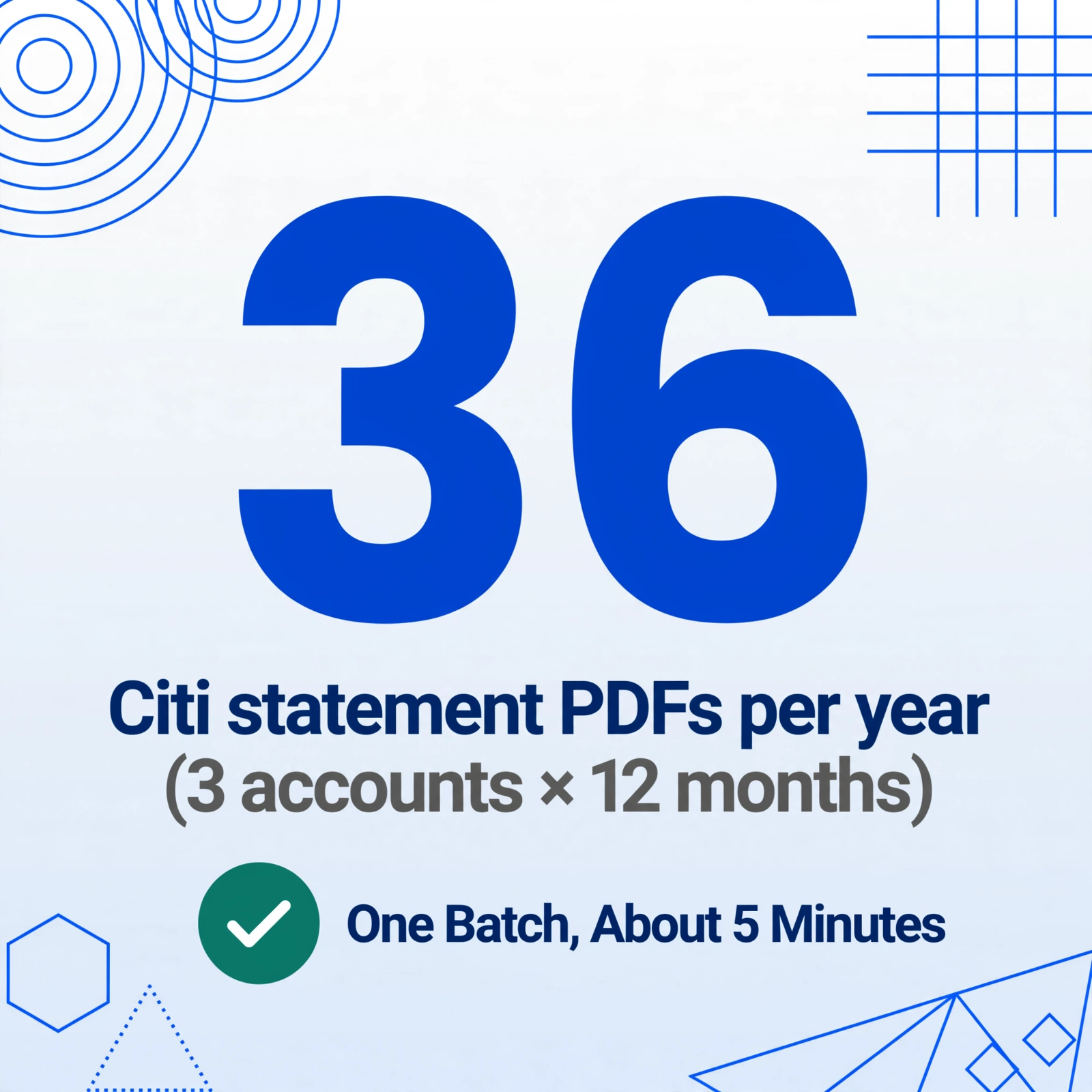
Consider a bookkeeper managing two Citi personal accounts (checking and credit card) and one Citi Business checking account for a small business client. That is 36 monthly PDFs per year: 3 accounts × 12 months. Each PDF uses a different layout (basic checking, credit card with ThankYou box, business with Account Analysis). Manually, typing those 36 statements into Excel consumes approximately 10 to 15 hours — the equivalent of two full working days — and produces an estimated 10 to 40 data entry errors that must be hunted down during reconciliation.
With batch extraction, you upload all 36 PDFs in one operation. The tool identifies each statement's account type from the header information — detecting Citi Priority banners, credit card payment boxes, and Business Account Analysis sections — and applies the correct extraction strategy per file. The output is a single Excel workbook with all transactions from all three accounts, a "Source File" column tracing each row to its original PDF, and a "Citi Account Type" column distinguishing checking, credit card, and business entries. The 10 to 15 hours of manual typing becomes approximately 5 minutes of processing time.
For a deeper walkthrough of batch-processing bank statements from multiple banks — not just Citi — our guide to batch-processing 12 months of bank statements for annual reconciliation covers the complete workflow from PDF collection to validated Excel output.
Citi Checking vs. Credit Card vs. Business — Key Layout Differences
Because each Citi statement type has a different layout, understanding what changes between them determines whether your extraction produces clean data or requires hours of manual repair.
| Statement Type | Distinctive Layout Features | Transaction Description Format | Key Extraction Consideration |
|---|---|---|---|
| Basic Checking / Savings | Simple header, single chronological transaction table with running balance column | "MERCHANT NAME CITY STATE" — includes merchant location as city/state, a Citi-unique feature | City/state data in descriptions is a categorization opportunity but may contain commas that break CSV import if not quoted properly; running balance must verify arithmetically across the full statement |
| Citi Priority / CitiGold | Branded tier banner, relationship summary block, combined balance display; transaction table starts lower on the page | Same format as basic checking but may include "Priority" or "CitiGold" reference codes | Position-based extraction tools will misalign column detection because the transaction table offset is shifted downward by the tier-specific header; the relationship summary data is metadata, not transaction data, and must be extracted separately |
| Citi Credit Card (Double Cash, Custom Cash, Premier, etc.) | Payment Due Date/Minimum Payment Due colored box at top; ThankYou Points summary box; Easy Deals credits; separate Purchases/Payments/Fees/Interest sections each with their own sub-tables | Merchant name only — no city/state location; Transaction Date and Post Date as separate columns; "EASY DEALS CREDIT - MERCHANT OFFER $X.XX" format for rebates | Both date types must be preserved as separate output columns; Easy Deals credits are merchant rebates, not deposits — they affect the transaction sign in the output; ThankYou Points data is not a monetary amount and should not appear in the transaction table |
| Citi Business / Account Analysis | Standard transaction table (debit/credit only, no running balance column); separate "Balance and Float" summary table at bottom of statement; account analysis fee calculation section | Same merchant + location format as personal checking, plus wire transfer descriptors using CitiWorld / Global Transfer reference codes | Running balance must be reconstructed by joining the transaction table with the Balance and Float summary — this is the single most common failure point in Citi Business statement extraction; CitiWorld / Global Transfer codes for international wires must be identified and preserved as a separate transaction type field |
The running balance reconstruction requirement for Citi Business statements is the single most discriminating test for extraction tools. A tool that processes each page independently and returns a flat table will produce a Citi Business output where the balance column is entirely empty — because the balance data lives in a separate table on the same page. Only tools that read the document holistically, understanding that the Balance and Float table belongs to the transaction table above it, can produce a complete output without manual assembly.
Why Template-Free Extraction Matters for Citi's Diverse Statement Ecosystem
The fundamental challenge with Citi statements is not that they are PDFs — it is that a single customer relationship can span three or four statement formats simultaneously, and those formats change across account tiers and over time. A template-based extraction approach — where you create a parsing template for each format — requires maintaining up to four templates for a single Citi customer: basic checking, Priority/CitiGold, credit card, and business. When Citi redesigns its statement layout (which it has done incrementally over the past five years), each template must be updated and re-tested against historical statements to ensure backward compatibility.
Template-free AI extraction — where the tool reads the document by understanding what each field means rather than where it sits — eliminates this maintenance burden entirely. The same extraction pipeline that reads a Basic Checking statement handles a CitiGold statement with its tier header, a credit card statement with its payment due box and ThankYou Points section, and a Business Account Analysis statement with its separate Balance and Float table. No configuration change is needed because the AI identifies each field by its semantic role — "this is a transaction date," "this is a debit amount," "this is a running balance" — regardless of where on the page it appears.
For a full explanation of why bank statement extraction requires semantic understanding rather than position-based recognition, see the complete guide to bank statement data extraction. And for a deeper look at why this matters for Citi specifically — the merchant location data in descriptions, the tier-dependent layout shifts, and the Business Account Analysis format — the guide's section on multi-page running balance continuity explains the structural challenge that format-dependent tools cannot solve.
Citi's merchant location data — the city and state embedded in each transaction description — is a bookkeeping asset that no other bank statement format provides. The same extraction pass that produces your transaction table can extract the state abbreviation as a separate column, giving you geographic expense tracking, multi-state sales tax analysis, and travel audit capabilities that are not possible with Chase, Bank of America, or Wells Fargo statements. Template-free extraction preserves this data naturally because it reads the full description text rather than matching a fixed column width.
Frequently Asked Questions
Can I export Citi transactions as CSV from the online portal?
For checking and savings accounts, yes. Log into online.citi.com, select your account, and use the transaction download feature to export recent activity as CSV. The export covers approximately the last 18 to 24 months — not the full seven years of statement history. Citi credit card accounts do not offer CSV download; the only complete data source for credit card transactions is the monthly PDF statement. Business checking statements with Account Analysis billing also lack CSV export in most configurations.
Are Citi bank statement PDFs password protected?
Citi digital statement PDFs downloaded from online.citi.com are not password protected. However, if you receive Citi statements from a client or third party, the files may have been forwarded through encrypted email systems that apply PDF-level restrictions. If you encounter a password-protected Citi statement, an extraction tool that supports encrypted PDF input — with the password provided separately — can process it without requiring you to strip the protection first.
Does Citi connect directly to QuickBooks?
Yes. Citi supports direct bank feed integration with QuickBooks Online for checking and savings accounts. The feed syncs recent transactions automatically and covers a rolling window of activity. However, the bank feed does not cover Citi credit card accounts, does not retrieve historical statement data outside the feed window, and does not provide the geographic location data that Citi's transaction descriptions contain. For a complete financial picture — including credit card transactions, older activity, and the merchant city/state information — the PDF extraction path provides data that the QuickBooks feed cannot deliver.
Can I extract Citi ThankYou Points data from the statement?
Yes, if you include a column for it. When defining your extraction columns, add a field such as "ThankYou Points Summary" and the AI will locate the points summary box on the credit card statement and extract the points earned, year-to-date total, and redemption value. This data can be output as a separate metadata row alongside the transaction table, or as an additional column on each transaction row if you prefer to keep it in context. For bookkeepers tracking rewards as a form of business discount, capturing the ThankYou Points data in the same extraction pass eliminates a separate lookup step.
How should Citi Easy Deals statement credits be handled during extraction?
Citi Easy Deals credits appear as positive dollar amounts in the transaction list but represent merchant-funded rebates, not deposits or payments. If your extraction tool treats them as generic "credits," they will inflate your income totals and produce incorrect reconciliation results. The correct approach is to extract them with a transaction type flag — "EASY DEALS CREDIT" — that separates them from actual deposits and payments, then filter or categorize them appropriately in your bookkeeping workflow. Custom Column Extraction supports this by including a computed column that checks for "EASY DEALS" in the description and applies a custom transaction type label.
Why does Citi include merchant city/state in transaction descriptions and can I use this for bookkeeping?
Citi is one of the few major US banks that includes the merchant's geographic location in the transaction description. This provides a built-in expense categorization signal: you can extract the state abbreviation as a separate column and use it for multi-state sales tax allocation, travel expense auditing, regional spend analysis, and client reimbursement verification. A transaction at "WHOLEFDS MK 12345 NEW YORK NY $127.40" tells you not just that money was spent at Whole Foods, but that it was spent in New York — useful for a consultant who needs to bill travel expenses to a New York client separately from home-office purchases.
How do Citi international wire transfers appear on statements?
Citi processes international wires through its CitiWorld and Global Transfer network. On checking and business statements, these transfers appear with distinctive reference codes — "CITIWORLD WIRE INCOMING GBP" or "GLOBAL TRANSFER OUTGOING TO JPMORGAN LONDON" — followed by the foreign currency amount and the USD equivalent. The description may include a "FX RATE APPLIED" notation showing the exchange rate. When extracting these transactions, ensure your tool preserves the full wire transfer descriptor, including the currency pair and FX rate, as a single description field — splitting it across multiple columns can corrupt the audit trail for cross-border reconciliation.
Can I extract data from Citi statements older than one year?
Yes, provided you can access the PDF. Citi's online banking portal stores monthly statements for approximately seven years. Older statements may use an earlier version of Citi's statement layout — the tier branding, transaction description format, and column structure have been updated over time. A format-independent AI extraction tool adapts to these layout changes automatically. If you need to download a large batch of historical statements, request them from the "Older Statements" section in Citi Online — note that requests for statements older than 24 months may take 48 to 72 hours to process.
What is Citi's Account Analysis format and why does it break most extraction tools?
Account Analysis is a billing and reporting format used by Citi for higher-volume business checking accounts. Instead of placing the running balance column alongside each transaction row in a single table, the Account Analysis statement separates transaction data from balance data. The transaction table shows debit and credit amounts per row, while the running balance is calculated in a separate "Balance and Float" section — often at the bottom of the statement or on a separate page. Standard extraction tools that assume a complete table structure will produce a transaction list with an empty balance column. Tools that can read the relationship between the two tables and reconstruct the running balance for each transaction row solve this problem, but they must be explicitly designed to handle this format — most general-purpose OCR tools are not.
Want the full workflow? Our guide to converting bank PDFs into Excel covers multi-page statements, running balance validation, and batch processing for any bank — step by step.