How to Convert Monzo Bank Statements to Excel
— Personal & Business
Monzo makes it easy to download your statements — tap the three dots, pick a date range, choose PDF, CSV, or QIF, and the file lands on your phone. What happens next is less straightforward. The CSV export misses transactions that appear on the PDF statement. A business account export includes balance columns across all Pots in a layout that accounting software does not recognise. The PDF statement itself uses emoji markers, category tags, and a spending summary block that template-based extraction tools cannot parse because the positions shift when your spending pattern changes. The gap between "having the data" and "having it in a spreadsheet where you can use it" is wider than most Monzo users expect.
Key Takeaways
- Monzo's CSV export skips transactions that appear on the PDF statement — the bank's internal ledger can assign the same transaction to different months in different exports.
- Template-based extractors fail on Monzo PDFs because emoji category markers shift up to 12 pixels when transaction descriptions vary in length — breaking the coordinate grid on every other row.
- Define columns by name — Date, Description, Amount, Pot, Transaction Type — and the AI reads Monzo PDFs by meaning, catching Coin Jar round-ups and Flex repayments that position-based tools misinterpret.
Why Monzo's CSV Export Leaves Data Behind
Monzo offers three export formats — PDF, CSV, and QIF — all accessible from the same menu: tap the three dots (...) at the bottom right of your card on the Home screen, select Bank statements, choose your date range, and pick the format. For QuickBooks or Xero users, QIF is the obvious choice because it maps directly to accounting software import fields. CSV works well for Excel, Google Sheets, and general data analysis. PDF is the format to use when you need the official statement — for mortgage applications, visa proofs, or HMRC records.
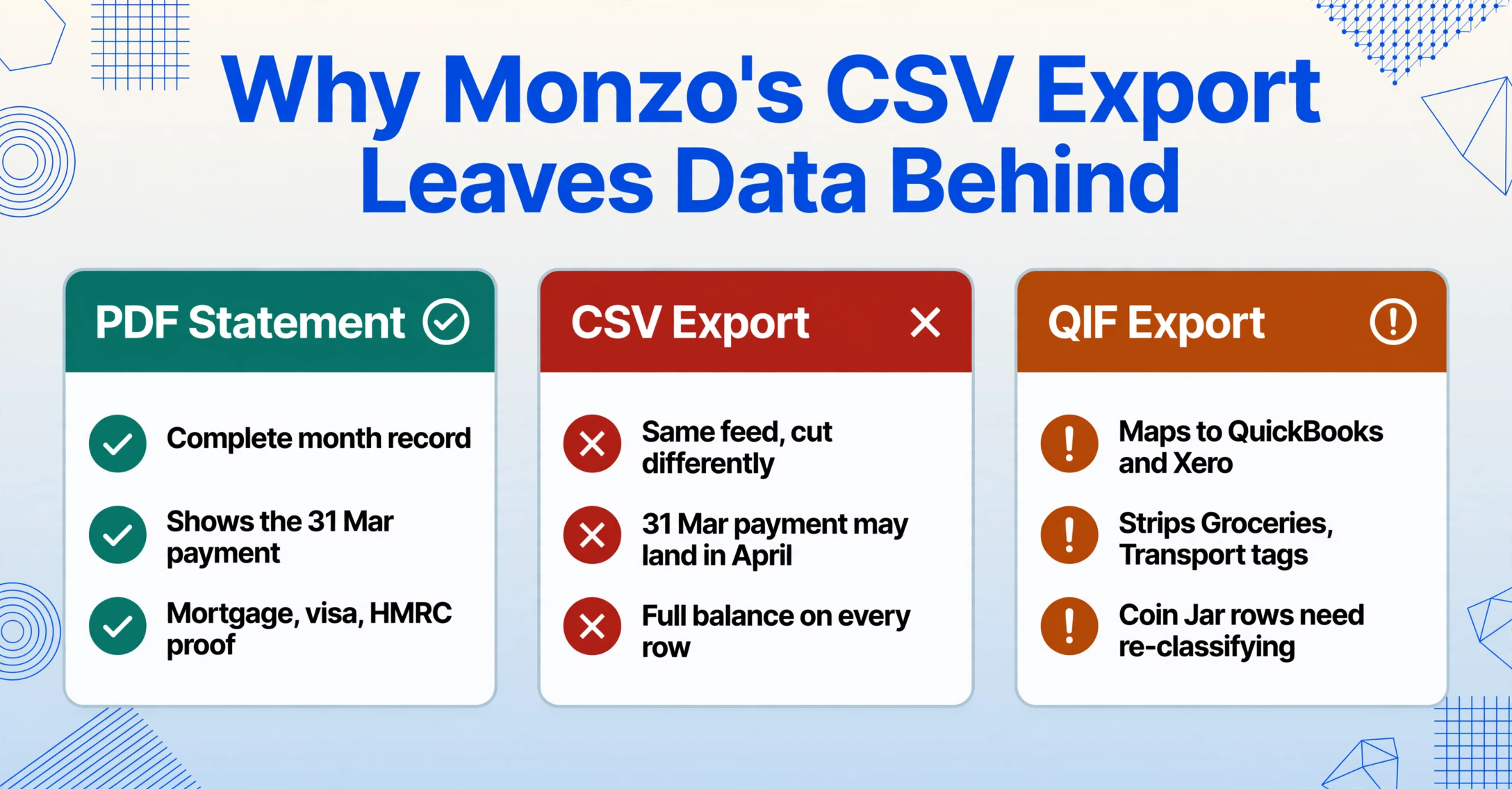
The CSV and QIF exports share a structural limitation: they capture the transaction feed as Monzo's internal system records it, not the statement as it appears on the PDF. A Reddit user on r/monzo reported exporting both CSV and PDF for the same period and finding transactions on the PDF that simply did not appear in the CSV. The discrepancy stems from how Monzo's internal ledger timestamps transactions — a payment initiated on 31 March that settles on 1 April appears on the March PDF statement but may be assigned to April in the CSV export if the settlement date is what the CSV uses as its filter criterion.
There is a subtler problem for business users. Monzo's business banking CSV export includes an extra column for the current account balance and a separate column for the total balance across all Pots, but the format is what Monzo Community members have described as "too complicated" — every row repeats the full account balance at that point in time, making it difficult for accounting software to recognise debit and credit columns without manual re-mapping. QIF format alleviates some of these issues but does not support all Monzo transaction types — Pots transfers, Coin Jar round-ups, and Flex instalments are represented inconsistently or omitted entirely.
What Makes Monzo Statements Different from Traditional Bank PDFs
Monzo is a digital-first bank, and its statement format reflects that origin. The PDF does not follow the standard HSBC, Barclays, or Lloyds layout that most extraction tools are built to recognise. Instead, it uses design patterns from the app itself — and these create specific challenges for position-based or template-based extraction.
Emoji Transaction Markers and Category Tags
Every Monzo transaction on the PDF statement carries an emoji next to the merchant name — a 🛒 for Tesco, a ☕ for Pret, a 🚆 for Trainline. These emojis are not decorative. They are the visual representation of Monzo's automatic transaction categorisation system. The same emoji appears consistently for the same merchant category across your entire statement, and the PDF prints the emoji and a text category label — "Groceries", "Transport", "Eating Out" — to the right of the transaction description.
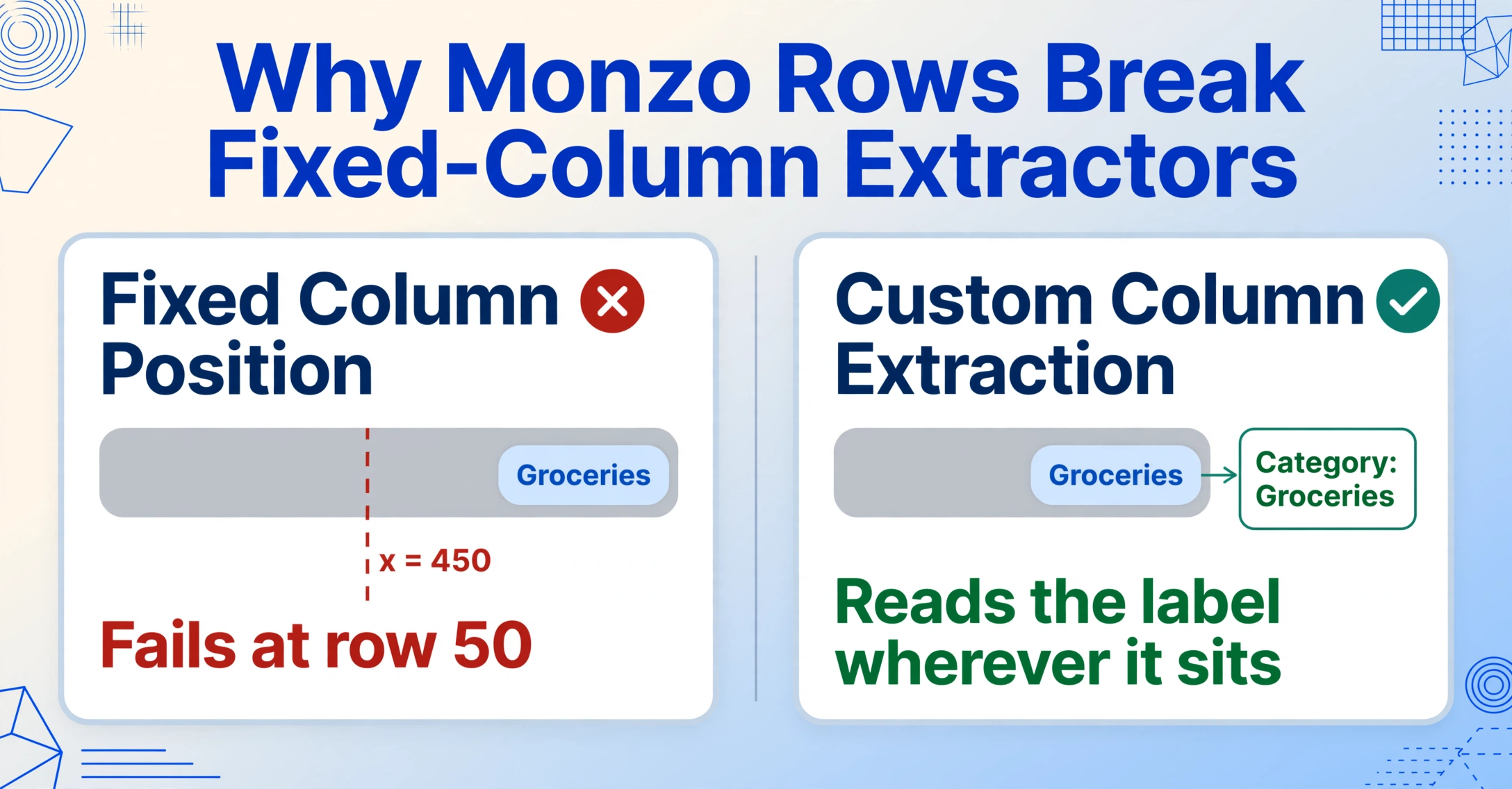
A template-based extraction tool that looks for the merchant name by position will capture "☕ Pret a Manger" as the description, including the emoji character, while a tool that expects a clean text string will break or produce garbled output. The emoji itself is Unicode — it is not an image — so it passes through standard character recognition. But the adjacent category label does not sit in a fixed column; its horizontal position shifts depending on the length of the transaction description. Tool A expects the category at x-coordinate 450. Tool A fails on the 50th transaction because "TESCO STORES 7097" is 17 characters while "MCDONALD'S M25" is 15, pushing the category label 12 pixels left.
Pots as Embedded Sub-Accounts on the Statement
Monzo's Pots feature — savings pots, bill pots, holiday pots, and custom pots — is one of the bank's most popular features. On the PDF statement, Pots balances appear below the main account transaction list, each shown as a separate balance line with the Pot name and current amount. The statement also shows any transfers between your main account and your Pots as regular transaction rows labelled with the Pot name — for example, "Transfer to Holiday Pot" or "Transfer from Bills Pot".
For a user with six active Pots, the statement will contain six balance lines at the bottom, plus several transfer transactions within the main transaction table. A template-based extractor that reads the transaction table row by row will capture the Pot transfer rows correctly but will miss the Pot balance snapshot entirely — that data sits outside the transaction table in a separate layout section. The semantic approach reads the entire document and can distinguish between "a transaction that debits your main account" and "a balance-holding construct that happens to look like a table row".
Coin Jar, Flex Instalments, and Split Bills
Three Monzo-specific transaction types create extraction edge cases that generic statement converters do not handle:
Coin Jar — Monzo's automated round-up feature rounds each purchase to the nearest pound and transfers the difference to a designated savings Pot. The statement shows each round-up as a separate transaction row: "Coin Jar — Round up" with the micro-amount — often 12p, 43p, or 87p. A single day with 8 purchases generates 8 Coin Jar transaction rows, each less than £1. An extraction tool that filters or aggregates low-value rows will lose these entries, and your savings total will not reconcile.
Monzo Flex — The buy-now-pay-later product appears on statements as "MONZO FLEX PAYMENT" followed by the instalment amount. Flex transactions are not labelled as purchases — they are credit repayments, and they need to be categorised differently from regular debit card spending during reconciliation. A template-based tool that classifies all outgoing rows as "spending" will count Flex repayments as expenses, producing an inflated spending total.
Shared Tabs and Split Bills — Transactions that you split with other Monzo users appear with a distinctive label: "Split with [name]" appended to the description. The total transaction amount shows the full bill, not just your share, and a separate annotation shows the amount received from the other participant. Extraction tools that do not recognise this annotation will overstate your spending on shared meals, utility bills, and group purchases.
These transaction types are not rare edge cases—they are everyday Monzo usage patterns. A personal user who has Coin Jar turned on, pays for one Flex purchase in six instalments, and splits two meals with a partner will have approximately 15–20% of their monthly transaction rows affected by format-specific labelling that standard extraction tools misinterpret.
How to Extract Monzo Statement Data with ImageToTable.ai
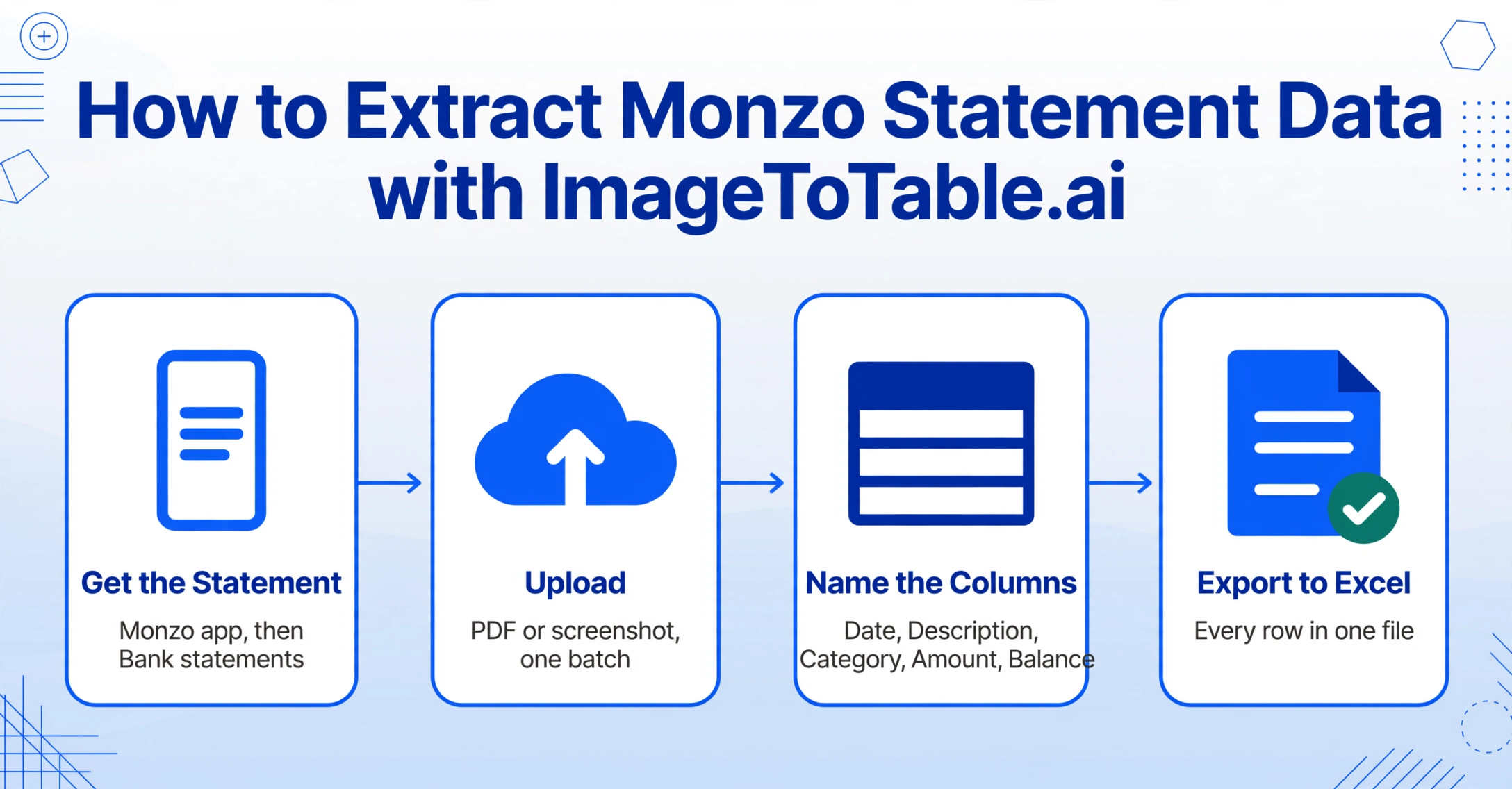
ImageToTable.ai uses Custom Column Extraction — you type the column names you want, and the AI finds the matching data by understanding what each value means semantically, not by looking at a fixed coordinate on the page. This approach works on Monzo statements regardless of whether you have the PDF, a phone screenshot, or a downloaded webpage view of your transactions.
Files are processed securely and not stored.
Here is the workflow for converting a Monzo statement into structured spreadsheet data:
Date, Description, Category, Amount, Balance. Add Pot Name and Round-up Amount if you use Coin Jar. The column names you enter become the headers of your output spreadsheet.Monzo Business: Getting HMRC-Ready Data
Monzo Business accounts include HMRC-specific features that personal accounts do not have. The statement carries a "HMRC reporting" notation on eligible transactions, and Monzo integrates directly with Xero and FreeAgent for accounting software sync. Business Pro and Team subscribers can auto-export monthly bank statements and paid invoices to Google Drive or Microsoft OneDrive — a useful pipeline if your accountant needs access to your raw statements.
The Making Tax Digital (MTD) requirement means sole traders and limited companies must submit quarterly digital updates to HMRC. Monzo Business supports this through its in-app transaction categorisation and MTD submission flow, but the quarterly categories do not automatically populate your bookkeeping spreadsheet. If you maintain a supplementary Excel ledger alongside your MTD submissions — tracking cash flow by project, comparing actuals against budget, or preparing for year-end reconciliation — you need to extract the categorised transaction data from your Monzo Business statement and get it into a spreadsheet format that your bookkeeper recognises.
Monzo Business statements use a different transaction table layout from personal statements. The columns include an additional Transaction type indicator — separating debit card purchases, direct debits, Faster Payments, and Bacs transfers — and the running balance column includes your Pot-consolidated total. When extracting business statement data, specify columns like Transaction Type, HMRC Category, and VAT Amount in addition to the standard Date/Description/Amount set. The semantic extraction engine identifies each transaction type from the Monzo-specific formatting and populates the relevant column without manual mapping.
Batch Processing: Multiple Months, Multiple Accounts, One Spreadsheet
Monzo users often manage more than one account — a personal current account, a Joint account with a partner, and a Business account. At year end (or before a mortgage application), you need all three statements in a single spreadsheet for combined cash flow analysis. Monzo's own CSV export produces one file per account per month. Downloading 12 months across three accounts means managing 36 separate files, each with a slightly different column structure.
ImageToTable.ai processes multiple files in a single batch. Upload your 36 Monzo statement PDFs — or mix PDFs with phone screenshots of the Monzo app view for months where you did not download the official statement — and the AI reads each document independently, extracting the same column set across all files. The output is one unified Excel table with 36 × N transaction rows, each tagged with the source account type if you include Account as a column name. The spending summary block from each statement — the monthly total by category that Monzo prints above the transaction list — is also captured as a separate output row for each file, giving you a category-level overview without having to pivot the transaction data manually.
For recurring monthly workflows — a landlord reconciling Monzo rent income with property expenses, a freelancer tracking project-specific spending alongside personal transactions, or a couple managing a Joint account and two Personal accounts — the batch-first approach turns a 15-minute monthly task into a 30-second upload-and-export operation.
What Data You Can Extract from a Monzo Statement
The following table shows the column names that work well with Monzo's statement format, along with notes specific to each field:
| Column Name | Notes for Monzo Statements |
|---|---|
Date | Monzo uses DD Mon YYYY format (e.g. 15 Jul 2026). Printed once per transaction row. |
Description | Includes the merchant emoji and category tag. Specify Description (text only) if you want to strip the emoji. |
Category | Automatically populated category — Groceries, Transport, Eating Out, Bills, etc. Extracted from the tag adjacent to the merchant name. |
Amount | Monzo shows debits as negative values (with a minus sign) and credits as positive. The AI preserves this convention. |
Balance | Running balance after each transaction. For business statements, this includes Pot-consolidated balance. |
Pot | If the transaction is a Pot transfer or round-up, this column shows the Pot name (e.g. "Holiday Pot", "Bills Pot"). |
Transaction Type | Distinguishes Card Payment, Direct Debit, Faster Payment, Flex Repayment, Coin Jar Round-up, Pot Transfer. |
Merchant Emoji | Captures the emoji character (🛒, ☕, 🚆) as a separate column for category-agnostic analysis. |
Account | Useful when batch-processing multiple accounts — label each file with its account name (Personal / Joint / Business). |
Statement Month | Automatically detected from the statement period printed on each PDF. |
Pot Balance | Captures the Pot balances from the separate Pot section at the bottom of the statement. |
You are not limited to these columns. The Custom Column Extraction approach means you can name any field you need — Reference, VAT, Cashback Earned, Flex Instalment Number — and the AI will attempt to locate it. If a field is not present on a particular statement (for example, Flex instalment details on a Personal account without Flex), the column simply shows empty values for that document without breaking the output structure.
Frequently Asked Questions
Can I use Monzo's QIF export instead of extracting from PDF?
QIF works well if you are importing directly into accounting software like QuickBooks, but it has limitations with Monzo-specific transactions. Coin Jar round-ups, Pot transfers, and Flex repayments may use inconsistent QIF categories, forcing manual re-classification after import. QIF also strips the transaction category — Groceries, Transport — that Monzo automatically assigns, which means you lose the spending categorisation that makes Monzo's statement useful for budget analysis. For a complete data set that preserves categories and Monzo-specific labels, extracting from the PDF captures more information than the QIF feed.
Does ImageToTable.ai handle Monzo statement screenshots from the app?
Yes. A phone screenshot of the Monzo transaction list is processed the same way as a PDF. The semantic extraction engine reads the visual content — including the emoji markers, category tags, and running balance — regardless of whether the source is an official PDF or a phone screenshot. This is useful for months where you did not download the formal statement but do have the app view open.
Will the extraction separate Coin Jar round-ups from regular spending?
Yes, if you add Transaction Type or Is Round-up as a column name. The AI recognises "Coin Jar — Round up" rows as distinct from regular debit transactions and tags them accordingly. You can also filter them out of spending totals during reconciliation if you prefer to treat round-ups as savings rather than expenses.
What about Monzo Flex buy-now-pay-later instalments?
Flex instalments appear as "MONZO FLEX PAYMENT" transactions. By specifying a Flex or Transaction Type column, these are labelled as credit repayments rather than spending. If you want to track the original purchase alongside the instalment payments, note that the Monzo statement only shows the payment outflow — the original purchase total is recorded at the time of the Flex transaction and does not re-appear on subsequent statements. For a complete Flex picture, combine statement extraction with your Monzo Flex dashboard data.
Can I batch-process 12 months of Monzo statements at once?
Yes. Upload all 12 PDFs in one batch, and the output is a single Excel file with every transaction from every month, plus a row for the ending balance of each statement. The Statement Month column preserves the period information so you can filter by month inside Excel. For users managing both Personal and Business accounts, include Account as a column to distinguish them in the merged output.
Does the tool work with password-protected Monzo statements?
Monzo sends password-protected PDF statements by email after an account is closed. ImageToTable.ai supports password-protected PDFs — you can store passwords in your account settings, and they are tried automatically against incoming encrypted files during batch processing.
Want the full workflow? Our guide to turning bank statements into spreadsheets covers multi-page statements, running balance validation, and batch processing for any bank — step by step.
A Monzo statement contains more useful data than a standard CSV can capture — the spending categories, the Pot snapshot, the Coin Jar savings, and the Flex repayments are all part of your financial picture. The question is whether your spreadsheet sees them too.
Try It on Your Monzo Statement