How to Convert
Barclays Bank Statements to Excel
Most bank statement conversion guides treat every PDF the same — upload, extract, download. A Barclays UK statement doesn't behave like a generic PDF. Its dates use DD/MM/YYYY, which Excel silently flips to MM/DD/YYYY if your system locale is set to the Americas. Its running balance must stay continuous across pages in a way that breaks most automated extraction tools. And its transaction descriptions mix merchant names, reference numbers, payment-type labels, and branding in patterns that no single Description column can cleanly capture. The gap between "converting a Barclays PDF to Excel" and "having a spreadsheet that actually reconciles" is where the specific format choices Barclays makes become the difference between five minutes of work and an hour of cleanup.
Key Takeaways
- Barclays DD/MM/YYYY dates flip silently to MM/DD/YYYY when opened in US-locale Excel — every transaction date is wrong, and the error is invisible until reconciliation.
- A Barclays statement's running balance depends on every row: drop one transaction on page 3 and all fifty running balances from that page onward are wrong, while the spreadsheet still looks perfectly clean.
- Semantic extraction preserves the running balance chain across pages and recognizes Barclays-specific labels — CONTACTLESS markers, BACS batch references, and Blue Rewards fees — without per-bank templates.
Why Barclays Statements Don't Convert Like Other PDFs
A Barclays statement is a continuous transaction ledger with arithmetic dependencies across every row — not a standalone set of fields. Treating it like any other document PDF is the fastest route to an Excel file that looks correct but fails the only test that matters: does opening balance plus credits minus debits equal closing balance?
Barclays personal and business current account statements share the fundamental structure of UK bank statements — a transaction table with Date, Description, Debit, Credit, and Running Balance columns — but they layer in specific format choices that create extraction challenges you won't see on a Monzo, Starling, or Chase UK statement.
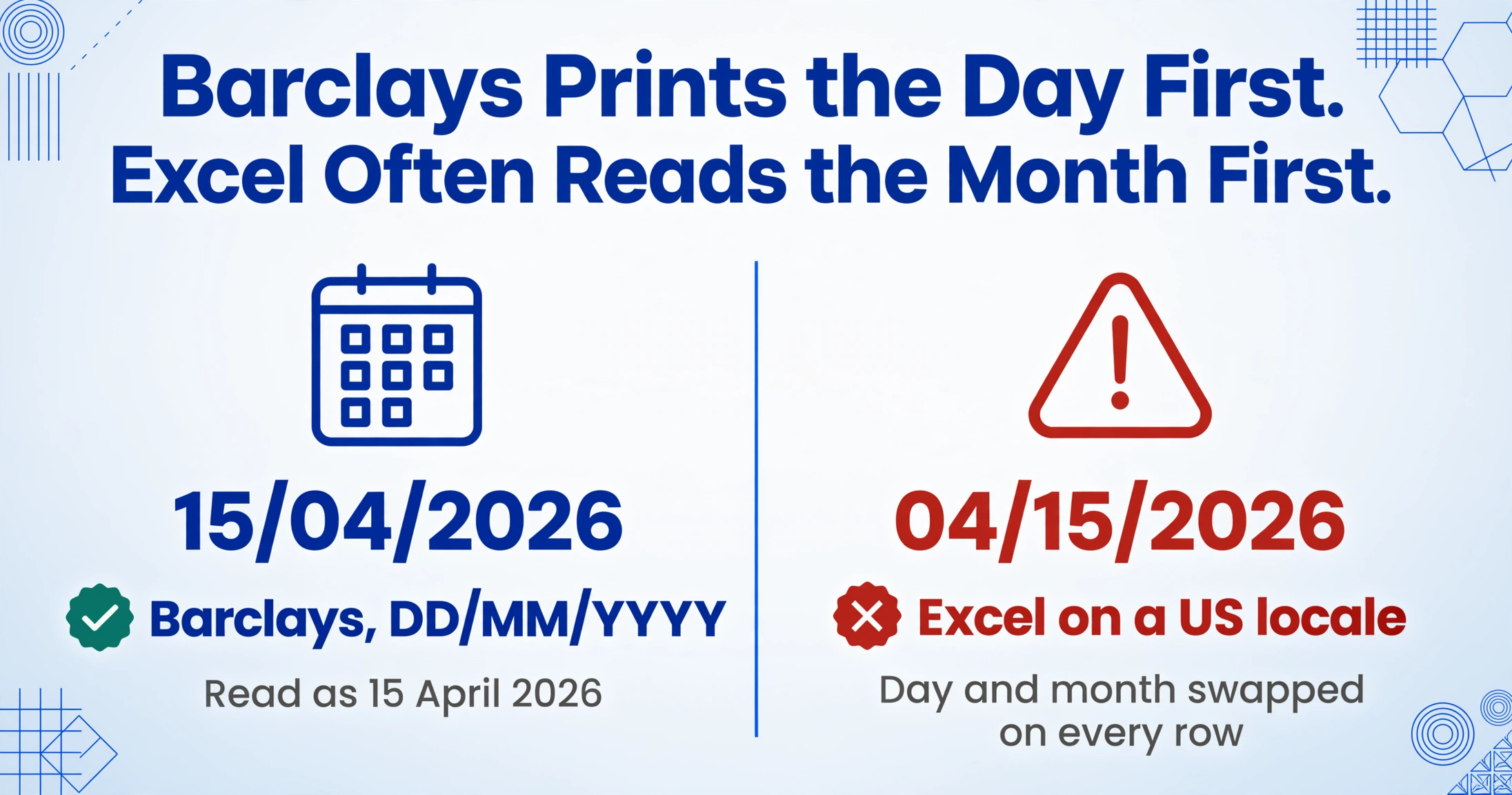
The DD/MM/YYYY date format is the most obvious trap. A Barclays statement prints "15/04/2026" for 15 April 2026. When that string lands in Excel via a system set to US locale, Excel interprets it as "04/15/2026" — swapping day and month. Every transaction date shifts. For a statement covering a single month this might only affect a handful of rows. For a business statement covering twelve months with 400+ transactions, every single date is potentially wrong.
The running balance chain is the deeper structural challenge. A Barclays statement's running balance column — the far-right column on personal statements — is the arithmetic backbone of the entire document. On a 6-page business statement with 200 transactions, the running balance on page 6, row 47, depends on every transaction that came before it, starting from the opening balance on page 1. If the extraction pipeline drops a single transaction row on page 3, every running balance from page 3 onward is wrong — even if the AI read every subsequent character perfectly. The statement no longer reconciles, and the spreadsheet passes a visual review while silently failing the math.
Barclays also prints two distinct balance figures at the top of each statement: Available Balance and Current Balance. The Current Balance (sometimes called Ledger Balance) reflects all transactions processed, including pending items that haven't yet cleared. The Available Balance shows what you can actually spend or withdraw. These two figures differ by the total value of uncleared transactions, and Barclays prints both because they serve different purposes — Current Balance for reconciliation, Available Balance for spending decisions. An extraction that only captures one of the two misses information your accounting system may need.
What You Need from a Barclays Statement Conversion
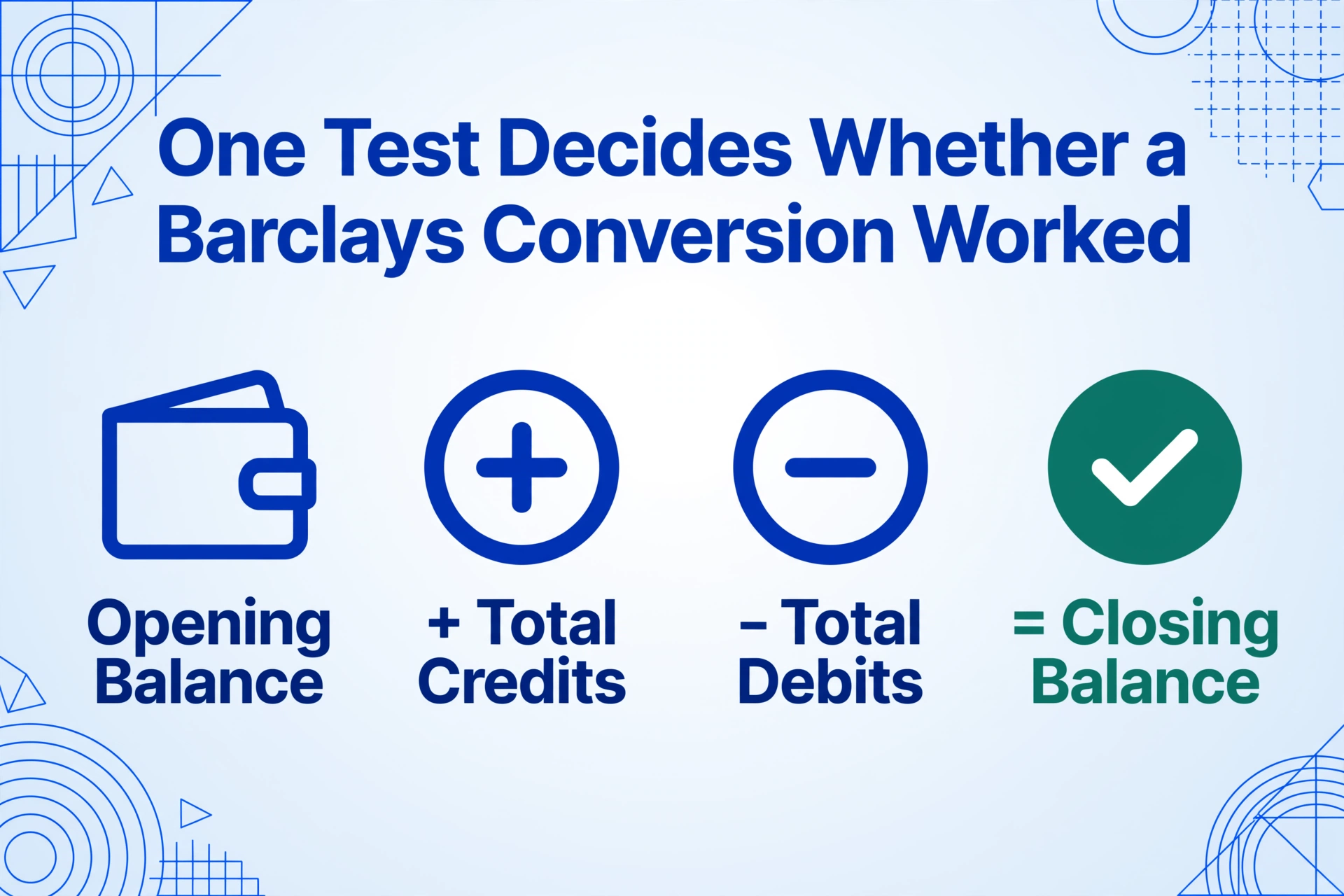
A successful Barclays statement conversion produces a spreadsheet where every column aligns correctly, every date uses a consistent format, and the running balance chain closes — opening balance plus total credits minus total debits must equal the closing balance on the statement.
Before comparing methods, it helps to define what "success" means for a Barclays statement specifically. The following fields are the minimum viable set for a usable conversion:
| Field | Why It Matters for Barclays |
|---|---|
| Transaction Date | Must use DD/MM/YYYY or a consistent ISO format. Barclays statements are printed in British date convention — your extraction method must preserve the correct day and month order, not let Excel silently swap them on import. |
| Description / Payee | Barclays descriptions combine merchant name, location, a reference number, and payment-type labels like "CONTACTLESS" or "Payment Type: International." A single Description column often needs post-processing to extract the usable information — especially for business accounts where BACS batch references accompany salary payments. |
| Debit Amount | Barclays personal statements use separate Debit and Credit columns. Business statements may use a single Amount column with Dr/Cr indicators. Your extraction method must handle both. |
| Credit Amount | Deposits, interest, refunds, and the monthly Blue Rewards fee reversal all appear as credits. Distinguishing a salary credit from a transaction reversal matters for reconciliation. |
| Running Balance | The validation column. If your extraction drops this or produces values that don't match the printed statement, you cannot verify the output without manually recomputing every row. |
| Statement Metadata | Account number, sort code, IBAN, BIC, and statement period. These identify which account the statement belongs to — essential when batch-processing statements from multiple accounts. |
The single equation that validates any Barclays statement conversion: Opening Balance + Total Credits − Total Debits = Closing Balance. If this arithmetic checks out, the extraction is reliable. If it doesn't, something is missing or misaligned — regardless of how clean the spreadsheet looks.
Three Ways to Get Barclays Statement Data into Excel
Not every situation calls for the same approach. Here is an honest comparison of what works, what doesn't, and when each method is the right choice for a Barclays statement.
| Method | Best For | Accuracy | Setup | Handles Multi-Page | Handles Old Statements |
|---|---|---|---|---|---|
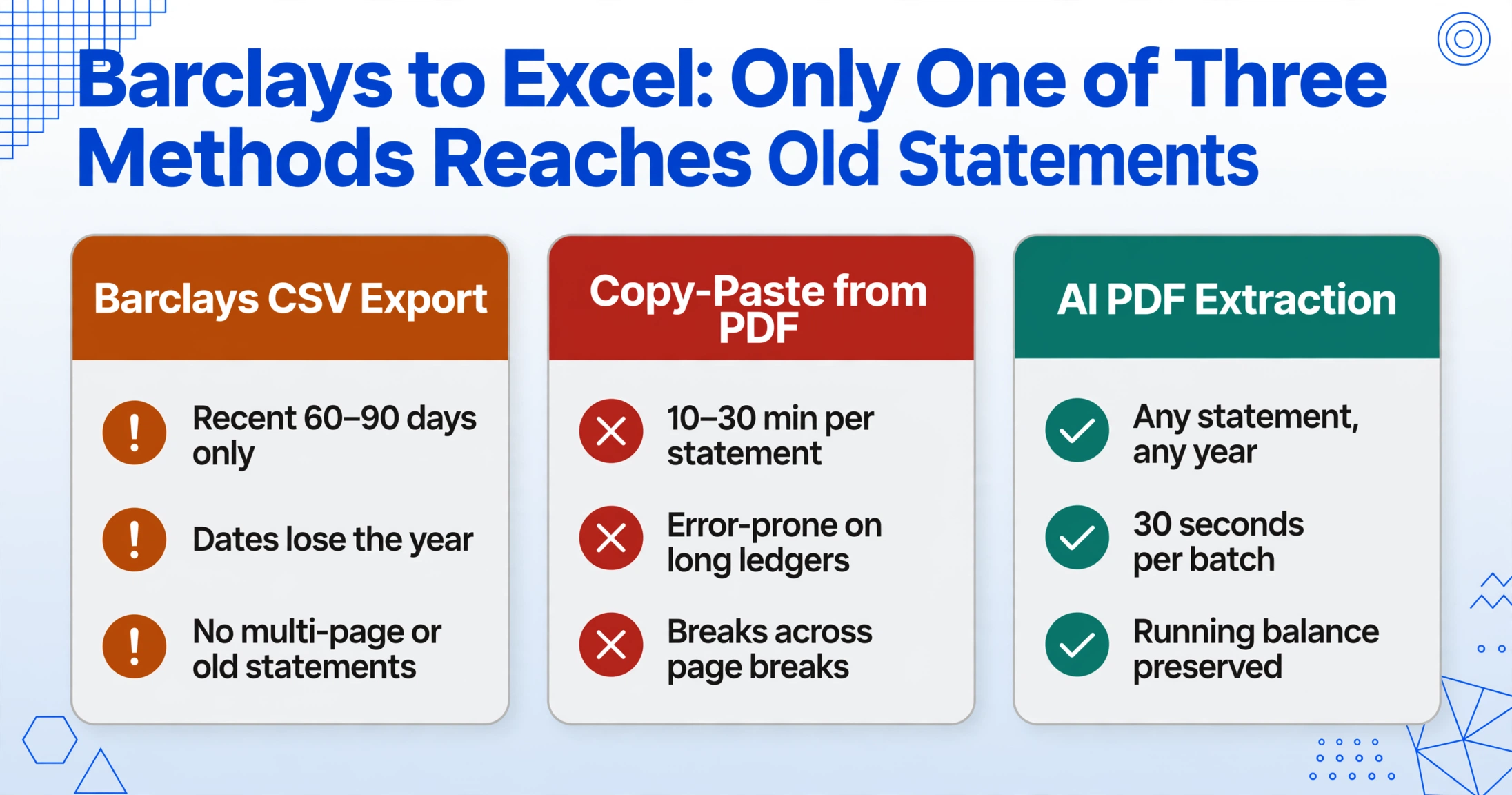
| Barclays CSV Export | Recent transactions (last 60–90 days) | High (native data) | 1 minute | N/A (exports per period) | No — limited to recent window |
| Copy-Paste from PDF | One-off single-page statements | Low (error-prone) | 10–30 min per statement | Extremely poor | Yes, but painfully |
| AI PDF Extraction | Archived statements, multi-page, any date range | High (with validation) | 30 seconds per batch | Yes — preserves running balance across pages | Yes — works with any PDF |
Method 1: Barclays Online Banking CSV Export
Barclays does offer a CSV export — but it's desktop-only, limited to recent transactions, and has a documented "missing year" bug that requires manual repair before the data is usable for accounting.
The Barclays Online Banking platform (desktop version, not the mobile app) includes an export feature that produces a CSV file of recent transactions. The path to find it is not immediately obvious, which is why many Barclays customers don't know it exists:
Log into Barclays Online Banking on Desktop
Visit barclays.co.uk and sign in. The CSV export feature is not available through the Barclays mobile app — you need a desktop browser.
Navigate to the Account
Select the account whose transactions you want to export. Click "Show recent transactions" to open the transaction list view.
Set the Date Range
Scroll to the bottom of the transaction list and click "View All Transactions." Set your start and end dates, then click "Search" to load the full transaction set for that period.
Export as CSV
Scroll to the bottom of the results page. Look for the "Export All" link — it is intentionally small and unobtrusive. Click it and select CSV format. Barclays does not offer a direct Excel export from the online portal.
The CSV export has three significant limitations that make it unsuitable for many reconciliation workflows:
1. The missing-year bug. Barclays CSV exports often format dates as "DD Mon" — for example, "15 Apr" — without including the year. If you export transactions spanning multiple years, rows from April 2025 and April 2026 both appear as "15 Apr." You cannot distinguish between them without cross-referencing the statement PDF. The year must be manually added to every row before the data is usable for reconciliation.
2. The 60- to 90-day window. Barclays restricts CSV exports to roughly the last 60 to 90 days of transactions. If you need data from six months ago — for a quarterly VAT return, a tax review, or an archived account reconciliation — the CSV export method simply doesn't work. The only source for older data is the PDF statement archive.
3. No mobile app support. Barclays banking app does not include a CSV export feature. If you bank primarily through your phone and need transaction data for reconciliation, you must either switch to the desktop portal or use an alternative method.
Method 2: AI PDF Extraction with ImageToTable.ai
AI-powered extraction reads Barclays PDF statements by understanding document structure — not by matching templates or pixel coordinates. It handles multi-page running balances, DD/MM/YYYY dates, and mixed-format transaction descriptions without per-bank configuration.
For archived statements, multi-page business account PDFs, or any situation where the CSV export doesn't apply, AI-based PDF extraction is the practical alternative. The approach is fundamentally different from template-based tools: instead of defining where on the page each field should appear, the AI reads the document semantically — it recognizes that the column labeled "Money Out" on a Barclays personal statement contains the same type of data as the column labeled "Withdrawals" on a Barclays business statement, and extracts both into a single structured "Debit" column.
Here is how the workflow looks with ImageToTable.ai, which uses Custom Column Extraction: you type the column names you want — "Date," "Description," "Debit," "Credit," "Balance" — and the AI locates each value by understanding what it means, not where it sits on the page.
Upload Your Barclays PDF
Drag your Barclays statement PDF — whether it is a 2-page personal statement or a 15-page business account — into the upload area. The tool accepts PDF, JPG, and PNG formats. If you have a paper statement, a smartphone photo under even lighting works as well.
Define Your Output Columns
Type the column names matching what you want in your final spreadsheet. For a Barclays statement the standard set is: Date, Description, Debit, Credit, Balance. If you need additional fields from the Barclays statement header — such as Sort Code, Account Number, or IBAN — add those as columns too. The column names you type become the headers of your output table.
AI Extracts Every Transaction
The AI reads the entire document in one pass — identifying each transaction row, tracking the running balance across page boundaries, and separating debits from credits. It handles Barclays-specific formatting: the "CONTACTLESS" description marker, international payment references, direct debit originator names, and BACS batch numbers all land in their appropriate columns.
Validate and Export
Check that opening balance plus total credits minus total debits equals the closing balance. If it does, the extraction is reliable. Download as Excel, or use the Google Sheets add-on to write the data directly into a live spreadsheet. Export supports XLSX, CSV, and JSON formats.
Files are processed securely and not stored.
For a broader explanation of the technology behind this, see the complete guide to bank statement data extraction and our walkthrough of UK bank statement extraction with Excel. If you process statements from multiple Barclays accounts on a recurring basis, the batch processing workflow for monthly cash flow covers how to handle a year's worth of statements across accounts in a single pass.
What Makes a Barclays Statement Different from Other UK Statements
Barclays uses ten distinct formatting conventions that differ from other UK bank statements. An extraction tool that ignores these differences will produce output that looks correct for most transactions but fails on the ones that matter — international payments, direct debits, and business BACS transactions.
Understanding these specifics is what separates a generic bank statement conversion from one that handles Barclays correctly. Whether you are using a CSV export or AI extraction, knowing what to look for determines whether the output needs additional cleanup before it is usable.
Sort Code, Account Number, IBAN, and BIC
Barclays personal statements print the sort code, account number, IBAN, and BIC at the top of each statement page. The IBAN for Barclays UK is a 22-character string starting with "GB" (for example, GB33BUKB20201555555555), and the BIC is BARCGB22 or BUKBGB22 depending on the entity. Most UK banks print only the sort code and account number; Barclays includes the full IBAN and BIC because many personal customers receive international payments and need these details readily accessible. If your accounting system requires IBAN and BIC as metadata for each statement, this is a valuable difference — Barclays prints them where other banks don't.
Blue Rewards Monthly Fee
Barclays Blue Rewards — the monthly subscription programme that offers cashback on bills, a linked savings account, and fee-free debit card usage abroad — appears as a separate line item on eligible personal account statements. The £5 monthly fee (or £3 for Barclays Premier customers) is debited as a standalone transaction, typically within the first week of each statement period. This line item has its own description field like any other transaction: "Barclays Blue Rewards" followed by the monthly period reference. When extracting for expense tracking or budgeting, this line needs to be categorized as a banking fee — not mistakenly grouped with other monthly outgoings.
Barclays App vs. Online Banking Transaction Labels
Transactions initiated through the Barclays mobile app use a different description format than those made through the desktop Online Banking portal. A Faster Payment made through the app might appear as "Faster Payment To J Smith Ref: 123456789 — Mobile," while the same payment through Online Banking reads "Faster Payment To J Smith Ref: 123456789 — Online." The difference is a single label appended to the description field, but it changes the string that extraction tools receive. If you are categorising transactions by description — for example, using rules like "if description contains 'Mobile' then source = App" — you need to account for both variations, because the same payee can appear with different labels depending on how the payment was initiated.
CONTACTLESS Marker on Card Payments
Every Barclays debit card contactless payment is labelled with "CONTACTLESS" in the description field. A standard chip-and-PIN transaction at the same merchant reads "TESCO STORES 2341 LONDON," while the contactless equivalent reads "TESCO STORES 2341 LONDON CONTACTLESS." This extra label is consistent and predictable, making it easy to filter contactless transactions for analysis — but only if your extraction preserves the full description string rather than truncating it. Some PDF extraction tools cut description fields at a fixed character length, which strips "CONTACTLESS" and loses the distinction.
International Payment Labels
International payments received into a Barclays UK account include a "Payment Type: International" label in the description, along with a reference supplied by the sending bank. These transactions also display "CREDIT" and the sender's name in a format that differs from domestic Faster Payments. For example: "Payment Type: International — CREDIT — ACME GMBH — Ref: INV-2026-04-15 — Exchange Rate: 1.1423." The exchange rate reference is additional information that most other UK banks do not include in the description field. If your extraction pipeline does not handle multi-line or multi-clause descriptions, the exchange rate and reference details may end up merged into a single unparsable string.
Direct Debit Originator Names and References
Barclays direct debit transactions display both the originator name and a reference number assigned by the originator. The format is typically "DIRECT DEBIT — ORIGINATOR NAME — REF: XXXXXXXX." The reference number is not your account number — it is the originator's internal reference for the collection. This matters for reconciliation because it is the reference that appears on the originator's invoice or statement. If your reconciliation workflow matches direct debit payments to supplier invoices, having the originator reference as part of the extracted Description column lets you link the bank transaction to the invoice without cross-referencing a separate direct debit schedule.
Business BACS Batch References
Barclays business account statements differ from personal statements in several ways, the most significant being the use of BACS batch reference numbers. When a business runs its payroll through BACS — the UK's automated clearing house for bulk payments — the statement shows a single debit line for the total payment amount, accompanied by a BACS batch reference such as "BACS BATCH 123456 — SALARY PAYMENT — 25 APR 2026." The individual employee payments are not itemised on the statement; they are contained within the batch. If you are reconciling payroll in your accounting system, you need to match the batch total against your payroll report rather than expecting individual salary lines on the statement. This is a common source of confusion when businesses switch from personal banking — the statement granularity changes from per-transaction to per-batch.
DD/MM/YYYY Date Convention
All Barclays UK statements use DD/MM/YYYY format. Unlike some UK banks that have transitioned to DD MMM YYYY (e.g., "15 Apr 2026"), Barclays consistently uses the numeric DD/MM/YYYY format on both personal and business statements. This is the most common source of date errors in conversion, because when the DD value is 12 or below, the date is ambiguous — "03/04/2026" could be 3 April or 4 March depending on the reader's locale. An extraction tool must either preserve the DD/MM/YYYY string exactly (and let the user's accounting system interpret it with the correct locale setting) or convert it to an unambiguous format like YYYY-MM-DD during extraction.
Available Balance vs. Current Balance
As noted earlier, Barclays prints two balance figures on every statement. The Current Balance (also called Ledger Balance) shows the balance after all posted transactions. The Available Balance deducts uncleared transactions — pending card payments, uncashed cheques, and reserved amounts. On a Barclays personal statement, the Available Balance is typically printed below the Current Balance with a label explaining the difference. Some UK banks only provide a single balance figure. The presence of two balances means that when you extract header information from a Barclays statement, you need to capture both values and potentially also the difference between them — which represents the total value of transactions that have been authorised but not yet posted to the account.
Personal vs. Business Statement Layout Differences
Barclays personal and business statements use different layouts. Personal statements arrange transactions in a four-column grid: Date, Description, Paid Out (Debit), Paid In (Credit), with the Running Balance in a fifth column. Business statements use a similar structure but add BACS batch numbers, a VAT-flagged column for VAT-registered businesses, and more detailed transaction counter fields. The column headers differ — business statements use "Withdrawals" and "Deposits" instead of "Paid Out" and "Paid In" — and the running balance appears on the far right with a different font weight. An extraction tool that handles one layout correctly cannot be assumed to handle the other without testing.
Frequently Asked Questions
Can I download a CSV directly from Barclays instead of converting a PDF?
Yes — but only from the desktop Online Banking portal, and only for the last 60 to 90 days of transactions. The Barclays mobile app does not support CSV export. The CSV export also has a documented "missing year" bug where dates are formatted as "DD Mon" without the year, requiring manual repair before the data is usable for multi-year accounting. For older statements or business accounts with BACS batch data, PDF extraction is the more reliable approach.
Does Barclays offer a direct Excel export from online banking?
No. Barclays Online Banking provides PDF statement downloads and a CSV export for recent transactions. It does not offer XLSX or any other spreadsheet-native format directly. To get Barclays statement data into Excel, you either use the CSV export (and fix the date formatting), convert the PDF, or use an AI extraction tool that outputs Excel files.
Why do my Barclays statement dates look wrong when I open the CSV in Excel?
This is caused by a locale mismatch. Barclays statements use DD/MM/YYYY format. If your Excel is set to a locale that uses MM/DD/YYYY — such as the United States — Excel will interpret "03/04/2026" as March 4th instead of April 3rd. To fix this, either change Excel's locale to "English (United Kingdom)" for that workbook, or use an extraction tool that outputs dates in YYYY-MM-DD (ISO 8601) format, which is unambiguous regardless of locale.
Can AI extract data from scanned or photographed Barclays paper statements?
Yes. AI vision models can read scanned PDFs and smartphone photos of printed Barclays statements. The key requirement is image quality — a sharp photo under even lighting will extract cleanly, while a crumpled or shadowed statement may lose a few characters. If you have access to the digital PDF from Barclays Online Banking, that produces the cleanest results. For paper-only statements, a flatbed scanner at 300 DPI produces better output than a phone camera.
How do Barclays business statements differ from personal statements for extraction?
Business statements use different column headers ("Withdrawals" and "Deposits" instead of "Paid Out" and "Paid In"), include BACS batch reference numbers for bulk payments, and may include a VAT-flagged column for VAT-registered businesses. The running balance chain is the same — opening balance plus credits minus debits must equal the closing balance — but the transaction descriptions are structured differently. BACS batch entries, in particular, summarise multiple underlying transactions into a single line, which requires a different reconciliation approach than personal statement transactions.
What is the Blue Rewards line item on my Barclays statement?
Barclays Blue Rewards is a monthly subscription programme that costs £5 per month (£3 for Premier customers). It appears as a separate debit transaction on your statement, typically within the first week of the statement period. The description reads "Barclays Blue Rewards" followed by the monthly period. If you are extracting statement data for expense tracking, this line should be categorised as a banking service fee — it is not a transaction you initiated, and it should not be grouped with your other monthly spending.
How accurate is AI extraction on multi-page Barclays business statements?
On a clean digital PDF from Barclays Online Banking, AI extraction typically achieves 97–99% transaction-level accuracy on single-page statements, and slightly lower on multi-page documents due to the complexity of maintaining running balance continuity across page breaks. The reliability check is always the same: running balance validation. If opening balance plus total credits minus total debits equals the closing balance, the extraction is reliable regardless of page count. With ImageToTable.ai's Review Mode, you can hover over any extracted value and see exactly where it came from on the original document, making it possible to spot-check high-value transactions without re-reading the entire statement.
Converting a Barclays statement to Excel is not the same problem as converting a generic PDF to Excel — because Barclays uses date formats, balance conventions, and transaction labelling patterns that differ from other UK banks. The methods that work for a Monzo statement or a Chase UK statement will produce output for a Barclays statement, but the output will require additional cleanup unless the extraction method understands these differences. Whether you use Barclays' own CSV export for recent transactions or AI extraction for older and multi-page statements, the final validation is the same arithmetic check that has been the foundation of bank reconciliation for centuries: opening balance plus credits minus debits equals closing balance. If that equation holds, the data is trustworthy. If it does not, something is wrong — regardless of how polished the spreadsheet looks.
Want the full workflow? Our guide to bank statement to Excel conversion covers multi-page statements, running balance validation, and batch processing for any bank — step by step.