PayNow Payment Screenshots
How to Extract the Amount and Recipient
A customer sends you a screenshot on WhatsApp. It shows a bank app with a payment confirmation — green banner on DBS digibank, white card on OCBC Digital, dark slide-to-pay screen on UOB TMRW. You can see the amount in SGD. You can see what looks like a recipient identifier — a mobile number ending in "tail 1234" or a string of letters and numbers called a UEN. Maybe there is a free-text note at the bottom: "Invoice #1042" or "March top-up" or nothing at all. The screenshot is your only record of the transaction. But PayNow is not a standalone app — it lives inside each bank's interface, and what those three fields look like depends entirely on which bank's customer sent you the image.
Key Takeaways
- PayNow is Singapore's single national payment system — yet a DBS digibank confirmation looks nothing like a UOB TMRW confirmation, because PayNow has no app of its own.
- Nine bank apps each place the amount, recipient proxy, and notes field wherever their design teams decided — template-based extraction needs a separate setup for every single bank.
- Semantic extraction reads the confirmation as data, identifying "SGD 150.00" as the transaction amount by what it means — so one column definition works across all nine banks without per-bank templates.
Why PayNow Screenshots Are Different from Other Payment App Screenshots
PayNow is Singapore's bank-linked instant transfer system, launched by the Association of Banks in Singapore (ABS) in July 2017 and overseen by the Monetary Authority of Singapore (MAS). It processes transactions over the FAST network — Fast And Secure Transfers — meaning money moves between accounts in seconds, 24/7, 365 days a year. As of December 2025, there were more than 11 million PayNow proxy registrations in Singapore, according to OCBC's group CEO Tan Teck Long, speaking at the ABS Annual Dinner in June 2026.
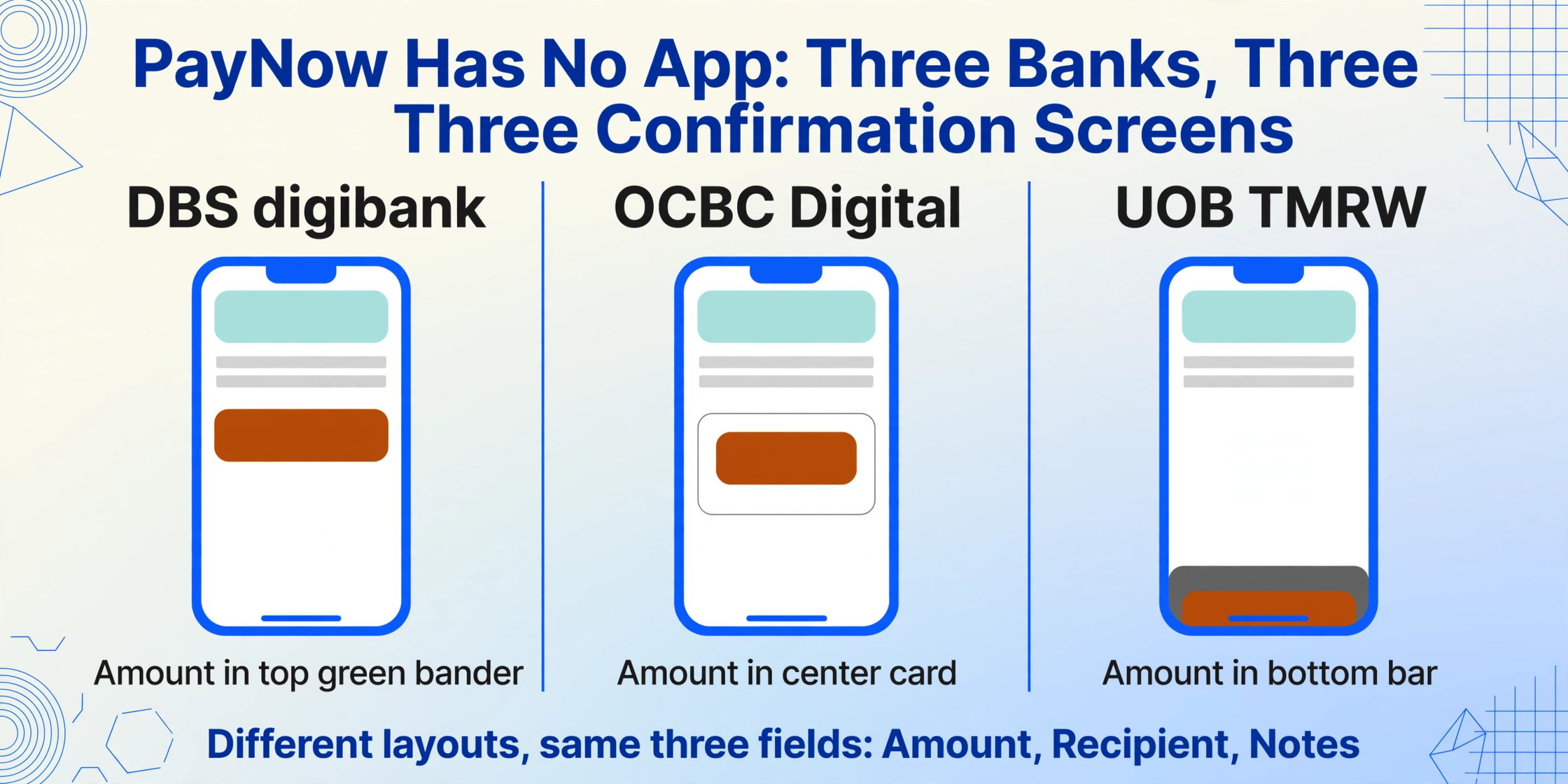
Unlike Venmo, WeChat Pay, or GCash — each of which has its own app with a consistent confirmation screen — PayNow has no app of its own. You do not open "PayNow" on your phone. You open your bank's app — DBS digibank, OCBC Digital, or UOB TMRW — and select the PayNow option within it. When the transaction completes, the confirmation screen belongs to that bank, not to PayNow as a brand. The result is a fragmented visual landscape: three major bank apps render the same payment data in three different layouts. The same principle that applies to payment screenshots embedded in chat apps — the data is there even when the interface isn't a receipt — applies here, except the fragmentation comes from the banking layer rather than the messaging layer.
This matters because the fields most people need from a PayNow screenshot — the transaction amount, the recipient identifier, and the payment notes — are all present on every bank's confirmation screen, but each bank positions them differently. A DBS digibank confirmation shows the amount in large green text at the top with the recipient below; OCBC Digital's layout places the amount in a centered white card with the recipient's proxy beneath it; UOB TMRW wraps the entire confirmation inside a dark slide-to-pay bar. The same PayNow transaction, captured from three different banks, produces three visually distinct screenshots.
The Amount — Always in SGD, but Not Always in the Same Spot
Every PayNow transaction is in Singapore dollars. There is no exchange rate, no multi-currency display, no convenience fee deducted from the shown amount — the value on the confirmation screen is exactly what moved from sender to recipient. The amount is the most prominent element on every bank's PayNow confirmation, but its exact placement varies in a way that matters when you are processing screenshots from multiple sources.
On DBS digibank, the successful transfer screen shows the amount in large bold text on a green banner occupying the upper third of the screen — "SGD 150.00" with the dollar figure centered and the "SGD" prefix in smaller type above it. Below the amount, in smaller white text: the recipient name as registered with the bank's PayNow lookup. On OCBC Digital, the confirmation screen takes a card-based approach — the amount appears inside a white rectangle in the middle of the screen, with "Amount" as a label above the figure, and the recipient proxy listed further down the card. On UOB TMRW, the confirmation is embedded within a dark grey confirmation bar at the bottom, with the amount displayed prominently next to a green checkmark, and the recipient information shown above it in a message-style layout.
For anyone handling PayNow screenshots from customers, clients, or colleagues who use different banks, the amount is the easy field: it is always present, always visible, and never ambiguous in its meaning. The challenge is that a template-based extraction approach — one that looks for the amount at a specific pixel coordinate — would need three separate templates for DBS, OCBC, and UOB, plus additional variations for other participating banks like HSBC, Maybank, Standard Chartered, and Citibank. A semantic extraction approach, by contrast, does not care where on the screen the amount sits; it reads the confirmation as a whole and identifies which value is the transaction total by understanding what "SGD 150.00" means in the context of a payment confirmation.
The Recipient — UEN or Mobile Number, Not a Display Name
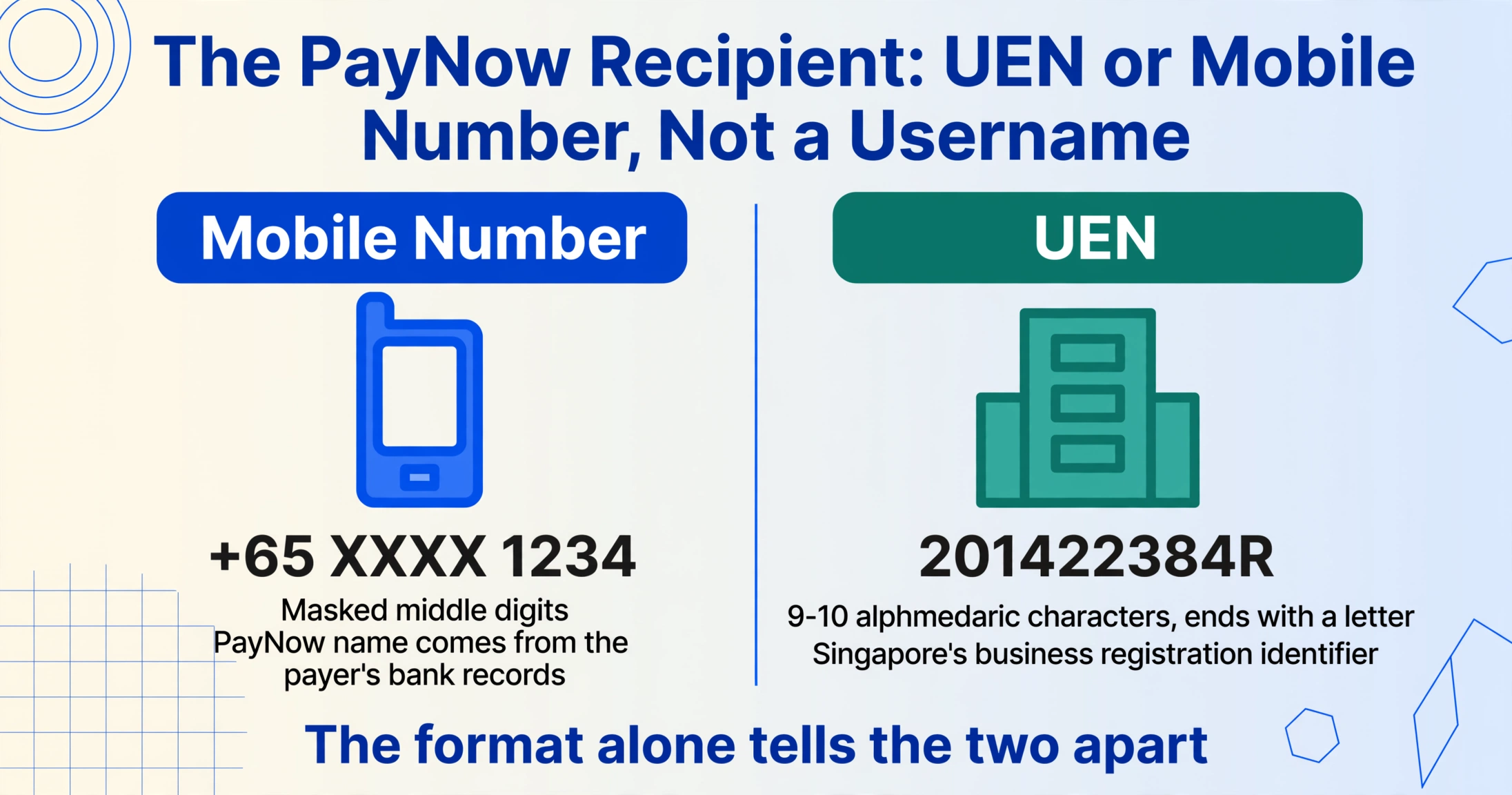
This is the field that makes PayNow screenshots unique among the payment apps in this series. On Venmo, the recipient is a @username. On WeChat Pay, it is the merchant's registered name. On PayNow, the recipient identifier is either a masked mobile number — displayed as something like "+65 XXXX 1234" with the middle digits hidden — or a UEN (Unique Entity Number), which is the standard business registration identifier issued by ACRA, Singapore's Accounting and Corporate Regulatory Authority.
For person-to-person transfers, the sender sees a name returned by the PayNow lookup system when they enter the recipient's mobile number or NRIC/FIN. This name — the "PayNow name" associated with the proxy — is the one shown on the confirmation screen. But critically, it is not a username the recipient chose. It is the name on file at their bank, which means it may be a legal name, a business name, or a nickname depending on what the recipient registered. On the screenshot sent from sender to recipient, what you see is this name alongside the masked proxy — and for person-to-person payments, there is no UEN involved at all.
For business payments, the recipient identifier is the UEN — a 9- or 10-character alphanumeric string (e.g., 201422384R) that functions as Singapore's business tax ID and company registration number rolled into one. When a customer pays a business via PayNow, they either scan the business's PayNow QR code or key in the UEN manually. On the confirmation screenshot, the UEN appears as the recipient identifier, often prefaced with a label like "PayTo" or "Recipient UEN" depending on the bank. Some banks display the UEN in full; others mask the middle characters. The registered business name — the name ACRA has on file — also appears on the confirmation screen as a verification step before the sender confirms the transfer. This is the same lookup system described in the MAS e-payments framework that PayNow operates under: the sender sees the registered business name and can verify it matches the intended recipient.
The practical consequence for extraction: you are not looking for a human-readable recipient name that you can copy into a "Paid To" column. You are looking for one of two identifier types — and the screenshot may not make it obvious which one you are looking at. A mobile number ending in "1234" and a UEN like "201422384R" serve the same purpose in PayNow's system (they uniquely identify the recipient) but have completely different meanings in your records. A mobile number tells you who received the money as an individual. A UEN tells you it was a registered business. If you are reconciling payments against customer accounts or supplier records, misidentifying one for the other means the transaction goes to the wrong ledger.
The Notes/Remarks Field — Where the Link to Your Records Lives
PayNow allows the sender to include a free-text note with every transaction — up to roughly 40 characters, depending on the bank's interface. On DBS digibank, the note is entered on the transfer screen as "Note to Recipient" before confirmation. On OCBC Digital, it is labeled "Reference" or "Remarks." On UOB TMRW, it appears as a "Description" field during the transfer flow. After the transaction completes, this note is shown on the confirmation screen and appears in the recipient's bank statement alongside the transaction.
For businesses using PayNow Corporate — the business-grade version that links a UEN to a bank account — this notes field is where the connection between a payment and an invoice, order, or client account lives. A dynamic PayNow QR code can embed a unique invoice number or order ID into the notes field automatically, so every incoming payment carries its own reference without requiring the customer to type anything. For static QR codes or manual UEN transfers, the customer types whatever they want — which means the notes field may contain an invoice number, a client name, a payment purpose like "March retainer," or nothing at all.
The presence or absence of a meaningful note in the screenshot tells you something important about how that payment was initiated. A note containing "INV-2026-071" means the customer entered your invoice number manually — you can match this payment to your invoice system without any other lookup. A blank notes field means the payment has no visible context on the screenshot, and tying it to a specific customer or order will require cross-referencing the amount and recipient against your bank statement. An empty cell in extraction output is useful information — it tells you that the screenshot alone is insufficient for full reconciliation, flagging that row as needing manual attention.
Why Verification Matters — the Fake PayNow Screenshot Problem
Singapore has a real and documented problem with fabricated PayNow screenshots. In November 2024, CNA reported the case of a 33-year-old woman who used edited PayNow screenshots to cheat a Katong restaurant out of approximately S$3,892 worth of food over 35 separate occasions between May 2022 and August 2023 — she sent the money to herself, edited the screenshot to replace her own details with the restaurant's, and forwarded the fabricated image via WhatsApp. In December 2024, the Singapore Police Force issued an advisory about a PayNow phishing campaign in which victims received text messages directing them to fake PayNow websites designed to capture credit card and personal details. On r/askSingapore, users regularly post PayNow screenshots asking "Does this look legit?" — and the consensus is often that the font spacing, alignment, or amount formatting gives the fabrication away, but only to someone who knows what to look for.
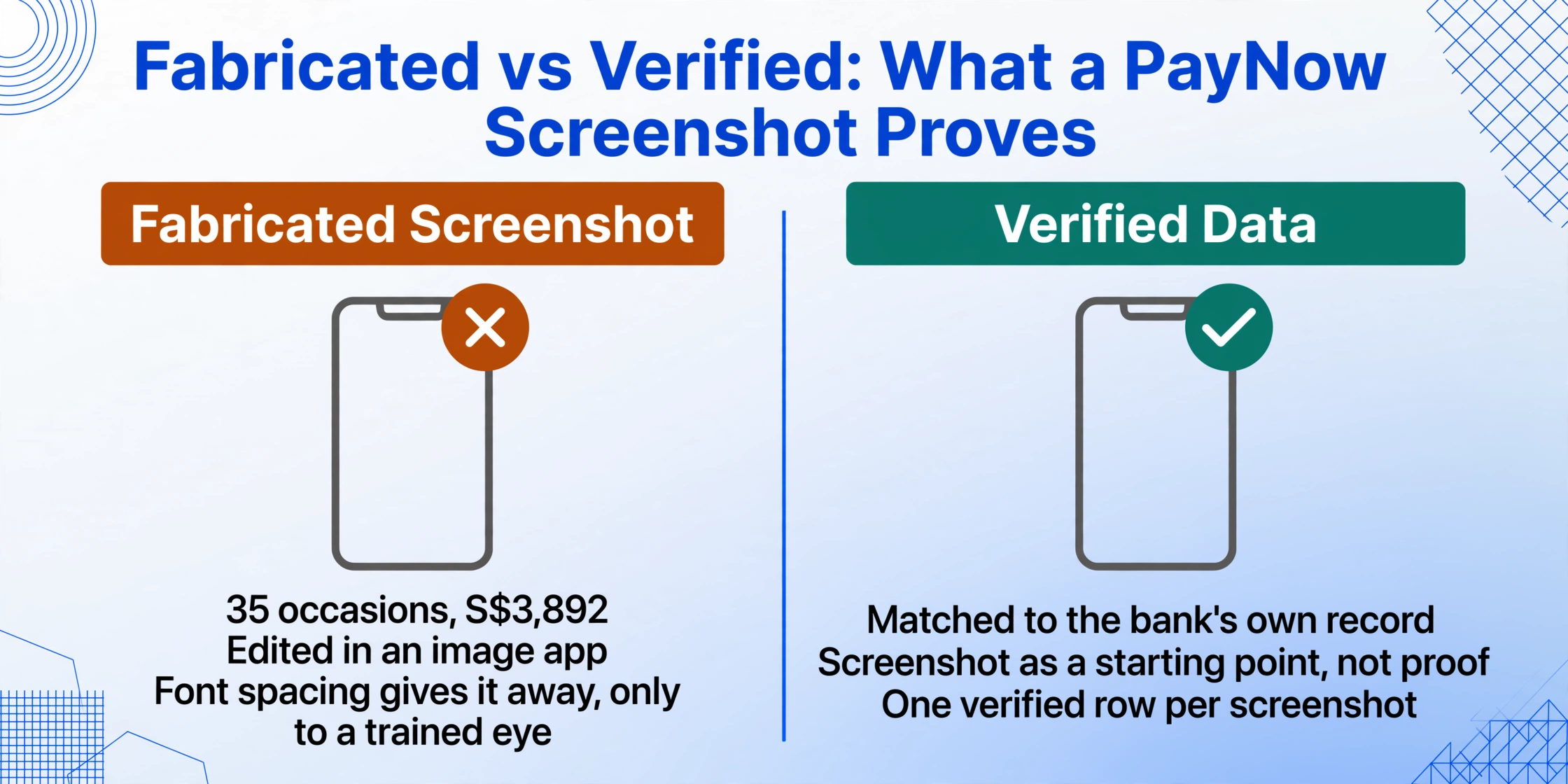
This creates a tension that every Singapore business accepting PayNow lives with: the screenshot is what customers send you, but the screenshot is also what scammers fabricate. The resolution is not to stop accepting screenshots — Carousell sellers, restaurant owners, and service providers cannot tell every customer "I'll check my bank app first" without damaging the transaction flow. The resolution is to treat the screenshot as a starting point for verification, not as proof. Extract the amount, the recipient identifier, and the notes from the screenshot. Then cross-check those fields against your bank statement or in-app transaction history. A real PayNow transaction appears in your account immediately — the FAST network settles in seconds — so the verification is instantaneous. A fabricated screenshot reveals itself the moment you look for the transaction in your bank app and find nothing.
Files are processed securely and not stored.
What Extraction Looks Like for a Batch of PayNow Screenshots
When you upload a batch of PayNow screenshots — some from DBS digibank, some from OCBC Digital, some from UOB TMRW — and define the columns Amount (SGD), Recipient, Recipient Type (Mobile/UEN), Notes, and Transaction Date, the extraction engine locates the corresponding values on each screenshot by understanding what each field means. The amount is the largest currency-denominated number in the confirmation. The recipient is the identifier paired with the proxy label. The notes field is whatever free-text string appears in the remarks section. Each screenshot produces one row, all rows merge into a single spreadsheet.
The distinction between mobile number and UEN as recipient type is a column worth adding explicitly. When you include Recipient Type (Mobile/UEN) in your column definitions, the AI identifies whether the recipient identifier is a phone number or a business registration number based on its format — UENs follow a distinct pattern (9-10 alphanumeric characters, ending with a letter) that a mobile number (starting with +65) does not share. This classification lets you filter payments to individuals separate from payments to businesses in your downstream reconciliation, which is especially useful if you process both consumer and B2B transactions through the same system.
The downstream destination for this data often includes Xero SG or QuickBooks Online SG, the two most widely used cloud accounting platforms among Singapore SMEs — Xero supports IRAS F5/GST filing and InvoiceNow e-invoicing, while QuickBooks is popular with smaller teams and freelancers. ABSS (formerly MYOB, at S$349/year) and AutoCount (S$35/month) serve businesses that need stronger on-premise inventory management alongside their accounts. None of these platforms can natively ingest a WhatsApp-forwarded DBS digibank screenshot. The step between "a customer sent me a PayNow screenshot" and "the data is in my books" remains manual for most Singapore businesses. Extraction fills that gap by turning each screenshot into a structured row that can be imported or copied into whichever accounting system the business uses.
If you handle payments from other apps alongside PayNow — GCash from a Filipino supplier, KakaoPay from a Korean client, or a PayPal payment from an international customer — the same column definitions work across all of them with no per-app configuration. Amount, recipient, date, and reference are universal — the mixed-app payment screenshot workflow consolidates screenshots from all of these apps into one spreadsheet. The principle that drives all of these is identical: you define the output columns, the AI finds the matching values on each screenshot by understanding what those terms mean, regardless of which bank or payment app generated the image.
FAQ
Can I extract data from a PayNow screenshot that was sent through WhatsApp compression?
Yes, with the same accuracy caveat that applies to any compressed image. WhatsApp compresses images aggressively, which can blur text edges — but a visual AI model reads words holistically rather than character by character, so it handles JPEG compression artifacts better than traditional OCR. For clean extraction, request the sender to share the original screenshot rather than a WhatsApp-forwarded version. If the screenshot already went through compression, the amount and recipient identifier (both in large, clear fonts) remain reliably readable; the notes field in smaller text may need a spot-check.
What if the PayNow confirmation screen is from a less common bank — HSBC, Maybank, or Standard Chartered?
PayNow is supported by all major banks operating in Singapore — DBS/POSB, OCBC, UOB, HSBC, Maybank, Standard Chartered, Citibank, Bank of China, ICBC, and others. Each bank's confirmation screen has a different layout, but the fields are consistent: an amount in SGD, a recipient proxy (mobile number, NRIC/FIN, or UEN), and an optional notes field. A semantic extraction approach does not rely on matching a specific bank's template — it identifies these fields by their meaning and visual role on the screen, regardless of which bank's interface produced the screenshot.
How do I verify if a PayNow screenshot is real before relying on its data?
PayNow transactions settle instantly through the FAST network. If a screenshot claims a payment was made, check your bank app or internet banking transaction history — the money should appear within seconds. Do not rely on the screenshot alone. For reconciliation, extract the amount and recipient identifier from the screenshot and match them against your in-app transaction record. This two-step workflow — extract then verify — is what businesses should use, and it is exactly why having the extracted data in a structured format (rather than handwritten notes or a photo album) makes verification practical at scale.
Can I batch-process PayNow screenshots from different banks together?
Yes. DBS digibank and OCBC Digital and UOB TMRW screenshots can be uploaded in the same batch. Define the columns once — the extraction engine applies the same column definitions to every screenshot in the batch and outputs a unified table. Each row represents one transaction, with bank of origin identifiable through the visual style of the confirmation screen if you include a "Bank" column in your definitions. This is the same screenshot-to-spreadsheet workflow that applies across payment platforms in general, adapted for PayNow's specific field structure.