M-Pesa Payment Screenshots: Extract
the Amount and Transaction Code
Every M-Pesa transaction ends the same way: a text message arrives on your phone. Not a push notification from an app, not a pop-up that disappears when you swipe — a plain SMS, the kind that fits in 160 characters, delivered to your message inbox alongside everything else. That SMS is the receipt. And in a country where M-Pesa processed 37.15 billion transactions worth KSh 38.29 trillion in FY2025, according to Safaricom's annual report, that 160-character message is carrying more financial data than most bank statements. The challenge is that M-Pesa doesn't send the same SMS for every transaction — it sends five different formats depending on what kind of payment you made, and the fields you need sit in different places in each one.
Key Takeaways
- 37.15 billion M-Pesa transactions in FY2025, and every receipt is a plain SMS — not an app confirmation — with the data you need arranged in five different patterns.
- That one SMS carries three Ksh figures that look identical at a glance — transaction amount, fee, and daily limit — alongside a counterparty field that changes identity completely between Send Money, Pay Bill, and Buy Goods.
- Define your spreadsheet columns by what the data means — Transaction Code, Amount, Counterparty — not where it sits on the screen, and the five SMS formats collapse into a single export without a single template or rule.
Why M-Pesa Is Different: The SMS Is the Receipt
Most payment apps — Venmo, PayPal, WeChat Pay — deliver your confirmation inside an app interface. You take a screenshot of the screen. M-Pesa works differently because it was built for a market where not everyone has a smartphone. The service launched in 2007 on USSD codes dialled from basic feature phones, and while the M-Pesa Super App now serves 4.7 million monthly users, the SMS confirmation remains the universal record — it reaches every phone, every time, regardless of device. As of March 2026, M-Pesa had 40 million monthly active customers in Kenya, with Safaricom commanding 89.1% of the country's mobile money market. The SMS is not a courtesy notification. It is the receipt.
Every M-Pesa SMS closes with the line "PIN YAKO SIRI YAKO" (Kiswahili for "Your PIN is your secret") — a security reminder from Safaricom that has appeared on confirmation messages for years. It's also a consistent landmark: no matter which transaction type generated the message, that footer tells you the SMS is legitimate and complete. Between the opening transaction code and that closing line sits all the information you need — amount, counterparty, transaction code, date — but its arrangement shifts depending on what you did.
The five common transaction types — Send Money, Pay Bill, Buy Goods (Till Number), Money Received, and Deposit/Withdrawal — each produce a distinct SMS template. Understanding which format you're looking at, and where each field lands within it, is the difference between pulling data in seconds and hunting through a string of text for the number you need.
The Five Transaction Types and Their SMS Formats
Every M-Pesa SMS begins with a 10-character alphanumeric code followed by "Confirmed." — that shared opening is the most reliable structural anchor across all message types. What comes next splits by transaction type.
Send Money (Customer Transfer)
The most common transaction type. You send money to another registered M-Pesa user. The SMS reads:
ABCDE12345 Confirmed. Ksh150.00 sent to JOHN DOE 0722000000
on 23/6/23 at 3:41 PM. New M-PESA balance is Ksh1,205.10.
Transaction cost, Ksh6.00.
Three fields appear sequentially: the amount (Ksh150.00), the recipient's full name and phone number (JOHN DOE 0722000000), and the date and time. The transaction cost is listed separately — it is not part of the amount field.
Pay Bill
Used to pay businesses, utilities, schools, and government agencies through a registered Paybill number. The SMS format changes to include the business name and account reference:
DY28XV679 Confirmed. Ksh4,000.00 sent to KCB Paybill AC
for account 1137238445 on 9/9/23 at 11:31 PM.
New M-PESA balance is Ksh22.00.
Here the counterparty is not a person but a business name (KCB Paybill) paired with an account number. The "for account" string distinguishes this from a Send Money message. If you're extracting the counterparty field, you need both the business name and the account reference — together they identify who received the payment and under what customer ID.
Buy Goods (Till Number / Merchant Payment)
When you pay at a shop, supermarket, or restaurant using a Till Number (also called Lipa na M-Pesa, or "Pay with M-Pesa"), the format omits the "for account" clause that appears on Pay Bill messages:
GH78KT901 Confirmed. Ksh500.00 paid to Naivas Supermarket
on 15/1/25 at 10:15 AM. New M-PESA balance is Ksh3,400.00.
Transaction cost, Ksh0.00.
Note the verb changes: "paid to" instead of "sent to". The recipient is the merchant name registered to the Till Number. No account reference, no phone number — just the store or business name. For most retail payments in Kenya — from a duka (local shop) to a supermarket chain — this is the format your SMS will follow.
Money Received
When someone sends you money, the SMS takes a receiver-oriented format:
BS49OR201 Confirmed. You have received Ksh50.00 from
MICHAEL FEDERSEN 254729901555 on 15/10/24 at 11:52 AM.
New M-PESA balance is Ksh100.00.
The counterparty here is the sender, shown as a full name and phone number. The amount is what the sender transferred (they paid the transaction fee, not you). The same format is used for international money transfers arriving through M-Pesa Global partners like Western Union or WorldRemit.
Deposit and Withdrawal
Cash-in (deposit at an agent) generates a message such as:
DF34QR567 Confirmed. You have received Ksh3,000.00 from
HENRY KAMAU 254701234567 on 12/4/26 at 9:14 AM.
New M-PESA balance is Ksh8,450.00.
The format mirrors Money Received, but the "from" source is the agent who facilitated the deposit. Cash-out (withdrawal) messages include the word "Withdraw" and display the amount deducted plus the agent fee.
The key takeaway across all five formats: the transaction code is always the first word in the message. That consistency makes it the ideal anchor field for extraction — regardless of transaction type, you know exactly where it starts.
The Transaction Code: A 10-Character Key That Encodes the Date
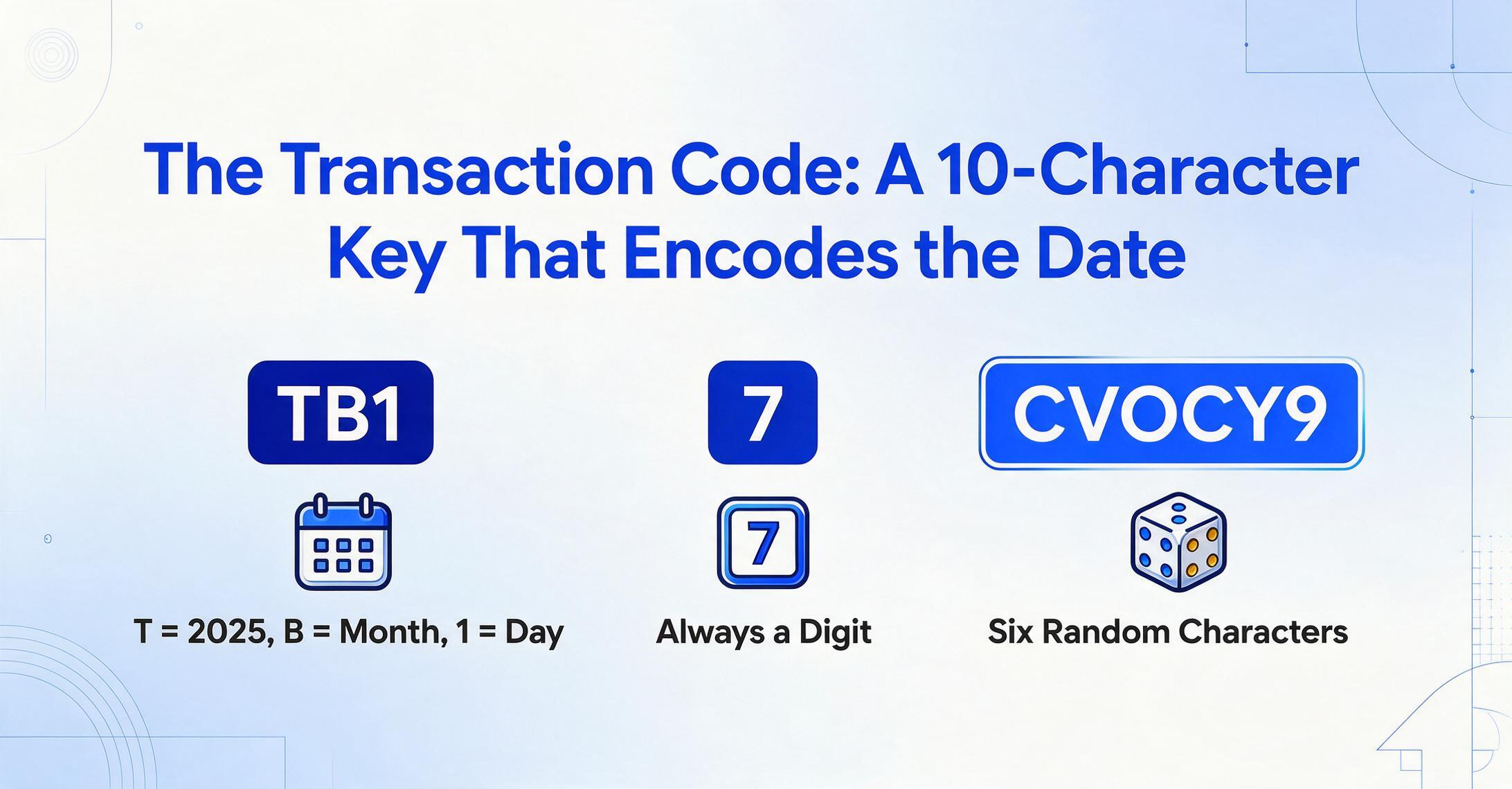
The M-Pesa transaction code — a string like TB17CVOCY9 — is more than a random receipt number. Its structure reveals when the transaction happened. The first three characters encode the date: the first letter represents the year (T = 2025, S = 2024, R = 2023, Q = 2022 — cycling through the alphabet), the second character encodes the month, and the third encodes the day. The fourth character is always a digit, and the remaining six are randomly generated. The system can generate approximately 21.8 billion unique codes per day, and with an 8-trillion-code annual capacity, duplicates are effectively impossible.
For Kenyan businesses, the transaction code is the universal reconciliation key. Every M-Pesa Till Number and Paybill system records received payments by this code. Safaricom's customer support uses it to trace transactions. The Kenya Revenue Authority (KRA) accepts M-Pesa statements — which index every transaction by this code — as supporting documentation for tax filings. And in legal terms, as advocates at MMTK Law noted in Business Daily Africa, under the Data Protection Act 2019, "the transaction code is the only detail a merchant strictly needs" because it already appears on the merchant's own confirmation system.
If you are building a spreadsheet from M-Pesa SMS messages — whether from Send Money, Pay Bill, or Buy Goods transactions — the transaction code is the one column that will be populated for every row. Every other field (counterparty, amount, date) is present in every format too, but the transaction code is the field that lets you deduplicate: two SMS messages with the same code are the same transaction, even if someone forwarded you the same screenshot twice.
KES Amounts: What the SMS Really Shows
Every M-Pesa amount is prefixed with Ksh (Kenyan shilling), formatted with a comma as the thousands separator and two decimal places: Ksh1,500.00, Ksh38,290.50, Ksh4,000.00. That part is consistent. But the SMS carries three different quantity fields that are easy to confuse if you're scanning the message quickly:
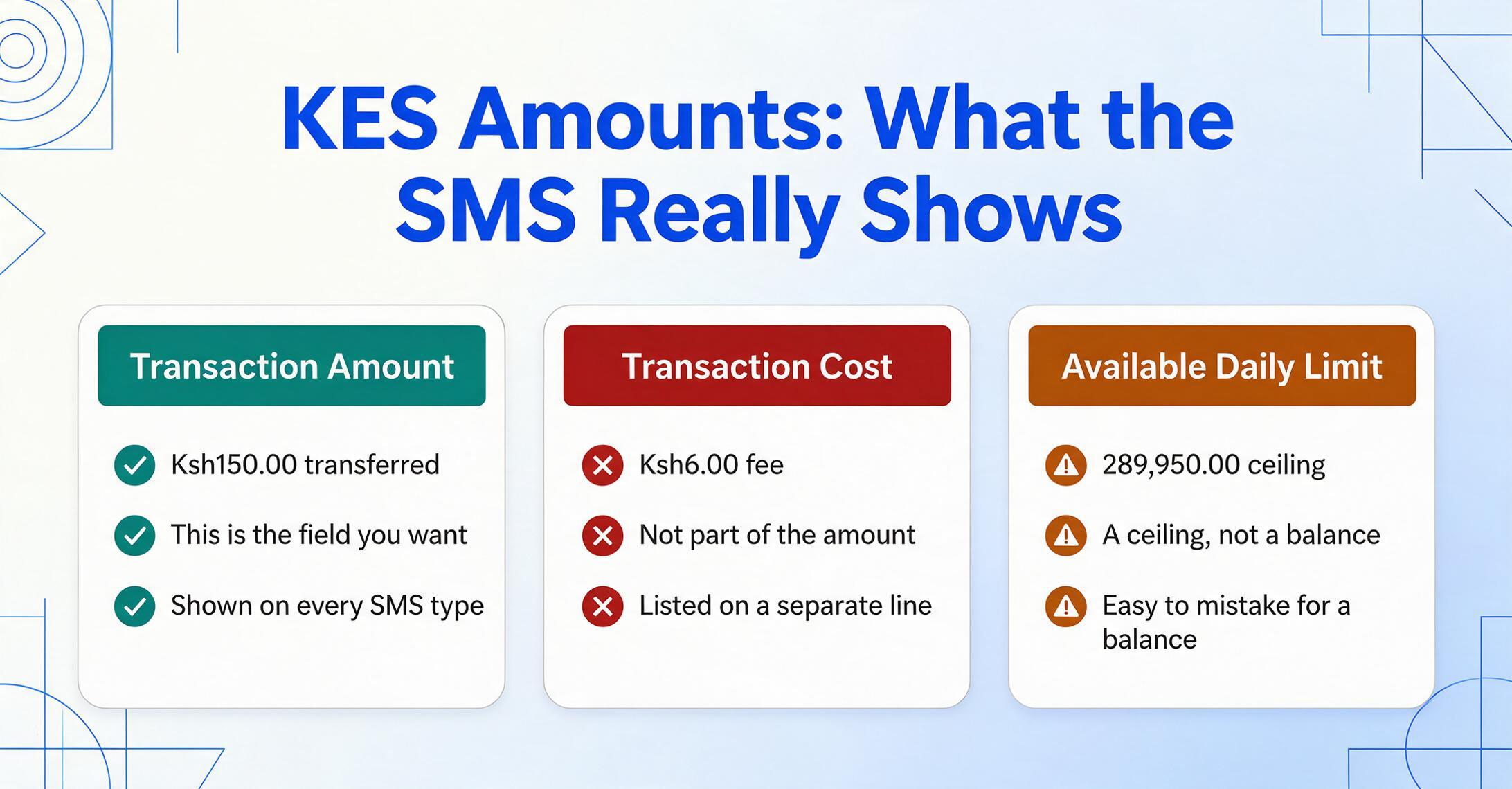
- Transaction amount — the value transferred. On a Send Money SMS, this appears as "Ksh150.00 sent to". On a Pay Bill, "Ksh4,000.00 sent to". On Money Received, "You have received Ksh50.00". This is the field you want for your spreadsheet.
- Transaction cost — the fee deducted for the transfer. Listed on a separate line or phrase: "Transaction cost, Ksh6.00." Not part of the amount transferred. On Send Money above KSh 500, the fee ranges from KSh 6 to KSh 110 depending on the bracket.
- Available daily limit — "Amount you can transact within the day is 289,950.00." This is a ceiling, not a balance. Easy to mistake for an account balance if you read only the first few characters of the number.
The M-Pesa SMS also shows your new balance after every transaction ("New M-PESA balance is Ksh1,205.10."). This is useful for personal tracking but contains financial data protected under the Data Protection Act 2019 — if you are sharing or forwarding the SMS for business verification, the balance can reveal more than the counterparty needs to know.
Names, Till Numbers, and Business Accounts
The counterparty field is where M-Pesa's format diversity is most visible. It changes identity entirely depending on transaction type:
| Transaction Type | How Counterparty Appears in SMS | Example |
|---|---|---|
| Send Money | Full name + phone number | JOHN DOE 0722000000 |
| Pay Bill | Business name + "AC for account [number]" | KCB Paybill AC for account 1137238445 |
| Buy Goods (Till) | Merchant name only | Naivas Supermarket |
| Money Received | Sender name + phone number | MICHAEL FEDERSEN 254729901555 |
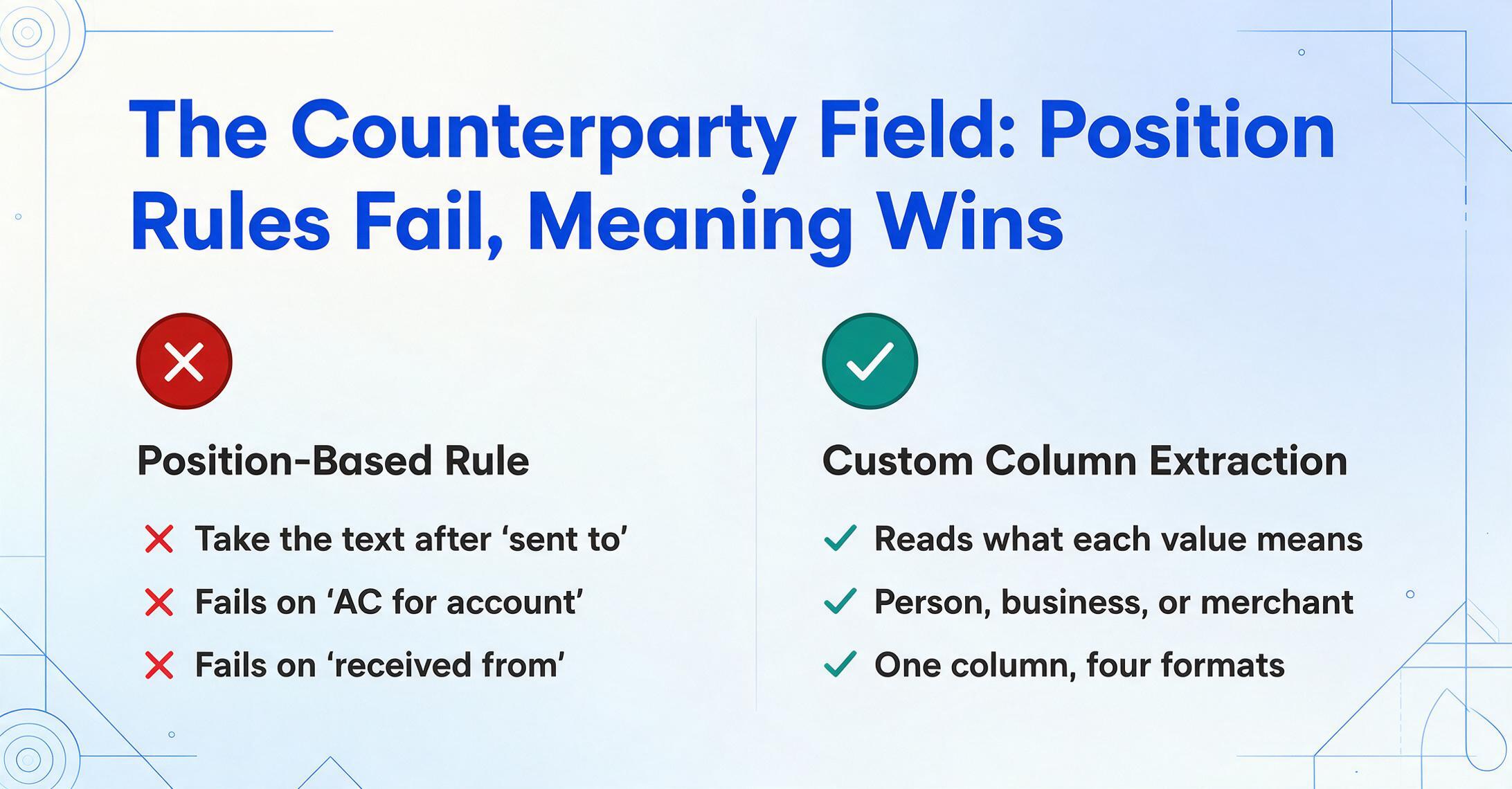
For a spreadsheet capturing all M-Pesa transactions from a business, the counterparty column would need to accommodate four different formats: a person's name with phone number, a business name with an account reference, a standalone merchant name, or a sender's name. A position-based extraction rule — such as "take the text after 'sent to' and before 'on'" — works for Send Money but fails on Pay Bill (where the text includes "AC for account") and on Money Received (where the structure is "received from" not "sent to"). Semantic extraction — defining the column as "the person or entity on the other side of this transaction" — handles all four formats because it identifies the counterparty by meaning, not by its position relative to fixed keywords.
From SMS and Screenshots to a Spreadsheet
M-Pesa's format diversity — five SMS templates across five transaction types — makes it a particularly good test case for how payment data extraction should work. A system that requires you to build a separate template for Send Money, Pay Bill, Buy Goods, and Money Received will break as soon as a new transaction type is introduced, or as the SMS format evolves (as it did in 2025 when transaction codes shifted from the "S" to "T" prefix).
Custom Column Extraction — where you define the columns you want (Transaction Code, Amount, Counterparty, Date) and the AI locates each value by understanding what it means rather than where it sits on the page — solves this by treating the format variation as irrelevant. Whether the SMS says "sent to", "paid to", "received from", or "AC for account", the engine reads the semantic role of each piece of text and maps it to the correct column. You do not need to tell it which transaction type it is looking at.
The practical workflow looks like this: save or forward your M-Pesa SMS confirmations — or take screenshots of the SMS thread or the M-Pesa Super App transaction detail — and upload them together. An M-Pesa screenshot of the Super App confirmation needs no separate setup — the columns are defined by meaning, not by message format, so it processes in the same batch as the SMS messages. Name your columns Transaction Code, Amount, Counterparty, and Date. The output is one row per transaction, with each row's values pulled from the SMS format that was actually used for that transaction. A batch of 50 M-Pesa payments mixing Send Money, Pay Bill, and Buy Goods messages produces a single unified table — no need to sort them by type first.
For Kenyan businesses, the downstream use is straightforward. The extracted data can feed directly into Zoho Books, which offers native M-Pesa integration for Kenyan accounts, or into QuickBooks Kenya for businesses that use it. Many SMEs and bookkeepers also maintain a Google Sheets ledger — sometimes alongside other mobile payment methods — and the same column structure works across them. If your business also receives payments through GCash or PayNow, for instance, the amount-transactioncode-counterparty-date pattern is identical. The format differences that seem confusing — five SMS templates, four counterparty types, a fee line that looks like a second amount — disappear once the extraction is done by meaning rather than by position. The payment screenshot data extractor applies this same column pattern across GCash, PayNow, and every other payment platform in a single batch.
FAQ
What information does an M-Pesa SMS confirmation contain?
Every M-Pesa SMS includes a 10-character transaction code, the amount in Kenyan shillings (Ksh), the counterparty name and/or business account, the date and time, your new M-Pesa balance, and the transaction cost (fee). Additional fields like the remaining daily transaction limit appear on some message types. The transaction code is always the first word in the message, followed by "Confirmed." — this format is consistent across all transaction types.
Can I extract data from an M-Pesa Super App screenshot instead of the SMS?
Yes. The M-Pesa Super App displays the same fields — transaction code, amount, counterparty, date — in a visual confirmation screen. The phone number and merchant name may be more readable on the app screen than in the SMS (the app does not truncate names the way the SMS sometimes does). For reconciliation purposes, consider pulling the transaction code from the Super App screen, where it is displayed as a clearly labelled field, and cross-referencing it against the SMS for verification.
What if the SMS was deleted — can I still access the transaction data?
Dial *234# and select "My Account" then "M-Pesa Statement" then "Mini Statement" to receive your last five transactions by SMS. For a full statement covering up to 12 months, use the same menu to request a PDF statement emailed to your registered email address. The statement is password-protected using your National ID number as the default password. Safaricom also provides transaction history through the M-Pesa Super App under the "Transactions" or "Statement" section.
Does M-Pesa work with accounting software like QuickBooks or Zoho Books?
Yes. Zoho Books has a native M-Pesa integration for Kenyan accounts, letting you reconcile M-Pesa Paybill payments against invoices automatically. QuickBooks Kenya is widely used, though it does not offer native M-Pesa integration — extracted data from SMS or screenshots can be imported as a CSV. Local Kenyan platforms like ZYNO Books and ERPNext offer built-in M-Pesa reconciliation workflows, which many Kenyan bookkeepers find more suited to the local compliance landscape including KRA eTIMS requirements.
Is the M-Pesa transaction code enough for KRA tax filing?
KRA accepts M-Pesa statements as supporting documentation for tax filing, particularly for small businesses that operate primarily through mobile money. Each transaction is indexed by its transaction code, and the statement provides a complete audit trail. For formal tax filing, the KRA typically requires the full M-Pesa statement (which can be requested as a PDF from Safaricom by dialling *234#) rather than individual SMS codes. However, the transaction code itself is what ties a specific payment to a specific record in the statement, making it the critical reference for any subsequent audit or inquiry.