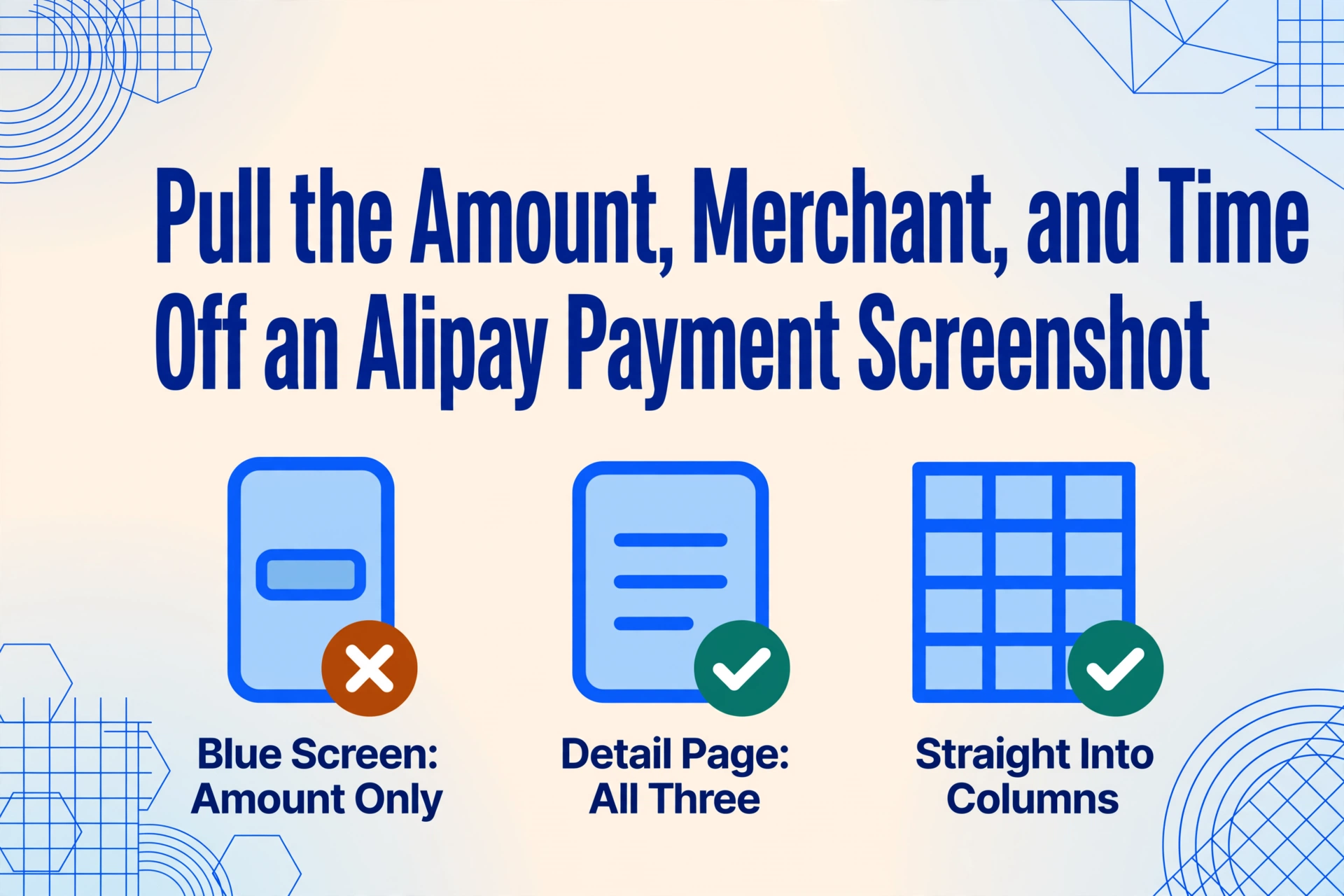
Pull the Amount, Merchant, and Time
Off an Alipay Payment Screenshot
You paid with Alipay. The transaction went through. Now you have a screenshot — or you're looking at the one you already took. What you actually need from it is three things: the amount (金额), the counterparty or merchant name (商户名称), and the transaction time (交易时间). Three fields, but they don't appear the same way every time. Whether you transferred money to a person, scanned a merchant's QR code, or had your own code scanned at the counter changes where each of these fields sits — and even which screen contains them.
The Two Alipay Screens That Contain Your Fields — and the One You Shouldn't Rely On
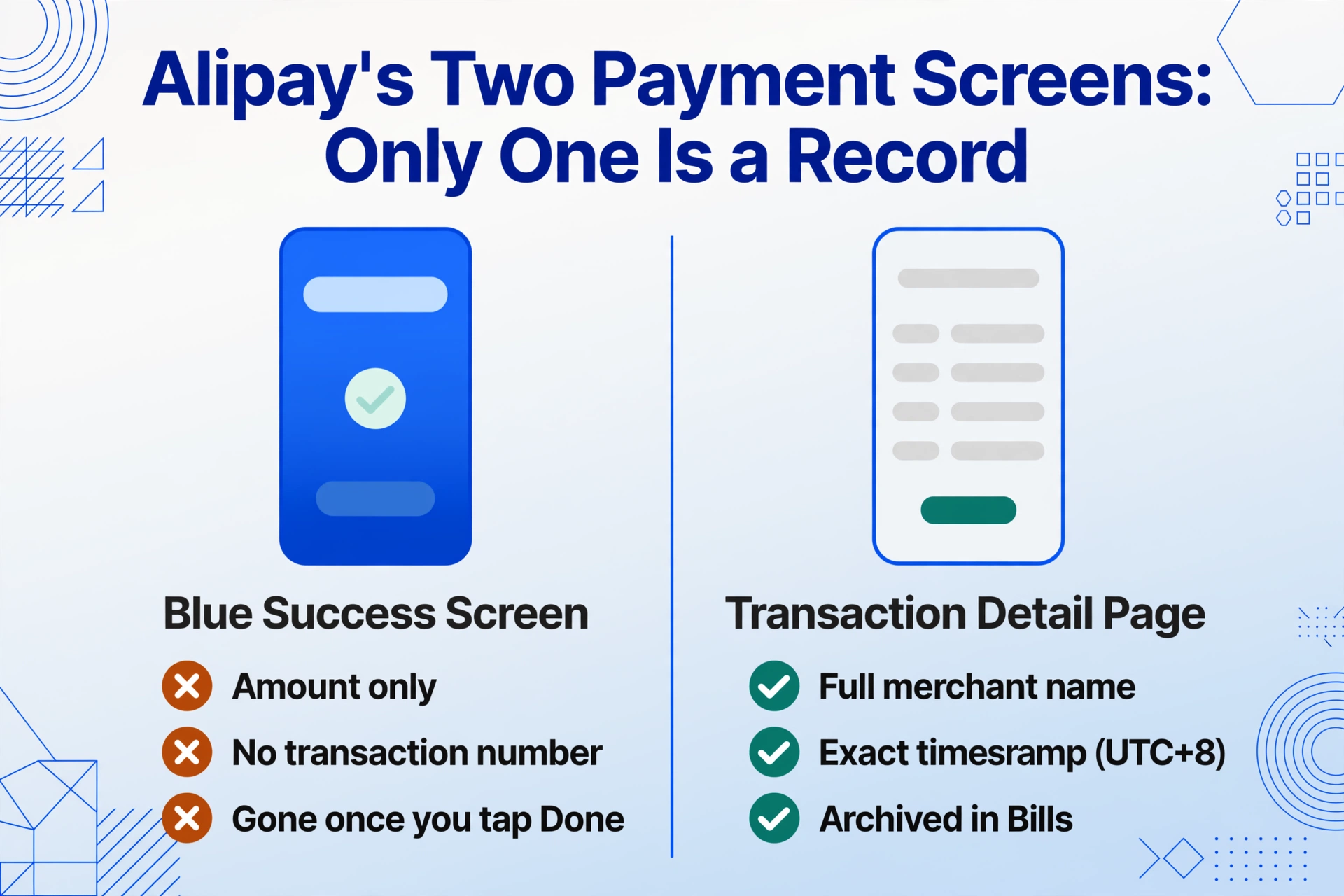
Alipay produces two distinct confirmation screens after a payment. Most people screenshot the first one they see. That's often the wrong one for what they need later.
The blue "Payment Successful" screen appears the instant your payment clears — a large blue page with the amount in oversized type, a green checkmark, and a "Done" button. It is designed for one purpose: immediate reassurance that the money moved. Once you tap "Done," it disappears permanently. There is no back button to revisit it later.
What the blue screen typically doesn't show: the full merchant name, a transaction ID usable for customer support, an exact timestamp, or the payment method used. It may show a shortened counterparty name or omit it entirely. For dispute resolution, refunds, or any formal record-keeping, this screen is insufficient — an Alipay support agent will ask for the transaction number (交易单号), not your blue-screen screenshot.
The transaction detail page (账单详情) is the permanent record. Access it through Alipay's "Bills" tab — every completed payment is archived there, ordered by date. Tap any entry and you get a white detail screen showing: the full counterparty name, an exact creation timestamp, the payment method (balance, card, or bank), the transaction and order numbers, and a status tag (交易成功 = successful). This is the screen that matters for anything beyond "yep, I paid."
If you're trying to pull fields from a screenshot and you only captured the blue success page, you're working from a screen missing half the data. The detail page is where the three fields we're after actually live.
Finding the Amount — Same Digit, Different Spot Across Transfer, Scan, and Merchant Payments
Alipay handles three types of payments, and the confirmation screen — both blue and detail — arranges the amount differently for each.
Transfer (转账): You sent money to another Alipay user. On the blue success screen, the amount sits at the center in large bold type — the most prominent element on the page, usually above the recipient's name. On the detail page, the amount appears near the top with a minus sign prefix (for outgoing transfers) alongside the counterparty name and a "Transfer" label. The amount here is the exact figure you typed in before confirming.
Scan-to-pay (扫码付款): You scanned a merchant's QR code and entered the amount yourself — common at restaurants, street vendors, and small shops. Here, the amount on the blue screen reflects what you keyed in. The detail page shows the amount beneath the merchant name, and the payment method line will say "扫码付款" or "Scan to Pay." The key distinction: in scan-to-pay, you control the amount input, so the figure on screen is only as accurate as what you entered. If you mistyped, the screenshot faithfully records the wrong number.
Merchant payment (商户消费): The merchant scanned your payment code — the typical scenario at supermarkets, convenience stores, and chain retailers. The amount is set by the merchant's POS system, and you only confirm. On the blue screen, the amount appears in large type but often with less surrounding context than a transfer — you'll see the merchant name and the figure, but no breakdown of what was purchased. On the detail page, the amount sits below the merchant name and above the payment method, which will show "余额" (balance), a linked card, or another funding source.
Across all three types, the amount is the easiest field to spot — it's always in large, prominent text. The trap is assuming it's self-explanatory. A transfer of ¥2,000 to a friend and a ¥2,000 merchant purchase look similar as numbers but need to land in different categories in your records. The amount alone doesn't tell you the transaction type — the merchant name and context do.
Merchant Name (商户名称) — Why It Sometimes Says "Masked"
The counterparty identifier on an Alipay screenshot is the most variable field of the three, and it changes not just by transaction type but by the counterparty's account setup.
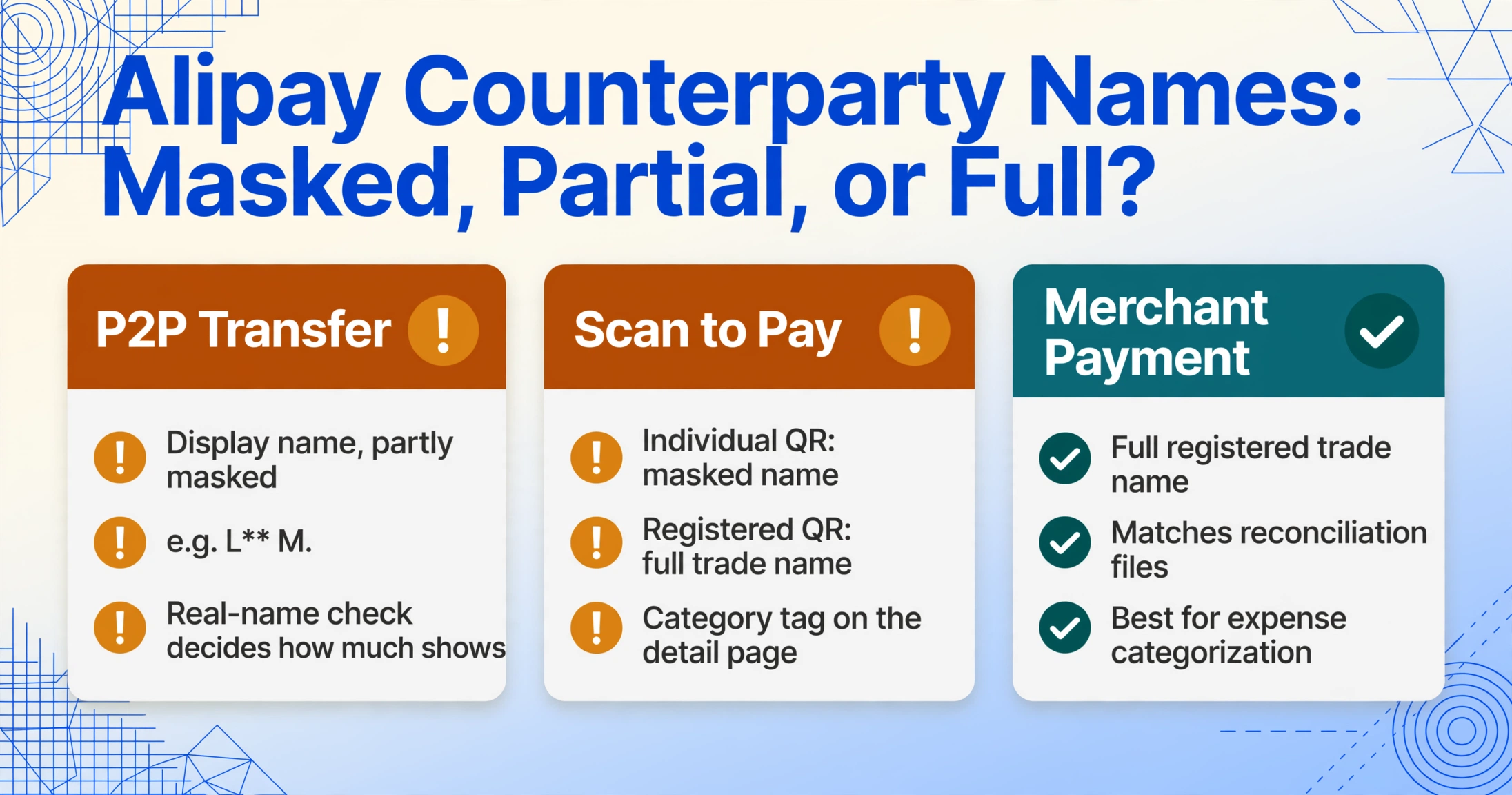
P2P transfers show the recipient's Alipay display name or real name, partially masked for privacy. You'll see something like "张*三" or "L** M." The masking isn't random — it follows Alipay's real-name verification policy, and what's visible depends on whether the recipient has completed identity verification. A verified account may show a fuller name; an unverified one may show only a nickname. For personal record-keeping, the visible portion is usually enough to identify who you paid, especially combined with the amount and time.
Merchant payments display the registered business name in full — "星巴克咖啡 (Starbucks Coffee)" or "盒马鲜生" — because merchants are verified entities with public-facing trade names. This is the most reliable version of the merchant name field. It matches what appears on the merchant's reconciliation files and what you'd need for expense categorization.
Scan-to-pay can fall into either pattern. If you scanned an individual's QR code (common with small vendors and street stalls), the name may be a personal account name with masking. If you scanned a registered merchant's code, it shows the full business name. The detail page also shows a category tag — "餐饮" (dining), "购物" (shopping), "交通" (transport) — that Alipay auto-assigns. This tag can help confirm the merchant identity even when the name is masked.
The practical point: the merchant name field doesn't need to be fully unmasked to be useful. "张*三 ¥43.50 2026-07-02" is enough to identify a recurring lunch payment. When pulling this field for expense tracking, what matters is consistency — the same counterparty should map to the same category across multiple transactions. If the name is partially hidden, the combination of visible characters + amount pattern + time is usually distinctive enough to disambiguate.
Transaction Time (交易时间) — Consistent, Easy to Miss, Critical for Reconciliation
Of the three fields, the transaction time is the most stable — it's always on the detail page, always in the same general position (below the amount and merchant name), and always in the same format: YYYY-MM-DD HH:MM, in China Standard Time (UTC+8).
Two things to watch for when pulling this field from screenshots.
First, creation time vs. payment time. The detail page shows the "creation time" (创建时间) — when Alipay received the payment instruction. For most transactions, this is identical to when the funds moved. But if a payment went through additional verification or sat in a processing queue, the actual settlement time may differ by seconds or minutes. Most personal or small-business tracking doesn't need sub-minute precision, but if you're reconciling against a bank statement, the bank's timestamp and Alipay's timestamp may be offset by the settlement delay. The transaction number (交易单号) in the detail page is the definitive cross-reference between the two.
Second, the time is always UTC+8, regardless of where you physically made the payment. If you used Alipay to pay while traveling abroad and your expense tracking software runs on a different timezone, the screenshot's timestamp reflects China time — not local time at the point of purchase. This matters for multi-timezone expense reports.
The time field is also what makes batch processing worthwhile. If you have 20 Alipay screenshots from the past month, the transaction time is how you sort and group them — by date, by week, or by billing cycle. Unlike the amount and merchant name, the time field changes with every single transaction, so there's no room for deduplication guesswork.
More Than One Screenshot — Getting All Three Fields Into One Place
One Alipay payment is straightforward. Ten in a day — a mix of transfers, QR scans, and merchant purchases — is where the friction builds. Each screenshot has the same three fields you need, but opening ten images, reading ten detail pages, and manually typing each amount-merchant-time triplet into a spreadsheet is the same labor the payment app was supposed to eliminate.
China's two dominant payment apps — WeChat Pay and Alipay — both produce screenshots that aren't formal receipts. WeChat Pay's confirmation screen hides its amount and order number in different spots depending on the payment scenario, and the underlying structure is a chat message, not a payment record. Alipay's bills interface is more detailed — the transaction detail page is closer to a proper ledger entry — but it's still a mobile screen designed for one-at-a-time viewing, not batch extraction.
The friction isn't the data quality. It's the format: scattered across individual screenshots instead of consolidated into columns.
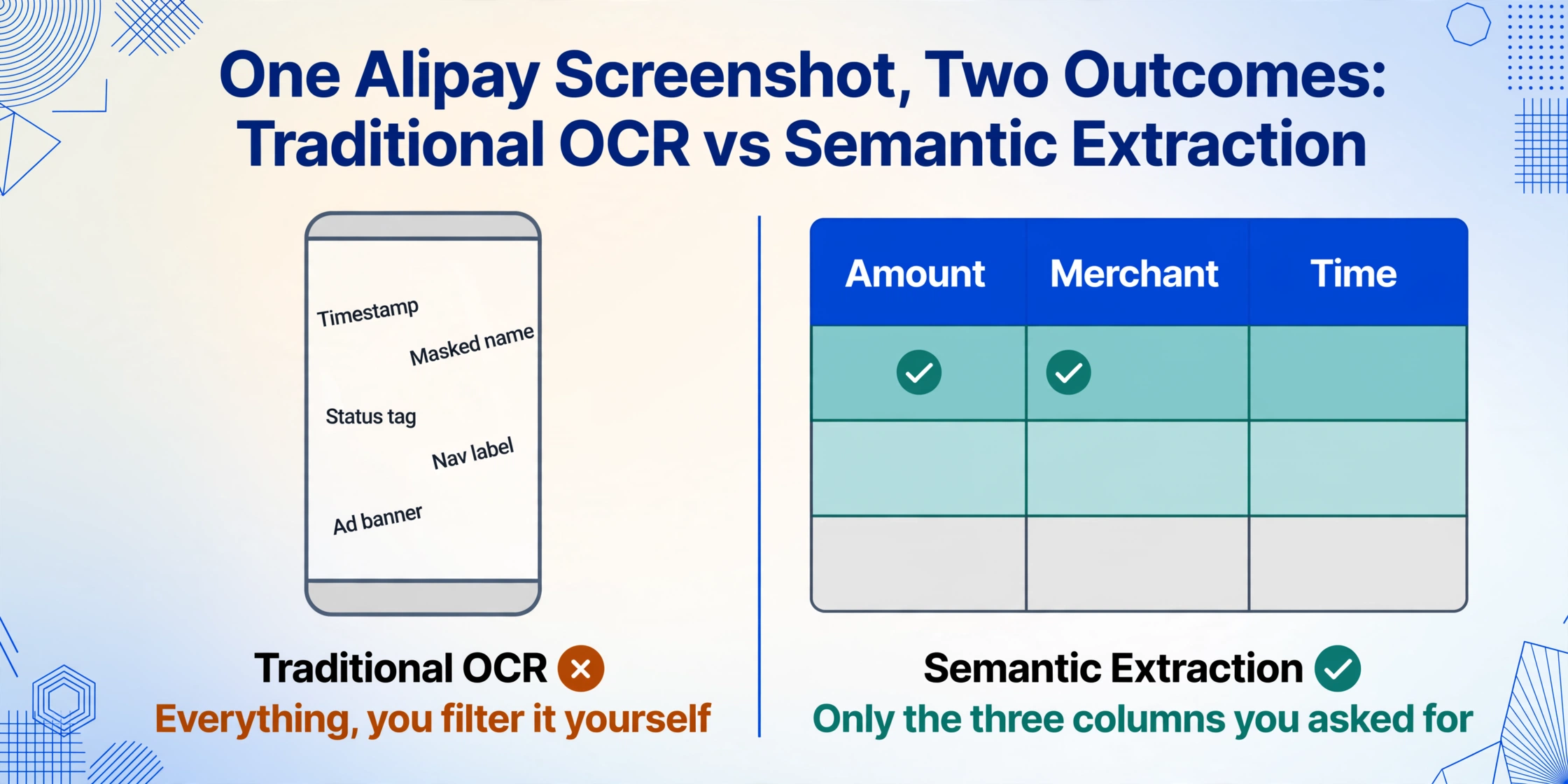
This is where the difference between traditional OCR and semantic extraction becomes concrete. OCR looks at a screenshot and reads every piece of text it can find — the timestamp, the masked name, the status tag, the UI navigation labels, the ad banner at the bottom. You then need to manually filter the output down to the three fields you wanted. Semantic extraction — where you specify "amount," "merchant name," and "transaction time" as the target columns — skips the noise. The AI reads the screenshot the same way you would: it recognizes that "¥2,000" is the amount field regardless of whether it's printed in 48pt blue on the success screen or in 14pt black on the detail page, and regardless of which transaction type produced it.
The same extraction setup works across payment apps. A Venmo screenshot from a US freelancer and an Alipay screenshot from a Shanghai-based small business both need the same three columns — amount, counterparty, time — and the output consolidates into the same spreadsheet. The source app changes. The column headers don't.
FAQ
Can I export Alipay transaction data directly instead of using screenshots?
Alipay does not offer a built-in CSV export for personal accounts. The app provides an "Analysis" feature under Bills that visualizes spending patterns, but it doesn't let you download raw transaction data as a spreadsheet. Merchant accounts have reporting tools through Alipay Global Merchant Portal, but individual users are limited to in-app viewing. Screenshots of the transaction detail page remain the most direct way to capture the three core fields for external use.
What if the merchant name on the detail page is partially hidden?
A partially masked name — "张*三" or "星*克" — is usually still identifiable when combined with the amount and time. If you made a ¥36.50 payment at 12:15 PM on a Tuesday to "星*克," the visible characters plus the amount pattern and timing are enough to confirm it's Starbucks. For recurring payments, the same masked pattern consistently maps to the same counterparty. If you're categorizing expenses, the Alipay auto-assigned category tag (餐饮, 购物, etc.) on the detail page provides an additional signal.
Can I use the blue success screen screenshot at all?
It shows the amount, and that's about it. If you only need the amount for a quick note and don't care about the counterparty name or exact timestamp, the blue screen is enough. For anything involving record-keeping, reconciliation, or sharing proof of payment — you want the detail page. A good habit: instead of screenshotting the blue screen when it flashes up, tap "Done," then immediately go to Bills and screenshot the detail entry while it's still at the top of your history.