Get the Amount, Order Number, and
Merchant Off a WeChat Pay Screenshot
WeChat Pay doesn't live in a standalone payment app — it sits inside WeChat, the same messaging app where people send voice notes, share photos, and split dinner bills. After a payment completes, the confirmation screen is part chat receipt, part transaction record: the amount appears loud and clear near the top, but the merchant name and the order number (订单号) sit in the quieter text further down, easy to overlook. If you're logging WeChat Pay transactions from screenshots — for a monthly expense reconciliation, a reimbursement claim, or a batch of supplier payments — knowing exactly which field is which, and what each one actually means, keeps the wrong number from landing in the wrong column.
Where the Amount, Merchant, and Order Number Sit on the Screen
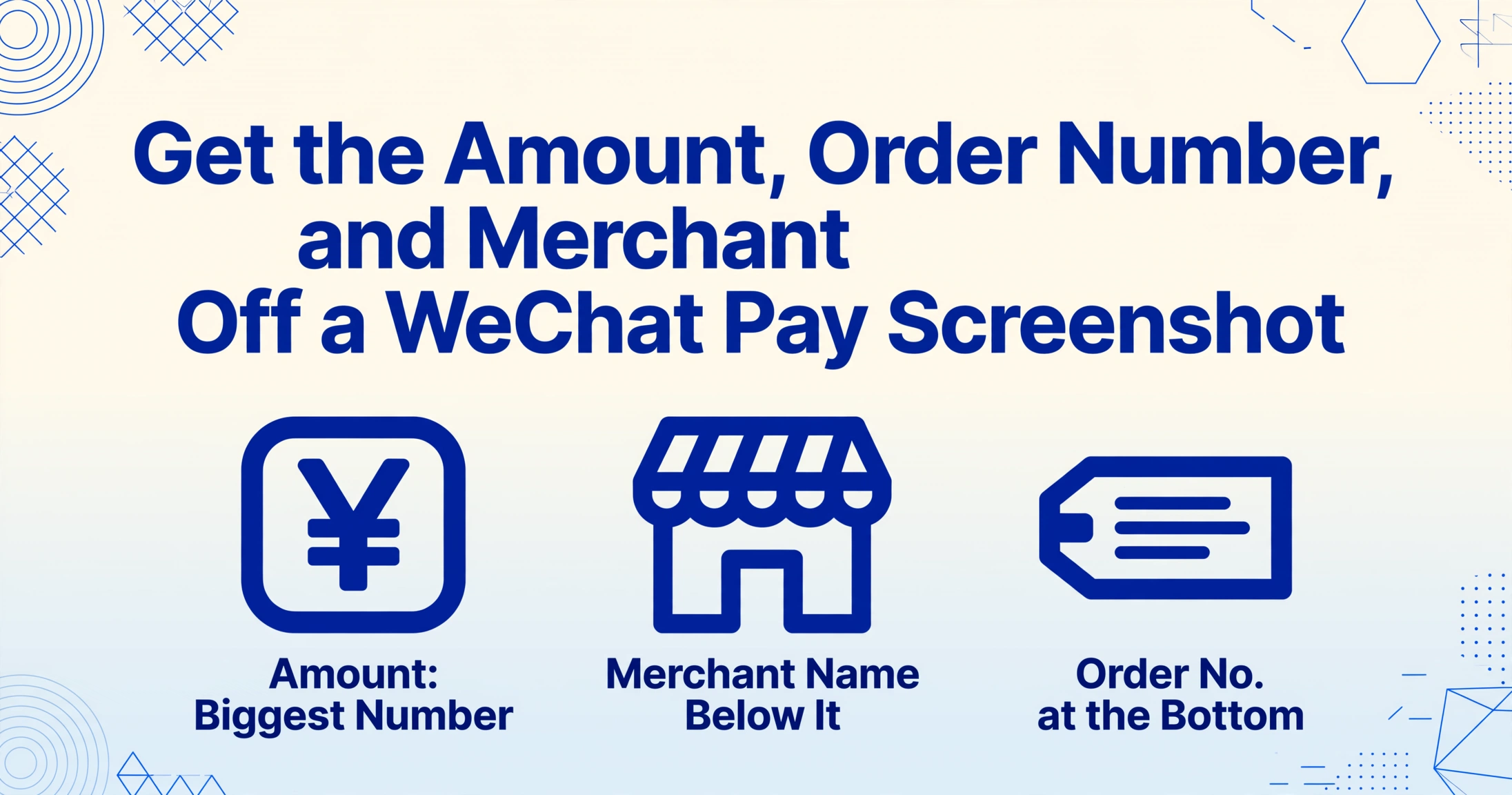
On a WeChat Pay transaction detail screen — the page you reach by tapping into a payment from your Wallet (钱包) transaction history — the amount is the first thing you'll see: a large number near the top, displayed in yuan (¥) with two decimal places. For a merchant payment, the currency is almost always CNY. For cross-border transactions processed through WeChat Pay's global settlement, the amount may appear in the merchant's local currency (HKD, USD, EUR) with the RMB equivalent shown in smaller text beneath it. If your screenshot captures both figures, the one you want depends on what you're tracking — the amount you paid (the deduction from your balance or card) or the amount the merchant received.
The merchant name (商户) appears below the amount, often accompanied by a small icon or category tag that WeChat Pay assigns — "餐饮" (dining), "交通" (transport), "购物" (shopping). This is the registered trade name the merchant filed with WeChat Pay when they opened their merchant account. For a familiar store like a supermarket chain, the name on screen will match the storefront brand. For a street vendor using a personal receipt QR code, the merchant name might be something less recognizable — the vendor's registered business name rather than the stall name you know. This is the single most important field to confirm before you file the transaction: if you're matching this payment to a specific supplier in your books, make sure the name on the screenshot is the one you'll search for later.
The order number (订单号 or 交易单号) is the small-print field at the bottom of the detail screen, typically a string of 28 digits beginning with a date prefix like 4200002193. WeChat Pay generates two different reference numbers for every transaction: the WeChat Pay order number (transaction_id, 微信支付订单号), which is the platform's internal tracking ID, and the merchant order number (out_trade_no, 商户订单号), which is the reference the merchant's system assigned to the sale. The detail screen usually shows one or both, depending on the merchant's integration. The WeChat Pay order number is the more consistent identifier — every transaction has one, regardless of the merchant's setup. If your screenshot captures both, record the WeChat Pay order number as your primary reference; it's the one you'd use to trace a disputed charge or reconcile against a bank statement.
The payment method — which bank card or whether the payment came from your WeChat balance (零钱) — and the exact transaction time (down to the second, in Beijing time) also appear on this screen. If you're pulling data for tax or reimbursement purposes, the timestamp gives you the exact moment the payment cleared, which may matter for determining which accounting period a transaction belongs to.
Why a Screenshot of a Transfer to a Friend Looks Different From a Merchant Payment
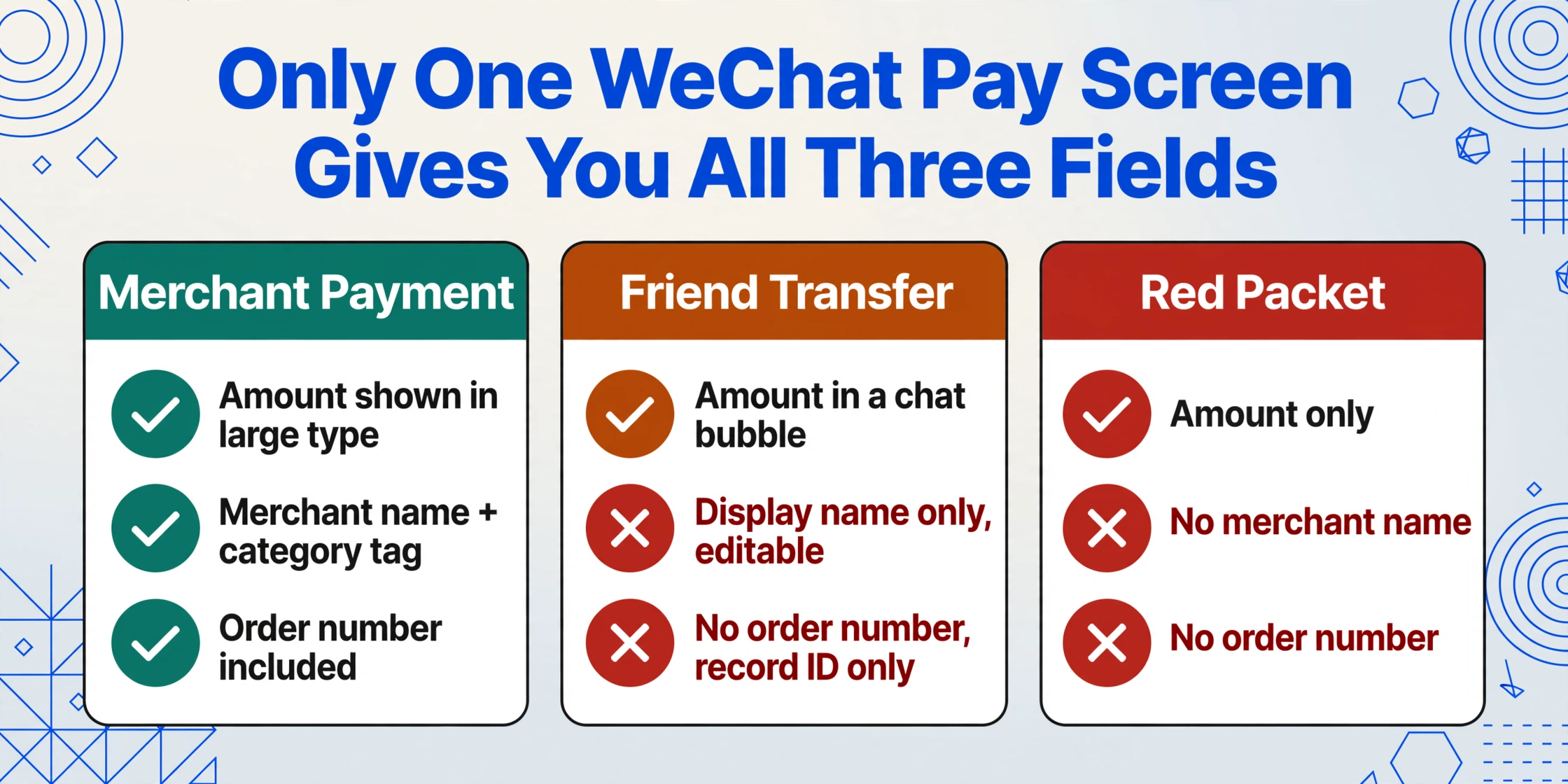
WeChat Pay handles three distinct transaction types through three different screens, and the fields visible on each are not the same set. Knowing which type your screenshot captures determines which data you can actually extract.
Merchant payments — scanning a QR code at a store, paying through a Mini Program, or using Quick Pay (被扫) where the cashier scans your barcode — produce the richest confirmation screen: amount, merchant name with category tag, order number, payment method, and timestamp. This is the screen described above, and it contains all three fields this article is about.
Transfers to a friend (转账) generate a chat-embedded confirmation: the amount appears in a card-style bubble inside the conversation, the recipient's WeChat display name is shown (not a merchant name — there is no "merchant" in a person-to-person transfer), and the transfer time is recorded. There is no order number in the same sense as a merchant transaction; instead, WeChat generates a transfer record ID visible in the Wallet transaction history. The key difference: on a transfer screenshot, the counterparty field is a person's display name — editable, changeable, not a verified business identity. If you're logging transfers for expense splitting or income tracking, record the WeChat ID or the display name as it appeared at the time, but know that the same person may appear under a different name in next month's screenshots.
Red packets (红包) are the third type and the least data-rich. A red packet confirmation shows the amount received (or sent), the sender's or recipient's name, and a greeting message — no order number, no merchant, no payment method detail. The amount on a luck-based group red packet is a random split, so the figure you see is your share of a total that you may not know. For record-keeping purposes, a red packet screenshot gives you one reliable field: the amount. Everything else is bare-bones.
The practical implication: if you're mixing screenshots from all three transaction types in one folder and trying to extract the same set of columns from each, a merchant payment screenshot will fill in all three fields, a transfer screenshot will give you the amount and a name (but no order number), and a red packet screenshot might only give you the amount. Your column definitions need to account for these differences — a field that exists on one screenshot type may be absent from another.
Why Traditional OCR Can't Read a WeChat Pay Screenshot Reliably — and What Can
The conventional approach to extracting data from a screenshot — running it through OCR and hoping the text lands in the right columns — hits a wall with WeChat Pay for a reason that has nothing to do with image quality. It's a layout problem, and it's baked into the platform's design.
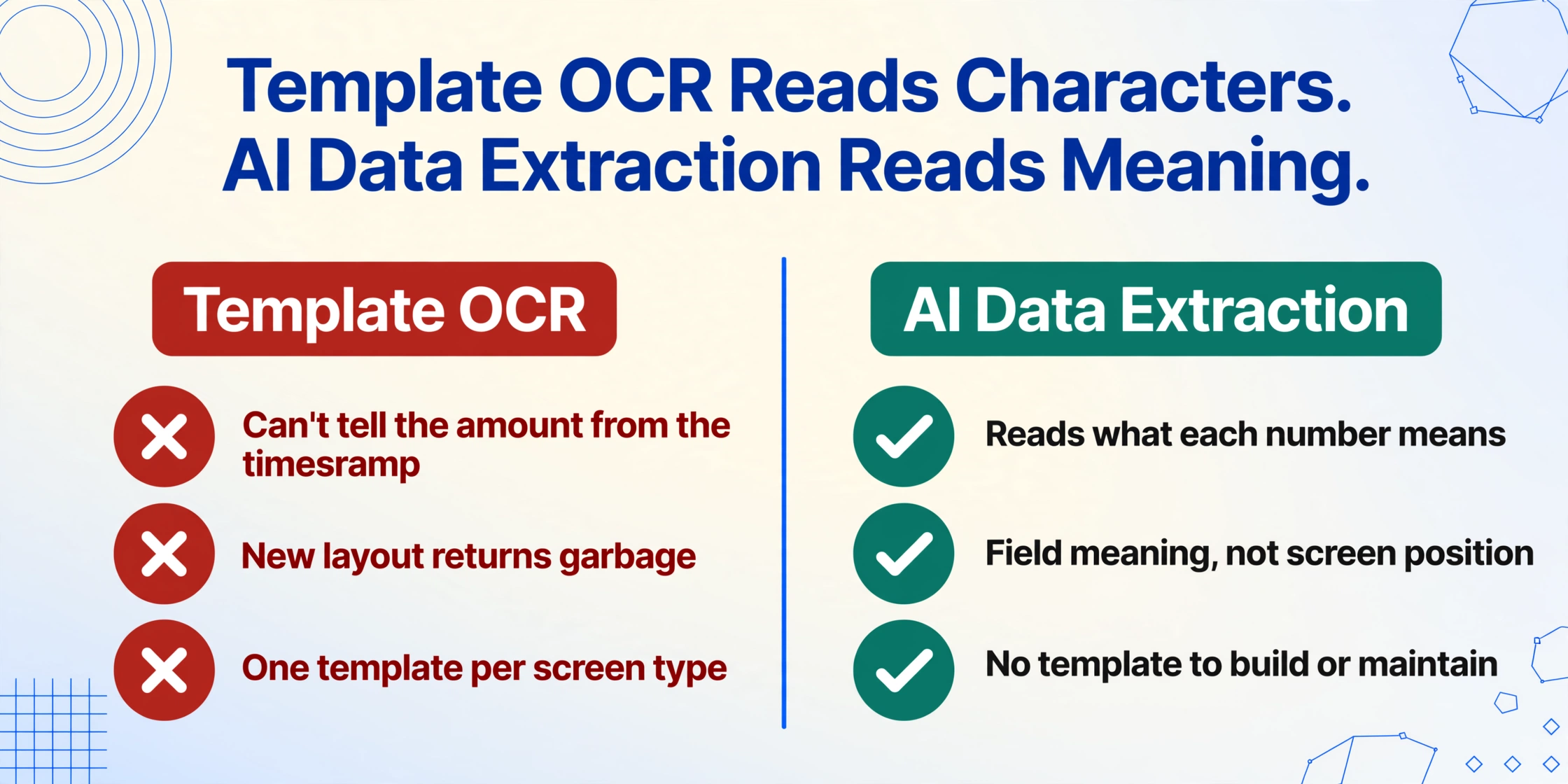
WeChat Pay confirmation screens are not forms. The amount isn't in a labeled field that says "Amount: ¥__.__" — it's a standalone number in large type at the top of the screen, sitting above a merchant name in medium type, above an order number in small type at the bottom. A traditional OCR engine sees three numbers in descending font sizes and has no way to determine which one is the amount, which is a timestamp, and which is a reference ID. It reads characters, not context.
Template-based OCR — drawing a bounding box around where the amount "usually" appears — compounds the problem. A merchant payment screen arranges fields in a different layout than a transfer screen. A payment to a Mini Program merchant (like ordering food delivery through Meituan inside WeChat) may add line-item details that push the order number further down the page than a simple QR-code scan at a convenience store. A screenshot from WeChat's dark mode inverts the color scheme but keeps the same text content. Each variation is a separate template to build and maintain, and a screenshot from a transaction type you haven't templated returns garbage.
The alternative is semantic extraction: instead of telling the tool where each field sits on the screen, you tell it what to look for — "the number that represents a payment amount," "the registered business name below it," "the 28-digit number near the bottom that begins with a date prefix." The extraction engine reads the screenshot the way a person reads it: it understands that ¥328.50 is an amount and that a string like 4200002193202403093640737027 is an order number, regardless of where either one happens to land on the page. The same set of column definitions — Amount, Merchant, Order Number — works across merchant payments, transfers, and even cross-platform: the same three columns that pull data from a WeChat Pay screenshot also work on a Venmo, PayPal, or Alipay screenshot, because the extraction is looking for what the data means, not where it sits.
Files are processed securely and not stored.
The same approach works across any payment app screenshot — Venmo, Zelle, PayPal, Alipay — because the extraction reads what's in the image, not which app generated it. If you receive payments across multiple platforms, a single column set pulls them into one spreadsheet without reconfiguration per app.
What You Actually Do With That Row After You Extract It
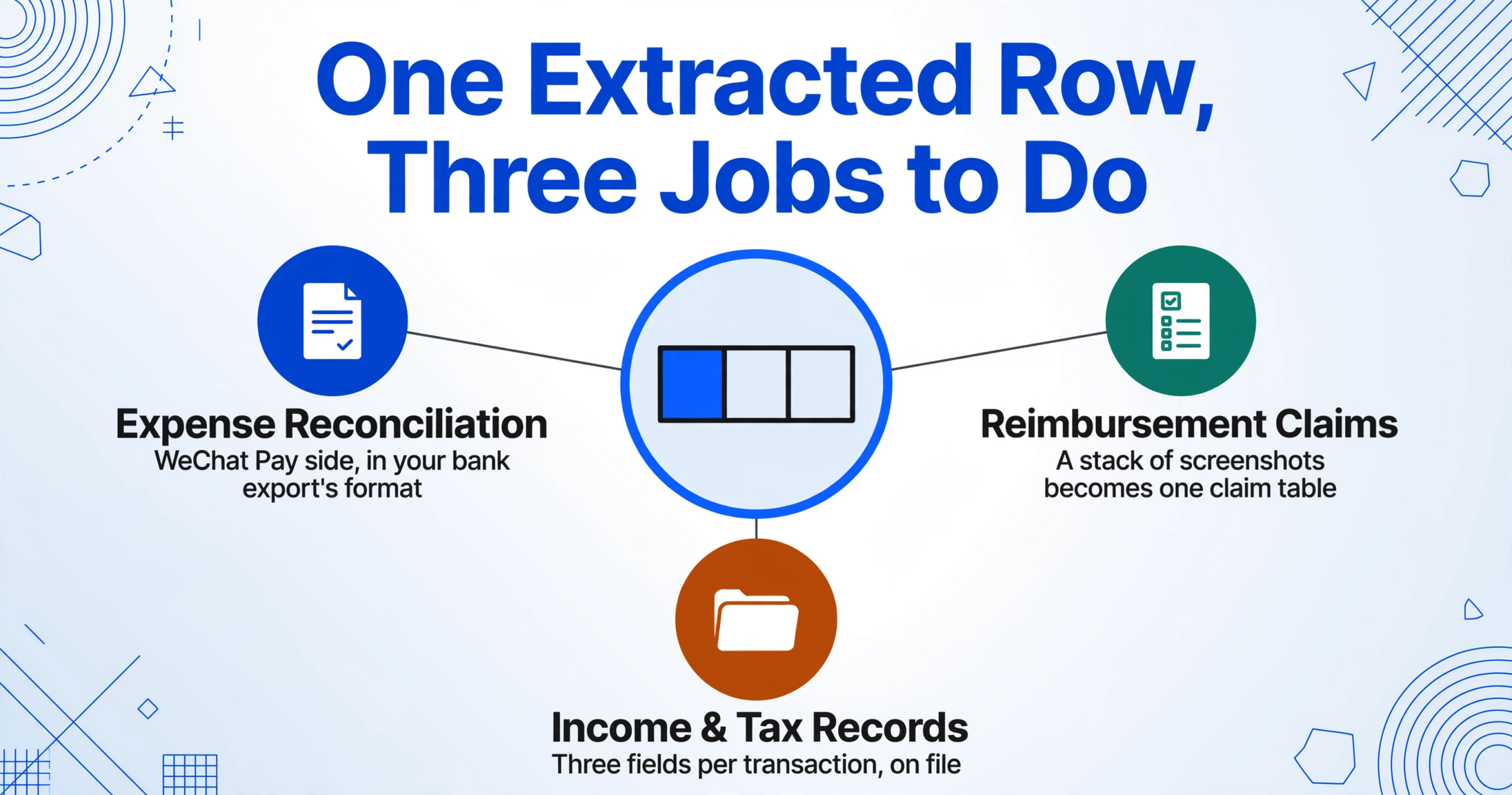
Getting the amount, order number, and merchant out of a screenshot is the first half. The second half is what happens when those three values land in a spreadsheet row — and for most people dealing with WeChat Pay, it's rarely a one-off exercise.
For expense reconciliation: WeChat Pay transactions accumulate fast — lunch here, a taxi there, a utility bill paid through a Mini Program. At month-end, matching what your WeChat balance shows against what your bank statement says means going through a scrolling list of transaction records inside the app, one tap at a time. A spreadsheet with extracted rows — amount, date, merchant, order number — gives you the WeChat Pay side of the reconciliation in the same format as your bank export. The order number is the bridge between the two: it's the identifier that appears on both your WeChat Pay record and, for refunds or disputes, the merchant's system.
For reimbursement: many companies in China and across Asia require a screenshot of the WeChat Pay confirmation as supporting documentation for expense claims. Finance teams often manually type the amount and merchant from these screenshots into an approval spreadsheet. Extracting the three core fields — rather than copy-pasting — turns a stack of screenshots into a single claim table in seconds. Attach the table to your reimbursement form and keep the original screenshots as backup; the extracted data covers what the approver actually needs to see.
For income tracking and tax records: small business owners and freelancers who receive customer payments through WeChat Pay — via a personal QR code or a merchant receipt code — need a complete log by date, amount, and customer. WeChat Pay's in-app transaction history is a chronological feed, not a filterable ledger, and WeChat's built-in export tools are designed for merchant accounts with API access, not individual users. A screenshot-to-spreadsheet workflow creates a searchable, sortable record without requiring a merchant account upgrade. If you're filing taxes in a jurisdiction that requires supporting documentation for business income, the extracted row — amount, date, counterparty — is the data you need; the screenshot is the proof.
The thread connecting all these downstream uses isn't a specific profession or income bracket. It's the moment a single transaction becomes one of many — when you need to see twenty WeChat Pay payments in one table, not one at a time inside the app.
FAQ
Does a WeChat Pay screenshot work the same as a receipt for expense claims?
The screenshot contains the three data points a typical expense report needs — amount, merchant, and transaction reference. Whether your company or tax authority accepts it as a receipt depends on their specific documentation policy. In China, the WeChat Pay order number (transaction_id) is a traceable reference that both the payer and the merchant's acquiring bank can use to verify a transaction, which makes it functionally equivalent to a receipt reference number. For tax or audit purposes, keep the original screenshot alongside the extracted data.
Can I extract data from a WeChat Pay screenshot if the interface is in Chinese?
Yes. The extraction reads the numbers and text in the image regardless of the UI language. A ¥ symbol means the same thing whether the surrounding labels read "支付金额" or "Payment Amount." If your column names are in English, the extracted values will populate those columns regardless of the source language on the screenshot. This also means screenshots from the Chinese-language WeChat Pay interface and the international WeChat Pay interface can go into the same batch.