KakaoPay Payment Screenshots
How to Identify the Amount, Merchant, and Time
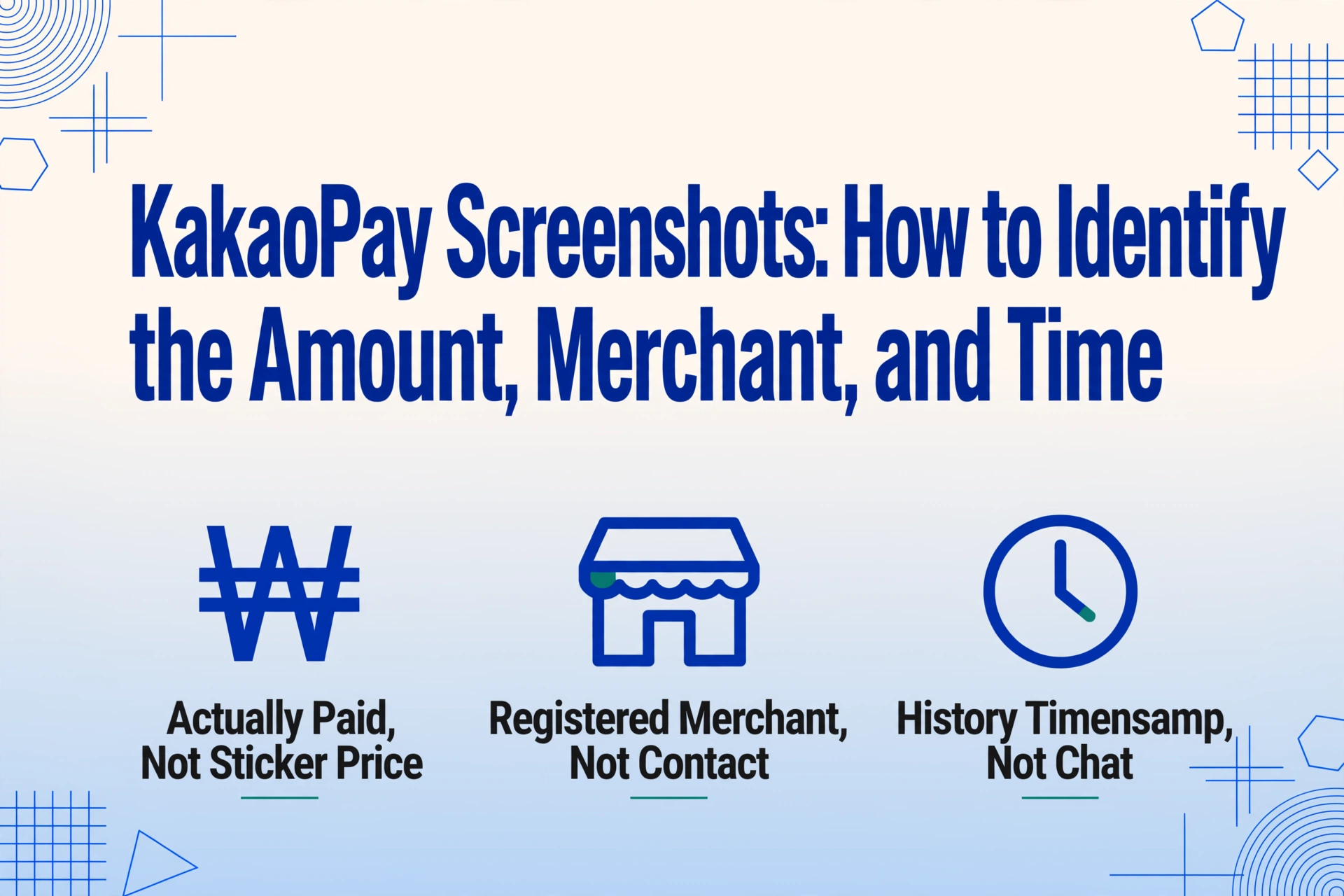
If you live in South Korea, you know the routine: a payment goes through KakaoPay, and the confirmation doesn't arrive as an email or a PDF receipt. It lands as a message bubble inside a KakaoTalk chat. The amount is in Korean won (₩), the merchant name is in hangul (한글), and the transaction time is buried in a chat timestamp that may or may not match when the payment actually cleared. For anyone who needs those three details — amount, merchant, and time — in a spreadsheet or accounting app, that chat bubble is where the trail starts.
The KakaoTalk Chat Layer Problem
KakaoPay isn't a standalone app in the way PayPal or Venmo is. It's embedded inside KakaoTalk (카카오통), the messaging platform used by 93% of Korean smartphone users. When you pay at a convenience store with a QR code, send money to a friend, or settle a restaurant bill, the confirmation appears as a notification inside a chat thread — not in a separate "Receipts" tab.
This matters because of what people actually do with those confirmations. Screenshot them. The chat bubble becomes the de facto record of the transaction. But a screenshot of a chat is two layers removed from structured data: first, it's not a document — it's a messaging interface with profile pictures, timestamps, and emoji reactions mixed in with the payment details. Second, the payment information itself — the amount, the merchant, the time — is embedded in a card-style UI inside the chat bubble, not laid out like a receipt.
This is the pattern that connects KakaoPay to LINE Pay in Japan and WeChat Pay in China: all three are payment systems built into messaging apps. In each case, the payment record lives inside a chat, and extracting the data means navigating a UI that wasn't designed with data export in mind. But the information is there — you just need to know where to look.
Finding the Payment Amount (거래금액)
The amount is usually the most prominent element on a KakaoPay confirmation — it's displayed in a large, bold font, often centered in a card-style bubble below the merchant name. In the KakaoPay app's transaction history (거래내역), each entry shows the amount on the right side of a list item, preceded by a minus sign for outgoing payments or shown without sign for incoming transfers.
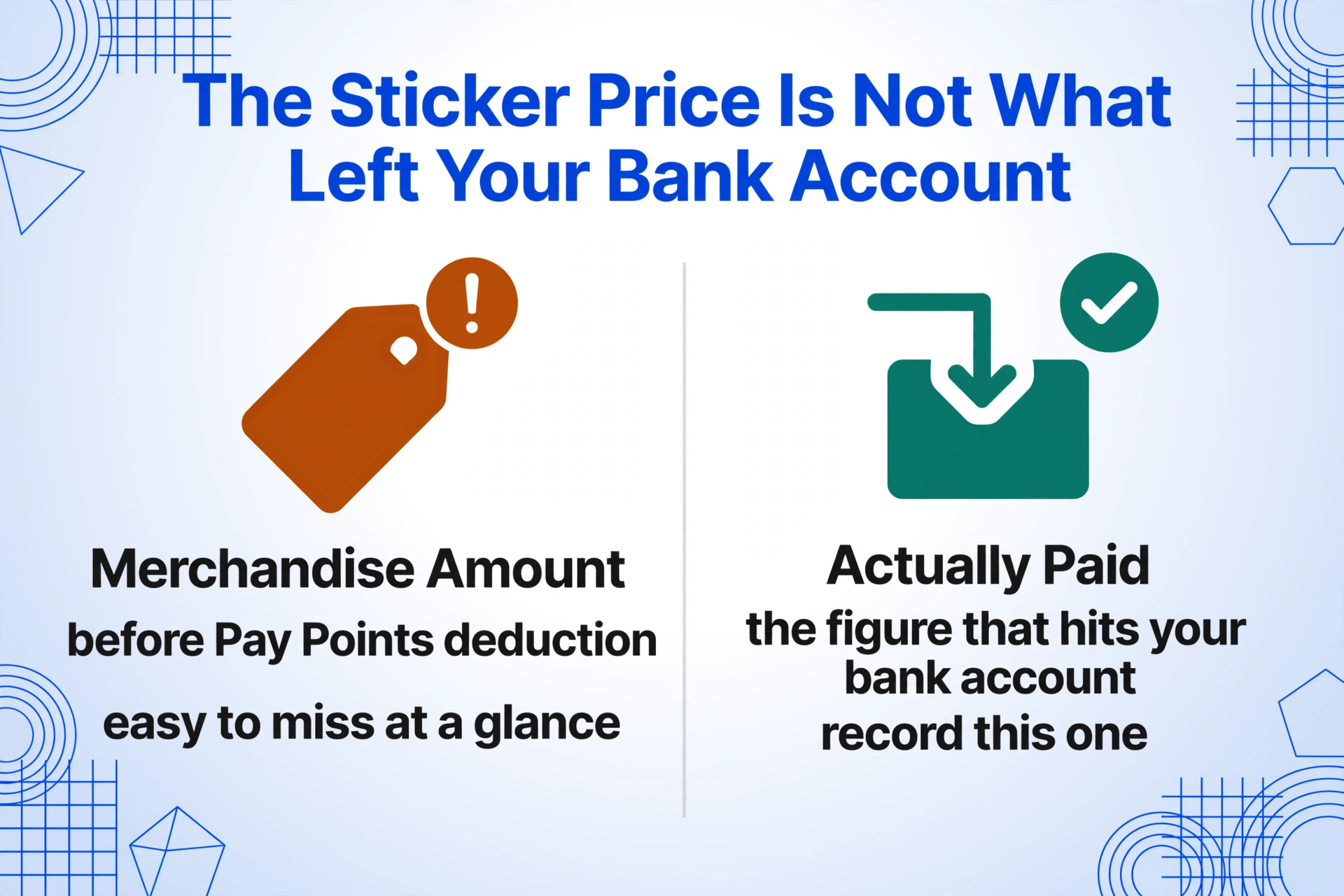
Two things to watch for when reading KakaoPay amounts from screenshots:
The Points deduction trap. KakaoPay has its own rewards currency — Pay Points (페이포인트). When you use Points to partially pay for something, the confirmation shows two numbers: the original merchandise amount and the "actually paid" amount after Points deduction. The actual paid figure is what hits your bank account. If you're recording the transaction for accounting, that's the one you want — not the pre-discount sticker price. The difference between these two numbers is easy to miss at a glance, especially in a chat bubble screenshot where the Points deduction line is in smaller text.
Korean won (₩) formatting. Amounts are displayed in won with commas as thousand separators: ₩15,000 for fifteen thousand won. A typical lunch in Seoul might be ₩9,000–12,000; a monthly utility bill can run ₩50,000–150,000. At the exchange rate of roughly 1,400 won to the dollar, a ₩50,000 payment is about $35 — which means if you're converting won-denominated records into another currency for reporting, the comma placement and zero count matter. A misplaced decimal or a missing zero turns ₩100,000 into ₩10,000, and you won't notice until something doesn't add up at month-end.
Unlike PayPay in Japan, where the amount is often shown inside a yellow-colored notification card with a distinctive layout, KakaoPay's amount presentation is more understated — black text on a white card, with the won symbol on the left and the numeric value right-justified on most screens. The contrast matters if you're building a habit of quickly scanning screenshots; you learn where to look based on the app, not a universal template.
Identifying the Merchant Name (가맹점명)
The merchant name on a KakaoPay screenshot comes in three possible flavors, depending on where you're looking:
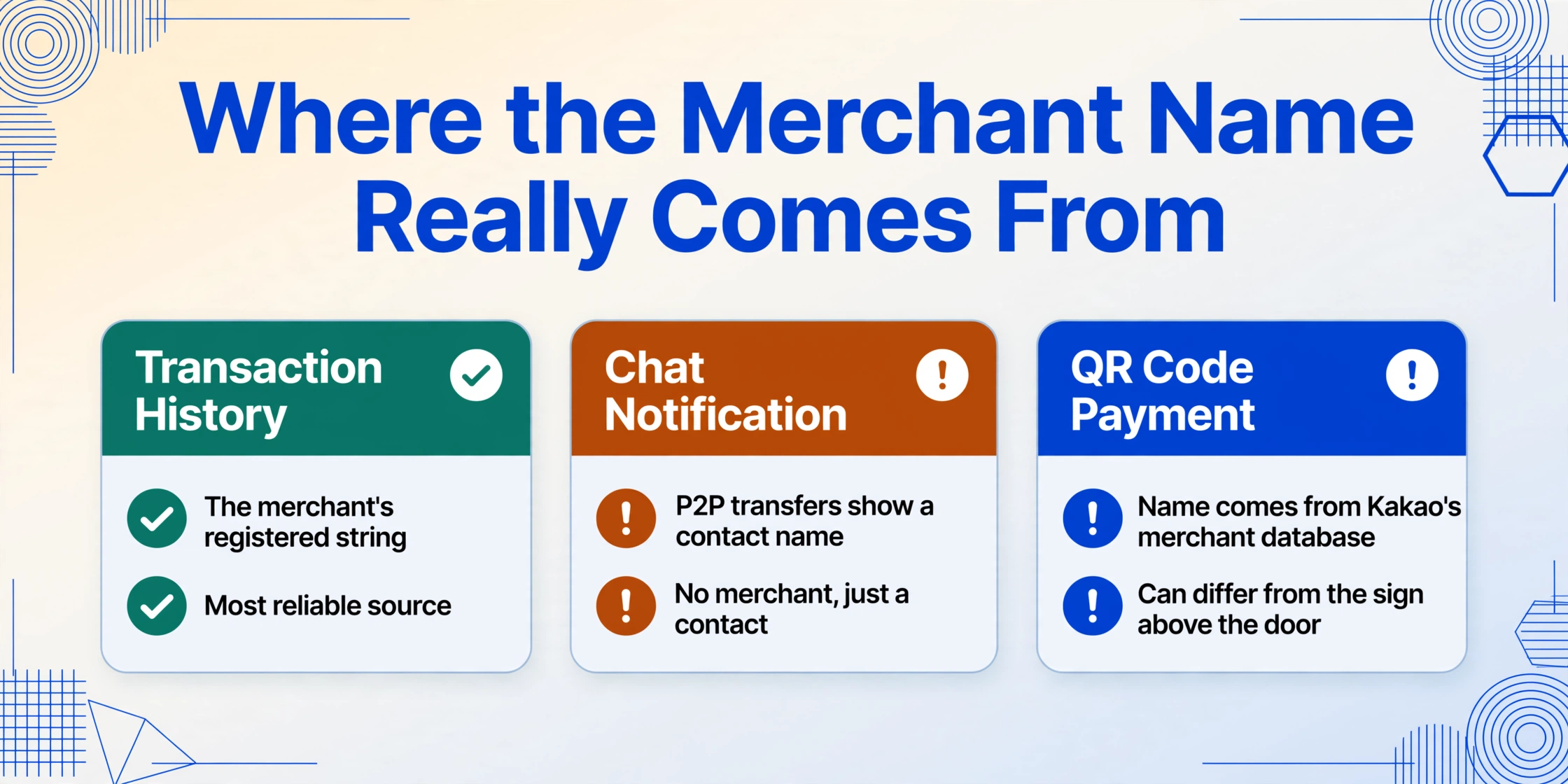
In the app's transaction history, each line item shows the merchant name in Korean (or English, for international chains) on the left, with the amount on the right. This is the most reliable source — the name is the same string the merchant registered with Kakao's payment gateway. A purchase at a CU convenience store will say "CU" or "CU편의점"; a payment at Paris Baguette appears as "파리바게트". These are consistent across transactions from the same merchant.
In a KakaoTalk chat notification, the merchant name appears inside the payment card bubble, usually above the amount. But here's the catch: if the payment was a person-to-person transfer (개인 송금), the "merchant" shown is the KakaoTalk display name of the person you sent money to — not a business entity. For person-to-person transfers, you don't have a merchant at all; you have a contact. If you're categorizing expenses, the question becomes "who did I pay" rather than "which store."
For QR code payments at physical stores, the merchant info comes from Kakao's merchant database, which means the name shown on your confirmation is the store's registered business name — which can differ from the sign above the door. A small restaurant might be registered under the owner's name or a corporate entity, not the restaurant's trading name. This disconnect is common across Korean small businesses and means you can't always match a KakaoPay entry to a familiar store name without cross-checking.
Korean business names present a particular challenge for non-Korean speakers: the merchant name is often in hangul only, with no English alias. A payment to "맛콜 홍대점" (Lotteria Hongdae branch) might be recognizable because the brand name is transliterated, but "김밥칝 알아서 주는 웹간의사" is a descriptive local shop name that won't map to anything in an English-language accounting system. This is where having an extraction step that captures the raw Korean string matters — you can translate or categorize it later, but you can't recover characters you didn't capture.
Pinning Down the Transaction Time (거래일시)
Transaction time seems like the simplest field — it's a date and time — but KakaoPay introduces a specific ambiguity that can trip up anyone relying on screenshots.
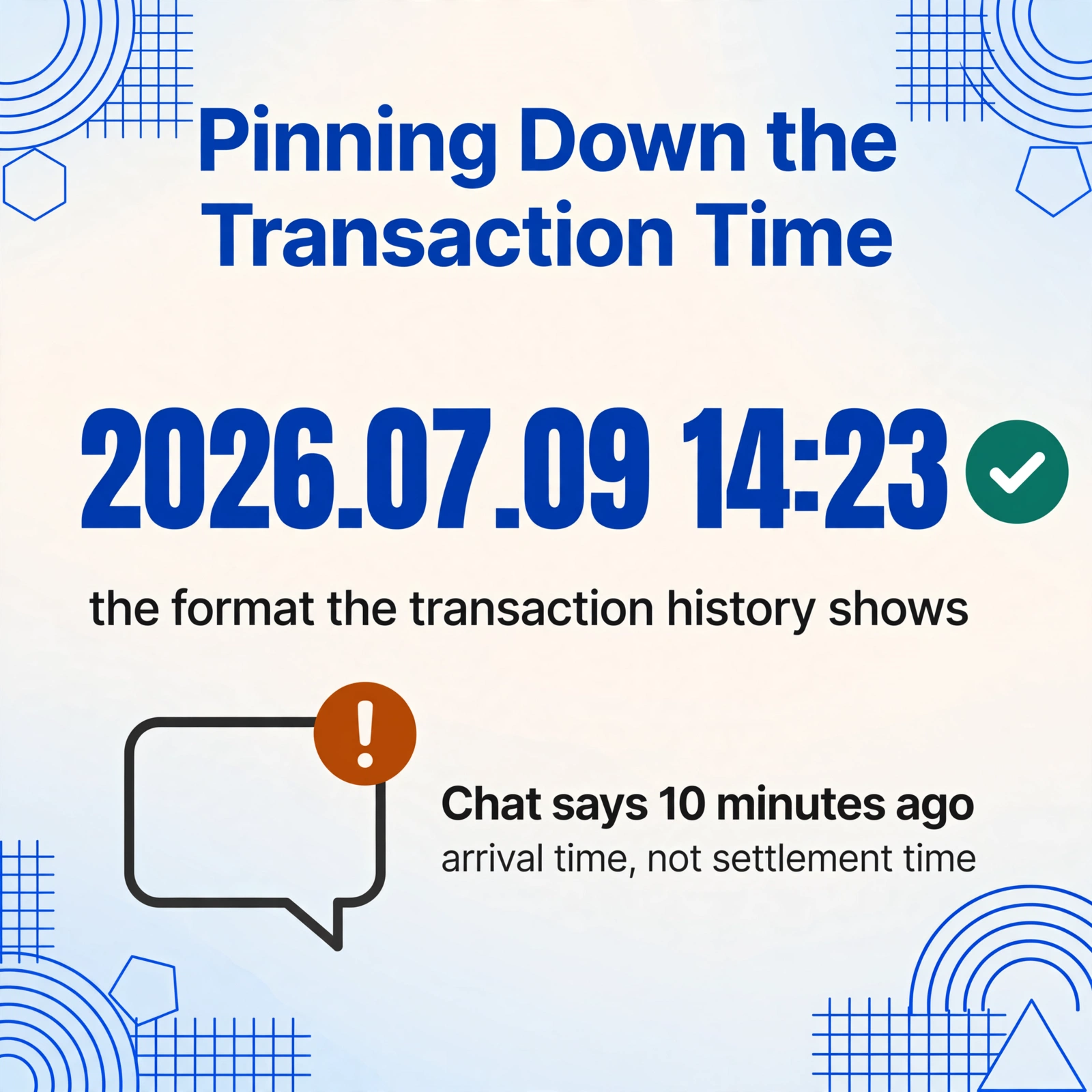
The timestamp on a KakaoTalk chat message reflects when the notification arrived in the chat, not when the payment was processed. For most transactions, the gap is seconds. But if the payment involved a bank transfer through KakaoPay's linked account, or if there was a network delay during QR code payment, the actual settlement time (the moment money left your account) can be minutes or even hours earlier than the notification timestamp. For expense reporting or tax records where the exact time of the transaction matters — think business meals, client payments, or time-stamped reimbursements — the app's transaction history list is the authoritative source. The chat bubble is a notification, not a receipt.
KakaoPay displays dates in YYYY.MM.DD format in its transaction history (e.g., 2026.07.09), with the time in 24-hour format below. This differs from the chat timestamp, which uses the device's locale setting and may show relative time labels ("10 minutes ago," "어제" for yesterday) instead of absolute dates in older messages. If you're screenshotting a chat notification days after the fact, what you see might be "July 7" rather than "2026.07.09 14:23" — and for accounting, the latter is what you need.
The KakaoPay app's transaction history screen solves this: every entry has a precise date and time under the merchant name. Take the screenshot from there when accuracy matters. Take it from the chat when speed and convenience are the priority. The choice depends on whether the record you're creating needs to survive an audit or just needs to exist.
From Chat Bubble to Accounting Software
Once you've located the amount, merchant, and time, the question becomes: where does this data actually go?
For Korean small businesses and freelancers, the destination is often a local accounting platform. Douzone WEHAGO (더존 위하고) dominates the market with over 130,000 ERP customers and roughly 90% penetration among Korean tax accounting offices — it's the default choice if your accountant is Korean. ECount ERP (이카운트) is the cloud-native alternative popular with SMBs that want unlimited-user pricing without per-seat fees. QuickBooks Korea serves the expat and freelancer segment with an interface in English. None of these platforms can natively read a KakaoTalk chat screenshot — the step between "I took a screenshot" and "the data is in my books" is still manual for most users.
This is where the extraction approach matters. Rather than typing ₩15,000, "파리바게틤", and "2026.07.09 14:23" into three separate fields by hand — for every transaction, every month — you can define those three columns once and let AI locate the corresponding values on each screenshot. The tool reads the payment card inside the chat bubble the same way it reads an invoice table: by understanding what "amount" means semantically, not by looking for a fixed pixel position.
This is fundamentally different from what a traditional OCR tool would do. OCR sees characters; it doesn't know that the large bold number in the center of a KakaoPay confirmation card is the transaction amount rather than a loyalty point balance or a phone number. A visual AI model that processes the screenshot as an image understands layout hierarchy and contextual cues — the way your eye naturally jumps to the largest text block when you glance at a payment confirmation. Extracting data from screenshots works because the AI reconstructs the document's visual structure before reading it, not because it's better at character recognition.
KakaoPay sits in a unique position within the "chat-app-embedded payment" landscape. LINE Pay (Japan) shares the same architecture — payment inside a messenger — but LINE Pay's confirmation cards are visually distinct from KakaoPay's, with different field placement and a heavier reliance on in-app wallet history rather than chat notifications. WeChat Pay (China) is the original model for this pattern, but its confirmation screen is more transaction-dense, often showing payment method, order number, and merchant info on a single dense card. GCash in the Philippines and Alipay complete the picture across different Asian markets, each with its own confirmation screen layout but the same underlying problem: payment data trapped in a non-document interface that was designed for quick glance, not for record-keeping.
What makes KakaoPay's case distinct within this group is the degree of KakaoTalk integration. Unlike LINE Pay, which has a dedicated wallet tab inside LINE, or WeChat Pay, which has a dedicated "Wallet" section within WeChat, KakaoPay blururs the boundary more aggressively: the payment history, bill pay, insurance, and investment features all coexist inside KakaoTalk's "More" tab without a clear visual separation between chat functions and financial functions. The screenshot you're working with might show payment details and a friend's last message in the same frame. That's not a bug of the platform — it's the design philosophy. But it does mean the extraction has to handle mixed-content screenshots where not everything in the frame is payment data.
FAQ
Can I extract data from KakaoPay screenshots that mix chat messages and payment cards?
Yes. A visual AI model doesn't need the screenshot to be a clean, isolated payment confirmation. It can identify the payment card within a chat interface by recognizing its visual structure — the bordered card, the large amount font, the merchant label — and extract the relevant fields while ignoring surrounding chat messages, timestamps from other messages, and UI elements. The extraction zeroes in on the payment block itself, not the entire screenshot.
What if the merchant name is in Korean and I need it in English?
The extraction captures the character string as it appears on screen. If the merchant name is "파리바게틤", that's what you get in your spreadsheet. You can then translate or standardize names in a separate step — or use a tool that supports an inferred column to classify merchants into categories automatically, regardless of the language. The key is capturing the original string intact; translation logic can be layered on top of that.
How do I handle multiple KakaoPay transactions in a single batch?
If you have screenshots of several transactions — say, a week's worth of business meals and supply purchases — you can upload them together as a batch and define your three columns (amount, merchant, time) once. The extraction runs across all screenshots in parallel and merges the results into a single table, with each row representing one transaction. This is particularly useful for end-of-month reconciliation when you're processing dozens of KakaoPay records at once.
Files are processed securely and not stored.
KakaoPay processed KRW 43.1 trillion in payments during 2024 across 24 million monthly active users. That's a lot of chat bubbles with payment data inside them. The ones that matter for your records — the business meals, the supply purchases, the freelance payments received — don't belong trapped in a chat thread. The three fields you need are right there on the screen: the amount in bold, the merchant name above it, and the time somewhere nearby. The rest is just getting them into the right column.