Unlock the Password-Protected PDF
Then Extract the Table
Search any forum for help with a locked PDF and the same shape of answer comes back: a list of tools, several of which read like ads. A thread on r/pdf asks how to unlock a password-protected PDF so its table can be edited in Excel. The replies name one product after another, and the most useful comment is the one that says the job is harder than the list suggests. That comment is right, though not for the reason it gives.
The word "unlock" is three problems stacked under one syllable. The first is access: can you open the file at all. The second is use: can you copy or edit what is inside. The third is shape: once you can read it, will the rows survive the trip into a spreadsheet. Most tools sold as PDF unlockers solve the first two and quietly leave the third untouched, which is why locked files so often end up open and still unusable.
Key Takeaways
- The password is the easy part. "Unlock" hides three separate problems, and most tools quit before the one that decides whether you get a table.
- Opening the file still leaves you without a table. A decrypted PDF is just text pinned to fixed coordinates, so one transaction can arrive split across two Excel rows.
- The fix is to skip unlocking entirely: ImageToTable.ai takes the password at the door and returns the columns you defined, leaving no unprotected copy of the statement on your disk.
"Unlock a PDF" Is Two Different Locks, and Only One Is Encryption
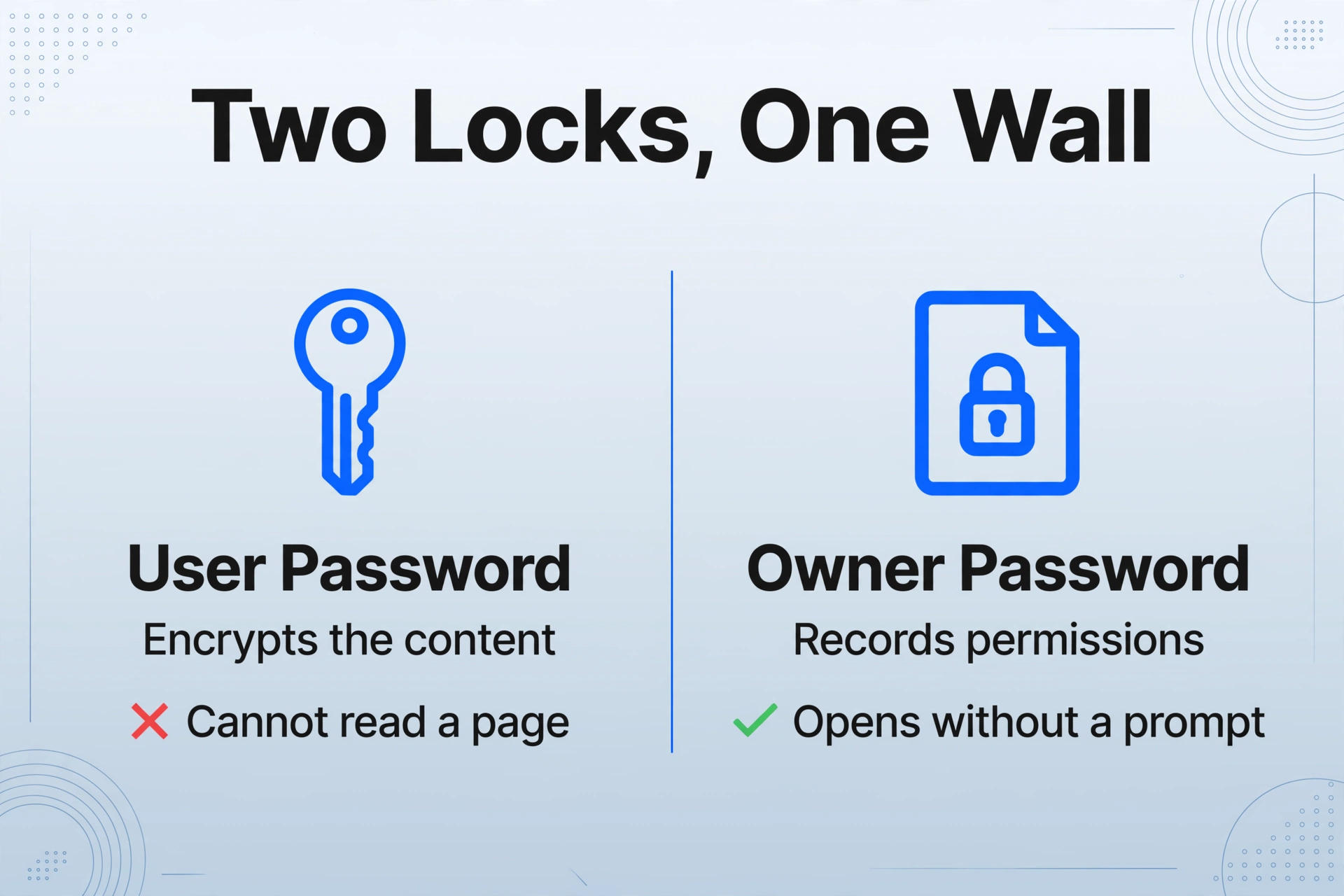
Whether you can open a locked PDF at all depends on which of two locks the sender set, and the PDF specification treats them as separate mechanisms. ISO 32000-1:2008, the document format standard, defines a standard security handler that lets a document carry an owner password and a user password, and says so in section 7.6.3 of the specification. People use the words interchangeably. The two locks behave nothing alike.
| Lock | What it actually does | What stops you | Who enforces it |
|---|---|---|---|
| User password (open password) | Derives the key that decrypts the document content | You cannot read a single page without it | Mathematics. The content is encrypted |
| Owner password (permissions password) | Records which actions should be allowed, such as printing, copying, or editing | Nothing, once the file is open | The viewer software, if it chooses to cooperate |
The distinction is not a technicality. The qpdf documentation puts it plainly: password protection is distinct from encryption, and a PDF can be encrypted without being password-protected at all. When the owner password is left empty, qpdf notes, the restrictions are effectively useless. The pikepdf documentation goes further and calls permissions "advisory flags that only cooperating viewers honour." A file that blocks copy and paste but opens without a prompt is carrying a request, not a wall.
There is a one-second test. If the file opens in a browser without asking for anything, you are dealing with a permissions flag, not an open password, and the block is a setting rather than a secret.
The strength of the real lock also varies more than people expect. PDFs have used 40-bit RC4 keys, 128-bit RC4, AES-128, and AES-256 over the years. Per the same qpdf documentation, a 40-bit key is five bytes long and can be brute-forced regardless of how strong the password is, and the 128-bit default that uses RC4 is also known to be weak. Only AES-256 is the modern, defensible option. That history matters here for one reason: "remove the PDF password" is not a single skill level, and a file from an older system can behave very differently from one issued last month.
The Path Most People Take, and the Place Each One Stops
Every common route from a locked PDF to Excel handles at most one of the three problems, and each one stops at a predictable place. Knowing where the stop is saves the most time, because it explains the failure before you waste an afternoon on it.
| Method | What it handles | Where it stops |
|---|---|---|
| Excel Power Query (Data → Get Data → From PDF) | Prompts for the password and reads the tables it detects | One file per import, and you pick the table by hand each time |
| Adobe Acrobat Export PDF | Exports a readable file to a spreadsheet | Removing the security needs the owner password, and Acrobat says only someone with permission can remove restrictions |
| Online unlockers (Smallpdf, iLovePDF, CanaryPDF and the rest) | Accepts the password, returns a decrypted PDF | One file at a time, your file is uploaded to their servers in most cases, and the output is a PDF rather than a table |
| qpdf or another command-line tool | With no password, strips permission flags from a file you can already open | An open-password file still needs the password, and the output is again a PDF |
| macOS Preview | Exporting to a new PDF drops permission restrictions | Only useful for permissions locks, and it produces no spreadsheet |
The Excel route is worth understanding because it is the one most people try first and it does something genuinely useful. It asks for the password and then presents the tables it found in the document, so you can tick a box and load one. For a single clean statement it works. What it does not do is remember anything: the next file starts the same conversation, and if it has a different password you answer that one too.
The print-to-PDF trick that circulates on support forums is worth flagging as well. It comes up repeatedly in an Adobe community thread about Chase statements, where users report that reprinting the file through "Microsoft Print to PDF" produces a copy they can work with. It can clear a permissions flag, but it also rasterizes the page in many setups, turning selectable text into an image, which makes the later extraction job harder rather than easier. In the same thread, a community expert gives the answer nobody wants to hear: "the real solution to all of this is to ask your bank to provide the data in a spreadsheet, not a PDF file."
Unlocking Gets You a PDF, Not a Table
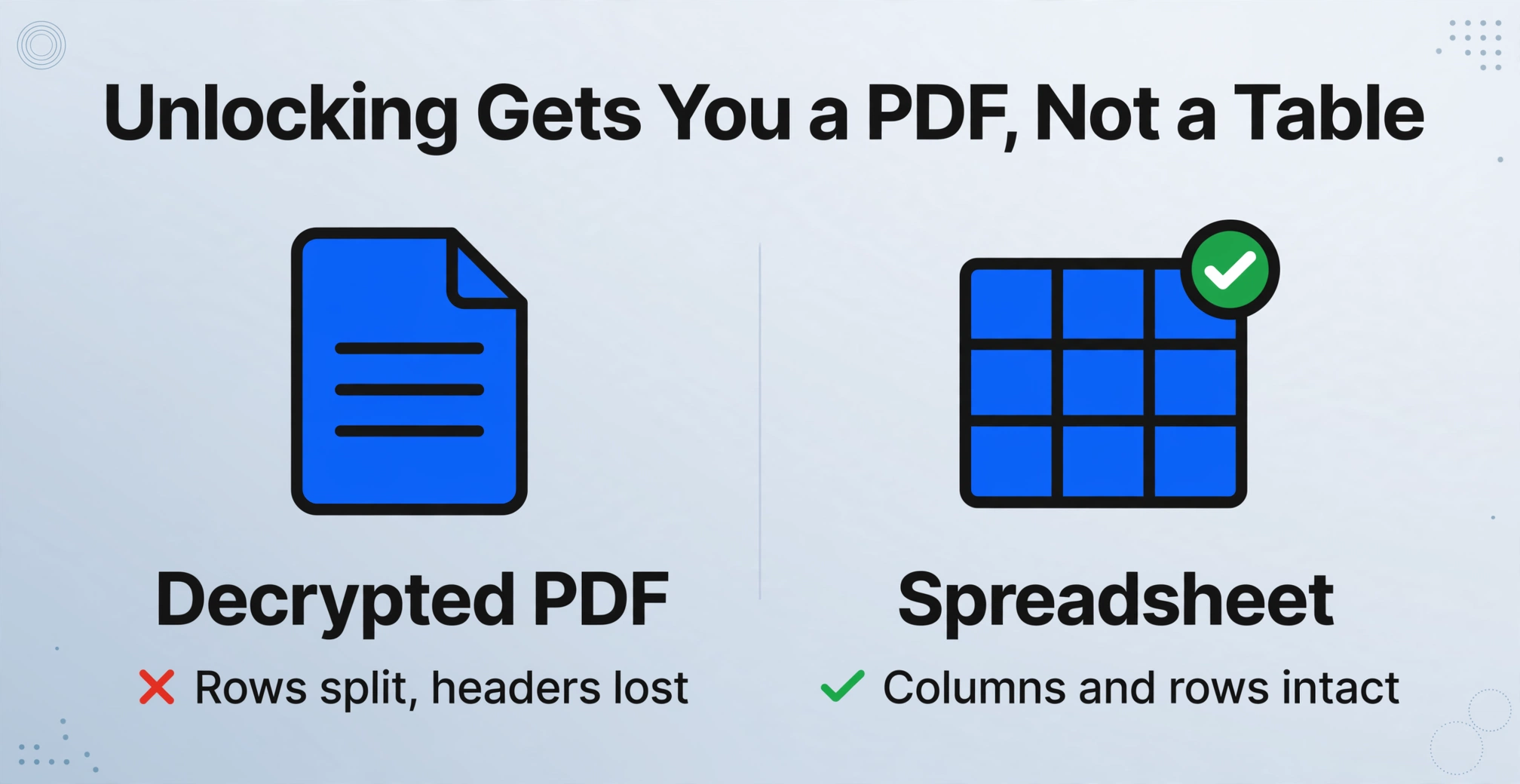
Opening the file is not the same as getting a usable table, because table structure lives in the page layout rather than in the data. A decrypted PDF is still a page full of text placed at coordinates. It has no columns, no rows, and no idea that the number in the right margin belongs beside the description on the left.
The gap shows up the moment the data lands in a spreadsheet. A two-line transaction description arrives split across two rows. A subtotal row gets treated as a transaction. A column header repeated at the top of page two gets read as a data row. A single logical statement that spans four pages arrives as four unrelated blocks, which is a problem merged cells and split rows tend to produce no matter which converter you use. Someone in an r/paralegal thread about converting bank statements to Excel describes the result exactly: "When i export it some data is combined in cells and it is very tedious merging/unmerging cells."
A password decides whether you can read the page. It says nothing about whether the rows survive the trip into Excel.
This is the part the tool lists in the r/pdf thread never checked. Every product named there was evaluated on whether it could open the file, and none of the replies reports what the output looked like afterward. Access and structure are separate problems with separate fixes, and the guide to PDF to structured data covers why each conversion path tends to lose the layout. If your goal is a formatted Word file rather than a table, that is a third path altogether, and it fails in its own ways, as covered in common PDF to Word formatting failures.
In a Batch, the Password Is Not the Only Thing That Differs per File
The folder case adds a variable that single-file tools never address: passwords are usually unique per sender, so a workflow built around one password per session breaks. A person asking in r/Bookkeeping puts the scale plainly: "Best offline tool for batch converting 500+ PDF bank statements to Excel?"
Statements from three banks often carry three different password schemes, built from a date of birth, an account fragment, or a customer ID. That is a deliberate consequence of how the documents are delivered. Under the Gramm-Leach-Bliley Act's Safeguards Rule, financial institutions are required to protect customer information in transit and at rest, and 16 CFR 314.4(c)(3) names encryption as the way to do it. Encrypting the emailed statement is the bank doing its job, which means the passwords are not a mistake you can wait out.
Two costs of the unlock-first path show up only at scale. The first is the decrypted copy. Unlocking a statement writes an unprotected version of a sensitive document to disk, and anyone following the folder routine now has fifty of them sitting in a downloads directory. The second is the handoff. Online unlockers ask you to upload the file, which is the same document that the bank encrypted precisely so it would not travel in the open.
Unlocking first solves the password and quietly creates a second problem: a folder full of unencrypted financial documents. For a monthly routine on real client files, that trade is worse than the original inconvenience.
Extract With the Password Instead of Unlocking First
The way out is to drop the intermediate decrypted file and let the extraction tool open the protected document with the password you already have. If you can prove you are entitled to the document, you do not need a separate unlock step at all. You need a tool that accepts the password at the door.
ImageToTable.ai handles the password in three places, and the first one is the one you will use most often. When you select an encrypted PDF, the page selector asks for the password before it renders anything, using the same in-browser prompt mechanism that PDF.js exposes to every web viewer through its password callback. You type it once. The pages render, no unlocked copy is written to your disk, and the extraction runs on the pages you selected.
For a recurring set of statements, the second path removes even that step. Email Inbox gives your account a dedicated address you can forward documents to, and it keeps a list of saved passwords. Any encrypted attachment that arrives is tried against that list automatically, and the first one that works sends the statement straight into your processing queue. Set it up once with your bank's password scheme and the monthly statement arrives, opens, and enters the queue without you touching it. That is the practical answer to the fifty-file folder, and it is also what makes the "offline" part of the original request worth addressing directly.
The third path is for anyone automating this in code. The public API accepts a password parameter when you upload a document, so a script can submit a protected file with its password and read the structured result back. None of the three paths strips the encryption off the original file. They open it with the key you provided and produce data, not an unprotected copy.
Once the file is open, the extraction itself is the part that determines whether the output is usable. Custom Column Extraction means you type the column names you want, such as "Date", "Description", and "Amount", and those names become the exact headers of the result. The AI locates each value by understanding what it means rather than where it sits on the page, so the same column set survives a statement from a different bank. This is the difference between a converter that returns whatever table it happened to detect and an extraction that returns the table you defined.
Two supporting settings matter for statements in particular. Multi-Page Merge lets you define a rule for grouping pages that belong to the same document, so a statement spread across four pages folds back into one row per transaction, with the account number carried onto every line. And Review Mode with Bbox shows you where a value came from: hover or click any extracted cell and the matching region highlights on the original page, so you can confirm a balance without re-reading the statement. ImageToTable.ai reports accuracy up to 99% on printed table data, with a page processed in 5 to 10 seconds against roughly 3 minutes of manual entry.
Files are processed securely and not stored.
The same approach works for other locked documents beyond statements. Utility bills, insurance documents, and client records delivered as protected PDFs all follow the same three-step path from the general question of whether AI can read a PDF, and the mechanics of turning any of them into one workbook are covered in the guide to batch document processing without code. If your documents are scans rather than text PDFs, the password is only the first of two problems, and OCR for scanned PDFs handles the second. For the single-document, form-style version of this task, the walk-through for turning a PDF into Excel with your own columns is the shorter read.
What This Path Does Not Do
This workflow opens and extracts from documents you already have the password for, and it does not remove encryption from the file for reuse. Both limits are worth knowing before you move a routine onto it.
There is no way around the password itself. If you do not have the open password for a file, the process stops there, and any tool promising otherwise is either guessing (which is what the 40-bit weakness is about) or describing something else. The tool is built for the person who is entitled to the document and simply needs the data out of it.
It also does not produce an unlocked copy. The output is a spreadsheet, not a decrypted PDF, so if a downstream system specifically needs a password-free version of the original file, you will still need an unlocker you trust to handle it.
The one constraint that rules the tool out for some readers is where it runs. ImageToTable.ai is a cloud service: the password is entered in the browser and the rendered pages are processed in the cloud. If your requirement is genuinely that no page ever leaves your machine, this is not that tool, and no amount of careful UI changes that fact. For truly on-device work, the realistic options are the local ones: exporting through macOS Preview or a desktop Acrobat, or running a local stack such as OCRmyPDF with Tesseract. Those keep every byte on your computer. They also ask more setup and, in the scan case, more tuning per document set. The right choice depends on whether offline is a preference or a hard rule.
Finally, a locked scan is still a scan. Encryption and image quality are independent, so a protected PDF produced from a photograph needs the same OCR handling as any other image-only document. Unlocking it, whether up front or at the door, does not add a text layer.
Password-Protected PDFs and Excel: Frequently Asked Questions
What is the difference between an owner password and a user password?
A user password, also called an open password, encrypts the document and is required before you can read any of it. An owner password, also called a permissions password, records which actions the creator wants restricted, such as printing or copying. Per the PDF specification and the qpdf documentation, permission restrictions are enforced by the viewer rather than by cryptography, so they can be ignored by software that chooses to. If a file opens without a prompt, you are almost certainly dealing with the second kind.
Can I extract data from a PDF I do not have the password for?
No. This article is about handling documents you are entitled to access, such as your own statements or client files you have been given. Where the open password is unknown, the correct move is to ask the issuer, who can usually resend the file or supply the data in another format. There is no legitimate route around an unknown open password.
Is my PDF password sent to a server?
The password prompt happens in the browser, in the page selector, before the document is rendered, the same way any PDF.js-based viewer asks for it. The pages you choose to extract are then processed by the cloud service. If your policy forbids any part of a document leaving your machine, treat that as a reason to keep the work local rather than as something a settings change can fix.
Can I process a whole folder of statements that share one password?
Yes, and that is what the saved password list is for. Store the password once in your inbox settings and every encrypted attachment that arrives is tried against it automatically. If your statements use a different password each, you add each scheme to the same list, and matching happens per attachment.
Can I do this fully offline?
Not with this tool. It is a cloud extraction service, so if offline is a hard requirement, plan for local software instead: desktop Acrobat, macOS Preview, or an OCR tool that runs on your own machine. If offline is a preference rather than a rule, the cloud path removes the decrypt-copy and the manual per-file work, which is usually the larger cost.
The useful shift is to stop treating "unlock" as the task. Access is the part a password solves, and once you have the password it is also the part that takes a few seconds. The work that decides whether you get a usable spreadsheet is everything downstream: which columns you define, whether pages are grouped back into whole documents, and whether a number can be traced to the page it came from. A folder of protected statements is a data problem wearing a password as a disguise.