How to Extract NatWest Statements to Excel
for Bookkeeping
A NatWest current account statement lists every transaction for the month — direct debits, standing orders, Faster Payments, card purchases — in a multi-column table spanning one to twelve pages. Hand-copying that table into a spreadsheet is the kind of work that takes 20 minutes per statement and introduces exactly the kind of errors that make a trial balance not close. NatWest's own export tools can help for recent transactions, but they stop short of what most bookkeepers actually need: the complete statement data, including the opening and closing balances that HMRC and accountants expect to see.
Key Takeaways
- NatWest's transaction export (CSV/OFX) covers recent activity but omits the opening balance and closing balance — the formal PDF statement is the only complete record for HMRC or year-end accounts.
- NatWest-specific labels like "Mobile Cheque Deposit" and "Get Cash" (cardless ATM) won't appear on other UK bank statements — generic OCR tools routinely miscategorize them.
- "Balance Forward" rows on multi-page business statements and the separate arranged vs. unarranged overdraft lines are structural elements that template-based parsers treat as phantom transactions.
When NatWest's Native Export Is Enough — and When It Isn't
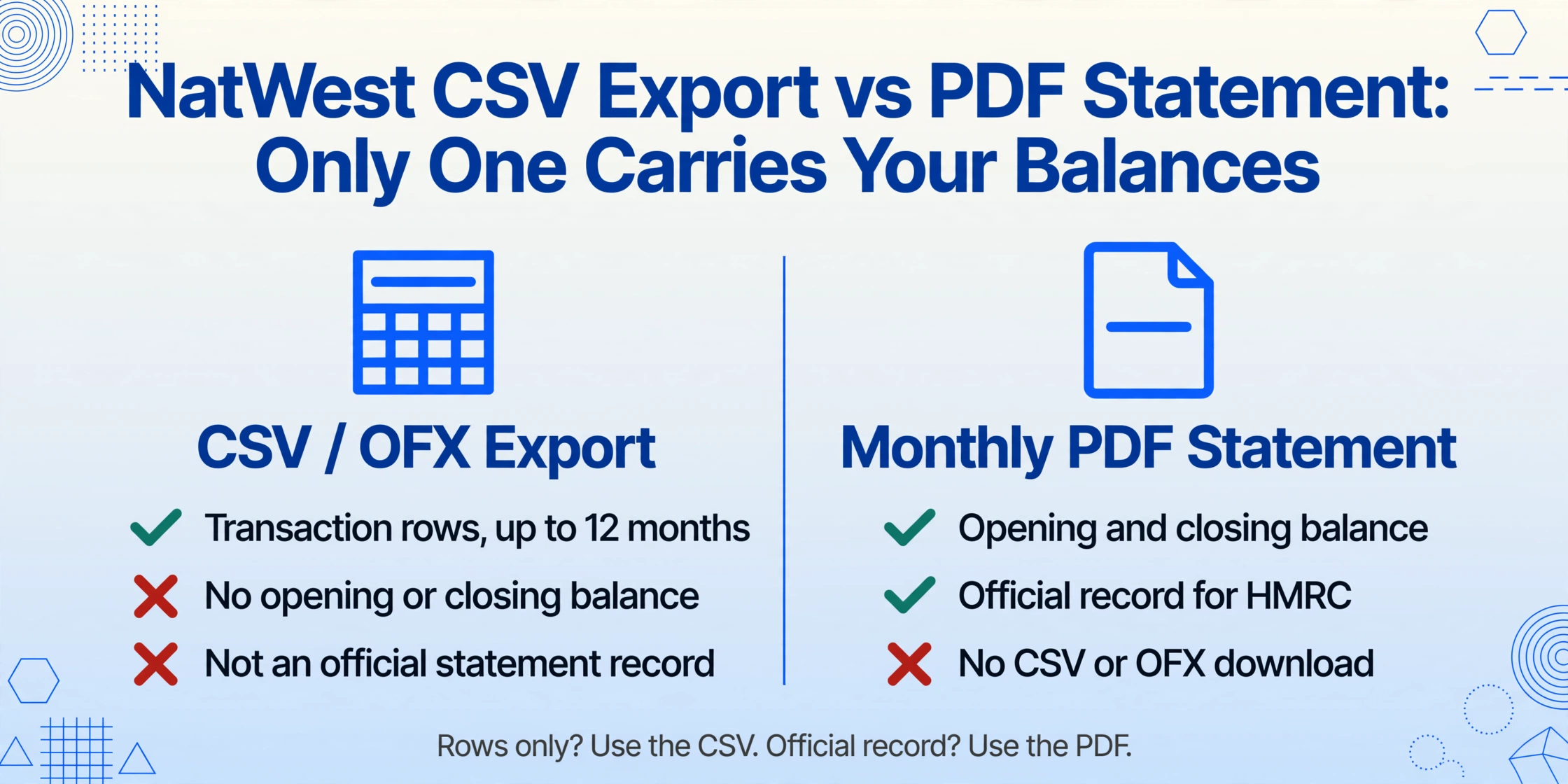
NatWest Online Banking offers two distinct data-download paths, and confusing them is the most common source of frustration. The first path is the transaction export: log in, navigate to "Statements & transactions," select "View transactions," choose your account and date range, and click "Export to Excel." The file downloads as a CSV or OFX — despite the menu name, there is no true .xlsx workbook behind that label. The export covers up to twelve months of activity at a time and includes all your debit card purchases, direct debits, and Faster Payments. But it does not include the statement's opening balance, closing balance, or the formal statement header that a mortgage application or HMRC review requires.
The second path is the formal PDF statement, stored in the "Statements" section of Online Banking. NatWest issues a PDF statement for each monthly cycle — it shows the opening and closing balances, every transaction in the bank's standard tabular layout, and any interest or charges applied during the period. This is the document that counts as an official record. And the PDF does not come with a download button for CSV. You get the PDF, and that is the only format available.
The practical decision rule is straightforward: if you need transaction rows for a recent bank reconciliation and the opening balance does not matter, use the CSV/OFX export. If you need the complete statement — for HMRC records, year-end accounts, or a client whose statements you are catching up on — the PDF is your source, and extraction is required.
NatWest also offers OFX download labelled for Sage Line 50, Quicken, and Microsoft Money. The OFX format is the closest thing to a direct bookkeeping import and works well when your destination is Sage or QuickBooks. But OFX is not available for the formal monthly PDF — it is a feature of the transaction search view only.
What Makes NatWest Statements Unique
NatWest — formally National Westminster Bank plc — is part of the NatWest Group, which also owns Royal Bank of Scotland and Ulster Bank. All three brands share the same underlying banking platform and produce statements in the same layout, differing only in logos and account labels. If you process statements from an RBS or Ulster Bank account alongside NatWest ones, the extraction approach is identical.
A NatWest current account statement has six columns: Date, Description, Type, Money In, Money Out, and Balance. The Description column is where the bank-specific detail lives: a transaction code (usually two to four uppercase letters) followed by the payee name or reference. Here are the most common codes you will encounter:
| Code | Stands For | What It Means |
|---|---|---|
| BGC | Bank Giro Credit | Cash or cheque deposited at a branch or Post Office counter — still common for business takings and rent payments |
| CHG | Charge | Account fees debited — monthly account fee, overdraft usage fee, or transaction charge |
| DD | Direct Debit | Variable-amount recurring payment collected by a third party (utilities, subscriptions, HMRC) |
| FP | Faster Payment | Near-instant electronic transfer — most person-to-person and business-to-supplier payments use this |
| SO | Standing Order | Fixed-amount recurring payment set up by the account holder |
| TFR | Transfer | Internal transfer between the account holder's own NatWest accounts |
| VIS | Visa Transaction | Debit card purchase made in-store or online |
| DEB | Debit Card Payment | Alternative card transaction label, sometimes used alongside VIS |
| COR | Correction | A previous transaction has been reversed or amended by the bank |
The codes are followed by a free-text field that NatWest calls the "reference" or "narrative." For Faster Payments, this often contains a "free text reference" line — a short description supplied by the sender that appears on the recipient's statement. For example, an FP entry might read: FP MR J SMITH INVOICE 1042. The free text reference is important for reconciliation because it is often the only clue linking a payment to a specific invoice or client — yet most extraction tools discard or truncate it.
Select, Reward, Silver, Gold, Platinum — Different Account Labels, Same Statement Layout
NatWest offers multiple personal current account tiers — Select (basic, no monthly fee), Reward (monthly fee with cashback), Silver, Gold, and Platinum (paid packaged accounts with benefits like travel insurance and phone cover). Each tier has a different fee structure and different overdraft interest rates, but the statement layout is identical across all of them. The only difference visible on the statement is the CHG line: a Select account shows no monthly fee, a Reward account shows a £2 monthly fee, and the packaged accounts show their respective monthly charges. For extraction, the column structure does not change — the same column names work for any personal NatWest account.
Business Banking, Business Builder, Mosiac
NatWest business accounts follow the same six-column table but tend to run longer — a busy retail business can generate 8 to 12 pages per monthly statement. The Description column on business statements includes additional codes like BGC for cash deposits (common in retail and hospitality) and CHG for business banking fees. Business statements also feature batch payment entries, where multiple payments in a single batch share a common reference number on the description line. The "Balance Forward" row appears at the start of each new page to carry the running total from the previous page — and any extraction tool that does not recognise this row as structural noise will insert a phantom transaction into the output.
NatWest's "Business Builder" accounts target startups and sole traders, "Business Banking" covers established small-to-medium businesses, and "Mosiac" focuses on larger commercial clients. The statement format is the same across all three, but the transaction density varies significantly — a Mosiac account might show dozens of inbound Faster Payments daily, while a simple Business Builder account might have fewer than 30 transactions per month.
Mobile Cheque Deposit and Get Cash — Two NatWest-Specific Labels
Two entry types appear frequently on NatWest statements that do not occur on statements from most other UK banks. "Mobile Cheque Deposit" is the label assigned to cheques paid in through the NatWest Mobile Banking app — the account holder photographs the cheque, and the app processes it without a branch visit. On the statement, this shows as: BGC MOBILE CHEQUE DEPOSIT followed by the cheque serial number. "Get Cash" is NatWest's cardless ATM withdrawal feature — the account holder requests a cash code through the app, then enters it at a NatWest or RBS ATM to withdraw up to £130. The statement shows: C/L GET CASH with the ATM location. Both of these labels are NatWest-specific and will not appear on Barclays or Lloyds statements — but they are routine entries on a NatWest statement that a generic OCR tool or a position-based parser might miscategorise.
Arranged vs. Unarranged Overdraft — Displayed Differently
NatWest displays overdraft information differently from most UK banks. If the account has an arranged overdraft and it is used during the statement period, the statement shows an "Arranged Overdraft" line item with the interest rate (e.g., 39.49% EAR) and the interest charged. If the account exceeds the arranged limit or goes overdrawn without an arrangement, a separate "Unarranged Overdraft" line appears alongside it, with its own rate and charge. The two costs are itemised separately on the statement rather than being bundled into a single interest line. This matters for extraction because a tool that expects a single "Interest" field will miss the distinction — and the higher unarranged rate is often the exact figure a bookkeeper needs to flag for the client's attention.
Credit Interest — Annual with Gross, Net, and AER
For accounts that earn credit interest (most NatWest current accounts pay none, but some savings accounts and older packaged accounts do), an annual interest entry shows up with three rates: the gross rate (before tax), the net rate (after basic-rate tax deducted at source), and the AER (Annual Equivalent Rate). On the statement this appears as a single line: INT CREDIT INTEREST GROSS X.XX% NET X.XX% AER X.XX%. Extracting all three values, rather than only the net amount, is important for year-end tax reporting — HMRC needs the gross figure to reconcile against the interest certificate.
How to Convert a NatWest Statement PDF to Excel
The workflow below works for all NatWest Group statements — personal current accounts, business accounts, Reward/Silver/Gold/Platinum packaged accounts, and RBS or Ulster Bank branded statements. Because the AI reads the document visually rather than relying on fixed column coordinates, account type does not change the process.
Download the PDF from NatWest Online Banking
Log in to onlinebanking.natwest.com, select your account, navigate to "Statements" from the left-hand menu, and choose the statement period you need. Click "Download statement (PDF)" — NatWest stores statements going back up to seven years. Save the PDF to your computer. If you have a paper statement from a branch or a printed copy, photograph it or scan it — AI extraction processes images and digital PDFs the same way.
Name the Columns You Want Extracted
In the extraction tool, enter the column names that define your output table. For a NatWest statement: Date, Description, Type, Debit, Credit, Balance. Because NatWest statements use separate "Money Out" and "Money In" columns (positive numbers in both), you can name them explicitly — no need to handle a single signed-amount column. You can also add an inferred column like Transaction Code (options: BGC/CHG/DD/FP/SO/TFR/VIS/DEB/COR) to classify each transaction automatically, or a computed column like Account Tier to label which NatWest account type the data came from when processing multiple accounts in one batch.
Upload and Process
Upload the NatWest PDF. A single monthly statement processes in approximately 5 to 10 seconds per page. The tool reconstructs the continuous transaction ledger — page headers and "Balance Forward" carryover rows are recognised as structural elements, not as transaction data. The running balance column is verified against the arithmetic: opening balance plus credits minus debits must equal the closing balance. If the arithmetic does not close, the extraction flags the discrepancy so you can inspect the affected rows without re-reading every line of the original PDF.
Export to Excel, CSV, or QBO-Compatible Format
The structured output can be downloaded as Excel (XLSX), CSV, or JSON. The Date column uses UK format (DD/MM/YYYY) by default, and separate Debit and Credit columns replace the original "Money Out" and "Money In" labels — matching the column structure that UK accounting software expects. To see how this works on a real NatWest statement, the demo below lets you upload a file and define your columns directly in the browser.
Files are processed securely and not stored.
Batch-Processing Multiple NatWest Statements
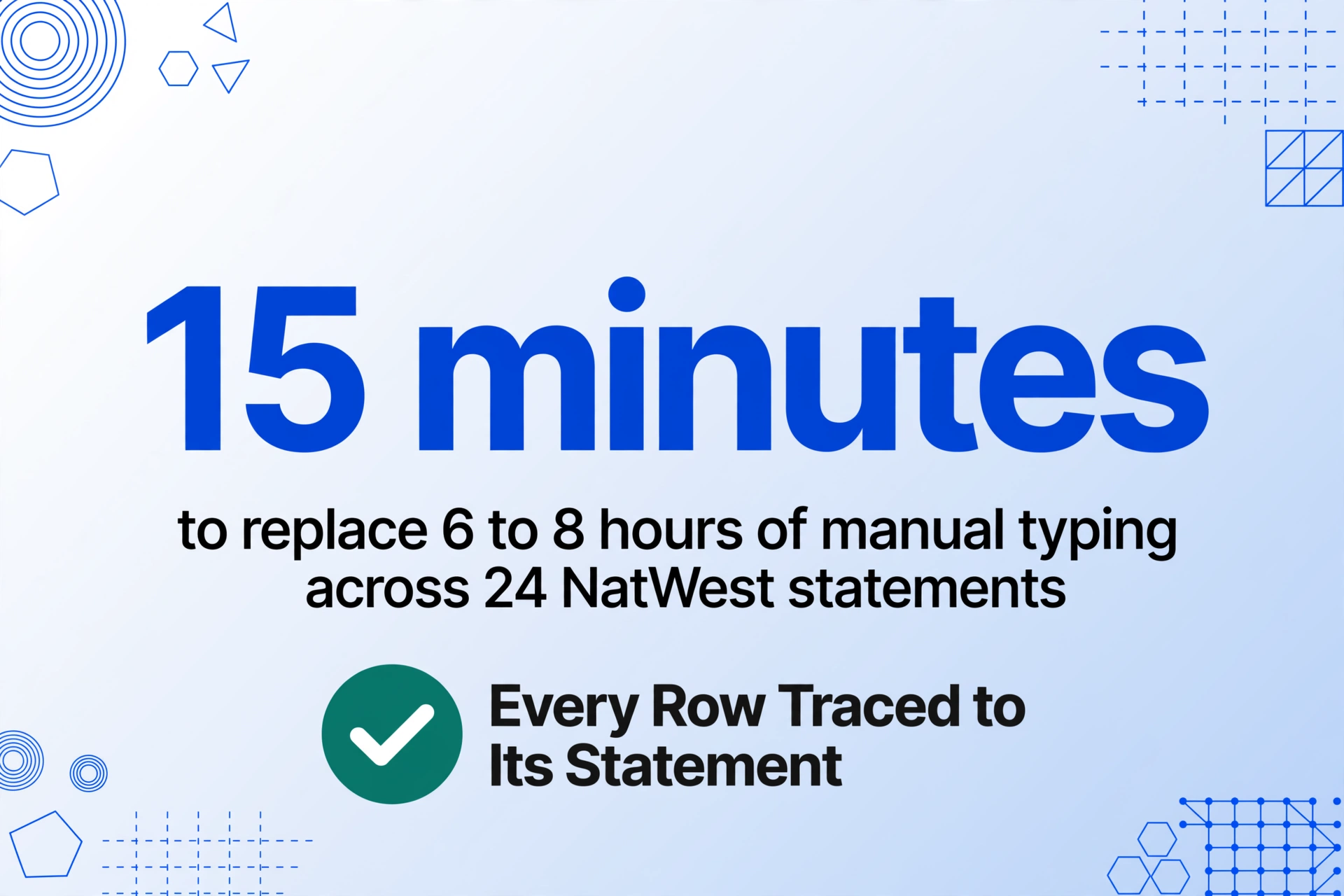
The single-statement workflow scales to batch processing without additional configuration. If you handle bookkeeping for a client who runs a retail business with a NatWest Business Banking account and a separate personal account, that is two statements per month — 24 statements per year. Manually, each business statement can run 6 to 10 pages with 150 to 300 transactions, and the personal statement adds another 30 to 50 entries. Combined, a year of data entry for one client takes roughly 6 to 8 hours of typing.
With batch extraction, you upload all 24 PDFs — NatWest, plus any RBS or Ulster Bank statements from linked accounts — in a single operation. The tool processes each file independently, detects the account type from the statement header, and merges the results into one Excel workbook with a "Source File" column that traces every row back to its original statement. The 6 hours of manual data entry becomes approximately 15 minutes of processing time. For a deeper walkthrough of the batch workflow across multiple UK banks, our guide on batch-processing UK bank statements for monthly cash flow covers the full process from file collection to reconciliation-ready output.
Why Extraction Beats Manual Typing for NatWest Statements
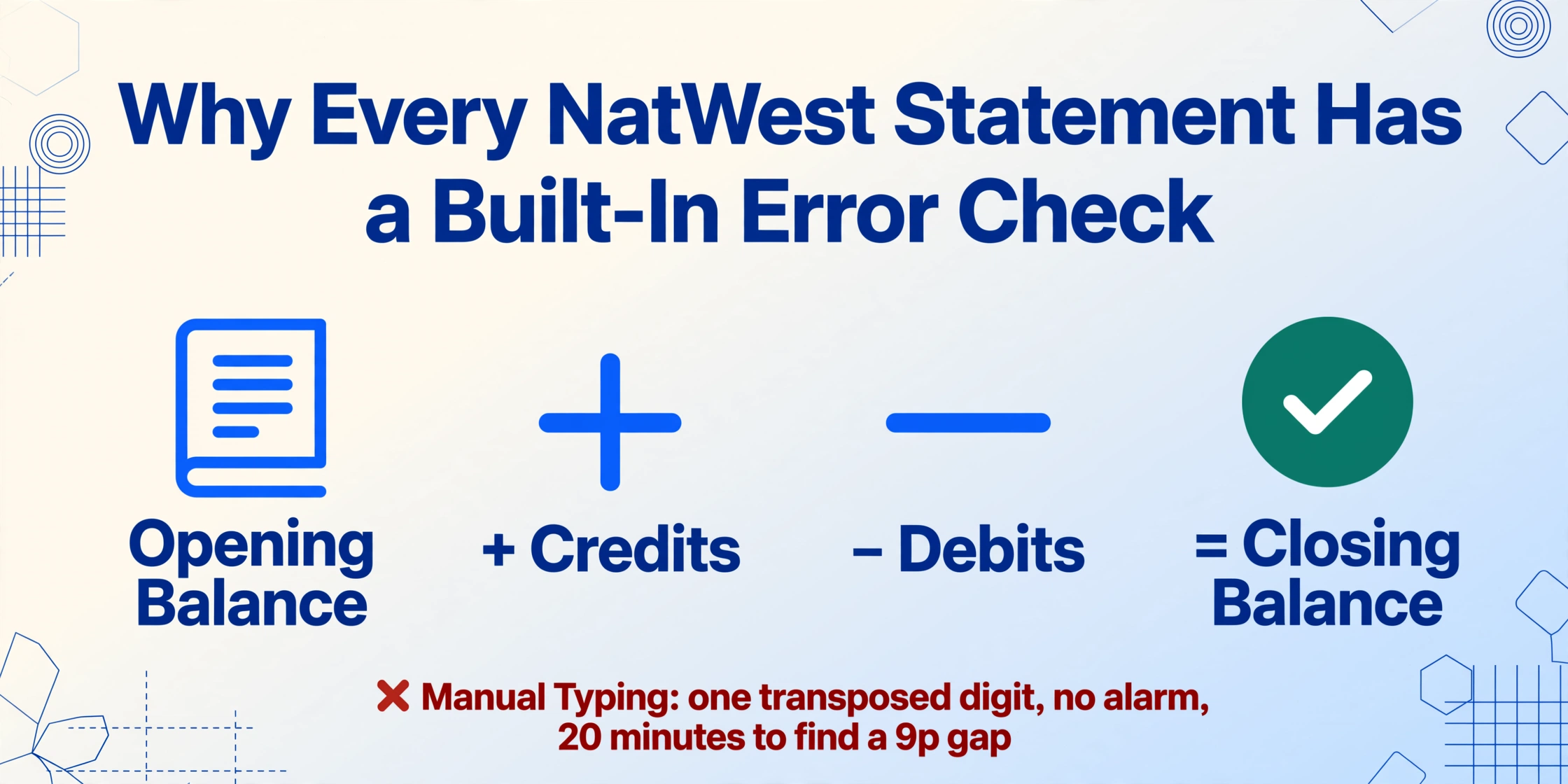
The arithmetic that defines a bank statement — opening balance plus credits minus debits equals closing balance — is also the arithmetic that validates whether the extraction is correct. If a tool misreads one row or shifts a column, the running balance chain breaks, and the output fails the arithmetic test. You know immediately that something is wrong, and you know which statement to inspect. Manual typing has no equivalent self-check: you can transpose two digits in a £147.23 entry to £147.32, the balance will not close, and you will spend 20 minutes searching for a 9p difference across 200 rows.
NatWest statements add two specific extraction challenges that manual entry handles badly. The first is the multi-page business statement where "Balance Forward" rows repeat on every page — a manual typist can easily treat these as real transactions, inserting phantom balances into the data. The second is the free-text reference field that accompanies every Faster Payment — a critical piece of information for matching payments to invoices, but one that is easy to skip when typing rows at speed. A vision-based extraction tool that reads the document semantically handles both of these correctly by default, because it recognises structural elements like page headers as metadata rather than data. For a deeper explanation of why this matters across all banks — not just NatWest — our article on extracting UK bank statements to Excel covers the structural differences between bank statement tables and other financial documents.
Frequently Asked Questions
Can I export NatWest transactions directly to Excel from Online Banking?
Yes, for recent transactions. Log into NatWest Online Banking on desktop, go to "Statements & transactions," select "View transactions," choose your account and date range, and click "Export to Excel." The download produces a CSV or OFX file (not a true .xlsx workbook). It includes transaction rows but omits the formal statement's opening and closing balances — and covers up to twelve months at a time, not the full seven years of archived statements.
Does NatWest support OFX download for QuickBooks?
Yes. NatWest's "Export to Excel" menu includes an OFX option that is compatible with Sage Line 50, Quicken, and Microsoft Money. The OFX format is also recognised by QuickBooks and Xero through their bank statement import features. The native OFX download is only available from the transaction search view — the formal monthly PDF statement does not have an OFX option. For those PDFs, extraction to Excel or CSV is the recommended workflow.
Can I use the same process for Royal Bank of Scotland or Ulster Bank statements?
Yes. RBS and Ulster Bank are part of the NatWest Group and share the same statement layout and transaction codes. An RBS Digital Banking statement and a NatWest Online Banking statement are structurally identical — only the branding and account design differ. Upload an RBS or Ulster Bank PDF to the same extraction workflow with the same column names, and the output will match your NatWest output in structure and column layout.
How is credit interest displayed on NatWest statements?
Credit interest on NatWest accounts that earn it appears as a single line near the end of the statement period: INT CREDIT INTEREST GROSS X.XX% NET X.XX% AER X.XX%. The gross rate is the rate before tax deduction, the net rate is after basic-rate tax has been deducted at source, and the AER is the Annual Equivalent Rate shown for comparison purposes. For extraction, capturing all three values in separate columns — rather than only the net amount — avoids HMRC reconciliation discrepancies at year end.
How does NatWest show arranged vs. unarranged overdraft charges?
Arranged overdraft interest appears as a CHG line with the text "ARRANGED OVERDRAFT INTEREST" and the interest rate (e.g., 39.49% EAR). Unarranged overdraft interest appears as a separate CHG line with "UNARRANGED OVERDRAFT INTEREST" and its own rate — which may differ from the arranged rate. NatWest caps unarranged overdraft charges at £18.80 per month for standard adult current accounts, plus a £1.55 unpaid transaction fee per returned item. Both lines are itemised individually. An extraction that collapses all charges into a single "Fees" entry misses the distinction that determines whether the client is within their agreed overdraft limit.
What do "Mobile Cheque Deposit" and "Get Cash" mean on a NatWest statement?
"Mobile Cheque Deposit" (BGC MOBILE CHEQUE DEPOSIT) is a cheque paid in through the NatWest Mobile Banking app — the account holder photographs the cheque front and back, and the bank processes it without a branch visit. "Get Cash" (C/L GET CASH) is NatWest's cardless ATM feature — the account holder requests a withdrawal code through the app, enters it at a NatWest or RBS ATM, and receives cash without using a debit card. Both are NatWest-specific labels that do not appear on other UK bank statements.
Are NatWest statement PDFs password protected?
Standard NatWest Online Banking PDF statements are not password-protected. However, if you receive a statement forwarded by a client or exported from a third-party accounting tool, it may carry PDF-level restrictions. ImageToTable.ai supports encrypted PDF processing — you provide the password separately, and the tool attempts it against incoming encrypted files automatically.
Which NatWest account types use the same statement format?
All NatWest personal current accounts — Select, Reward, Silver, Gold, Platinum — use the same six-column statement layout. Business accounts (Business Builder, Business Banking, Mosiac) also use the same format but with higher transaction volumes and additional batch payment entries. RBS personal and business accounts, and Ulster Bank Northern Ireland accounts, share the identical layout with different branding. The extraction workflow and column names are the same for all of them.
Want the full workflow? Our guide to converting bank statements into Excel workbooks covers multi-page statements, running balance validation, and batch processing for any bank — step by step.