"Why Is OCR So Slow?"
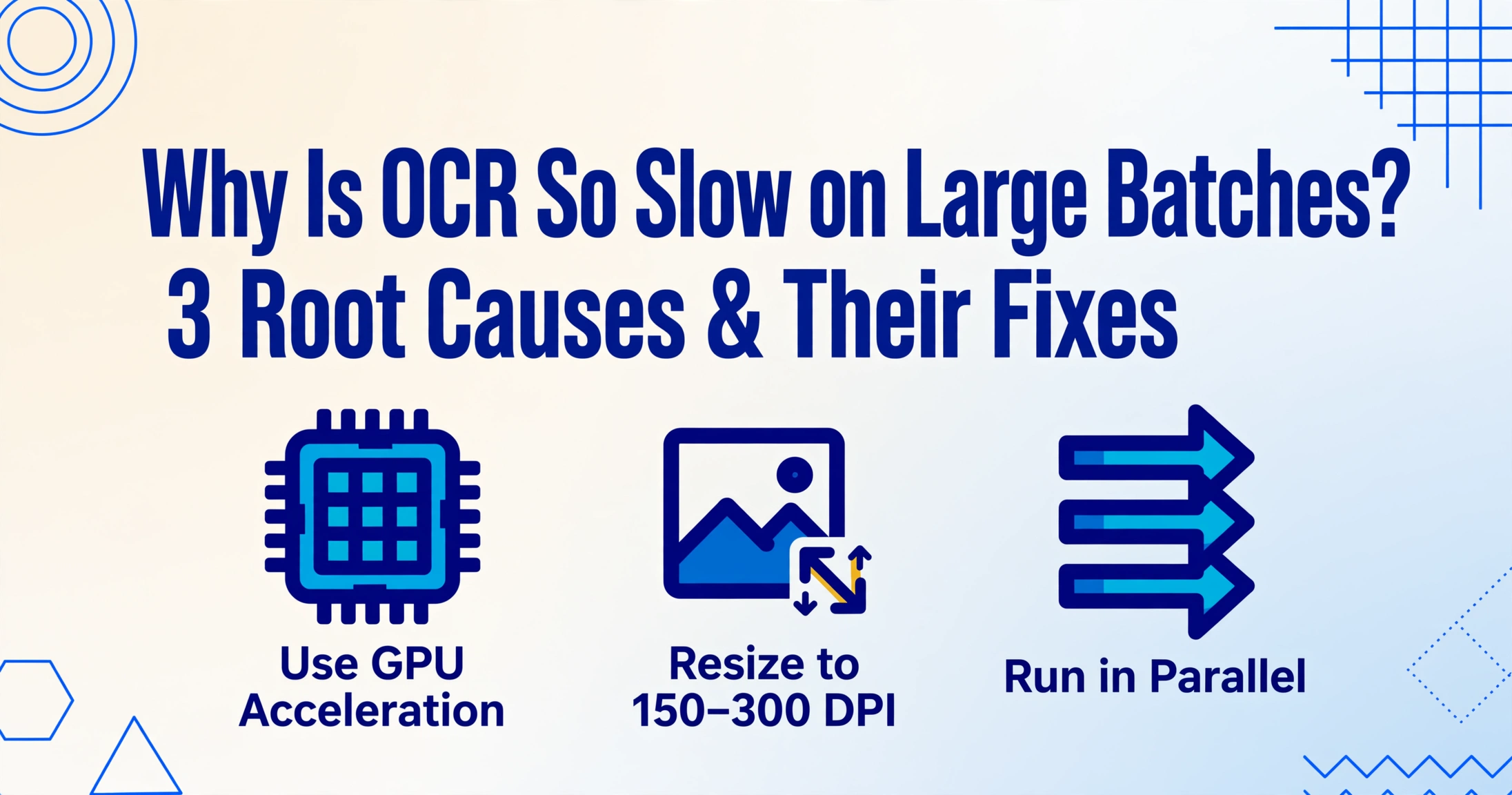
3 Root Causes of Slow Batch Processing — and How to Fix Each One
Most OCR benchmarks look good on a spec sheet. Tesseract claims sub-second pages. EasyOCR on a GPU posts 190 pages per minute. Then you run your own batch — 200 supplier invoices, mixed phone photos and scanned PDFs — and suddenly each page takes 30 seconds. The weekend is gone. The bottleneck is almost always one of three things. Here is how to find yours.
Key Takeaways
- 30 seconds per page on a batch of 200 invoices — when the same OCR engine benchmarks at under a second — is not a bug, it is three independent slowdowns compounding silently inside your pipeline.
- Three multipliers compound inside your pipeline — no GPU slows you 3 to 7 times, oversized images add a 4× penalty, and sequential processing leaves three-quarters of your CPU idle — and each one can be diagnosed in minutes then fixed independently.
- When you have maxed out all three fixes and your batch still takes over an hour, the bottleneck is no longer in the pipeline — the fastest remaining move is to swap the architecture, not keep turning tuning knobs.
Cause #1: No GPU Acceleration on a Compute-Heavy Pipeline
Symptom. Your CPU pegs at 100% during processing and each page takes well over a second on clean documents. Throughput does not improve when you add more files to a batch — the pipeline is saturated.
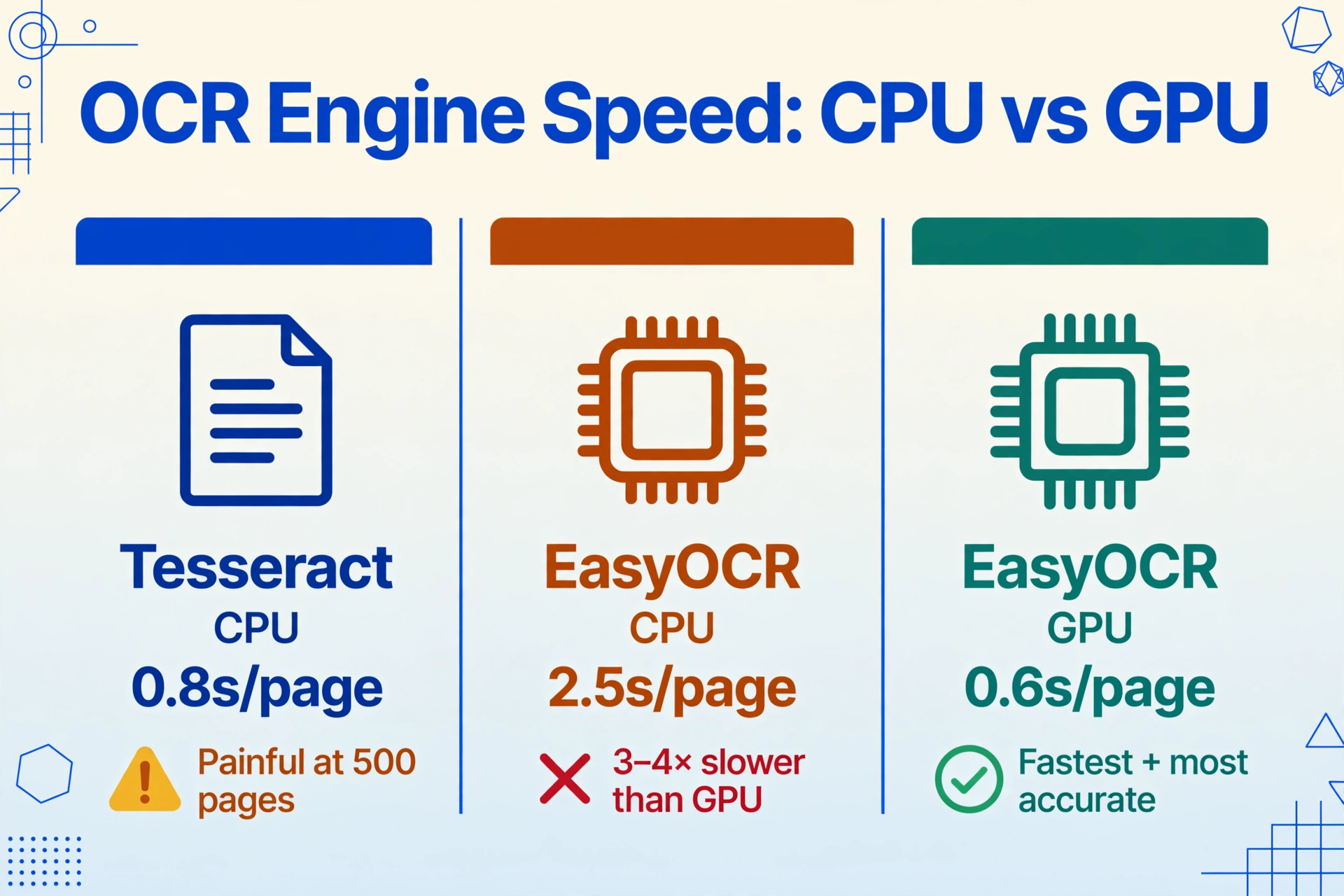
Root cause. Not all OCR engines are created equal under the hood. Tesseract, the open-source benchmark maintained by Google, is a purely CPU-based engine. It uses traditional computer vision pipelines — connected component analysis, page layout analysis, and LSTM-based character recognition — none of which leverage GPU parallelism. One researcher's benchmark clocked Tesseract 5 at roughly 0.8 seconds per page on a modern CPU with clean printed text. Acceptable for a few pages. Painful at 500.
EasyOCR takes a different architectural approach. Its deep learning backbone (CRAFT text detection + a PyTorch recognition network) can run on GPU — and when it does, it is dramatically faster. But here is the catch most people miss: EasyOCR falls back to CPU automatically if no compatible GPU is detected. On CPU, the same deep learning pipeline that makes EasyOCR accurate also makes it three to four times slower than its GPU mode. Benchmarks on an NVIDIA T4 show EasyOCR GPU hitting ~0.6 seconds per page — comparable to Tesseract — while EasyOCR CPU stretches to ~2.5 seconds per page.
The fix. Check whether your OCR pipeline is actually using a GPU:
- For EasyOCR, verify that
reader = easyocr.Reader(['en'], gpu=True)actually detects CUDA. If the library falls back silently, your per-page time will more than double. Runnvidia-smiduring processing — if GPU utilization shows 0%, your pipeline is running on CPU. - For Tesseract, there is no GPU toggle — it simply does not support GPU acceleration. If you are processing more than a few hundred pages, consider switching to a GPU-capable engine.
- Dedicated OCR engines like PaddleOCR are built for GPU from the ground up. Independent speed benchmarks put PaddleOCR on an RTX 3090 at roughly 190 pages per minute — over 3 pages per second — due to optimized batch inference and CUDA integration.
If your hardware is fixed (laptop without a discrete GPU, shared server, cloud VM without GPU), the GPU path is not available to you directly. In that case, a cloud-based OCR service that processes documents on GPU-backed infrastructure — without requiring you to provision the hardware — sidesteps the problem entirely.
For a side-by-side comparison of GPU-capable OCR engines, see our roundup of the best open-source OCR tools.
Cause #2: Images Far Larger Than OCR Actually Needs
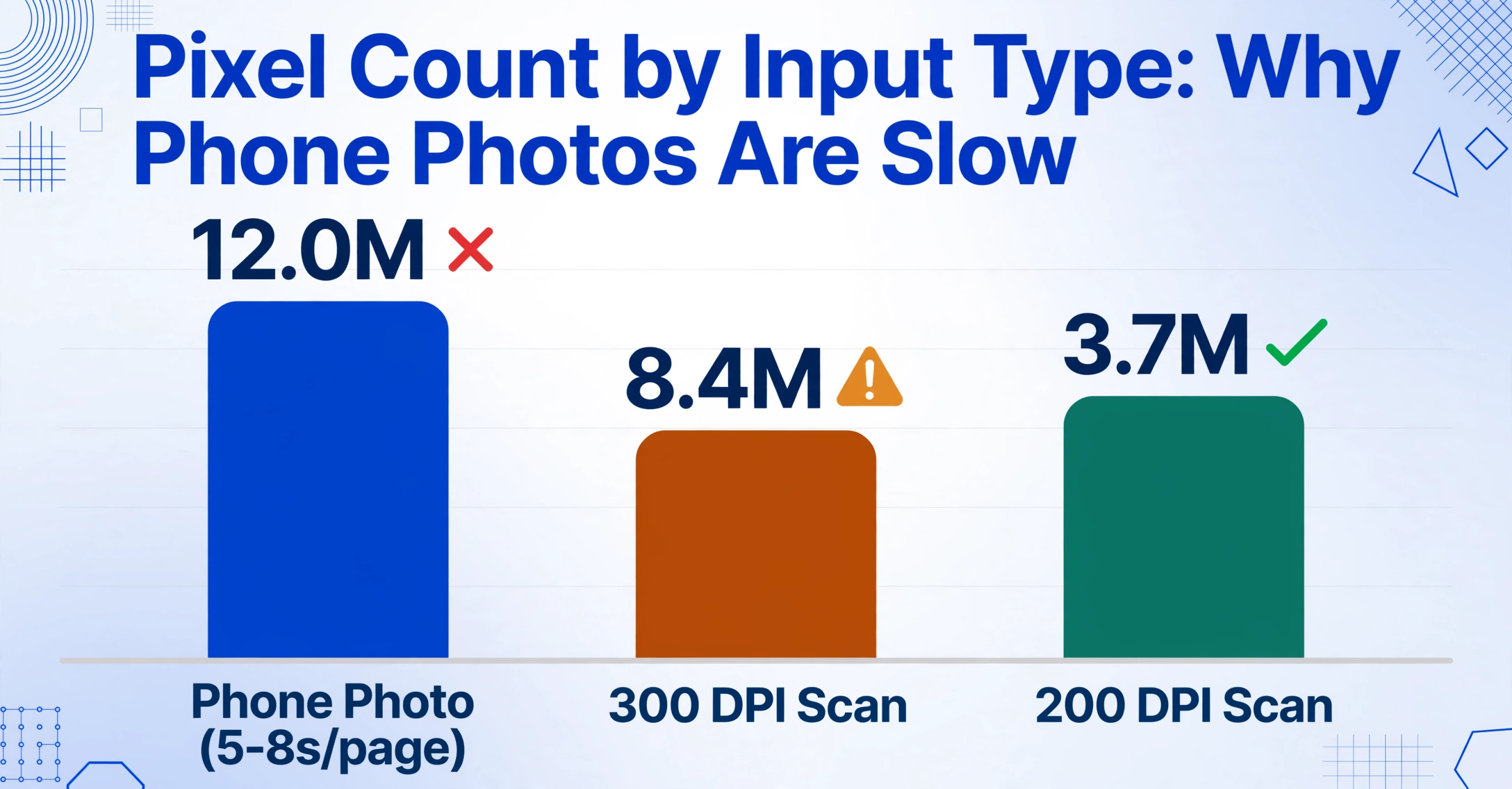
Symptom. Processing grinds to a halt on pages that look perfectly readable to you. A 12-megapixel phone photo of a receipt takes 5–8 seconds while a scanned PDF of the same document takes under 2 seconds.
Root cause. Most OCR engines process every pixel in the image. Double the resolution on each axis — from 150 DPI to 300 DPI — and you quadruple the pixel count: 2x the width times 2x the height. Quadruple the input means roughly 4x the processing time for the same content. A smartphone photo at 4000×3000 pixels contains 12 million pixels. The same document scanned at 300 DPI (roughly 2550×3300 for letter size) contains 8.4 million. A document scanned at 200 DPI — perfectly adequate for most OCR — contains only 3.7 million pixels.
The ABBYY FineReader Engine Performance Guide, one of the most authoritative documents on OCR performance tuning, specifies 200–400 DPI as the recommended input range. Below 150 DPI, character recognition degrades. Above 400 DPI, you are paying compute time for no measurable accuracy gain. The same principle applies to any OCR engine, open source or proprietary.
The fix. Add a preprocessing step that resizes images before feeding them to the OCR engine. The target is 150–300 DPI on the output image — roughly 1200–2500 pixels on the longest side for a typical document.
A simple Python preprocessing pipeline with Pillow:
from PIL import Image

def resize_for_ocr(image_path, max_dim=2000):
    img = Image.open(image_path)
    # Only shrink, never upscale
    if max(img.size) > max_dim:
        ratio = max_dim / max(img.size)
        new_size = (int(img.size[0] * ratio),
                    int(img.size[1] * ratio))
        img = img.resize(new_size, Image.LANCZOS)
    return img
This single step can cut per-page processing time by 40–70% depending on your source images, with zero impact on extraction accuracy. For a complete guide to image preparation — including binarization, deskewing, and contrast normalization — read our OCR image preprocessing guide.
Cause #3: Sequential Processing When You Could Run in Parallel
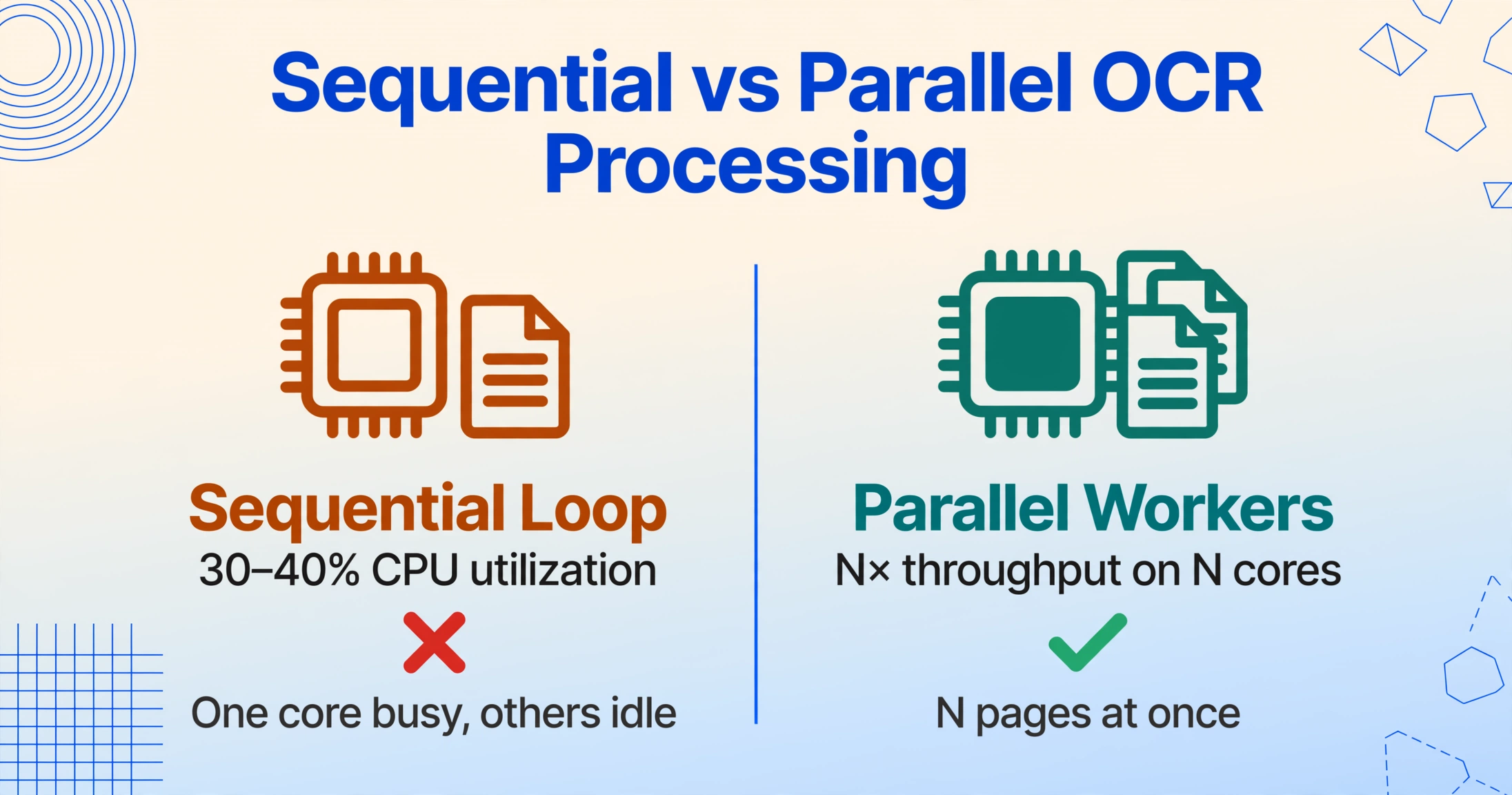
Symptom. CPU utilization hovers around 30–40% during a batch run. The pipeline processes files one at a time — you watch the progress bar tick, file by file, never accelerating.
Root cause. Most OCR pipelines are written as simple loops: for file in files: ocr(file). This is single-threaded by default. Modern CPUs have 4, 8, or 16 cores, but a sequential loop uses exactly one of them. The other cores sit idle while pages queue up.
The fix is embarrassingly parallel — OCR on one page is independent of OCR on any other page. There is no shared state to synchronize. This means you can process N pages simultaneously on an N-core machine and, in theory, achieve N× throughput. In practice, the scaling is nearly linear up to 4–8 cores, with diminishing returns beyond that due to memory bandwidth and I/O contention.
The fix. Wrap your OCR call in a parallel execution framework:
- GNU Parallel (Linux/macOS): The simplest approach for script-based pipelines.
parallel -j 4 ocrmypdf {} output/{} ::: *.pdfruns four OCR processes concurrently. - Python multiprocessing: Use
multiprocessing.Poolto distribute files across worker processes. Each worker gets its own OCR engine instance, and results are collected as they complete. - Batch processing tools: Dedicated batch OCR tools like OCRmyPDF support built-in parallel processing. Its
--jobsparameter controls concurrency. Pairing it with GNU Parallel (limiting parallel to 2 jobs to avoid I/O saturation) is a documented production pattern.
The key practical consideration: each parallel worker needs enough memory to hold its page's image and intermediate buffers. Running 8 workers on a machine with 8 GB of RAM will trigger swapping. A safe starting point is 2 GB of RAM per parallel worker for standard document images. Scale the parallelism to match your memory budget before you hit your CPU core count.
For a full walkthrough of setting up parallel batch pipelines, see our guide on batch processing multiple files.
When to Escalate — Swap Tools Instead of Tuning
If you have checked all three causes — your GPU is active, your images are sized correctly, and your pipeline runs in parallel — but processing is still too slow for your workload, the bottleneck may be architectural rather than configurational.
Three signals suggest it is time to consider a fundamentally different approach:
1. Your volume is consistently high. If you process 500+ pages daily and batch completion time is a recurring pain point, tuning a local OCR pipeline will always lag behind what a purpose-built cloud service can deliver. Cloud extraction services run on server-grade GPU clusters with automatic load balancing — a single batch can be distributed across dozens of parallel workers without you provisioning any hardware.
2. Your documents are diverse and unprocessed. A pipeline optimized for clean scanned PDFs will struggle with phone photos, crumpled receipts, or documents containing handwriting. Each new input type requires different preprocessing parameters. ImageToTable.ai uses vision-language models that read documents semantically — interpreting the page layout the same way a human would, without requiring per-document-type tuning. It does not need a separate preprocessing step for resolution normalization because the cloud pipeline handles scaling automatically before inference.
3. You need results in minutes, not hours. If a batch of 300 pages needs to be processed and exported during a lunch break, a sequential local pipeline — even one tuned for speed — will not deliver. Cloud batch processing parallelizes across the entire document volume. A 300-page batch that takes 3–4 hours on a single CPU-equipped machine can complete in 5–10 minutes on cloud infrastructure that runs the same work across 20–40 parallel GPU workers.
Frequently Asked Questions
Is Tesseract faster than EasyOCR?
On CPU, Tesseract is typically faster — roughly 0.8 seconds per page versus EasyOCR's 2.5 seconds per page for clean printed text. On GPU, the comparison flips: EasyOCR on an NVIDIA GPU runs at roughly 0.6 seconds per page, matching or exceeding Tesseract's throughput while delivering significantly better accuracy on degraded images, handwritten annotations, and mixed layouts. The practical takeaway: if you have a GPU, use EasyOCR (or PaddleOCR). If you are CPU-only, Tesseract gives better throughput for clean documents, but expect lower accuracy on complex inputs.
What image resolution is best for OCR speed?
200–300 DPI is the sweet spot for most OCR engines. Below 150 DPI, character recognition accuracy drops noticeably, especially for small font sizes. Above 400 DPI, you pay 2–4× in processing time for negligible or zero accuracy gain. For a standard letter-size document (8.5"×11"), 200 DPI produces a roughly 1700×2200 pixel image — about 3.7 megapixels. This is far smaller than a typical smartphone photo and will process in a fraction of the time.
Can I use multiple GPUs to speed up OCR?
Yes, if your OCR engine supports it and your workload is large enough to benefit. PaddleOCR and EasyOCR can be distributed across multiple GPUs by assigning different document batches to different GPU instances. In practice, a single modern GPU (RTX 3090 or higher) already processes 150–190 pages per minute for standard documents, so multi-GPU setups are only necessary at very high volumes (10,000+ pages per day). The main bottleneck at that scale shifts from compute to I/O — reading files, writing results — so a multi-GPU setup must be paired with fast storage (NVMe SSDs) and sufficient RAM.
How much faster is GPU vs CPU for OCR?
For a deep-learning-based OCR engine like EasyOCR or PaddleOCR, GPU acceleration typically delivers a 3–7× speedup over CPU-only processing, depending on the GPU model and image characteristics. On an NVIDIA T4 (a common cloud GPU), EasyOCR runs roughly 4× faster than its CPU fallback. On consumer GPUs like the RTX 3090, PaddleOCR achieves 190+ pages per minute — a 5–7× improvement over a 4-core CPU running the same pipeline. Tesseract does not support GPU acceleration, so its speed is determined entirely by CPU performance and is not directly comparable.
Will reducing image size reduce OCR accuracy?
Reducing image size only reduces accuracy if you go below the minimum resolution the OCR engine needs to read small characters. For most printed documents, 200 DPI is sufficient for 99%+ character accuracy. Below 150 DPI, you may start losing fine details: footnotes in 8pt font, decimal points, and subscript characters. The safe approach is to resize to a target resolution of 200–300 DPI — this preserves readability while eliminating the 4–5 megapixels of redundant data that only slow down processing. If your documents contain very small text (e.g., legal fine print at 6–8pt), target 300 DPI as your floor.
When should I stop tuning and switch to a different tool?
When your batch processing time is dominated by pipeline overhead — preprocessing, file I/O, and serialization — rather than the OCR engine itself, you have hit the practical limit of local tuning. Signals that it is time to switch: you have already implemented GPU acceleration, resolution normalization, and parallel processing, but a batch of 300 pages still takes over an hour; or your documents are so diverse (phone photos, scans, screenshots, handwriting mixed in) that preprocessing parameters need adjustment per page. In these scenarios, a cloud-based extraction service that parallelizes across GPU workers and reads documents semantically — without per-type tuning — will outperform a locally tuned pipeline on both speed and accuracy.