OCR on a 7,000-Page PDF:
Why One Giant File Is the Wrong Unit of Work
An r/pdf thread asked for help OCR-ing a 5,000 to 7,000 page PDF that weighs about 600 MB, "without manually splitting it or fighting unfriendly tools." The two numbers in that request point in different directions. The page count sets the scale of the data job, and the file size tells you what kind of object you actually have.
At 600 MB across 7,000 pages, the average page is roughly 86 KB. That is far too light to be a stack of full-resolution color scans, which usually run half a megabyte per page and up, and far too heavy to be plain text. A file that large is not a document you read end to end. It is an archive you search, and the tools people reach for keep trying to render it as one document.
Key Takeaways
- A 7,000-page, 600 MB PDF is an archive, not a document, and no app built to render documents was ever going to open it.
- 104 MB of memory for a single page at 600 DPI — that is the wall that collapses desktop OCR tools (which turn page images into editable text) somewhere past 1,500 pages.
- Try selecting text before you OCR anything — if it highlights, the file already carries a text layer and you can skip recognition entirely.
What a 7,000-Page File Actually Is
Treat a file with thousands of pages as a backup archive and the whole approach changes. A document has structure a reader follows: chapters, sections, a table of contents. An archive is a container, and the only useful question you can ask it is where a particular page or field lives. The r/DataHoarder thread that opens with "1000+ pages pdf files with text and tabular data, but some idiot exported it as image" is describing exactly this kind of object.
Before any OCR, run a two-minute test. Open the PDF and try to select text with your cursor. If text highlights, the file already carries a text layer, and you can often pull the fields you need straight out of that text at near-perfect accuracy. If the cursor draws an empty box and nothing highlights, the pages are images and OCR is genuinely required. This test separates two very different jobs, and it is the step most guides skip. Running OCR over a file that already has a text layer is the most common way to spend a day of compute on work you did not need. For what happens when the pages really are images, see how AI extracts data from scanned PDFs.
Why One Giant File Breaks at Every Step
The failure of a giant PDF is structural. A better app does not change the page tree or the memory a single page needs.
Inside the file, pages are not stored in reading order. They hang off a page tree, a branching structure the reader walks to assemble the document, and the human-readable table of contents you navigate is the outline tree, which the PDF specification calls bookmarks (ISO 32000-1:2008, sections 7.7.3 and 12.3.3). A 7,000-page file has a very large tree, and every operation that touches the whole document has to traverse it.
Two features added in PDF 1.5 make the experience worse in practice. Small objects such as page dictionaries, annotations, and bookmarks can be packed into compressed object streams, and the document's cross-reference table can be replaced by a cross-reference stream. Both are legitimate parts of the standard (ISO 32000-1, sections 7.5.7 and 7.5.8), and both mean a reader cannot jump to object number 5,000 by byte offset. It has to decompress whole blocks to find anything. That is why a 600 MB file opens slowly, searches slowly, and hangs when a tool tries to jump around inside it.
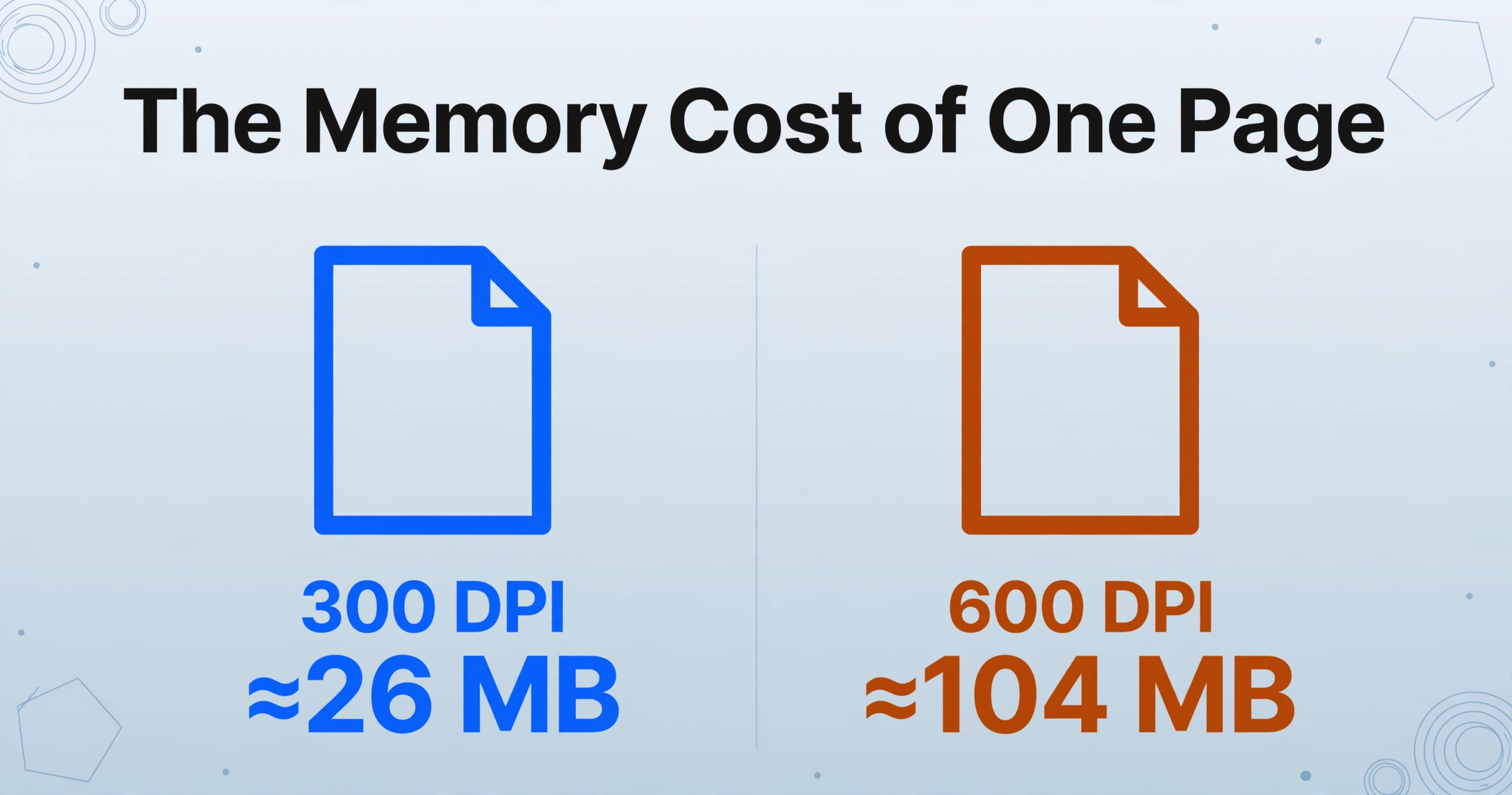
Then comes rasterization, the step where a tool renders one page into an image so it can be read. The memory cost per page is easy to underestimate. An A4 page rendered at 300 DPI occupies roughly 2,480 by 3,508 pixels, about 26 MB of raw color. At 600 DPI that climbs toward 104 MB for a single page. A desktop application holding several pages in flight, or trying to build one model of the whole document, runs out of memory rather than logic.
One page at 600 DPI can occupy about 104 MB of memory before any recognition happens. That number decides whether a giant file is a desktop task or a pipeline task.
The Acrobat support forum is the clearest public record of where this ends. One user reports that "over about 1500 pages, it crashes." Another says "every year I have to OCR a handful of PDFs that are over 10,000 pages long," and that Acrobat "crashes both when I try to OCR the file and if I try to break it up." A third asks about a 24,595-page document. A community expert sums it up: "Acrobat is a tool for low volumes in OCR" (Adobe community thread). The app works as designed, and it was never designed for a 600 MB single-file job. The same boundary shows up in how Acrobat's OCR compares with a vision model on documents past that size.
The Throughput Math for 7,000 Pages
At 7,000 pages the useful question is how many hours and how many dollars the job will take.
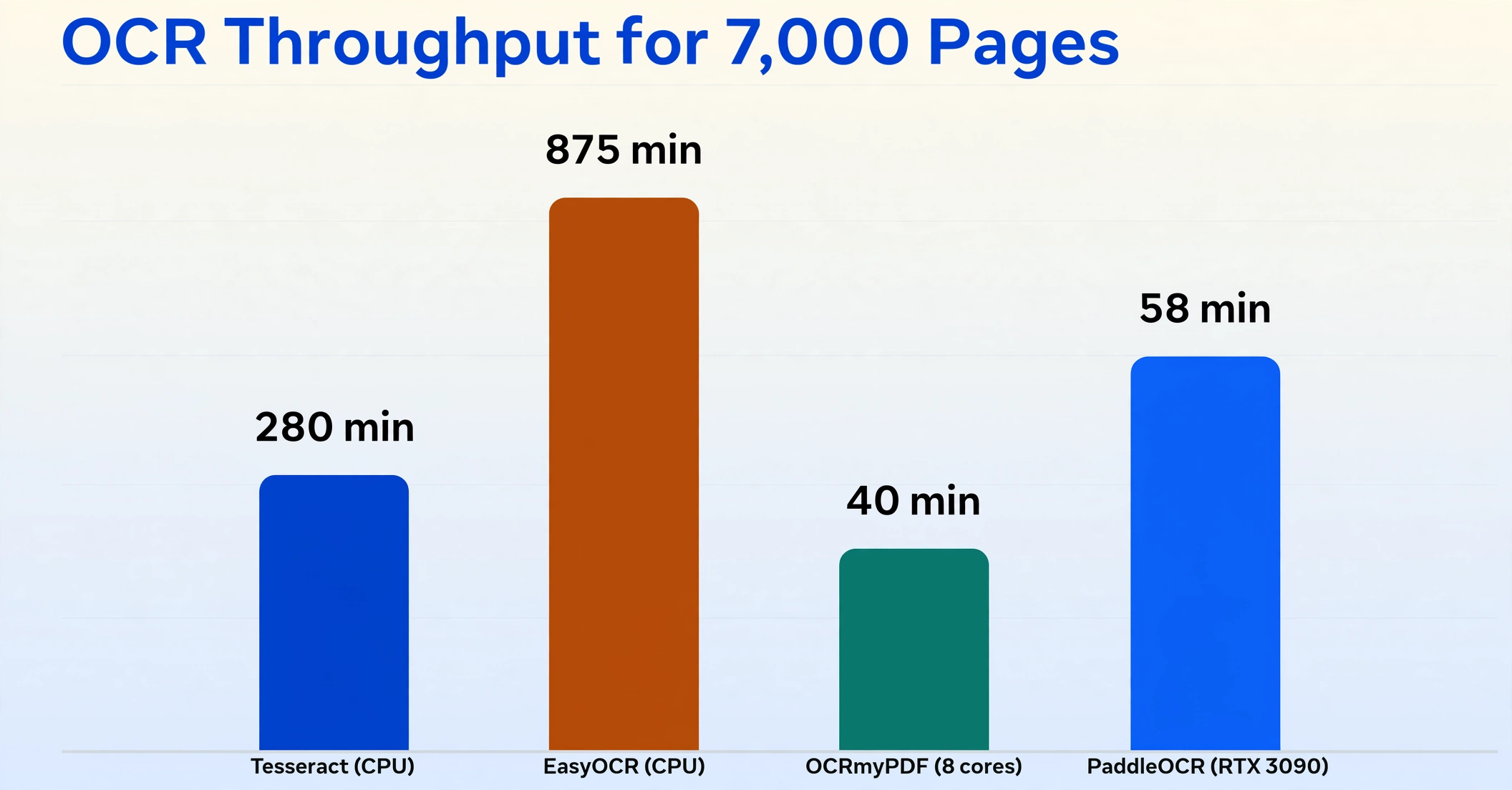
Tesseract is the reference CPU baseline. On clean printed text it processes roughly 25 pages per minute on a modern CPU, and independent benchmarks place it at that level against heavier engines such as PaddleOCR (about 120 pages per minute on an RTX 3090) and EasyOCR (about 8 pages per minute on CPU). Feed 7,000 pages to single-threaded Tesseract and you are looking at about 280 minutes, a little under five hours. On EasyOCR's CPU path the same job stretches past 14 hours.
The lever that changes those numbers is parallelism. OCRmyPDF wraps the Tesseract engine in a command-line tool that takes a job count, so eight cores can turn a five-hour run into something closer to forty minutes. The caution from the previous section still applies: more workers also means more resident memory per page, so a machine with modest RAM will finish a small number of pages faster than a large number in parallel.
Cloud OCR trades control for parallelism and charges by the page. Google Document AI and AWS Textract both sit around the one-dollar-per-thousand-pages mark, which puts a 7,000-page document under $10 before retries. Higher-quality or more structured services cost more, with Reducto's published rate at $10 per 1,000 pages. Budget is rarely the constraint here. The constraint is that you rarely need to OCR all 7,000 pages, and the tooling around one giant file is what makes the job painful.
The practical protocol is to sample before committing. Pull five to ten pages that cover the archive's range (a clean page, a faded one, a dense table, a page in a different form layout), run them through the candidate path, and measure the real pages per minute and the real error rate. Extrapolating from your own measured sample beats trusting any benchmark table, including the numbers above.
Split by Structure, Not by Hand
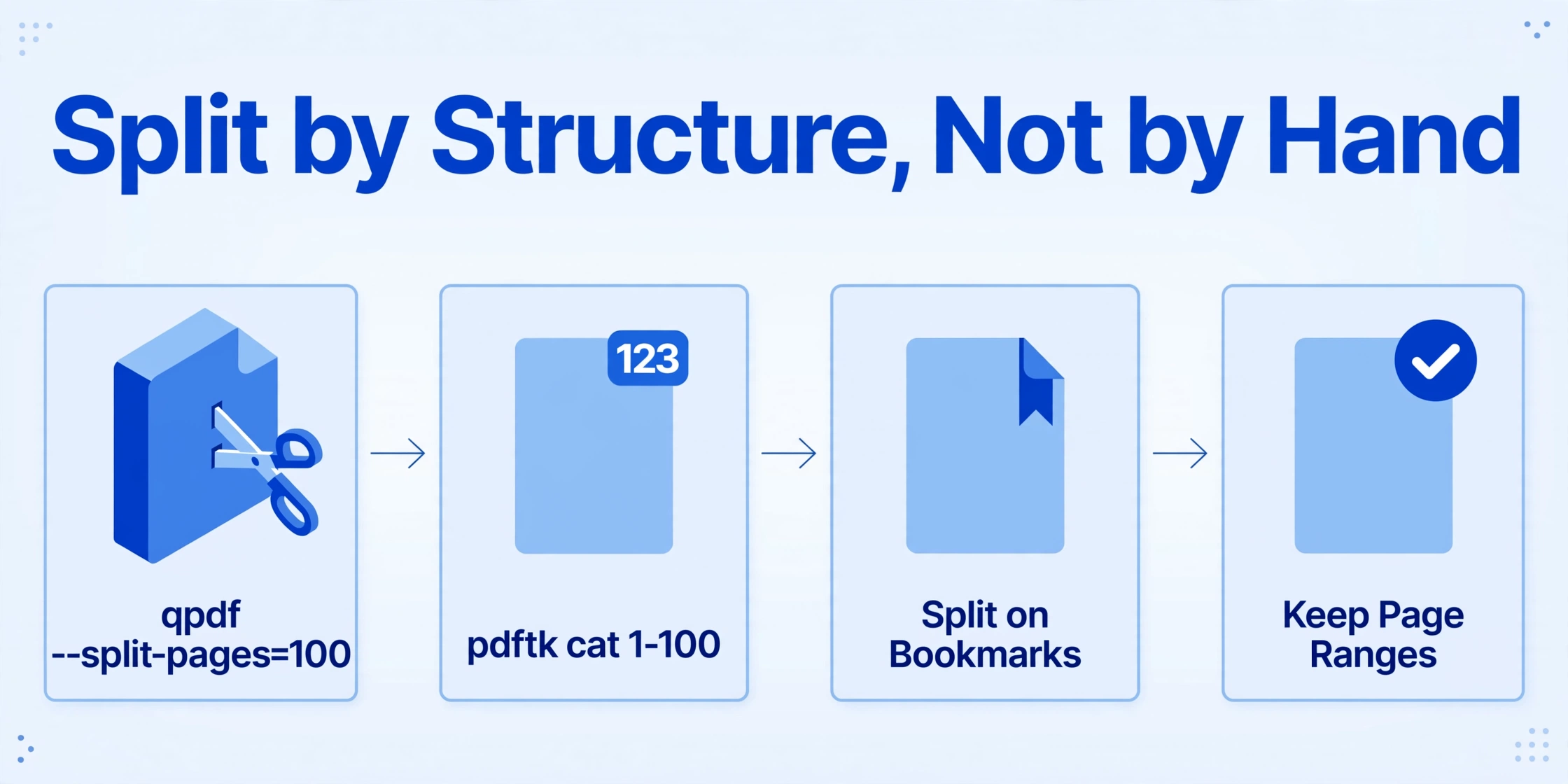
The answer to a large PDF is to cut it into units that fit the tools you already have, along boundaries the document already declares.
The best boundary is the outline tree. When a PDF has bookmarks, they are its own table of contents, and each top-level bookmark marks a natural unit: a chapter, a statement period, a filing. Splitting on those boundaries keeps related pages together, which matters for extraction accuracy downstream, and it gives every resulting file a name you can reason about later.
Cut on fixed page counts with qpdf
qpdf --split-pages=100 archive.pdf chunk-%d.pdf produces chunks of 100 pages, named in order. This is the fastest way to get a 7,000-page file under control, and 50 to 100 pages per chunk maps cleanly onto the per-file limits downstream.
Pull exact ranges with pdftk or qpdf
pdftk archive.pdf cat 1-100 output part-01.pdf extracts a range you already know you want. qpdf does the same with qpdf archive.pdf --pages . 1-100 -- part-01.pdf.
Split on bookmarks with a tool that supports it
The honest answer is that the common open-source splitter cannot do this. qpdf's own tracker has carried a request to add bookmark-based splitting since October 2020 and it is still open. Acrobat can split by top-level bookmarks, and dedicated tools such as Apryse's PDF PageMaster, EverMap's AutoSplit, and the DeftPDF web splitter let you choose a bookmark level.
Keep the page range in every filename
When extracted rows come back, the filename is the only thing that tells you which part of the archive a row came from. Without it, you have thousands of orphan records and no way to trace one back to page 4,213.
What to Run Locally and What to Send to a Service
A sensible split puts the local machine in charge of cutting and indexing, and a service in charge of the pages that actually need reading.
Splitting with qpdf or pdftk is fast, runs against the file without uploading it, and costs nothing. OCR with Tesseract or OCRmyPDF can also run locally, which matters when the archive holds records you would rather not hand to an unfamiliar web uploader. The tradeoff is throughput: one machine, one CPU pool, and a real memory cost per page in flight. A desktop tool can still be the right answer for the extraction step on a single document, and the strengths and limits of that category are covered in desktop OCR software compared.
A cloud OCR service removes the hardware limit and charges by the page. It also brings upload caps that a 600 MB file hits immediately, so a service becomes useful only after the file has been split. Browser-based splitters tend to cap at tens of megabytes, which rules them out for the source file itself.
Keep the archive and the cutting local. Send a defined subset to whatever reads it. A one-call 600 MB upload does not exist as a product, and the workflow does not need it to.
Where Extraction Fits After the Split
Once a giant file is broken into chunks, the remaining job is getting a few named fields out of thousands of pages and into one spreadsheet.
This is where extraction differs from OCR. OCR converts an image of a page into a wall of text. Extraction answers a narrower question: what is the document date, the case number, the account number, the amount on this page? A vision-based extraction tool answers that question directly instead of producing text you then have to parse, and the difference is the same one covered in why accuracy depends on the input.
Custom Column Extraction starts from what you want. You type the column names, such as Document Date, Case Number, or Account Number, and the tool locates each value by meaning across every page and layout. A form that changes design between page 400 and page 4,000 does not need a new template, because nothing is trained or configured per document type. You define the output; the archive defines nothing.
Batch-First Processing handles the volume. You upload a whole chunk as a set of files rather than one at a time, and the results merge into a single spreadsheet with one row per page. For a batch of scanned documents this is the same idea behind running batch OCR over a folder, scaled from a folder to an archive.
The pipeline becomes split, then batch, then extract. Split the archive by structure into chapter-sized or page-count chunks, upload one chunk per batch, and pull the same named columns from every chunk. The output is no longer a 7,000-page document. It is a table you can sort by date, filter by case number, and scan for the pages that came back empty. That last part is a feature: a blank cell tells you the page had nothing to read, and it keeps the index honest across thousands of rows.
The Limits to Plan Around
No product ingests a 600 MB, 7,000-page PDF in one call, and a plan that assumes one will stall on the first day. The limits that matter are public and worth checking before you start:
| Limit | Value |
|---|---|
| Upload size | 10 MB per file, from the web app or the API |
| PDF sent to the server in one piece | 50 pages per file |
| Files per batch | Free scales with credits; Basic 100, Pro 200, Max 300; teams 200 to 500 |
| Credits per page processed | Standard 1, Advanced 3, Premium 6 |
A 7,000-page job is therefore at least 7,000 files. On a Max plan that is about 24 batches of 300, and at the Standard tier it is 7,000 credits. Both numbers are why you check your plan before starting, and neither is a reason the job cannot be done.
Length also works against precision. Transcription errors compound with volume, so a mistake on page 87 of a 120-page run can propagate through cross-referenced fields. That is why the hundred-page mark is where most tools start recommending you split into logical sections, and it is covered in detail in what to expect from multi-page PDF extraction. At 7,000 pages the argument for splitting is operational and it is about accuracy at the same time.
One more rule saves the most time of all: do not OCR what already has a text layer. If the select-text test succeeds on a sample of pages, extract the text directly and skip recognition entirely.
FAQ
Can I OCR a 7,000-page PDF in one go?
No. A single 600 MB upload exceeds the 10 MB per-file limit and the 50-page server-side cap, and desktop tools run out of memory well before that. Split the file first, then process the chunks.
How do I split a large PDF by bookmarks without doing it by hand?
Acrobat can split by top-level bookmarks, and tools such as Apryse PDF PageMaster, EverMap AutoSplit, and DeftPDF support deeper bookmark levels. qpdf, the common command-line splitter, cannot split by bookmarks; it splits by page range or by fixed page counts.
Why does my PDF reader crash on a 600 MB file?
Rendering a single page at 600 DPI can take about 104 MB of memory, and a reader holding several pages or building one model of the document runs past what a desktop app has. Compressed object streams and the absence of a fast-web-view layout add to the slowdown.
How long does OCR take on thousands of pages?
At roughly 25 pages per minute on a CPU with Tesseract, 7,000 pages is about 4.7 hours single-threaded, or around 40 minutes with eight parallel workers. Cloud services run across many machines and charge per page instead.
Do I need to OCR every page if I only need a few fields?
No. Name the fields you want and run them against the pages that carry them. An index of dates, case numbers, and amounts is usually the real deliverable, not a full transcription of the archive.
What is the cheapest way to OCR thousands of pages?
Local Tesseract is effectively free and CPU-bound. Major cloud OCR APIs run around one dollar per 1,000 pages, so a 7,000-page job starts under $10. The larger saving is not running OCR at all on pages that already have a text layer or that you do not need.
The size of a file is a statement about the job inside it. 7,000 pages is a search problem long before it is an OCR problem, and the deliverable worth building is an index of the pages you need rather than a faithful copy of an archive you will never read cover to cover. Cut the file where it already divides, name the fields you care about, and let a batch do the rest.