Adobe Acrobat OCR vs AI Extraction:
Edit PDF or Extract Data?
Adobe Acrobat Pro is the best PDF editor on the market. But using it for data extraction is like using a Swiss Army knife to open a bottle — it works, but there's a tool designed for the job. This comparison evaluates both tools from the perspective of someone who already has Acrobat and is trying to extract data from invoices, receipts, and business forms. The question isn't "which is better in theory" — it's "when does Acrobat's OCR actually save you work, and when does it just give you a different kind of manual data entry?"
Key Takeaways
- 3 minutes per invoice — that is the spreadsheet cleanup Acrobat's Export to Excel demands before you get usable data, burning 2.5 hours of invisible labor every 50 invoices.
- No amount of practice speeds this up — Acrobat is exporting what the page looks like, not what the data means, and getting better at running OCR won't change what lands in the spreadsheet.
- Keep Acrobat for editing PDFs and add a purpose-built extraction tool to handle the data — the combined cost is less than what you spend today on post-processing cleanup alone.
Quick Comparison: Acrobat OCR vs AI Extraction
Both tools take a PDF or image and turn it into digital data. But what they produce — and what you do next — are fundamentally different. Here is the short version before we go deeper.
| Dimension | Adobe Acrobat Pro OCR | AI Extraction Tool |
|---|---|---|
| What it outputs | Editable text, table cells, or searchable PDF | Structured data (fields mapped to your column names) |
| Accuracy on digital PDFs | Excellent — reads native text layer directly | Consistent across formats, adapts to layout changes |
| Accuracy on scanned docs | Good on clean scans, degrades with quality issues | Strong — vision LLM reads visually, not via text layer |
| Post-processing needed | Significant — realign columns, rename headers, split merged cells | Minimal — output is already a clean table with your field names |
| Batch processing | Action Wizard runs OCR on multiple files, outputs are separate | Batch-first: files merge into one unified table |
| Field-specific extraction | Not supported — exports full page content | Core feature — define which fields to extract |
| Pricing | $19.99/mo (Pro) — full PDF suite, extraction is a side feature | $9–$59/mo — purpose-built extraction, no PDF editing |
The key insight: Acrobat exports what the page looks like. AI extraction exports what the data means. These are different outputs for different jobs.
What Each Actually Produces
The most fundamental difference between Adobe Acrobat OCR and AI extraction isn't accuracy or speed — it's the type of output you get when the processing finishes.
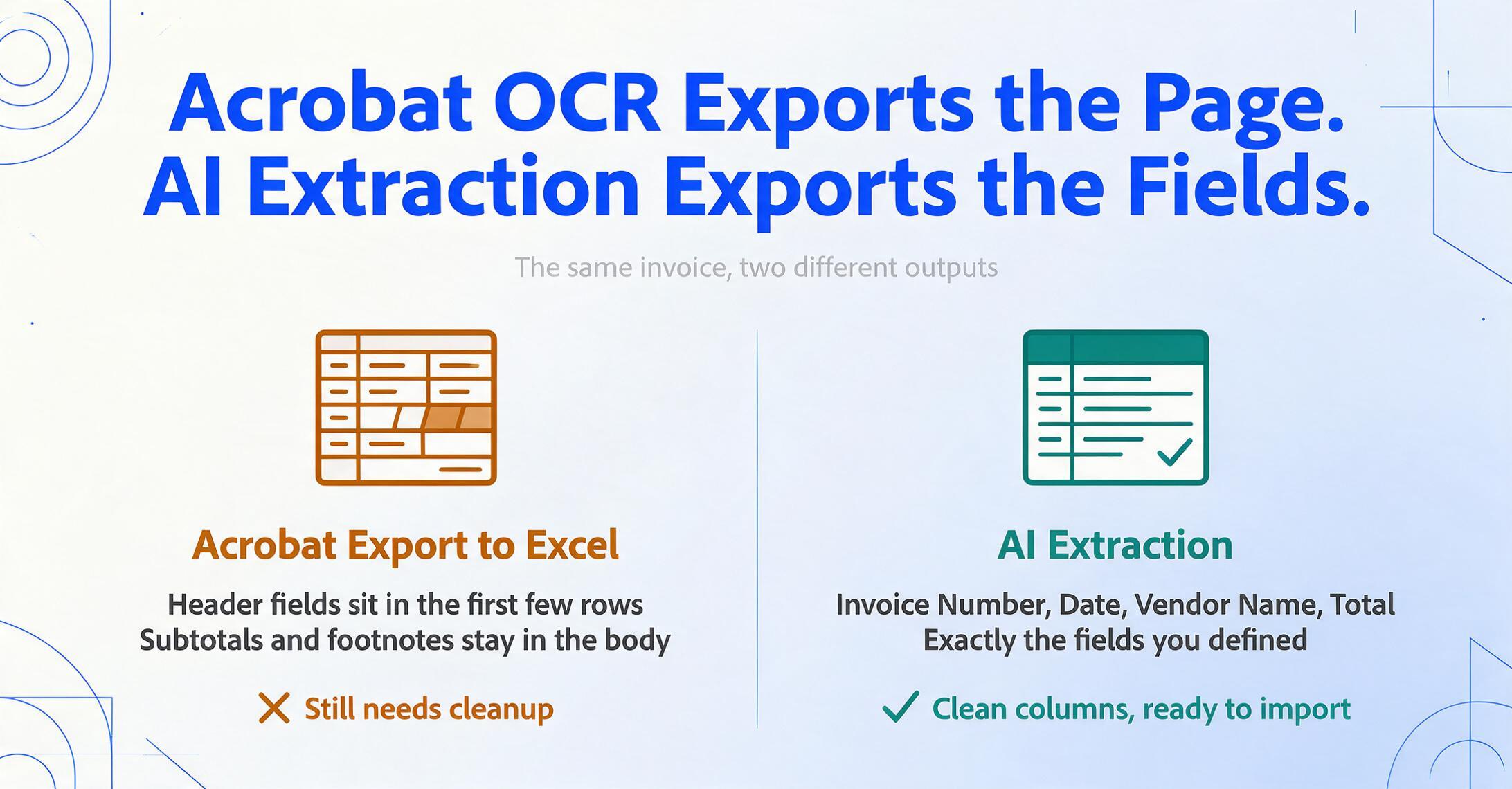
When you run Acrobat Pro's "Export to Excel" on an invoice, here is what happens: Acrobat uses its OCR engine to detect text and table structures on the page, then writes that content into an .xlsx file. If the PDF has a visible table with clear borders, the output roughly preserves the grid. But what lands in the spreadsheet is an image of the data, not structured data. The column headers are whatever words appear at the top of each column on the PDF. The rows include every line item — but also subtotals, discount lines, tax breakdowns, and footer notes, all in the same table body. The invoice number, date, and vendor name — the three fields you actually need — are somewhere in the first few rows, not in dedicated columns.
AI extraction works the other way around. Instead of asking "what text is on this page?" it asks "what fields did you ask for, and where are they?" You define the output first: "Invoice Number, Date, Vendor Name, Total." The AI reads the document, locates each of those values by semantic context, and outputs exactly those fields as columns. The line items are a separate concern — you define them as their own extraction set or you don't, but your header-level fields come out clean.
This is the core difference that drives everything else. Adobe Acrobat's Export to Excel converts a page into cells. AI extraction converts a document into answers.
Accuracy When It Matters
Acrobat Pro's OCR is genuinely good at what it does. On a clean, high-resolution scan of a typed document with standard fonts, it achieves character recognition accuracy well above 95%. On a native digital PDF — one that already has a text layer — it reads the text directly with 100% accuracy, because there is no OCR step. This makes it an excellent tool for converting scanned books, legal documents, or standardized forms into searchable PDFs.
The accuracy picture changes when the documents are business originals: invoices from small suppliers, thermal receipt paper, phone photos of packing slips, or handwritten delivery notes. These are not edge cases — they are the daily reality for anyone processing supplier documents.
Acrobat's OCR engine was designed for clean, typed text. It struggles with:
- Thermal receipt paper — the text fades and curls as the paper ages. Acrobat's OCR often misreads dates and misses partial characters.
- Phone photos at an angle — Acrobat's perspective correction is limited. Skewed pages produce garbled text lines.
- Mixed printed and handwritten content — handwritten annotations on a typed invoice cause the OCR to misalign surrounding text.
- Complex table layouts — merged cells, nested tables, and multi-line headers in supplier invoices frequently produce split or misaligned columns in the Excel export.
- Low-contrast scans or colored backgrounds — faded thermal text on a warm-toned background causes the engine to drop characters entirely.
AI extraction handles these cases differently because it reads the document the way a person would — visually, holistically, and in context. A vision-language model doesn't depend on a clean text layer or crisp character boundaries. It interprets the document as an image, understands that "Total Due" is a financial field, and extracts the number next to it regardless of whether the scan is slightly blurry or the receipt paper is yellowed. The accuracy is more consistent across diverse document types — not necessarily higher on perfect scans (where Acrobat already performs well), but far more reliable on the messy, real-world documents that make up most business workflows.
The Hidden Cost: Post-Processing
This is where the comparison shifts from "which is more accurate" to "which actually saves you time" — and the gap is wider than most people expect.
Acrobat's Export to Excel doesn't give you a spreadsheet you can use. It gives you a spreadsheet you can fix. The time you spend realigning columns, removing empty rows, renaming headers, and extracting the invoice number from the top-left cluster — that's not data entry, but it's still manual labor.
Here is a realistic post-processing timeline for a single invoice exported from Acrobat Pro:
- Open the exported .xlsx — the table is misaligned, with the invoice number in row 1, vendor name in row 2, address spanning three merged cells, and the actual line items starting at row 6. (30 seconds)
- Move header fields to their own columns — cut the invoice number, date, vendor name, and total from wherever they landed and place them in consistent columns. (60 seconds)
- Clean table artifacts — remove extra rows created by split table borders, fix merged cell artifacts where two columns were read as one, delete empty rows inserted at page breaks. (45 seconds)
- Rename column headers — the PDF called it "Inv No" but your accounting system expects "Invoice Number." (20 seconds)
- Cross-check totals — Acrobat does not validate arithmetic, so you spot-check that the total in the export matches the PDF. (30 seconds)
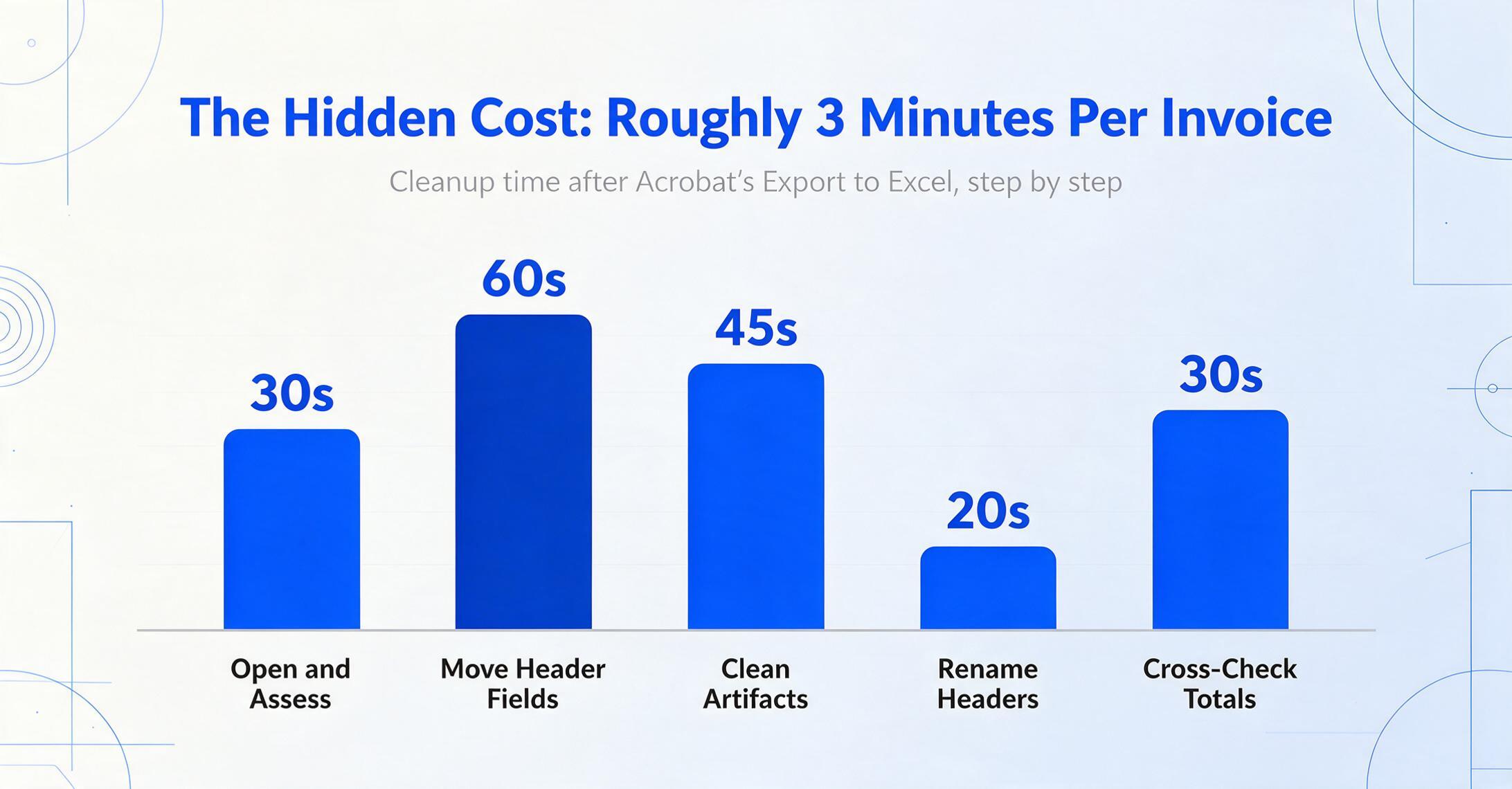
That is roughly 3 minutes of post-processing per invoice — after the OCR has already "done its job." For a business processing 50 invoices a month, that is 2.5 hours of work that feels like data entry, looks like data entry, but is actually cleanup of an OCR export that was supposed to eliminate data entry.
AI extraction eliminates nearly all of this. Because the output is defined by the fields you specify, the invoice number lands in the "Invoice Number" column on every single file. Date formats are normalized. Totals are extracted into a numeric column. The post-processing step is reduced to a spot-check of 5–10% of records — not a per-file reformatting exercise. This is the difference between the 18x efficiency gain claimed by AI extraction tools and the marginal improvement most users experience with desktop OCR.
Batch Processing: One at a Time vs All at Once
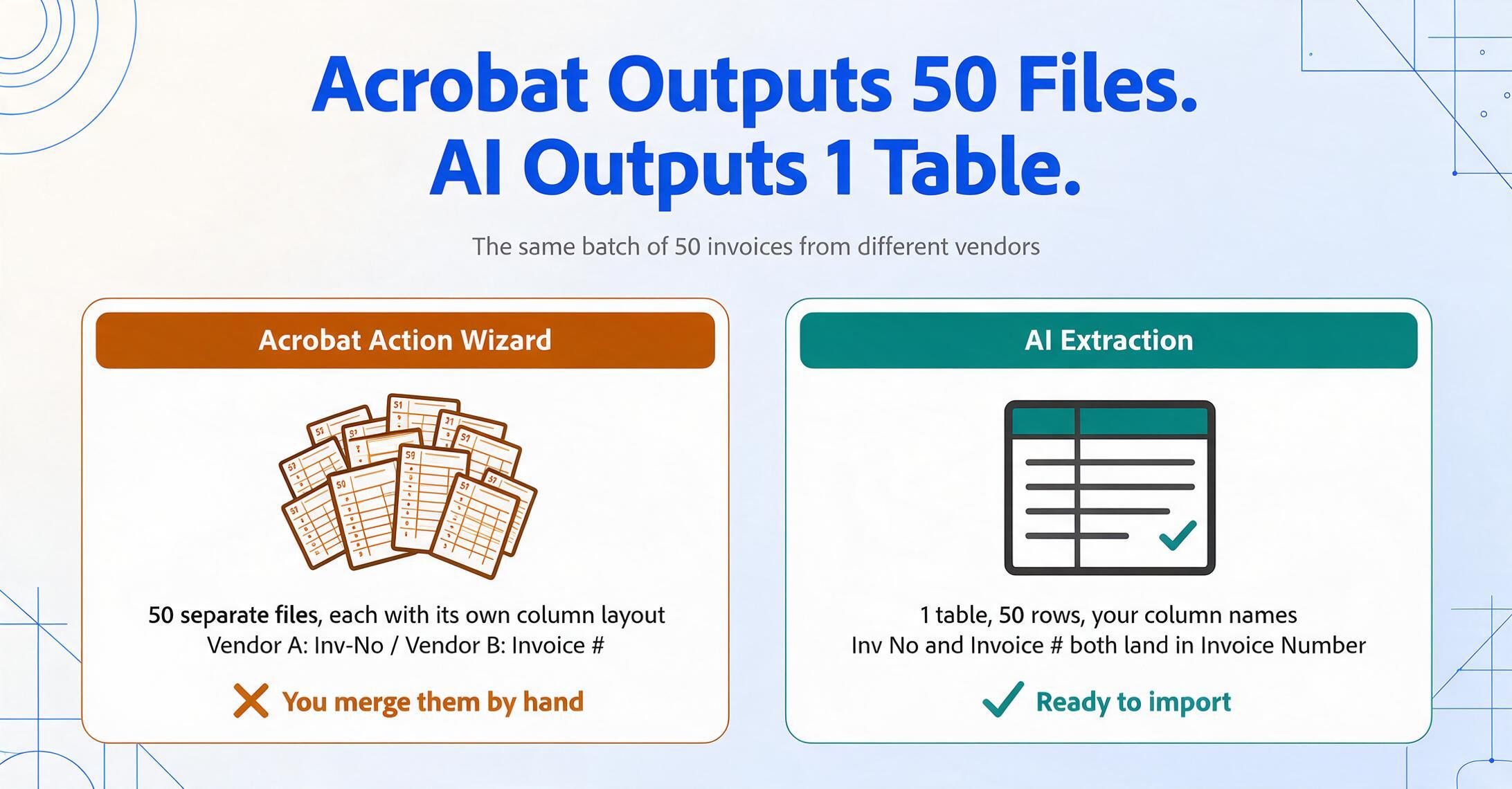
Acrobat Pro supports batch operations through its Action Wizard — you can record an action that runs a PDF OCR pass, then exports to Excel, across an entire folder of PDFs. This works, with an important limitation: each file exports independently. You get 20 separate Excel files, each formatted according to its source document's layout. The columns from vendor A's invoice (Invoice #, Date, Total) do not match the columns from vendor B's invoice (Inv-No, Due-Date, Amt), because Acrobat is exporting what the page looks like, not what the data means. Merging 20 disparate Excel files into one usable spreadsheet takes longer than processing the files one by one.
AI extraction tools are built batch-first. Upload 20, 50, or 100 invoices from different vendors — the AI reads each one independently for context, but outputs all of them into a single table with the columns you defined. Vendor A's "Inv No" and vendor B's "Invoice #" both land in the "Invoice Number" column because the AI understands they mean the same thing, regardless of how each vendor labels it. This is what it means for AI to understand data rather than just read characters.
The practical difference: with Acrobat, a batch of 50 invoices means 50 Excel files and a manual merge session. With AI extraction, a batch of 50 invoices means one Excel file with 50 rows — ready to import into your accounting software.
Pricing: What You Pay For
Adobe Acrobat Pro costs $19.99 per month on the annual plan. Acrobat Standard costs $14.99 per month. Both include OCR and Export to Excel as part of a comprehensive PDF editing suite. If you already need Acrobat for editing PDFs, filling forms, or document security, then the extraction capability comes at no additional cost.
Purpose-built AI OCR extraction tools range from $9 to $59 per month depending on volume. They do not include PDF editing — they are focused on one thing: turning document content into structured data.
The fair comparison is not monthly price — it's cost per usable record. A $19.99 Acrobat subscription that still requires 3 minutes of post-processing per invoice produces usable data at roughly $0.33 per invoice in labor (at $25/hr). An AI extraction tool at $29/month that eliminates post-processing often costs less per usable record than Acrobat — even though its base price is higher.
When Acrobat Makes More Sense
Adobe Acrobat Pro is the best tool for several jobs. Let's be clear about where it excels:
- Editing and creating PDFs — adding text, rearranging pages, merging documents, applying watermarks. Acrobat is the industry standard for a reason.
- Creating searchable PDF archives — if your goal is to OCR a thousand scanned legal documents so you can search for "breach of contract" across them, Acrobat's OCR is fast, reliable, and purpose-built for this.
- Filling and distributing PDF forms — Acrobat's form tools let you create fillable PDFs, collect responses, and export form field data to a spreadsheet. For interactive PDF forms — not scanned documents — this workflow works well.
- One-off document conversion — if you need to convert a single 10-page annual report from PDF to Excel once a quarter, Acrobat's Export to Excel takes 30 seconds and the post-processing is a one-time task.
- Legal and regulatory archiving — when the requirement is a searchable PDF that preserves the original document image, not field-level data extraction, Acrobat creates PDF/A-compliant archives that meet legal admissibility standards.
The common thread: Acrobat wins when your goal is document management, not data extraction. When you need to edit a PDF, make it searchable, or fill it out — these are Acrobat's native strengths.
When AI Extraction Makes More Sense
AI extraction tools are the better choice when the goal is getting data out of documents and into a system. The specific scenarios:
- Field-specific extraction — you need the invoice number, date, vendor name, and total from each document. Not the full page — specific fields. Acrobat cannot do this. AI extraction is built for it.
- Batch processing with mixed formats — invoices from 30 different suppliers. Acrobat gives you 30 Excel files. AI extraction gives you one consistent table.
- Scanned documents and phone photos — your document collection includes scans, phone photos, thermal receipts, and handwritten forms. Acrobat's OCR degrades on these inputs. AI extraction handles them visually, the same way a person would.
- Data pipeline into other software — QuickBooks, Xero, Google Sheets — Acrobat's variable-format exports need mapping rules. AI extraction outputs consistent columns ready to import.
- Handwritten content — field notes, delivery confirmations, site logs, timesheets with handwritten entries. Acrobat does not offer handwriting recognition that feeds into structured data output.
- Computed or inferred fields — you need a calculated column like "Line Total = Qty × Unit Price," or an inferred classification like "Category (Meal/Transport/Office)." Acrobat exports raw numbers; AI tools with computed column support derive new data during extraction.
The common thread: AI extraction wins when your goal is data extraction, not document management. When you need structured fields from varied documents, batched into a consistent output — this is what purpose-built extraction tools exist to do.
The Verdict: Not a Replacement, a Division of Labor
The honest answer is that most businesses should use both tools. Adobe Acrobat Pro remains the best PDF editor for document management tasks — editing, archiving, signing, form creation. AI extraction tools fill the gap that Acrobat was never designed for: converting document content into structured data without manual intervention.
If you currently use Acrobat to export invoices to Excel, then spend 3 minutes per file cleaning up the result, you are not using a PDF tool for data extraction. You are using a PDF tool to create a second round of manual data entry.
The right question is not "which tool should I replace?" It's "which tool should I use for each type of work?" For editing and managing PDFs — keep Acrobat. For extracting structured data from documents — use a purpose-built AI extraction tool. The two are complementary, not competitive. And the combined cost of both ($19.99 + $9 = $28.99/month for the Basic plan) is still less than what many businesses spend on post-processing labor for a single afternoon of invoice processing. If you've already decided extraction is the piece you need to add, our head-to-head comparison of ImageToTable.ai and Adobe Acrobat goes deeper on the feature and pricing trade-offs than this guide does.
FAQ
Can Adobe Acrobat extract specific fields like invoice number and total from a scanned invoice?
Not directly. Acrobat's Export to Excel converts the visible page content into spreadsheet cells — it does not identify which text is the invoice number versus the vendor name versus the date. You get a table that approximates the page layout, and you extract the fields yourself by reading the spreadsheet. For interactive PDF forms (not scanned documents), Acrobat can export form field data, but that only works if the PDF was created with fillable form fields.
Does Adobe Acrobat's OCR work on handwritten documents?
Acrobat Pro includes basic handwriting recognition in its OCR engine, but the output is raw text in reading order — not structured data mapped to fields. If a handwritten delivery note has a date, a signature, and a list of items, Acrobat will recognize some of the characters and output them as a single text block or sequence. It will not tell you which recognized text is the date versus the item count versus the recipient name.
How does batch processing compare between Acrobat and AI extraction for 50 invoices?
Acrobat Pro's Action Wizard can run Export to Excel on 50 files automatically, but each file exports to a separate spreadsheet with its own column layout. You then need to manually merge them — which can take 30–60 minutes depending on format variation. An AI extraction tool processes all 50 files together and outputs one spreadsheet with consistent columns, ready to import into accounting software.
Is it worth keeping Acrobat if I switch to an AI extraction tool?
Yes, if you still need to edit PDFs, apply digital signatures, create fillable forms, or manage document security. AI extraction tools are not PDF editors — they do one thing (data extraction) very well. Most users keep Acrobat for document management and use AI extraction specifically for getting data out of documents. The combined cost is still reasonable compared to enterprise extraction platforms.
What is the cost comparison between Acrobat Pro and an AI extraction tool for a small business processing 100 documents per month?
Acrobat Pro costs $19.99/month but requires approximately 3 minutes of post-processing per document — roughly 5 hours of labor at $25/hr = $125/month in hidden time cost. An AI extraction tool like ImageToTable costs $29/month (Pro plan) with minimal post-processing (10% spot-check ≈ 30 minutes = $12.50/month). The total effective cost is $145/month for Acrobat vs $41.50/month for AI extraction — a 71% reduction from eliminating post-processing. See how other desktop OCR tools compare.