How to Extract Resume Data into Excel
for Recruiting (2026 Guide)
Most recruiters don't have a resume parsing problem. They have a spreadsheet problem. After job boards, email attachments, and internal referrals dump dozens of PDFs into their inbox, someone has to turn those resumes into a candidate tracking sheet — and the default answer is still manual copy-paste. What if that answer cost more than the hire itself?
Key Takeaways
- 40 resumes take 2 to 4 hours of manual copy-paste—and a mistyped email address loses the candidate entirely.
- ATS parsers read resumes by position, so a two-column layout splices your sidebar skills directly into your employment history.
- Define your columns once, drop in any resume format, and get a filterable candidate spreadsheet without touching a parser API.
The Spreadsheet Behind Every Hiring Decision
Every recruiting process, whether run by a Fortune 500 talent team or a five-person startup, eventually converges on a single artifact: a candidate spreadsheet. Names in column A. Current titles in column B. Source — LinkedIn, referral, job board — in column C. Skills and years of experience spread across columns D through H.
For small and mid-size employers who can't justify an enterprise ATS (Applicant Tracking System), this spreadsheet is their entire recruiting infrastructure. It's where candidates are ranked, where follow-up dates are tracked, and where hiring managers get briefed. The problem is that building it — row by row, resume by resume — is the single most time-consuming step in the entire hiring funnel. Paper and PDF application forms add to the same pile, and converting a job application form to Excel pulls applicant name, work history, education, and references into the candidate spreadsheet alongside resume data.
SHRM estimates the average cost per hire at approximately $4,700, with a time-to-fill of 33 days across industries (SHRM Benchmarking). Those aren't just advertising and agency fees. A significant portion is recruiter hours — hours spent on tasks like copying resume data into tracking spreadsheets, a step that adds no strategic value but consumes real payroll dollars.
The point isn't that spreadsheets are bad. It's that manually populating them from unstructured documents is expensive in a way that scales with volume — and most recruiting teams don't have a clear alternative.
What Manual Entry Actually Costs a Recruiting Team
Here's the arithmetic no one does until a backlog forces it. A recruiter opening a 40-candidate pipeline spends roughly 3 to 6 minutes per resume extracting key fields into a tracking sheet — name, email, phone, current title, company, years of experience, education, top skills, and source. At 40 candidates, that's 2 to 4 hours of pure data entry.
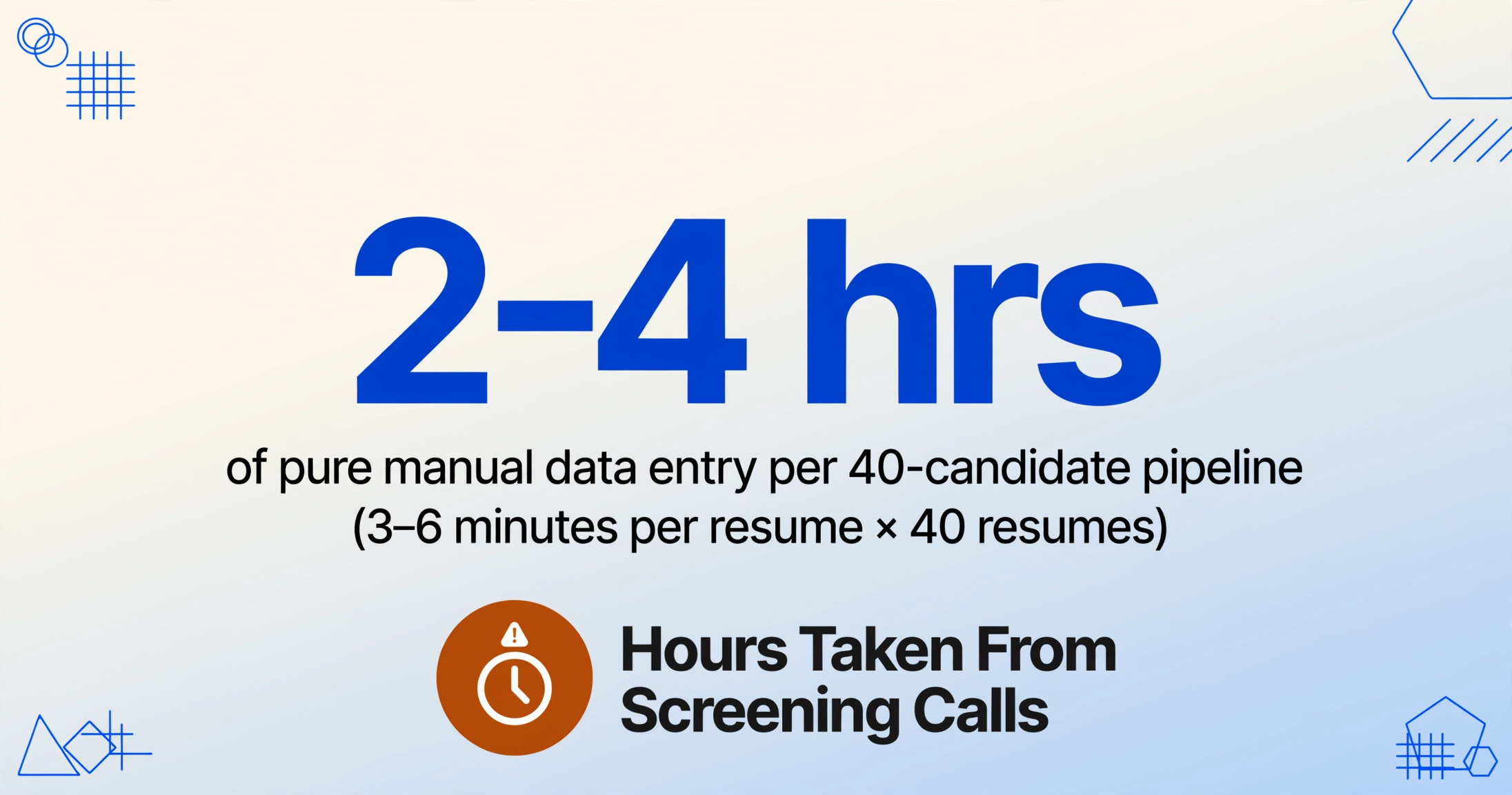
But it's not just time. It's what that time should have been spent on: screening calls, hiring manager syncs, sourcing passive candidates. Those are the activities that actually move a hire forward. Data entry is a tax on all of them.
The error rate matters too. A mistyped email address means a candidate never receives an interview invite. A transposed phone number wastes the hiring manager's time. A skill that didn't get copied because it was listed in a sidebar gets missed in the first-round filter. When the spreadsheet becomes the single source of truth for hiring decisions, the quality of that spreadsheet directly impacts the quality of those decisions.
For context: the industry standard for resume parsing API pricing ranges from $0.05 to $0.30 per resume through specialized tools like Textkernel (Sovren), RChilli, Daxtra, and Affinda. That may sound cheap — until you're paying a per-document fee on top of an ATS subscription, and still spending time fixing parser errors on multi-column layouts.
The Candidate Record: What to Extract from a Resume
Before extracting anything, you need to define what "a candidate record" actually means for your hiring process. The mistake most teams make is extracting everything — copying entire employment histories verbatim — when the spreadsheet's job is to filter and compare, not archive.
Here's the core set of fields worth extracting for a practical candidate tracking sheet. (If you're dealing with dozens or hundreds of resumes, see our batch resume processing guide for handling volume, filename chaos, and merge strategies.)
| Field | Why It Belongs in the Sheet |
|---|---|
| Candidate Name | Primary identifier. The one field you can't afford to get wrong. |
| Outreach channel. Mistype it and you've lost the candidate. | |
| Phone | Screening calls and SMS scheduling. Format varies by country. |
| Current Title | The fastest initial screen: does the most recent role match the opening? |
| Current Company | Industry context. A "Software Engineer" at Google vs. a 10-person agency means different things. |
| Years of Experience | An inferred column: AI reads work history and computes total years, even if the resume only lists date ranges. |
| Education / Degree | Highest degree + field. Less relevant in skills-based hiring but still a common filter. |
| Top Skills | Technical and soft skills. NACE reports 64.8% of employers now use skills-based hiring practices, with two-thirds applying it at the screening stage (NACE Job Outlook 2025). This column is the most important filter in the modern pipeline. |
| Notice Period | Critical for timeline planning. "Available immediately" vs. "3 months notice" changes the shortlist. |
| Source | Where the resume came from: LinkedIn, referral, job board, agency. Essential for measuring channel ROI. |
| Pipeline Stage | Manually updated after extraction: Applied, Screened, Interview, Offer, Hired. Turns the spreadsheet into a lightweight ATS. |
The key design decision: you're extracting what you need to compare, not what you could extract. Every column that doesn't help you filter or rank candidates is a column that adds extraction time and visual noise.
One column that deserves special attention is Years of Experience. It's rarely listed as a single number on any resume — it's embedded across multiple date ranges in the work history section. With a computed column, the AI parses each employment period, calculates the total, and outputs a single number. You define the column as "Years of Experience (sum of all employment periods)" and the AI handles the arithmetic during extraction — no post-processing in Excel required.
How to Extract Resume Data into Excel, Step by Step
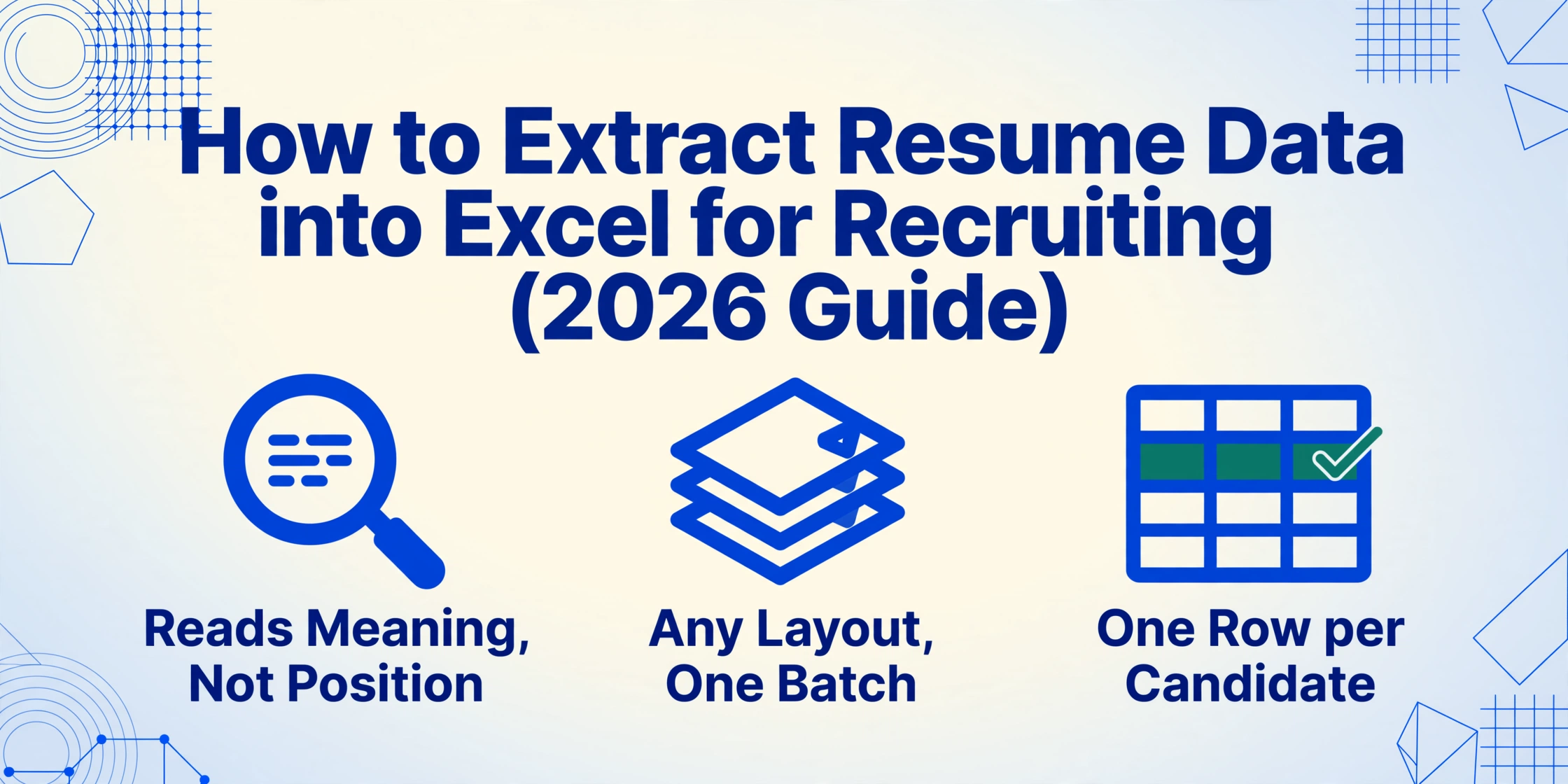
The core challenge with resume extraction isn't technology — it's layout diversity. A resume from a graphic designer has sidebars, icons, and two-column layouts. A CV from an academic runs to four pages. A LinkedIn-export PDF has a completely different structure. Template-based parsers fail at this because they're trained on a fixed layout expectation. Semantic extraction — where the AI reads by meaning rather than by position — is what makes this workflow work across formats.
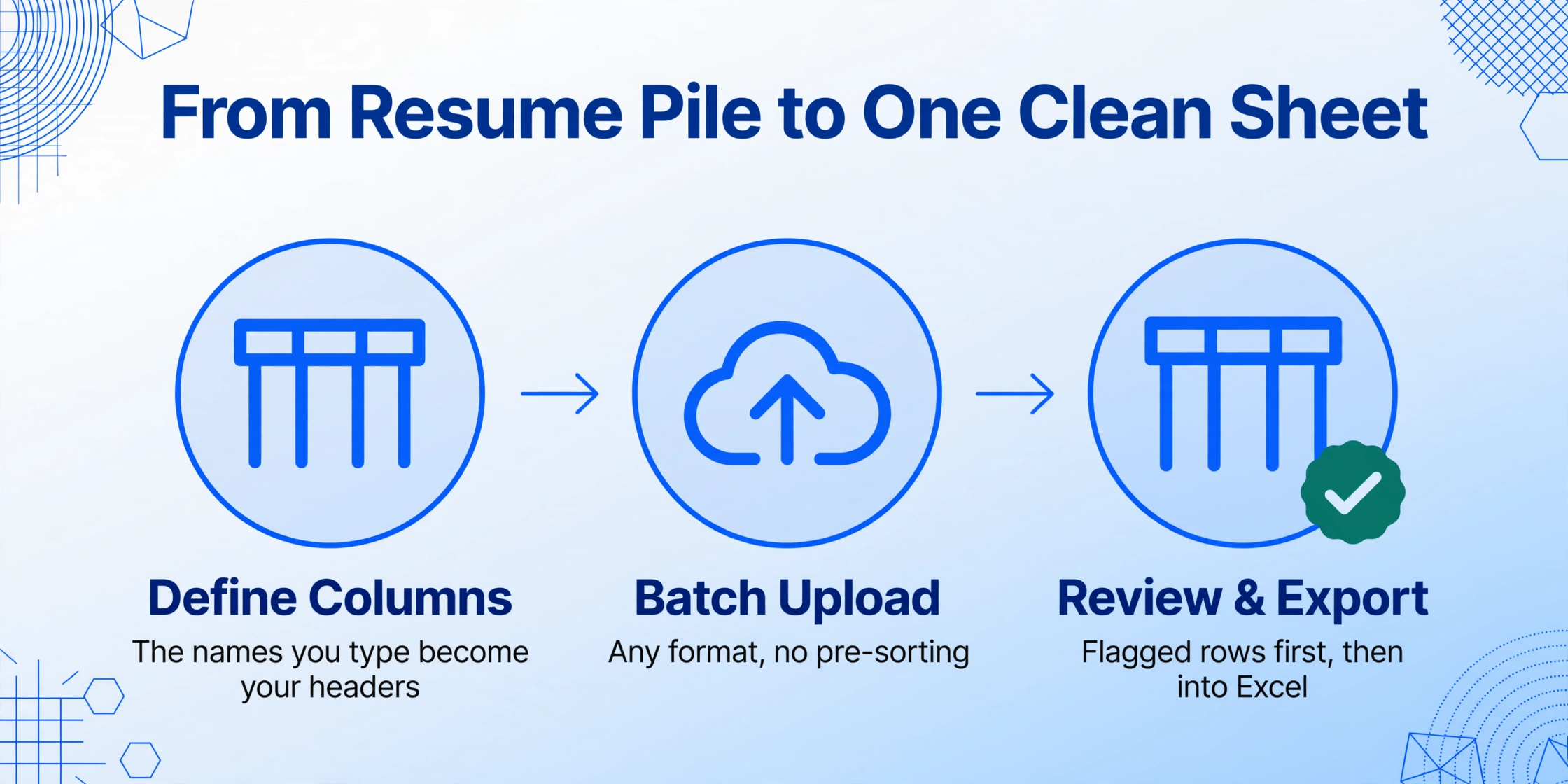
ImageToTable.ai uses Custom Column Extraction: you type the field names you want — "Candidate Name", "Email", "Top Skills", "Years of Experience" — and the AI locates each value anywhere on each resume by understanding what the field means, not where it sits. The column names you type become the headers of your output spreadsheet.
Step 1: Define Your Columns
Start with the field list from the section above, then adjust based on your role's requirements. For a technical hire, add programming languages and certifications. For a sales role, add quota attainment and territory. The columns you define determine what you'll be able to sort, filter, and compare across your entire candidate pool.
Step 2: Batch Upload All Resumes
Drop every resume — PDFs, Word documents, screenshots, LinkedIn exports — into the upload area. There's no limit to formats and no need to pre-sort by layout. The AI processes each document independently and maps extracted values to your defined columns.
Step 3: Review and Export to Excel
After processing completes, you get a single table with one row per candidate and one column per field. Before exporting, hover over any extracted cell to see exactly where on the original resume that value came from — a highlighted bounding box on the source document gives you visual confirmation in seconds. Then export to Excel (XLSX) and it's ready for filtering, sorting, and sharing with the hiring team.
Files are processed securely and not stored.
When Parsers Misread the Resume: Layouts That Break Positional Tools
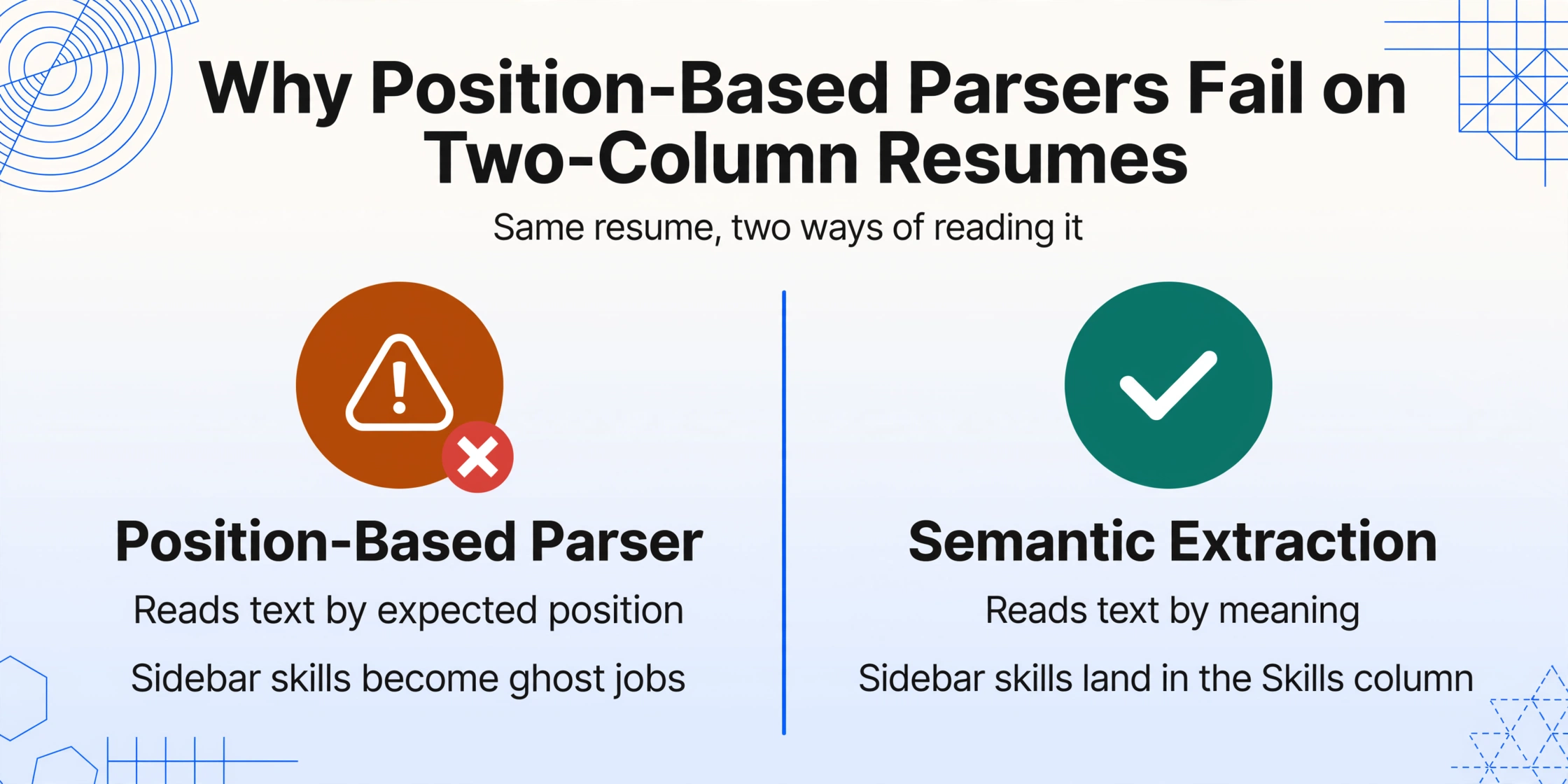
Position-based resume parsers — the kind embedded in most ATS platforms — work by looking for text in expected locations. A contact section at the top. Work history in the middle. Education at the bottom. When a resume follows that template, the parser works. When it doesn't, the output ranges from subtly wrong to comically unusable.
On Reddit's r/recruiting, one recruiter described what happens when a Phenom-powered system encounters a two-column resume: "The CRM profile told me they were a barista at a GM plant" — the sidebar skills section got merged into the main work history, producing a nonsensical career narrative (r/recruiting). Another reported that entering clearance information into Workday's application form caused "your name to show up as first name clearance" — the field delimiter broke on unexpected input.
"Greenhouse works the same as all the others," the same thread concluded. "ATS stands for Applicant Tracking System. Nothing fancy about it." The built-in parsers aren't broken — they're just positional in a world of non-positional documents.
Common failure modes across position-based parsers:
- Two-column layouts: Sidebar content (skills, languages, certifications) gets read as inline work history, creating ghost jobs and phantom employers.
- Creative formatting: Graphic designer resumes with icon-based section headers, skill rating bars, and timeline visualizations produce garbled text strings.
- Header/footer content: LinkedIn URLs, portfolio links, and page numbers placed in headers get merged into the nearest text block.
- Multi-page documents: Academic CVs that span 4+ pages often have section breaks that reset the parser's positional assumptions mid-document.
Semantic extraction sidesteps these failures by not relying on position at all. The AI reads the document the way a human would — understanding that "Education" is a section, not a coordinate, and that skills listed in a sidebar are categorically different from employment history listed in the main body. This doesn't mean 100% accuracy on every creative layout — handwritten notes in margins or heavily stylized typography still present challenges — but it eliminates the structural failure mode that makes position-based parsers unreliable across varied resume formats. For a detailed comparison of parsing APIs versus semantic AI extraction — including per-document pricing, setup effort, and which approach suits your team — read our resume parsing vs AI extraction comparison.
Turning the Spreadsheet into a Candidate Pipeline
Once the extracted data is in Excel, the spreadsheet stops being a data dump and starts being a lightweight recruiting tool. (If you prefer a dedicated tool page with demo, try our resume data extraction to Excel tool.) Here's how the best teams operationalize it:
Add a status column. "Applied", "Screened", "First Interview", "Second Interview", "Offer", "Hired" — update it manually as candidates move through stages. Sort by status to see your entire pipeline at a glance.
Track source attribution. The "Source" column lets you calculate which channels produce the best candidates. Referral hires consistently outperform job board hires on retention — but you can't prove that without tracking where each resume came from.
Use Excel's native filters. Filter by "Top Skills" containing "Python" and "Years of Experience" > 3. Filter by "Notice Period" containing "immediately" to shortlist candidates who can start fast. These are the exact operations that a dedicated ATS charges for — running natively inside a spreadsheet.
Collect resumes from multiple sources. If hiring managers, external recruiters, or employee referrals send you candidate resumes by email, use a Collection Link (a shareable upload page that feeds directly into your processing queue) or Email Inbox (forward resumes and they land in the queue automatically). No one else needs an account — they just send files.
Import into your ATS. Greenhouse, Lever, Workday, iCIMS, BambooHR, and most other platforms support CSV imports of candidate data. Extract into Excel first, clean and normalize the data once, then import — faster and more reliable than relying on each platform's built-in resume parser.
Handling Candidate Data Responsibly: EEOC, GDPR, and Retention
When you extract candidate data into a spreadsheet, you're creating a database of personal information covered by employment and privacy regulations. This isn't an HR-adjacent concern — it's a core part of the workflow.
In the United States, AI-powered or automated resume screening tools qualify as "selection procedures" under Title VII of the Civil Rights Act of 1964. The EEOC's Uniform Guidelines on Employee Selection Procedures (UGESP) apply the four-fifths rule: if the selection rate for any protected group is less than 80% of the rate for the highest group, that's a preliminary finding of adverse impact (EEOC Title VII). For recruitment teams using extracted data to filter candidates, the practical takeaway is: document your filtering criteria. If you're filtering by "Years of Experience > 3" or "Degree = Bachelor's", be prepared to show that criterion is job-related and consistent with business necessity.
For teams recruiting in the EU or UK, GDPR Article 22 restricts decisions based solely on automated processing, and Article 35 requires a Data Protection Impact Assessment (DPIA) for high-risk processing of personal data — which systematic candidate screening qualifies as. The UK's ICO and EU data protection authorities generally recommend retaining unsuccessful candidate data for no more than 6 to 12 months after the recruitment process concludes, unless the candidate gives explicit consent for longer retention.
On the operational side: data minimization means extracting only the fields you need for the hiring decision — not every line of every employment history. Review Mode with visual bounding box verification means you can confirm what was extracted and from where, creating an auditable trail. And when a candidate requests deletion, you're deleting rows from a spreadsheet, not untangling records from a complex ATS database.
The candidate record often has to hold screening results, not just resume fields — a background check to Excel workflow files criminal, reference, and MVR outcomes under the retention rules above.
The compliance advantage of a spreadsheet-based pipeline is simplicity. Data lives in one place. Deletion is a row operation. Filtering logic is explicit (Excel formulas, not black-box AI scoring). For small and mid-size teams operating under EEOC and GDPR obligations, this transparency is worth more than the feature set of an enterprise ATS.
FAQ
Can it read handwritten resumes?
Partially. Clear, legible handwriting — like a printed form with handwritten fields — extracts well. Dense cursive handwriting on unstructured paper produces lower confidence results. For mixed printed/handwritten resumes, the AI extracts all printed text reliably and flags low-confidence regions. Handwritten-only resumes should be treated as requiring extra manual review.
How accurate is it on two-column resume layouts?
Significantly better than position-based parsers because the AI reads by semantic meaning, not layout position. A skills sidebar on the left is understood as a "Skills" section regardless of where it sits on the page. That said, heavily stylized graphic-designer resumes with icon-based section markers may still produce lower confidence on certain fields — the AI is good at reading text in context, not decoding visual metaphors.
How many resumes can I process at once?
Batch uploads handle dozens of resumes in a single session. All files are processed in parallel and merged into one unified output table — one row per candidate, no per-document configuration needed.
Can I import the results into Greenhouse or Workday?
Yes. Most ATS platforms — Greenhouse, Lever, Workday, iCIMS, BambooHR, and Bullhorn among them — support CSV candidate imports. Extract to Excel, clean and validate the data once, then import a clean file. This workflow is often faster and more reliable than relying on each platform's built-in resume parser, especially for candidates sourced outside the ATS.
What happens to the resume data after extraction?
Files are processed and then automatically deleted from the server after a configurable retention period. No training data is retained from customer uploads. For candidates requesting deletion under GDPR or similar regulations, the extracted spreadsheet data lives in a file you control — not in a vendor's database.
How is this different from a resume parser API?
Resume parser APIs (Textkernel, RChilli, Affinda, Daxtra) are purpose-built for resumes and often produce structured JSON that requires integration code to get into a usable format. They charge per document ($0.05–$0.30 per parse). AI extraction takes a broader approach: it reads any document type by field meaning, not by a pre-trained resume schema, and outputs directly to spreadsheet. It doesn't require API integration — you get an Excel file. For teams that handle more than just resumes (offer letters, onboarding forms, employment contracts), one extraction workflow covers all document types.