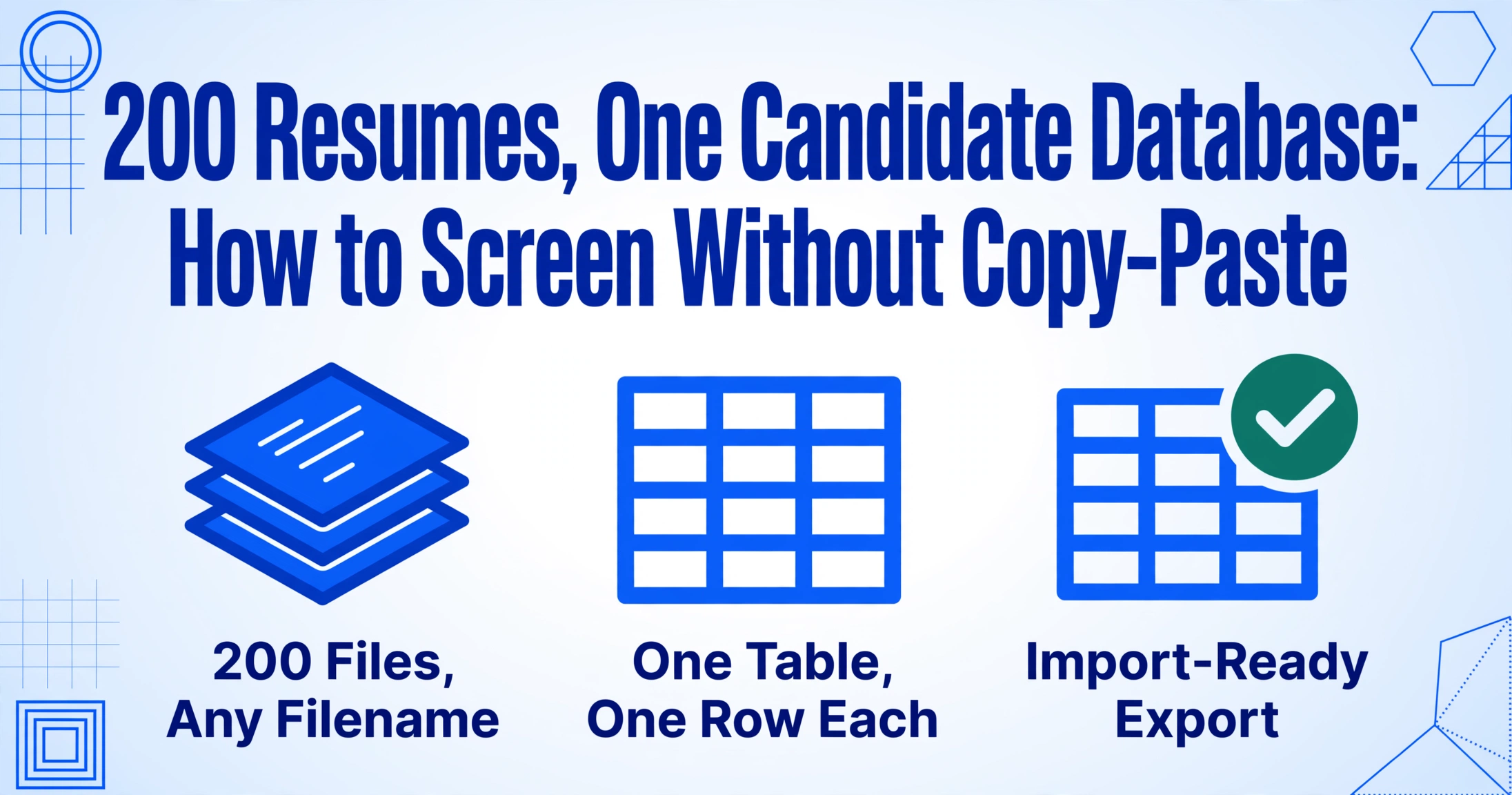
200 Resumes, One Candidate Database:
How to Screen Without Copy-Paste
CNBC's reporting on the 2025 hiring cycle found that a popular opening can pull 300 to 500 applications in three days — and more than a thousand over a weekend — while recruiters spend 30 seconds to 2 minutes on each resume (CNBC). Nobody disputes the screening volume. What nobody quantifies is the step that comes before screening: turning that pile of PDFs into a spreadsheet you can actually sort.
Key Takeaways
- 200 resumes isn't a bigger version of a one-resume problem — it's a different category of work, and screening speed isn't what's breaking.
- 10 to 20 hours disappear into manual transcription before a single candidate gets screened, consuming most of the 8 to 9 days SHRM attributes to screening in a 39-day time-to-fill.
- Define your columns once, process all 200 files in one batch, and review only the flagged rows — a recruiter who extracts stops transcribing and starts screening.
What Changes When 200 Resumes Arrive Instead of One
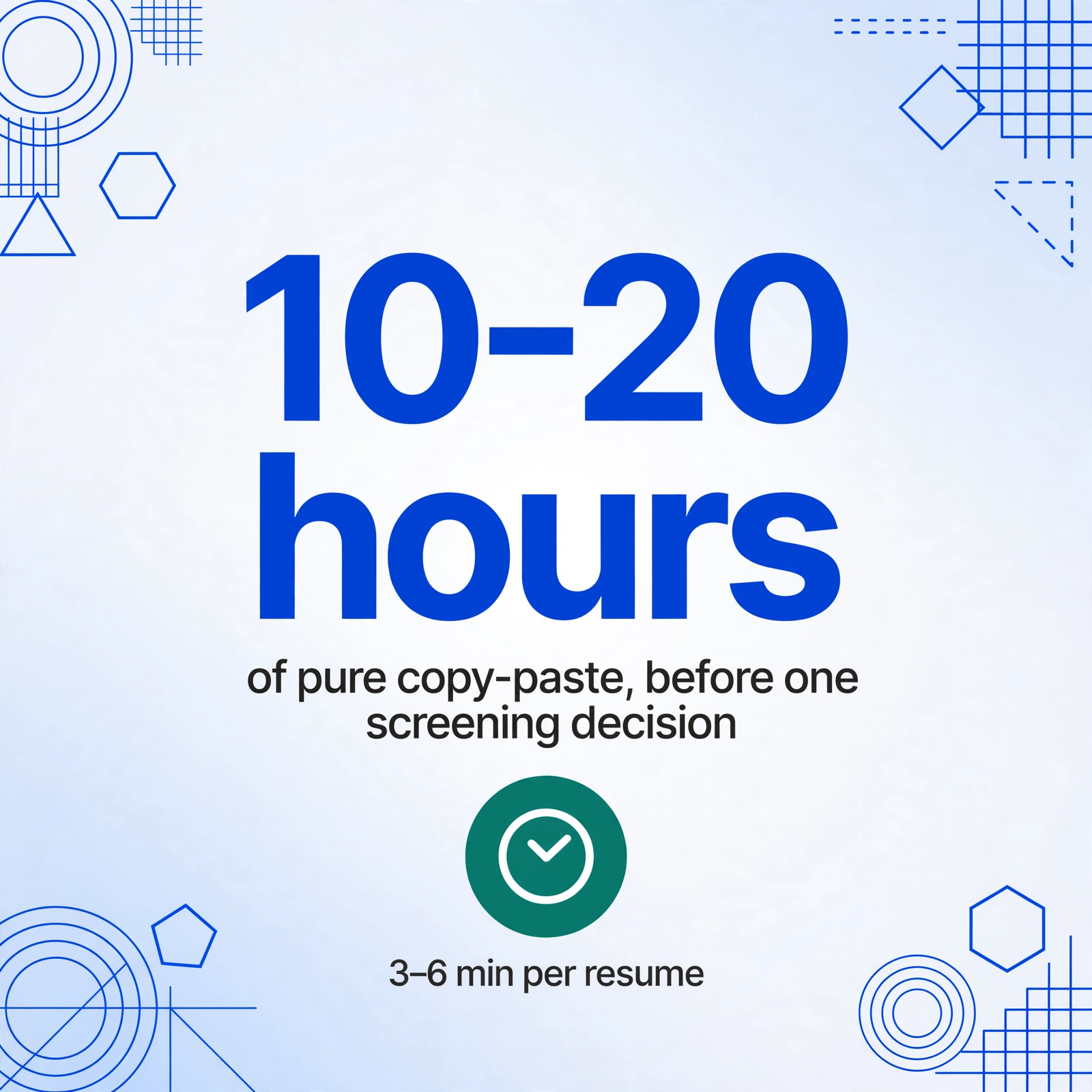
Two hundred resumes isn't two hundred times the work of one resume — it's a different category of work. At the 3 to 6 minutes per resume that manual transcription actually costs, a 200-candidate pipeline adds up to 10 to 20 hours of pure copy-paste before anyone has made a single screening decision.
That math is why one r/ResumeExperts thread describes the exact stage this article is about: "scaling from 50 to 200 is exactly the stage where recruiting starts to feel like triage instead of strategy." Below 50, you hold the context of every candidate in your head. At 200, that context is gone — and three problems that were invisible at small volumes take over: files you can't tell apart, results that won't merge, and a handful of resumes that break whatever tool you're using.
Screening volume isn't the bottleneck most teams hit. The bottleneck is the step before screening — building a structured candidate table from 200 unstructured documents — and that step is almost entirely manual.
Batch Problem 1: Files Named "resume.pdf"
In a batch, the filename is the only identity a document has until you open it — and most resume files were named by people who never expected to be one of two hundred.
The reality is the same across recruiting forums and practitioner threads: files arriving as "My CV," "Updated CV," "Final final CV," and — for everyone — "resume.pdf." When two candidates upload identically named files into the same folder or the same ATS drop zone, one can silently overwrite the other. The candidate whose file survived is now unidentifiable, because "resume.pdf" tells you nothing about who it belongs to.
The fix isn't a naming discipline campaign aimed at applicants — you'll lose that war. The fix is to make row identity replace filename identity. When you process a batch with a tool that records a Source File column — an automatic column that logs which document produced each row — every candidate carries a reference back to their original file, whatever it was called. Verification becomes a filter operation: sort by source, not a guessing game about which "CV.pdf" belongs to whom.
For the files you control, a naming convention still pays for itself: lastName_firstName_source (e.g., chen_mei_linkedin) turns the source filename into an instant audit trail and a deduplication hint when the same candidate appears from two channels.
Batch Problem 2: 200 Files, One Table
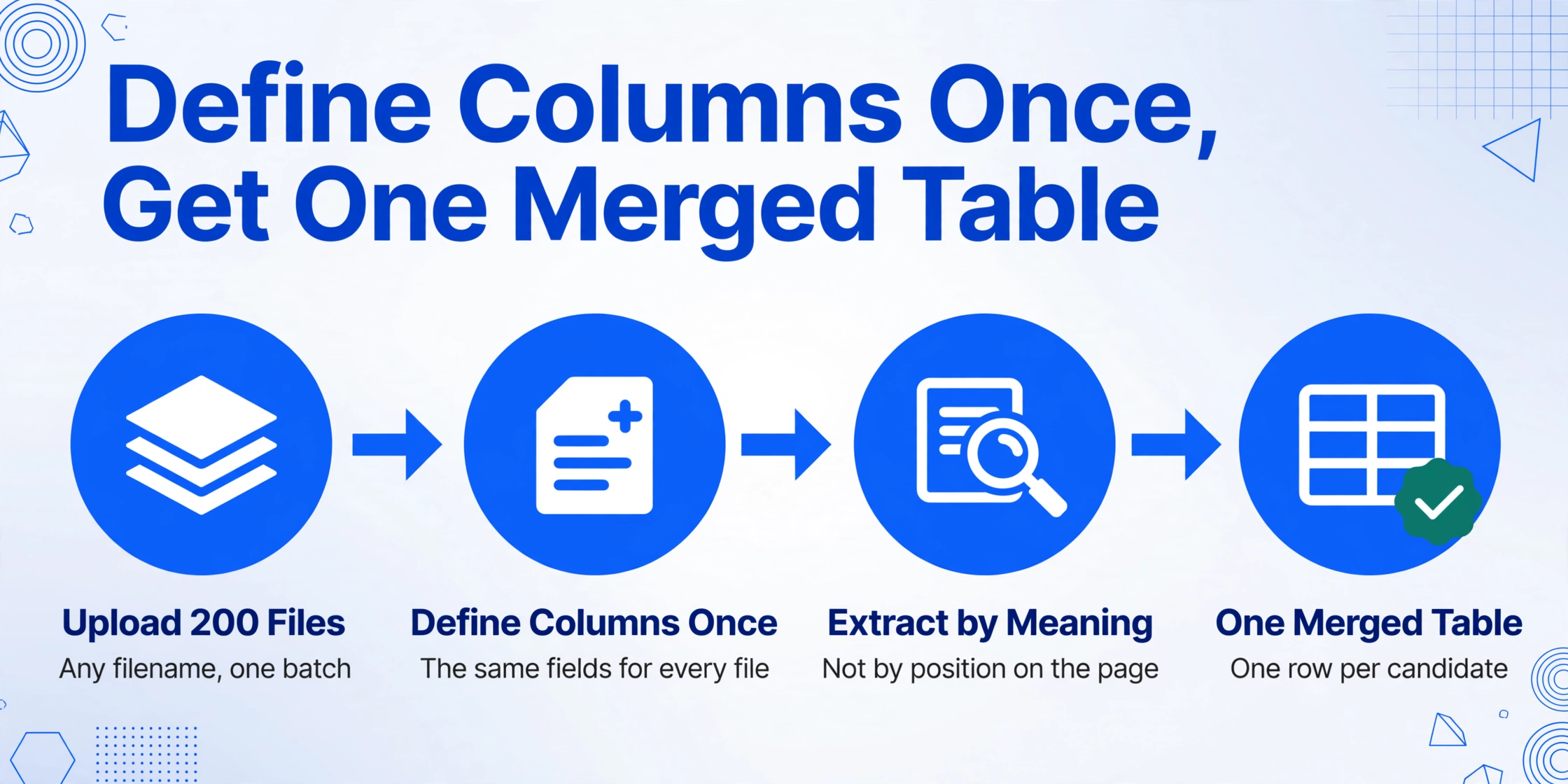
Extract 200 resumes one at a time and you get 200 separate outputs — 200 files, 200 chat responses, 200 tabs — and the job of merging them by hand recreates the exact data entry burden you were trying to avoid.
The way out is a process where your column definitions are defined once and apply to every file. With Custom Column Extraction — the mechanism at the core of ImageToTable.ai where you type the field names you want and the AI locates each value by understanding its meaning rather than its position on the page — you define "Full Name, Email, Current Title, Current Company, Years of Experience, Top Skills" once, upload all 200 files together, and receive one merged table where every resume contributes one row.
Two column types make a candidate database more useful than a raw transcription. Inferred columns let the AI fill in data that isn't literally written on the resume: a "Source" column that tags each row as LinkedIn, referral, or job board based on where you collected it, or a "Years of Experience" column derived from the dates in the employment history. Computed columns go a step further and run calculations during extraction — a "Notice Period (Target Date − Available From)" column that resolves the date math before the data ever reaches your spreadsheet.
This is the exact mechanism that scales from one resume to two hundred, because the column definitions don't change with volume. The demo below runs without a preset template — resumes share no common format, so you define the columns you need, and the AI finds them in whatever resume you upload. The same column definitions cover the paper side of the funnel — the job application form to Excel workflow reads work history, education, and references off scanned applications into that same merged table.
Files are processed securely and not stored.
If you're new to the field-by-field details — which columns matter, how to handle candidate data responsibly, and where parser-style tools fail — our step-by-step guide to extracting resume data into Excel covers the single-file workflow, the field list, and the compliance side in depth.
Batch Problem 3: The 5% That Breaks a Parser
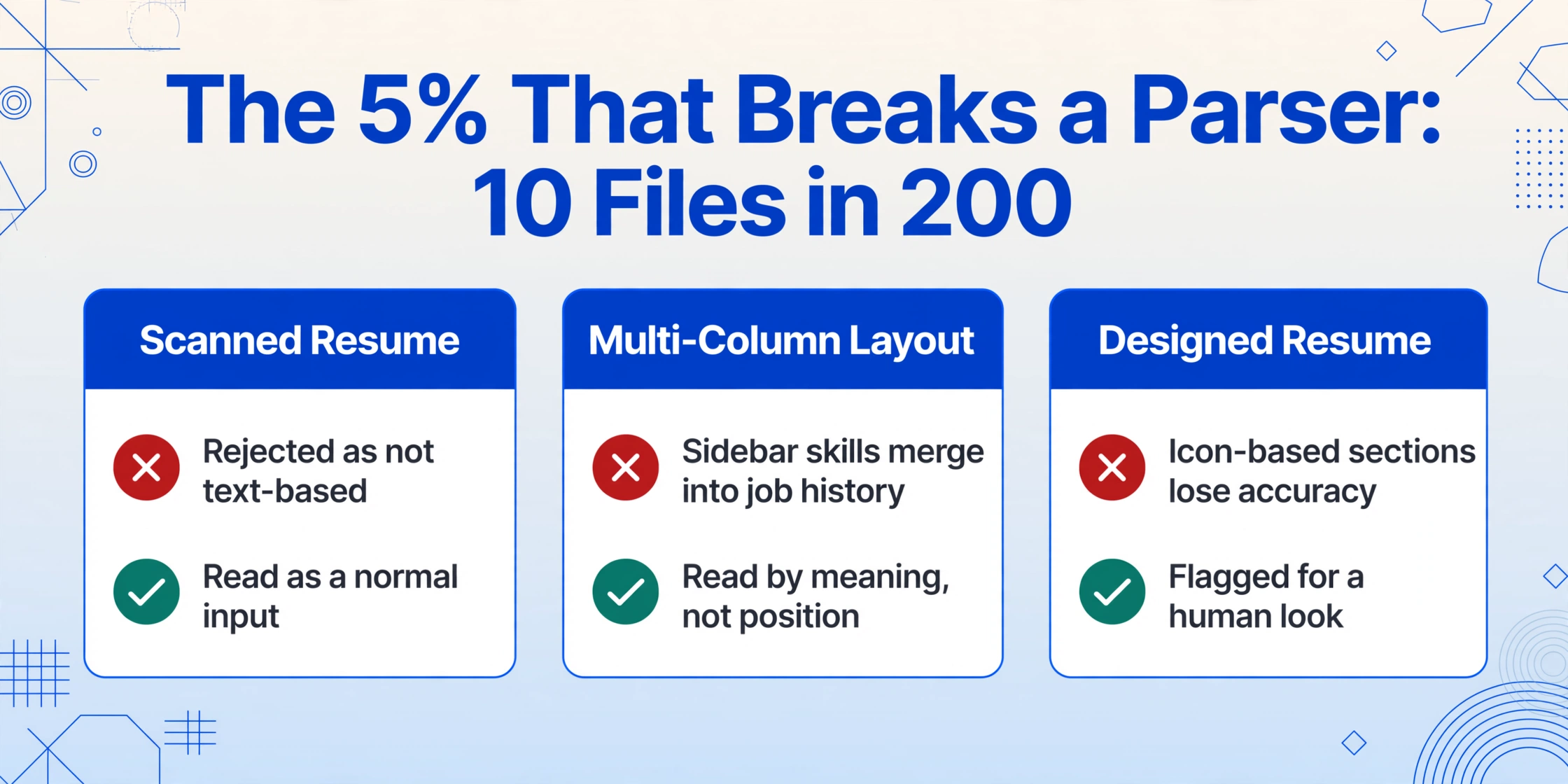
Even a 5% exception rate in a 200-resume batch means 10 files that need manual handling — and in a batch workflow, those 10 are exactly where the whole process stalls.
The most common exception is the scanned or image-based resume. Breezy HR's own bulk-import documentation states that uploaded resumes must be text-based documents (DOCX, TXT, RTF, ODT, or PDF) — "not scanned copies, images, or image-based PDFs" — which it rejects outright (Breezy HR documentation). An ATS that can't ingest a photo of a resume is a real constraint for roles where candidates legitimately apply from a phone. A vision-based extraction engine, by contrast, reads the pixels the same way a human reads the document — a photographed or scanned resume is a normal input, not an exception.
Two other exception classes show up in every large batch: encrypted or password-protected PDFs (common when candidates apply through secure email channels) and multi-column or heavily designed layouts that scramble position-based parsers by merging sidebar skills into the work history. Semantic extraction sidesteps both by reading meaning, not coordinates — though heavily stylized graphic-designer resumes with icon-based sections can still produce lower confidence on specific fields, and those genuinely need a human look.
The batch-safe way to handle exceptions is Review Mode with Bbox verification: hover or click any extracted cell and the tool highlights exactly where that value came from on the original resume — and the reverse, click a region on the image and jump to its table cell. Instead of auditing all 200 rows, you review the handful the AI flagged as uncertain, and confirm each one against the original file in seconds. At the 99% printed-text accuracy our extraction engine benchmarks, a 200-resume batch produces a small number of rows worth checking — not a 10-hour audit.
The exception-handling principle that scales: don't stop the batch on a bad file, and don't silently skip it either. Process everything, flag the uncertain fields, and route only those rows to human review. That's the difference between a 10-hour audit and a 15-minute check.
What 10 Hours of Copy-Paste Does to Your Time-to-Fill
Time-to-fill is where manual candidate-building stops being a minor inefficiency and starts being a recruiting metric you can't hit.
SHRM's 2026 Recruiting Executives Benchmarking report puts the median time-to-fill for non-executive roles at 39 days — down from 44 the year before — and attributes part of that improvement to AI tool adoption; screening alone consumes roughly 8 to 9 of those days (SHRM Recruiting Benchmarking). The 10 to 20 hours of manual transcription from a single 200-resume batch sits squarely inside that screening window, and it's pure overhead: no judgment involved, just moving text from PDFs into cells.
The CNBC reporting adds the second dimension — more than one in five US HR professionals spends 3 to 5 hours a day just reviewing applications. When a recruiter is already consuming a third of the day on application review, the hours spent building the table first are not a rounding error. They're the difference between a recruiter who screens and a recruiter who transcribes.
Manual candidate-building doesn't just feel slow — it directly inflates the 8-9 days SHRM attributes to screening, because every hour spent copying resumes into a spreadsheet is an hour not spent moving candidates to interview.
Your ATS Can Import What You've Built
The spreadsheet you build is exactly the import file your ATS expects — you don't need the ATS's own parser to touch a single resume.
Greenhouse's bulk candidate import accepts up to 8,000 rows per upload from a spreadsheet, with the caveat that an uploaded resume zip only attaches to rows where a matching email is parseable (Greenhouse documentation). Bullhorn's custom import takes 1,000 records per batch in CSV. Workday's EIB has a 30MB upload cap and no attachments at all. All of these share the same shape: they import a candidate table, and they expect you to supply it — with one row per candidate and a correct email on every row.
Extract first, then import. When you batch-extract into Excel with the columns your ATS requires — including a correctly populated email column, which the extraction should verify — the exported file is the import file. A single export carries your whole 200-candidate database into Greenhouse, Lever, Workday, iCIMS, or BambooHR without their built-in parsers ever seeing a PDF. This is also the approach our resume data extraction to Excel workflow is built around: one clean structured file, ready for both your screening spreadsheet and your ATS.
Screening does not stop at the resume: a background check to Excel pass adds each candidate's criminal, employment, and education verification results as their own columns on that same row.
Frequently Asked Questions
Can I batch-process scanned or image-only resumes?
Yes — a vision-based extraction engine reads photographed and scanned resumes as a normal input, unlike many ATS bulk-upload features that reject image-based documents outright (Breezy HR's documentation, for example, states that bulk uploads must be text-based). Scan quality still matters: clear scans extract cleanly, while heavily blurred or angled photos will produce lower-confidence fields that get flagged for review rather than silently filled in.
What columns should I define for a candidate database?
A practical core set for a screening spreadsheet: Full Name, Email, Phone, Current Title, Current Company, Years of Experience, Top Skills, Location, Education, and Source (where the candidate came from). Add a Source File column for traceability, plus inferred or computed columns like Years of Experience or Notice Period if your hiring decisions depend on them. Extract only what your process uses — a candidate database is for filtering and comparing, not for archiving every line of employment history.
How long does a 200-resume batch actually take?
Each resume takes roughly 5 to 10 seconds of AI processing time, so a 200-file batch completes in about 20 to 35 minutes — time you don't spend doing anything. Review time depends on how many fields get flagged; at the accuracy rates vision models reach on clean printed resumes, expect a small handful of rows worth checking, not a full audit. Compare that with 10 to 20 hours of manual transcription for the same volume.
How do I know which row came from which resume?
Batch exports include an automatic Source File column that records the filename of each originating document, so every row references its source file even when the file was called "resume.pdf." For extra traceability, rename files you control with a lastName_firstName_source convention before upload — the filename becomes part of the audit trail and helps spot duplicate candidates from multiple channels.
Can I import the results into Greenhouse, Lever, or Workday?
Yes. Extract to a clean spreadsheet first, then use each platform's standard candidate import: Greenhouse bulk import (up to 8,000 rows per upload, requires a matching email on each row), Bullhorn custom import (1,000 records per batch, CSV), or Workday EIB (30MB cap). Because the extracted file already has one row per candidate with a verified email column, it imports cleanly — and you skip each platform's built-in resume parser entirely.
How is batch extraction different from a resume parser API?
Resume parser APIs (Textkernel, RChilli, Affinda, Daxtra) are trained on a fixed resume schema, charge per document, and return structured JSON you then have to integrate. Batch extraction reads any document by the columns you define, has no per-file fee tied to a resume schema, and outputs directly to a spreadsheet you can open, filter, and import into an ATS. If your team handles more than resumes — offer letters, onboarding forms, contracts — one extraction workflow covers all of them, which is why the same batch approach extends naturally to an employee document database.
A 200-resume pile isn't a bigger version of a one-resume problem — it's a different category of problem, and it gets solved with naming, merging, and exception handling instead of more typing. The candidate database you build is the foundation every screening decision sits on; the question is whether you build it by hand or once.
Try it on your own resume pile