How to Digitize Documents
Without a Scanner: Your Phone Does 300+ DPI
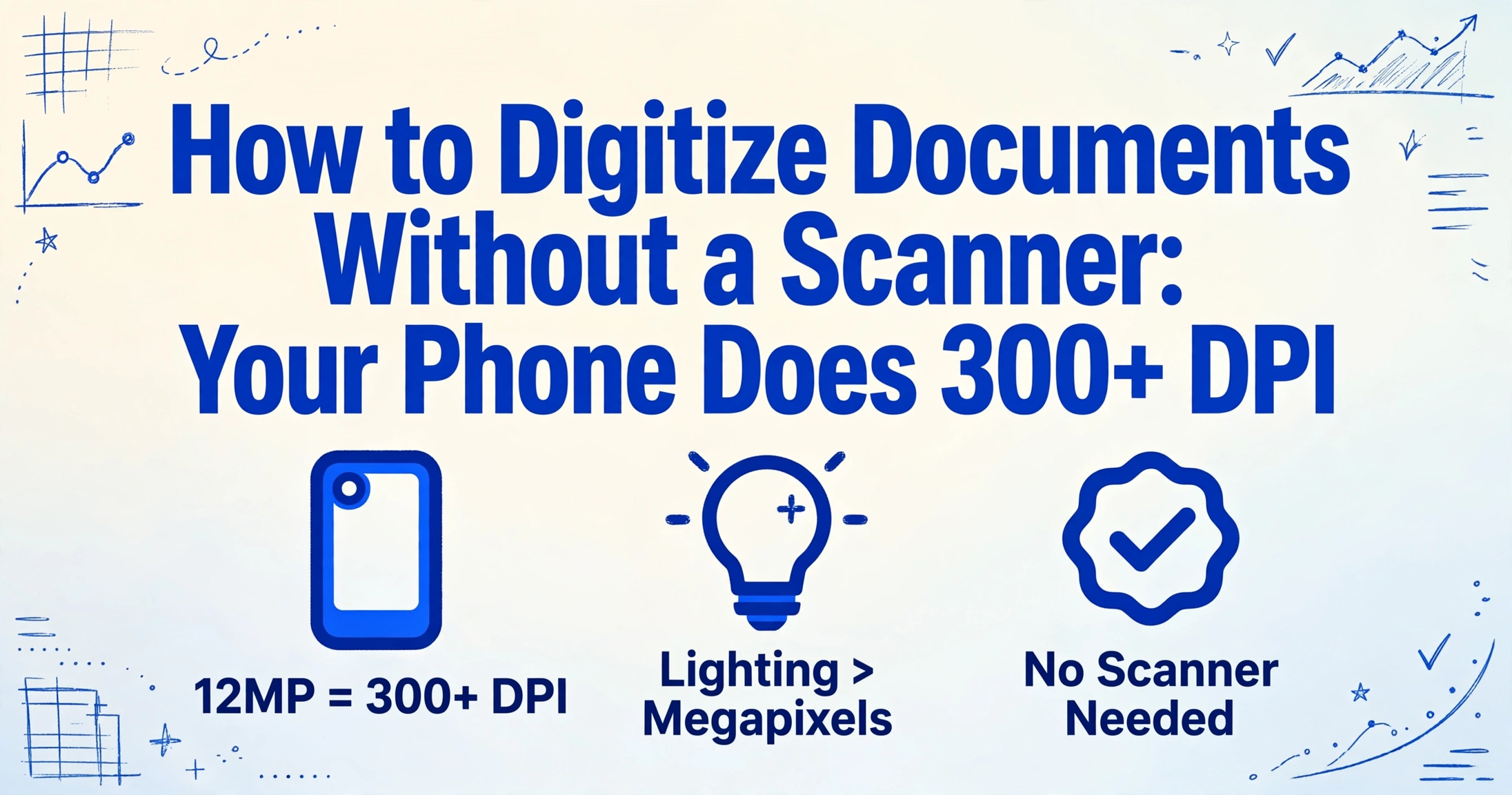
You don't need a scanner to digitize your documents. A 12-megapixel phone camera — the standard sensor in most smartphones since 2015 — captures a full A4 page at roughly 340 dots per inch. That is above the 300 DPI threshold that government archives and OCR professionals use as the minimum for reliable text recognition. The hardware you already carry in your pocket exceeds the capture quality baseline for document digitization.
Key Takeaways
- 340 DPI — your phone photo already exceeds the 300 DPI resolution that government archives and OCR professionals require, with no scanner needed.
- The bottleneck destroying OCR accuracy on phone photos is not the sensor — uneven lighting and hand-shake blur degrade results far more, and both are corrected in one tap by any free scanning app.
- Once captured, template-free AI extraction turns any phone photo into structured data by understanding what each field means — producing a CSV or Excel sheet ready for your accounting software without a single keystroke of manual typing.
Your Phone Camera Already Meets the OCR Resolution Standard
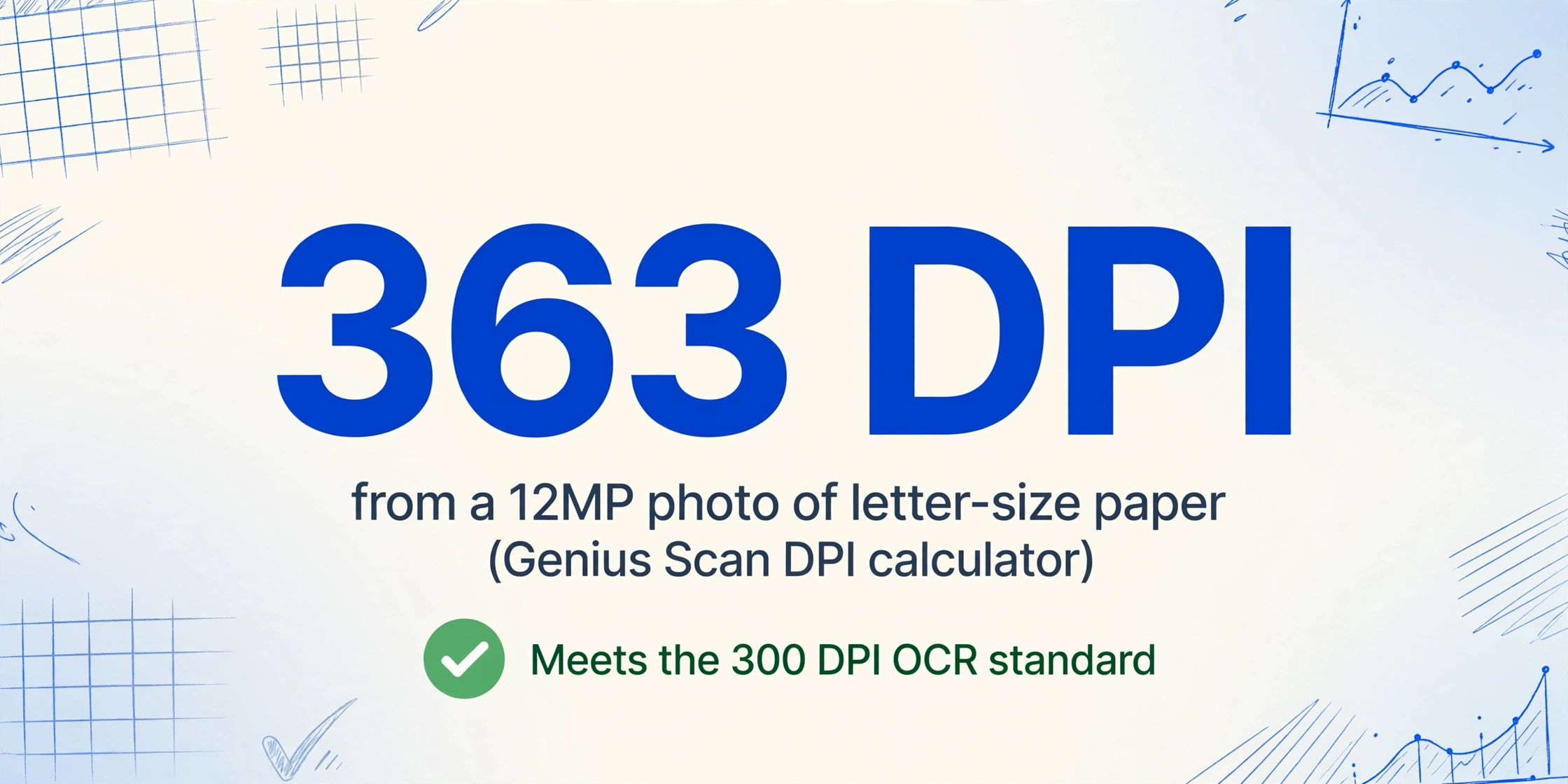
A properly captured 12-megapixel phone photo of an A4 or letter document already meets or exceeds the 300 DPI minimum that OCR software requires. According to Genius Scan's published DPI calculator, a 12-megapixel photo (4,000 × 3,000 pixels) that fills the camera frame achieves approximately 363 DPI for letter-size and roughly 340 DPI for A4 — both above the widely accepted threshold. Higher-end smartphones with 48 or 108-megapixel sensors can push well beyond that when the document fills the frame.
For context, the Pennsylvania State Archives and the New Jersey Historic Preservation Office both specify 300 DPI as the minimum resolution for documents intended for OCR processing. The same 300 DPI benchmark is widely cited across the document scanning industry as the sweet spot that balances readability, file size, and OCR accuracy for standard 10-point or larger fonts.
A properly captured phone photo of a document already meets or exceeds the resolution that scanning services and government agencies accept for OCR. The hardware gap you imagine — phone vs. scanner — is far narrower than most people assume. The real gap is in technique and workflow, not sensor capability.
This is not to say phone capture matches a dedicated scanner in every dimension. A flatbed scanner at 600 DPI captures finer detail, uses controlled lighting, and eliminates perspective distortion by design. But for the vast majority of business documents — invoices, receipts, contracts, purchase orders, delivery notes — the 300+ DPI that a well-taken phone photo provides is entirely sufficient for both human reading and machine extraction.
For a deeper look at why sensor resolution matters for different document types, see our guide on whether AI can extract data from photos vs. scans.
What You Actually Need for Phone-Based Document Digitization
A phone-based digitization workflow needs exactly four things, none of which require a hardware purchase. The sensor is rarely the weak link — lighting and technique matter far more than megapixel count:
A smartphone with at least a 12MP camera. Most phones released after 2015 meet this bar. Onboard document detection (available on iPhone, Pixel, and most Android devices) auto-crops and straightens each page.
Even, diffused lighting. Natural daylight or a desk lamp at a 45-degree angle to the document surface. The most common reason phone scans fail OCR is not low resolution — it is uneven lighting creating shadows or glare.
A scanning app (optional but recommended). Adobe Scan, Microsoft Lens, and Google Drive Scan automatically correct perspective, enhance contrast, and generate PDFs. They compensate for the most common capture errors without manual editing.
An AI extraction tool for the data step. Capturing documents as PDFs is only the first half. To turn those images into usable data — invoice numbers, receipt totals, contract dates — without typing them by hand, you need a tool that reads document content semantically, not just optically.
What you do not need: a flatbed scanner, a sheet-fed scanner, a multifunction printer, or any hardware purchase. Every component above is either already in your possession or available for free.
The 4-Step Workflow: From Phone Photo to Structured Data
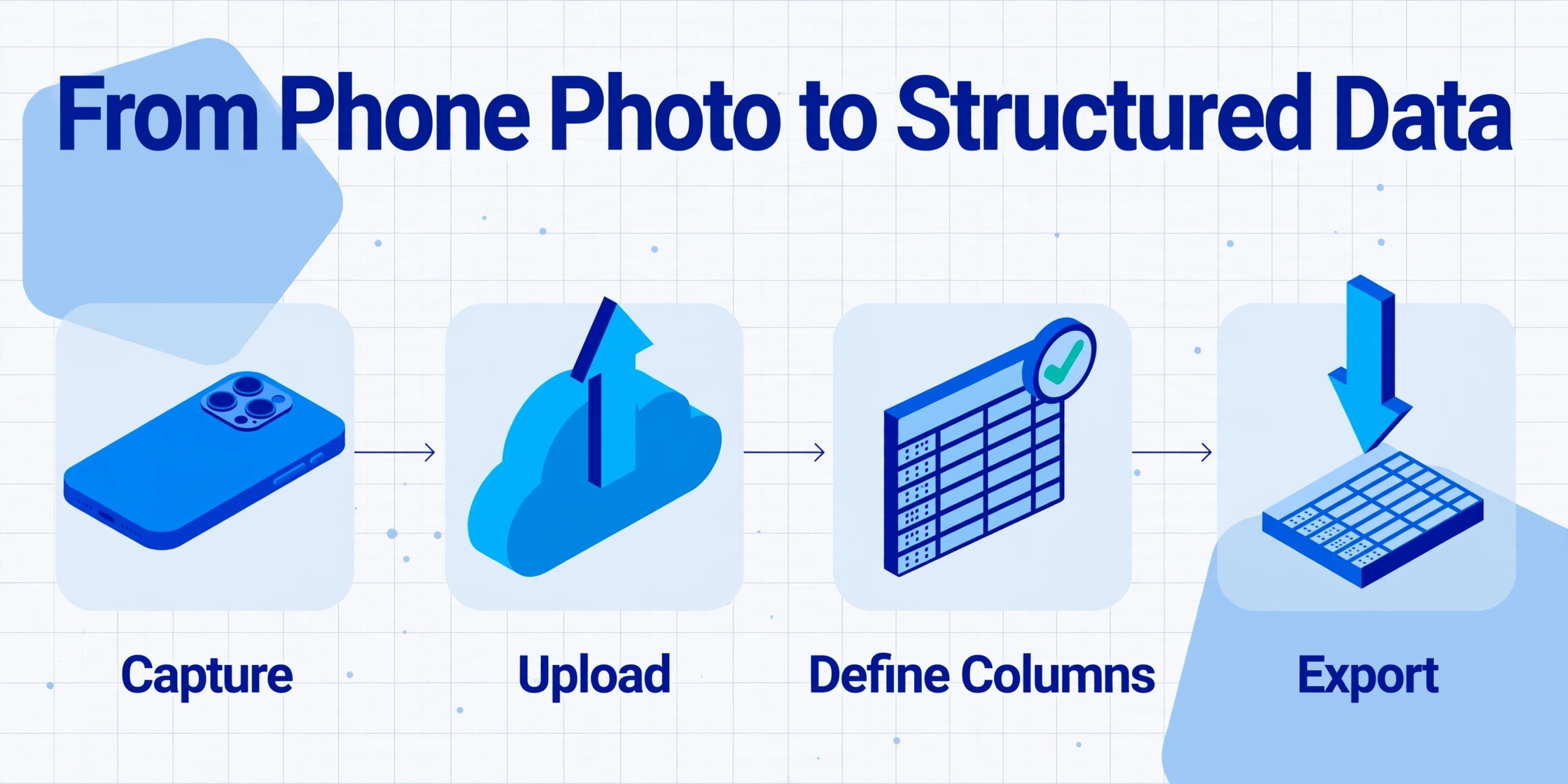
Here is how a complete phone-based digitization workflow connects capture to usable output. These four steps replace what most small businesses currently do manually — print, sort, type, file — with a digital process that delivers results in seconds per page.
Position the camera directly above the document. Fill at least 80% of the frame — cropping reduces effective DPI. Use diffused light at a 45-degree angle. For glossy paper, adjust until reflections disappear from the viewfinder.
ImageToTable.ai accepts JPG, PNG, PDF, WebP, and AVIF directly — no format conversion needed. The tool uses template-free AI extraction: it reads documents visually and understands content semantically, without matching against stored layouts or requiring training data.
Name the columns you want — "Invoice Number," "Date," "Total," "Category" — and the AI locates those values by understanding what each field means, not where it sits on the page. This is Custom Column Extraction: you define the output, and the AI finds the input.
The AI outputs a unified table — CSV, Excel, or directly into Google Sheets. Multiple documents captured in the same batch merge into a single table, one row per page, ready for import into your accounting software with zero manual transcription.
For an in-depth explanation of how template-free extraction differs from traditional OCR, see our post on what template-free AI document extraction means.
Files are processed securely and not stored. No sign-up required.
What You Give Up When You Skip the Scanner
Acknowledging what you lose is what makes the no-scanner argument credible. Phone-based digitization has real limitations:
Perspective distortion. Even with scanning app correction, a handheld phone photo rarely achieves the perfect 90-degree angle of a flatbed scanner. Text near edges may appear slightly skewed. For AI extraction purposes this is negligible — the tools handle it — but for archival-quality reproduction, it falls short.
Inconsistent lighting across pages. Each phone photo captures different conditions — one near a window, another under a desk lamp. Scanners eliminate this variability. As the Minnesota Historical Society's Joe Hoover noted (via Wirecutter), scanning apps are "great when you do not intend to make archival images but simply need quick and convenient copies." The distinction is archival versus operational — and most business processing is operational.
No automatic document feeder (ADF). This is the single hardware feature phone capture cannot replicate. Photographing a 30-page contract takes 5–10 minutes; an ADF scanner processes the same stack in under a minute. For anyone processing 50+ pages in a session, this is the most tangible productivity difference.
No certified digital copies. Legal and regulatory contexts that require certified reproductions with chain-of-custody metadata remain the domain of dedicated scanners or professional services.
These trade-offs are context-dependent. For a freelancer capturing 10 receipts per week, convenience outweighs the marginal quality gap. For a firm digitizing 200-page case files, an ADF scanner is non-negotiable.
For a practical look at how image quality affects extraction, including glare and shadow issues common in phone photos, see why OCR fails on colored backgrounds and watermarks.
When a Scanner Still Makes Sense
There are scenarios where a scanner is not a luxury — it is the correct tool. Recognizing these situations helps you decide when phone capture is sufficient and when it is worth investing in dedicated hardware.
- Daily volume exceeds 100 pages. At this pace, the time spent positioning and photographing each page adds up to an hour or more per day. A document scanner with ADF pays for itself in recovered time within weeks. According to the AIIM 2025 Market Momentum Index survey, 61% of enterprise document processes still involve paper — and 48% of organizations expect paper volumes to increase. For organizations in the high-volume bracket, a scanner is not optional.
- Legal or compliance documents require certified copies. Certified digital reproductions — with embedded metadata, tamper-evident seals, and chain-of-custody logs — require controlled capture environments that phone photography cannot provide. Scanners purpose-built for these workflows meet standards like ISO 19264-1:2021 (image quality analysis for reflective originals) and FADGI (Federal Agency Digital Guidelines Initiative) compliance.
- Ultra-high-resolution capture is needed, such as for architectural drawings, fine-art reproductions, or documents with very small type (6-point or below). Scanners at 600–1200 DPI capture detail that a 12MP phone sensor cannot resolve at any distance.
- Consistent archival quality is a requirement. If every page in a collection must match a strict quality specification — uniform color reproduction, consistent DPI, no perspective variation — a calibrated scanner setup is the only reliable method.
For most small businesses, freelancers, and independent professionals, none of these thresholds apply. The affordable data extraction tools designed for small business needs assume phone-captured input as a standard use case, not an edge case.
FAQ
Can I get reliable OCR results from a phone photo of a document?
Yes, provided the photo is well-lit, in focus, and fills at least 80% of the camera frame. A 12-megapixel phone camera captures a standard page at 300+ DPI — meeting the resolution requirement that OCR and AI extraction tools expect. The most common causes of poor OCR on phone photos are not resolution but uneven lighting, shadows, glare, and camera blur from hand movement.
What is the minimum phone camera for document digitization?
A 12-megapixel camera is the practical minimum. Most smartphones released after 2015 meet this spec. Higher-resolution sensors (48 MP and above) provide additional headroom but do not guarantee better results if lighting and technique are poor — the sensor is rarely the weak link.
Can AI extract data from phone photos, or does it need scanned images?
Modern AI extraction tools work directly from phone photos. Unlike traditional OCR, which requires high-contrast, perfectly flat scans, vision-based AI reads documents the way a human does — understanding text in context despite minor distortion or uneven lighting. For a detailed breakdown, see can AI extract data from photos?
Which scanning app should I use for phone document capture?
Adobe Scan offers the most features — auto edge detection, perspective correction, contrast enhancement, and searchable PDF output. Microsoft Lens integrates tightly with Microsoft 365. Google Drive Scan is the simplest option if you already use Google Workspace. Genius Scan handles batch multi-page capture efficiently.
Bottom Line: Your Phone Already Does the Hard Part
The belief that document digitization requires dedicated scanning hardware is one of the most persistent bottlenecks in small-business paperless adoption. The data tells a different story: a well-taken phone photo already meets the resolution standard that OCR and AI extraction tools require. The real investment is not in hardware — it is in learning the four-step capture technique and pairing it with a tool that turns those images into structured data.
You do not need to buy a scanner to digitize your documents. You need a phone you already own, decent lighting, and an extraction tool that reads documents the way a human does — by understanding what each piece of data means, not by matching a stored template.
If you are processing invoices, the same logic applies to software infrastructure. See our companion guide on how to extract invoice data without an ERP system — together these two articles cover the "no infrastructure needed" workflow for both hardware and software.
For next steps after capture, see our guide on converting scanned documents to editable Word with tables intact.