Batch CIS Statements to a Tax Ledger
Your Subcontractor Deductions
A subcontractor working for three contractors in a tax year receives roughly 36 CIS deduction statements — one per contractor per tax month, every month from April to March. Processing one statement is a ten-second glance. Processing 36 is a structural problem: by the time statement number 20 arrives in November, the manual spreadsheet you started in May has three different layouts and two months where you lost count of which contractor deducted what. The gap between "I can handle this" and "I need to rebuild this from scratch" is narrower than most subcontractors think — and it usually closes in January, three weeks before the Self Assessment deadline.
Key Takeaways
- Processing one CIS statement takes ten seconds — 36 statements from three contractors is a structurally different problem where your spreadsheet silently breaks halfway through the tax year.
- The spreadsheet does not fail because you are disorganised — it fails because you are asking a flat table to absorb three different contractor formats that arrive unpredictably over twelve months.
- Define your columns once with semantic extraction, drop all 36 statements into one upload, and your year-end SA103 totals are a pivot click instead of a January reconstruction.
Why 36 Statements Is a Fundamentally Different Problem from One
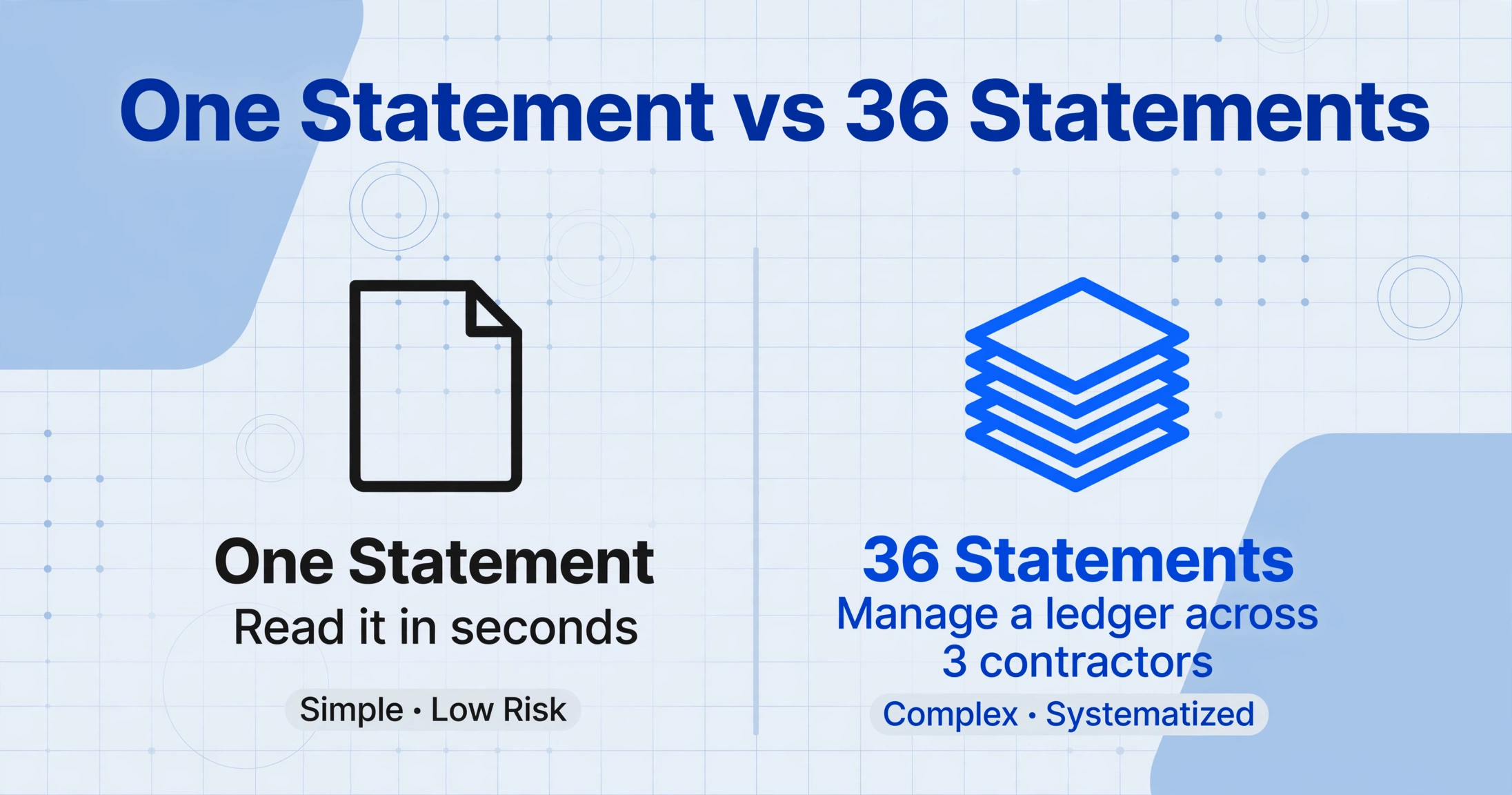
Extracting data from a single CIS statement is straightforward — the fields are predictable and the layout is compact. You read the gross amount, the materials deduction, the CIS deduction, the net payment. It takes seconds. The problem shifts the moment you introduce volume: three contractors, twelve tax months each, and suddenly you are not extracting data — you are managing a ledger that needs to stay consistent across 36 rows, three contractor formats, and a reporting deadline that does not move.
1. Multi-contractor format divergence
A groundworks contractor might issue statements on HMRC's official CISOL1 form — a black-and-white template with fixed-field boxes. A housebuilder might produce a branded PDF with the deduction figure in bold at the bottom of a letter. A small builder might hand you a printed sheet from Sage CIS module, where the gross and net figures are side by side in a table. The data is the same: gross, materials, liable amount, deduction, net, UTR. But the visual layout is different every time. A manual tracker built from a template that works for contractor A's format breaks silently when you paste in contractor B's numbers — and you discover the misalignment three months later when the column totals do not match the sum you expected.
2. Row provenance at audit scale
When you extract 36 statements into 36 spreadsheet rows, each row must be traceable back to exactly one statement and exactly one contractor. If the output has a "CIS Deduction" column showing £340 but no column identifying which contractor's March statement produced that figure, the spreadsheet is a liability — not an asset. Under an HMRC compliance check, an inspector can request the statement underlying any deduction claimed in SA103 Box 21. Without per-row source traceability built into the extraction itself, you are cross-referencing spreadsheet cells against paper statements manually — which takes longer than the original extraction and makes the January scramble worse, not better.
3. Missing and late statements at volume
Out of 36 statements, statistically one or two will not arrive on time. A contractor goes quiet in August. A tax month ends and the 14-day legal window passes without a statement appearing. At statement scale, a gap is not a minor annoyance — it is a hole in your tax record. You cannot enter a deduction you cannot prove. And if you file your Self Assessment with a deduction you cannot substantiate, HMRC disallows the credit. The worst time to discover a missing statement is January, when the contractor's office is closed for Christmas and you have three weeks until the filing deadline.
Each of these problems has a solution that does not involve hiring an accountant to retype your statements at £40 per hour. The solution is designing the batch workflow so that every statement — regardless of format, contractor, or arrival date — feeds into the same structured ledger from day one.
Designing a CIS Ledger That Survives a Multi-Contractor Tax Year
The single highest-leverage decision in a batch CIS workflow is not the extraction tool — it is the column schema you define before processing a single statement. A ledger that works for one contractor with twelve neat statements collapses when you add a second contractor whose statements use a different format. A ledger that works for two contractors collapses again when you add a third who deducted at 30% instead of 20%.
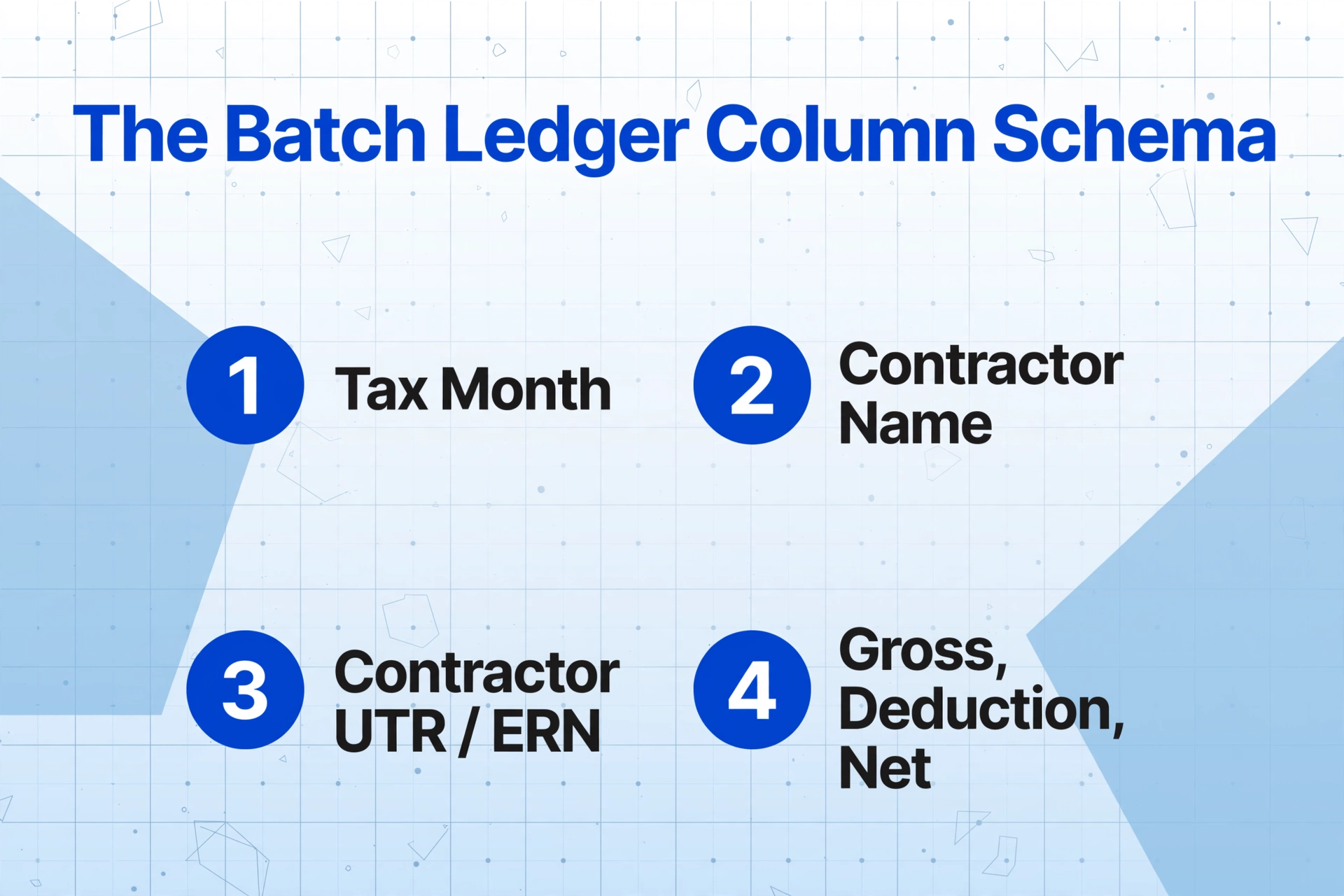
Here is the column schema that handles an arbitrary number of contractors across an arbitrary number of tax months, and produces output that can be pivoted by contractor or tax month without manual reorganization:
| Column | Why It Belongs in a Batch Ledger | Pivot or Filter Purpose |
|---|---|---|
| Tax Month | HMRC tax months run 6th to 5th — not calendar months. A statement marked "Month 3" by your contractor might be June or July depending on their interpretation. Extract the actual tax month end date from each statement and use it as your grouping key. | Group by tax month to verify you have one statement per contractor per month. A missing month shows as an empty row in the pivot — visible at a glance. |
| Contractor Name | The name as it appears on the statement header. Do not abbreviate — a bank statement reference showing "ACME Build Ltd" does not match a spreadsheet filter searching for "Acme." | Pivot by contractor to see gross-to-date, total deductions, and cumulative net — the three numbers needed to spot a suspicious deduction pattern. |
| Contractor UTR / ERN | The Employer Reference Number uniquely identifies the contractor in HMRC's system. Without it, you cannot prove to HMRC which contractor's CIS300 return to cross-reference against your claim. | Match against your HMRC online account to verify the contractor actually reported the deductions they claimed to have taken from you. |
| Gross Amount (£) | Total payment excluding VAT. This is your turnover figure — the starting number before deductions. Sum this across all contractors to get total self-employment income. | Pivot to cross-check: gross from statements must match gross from your own invoicing records. A mismatch means the contractor reported a different figure to HMRC. |
| Materials Cost (£) | What the contractor deducted before calculating CIS. If this is blank but you supplied materials, the contractor deducted CIS on money that should have been exempt. | Sum materials costs per contractor. A contractor who consistently shows zero materials when you know you supplied copper, timber, or aggregates is a red flag. |
| CIS Deduction (£) | The tax already paid on your behalf. The sum of this column across all rows is the figure that goes into SA103 Box 21 (short return) or Box 81 (full return). | The most important pivot in the ledger: total CIS deductions across all contractors = the number that offsets your Self Assessment tax bill. |
| Deduction Rate | Record whether the contractor applied 20%, 30%, or 0% (gross payment). If you are registered but a contractor deducted 30%, this column is the first thing your accountant needs to see. | Filter for 30% rates. Any 30% deduction against a registered subcontractor is an over-deduction — correctable now, not after filing. |
| Net Payment (£) | What landed in your bank. The only column that reconciles directly against your bank statements — and therefore your fallback if a contractor's figures do not match HMRC's records. | Reconcile per contractor per tax month against bank deposits. A single unmatched net payment triggers a full contractor review. |
| File Name / Source | The original statement filename or a reference you assign. Without it, you cannot trace any figure in your ledger back to the document that produced it. | HMRC compliance check: the inspector asks to see the statement behind Row 17. You locate it by filename in three seconds. |
Once this ledger is built, a pivot by contractor shows at a glance whether any contractor's total deductions look suspicious — a gap of even £500 over a year could mean the contractor under-reported deductions to HMRC. A pivot by tax month shows whether any month is missing from any contractor. Both pivots together give you a view that manual spreadsheet tracking — where you add a new column for each contractor and a new row for each month, building a Frankenstein table that nobody else can read — simply cannot produce.
Why Semantic Extraction Solves the Multi-Format Problem
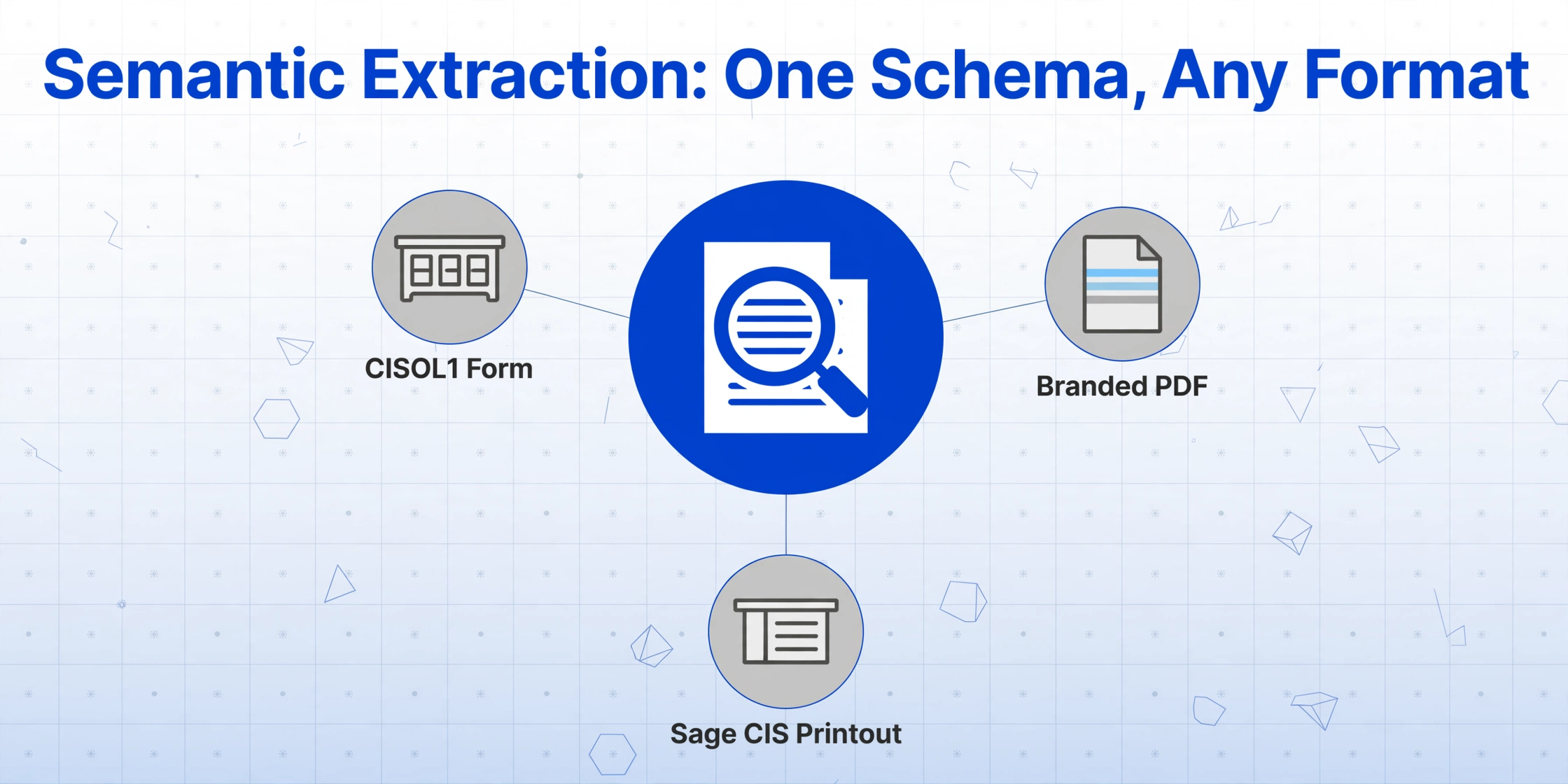
The temptation when building a batch workflow is to create a separate template for each contractor's statement format. One template for the CISOL1 form. One template for the housebuilder's branded PDF. One template for the small builder's Sage CIS printout. This works — until a contractor changes software, a new contractor joins the rotation, or a statement arrives from a source you have never seen before. Each template is a fragile, format-specific mapping that breaks the moment the layout shifts.
Semantic extraction — where the AI reads the document for meaning rather than position — eliminates the template-per-contractor problem entirely. You define the columns once: Gross Amount, CIS Deduction, Net Payment, Contractor Name, Contractor UTR, Tax Month, Materials Cost. The AI locates each value by understanding what it represents — "£973.12" next to "Amount deducted" is the CIS deduction, whether it appears in a bordered table at the bottom of a CISOL1 form or inline in the body text of a contractor's branded letter. A groundworks statement, a housebuilder statement, and a Sage CIS printout all feed into the same column definitions.
Batch processing changes the dynamics further. Instead of uploading one statement, extracting, saving the ledger, uploading the next statement, extracting, and merging the results — a process that takes 36 individual sessions — you drop all 36 statements into one upload, extract the fields once, and receive one merged spreadsheet. The output is a single table with 36 rows, each carrying the source filename. You can open it, pivot by contractor, and verify the full-year picture in minutes. For payroll and HR teams applying the same batch approach to employee tax documents, the P60 batch audit workflow, P45 leaver database build, and P11D benefits portfolio approach follow the same principle: extract once, validate once, and walk into the filing deadline with data already structured.
File Naming: Making Every Row Traceable to Its Source
The second highest-leverage decision in a batch CIS workflow — after column schema — is how you name the source files before uploading them. When your output spreadsheet has 36 rows and an HMRC compliance officer asks to see "the statement underlying Row 23," the answer cannot be "I need to cross-reference the spreadsheet against my email inbox." It needs to be a filename you can locate instantly.
A naming convention that serves audit traceability includes two or three components:
Contractor identifier
The contractor name or a short code — ACME, JCBUILD, REID. This is the grouping key you will use to pivot the ledger and verify per-contractor totals. Keep it short and consistent: "ACME Build Ltd" in the filename should always be the same abbreviated form, never "Acme," "ACME Build," and "ACME Ltd" across three different months.
Tax month
The tax month ending date in YYYY-MM-DD format — 2025-06-05 for the tax month ending 5 June. Using the actual end date rather than the month number (Month 2, Month 7) avoids the ambiguity of which month number maps to which tax period, especially when contractors themselves mislabel the periods on their statements.
Deduction rate (optional but recommended at scale)
If you work with a mix of 20% and 30% deduction-rate contractors, tagging the filename with the rate — ACME_2025-06-05_20pct.pdf — gives you an instant visual check during batch upload. Every file tagged _30pct deserves a closer look before you add its deduction total to your SA103.
The resulting filename pattern — ACME_2025-06-05_20pct.pdf — embeds the audit trail into the filename itself. When your extraction tool preserves the filename in the output, every row in your ledger carries its own provenance. No external cross-reference table needed. No three-hour reconciliation session in January.
What to Do When a Month Goes Missing
A batch ledger's most useful feature is not the numbers it contains — it is the gaps it reveals. A pivot by contractor and tax month shows every empty cell where a statement should be. The moment you see a gap, you know there is a problem. The question is what to do about it — and the answer depends on when in the tax year you discover the gap.
If you discover the gap within the same tax year: contact the contractor directly. Under CIS regulations, contractors must provide a payment and deduction statement within 14 days of the tax month end. Most missing statements are administrative oversights, not deliberate withholding. A phone call or email to the contractor's payroll department usually resolves it within days. The statement arrives, you extract it, the gap closes, the ledger is whole again.
If the contractor is unresponsive or has ceased trading: HMRC holds the data from the contractor's CIS300 monthly returns. Write to PT Operations, HM Revenue and Customs, BX9 1BX, requesting your missing Payment and Deduction Statements. Include your name, UTR, the contractor's name, and the tax months in question. HMRC aims to respond within 15 working days. The information they provide can serve as your record — it may not arrive as a formatted statement, but the figures it contains are the same figures the contractor reported, and they will match what HMRC already has on file.
If you discover the gap in January, three weeks before the filing deadline: reconstruct the figures from your bank statements. If you know the contractor applied 20% deduction and no materials were involved, your net payment ÷ 0.8 = gross payment, and the difference is the CIS deduction. This is a last resort — HMRC may not accept bank-statement reconstruction without corroboration — but it is better than omitting the income entirely. File the return with the reconstructed figures, note that the supporting statement is pending, and continue pursuing the original document from the contractor or HMRC.
The batch ledger makes gap discovery a continuous process rather than a one-time scramble. Build the pivot once a quarter. Every empty cell you see in October is a problem you have three months to fix. Every empty cell you see in January is a problem you might not fix in time. The CIS tax year-end roundup guide turns this gap check into a fixed calendar step — gather, verify, and total each contractor's statements in the six weeks after 5 April.
From Batch Ledger to SA103: The Tax Return Connection
The ledger you have built feeds directly into your SA100 Self Assessment. Here is the path those numbers take, and why having them in a single structured table — rather than scattered across 36 individual PDFs — changes the filing experience from reconstruction to review:
Step 1: Total gross income. The sum of the "Gross Amount" column across all rows is your self-employment turnover. This goes into your SA103 as total income — the starting number before expenses, allowances, or deductions. A pivot by contractor gives you a per-contractor subtotal, which is useful for your own records but not required by HMRC.
Step 2: Total CIS deductions. The sum of the "CIS Deduction" column is the figure you enter in SA103S Box 21 (short form) or SA103F Box 81 (full form). This is the tax already paid on your behalf — the credit that offsets your final bill. If your ledger shows £8,000 in total deductions and HMRC calculates your actual liability at £5,000, the £3,000 difference is your refund.
Step 3: Total materials costs. The sum of the "Materials Cost" column feeds into your expense calculations. Since CIS deductions are calculated on amounts net of materials, any materials cost that was excluded from the deduction calculation should also be excluded from your taxable income — but it is still an expense you claimed, so it appears in your expense breakdown, not in the CIS section.
Step 4: The reconciliation check. Before you file, verify that your ledger's total gross matches your own invoicing records. A mismatch means a contractor reported a different figure to HMRC than what appears on your statement — or that you invoiced for work in one tax month but the contractor's statement covers a different period. Either way, find the discrepancy before HMRC does.
For subcontractors processing other UK tax documents alongside CIS statements — P60s from PAYE employment, P11D benefits summaries, or P45 leaver certificates — the same ledger discipline applies. Extracting each document type into its own structured spreadsheet means your Self Assessment data comes from clean tables, not from a pile of paper statements you are interpreting in real time while the January clock is ticking.
Making Tax Digital and the Case for a Running Ledger
From April 2026, HMRC's Making Tax Digital for Income Tax Self Assessment (MTD for ITSA) begins phasing in for sole traders and landlords. The threshold starts at £50,000 of qualifying income — and for CIS subcontractors, qualifying income is gross turnover before deductions, not the net amount you receive after CIS. A subcontractor invoicing £48,000 net but with £60,000 gross is above the threshold. From the quarter they enter MTD, they must keep digital records and submit quarterly updates to HMRC.
A batch ledger built throughout the year is the simplest way to satisfy the digital records requirement. Each quarterly update needs your total income and total expenses for that quarter. If you have been extracting statements into a ledger every month, the quarterly total is a pivot click — not a three-hour session of opening PDFs two weeks before the quarterly deadline. The alternative — opening 36 statements one at a time in February, typing every number into a spreadsheet, and hoping the column totals match what you filed in your quarterly updates — is not just slow. It is the path to an MTD penalty.
Frequently Asked Questions
Can I batch-process statements from contractors who use completely different formats?
Yes — and this is the single biggest advantage of semantic extraction over template-based OCR. You define the columns you want (Gross Amount, CIS Deduction, Net, Contractor UTR) once. The AI locates each value by understanding what it means, not by matching a fixed layout. A CISOL1 form, a Sage CIS printout, a contractor's branded PDF, and a scanned paper statement all produce the same structured output into the same columns.
What if I receive statements at different times throughout the year — can I batch them incrementally?
Yes. The most practical workflow for most subcontractors is incremental: extract each month's statements as they arrive, building the ledger row by row. At year end, combine the monthly outputs into one master ledger. The batch extraction tool handles both approaches — single-month uploads during the year, and a full-year merge at the end — using the same column definitions. You do not need to save all 36 statements until January and process them in one sitting.
How do I handle a contractor who deducted at 30% when I am registered for 20%?
Extract the statement as-is — the actual deduction amount is what HMRC credits against your tax bill, regardless of whether the rate was correct. Record the 30% in your Deduction Rate column and flag it. Contact the contractor to ask them to verify your CIS status with HMRC — they may have failed to run the verification check, or your registration may not be visible in HMRC's system. If the over-deduction continues, contact the CIS helpline. The extra 10% will be credited against your tax bill when you file, but you want the rate corrected before the next payment cycle.
Does this work for a limited company subcontractor?
Limited company subcontractors reclaim CIS deductions through their company's monthly payroll scheme (EPS) rather than Self Assessment, but the statement extraction and ledger-building workflow is identical. You still need to track gross payments, deductions, and contractor details per tax month. The extracted data feeds into your payroll records instead of your SA103, but the need for accurate, structured data from each statement does not change.