How to Get the Right Amount from a
Revolut Multi-Currency Screenshot
A Revolut transaction screenshot does something no single-currency payment app screenshot does: it shows you two numbers, each denominated in a different currency, and both of them are real. The €47.23 that left your euro balance. The $50.00 your client sent from New York. The exchange rate that connected the two. If you're logging transactions — for month-end reconciliation, a freelancer income record, or a folder of cross-border payments to turn into a tax-season spreadsheet — every screenshot asks the same unspoken question: which of these two numbers is the one that goes into the row?
When Two Currencies Show on One Screen
Most payment app screenshots are single-currency. A Venmo transaction detail shows one dollar amount and one payer. A Zelle screenshot has one figure and one sender. A Cash App payment is one number and one $cashtag. The extraction challenge is about layout variation — the amount might move around depending on the note length or the UI version — but the amount itself is unambiguous. There's only one.
Revolut, by design, breaks this pattern. Revolut is a multi-currency account with 36 holding currencies, in-app currency exchange, international transfers to 160+ countries, and a debit card that automatically converts your balance at the point of sale abroad. Every transaction that crosses a currency boundary generates a screen that displays two amounts. The way those two amounts appear depends on which type of transaction created the screen.
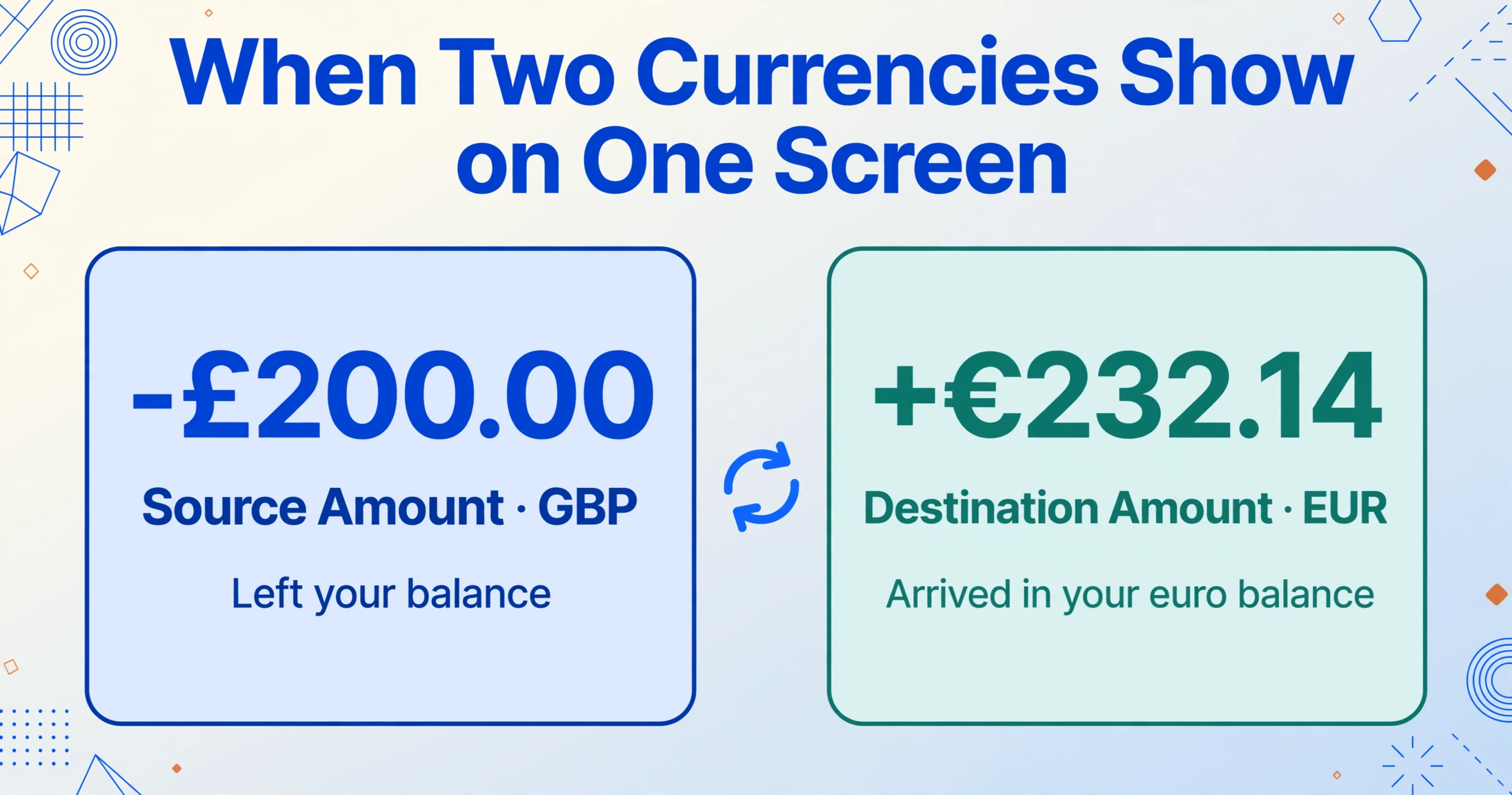
In-app currency exchange — you converted £200 from your GBP balance to euros. The transaction detail page shows a sell amount in GBP with a minus sign (the amount that left your pound balance) and a buy amount in EUR with a plus sign (what landed in your euro balance), along with the exchange rate applied and any fee. Both numbers are stamped on the same screen, one above the other.
International money transfer — you sent $500 to a client's bank account in Mexico. The confirmation screen displays the source amount you paid in USD, the exchange rate Revolut applied, the fee, and the destination amount in MXN that will arrive at the recipient's bank. Four data points, two currencies, one screen.
Card payment abroad — you tapped your Revolut card at a café in Tokyo. The transaction list shows the charged amount in JPY alongside the converted amount deducted from your base currency, with the exchange rate used. The two amounts sit on the same row, separated by a currency label. For card payments, the conversion happens automatically — you didn't manually exchange anything, but the screen still carries both numbers because your base currency balance was the one that funded the payment.
Revolut's downloadable transaction statements mirror this dual-currency structure. A single-transaction confirmation PDF or a filtered Excel statement for a specific currency account will list the date, description, and amount — but the amount shown is the one in the selected currency's denomination. To see the corresponding amount in the other currency, you need the full transaction detail view in the app, where both numbers appear together with the exchange rate that joined them.
Which Amount You Actually Need
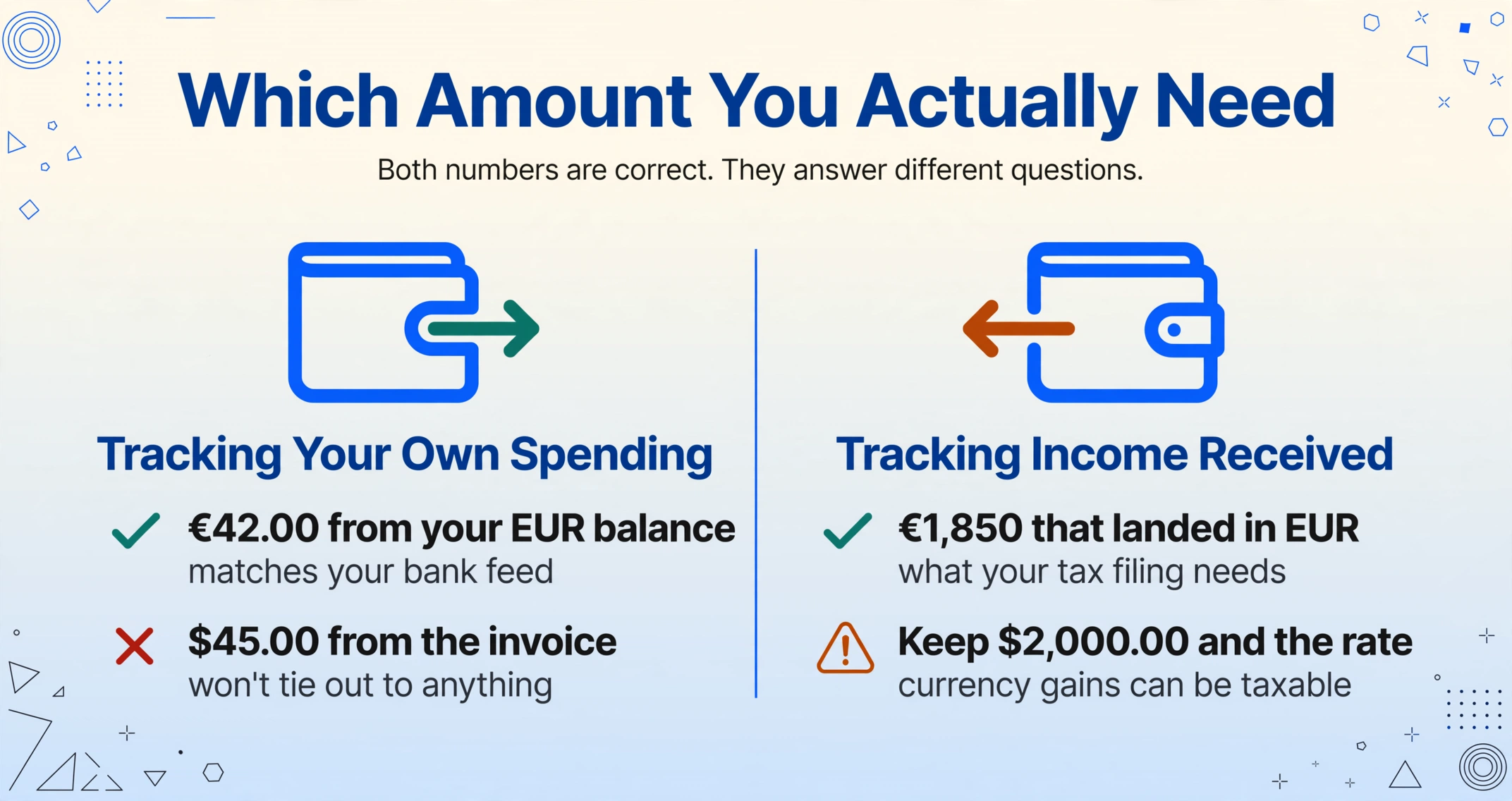
Both numbers on a Revolut screenshot are correct, but they answer different questions. The source amount answers what left my account. The destination amount answers what the other party sees. Which one goes into your spreadsheet depends on what the spreadsheet is for — and getting this wrong produces a record that looks clean but doesn't tie out to anything.
If you're tracking your own cash outflows — logging expenses, categorizing spending, or matching against a budget denominated in your base currency — record the source amount. This is the number that reduced your balance. A freelancer in Berlin who pays €42 for a SaaS tool billed in USD should record the euro debit from their EUR balance, not the $45 that appeared on the invoice. The euro figure is what their balance statement will show. If they record the dollar amount instead, their euro-denominated expense log won't match their bank feed.
If you're tracking income received — a client paid you $2,000 that landed as roughly €1,850 in your EUR balance — which number goes on the income line? For tax reporting in a euro-denominated jurisdiction, the euro amount that actually arrived in your account is what matters. But you also need the dollar amount and the exchange rate for your records, because currency gains or losses between the payment date and the conversion date can have tax implications depending on your country's rules. Every currency conversion creates two taxable events in some jurisdictions: the income itself and the FX gain or loss on the conversion.
If you're reconciling against a bank statement or an invoice, match against the currency the other document is denominated in. The invoice says $2,000 — match that against the source dollar amount on the Revolut screen. The bank statement shows a €1,850 debit — match that against the destination euro amount. The number you pick isn't a matter of preference. It's a matter of which external record you're aligning with.
The exchange rate itself is the third data point worth capturing. Revolut applies the interbank rate during weekday market hours (Sunday 23:00 GMT to Friday 22:00 GMT) with no markup within your plan's monthly allowance. Outside those hours — or on weekends — a 1% fee applies on Standard plans. If you're logging a weekend card payment in a foreign currency, the exchange rate on your screenshot won't match the mid-market rate you'll find on Google. Capturing the actual rate Revolut used gives you an auditable record of what you really paid, which matters if you're filing expenses or billing a client for the exact cost.
None of this is an issue on Venmo, Zelle, or Cash App. Those apps operate in a single currency per account. A $50 payment is $50 — there's no second number to choose from. The multi-currency screen is what makes Revolut and Wise fundamentally different as data sources, and it's what makes extracting the right field a semantic problem rather than a coordinate problem.
From Screenshot to Spreadsheet, Without Retyping
Once you know which amounts you need and which currency each should carry, the extraction step is the part you don't have to think about. The mechanism that handles this correctly is Custom Column Extraction: you define the output columns — Source Amount, Source Currency, Destination Amount, Destination Currency, Exchange Rate, Counterparty, Date — and the extraction locates each value by understanding what the field means, not where it sits on the screen.
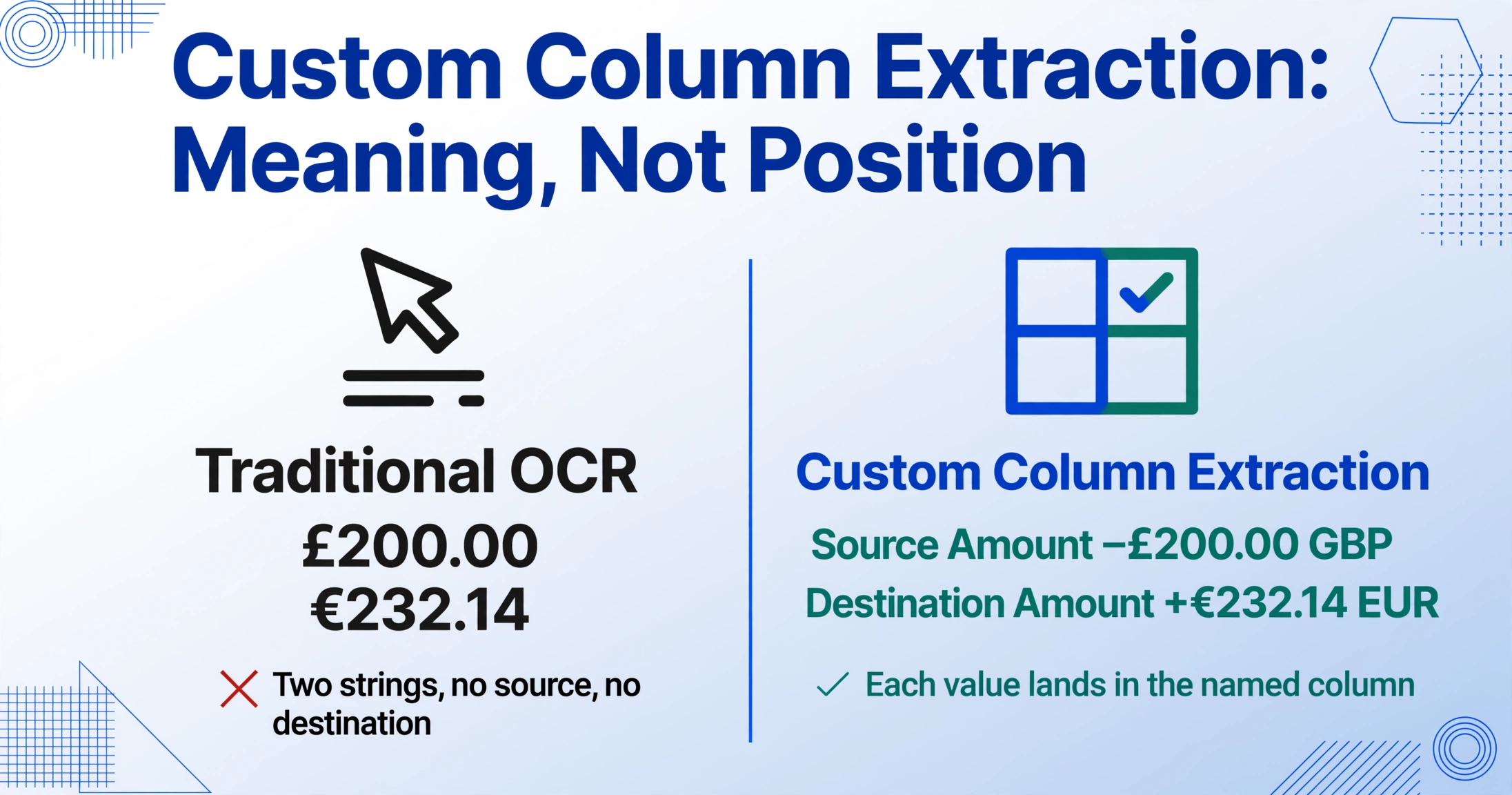
This distinction matters because a Revolut screenshot from an in-app exchange doesn't lay out numbers the same way as a card payment abroad. The exchange screen has two large amounts with plus and minus signs. The card payment detail has a single row with two currency-labeled figures side by side. An international transfer confirmation PDF spreads the information across a statement layout. Traditional OCR — which reads characters by position — can pull every number off the screen, but it can't tell you which is the source and which is the destination. It sees £200.00 and €232.14 as two strings of text. It doesn't know that the one with the minus sign is what left your balance.
Semantic extraction does know. You name the columns you want — the AI reads the screenshot, recognizes that -£200.00 is the amount leaving a GBP-denominated balance and +€232.14 is the amount arriving in a EUR balance, and places each value in the correct column. The same column definitions work across every type of Revolut transaction screenshot — exchange, transfer, card payment — because the extraction is following the meaning of each field, not its pixel position. That also means the same column set works for single-currency screenshots from Venmo, Zelle, or Cash App in the same batch. The output is a single spreadsheet with one row per transaction, currency columns correctly populated, no manual retyping.
Files are processed securely and not stored.
This idea — extracting data from payment screenshots regardless of which app generated them — applies to more than just Revolut. If you're logging transactions across multiple platforms, the same approach works for any screenshot with transaction data. Drop in a Revolut exchange screenshot alongside a Venmo payment and a Zelle transfer, and the output is one table with amounts, currencies, dates, and counterparties aligned. No per-app configuration, no template per platform, no manual cleanup.
FAQ
Does Revolut's own CSV export solve this?
Revolut lets you export transaction statements as PDF or Excel, filterable by currency account and date range. The export gives you the amount in the selected currency's denomination — it won't show both the source and destination amounts in a single row for a currency exchange. If you need both sides of the conversion in one record, the app's transaction detail screen is the only place where both numbers appear together. That's the screen worth screenshotting.
What if the exchange rate changed between when I took the screenshot and when I logged it?
Revolut locks the rate at the moment the transaction completes. The rate on your screenshot is the rate you got — it won't change retroactively. For card payments, the rate is applied when the transaction settles, which may be a day or two after you tapped your card. The pending notification may show an estimated amount, but the final settled amount (and rate) appears in the completed transaction detail. Wait until the status flips to "Completed" before you screenshot.