MobilePay Screenshots
How to Extract the Amount, Recipient, and Notes
A MobilePay confirmation screen captures three pieces of data that matter for a payment record — the amount in Danish kroner, the recipient's registered name, and the notes (or "besked") the sender attached. These three fields are what you need to log an incoming payment, match it to a customer or invoice, or keep a record that SKAT, the Danish Tax Agency, will accept. But none of the three is as simple as it looks. The recipient name is not the phone number you sent money to. The amount hides a DKK 4,000 fee threshold that changes what lands in the recipient's account. And the notes field carries Danish characters — æ, ø, å — that most document readers handle poorly.
Key Takeaways
- MobilePay screenshots capture a DKK amount, a name, and a notes line — three fields that look like a complete payment record.
- That name is yours, anchored to your CPR number, not the customer who paid you — the confirmation screen was built to tell senders where their money went, never to tell recipients who sent it.
- The three fields your screenshot actually contains extract with semantic recognition that reads æ, ø, and å as whole words — then close the payer-identity gap by asking each sender to include their name or invoice number in the notes.
Where the Three Fields Sit on a MobilePay Confirmation Screen
MobilePay is a standalone app — it does not live inside each bank's own interface the way PayNow in Singapore does. Operated by Vipps MobilePay AS since the 2022 merger with Norway's Vipps, it is used by customers of every Danish bank — Danske Bank, Nordea, Nykredit, Jyske Bank, and others. Because it is a single application, the confirmation screen looks identical regardless of which bank the sender belongs to.
The transaction amount sits at the center of the screen, displayed in large type denominated in Danish kroner (DKK). Below the amount, the recipient's name appears — this is the name tied to the recipient's CPR number (the Danish personal identification number every MobilePay user must have to register). A notes field (labelled "Besked" or "Tekst" — Danish for "message" or "text") sits below the name, showing whatever the sender typed. The date and completion time appear near the bottom of the confirmation card, sometimes in a smaller typeface than the other three fields.
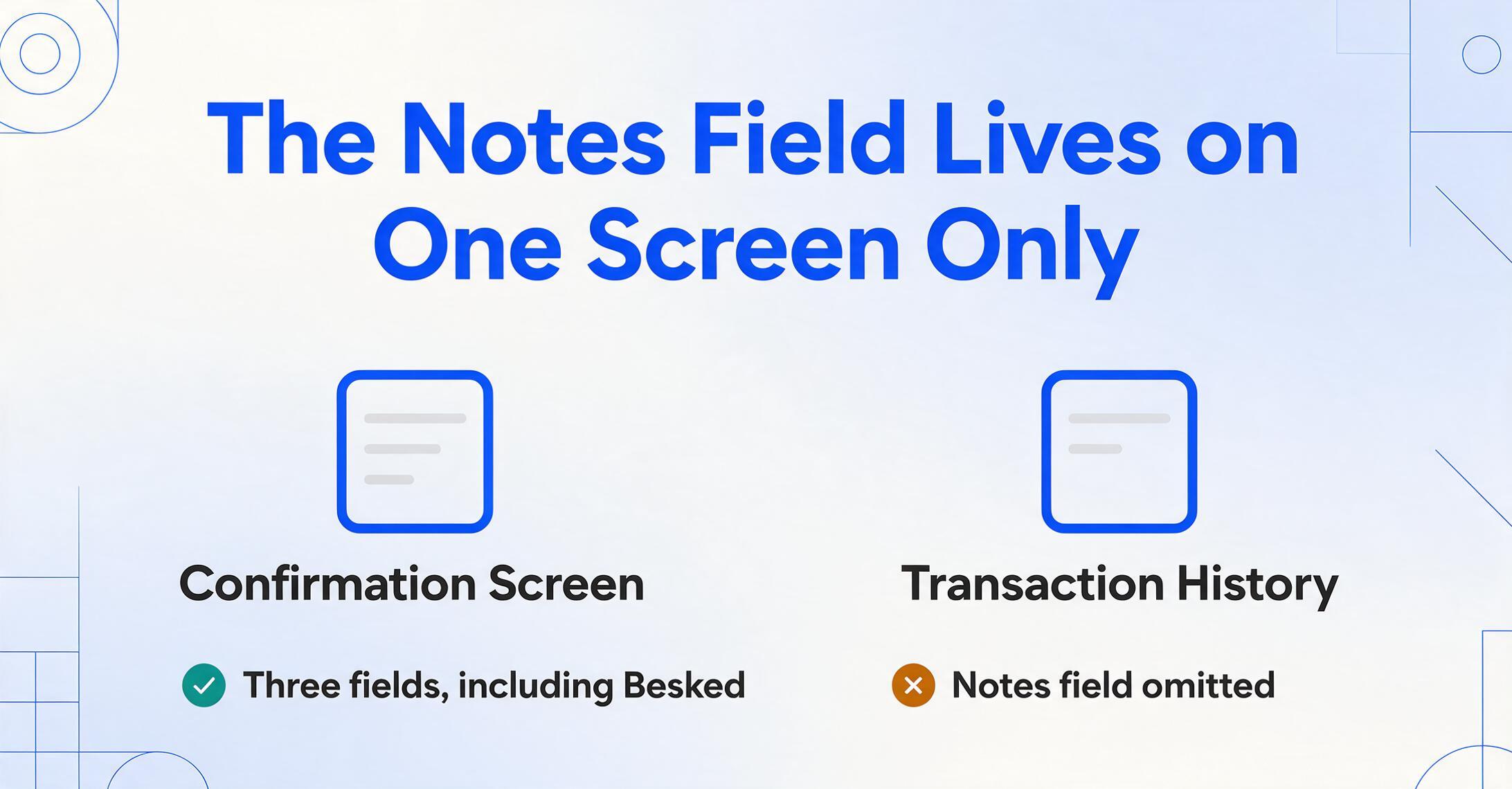
This layout is for the standard in-app confirmation screen — the one you see immediately after hitting "Send." The same fields also appear in the transaction history within the app, though the history view uses a condensed format that omits the notes field entirely. If your screenshot came from the transaction history rather than the confirmation screen, you will be missing the one field that tells you what the payment was for. The confirmation screen is the version to capture.
The Recipient: The Name from Your CPR Registration, Not the Phone Number
This is the MobilePay field that first-time users most often misinterpret. When you send money via MobilePay, you enter the recipient's phone number — a 10-digit Danish number tied to a CPR registration. But the confirmation screen does not show that phone number. It shows the recipient's registered name — the legal name that person has on file with their Danish bank and CPR number.
The mechanism works like this: MobilePay looks up the phone number you entered against the recipient's MobilePay registration and retrieves the name associated with their bank account. The recipient does not get to choose a display name or handle — the screen shows whatever name is linked to their Danish personal identification. If "Mette Nielsen" is the name on Mette's bank account, that is the name on the sender's confirmation screen.
For practical record-keeping, this is an advantage: the recipient name on a MobilePay screenshot is a stable, verified identity marker, not an editable display preference. Unlike Venmo screenshots, where the display name can shift between payments, the MobilePay name is grounded in a national identity system. If "Mette Nielsen" appears on two screenshots months apart, it is the same person. The trade-off is that when the screenshot comes from a customer who paid you, the name on the screen is your own name — from the sender's perspective — not the customer's name. The "recipient" on the MobilePay confirmation is you, and the payer's identity is not printed on this screen.
The Amount: DKK Limits, Fees, and What the Screenshot Doesn't Tell You
The amount displayed on a MobilePay confirmation screen is the gross amount the sender entered — what they intended to transfer. For person-to-person payments in Denmark, the fee depends entirely on a single threshold: payments of 4,000 DKK or less are free. Payments above 4,000 DKK incur a 1% fee on the excess amount. This fee is deducted from the sender's account, not the recipient's. The recipient sees and receives the full amount shown on the confirmation screen.
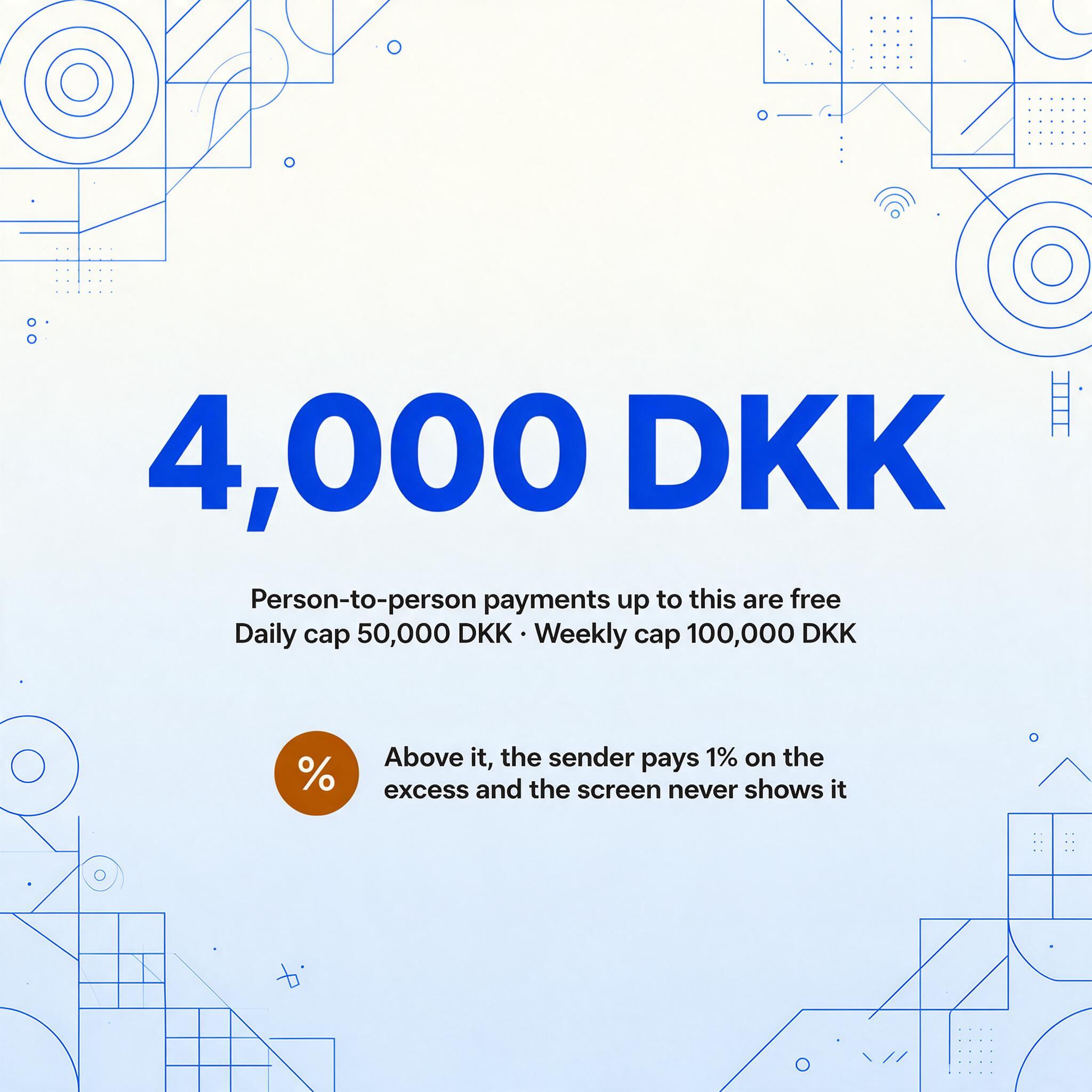
An example: sending 5,000 DKK triggers a 1% fee on the 1,000 DKK above the threshold — 10 DKK. The sender is debited 5,010 DKK; the recipient receives exactly 5,000 DKK. The fee is invisible on the transaction detail page — it never appears as a deduction line. This is cleaner than systems like PayPal, where the gross amount and the net receipt can diverge with no visible trace on the screen.
MobilePay also imposes daily and weekly transfer limits for individual users: a maximum of 50,000 DKK per day and 100,000 DKK per week across all transactions. These limits are per person, linked to the CPR number, and enforced by the system regardless of the user's bank balance. If a screenshot shows an amount exceeding 50,000 DKK in a single transaction, it either reflects a MobilePay Business account (which has separate, higher limits) or a different payment method. The standard individual limits are a ceiling that the confirmation screen will not honor — the transaction simply will not go through if the sender exceeds them.
The Notes Field: Danish Characters That Get Lost in Translation
MobilePay allows a free-text message with every payment — up to 30 characters. The sender types whatever is useful: "Faktura 1042" (Invoice 1042), "Tak for i gaar" (Thanks for yesterday), "Husleje juli" (Rent July). The notes field is short, but it is often the only piece of context that ties a payment to a specific customer, invoice, or purpose.
Danish uses three characters that do not appear in the standard English alphabet: æ, ø, and å (plus their uppercase forms Æ, Ø, Å). These are not accented variants of existing letters — they are distinct characters in the Danish alphabet, each with its own sound and meaning. "Rør" (pipe) and "ror" (row/steer) are different words. "Færge" (ferry) and "farge" (not a Danish word) are not the same. A notes field that reads "Betaling for rørlæggerarbejde" (Payment for plumbing work) contains two ø characters and one æ — characters that a typical OCR tool will misread as "o" and "ae" respectively, turning the message into uninterpretable text.
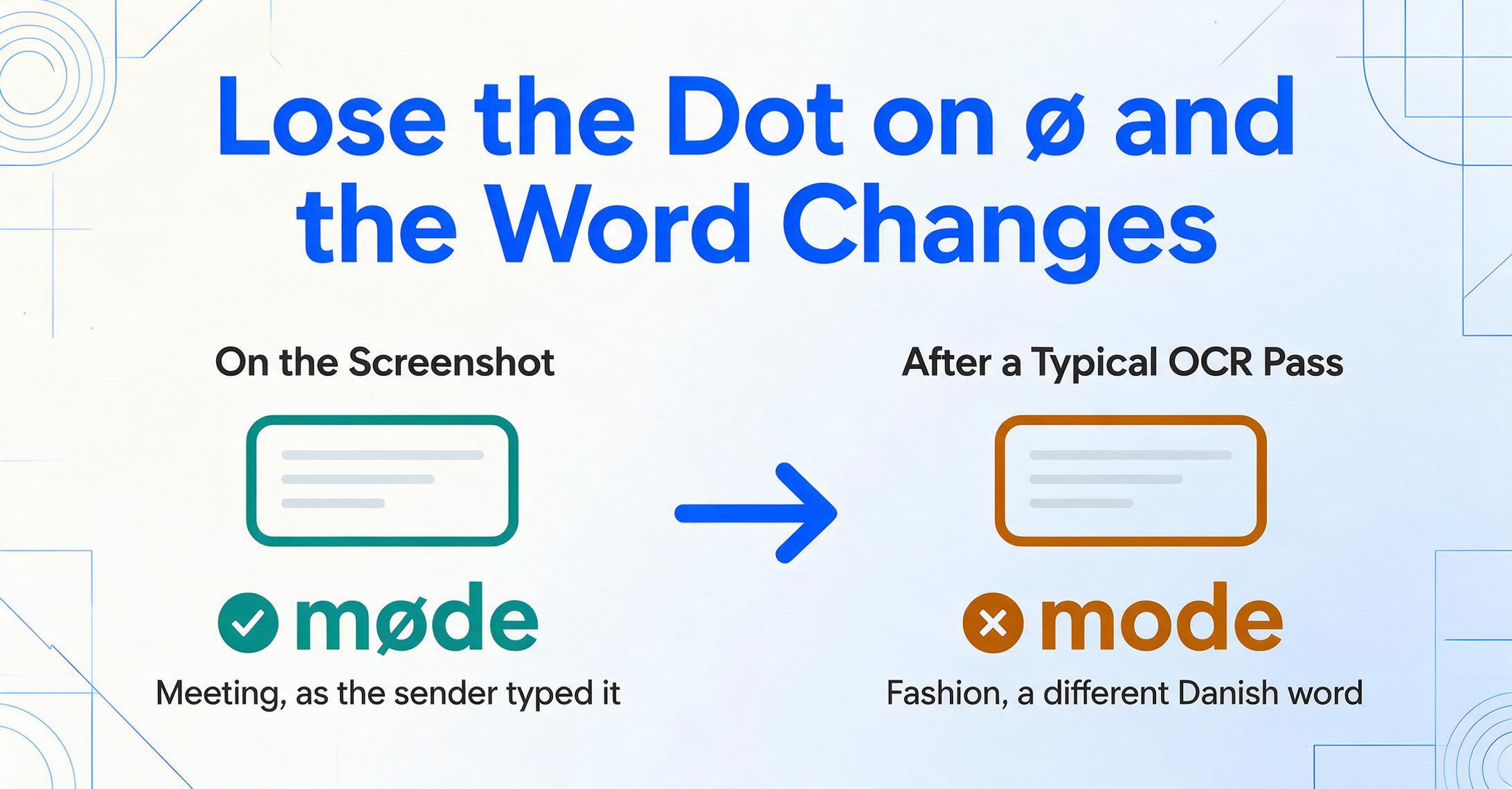
Traditional OCR engines struggle because they treat each diacritic mark — the dot on the ø, the circle on the å — as a separate visual feature at the pixel level. In a screenshot, where compression and smaller fonts are the norm, those features blur into surrounding pixels. A MobilePay screenshot forwarded through WhatsApp is particularly vulnerable: the ø in "møde" (meeting) loses its dot and becomes "mode" (fashion) — an entirely different Danish word.
The same challenge exists for Swedish screenshots (with å, ä, ö), but the frequency of æ, ø, and å in everyday Danish transaction notes makes this a recurring issue for anyone processing MobilePay payments in bulk. Semantic text recognition — which reads characters by understanding the word as a whole, rather than decoding each pixel — handles these characters in context. The AI does not need to "see" the dot on the ø clearly; it recognizes "møde" as a complete word because the surrounding characters confirm the letter's identity.
From Screenshots to a Spreadsheet — Without Retyping
Once you know which three fields to capture, the extraction step is straightforward. Custom Column Extraction lets you define the output columns — Amount (DKK), Recipient Name, Notes — and the AI locates each value in the screenshot by understanding what the field means, not where it sits. No boxes to draw, no templates to create, no training set of MobilePay screenshots to prepare first.
This matters because a MobilePay screenshot from a different phone resolution places the amount at different pixel coordinates. The transaction history view uses a different layout than the confirmation screen. A night-captured screenshot may blur the smaller notes text. A template-based tool relying on fixed bounding boxes fails on any of these variations. Semantic extraction does not: it finds the DKK amount, the recipient name, and the notes text regardless of where they land. This is the same principle — explained in our guide to extracting data from payment screenshots that aren't formatted as tables — applied to MobilePay's field layout.
Files are processed securely and not stored.
The same column definitions work across Nordic payment apps — Swish from Sweden and MobilePay share the same field structure. Drop both into one batch and get a unified spreadsheet — the payment screenshot extraction workflow brings all the Nordic payment apps under the same column set. The downstream destination in Denmark is typically e-conomic (the market leader with over 200,000 business users), Dinero, or Billy (approximately 50,000 customers) — none of which can natively ingest a MobilePay screenshot. Billy has a direct MobilePay integration called "Billy Payment" that embeds payment links in invoices, but the transaction records still arrive as individual notifications, not a structured export. For SKAT record-keeping — where Danish accounting law ("Bogføringsloven") requires businesses to retain transaction records for at least five years — a structured spreadsheet of extracted transactions creates an auditable trail that links each payment to the customer who sent it.
FAQ
Can I extract data from a MobilePay screenshot that was forwarded through SMS or Messenger?
Yes, with the same accuracy caveat that applies to any compressed image. Messaging apps reduce image resolution, which primarily affects the notes field and the date stamp — both rendered in smaller type than the amount and recipient name. The amount and name remain readable in most cases. For batch processing where the notes field contains the information you need to match payments, request original screenshots rather than forwarded copies when possible.
Does MobilePay show the sender's identity on the recipient's confirmation screen?
No. The confirmation screen on the recipient's side shows the transaction amount, the recipient's own name (from the sender's perspective), and the notes field. It does not display who sent the money. If you need the payer's identity for your records — matching an incoming payment to a specific customer — you need to coordinate with the sender so they include identifying information in the notes field, or you capture both sides of the transaction. This is one of the key limitations of MobilePay's confirmation screen for business record-keeping: the recipient sees the payment, but not who sent it.
What happens if the notes field exceeds 30 characters?
MobilePay truncates the message at 30 characters. Any text beyond the limit is stored on MobilePay's server but does not appear on the confirmation screen or in the screenshot. If the notes field appears incomplete or cuts off mid-word, the message was likely longer than the allowed character count. The extracted value will reflect only the visible portion.
Does this workflow work for MobilePay Business account screenshots?
Yes. The confirmation screen for MobilePay Business accounts displays the same three fields — amount, recipient name, and notes — with the same layout as personal accounts. Business accounts have higher transaction limits (configured per merchant agreement rather than the standard 50,000 DKK daily cap) and may include additional reference numbers in the notes field. The extraction column definitions remain unchanged; the AI locates each field by semantic meaning, not by account type.