Field Data Is Already Collected —
Getting It to Excel Is the Work
A crop scout fills a paper pest-count sheet on a clipboard at the edge of a field, then the sheet rides in a pickup truck, a binder, or a pile on the office desk until someone finds time to type it into a spreadsheet. A water-quality technician photographs a monitoring well logbook at the end of a sampling round, and the pH and conductivity readings sit on the camera roll for days. The field data — the hard-won part of the whole operation — is already recorded. What takes all week is the step where someone turns those forms into rows. That step is exactly what this article removes: five steps, from the form as it exists in the field to the spreadsheet your workflow can actually use.

Key Takeaways
- Hand-retyping field data into spreadsheets carries a documented 1–5% error rate per field and costs one state lab 10,000 manual entries every month.
- Faster typing doesn't fix this — the retype step itself is the structural defect because every copied number creates a failure point the original field form never had.
- Photograph the form once and name your columns — the AI finds each value by what it means and fills the row without anyone touching a keyboard.
The Form Is Already the Record — the Spreadsheet Is the Problem
The field form is not an intermediate step. It is the primary record of what happened on the ground — and the spreadsheet is where that record becomes usable. The gap between them is pure, avoidable labor.
Researchers who interviewed small and medium farm operators for a 2024 study on farm data collection practices published at MIT captured how easily field records slip out of reach: "Whether we wrote it down or whether you just remember that, hey, there's a wheat issue in this corner of the field, you got to pay attention to that in the spring and, hopefully, you remember — sometimes you don't." That is the cost of paper: not the paper itself, but the fact that the information only becomes data when someone acts on it, and acting on it means it has to live somewhere searchable.
Farmers on r/farming who do keep records describe exactly this split between the field and the office. One thread on keeping records lists the typical stack: "tracking sheets for all the equipment, maintenance, seeding/harvest results, soil tests, crop plans, load tickets, bin contents" — every one of them originally handwritten. The same pattern shows up in environmental monitoring, where field technicians fill logbooks at wells, stream gauges, and air-monitoring stations that nobody re-keys in a structured way.
This isn't an isolated workflow quirk. The Virginia Tech Soil Testing Lab reports that in a typical March, client sample information for around 10,000 soil samples needs to be typed in by hand — 10,000 paper submission forms, for one state lab, in one month. That is what manual transcription looks like at institutional scale, and it is the exact step that extraction software replaces. We've written separately about where the field-data pipeline actually breaks — this guide is the fix for it.
Why the Retype Step Is the Part to Remove
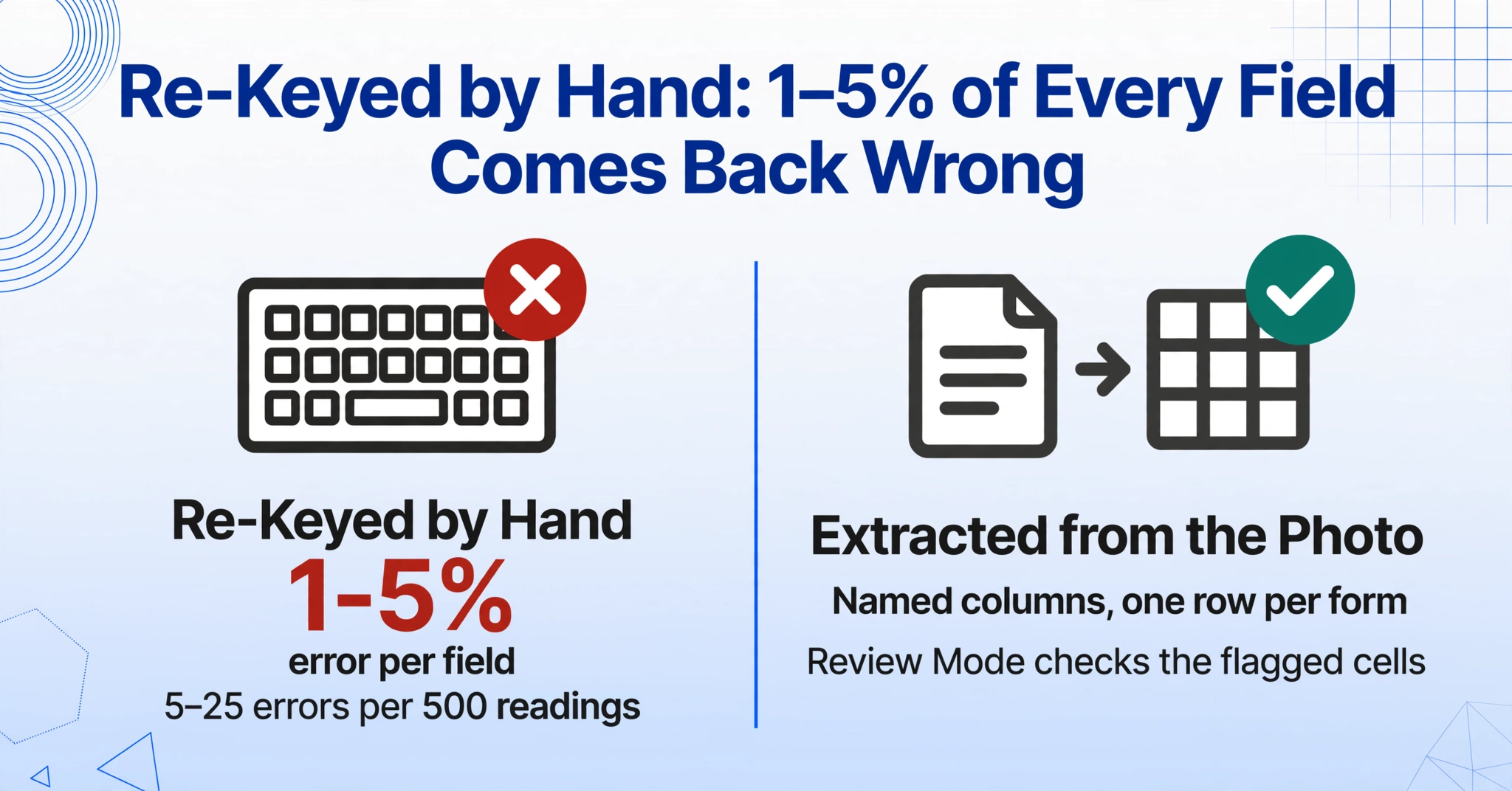
Handwritten field data carries a documented error rate of roughly 1–5% per field when re-keyed by hand — a figure assembled across decades of human-factors research and cited in a 2024 review of on-farm recordkeeping published in Precision Agriculture. In a sampling round of 500 data points, that means 5 to 25 errors. Some are harmless. The ones that matter are the transposed digits in a pH reading, the wrong field ID on a pest count, or a water level that lands in the neighbor's column.
Three regulatory frameworks in the United States turn this from an efficiency concern into a record-keeping requirement, and all three share one assumption: that field records are accurate, legible, and retrievable.
All three rules converge on the same operational conclusion: the record must exist in a form that can be searched, audited, and handed over. That is a property of spreadsheets, not of clipboards.
What a Field Data Form Needs to Become
Before designing an extraction workflow, it's worth deciding which fields on a field form actually feed downstream decisions. A crop scouting sheet and a water-quality logbook each have their own high-value fields, and the columns you extract should match the uses downstream — not every line on the page.
| Workflow | High-value fields | What they feed |
|---|---|---|
| Crop scouting | Field ID, Crop, Growth Stage, Pest Count, Weed Pressure, Soil Moisture | Spray recommendations, pest pressure trends, harvest planning, crop insurance production records |
| Soil sampling | Sample ID, Field ID, Depth, Date, Texture Notes | Lab submission forms (like the 10,000-a-month VT lab backlog), fertility planning, nutrient management plans |
| Water quality monitoring | Station ID, Date, Time, Water Level, pH, Conductivity, Dissolved Oxygen | Compliance reports, QA/QC verification against field logs, trend analysis |
| Safety inspections (field ops) | Inspection Date, Location, Inspector, Finding, Corrective Action | Audit trails, follow-up tracking, regulatory inspection records |
Two patterns repeat across all four. First, the identity fields — field ID, station ID, sample ID, location — are the join keys that let you sort, filter, and compare rounds of data. Second, the measurement fields carry units that matter downstream (pH has no units; conductivity is µS/cm; water level is feet or meters). Both patterns guide how you name your extraction columns.
Step 1: Capture the Form the Way the AI Needs to See It
Take a flat, well-lit photo of the whole form — or scan it if a scanner is near. Extraction quality on handwritten field data starts at capture, and three cheap habits account for most of the difference between a clean first attempt and a frustrating one.
Why does capture quality matter so much for extraction? Because the vision model reads the page the same way a person would — if the text is legible in the photo, it can be read; if it's a white blur, no extraction tool, however good, can recover it. Getting the photo right is the single cheapest accuracy lever in the entire workflow.
Step 2: Name the Columns You Want Out
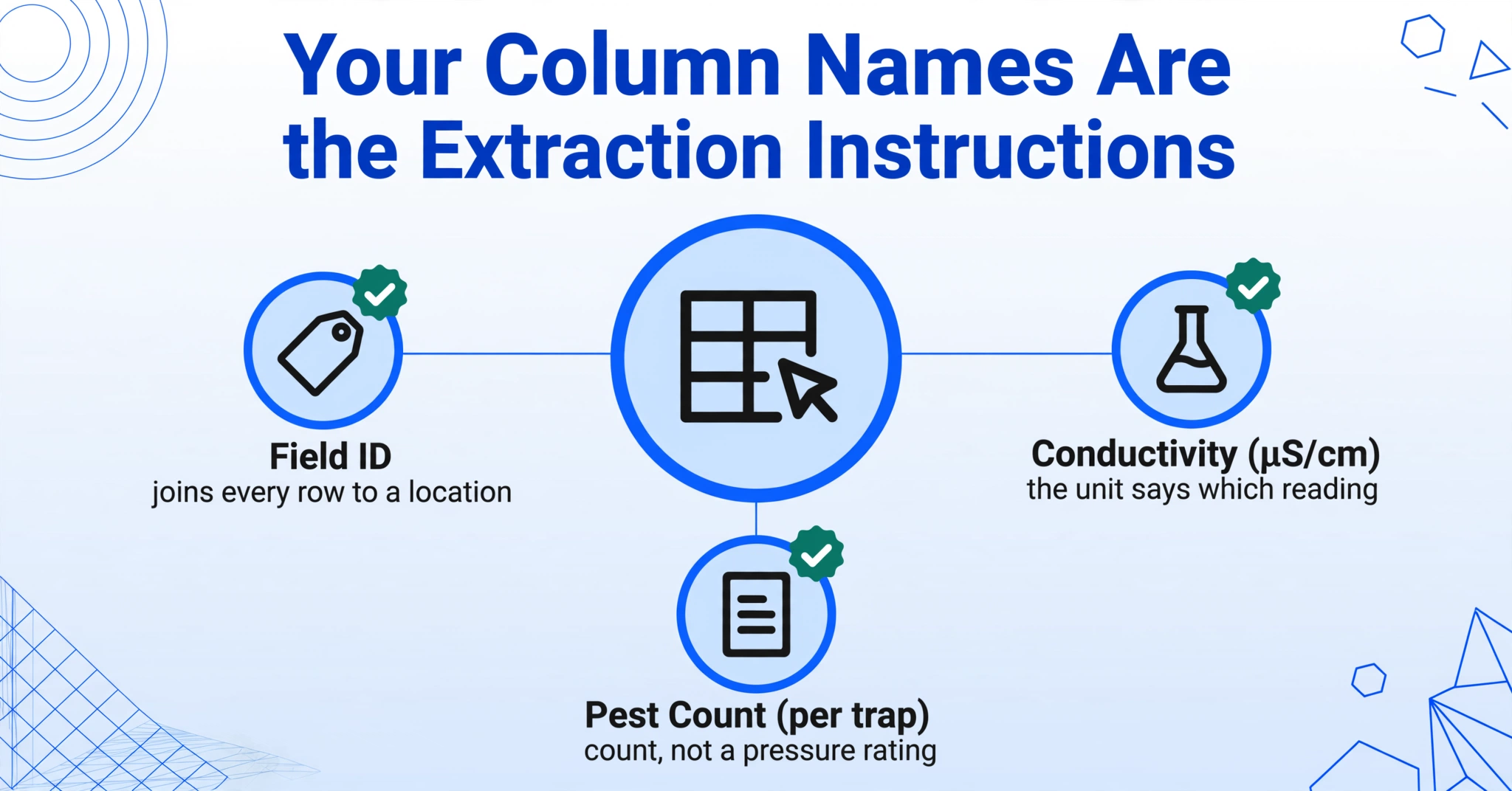
Type the field names you want as your Excel columns — the AI locates each value by what it means, not where it sits on the page. This is the mechanism ImageToTable.ai calls Custom Column Extraction: you define the output ("Pest Count," "pH," "Station ID"), and the AI reads the form, finds the value that answers each column name, and fills the row. It is fundamentally different from template OCR, which requires you to draw a box around each field on a reference form and then fails when the next form's handwriting lands outside the box.
Column naming is the highest-leverage decision in this workflow — the names you type become the headers of the final spreadsheet and the semantic instructions for finding each value. Good names map to how the form itself labels the data. Weak names are ambiguous enough that the AI can't tell which of several similar values you mean:
| Form Type | Good Column Names | Why They Work | Weak Names | Why They Fail |
|---|---|---|---|---|
| Crop scouting | Field ID, Crop, Growth Stage, Pest Count (per trap), Weed Pressure (Low/Med/High) | Matches the form's labels; units and options in the name resolve ambiguity between the count and the pressure rating | Location, Count, Stage | "Count" could be pest count, plant count, or trap count; "Stage" could be growth stage or sampling stage |
| Water quality | Station ID, Water Level (ft), pH, Conductivity (µS/cm), Dissolved Oxygen (mg/L) | Units in the name tell the AI which column each reading belongs to, and disambiguate DO from BOD or other oxygen metrics | Well, Level, DO | "Level" could be water level or staff gauge reading; "DO" could be dissolved oxygen or date-of-issue |
| Safety inspection | Inspection Date, Location, Finding, Corrective Action, Inspector Name | Field labels match the form verbatim; each maps to one downstream use | Date, Issue, Name | "Issue" could be the finding, the date, or an equipment number; "Name" could be inspector or crew member |
You can also let the AI infer values that aren't written on the form at all. An inferred column like Category (options: Chemical / Biological / Physical) tells the AI to read the monitoring context and classify each reading into one of the listed options — a single pass that both extracts and categorizes, which is useful when field forms use free-text notes instead of checkboxes. For a deeper walkthrough of how semantic extraction handles handwritten forms field by field, see our guide to extracting specific fields from handwritten forms. If you want to see the column-name → spreadsheet pattern applied to a similar document type first, the handwritten form to Excel workflow shows the same mechanics on a simpler example.
Step 3: Upload in Batches — One Form, One Row
Upload the whole round of forms at once; each form becomes one row in a single merged spreadsheet. This is where extraction pays off for field work, because field data arrives in batches by nature — a scouting round covers six fields, a sampling event covers twenty stations, an inspection day covers a whole site. Processing them one at a time would recreate the manual bottleneck, just with fewer keystrokes.
ImageToTable.ai is built batch-first: you upload multiple photos or scans, and the AI processes them together and merges the results into one Excel file — one row per form, with your column names as the header. A round of 40 water-quality logbook photos becomes 40 rows in one sheet in a single run. The forms don't need to look alike, either. If your scout crew uses a different sheet layout per crop, or your sampling stations have different logbook templates, the AI still locates the same named fields across all of them — which is precisely the scenario that breaks template-based tools.
For teams that never see the forms in the office at all, there's a simpler path into the pipeline: the Collection Link. You generate a shareable link, send it to the crew, and each field worker opens it, enters a short verification code, and uploads their photos directly into your processing queue — no account, no login. The photos land in the same batch queue as everything else. If your crew already emails photos or scans, the Email Inbox feature gives your account a dedicated address; forwarding attachments to it adds them to the queue automatically. Both are ways of removing the "gather the forms in the office" step entirely.
Files are processed securely and not stored.
Step 4: Review What the AI Extracted (and When to Trust It)
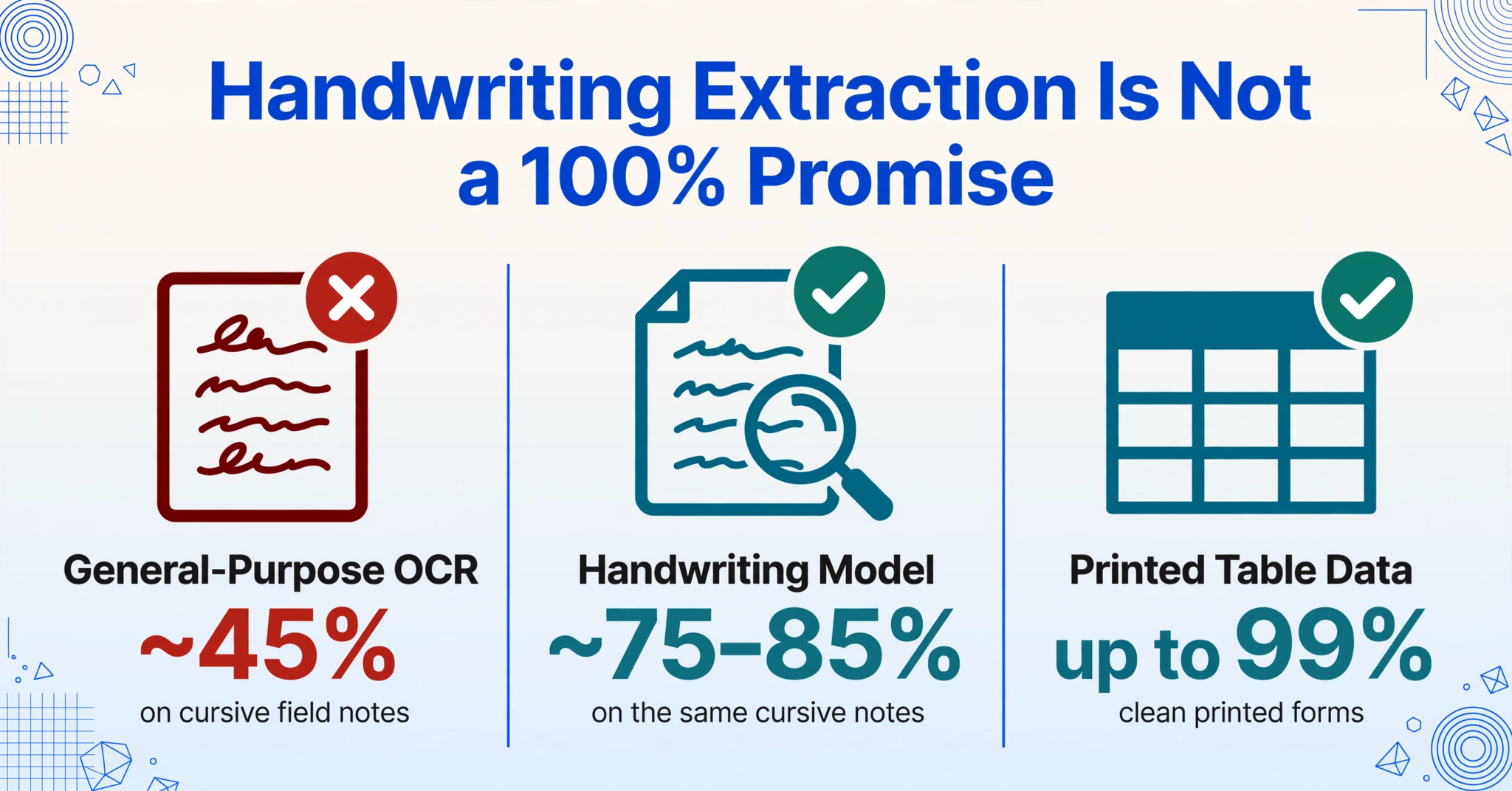
Scan the extracted rows against the originals — and when the AI flags a reading it's unsure about, check that one cell, not the whole page. Handwriting extraction is not a 100%-accuracy promise, and any tool that claims it is, isn't being honest. Independent testing on messy field-technician handwriting — documented by a team testing OCR on real inspection forms — found general-purpose OCR dropping to roughly 45% accuracy on cursive field notes, while specialized handwriting models reached ~75–85% on the same content. Legible block-letter handwriting extracts dramatically better than rushed cursive; that's a property of the input, not the tool.
What makes extraction practical despite that boundary is a verification workflow that concentrates human attention where it's needed. ImageToTable.ai's review mode with bbox-assisted verification does this: hover over any extracted cell and the original image highlights the exact spot the value came from; click a region on the image and it jumps to the matching cell. You're no longer re-reading every row — you're checking the handful of readings the AI was unsure about, which takes seconds per form instead of minutes of retyping. Edited a value? One click shows the AI's original read and lets you revert. This verification step is also exactly where the compliance story from earlier gets satisfied: the reviewer's confirmation is the human check that "accurate, legible, and indelible" records are genuinely accurate.
For more on what actually drives extraction quality on messy outdoor forms — pen type, photo conditions, column naming — our accuracy guide for field inspection forms covers the same principles in depth.
Step 5: Put the Rows Where Your Workflow Uses Them
The extracted spreadsheet isn't the finish line — it's the import file for whatever the field data feeds next. The whole point of the earlier steps is that the output lands in a form your existing systems can consume: one clean sheet with headers, one row per form, no stray columns. The same five-step pattern — capture, define columns, batch, review, feed downstream — applies to other field records, like the maintenance logs we've shown how to turn into a working PM schedule.
In agriculture, that spreadsheet imports into the farm management systems crews already use — Climate FieldView, John Deere Operations Center, Granular, or Trimble Ag Software — or into a simple field-activity workbook if the operation runs on Excel. Pest counts by field and date become the spray-decision table; planting dates and acres by field become the raw material for the acreage report and crop insurance production records. In environmental work, the same rows feed an environmental data management system like EQuIS, or a GIS-based collection flow like Survey123 or Fulcrum, where station IDs and timestamps map readings to their monitoring points — and the audit trail satisfies the QA/QC one-to-one-correspondence requirement.
Two column types make the spreadsheet more useful than raw values. A computed column lets the AI do arithmetic during extraction: define Exceedance (pH > 8.5 ? "Yes" : "No") or Total Pest Count (sum all traps) as a column, and the output contains the flag or the total, not just the individual readings. This collapses a post-processing step in Excel into the extraction pass itself — useful when an exceedance needs to be acted on the same day the water is sampled. If instead you need the original form's layout preserved — a completed form, ready to file — the To Word mode outputs the page as an editable document with layout intact, which suits records that must be submitted in original-looking form.
FAQ
How accurate is extraction on handwritten field forms?
Legible block-letter handwriting extracts at high accuracy — printed-table data reaches up to 99%. Rushed cursive drops that significantly, with independent tests on messy field notes showing general-purpose OCR at ~45% and specialized handwriting models at ~75–85%. The practical answer is the verification step: flag and check only the cells the AI is unsure about, using bbox highlighting against the original image. For field forms, invest in capture quality (flat, well-lit, whole page) — it's the largest accuracy lever.
Can it read checkboxes, circled options, and mixed text?
Yes. The vision model recognizes checked boxes, circled options, signatures, and handwritten values mixed with printed text. For fields where crew members circle or tick an option rather than write a number, define the column with the options spelled out — Pest Pressure (options: Low / Medium / High) — so the AI maps the mark to the right label instead of trying to read it as text.
What if my field photos are taken in bad light or at an angle?
Extraction will still attempt them, but quality matters: shadows and glare obscure writing that a model can't invent. Phone document scan mode corrects perspective and flattens the page, and shading the page with your own shadow fixes the most common outdoor failure. Photos that are legible to a person are generally legible to the model; photos that are a white blur to a person will be a white blur to the AI too.
My crew uses different form layouts per field or per station. Does that break extraction?
No — and this is the case that breaks template-based tools specifically. Because Custom Column Extraction locates values by meaning rather than by coordinates, a batch can mix different layouts and still return the same named columns. A station with a different logbook template in the same round just produces the same row structure with its values filled in.
How many forms can I process at once?
Batch processing handles multiple forms in one run and merges them into a single Excel file — one row per form. The practical limit depends on your plan's batch capacity, but the design goal is that an entire sampling round or scouting day goes through in one pass rather than form by form.
Can field workers send forms without using the office workflow?
Yes, two ways. A Collection Link lets crew members open a URL, enter a verification code, and upload photos directly into your queue — no login or account needed. Alternatively, the Email Inbox feature gives you a dedicated address to forward scans or photos to, and with auto-processing enabled, incoming attachments start extracting as soon as they arrive.
The form was never the bottleneck — the retyping step was. Keep the clipboards, keep the logbooks, and let the extraction happen where the data already is.
When a crop scout's pest counts make it into the spreadsheet the same afternoon they're collected, the spray decision isn't waiting on a binder. When a water-quality reading is flagged for exceedance before the crew leaves the station, the monitoring plan becomes proactive instead of post-mortem. That's the shift the five steps above produce: the field data stops being a record of what happened and starts being the input for what happens next. Test it on your own forms — one round, five steps, and see what the afternoon looks like when the typing is gone.