Credit Card Statement Extraction:
What Most Tools Get Wrong
U.S. consumers made an average of 48 payments per month in 2024 — with credit cards accounting for 35% of all transactions, more than any other payment method. Every one of those charges generates a line on a statement. For a small business owner with a single company card, that's 50–150 transactions a month. Every one of those lines needs to end up in a spreadsheet for reconciliation, categorization, and tax prep.
The problem isn't finding a tool that claims to extract credit card statements. It's that most of them produce output you still have to clean — rows out of alignment, credit amounts mixed with debits, subtotals mistaken for transactions, vendor names truncated. The extraction gap isn't about whether the tool can read text. It's about whether it understands what it's reading.
Key Takeaways
- Most credit card statement extraction tools still leave you cleaning garbled output — rows out of alignment, subtotals read as transactions, merchant names split across columns — and the cleanup eats 30 minutes per statement.
- The bottleneck isn't OCR accuracy — it's that traditional extraction reads every page as one flat text stream and has no concept of the Purchases zone, the Payments zone, or the Fees zone, so it stitches them into a single unusable list.
- Semantic extraction reads a credit card statement the way a human does — recognizing zones by meaning, not pixel coordinates — and ImageToTable.ai lets you define your columns once, then auto-categorize every transaction with Inferred Columns so you get clean Excel in a few seconds per page.
Why Your Credit Card Statement Breaks Traditional OCR
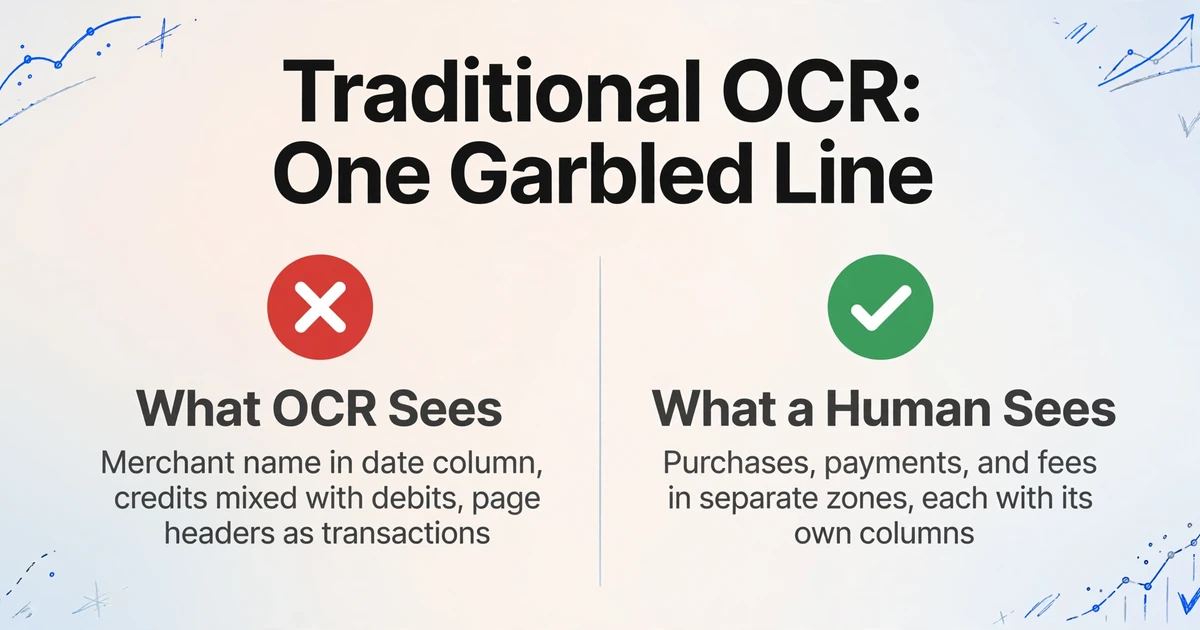
A credit card statement is not a flat table. Open any Chase, Amex, or Capital One statement and you'll see at least three distinct data zones on the same page: a Purchases section with date, merchant, and amount columns; a Payments & Credits section with its own column structure; a Fees & Interest section, often with yet another layout. Some issuers separate debits and credits into side-by-side columns. Others stack everything in one Amount column and use signs. Some put references numbers after the merchant name. Others use a separate column.
Traditional OCR doesn't see zones. It reads left to right, top to bottom, treating the entire page as one continuous text stream. When a payment row has three columns but a purchase row has four, OCR stitches them together into a single garbled line. The running subtotal after every 15 transactions — printed in bold and centered differently — gets read as a transaction with no description and a nonsense amount. The statement header (card number, billing period, payment due date) bleeds into the first transaction row.
On a r/Bookkeeping thread about converting credit card PDFs to Excel, a bookkeeper described the typical result: "The OCR output puts half the merchant name in the date column, mixes credits and debits together, and includes every 'continued on next page' header as a transaction. By the time I clean it up, I could have just typed it." That's the OCR problem in practice — not that it can't read, but that it can't organize.
There's a second layer to the problem: multi-page continuity. A monthly statement with 80 transactions spread across four pages means OCR produces four separate text blocks. Running balances break across pages. The "continued from previous page" header on page two gets parsed as a data row. The page-footer subtotal on page one and the page-header carry-forward on page two both get extracted, creating duplicate entries.
And a third layer: scanned statements. Even in 2026, roughly 15–20% of smaller financial institutions still generate image-based PDFs rather than text-selectable digital PDFs, according to industry benchmarks tracked by StatementDesk. If your credit union sends a scanned PDF or you're working from a photo of a paper statement, traditional OCR accuracy drops by 30–50% on the spot — and all three problems above get worse.
How Semantic Extraction Reads What OCR Can't
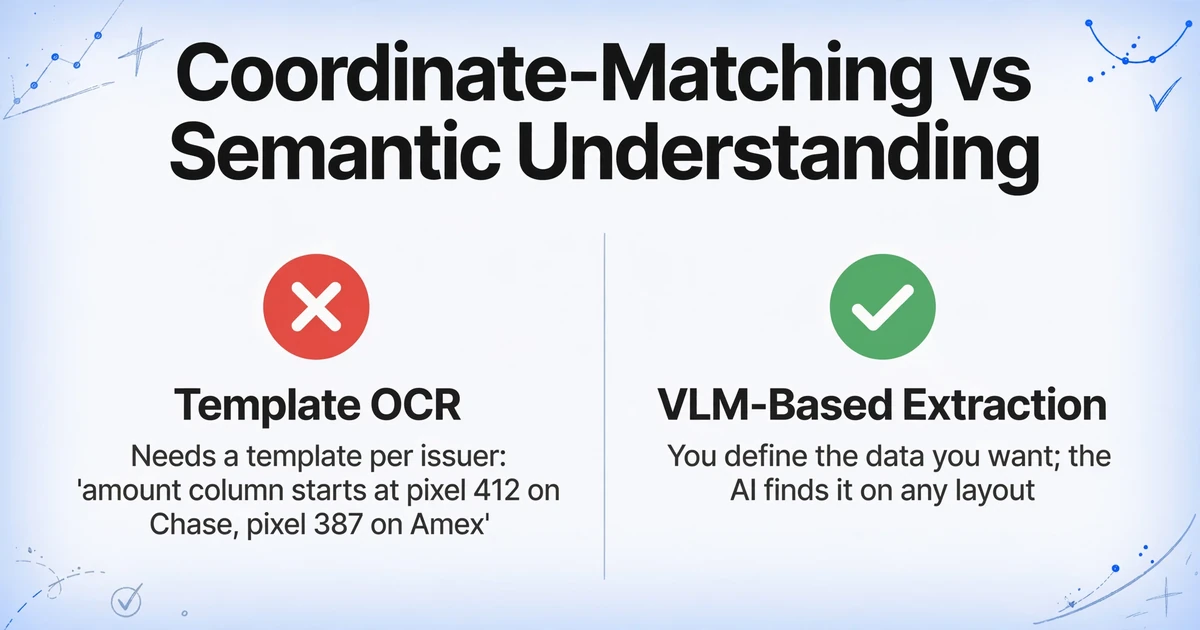
The root issue isn't character recognition. It's that OCR stops at the character level. It knows there's text at position (x,y) on the page, but it doesn't know that position (x,y) belongs to the "Purchases" zone, that this zone has four columns defined by its header row, and that the amount in the fourth column of row 7 represents a debit, not a credit. That organizational knowledge — what lets a human glance at a statement and instantly parse it — is what's missing.
Vision Large Models (VLMs) close that gap. Unlike template-based OCR that matches coordinates, a VLM reads a credit card statement the way a person does: it sees the layout, understands that "Payments and Credits" is a different section from "Purchases," recognizes that the far-right column in the Purchases zone is the transaction amount, and preserves the row structure across page breaks. The model doesn't need a template for Chase vs. Amex because it's not looking for coordinates — it's looking for meaning.
That shift from coordinate-matching to semantic understanding changes what's possible. Rather than telling the tool "the amount column starts at pixel 412 on Chase statements and pixel 387 on Amex statements," you tell it what data you want. The AI figures out where it lives on each specific page.
This is where Custom Column Extraction comes in — a mechanism that works differently from what most extraction tools offer. Instead of pre-configuring a template for each card issuer or manually drawing boxes around data fields, you simply type the column names you want in your final spreadsheet: "Transaction Date," "Merchant Name," "Amount." The AI reads the document, understands which data corresponds to each column name by semantic meaning (not by pixel position), and fills in the rows. The column names you type become the headers of your output table — no template training, no coordinate mapping, no per-bank setup.
Step-by-Step: Extract Transactions with Custom Column Extraction
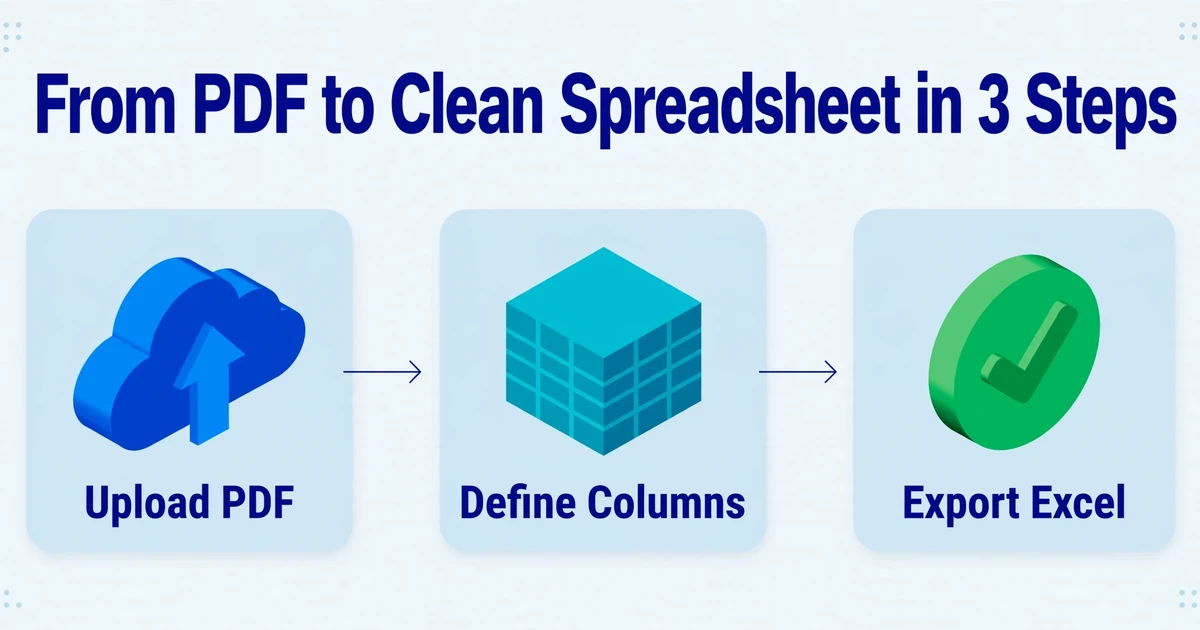
Here's the workflow from PDF statement to a clean Excel spreadsheet, using Custom Column Extraction to define exactly what data you want — no more, no less.
Step 1: Upload your statement. The tool accepts PDFs (digital or scanned), JPG, PNG, and WebP. If you have a multi-page statement — say, a 4-page monthly statement from Chase — you can upload the entire file at once. Multi-page documents are processed as a single continuous dataset; transactions from page 1, 2, 3, and 4 all land in the same output table, in order. If you have statements from multiple cards (a business Amex and a personal Visa, for instance), upload them together as a batch and get one merged spreadsheet.
Step 2: Define your columns. Instead of configuring extraction zones or training a model, you type the column names you want extracted. For a complete transaction ledger, typical columns include:
You can also include statement-level fields — Statement Period Start, Statement Period End, Payment Due Date, Minimum Payment Due — which the AI pulls once from the statement header and repeats across every transaction row for reference. This is useful when you're processing multiple months at once and need each row tagged with its billing period.
Files are processed securely and not stored.
Step 3: Export to Excel. Once the AI finishes extraction — typically 5–10 seconds per page — you download a structured Excel (XLSX) file. Every column you defined becomes a column in the spreadsheet. Every transaction becomes a row. The data is already standardized: dates in consistent format, amounts as clean numbers (no currency symbols embedded in the cell), merchant names cleaned of bank internal codes. CSV and JSON export are also available if you're importing into accounting software that prefers those formats. For a deeper dive into the full extraction capabilities — including foreign currency handling, multi-zone parsing across different issuer formats, and batch multi-month processing — see the credit card statement to Excel conversion page. If you'd rather have the rows land directly in Google Sheets without the download-and-import step, our article on extracting credit card statements into Google Sheets covers the sidebar add-on workflow for the same statements.
Auto-Categorize Transactions with Inferred Columns
Getting transaction data out of a PDF solves the extraction problem. But for reconciliation and tax prep, extraction is only the first step. Every transaction still needs a category — is that Amazon charge office supplies, equipment, or a personal expense? That classification step is where most manual reconciliation time actually goes.
This is where Inferred Columns come in. Unlike a regular column that extracts data explicitly printed on the document, an Inferred Column asks the AI to determine something the document doesn't directly state — by analyzing what it does say. You define a column called Category (options: Office Supplies/Equipment/Travel/Meals/Software/Utilities/Other), and for each transaction row, the AI reads the merchant name and transaction context, then selects the most appropriate category.
A charge from "Staples" with a $42 amount gets assigned "Office Supplies." "Delta Airlines" at $389 becomes "Travel." "Adobe Creative Cloud" at $59.99 becomes "Software." The AI isn't doing keyword matching — it's using the same semantic understanding that lets it parse the statement layout. It knows that "Staples" is an office supply retailer, that "Delta" is an airline, and that a $3.50 charge from "Blue Bottle Coffee" is a meal, not equipment.
What makes this powerful for credit card reconciliation is that extraction and categorization happen in the same pass. You don't extract transactions to Excel and then spend another hour adding a Category column manually. The AI fills both columns simultaneously. And because inferred columns work across batch uploads — statements from multiple cards or multiple months processed together — you get a single spreadsheet where every transaction, from every source, is already categorized.
Credit Card Statement vs. Bank Statement: The Extraction Differences
It's easy to assume that a credit card statement and a bank statement are the same extraction problem — both contain transaction tables with dates, descriptions, and amounts. In practice, they present different challenges, and a tool optimized for one often stumbles on the other.
| Feature | Credit Card Statement | Bank Statement |
|---|---|---|
| Transaction zones | Multiple zones per page (Purchases, Payments, Fees, Interest) — each with different column layouts | Typically one transaction table per page with consistent columns throughout |
| Debit/Credit treatment | Mixed: single Amount column with signs, or separate Debit/Credit columns, or zone-dependent conventions | Usually separate Debit and Credit columns, or a consistent single-column convention |
| Subtotals & summary rows | Frequent: per-zone subtotals, page-level totals, statement summary totals — high risk of false transaction rows | Running balance column acts as built-in validation; subtotals less common |
| Merchant names | Inconsistent: same merchant appears as "AMZN," "Amazon.com," "AMAZON MKTPLACE" across issuers | More standardized: payee names follow bank's internal formatting consistently |
| Statement metadata | Payment due date, minimum payment, credit limit, APR details — relevant for financial planning | Account balance, interest earned, overdraft info — different metadata set |
For bank statement extraction specifically — which faces its own set of challenges around running balance validation and check number parsing — bank statement extraction for small businesses covers the workflow in detail. The key insight for credit card statements is that zone awareness is non-negotiable. Any tool that treats the entire page as one flat table will mix purchases, payments, and fees into an unusable single list. Semantic extraction solves this by recognizing the header text — "Purchases," "Payments and Credits," "Interest Charged" — and applying different parsing rules per zone, the same way your eyes do when reading the statement.
From Monthly Reconciliation to Year-End Tax Prep
The reason to automate credit card statement extraction isn't just about saving an hour this month. It's about what happens when you multiply that hour across months, cards, and year-end demands.
A typical small business bookkeeping workflow involves three reconciliation cycles: monthly (match credit card statement transactions to receipts and GL entries), quarterly (compile categorized spending for estimated tax payments), and annual (aggregate full-year transaction data for CPA review and tax filing). At each level, the quality of the underlying transaction data determines how much work the next level creates. Messy data at the monthly stage means a CPA charging $200+/hour to untangle it at year-end.
Monthly reconciliation is where automated extraction has the most immediate impact. Instead of opening the statement PDF side-by-side with Excel and typing each row, you upload the statement, define your columns once, and get a clean spreadsheet in seconds. If you process three cards monthly, that's a recurring time savings that compounds.
For quarterly estimated tax calculations, categorized transaction data is essential. The IRS requires a reasonable basis for expense deductions under Publication 535 (Business Expenses) — meaning you need to know not just what you spent, but what category each expense falls under. With Inferred Columns handling categorization at extraction time, your quarterly spending summary is already organized: total travel, total office supplies, total software subscriptions, each as a line in a pivot-ready spreadsheet.
At year-end, the difference is starker. Most small businesses pay between $500 and $1,000 per month for outsourced bookkeeping — and catch-up or cleanup bookkeeping for disorganized records can run $800 to $2,500 for 6–12 months of backlog. If clean, categorized transaction data from every month is already exported and organized, the bookkeeper's job shifts from data entry to review and analysis — a faster, cheaper engagement. For tax season specifically, related article coverage on why manual tax data entry creates an automation problem and organizing tax season data applies the same logic to W-2 and 1099 forms — the same principle of upfront structured extraction reducing downstream rework applies across document types.
FAQ
Can AI handle credit card statements from any issuer — Chase, Amex, Capital One, local credit unions?
Yes. Because semantic extraction reads layout by meaning rather than by coordinate matching, it works across issuers without per-bank configuration. A Chase statement with separate Debit and Credit columns, an Amex statement with a single Amount column, and a credit union's scanned PDF all get parsed using the same column definitions you provide. The AI adapts to each layout rather than requiring you to create a template for each one.
What if my statement is a scanned image, not a digital PDF?
The Vision Large Model processes scanned documents and photos the same way it processes digital PDFs — by visually understanding the page layout. Unlike traditional OCR that degrades significantly on scans, VLM-based extraction maintains high accuracy on image-based inputs because it's not dependent on clean text rendering. A phone photo of a paper statement, a scanned PDF from a credit union, and a Chase digital PDF all go through the same pipeline. That said, extremely low-quality scans (heavily skewed, very dark, or low-resolution) will reduce accuracy — laying the statement flat with even lighting produces the best results.
Does the AI distinguish between purchases, payments, refunds, and fees automatically?
Yes — but it's important to be precise about how. The AI doesn't have a magical "type detector." What it does is recognize the semantic zone each transaction belongs to (Purchases, Payments & Credits, Fees & Interest) based on the section headers on the statement, and classify accordingly. Because the AI reads the layout the way a human does — understanding that "Payments and Credits" is a distinct section — the classification is based on structural context, not guesswork. This is why zone-aware extraction matters: a tool that can't distinguish zones can't reliably classify transaction types.
Can I process statements from multiple months or multiple cards at once?
Yes. You can upload multiple PDF files — statements from different months, different cards, or both — in a single batch. The AI processes each file independently and merges all extracted transactions into one output spreadsheet. Each row retains the source file information so you can trace any transaction back to its statement. This is particularly useful for year-end consolidation: upload 12 monthly statements from two cards (24 files), define your columns once, and download one spreadsheet with every transaction from the entire year, already structured and categorized.
What about foreign currency transactions on my statement?
Many credit card statements include both a foreign currency amount and a converted USD amount for international transactions. You can define columns for both: "Foreign Currency Amount" and "USD Amount" as separate extraction targets. The AI reads both values from the statement row — whichever column convention your issuer uses — and populates both fields. If your statement doesn't show the original currency amount (some issuers only show the converted USD figure), only the available data is extracted.
Is this the same as importing bank feeds into QuickBooks or Xero?
No — it serves a different purpose. Bank feeds auto-import transactions from your connected accounts into accounting software in near-real-time, which is useful for ongoing bookkeeping. But bank feeds require account connectivity (not all institutions support it), may miss older transactions outside the feed window, and don't handle scanned or paper statements. Statement extraction works on the PDF itself — it doesn't need account access, works on historical statements going back years, and can process scanned or photographed statements. The two approaches are complementary, not competing: extraction handles what feeds can't reach.
The hour you save on data entry this month is the hour your CPA doesn't bill you for next March.
No sign-up required · Process first statement free