How to Extract Chase Credit Card
Statements to Excel for Bookkeeping
Chase offers over 71 million digitally active customers a straightforward CSV download from its Activity page — but only for recent transactions, capped at roughly 1,000 rows and 24 months. Your formal monthly statement, the PDF that arrives like clockwork with every purchase, payment, fee, and reward point accounted for, can't be exported as structured data from chase.com at all. The document that contains the full picture of your card activity is locked inside a PDF designed for human reading, not spreadsheet import.
The deeper problem is that a Chase credit card statement is not a single table. It's a multi-section document — Purchases, Payments, Credits, Fees, Interest, Rewards Summary — each with its own column layout and logic. A generic PDF-to-Excel converter that treats the whole page as one block will merge credit card rewards text into your transaction rows and mislabel fee entries as purchases. The extraction succeeds at reading text, but the output needs manual rework before it's usable for bookkeeping.
Key Takeaways
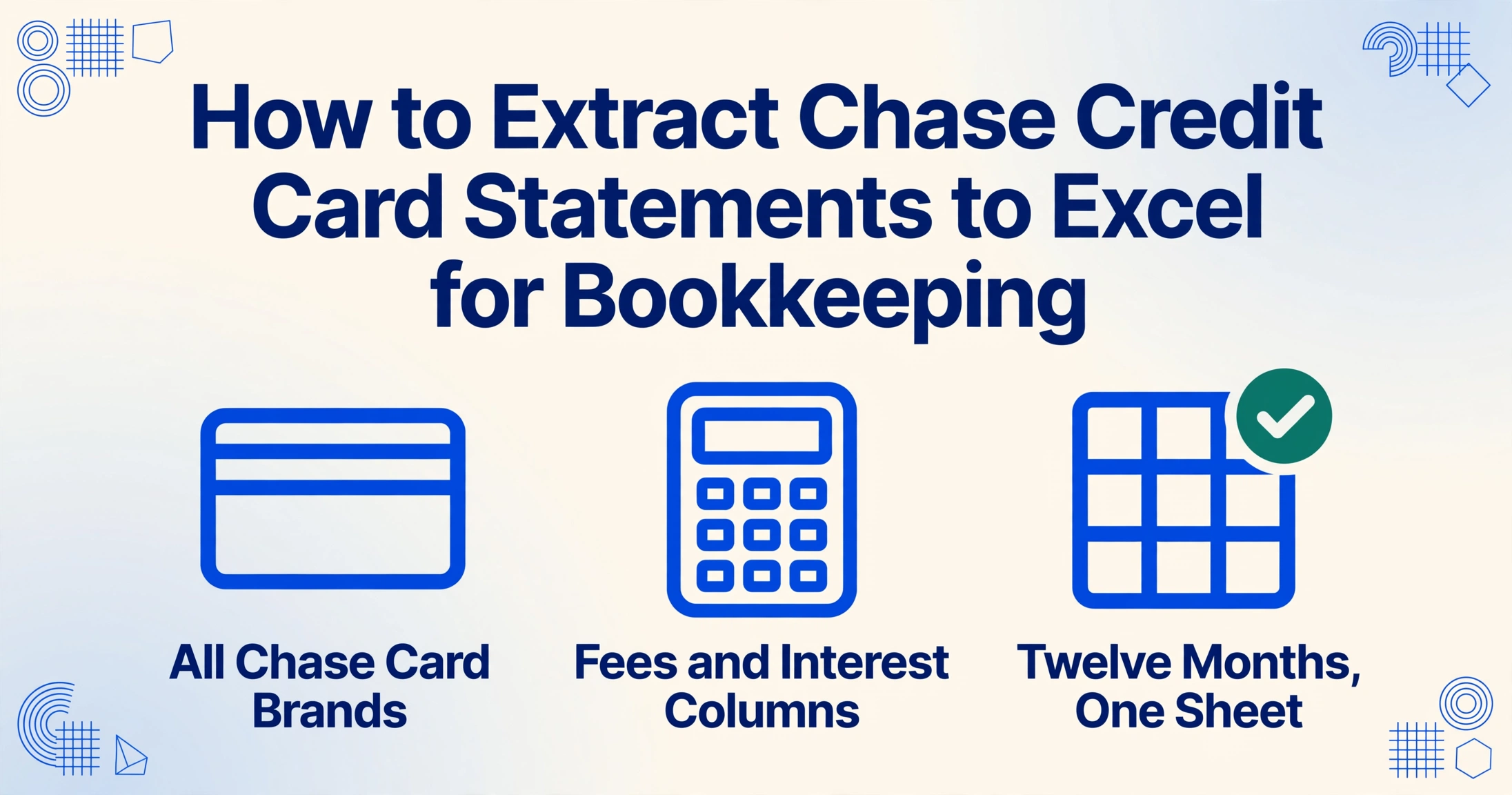
- Chase's CSV export caps at 24 months and 1,000 rows and drops rewards data, fee breakdowns, and interest charges — everything a bookkeeper needs beyond the transaction list.
- A Chase credit card statement isn't one table but six zones — Purchases, Payments, Fees, Interest, Rewards, Warning. Generic converters treat the whole page as one block and merge payments into your expenses.
- Semantic extraction reads each zone by its section heading — "REWARDS SUMMARY" or "INTEREST CHARGED" — so the same column set works on Sapphire, Freedom, and Ink statements with zero per-brand configuration.
Why Chase's Own Export Falls Short for Credit Card Bookkeeping
Log into chase.com, navigate to your credit card account, and the Activity page offers a Download button that produces a CSV file. At first glance, that solves the problem. In practice, the built-in export has three limitations that make it insufficient for proper bookkeeping:
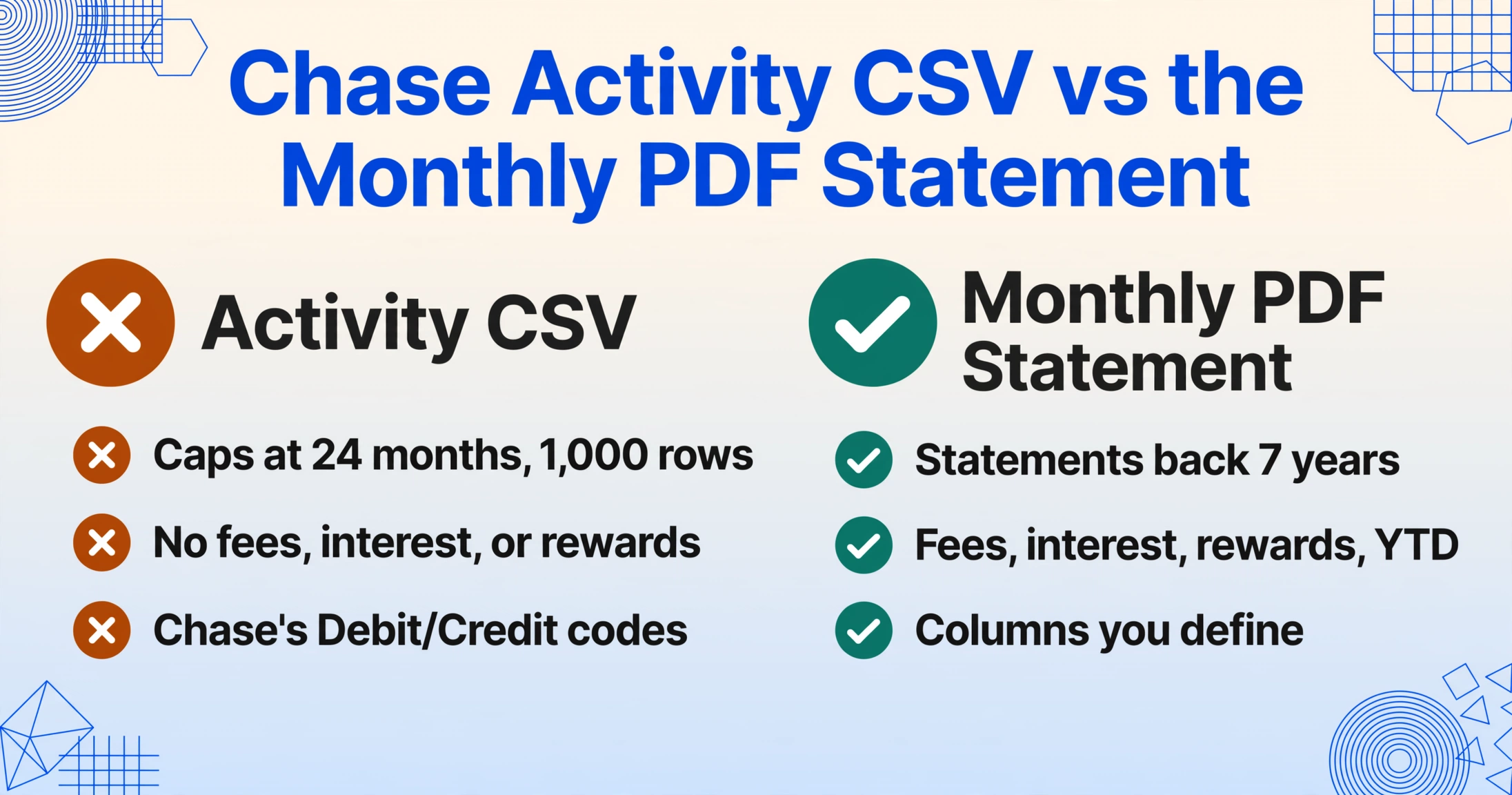
It only covers recent activity. The CSV download caps at roughly 24 months and 1,000 rows. If you need prior-year transactions for tax prep, annual reconciliation, or an audit, the only source is the monthly PDF statement — and Chase retains those for up to seven years through its online Statements & Documents portal. The gap between what the CSV can show and what the PDF archive holds is exactly where most bookkeeping work happens.
It omits statement-level details. The Activity CSV contains transaction date, description, and amount — but no fee breakdown, no interest charge detail, no rewards summary, and no year-to-date totals. A small business owner tracking annual credit card processing fees or a freelancer documenting annual interest paid has to reconstruct those numbers from the PDF statements anyway.
It doesn't classify transactions the way bookkeeping needs. Chase's CSV labels columns like "Type" and "Description" but the categorization follows Chase's internal logic (Debit/Credit/Check), not the expense categories you need for Schedule C, balance sheet reconciliation, or budget analysis. A single column of merchant names — "AMAZON.COM", "UBER TRIP", "QUICKBOOKS SUBSCRIPTION" — collapses office supplies, transportation, and software into one undifferentiated list that still needs manual sorting.
For these reasons, anyone doing monthly credit card reconciliation or annual tax prep eventually reaches for the PDF statements themselves — and needs a way to get the data out that preserves the statement's structural logic.
What Makes Chase Credit Card Statements Structurally Unique
A bank statement is a running ledger: one continuous transaction table with debits, credits, and a running balance that must arithmetically check out. A Chase credit card statement is a different animal entirely — and this difference is why the same extraction approach doesn't work for both.
Under Regulation Z (12 CFR § 1026.7), every U.S. credit card issuer must include specific information on each periodic statement, which produces a predictable but complex document structure. A Chase credit card statement contains these distinct zones:
Purchases and Adjustments. The main transaction table, listing every charge with transaction date, post date, a merchant description (often including category tags like "GROCERIES" or "AIRLINES"), and the amount. On Sapphire and Freedom statements, amounts are in a single column with positive values; on Ink Business cards, they appear in separate debit and credit columns.
Payments and Credits. A separate section listing payments made, returned purchases, and statement credits. Same layout as the Purchases table, but these are negative amounts — or in Chase's layout, a distinct block that generic extraction tools frequently merge with the Purchases table, mixing payments into your expense list.
Fees and Interest Charged. Annual fees, late payment fees, foreign transaction fees, and interest charges appear in their own zone. The Interest Charged section breaks down purchase APR, balance transfer APR, and cash advance APR separately, each with its own rate, balance subject to rate, and dollar amount charged. A year-to-date line — "Total Interest Charged in 2026" — sums the annual picture. For a small business, these numbers matter for tax deduction tracking (business interest expense) and cost analysis (foreign transaction fees on international purchases).
Minimum Payment Warning. A standard box showing how long it would take to pay off the balance making only minimum payments, alongside a table that illustrates how much faster you can pay with higher monthly payments. This is regulatory-mandated text, not extractable financial data — but its presence shapes the page layout in ways that confuse positional extraction tools.
Rewards Summary. For Sapphire Preferred, Sapphire Reserve, Freedom, and other Ultimate Rewards-earning cards, this section shows points earned during the billing cycle, year-to-date points earned, and total available points. On co-branded cards (Amazon Prime, Southwest, Marriott, IHG, United), the rewards section shows miles or points specific to that program.
No running balance. Unlike a checking account statement, credit card statements don't show a running balance after each transaction. Instead, they show beginning balance, purchases, payments, fees, interest, and ending balance as summary-level figures. This means the validation strategy is different: instead of checking that opening + credits − debits = closing across hundreds of rows, you verify that the sum of each section matches the statement's summary totals.
Each of these zones has a different column layout, and different Chase card brands — Sapphire Preferred vs. Freedom Unlimited vs. Ink Business Cash — present them with slight variations. A template-based extraction tool would need a separate configuration for each brand. The approach that works is one that reads the document semantically: understanding what each zone represents, not memorizing where it sits on the page.
How to Extract Chase Credit Card Transactions to Excel
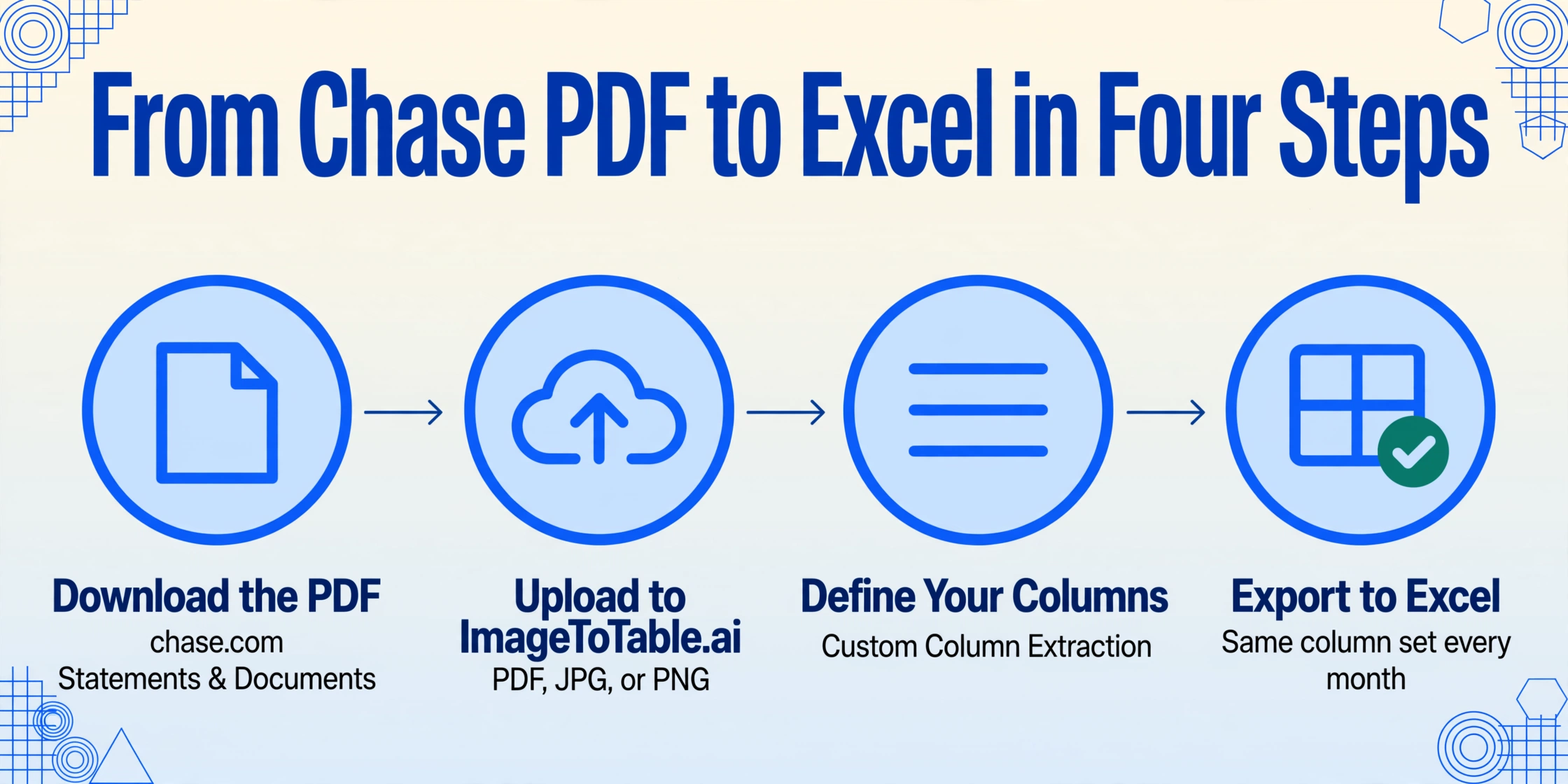
The following workflow uses Custom Column Extraction, where you define the columns you want and the AI locates matching values by understanding what each field means — not by matching pixel coordinates. This is the distinction between template-free semantic extraction and traditional zone-based OCR: you don't train the tool on your Chase statement format. You tell it what you need, and it reads the statement to find those values, regardless of which Chase card brand generated the PDF.
Here is how to get clean transaction data from any Chase credit card statement into Excel:
Transaction Date, Post Date, Merchant, Amount, Category. The AI reads each column name semantically and locates the matching values on the statement — no template setup, no zone drawing, no per-brand configuration.Category (options: Office/Meals/Travel/Software/Other). The AI reads each merchant name and transaction context, then assigns the best-matching category — automatically classifying "AMAZON.COM" purchases as office supplies or software based on the transaction description. This turns extraction and categorization into a single pass, eliminating the step where you'd normally pivot a CSV into expense categories by hand.Files are processed securely and not stored.
Beyond Transactions — Extracting Rewards, Fees, and Interest Charges
Transaction data is the core need, but a Chase credit card statement contains financial information that matters for bookkeeping beyond the purchase rows. The same semantic extraction approach handles these non-transaction fields.
Rewards Summary. Add a column like Ultimate Rewards Points Earned and the AI reads the Rewards Summary section, extracting points or miles earned during the statement period. For a business owner using a Chase Ink Preferred card, tracking quarterly bonus categories and total points earned becomes a spreadsheet column instead of manual note-taking. For co-branded cards — Southwest Rapid Rewards, Marriott Bonvoy, IHG One Rewards, United MileagePlus — the column name adjusts to match the program's terminology, and the AI locates the correct values.
Foreign Transaction Fees. If your Chase card charges foreign transaction fees (Sapphire Reserve does not; many Freedom and co-branded cards do), add a computed column like Foreign Transaction Fee (each tx × 3%) and the AI calculates the fee for each international transaction during extraction. This turns a hidden cost — typically 3% of each non-USD purchase — into a trackable expense line in your spreadsheet.
Annual Fees and Interest Year-to-Date. Chase statements show separate sections for fees charged and interest accrued, including a year-to-date interest total. Extract these with columns like Annual Fee, Interest Charge (this period), and Interest YTD. For small business owners, interest paid on business credit cards is a potentially deductible expense — having it in structured form at year-end saves digging through twelve PDFs to find the annual total.
These non-transaction fields are exactly the data points that Chase's CSV export omits and that generic PDF converters fail to extract reliably because they sit outside the main transaction table. Semantic extraction locates them by understanding the section headings — "REWARDS SUMMARY", "INTEREST CHARGED", "FEES" — not by guessing their position on the page.
From Monthly Extraction to Annual Bookkeeping
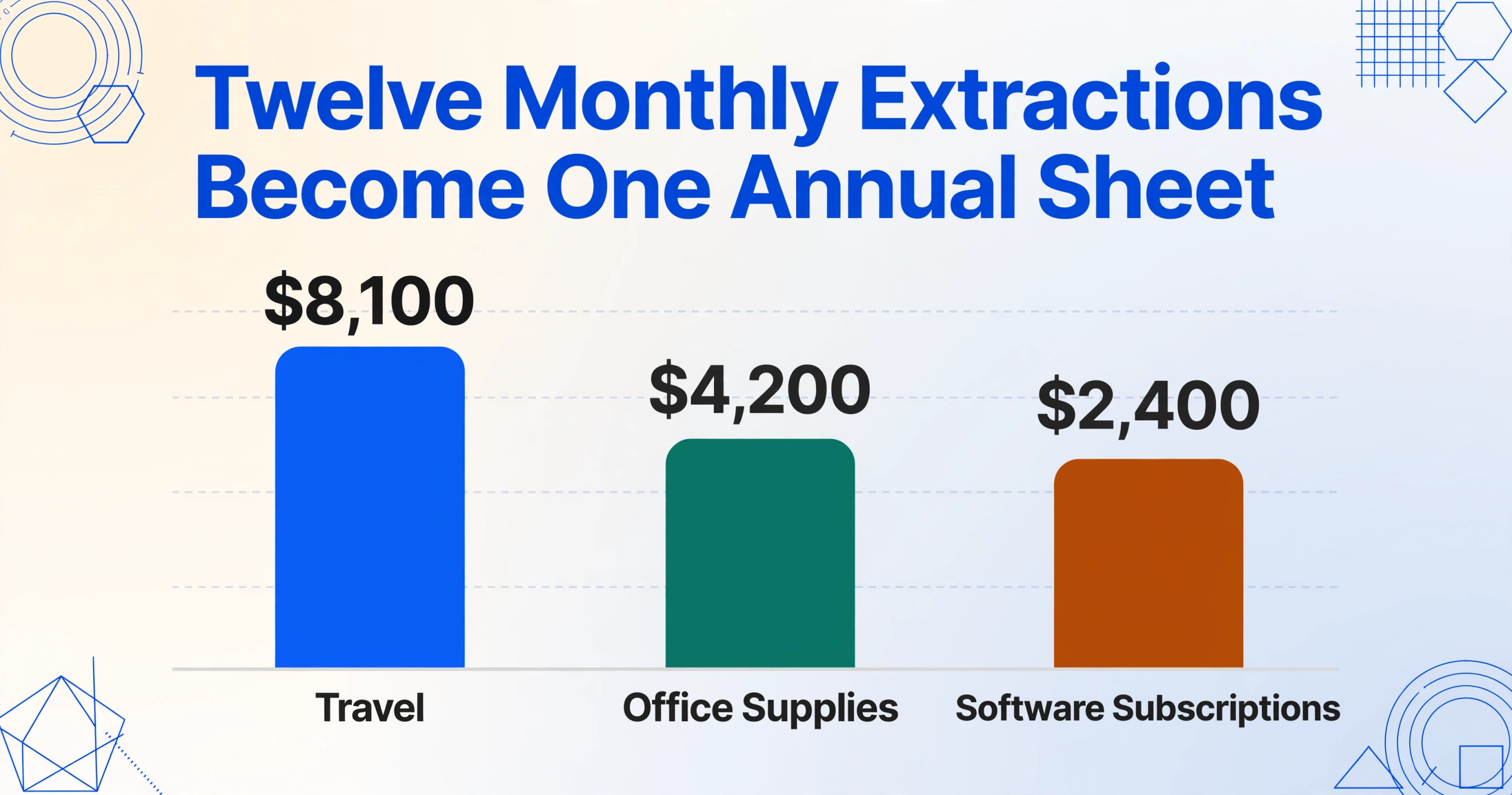
A single month's credit card transactions tell you what you spent. Twelve months of structured data — properly categorized, with fees and interest tracked — give you a complete annual picture that supports reconciliation, budgeting, and tax preparation without re-entering data.
Here is how monthly extraction feeds into an annual bookkeeping cycle:
Frequently Asked Questions
Does this work with all Chase credit card brands?
Yes. The semantic extraction approach reads the document by understanding section headings and field labels, not by matching a template. This means Sapphire Preferred, Sapphire Reserve, Freedom, Freedom Unlimited, Freedom Flex, Ink Business Preferred, Ink Business Cash, Amazon Prime, Southwest, Marriott, IHG, and United MileagePlus cards are all handled with the same column setup — no per-brand configuration needed. Each brand's statement follows Regulation Z's standardized structure, so the sections (Purchases, Payments, Fees, Interest, Rewards) appear consistently, though the rewards section content differs by program.
How does the tool handle transaction date vs. post date on Chase cards?
Chase credit card statements show both a transaction date (when you made the purchase) and a post date (when Chase processed it). If you define separate columns like Transaction Date and Post Date, the AI extracts each value into its respective column. This is particularly useful for bookkeeping reconciliation, where the transaction date determines which accounting period a charge belongs to, while the post date determines when it actually hit your balance.
Can I extract data from password-protected Chase PDFs?
Yes, if you know the password. ImageToTable.ai supports password-protected PDFs — you provide the password during upload, and the AI unlocks the document before extraction. For regularly processed statements, you can save commonly used passwords in your account settings so they are tried automatically against incoming encrypted PDFs.
Can I extract Ultimate Rewards points earned per statement?
Yes. Add a column named Rewards Points or Ultimate Rewards Earned and the AI reads the Rewards Summary section. It captures points earned this period, year-to-date points, and total available points. For co-branded cards, use the program-specific column name — Southwest Points, Marriott Bonvoy Points — and the AI locates the matching values by reading the section label.
Can I process multiple Chase statements at once?
Yes. You can upload multiple Chase credit card statement PDFs in a single upload — even from different card brands — and they are all processed with the same column set. The output is a single merged Excel file where each row identifies its source statement. This is useful for quarterly or annual reconciliation: upload twelve monthly Sapphire statements, define your columns once, and get a year of transaction data in one spreadsheet.
How reliable is the extraction for Chase credit card statements?
For printed credit card statement text — dates, merchant names, amounts, section headings — accuracy is comparable to the 99% rate for printed financial documents. The primary risk is with unusual merchant descriptions that include special characters or truncated text, which can occasionally split a transaction into two rows. Review mode (available for logged-in users) lets you hover any extracted cell to highlight the corresponding location on the original statement, so verification is faster than cross-referencing by eye. For most bookkeeping workflows, a quick spot-check of totals — matching the statement's closing balance against the sum of extracted transactions — catches any significant errors in under a minute.
Can I extract Chase statement data directly into Google Sheets?
Yes. ImageToTable.ai offers a Google Sheets sidebar add-on that lets you upload your Chase statement PDF and append extracted data directly to your active spreadsheet — without leaving the sheet. This is the shortest path from PDF to usable data: the statement goes in one side of the sidebar, and structured rows appear in your sheet on the other.
Want the full workflow? Our guide to converting statement PDFs to spreadsheets covers multi-page statements, running balance validation, and batch processing for any bank — step by step.