How to Extract Capital One
Credit Card Statements to Excel
Extracting a Capital One credit card statement to Excel means turning that 3-to-6-page PDF — with its payment information box, rewards summary, APR disclosures, and transaction table — into a clean spreadsheet where every purchase, payment, credit, and fee lands in its own row with the right column. The challenge isn't complexity. It's that Capital One credit card statements pack more structural variety than a standard bank statement: the rewards section (Venture miles or Quicksilver cash back), the category tags on each transaction (GROCERIES, DINING, ENTERTAINMENT), and the minimum payment warning box all sit in different positions depending on your card type and statement version. A tool that extracts only the transaction table misses half the useful data. This article covers what makes Capital One credit card statements different, how to extract every section into a usable spreadsheet, and how to handle multiple Capital One cards in a single batch.
Key Takeaways
- Manually entering a single Capital One statement with 40–60 transactions takes 20–30 minutes — and for a two-card household, that adds up to a full workday per year of pure data entry.
- Capital One's CSV download only covers the last 90 days, and it omits rewards summaries and APR data — so your PDF statements are the only complete record for annual reconciliation.
- Define your output columns once — Transaction Date, Merchant, Amount, Rewards — and the same extraction works across Venture, Savor, and Quicksilver statements without per-card templates.
What Makes a Capital One Credit Card Statement Different From a Bank Statement
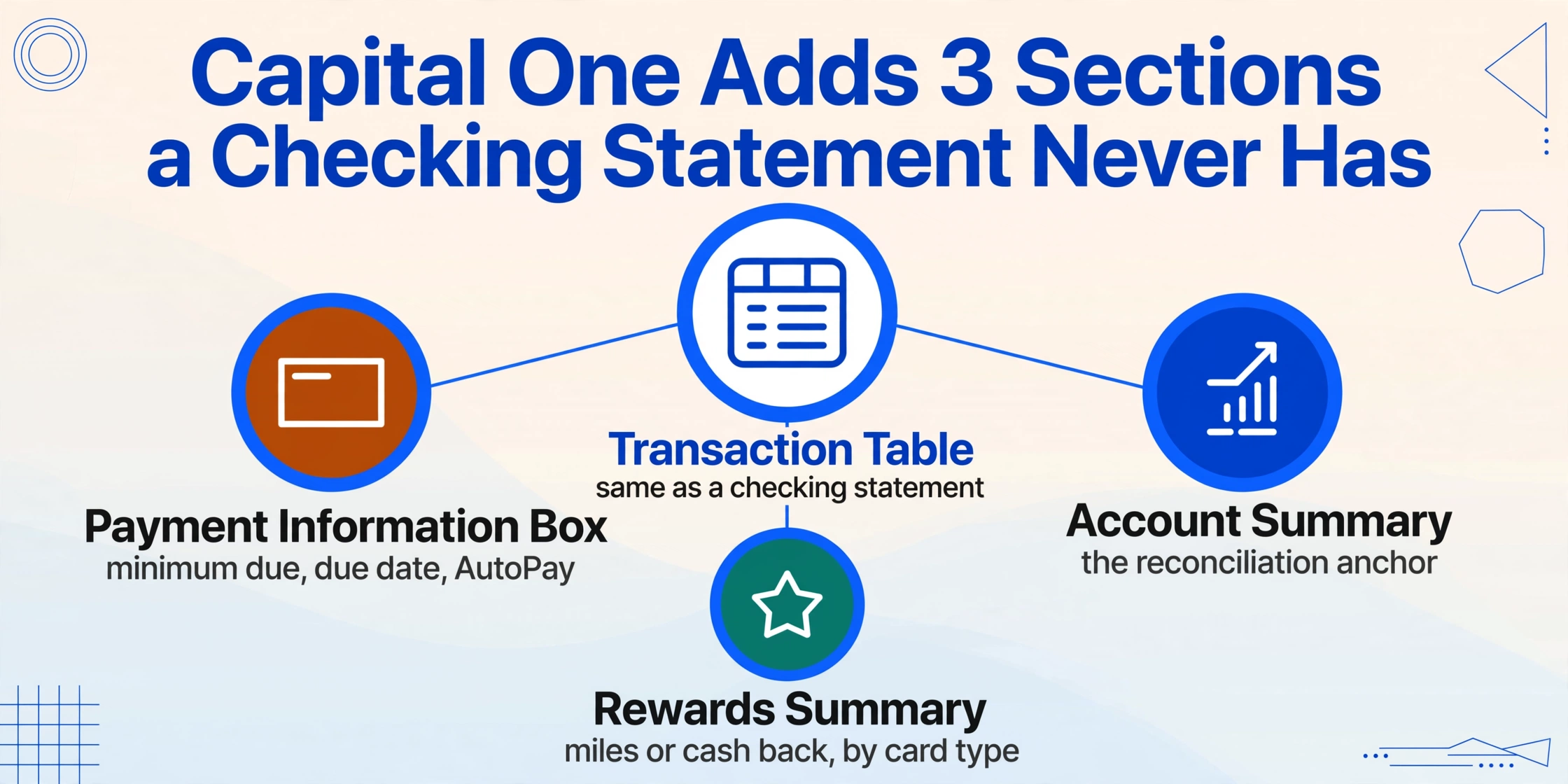
If you've ever extracted a bank checking statement to Excel, you know the basic layout: a running balance ledger where every row shows date, description, debit or credit, and the running balance at the end. Capital One credit card statements use the same transaction table structure in the middle, but they surround it with sections that don't exist on a checking statement — and those sections contain data you need for reconciliation and spending analysis.
Here is what a typical Capital One credit card statement contains, reading from top to bottom:
Payment Information Box — near the top, a bordered box showing your new balance, minimum payment due, payment due date, and a "Minimum Payment Warning" explaining how long it would take to pay off the balance if you only make minimum payments. If you use AutoPay, the statement displays your AutoPay enrollment status and scheduled amount. This section doesn't appear on bank checking statements.
Account Summary — previous balance, payments and credits posted, purchases, balance transfers, cash advances, fees, interest charged, and the resulting new balance. This is the reconciliation anchor: the numbers here must match the sum of the transaction rows below.
Rewards Summary — Capital One structures this section differently per card. A Venture card shows "No Hassle Miles" earned this period, year-to-date total, and lifetime miles. A Quicksilver card shows "Unlimited Cash Back" earned. A Savor card shows cash back broken down by earning category (grocery, dining, entertainment). If you're tracking rewards alongside spending, this section is the authoritative record — your Capital One online dashboard may show pending rewards, but the statement shows what actually posted.
Transaction Details — the core table with transaction date, posting date, merchant name, reference number, and amount. Capital One embeds merchant category hints in the transaction description line — "GROCERIES," "DINING," "ENTERTAINMENT," "GAS," "TRAVEL" — which is helpful for automated categorization during extraction. Each transaction also shows whether it earned rewards at the bonus rate or the base rate.
Interest Charge Summary — a table listing your Purchase APR, any Promotional APR on balance transfers, and the interest charged per APR type. Business credit card statements from Capital One sometimes separate this into a different section with different formatting from consumer cards.
Account Notifications — credit limit increase offers, terms changes, or fraud alerts. This section varies by statement cycle and is generally not extracted.
For a more general introduction to extracting statements from any bank, see the complete guide to bank statement data extraction — the format differences across institutions are substantial enough that a single extraction method needs to handle all of them.
Why Manual Entry Is Particularly Painful for Credit Card Statements
Manual entry of any financial statement is slow. Credit card statements add a layer of friction that checking statements don't: the transaction descriptions are longer, the number of transactions per month is typically higher (30-80 for an active cardholder vs 10-30 for a checking account), and the rewards and APR sections create additional data points you may want to track.
A Capital One Venture cardholder spending $3,000-5,000 per month might have 40-60 transactions per statement. Typing each one into a spreadsheet — date, merchant, amount, and a category if you want to analyze spending — takes 20-30 minutes per statement. For a household with two cards (say a Venture for everyday spend and a Savor for dining and groceries), that's 40-60 minutes per month of pure data entry. That's the equivalent of a full workday per year spent copying numbers from one digital format to another.
The error rate compounds the time problem. A mistyped amount on a $50 transaction is obvious. A mistyped amount on a $922.37 transaction — swapping the "9" and "2" to get $992.37 — looks correct at a glance and silently shifts your reconciliation by $70. When you later import that spreadsheet into QuickBooks or a budgeting tool, the mismatch surfaces during account reconciliation, and finding which of 600 annual transactions has the wrong number takes longer than the original entry did.
There's also the structural friction of Capital One's CSV export. The bank offers transaction downloads through its online portal, but the CSV export only covers the last 90 days. If you're catching up on statements from earlier in the year — a common scenario for year-end tax prep or mid-year budget review — the CSV path dead-ends at the December-to-March window, and everything older requires a different approach. For those older statements, batch processing credit card statements for year-end bookkeeping covers the workflow for catching up on a full year's worth of data.
The CSV Gap and Why PDF Extraction Fills It
Capital One makes CSV and QBO downloads available through its online banking portal. For a user with a couple of monthly statements to process and access to current transactions, this is often the fastest path. Download the CSV, open it in Excel, clean up the column headers, and you're done in a few minutes.
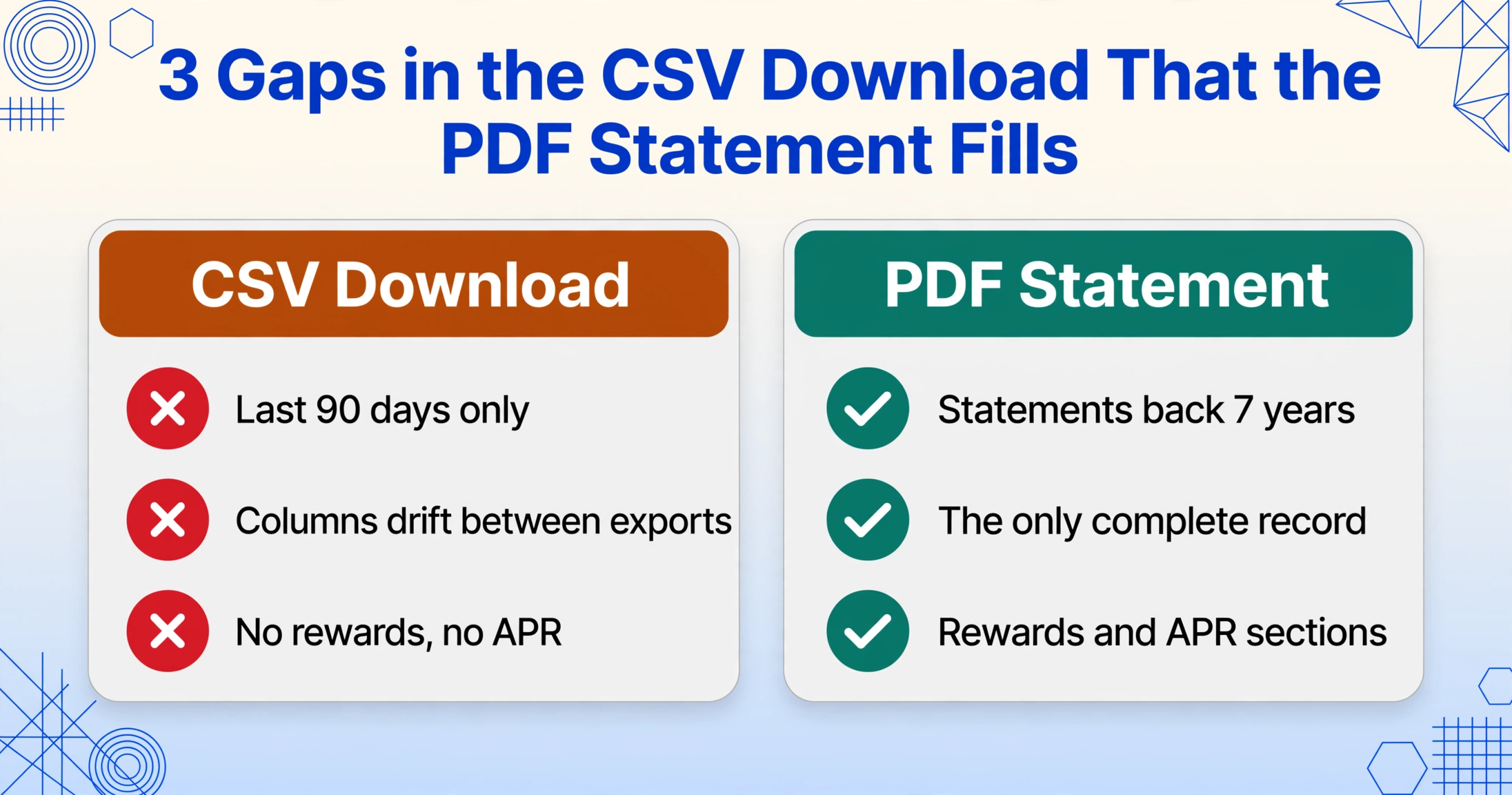
The gap shows up in three places, and each one maps to a real scenario that Capital One cardholders encounter.
First, the 90-day window. Capital One's transaction download covers the last 90 days by default. If you opened your card six months ago and need to reconcile year-to-date spending, the first three months aren't in the CSV. You can extend the date range on some account types, but not all — and for statements older than the current calendar year, the online export often shows nothing. The PDF statements, available going back 7 years according to Capital One's help center, are the only complete record.
Second, the CSV format drifts. A January CSV export from a Venture card might include columns for "Transaction Date, Post Date, Description, Amount." A September export from the same card might include an extra "Category" column after a website redesign. When you try to merge 12 months of CSVs into a single spreadsheet for annual analysis, those structural mismatches turn a quick import into a data-normalization project. This problem affects all major banks, and Capital One is no exception.
Third, the CSV doesn't include the rewards summary or APR data. If you track miles or cash back accumulation per statement — which is useful for verifying that your rewards posted correctly — the CSV export won't help. The rewards data lives only in the PDF statement layout. Extracting it requires either reading it from the PDF visually or using a tool that can read the statement's visual structure.
When to use each method: If you need current or near-current transactions and want the fastest possible workflow, Capital One's CSV download is the right choice. If you need statements older than 90 days, want rewards and APR data alongside transactions, or process multiple cards, PDF extraction with a format-independent AI tool saves time that manual entry or CSV wrangling can't match.
How Custom Column Extraction Reads a Capital One Credit Card Statement
The limitation of template-based extraction tools — where you define parsing rules for each document format — becomes visible the moment you process statements from two different Capital One card types. A Venture card statement arranges the rewards section differently from a Savor card statement. A business Spark card uses different terminology and layout from a personal card. A template built for one breaks on the other.
ImageToTable.ai's approach uses Custom Column Extraction — you define the columns you want in your output, and the AI locates the corresponding data in each document by understanding the semantic meaning of each section, not its position on the page. You type "Transaction Date," "Merchant," "Amount," and the AI finds them regardless of whether Capital One moved the date column slightly between statement redesigns. This is the same mechanism covered in the bank statement extraction guide, applied specifically to the credit card statement format.
The practical difference for Capital One statements is that you can define columns that capture the non-transaction data that checking statement extraction typically ignores:
| Column Name | Statement Section | Why Extract It |
|---|---|---|
| Transaction Date | Transaction Details | Foundation for any spending analysis |
| Merchant / Description | Transaction Details | Includes Capital One's category tag (GROCERIES, DINING) |
| Amount | Transaction Details | Purchases as debits, payments as credits |
| Category (Inferred) | Cross-section | AI reads the category tag and assigns your own classification |
| Rewards Earned This Period | Rewards Summary | Track miles or cash back per statement — verify against posted rewards |
| Reward Type | Rewards Summary | Distinguish Venture miles from Savor cash back if processing both cards |
| Purchase APR | Interest Charge Summary | Verify interest calculations if you carry a balance |
| Fees Charged | Account Summary + Transaction Details | Late fees, foreign transaction fees, returned payment fees |
The Inferred Column capability is especially useful for Capital One cardholders. Instead of manually categorizing each "AMAZON.COM*1A2B3C 04/12 WASHINGTON WA" transaction, you define a column like Spending Category (options: Online Shopping / Subscriptions / Travel / Food / Gas / Other) and the AI reads the merchant name, the Capital One category tag (if present), and the transaction context to assign a category. This works across all your statements in a batch — you define the rule once, and it applies to every transaction from every Capital One card.
Files are processed securely and not stored.
Step-by-Step: Capital One Credit Card PDF to Excel in 5 Minutes
This workflow works for any Capital One credit card — Venture, Venture X, VentureOne, Quicksilver, QuicksilverOne, Savor, SavorOne, Platinum, and business Spark cards. All of them share the same underlying statement structure even though the rewards and APR sections differ.
Download Your PDF Statements from Capital One
Sign in to capitalone.com, select your credit card account, and click "Statements." Capital One keeps up to 7 years of statements available for download. Select the statement period you need and download the PDF. If you manage multiple Capital One cards (a Venture for travel and a Savor for dining, for example), download each card's statements for the periods you need.
Upload All Statements in One Batch
Drag your Capital One PDFs into the upload area. You can upload a single statement or stack all the statements from multiple cards — the tool processes each one independently and merges the output. Every Capital One statement format, from the Venture card's "No Hassle Miles" layout to the Savor card's cash-back rewards section, is read by the same AI without per-card configuration.
Define Your Output Columns
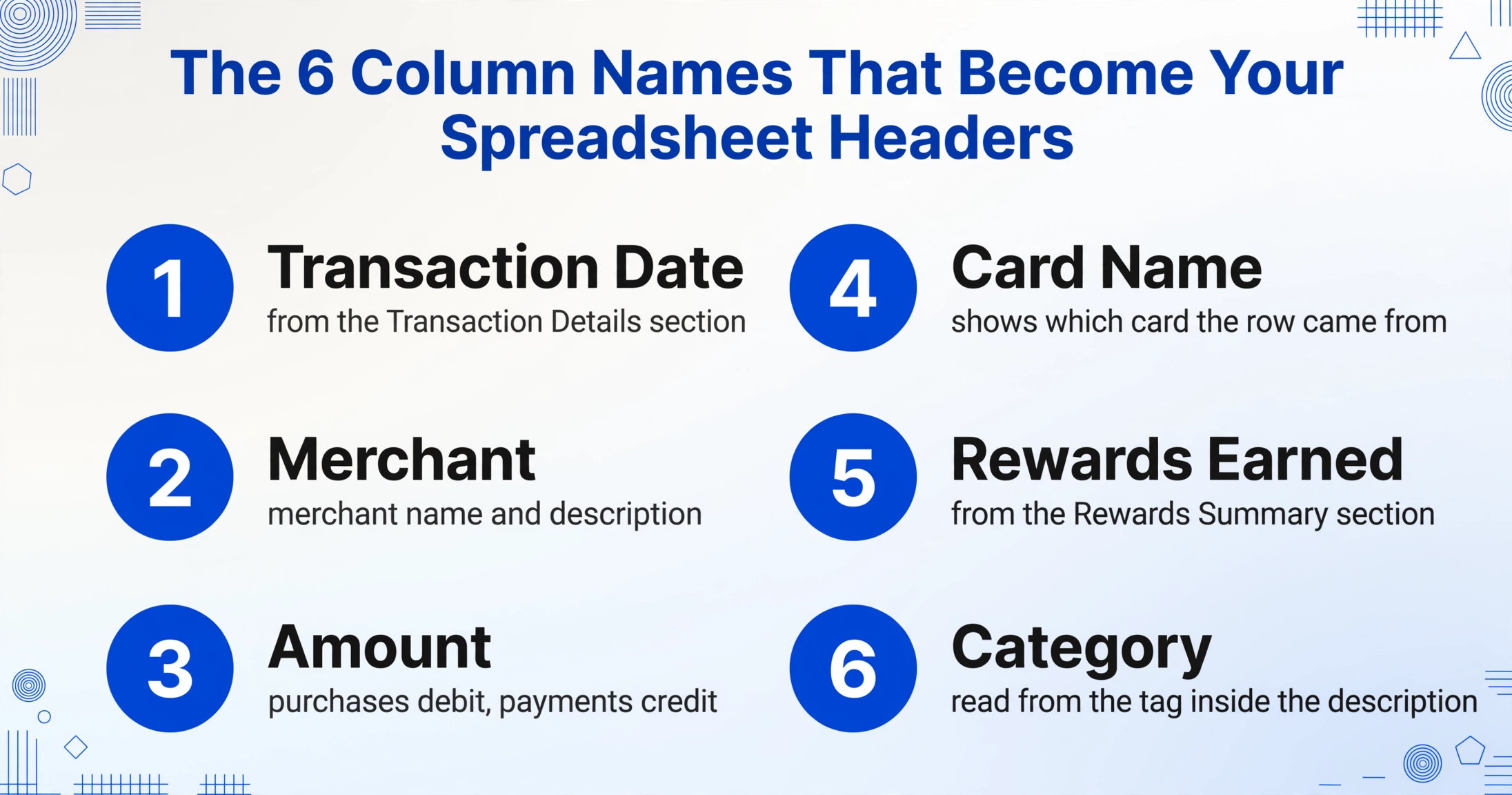
Type the column names you want. For most Capital One cardholders, the useful set is: Transaction Date, Merchant, Amount, Card Name (so you know which card the row came from), Rewards Earned, Category. The column names you type become the headers of your final spreadsheet. Capital One's transaction descriptions already include category tags like "GROCERIES" and "DINING" — you can add an inferred column to map those into custom categories that match your budget or tax setup.
Review the Extracted Data
The AI processes each statement page in 5-10 seconds. For a 4-page Venture card statement, extraction completes in under a minute. The output shows every transaction row plus the rewards summary and account summary data in structured columns. Spot-check the new balance in the extracted Account Summary against the statement PDF — if they match, your extraction is accurate.
Export to Excel or Google Sheets
Download the merged spreadsheet as Excel (XLSX). If you use the Google Sheets add-on, extracted data writes directly into your active spreadsheet — no download step needed. The output includes a source file column so you know which statement each row came from, which matters when you've combined multiple Capital One cards into one workbook.
Batch Multiple Capital One Credit Cards Into One Spreadsheet
Many Capital One cardholders carry more than one card. A common combination is a Venture X (travel rewards, used for most spending) plus a SavorOne (3% back on dining and groceries, used for food purchases). Each card generates a separate statement PDF each month, and combining them for a full spending picture means either merging 12 files per card manually or processing them together in one batch.
Batch processing both cards' statements simultaneously in a single upload produces a merged spreadsheet with every transaction from every card in one table. The source file column distinguishes rows from the Venture statement from rows on the Savor statement. This unified view is where the spending analysis that individual statement-by-statement review misses becomes visible: you can see that your total grocery spend across both cards is actually higher than the Savor card's grocery transactions alone suggest, because you sometimes use the Venture card at the same grocery store on autopilot.
The batch approach also captures the relationship between payments and cross-card balances. If you pay both cards from a single 360 Checking account, the monthly payment appears as a credit on each card's statement — but the total cash outflow from your checking account only becomes visible when both statements sit in the same analysis workbook. For a detailed walkthrough of combining multiple accounts into one reconciliation spreadsheet, see the guide to batch-processing bank statements for annual reconciliation — the same logic applies to credit cards.
For Capital One business cardholders (Spark Cash, Spark Miles), the batch workflow is identical. Business card statements from Capital One follow the same structural pattern as consumer cards, with the addition of category tags on certain transaction types and different APR disclosure formatting. The AI reads both consumer and business statement formats in the same batch — no separate configuration needed.
Frequently Asked Questions
Can I extract just the rewards summary from a Capital One credit card statement?
Yes. If you only need the rewards data, define a column named "Rewards Earned This Period" or "Miles/Cash Back" and the AI will locate the rewards summary section on each statement. Capital One places the rewards summary differently depending on card type — Venture cards show miles in a dedicated box near the account summary, while Savor cards show cash back earned by category. Custom Column Extraction finds both by understanding the semantic content of each section, not by looking for a fixed position.
How do I handle Capital One's "No Hassle Miles" vs "Unlimited Cash Back" in the same spreadsheet?
Add a "Card Name" or "Card Type" column to your extraction. This column can be a simple text entry you fill in per batch — the source file name usually contains the card type. If you process a Venture and a Savor statement together, the source-file column in the output tells you which rows came from which card. You can then filter or pivot by card type to keep miles and cash back tracked separately.
Does the extraction include the "Minimum Payment Warning" box data?
If you define a column named "Minimum Payment Due" or "Minimum Payment Warning," the AI will extract the dollar amount from the payment information box. This is useful for tracking whether your monthly payment exceeded the minimum — a common check for cardholders using AutoPay who want to verify the scheduled amount.
What about Capital One 360 checking account statements — same process?
Yes and no. The extraction workflow is the same — download PDF, upload, define columns. But 360 checking statements have a different structure from credit card statements: they lack the rewards summary and APR sections, and they include a running balance column that credit card statements don't show. The AI handles both formats without reconfiguration because you define the columns per extraction. For checking statements, define Date, Description, Debit, Credit, Balance. For credit card statements, include the card-specific columns like Rewards and APR.
Can I import the extracted Excel into QuickBooks or Xero?
Yes. The Excel export includes the transaction data in columns that both QuickBooks Online and Xero can accept via their CSV import paths. QuickBooks accepts CSV imports through Banking → Upload from file. Xero accepts imports under Accounting → Bank Accounts → Import a Statement. The key requirement for a clean import is a "Date" column and an "Amount" column — both are present in the standard extraction output.
What if my Capital One statement has transactions in a foreign currency?
Capital One credit cards (particularly Venture and Venture X) charge foreign transaction fees only on certain card types, and the statement displays the foreign transaction amount alongside the USD conversion. The AI reads both values and can output them as separate columns (Foreign Amount, USD Amount). This is useful for cardholders who track foreign spending by original currency for reimbursement or tax purposes.
How far back can I extract Capital One statements?
Capital One's online portal provides PDF statements going back up to 7 years for active accounts. As long as you can download the PDF, the extraction works — there is no time limit on the tool's side. This is particularly useful for tax audits or historical spending analysis where you need data from multiple prior years.
Capital One credit card statements contain more useful data than the transaction table alone — rewards summaries, APR details, payment information, and AutoPay status all live in structured sections that a semantic extraction engine can read without per-card templates. Whether you're reconciling a single Venture card or combining a Venture, Savor, and 360 Checking into a complete monthly picture, the workflow is the same: download the PDFs you already have access to, define the columns that match what you want to track, and let the AI read every section by understanding what each piece of data means — not where on the page it happens to sit.
Want the full workflow? Our guide to bank statement to spreadsheet covers multi-page statements, running balance validation, and batch processing for any bank — step by step.