The Complete Guide to Canadian T4 Slip
Data Extraction for Payroll Teams
Search for “T4 data extraction” today and you will find product pages showing a JSON snippet of Box 14 through Box 26 values, and explainers about what a T4 (Statement of Remuneration Paid) is and when to file it. Nothing in between. No guide that takes you from “my payroll software generated T4 slips for 150 employees across three platforms acquired through merger” to “every Box value from every slip is in one spreadsheet, reconciled against the T4 Summary, and the CPP2 Box 16A figures match the payroll register to the cent.” This is that guide.
Key Takeaways
- The CRA mandates every T4 box value but leaves the visual layout to your payroll provider — which means a template built for Ceridian silently produces wrong numbers on ADP and QuickBooks slips.
- Every year the CRA's PIER algorithm cross-matches your CPP and EI contributions against your reported earnings using deterministic math — and a single mistyped Box 16 value creates a remittance mismatch flagged between May and October.
- Define your extraction columns once as "Box 14 Employment Income" and "Box 16A CPP2" and the AI reads every box by its statutory meaning across all payroll provider layouts — because it matches what the field means rather than where it sits on the page.
What T4 Data Extraction Actually Is
T4 data extraction is the process of reading the statutory fields on a Statement of Remuneration Paid — employment income (Box 14), CPP contributions (Box 16), CPP2 contributions (Box 16A), EI premiums (Box 18), RPP contributions (Box 20), income tax deducted (Box 22), the full set of insurable and pensionable earnings figures (Boxes 24 and 26), and the Other Information area codes — and converting them into structured columns in a spreadsheet, one row per employee per tax year. The T4 slip is governed by the CRA's RC4120 Employers' Guide, which mandates every box label, every data type, and every reporting rule — while leaving the visual layout entirely at the payroll software provider's discretion.
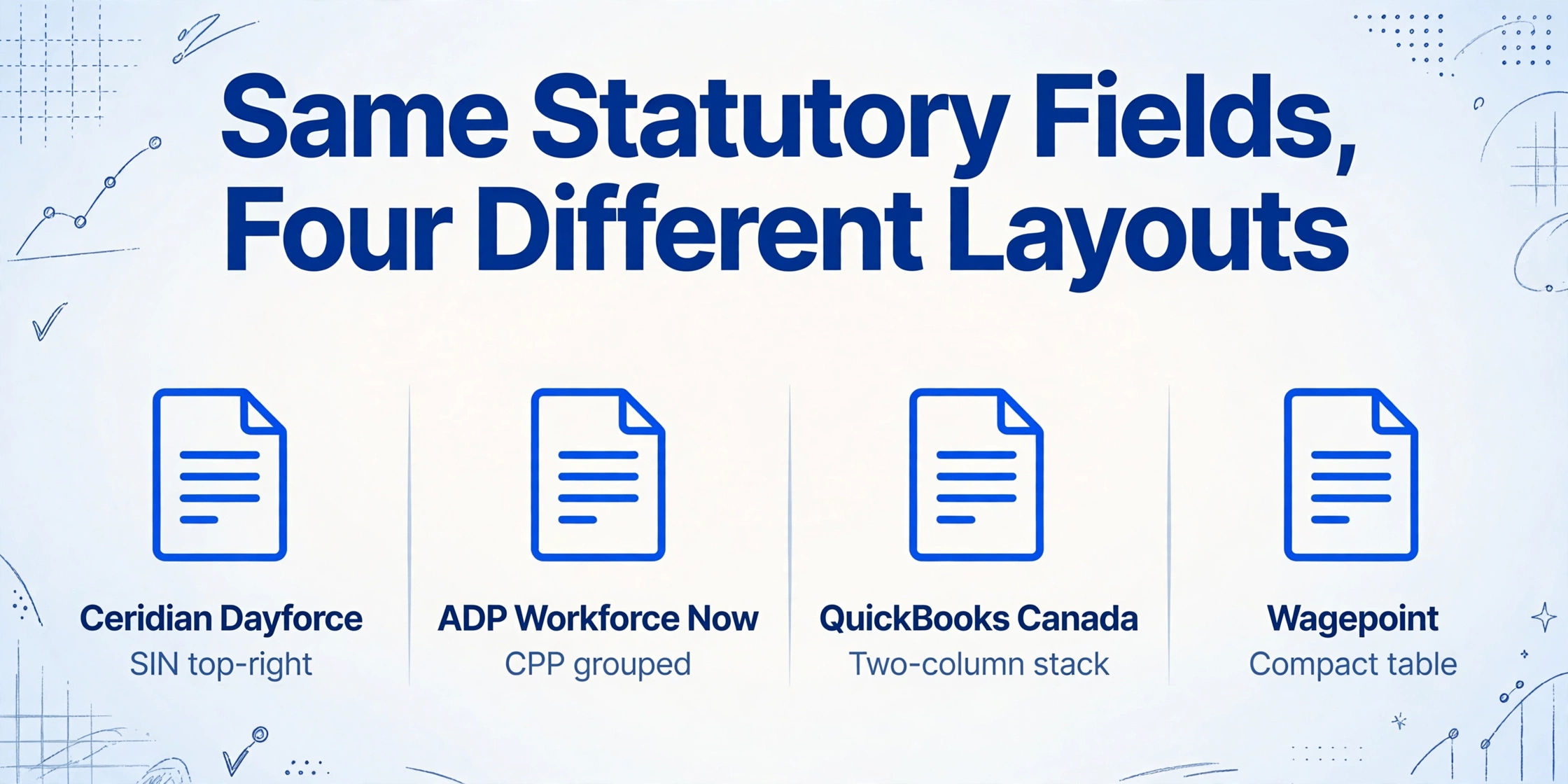
This distinction — mandated data, free-form layout — is why T4 extraction exists as a category. A Ceridian Dayforce T4 prints the employee SIN top-right and the employer payroll account number (Box 54) in a header block above a grid of Box numbers. An ADP Workforce Now T4 uses a different spatial arrangement with the CPP/QPP box values grouped in a separate quadrant. A QuickBooks Canada Payroll T4 aligns all values in a single two-column stack. All three certificates are equally CRA-compliant. All three contain the same statutory fields. And all three defeat a template that was built for any one of them.
Custom Column Extraction — where you define the output columns your spreadsheet needs (“Box 14 Employment Income,” “Box 16 CPP,” “Box 16A CPP2,” “Box 22 Income Tax Deducted”) and the AI locates each value on every T4 by understanding what the field label means rather than where it sits on the page — is what makes extraction work across payroll providers without per-provider configuration. The same column definition reads a Ceridian T4, an ADP T4, a QuickBooks T4, a Wagepoint T4, and a phone photo of a paper T4 slip from an employer the company acquired in 2023 whose payroll platform is no longer accessible. The AI reads by meaning, not by template.
The core shift: T4 extraction moves the logic from “where on the page is this box” to “what does this box mean in the context of a Canadian employment income statement.” Box 26 CPP pensionable earnings formatted as $71,300.00 is the same data whether it appears in a bordered table cell, a left-aligned text block, or a column labeled “Pensionable Earnings” without the box number — and the extraction system that understands that distinction is the one that handles every payroll provider's layout with a single column definition.
T4 Anatomy: The Complete Box-by-Box Reference
Every T4 slip carries the same statutory structure. Understanding what each box reports — and how the CRA uses it — is the foundation of designing an extraction column set that captures everything the payroll reconciliation, T4 Summary, and PIER response require. Boxes are organized into three sections: the Identification Area (employer and employee details), Income and Source Deductions (the core boxes 14–26), and the Other Information area (codes 30–94 for taxable benefits, allowances, and adjustments).
Core Income and Deduction Boxes
These are the fields every extraction must capture. They are the numbers the CRA cross-matches against the T4 Summary and the PIER algorithm.
| Box | Label | What It Reports | T1 Line | PIER Relevance |
|---|---|---|---|---|
| 14 | Employment Income | Total gross employment income before deductions — salary, wages, bonuses, commissions, taxable benefits, and allowances. 10 digits max including cents. | 10100 | Input to ratio check against Box 24/26 |
| 16 | Employee's CPP Contributions | Total CPP deducted. For 2025, max $4,034.10 on earnings up to YMPE of $71,300. Rate: 5.95% on (pensionable earnings − $3,500 exemption). | 30800 | Primary PIER target: divides Box 16 by (Box 26 − $3,500) and compares to 5.95% |
| 16A | Employee's Second CPP Contributions (CPP2) | Introduced 2024. 4% on pensionable earnings between YMPE ($71,300) and YAMPE ($81,200) for 2025. Max $396. Report $0.00 if none — never leave blank. | 22215 (Schedule 8) | Highest PIER trigger for 2024-2025: blank or zero when earnings exceed YMPE |
| 18 | Employee's EI Premiums | Total EI premiums deducted. For 2025, rate 1.64% on insurable earnings up to $65,700. Max employee premium: $1,077.48. | 31200 | PIER compares Box 18 ÷ Box 24 to 1.64% |
| 20 | RPP Contributions | Employee contributions to a Registered Pension Plan, including past service contributions and installment interest. Reported separately from PA. | 20700 | Affects RRSP room via Box 52 |
| 22 | Income Tax Deducted | Total federal and provincial (except Quebec) income tax withheld. Must match cumulative remittances on PD7A. | 43700 | PD7A reconciliation anchor (T4SUM Line 80 vs 82) |
| 24 | EI Insurable Earnings | Earnings subject to EI premiums, capped at $65,700 for 2025. Often equals Box 14 up to the maximum. Report $0 if no insurable earnings. | — | Denominator in PIER EI ratio |
| 26 | CPP/QPP Pensionable Earnings | Earnings subject to CPP contributions, capped at $81,200 for 2025. May differ from Box 14 if earnings are CPP-exempt or include non-pensionable components. | — | Denominator in PIER CPP ratio (minus $3,500 exemption) |
| 28 | Exempt (CPP/QPP, EI, PPIP) | Check mark or X for workers exempt from any statutory deduction. Common codes: "E" for EI-exempt, "CP" for CPP-exempt. A missing exempt flag on an exempt employee triggers false PIER flags. | — | Prevents false-positive PIER when Box 26 > Box 16 × rate |
| 29 | Employment Code | CRA-defined numeric code. 11 = regular employment. 14 = salary deferral arrangement. Affects how the CRA interprets Box values. | — | — |
| 50 | RPP/DPSP Registration Number | The pension plan's CRA registration number (7 digits). Required when Box 20 has a value. | — | — |
| 52 | Pension Adjustment (PA) | Value of pension benefits accrued. Reduces the employee's RRSP contribution room on their Notice of Assessment. Generally = (9 × annual employer+employee pension credits) − $600. Reported in dollars only, no cents. | 20600 | Incorrect PA cascades into wrong RRSP limit on NOA |
| 54 | Employer's Payroll Account Number | 15-character number (e.g. 123456789RP0001). Must match the BN on the T4 Summary. Do not include on employee copies. | — | Mismatch = rejection on electronic filing |
| 55 | Employee's PPIP Premiums | Provincial Parental Insurance Plan (Quebec only). Leave blank for non-Quebec employees. | — | — |
Other Information Area Codes
The “Other Information” section on the T4 slip reports taxable benefits, allowances, and adjustments using numeric codes. These amounts are already included in Box 14 Employment Income — the codes identify them separately for the employee's tax return. Extraction must capture these alongside the core boxes to produce a complete dataset.
| Code | What It Reports | Common Scenario |
|---|---|---|
| 30 | Group term life insurance — premiums paid by employer on coverage > $25,000 | Standard benefit for salaried employees with employer-paid life insurance |
| 34 | Personal use of employer automobile — standby charge + operating expense benefit | Company car provided to sales managers or executives |
| 36 | Interest-free and low-interest loans | Employer-provided housing loan below CRA prescribed rate |
| 38/39 | Security options benefits — total value and 1/2 deduction (pre-2025 admin policy) | Tech company stock options for employees |
| 40 | Other taxable allowances and benefits not reported elsewhere | Parking, gifts > $500, employer-paid professional dues |
| 42 | Employment commissions | Commission-only sales agents where commissions = primary income type |
| 44 | Union dues | Deductible under Income Tax Act paragraph 8(1)(i) — reported on line 21200 |
| 46 | Charitable donations made through payroll deduction | United Way or other registered charity payroll giving programs |
| 71 | Indian Act (exempt income) — Employment | Tax-exempt earnings for Status Indians working on-reserve |
| 85 | Employee-paid premiums for private health services plans | Employee share of health/dental premiums — used for medical expense tax credit (line 33099) |
T4 Summary (T4SUM) Lines That Depend on Extracted Data
The T4 Summary is the control document filed alongside the T4 slips. Each line totals a specific Box across all employees. Extraction directly feeds these lines — a transcription error in any extracted Box value propagates to the corresponding T4SUM total.
| T4SUM Line | Aggregates | Reconciles Against |
|---|---|---|
| 14 | Total Box 14 — Employment Income across all slips | Payroll register YTD gross earnings report |
| 16 | Total Box 16 — CPP contributions | CPP remittances on PD7A |
| 16A | Total Box 16A — CPP2 contributions | CPP2 remittances on PD7A (separate line from 2024) |
| 18 | Total Box 18 — EI premiums | EI remittances on PD7A |
| 22 | Total Box 22 — Income tax deducted | Income tax remittances on PD7A |
| 80 | Total deductions reported (Lines 16 + 16A + 18 + 19 + 22) | — |
| 82 | Total remittances per PD7A | PD7A statement for full calendar year |
| 84/86 | Overpayment or balance due (Line 80 − Line 82) | General ledger payroll liability account |
Why T4 Data Extraction Matters
Under the Income Tax Act, every employer who paid employment income during a calendar year must issue a T4 to each employee and file the slips with the CRA by the last day of February. For the payroll software that generated the certificates, that is where the workflow ends. For the payroll team, it is where four downstream workflows begin — and none of them are served by the payroll software's PDF generation feature.
Payroll-to-T4 Reconciliation
A payroll department running year-end needs to confirm that the figures on every employee's T4 match the payroll register before the slips are filed. The reconciliation runs employee by employee: extract all T4 boxes into a spreadsheet, diff each box against the corresponding payroll register YTD total, investigate every discrepancy larger than $2. At 150 employees with 14 core boxes each, this is 2,100 individual comparisons. A single mistyped Box 16 value creates a CPP remittance mismatch the CRA's PIER program will flag between May and October. For the step-by-step method, see how to extract Canadian T4 slip data into Excel for payroll year-end reconciliation.
T4 Summary Assembly
The T4SUM aggregates every box value across all employees. Line 80 sums the total deductions reported, and Line 82 pulls the total remittances from the year's PD7A statements. The difference — if any — determines whether the employer has a balance due or an overpayment. Manual box-by-box totaling across 150 paper or PDF T4 slips introduces cumulative rounding and transcription errors. Extracted data eliminates that layer: the box totals are sums of machine-read columns, not sums of hand-typed numbers. For the full filing preparation sequence from data audit to CRA submission, see the T4 February deadline checklist.
PIER Defense: The Audit That Arrives in August
Every year, the CRA's Pensionable and Insurable Earnings Review (PIER) program cross-matches the CPP and EI contributions reported on T4 slips against the contributions that should have been deducted based on the reported earnings. The algorithm is deterministic: divide Box 16 by (Box 26 minus the $3,500 basic exemption), compare to the statutory rate of 5.95% for 2025. If the effective rate deviates, the employee is listed on a PIER report. The employer has 30 calendar days to respond. The reconciliation workbook from the extraction process — showing every Box value diffed against the payroll register — is the first and best response to a PIER inquiry. Without it, responding to a PIER listing for even 10 employees consumes roughly 40 hours of reconstruction work.
Multi-Employer Tax Filing for Accounting Firms
An accounting practice serving 30 small business clients receives T4 slips from each client's payroll provider — which could be any of Ceridian, ADP, QuickBooks, Wagepoint, Humi, Rise, Knit, or PaymentEvolution. Each provider prints the same statutory boxes in a visually distinct layout. The accounting firm's workflow — aggregate each employee's income across all clients' T4s for tax preparation scheduling — depends on extraction that handles all eight layouts without per-provider configuration. For a calculation of what this manual cross-provider data entry costs, see what manual T4 processing costs Canadian employers per tax season.
The Unique Challenges of T4 Extraction
T4 slips share extraction challenges with other year-end tax certificates — format diversity across payroll software, the gap between digital PDFs and scanned paper, inconsistent field labeling — but they also carry structural problems that the Canadian payroll system introduces. Understanding these before you build an extraction workflow is what prevents the spreadsheet from needing a second pass of manual corrections after the February deadline.
Standardized Form, Diverse Rendering: The Same Box, Different Page Positions
The CRA mandates what must appear on a T4 slip — every box label, every data format — but does not mandate visual layout. Ceridian Dayforce places the employer's name and payroll account number in a header block above a bordered grid of box values. ADP Workforce Now prints the employee SIN top-right and the CPP/QPP values in a grouped section. QuickBooks Canada Payroll stacks all fields in two narrow columns. Wagepoint uses a compact single-page table format. All four are CRA-compliant. None share a template.
This is not a flaw — it exists because Canadian employers have used different payroll platforms for decades, and the CRA's regulatory philosophy is to mandate data content and format, not visual design. The practical consequence for extraction is that a template-based approach calibrated for Ceridian Dayforce outputs produces empty cells or wrong field values on ADP T4s. Semantic extraction — reading by box label meaning rather than by pixel coordinate — handles all providers with a single column definition.
CPP2 Box 16A: The Box That Did Not Exist Before 2024
The Canada Pension Plan enhancement introduced a second earnings ceiling and a second contribution tier starting in the 2024 tax year. For 2025, the parameters are: YMPE (Year's Maximum Pensionable Earnings) of $71,300, with CPP contributions at 5.95%; YAMPE (Year's Additional Maximum Pensionable Earnings) of $81,200, with CPP2 contributions at 4% on the portion of earnings between $71,300 and $81,200. The maximum CPP2 contribution is $396. Box 16A reports the total CPP2 contributions for the year.
Three extraction-specific challenges with Box 16A: (1) Payroll software that was not updated for CPP2 may omit Box 16A entirely or print a blank value — an extraction that captures no value when a value should exist produces a PIER flag. (2) Payroll software that was updated mid-year may have CPP2 for part of the year only — the extracted value must be validated against the payroll register's CPP2 YTD total, not assumed correct. (3) Employees whose earnings cross the YMPE threshold partway through a pay period have a prorated CPP2 contribution — the extraction value, when validated against a manual calculation, confirms whether the payroll software applied the proration correctly. For the full breakdown of how Box-related errors compound through the PIER cycle, see why manual T4 entry creates a PIER problem every February.
Multi-Province Employees: One Employee, Multiple T4 Slips
An employee who worked in Ontario from January to June and Alberta from July to December must receive two separate T4 slips — one for each province of employment. Each slip reports only the income, deductions, and earnings attributable to that province's employment period. The two slips share the same SIN and employee name but carry different employer province codes and potentially different CPP/EI figures if the employee exceeded the annual maximums during the second province's employment period.
Extraction must preserve the one-employee-to-multiple-slips relationship without merging the data into a single row — because the CRA's PIER algorithm evaluates each T4 separately, and merging would produce a combined Box 26 value that does not match either individual slip. The correct extraction output is two rows for the same employee, each with its own province code and box values, and a separate reconciliation step that confirms the two-box CPP total equals the full-year CPP contribution from the payroll register.
Amended and Cancelled T4s: The Slips That Replace the Original
An amended T4 slip — filed when the employer discovers an error after the original has been submitted — must contain all box values, not just the corrected ones. The CRA replaces the original slip in its records with the amended version. An extraction of the amended slip must capture the complete dataset, and the comparison with the original slip extraction must surface only the changed values. A cancelled T4 — filed when a slip was issued in error — carries box values but should not be included in the T4SUM totals. The extraction workflow must flag the slip type (Original/Amended/Cancelled) as a column so the reconciliation step excludes cancelled slips from the aggregation.
Quebec RL-1: The Provincial Shadow Document
For employees whose province of employment is Quebec, the employer must issue both a federal T4 and a provincial RL-1 (Relevé 1) through Revenu Québec. The RL-1 carries QPP contributions instead of CPP, QPIP premiums instead of EI, and a different set of box identifiers (Box A through Box P and Case O through Case T). The T4 issued for a Quebec employee will show zero or reduced CPP and EI values because QPP and QPIP apply instead. Extraction that captures a T4 for a Quebec employee must recognize that Box 16 (CPP) may be blank while Box 17 (QPP) on the RL-1 carries the pension contribution — and that the two documents must be reconciled together for a complete earnings picture. For this guide, the Quebec RL-1 is out of scope (it warrants its own cluster), but any T4 extraction workflow that handles Quebec employees must account for this dual-document requirement.
See T4 Extraction in Action
The demo below is a live extraction interface. Each column name you type becomes an extraction instruction — the AI reads the document, identifies the value matching each column's semantic description, and populates a spreadsheet row. No templates, no coordinate zones, no per-payroll-provider configuration.
Files are processed securely and not stored.
Traditional Methods vs AI-Powered T4 Extraction
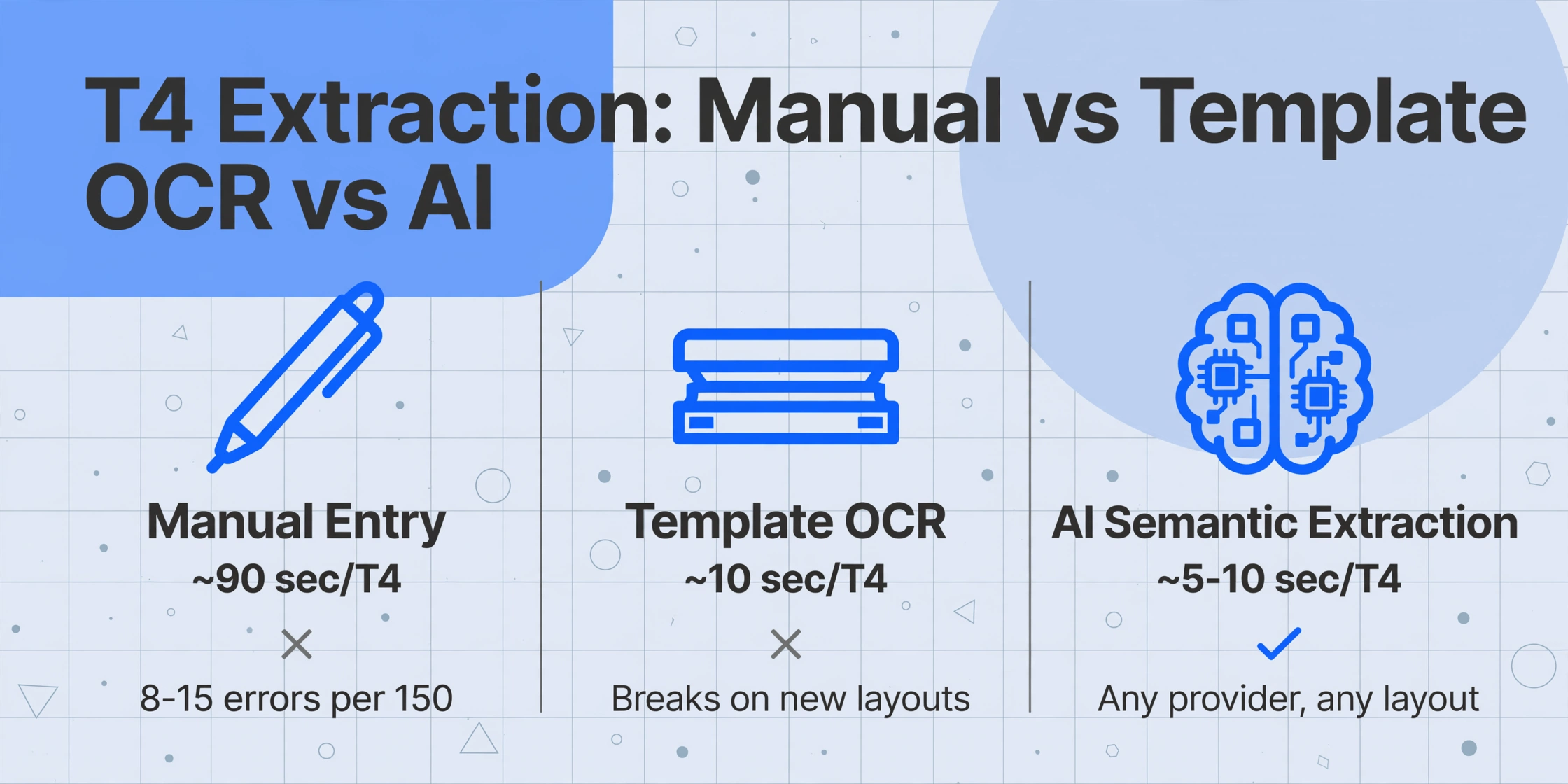
Three approaches exist for getting T4 data into a spreadsheet, and the choice between them defines whether the February payroll window is a typing marathon or a file upload and export sequence.
| Method | How It Works | Speed (per T4) | Handles Multiple Payroll Provider Layouts | Handles CPP2 Box 16A Edge Cases |
|---|---|---|---|---|
| Manual Entry | Open each T4, locate 14+ box values, type into spreadsheet cells | ~90 seconds | Yes (human adapts visually) | Yes (human interprets context but at 0.5-1% per-field error rate introducing 8-15 transcription errors per 150-employee batch) |
| Template / Zonal OCR | Define coordinate zones per payroll provider layout; OCR reads text within each zone | ~10 seconds | No — each provider requires a separate template; a Ceridian template produces garbage on ADP T4s; new providers break all existing templates | No — extracts text but does not validate CPP2 rate against YMPE threshold or flag blank Box 16A on high-earning employees |
| AI Semantic Extraction | Vision AI reads document by understanding field meaning and document structure, not pixel position | ~5-10 seconds | Yes — layout-agnostic; one column definition works across Ceridian, ADP, QuickBooks, Wagepoint, Humi, Rise, and scanned paper T4s | Yes — extracts all boxes consistently; enables Excel validation rules to flag blank Box 16A on employees earning above YMPE and verify CPP2 = 4% × (earnings − YMPE) |
Template-based OCR — the approach used by legacy document processing tools — defines rectangular zones on a document image and runs OCR within each zone. For a Ceridian Dayforce T4 where Box 14 sits at one set of coordinates, the template reads whatever text appears in that rectangle. An ADP Workforce Now T4 where Box 14 sits at a different set of coordinates produces an empty cell or a wrong value — because the template was built for Ceridian, not ADP. Since Canadian payroll platforms use fundamentally different T4 layouts, a template system needs one template per provider, plus a fallback for scanned paper T4s from employers whose payroll platform is unknown — and every time a provider updates their printing engine, all templates built for that provider silently break.
AI semantic extraction inverts this logic. Instead of defining where data sits on the page, you define what data you want — by typing the column names your spreadsheet needs. The AI reads the entire document, identifies each box by its semantic role within a Canadian employment income statement, and populates the corresponding column regardless of pixel position. A T4 from Ceridian, a T4 from ADP, and a phone photo of a paper T4 from an acquired subsidiary all produce populated rows in the same spreadsheet because the AI matches by meaning rather than by coordinate. This is the fundamental shift from position-based extraction to semantic-based extraction.
The difference compounds at scale. At 90 seconds per T4 for manual entry — locating 14 boxes, typing each value, verifying — 150 employees consume roughly 3.75 hours of focused transcription work, with a per-field error rate of 0.5-1% introducing 8 to 15 transcription errors before the reconciliation step even begins. AI extraction processes the same 150 T4s in approximately 12 to 25 minutes of total processing time, with zero transcription errors. For the full math on the cost side, see what manual T4 processing costs Canadian employers per tax season. For the structural problem that gets worse every year, see why Canadian payroll teams still re-key T4 box numbers every February.
T4 Extraction Workflow: From PDF to CRA-Ready Spreadsheet
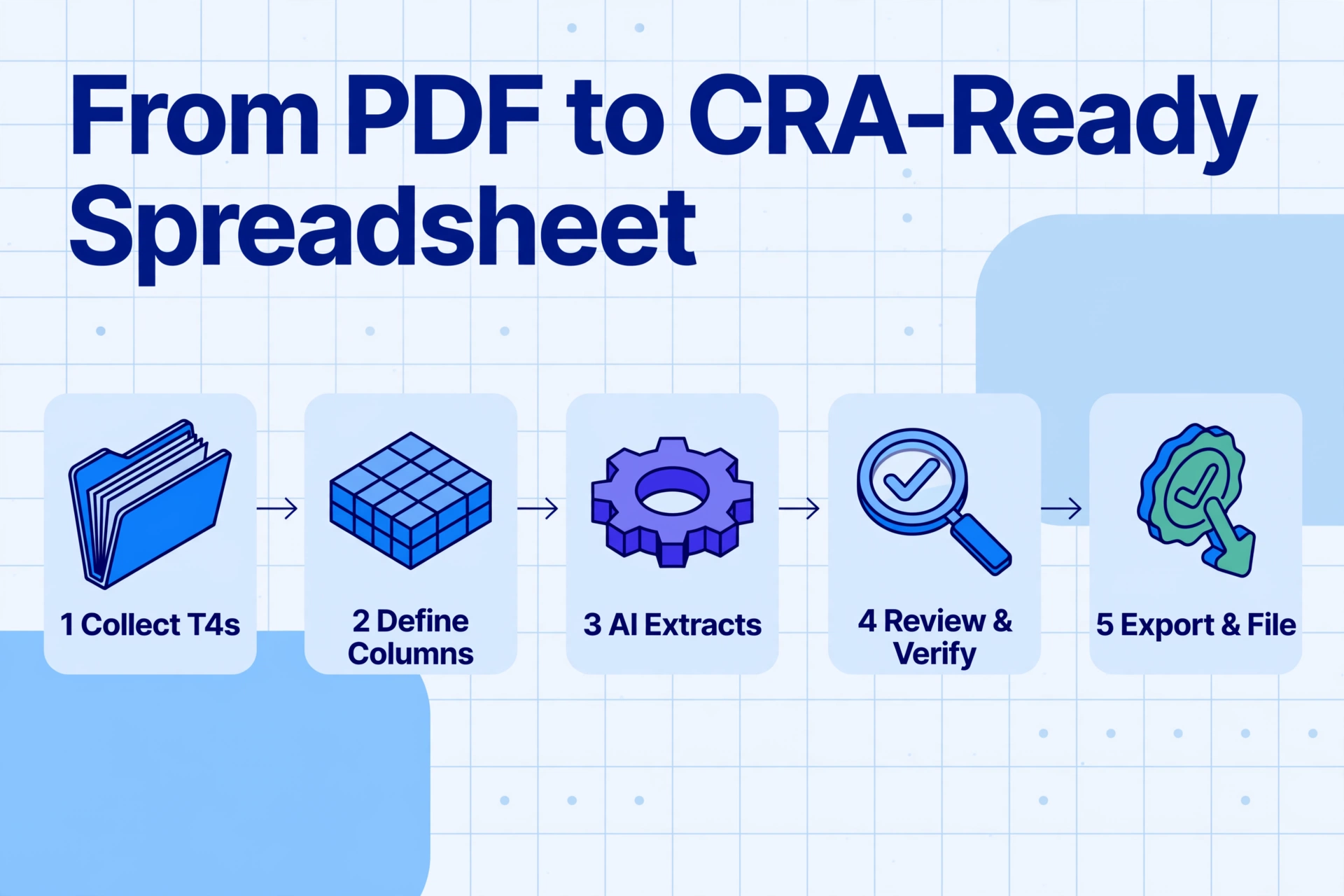
The extraction workflow follows a five-step sequence. Each step depends on the previous step producing clean data. A column definition error in Step 2 — specifying “Box 16” when you meant “Box 16A” — propagates through every subsequent step until the T4SUM reconciliation fails.
Collect T4 slip files from each payroll source
T4s may arrive as digitally generated PDFs from your payroll software, phone photos of paper slips from former employees, or exported PDFs from a payroll provider the company no longer uses. All three formats enter the same extraction pipeline. Organize files by payroll account number — the BN on the T4 Summary must match the Box 54 on every slip, and extraction organized by account prevents cross-account contamination of box totals. If an employee has T4s from two different payroll accounts under the same employer's Business Number, confirm they are separate slips, not duplicates.
Define extraction columns — exactly what your spreadsheet needs
Type the column names matching the T4 boxes you need: “Employee Name,” “SIN,” “Box 14 Employment Income,” “Box 16 CPP,” “Box 16A CPP2,” “Box 18 EI,” “Box 20 RPP,” “Box 22 Income Tax Deducted,” “Box 24 EI Insurable Earnings,” “Box 26 CPP Pensionable Earnings,” “Box 44 Union Dues,” “Box 52 Pension Adjustment,” “Province of Employment.” The AI reads each column name, understands it as a field to locate on the T4, and extracts the corresponding value — regardless of which payroll provider generated the slip. For the batch extraction approach that processes all 150 T4s at once, see how to batch-process T4 slips into one CRA-compliant payroll summary.
Upload and extract — process all slips in one batch
Upload all T4 slip files — PDFs, images, phone photos — in a single batch. The tool processes them concurrently, and the output is a spreadsheet where each row corresponds to one T4 slip and each column corresponds to one box you defined. If you defined 12 columns, every row contains 12 values. A properly constructed extraction produces a spreadsheet where Box 14 column contains an employment income figure, Box 16A column contains the CPP2 amount (or 0.00), and the province column contains the two-letter provincial code.
Validate the extraction output before reconciliation
Before you compare extracted values against the payroll register, validate the extraction itself. Check that every row has a SIN, that Box 14 values are positive numbers under 10 digits, that Box 16A is populated for any employee whose Box 26 exceeds $71,300, that Box 18 ÷ Box 24 equals approximately 0.0164, that Box 16 ÷ (Box 26 − $3,500) equals approximately 0.0595. Build these checks as Excel formulas in the extracted spreadsheet — they catch extraction errors before they become reconciliation errors. A blank Box 16A on a row where Box 26 shows $78,000 is either an extraction failure or a payroll software error — but you need to know which before you submit. For the full catalog of form entry errors that trigger CRA audits, see common T4 box entry errors that trigger CRA payroll audits.
Export and reconcile — diff extracted values against the payroll register
Export the validated spreadsheet to Excel. Open your payroll register's YTD report. For each employee, compare each extracted box value against the corresponding payroll register figure. Investigate every discrepancy larger than $2. A $50 difference in Box 22 between the extracted T4 and the payroll register means either the T4 was generated incorrectly, the payroll register YTD figure is wrong, or — most commonly — a manual adjustment was applied in the payroll system after the YTD report was run. Document each discrepancy and its resolution before you assemble the T4 Summary. For the complete filing preparation sequence from data audit to CRA submission, see the T4 February deadline preparation checklist.
Batch Processing: 150 Employee T4s Into One CRA-Compliant Spreadsheet
Batch processing is where extraction delivers its largest efficiency gain over manual entry. The workflow: upload every T4 slip file for a given payroll account — 150 PDFs, or 150 scanned images, or a mix — define your column set once, process them all in a single batch. The output is one spreadsheet with 150 rows and N columns, where N is the number of T4 boxes you defined. Each row is one employee. Each column is one box. The spreadsheet is ready for the validation and reconciliation steps described above.
Batch processing solves three problems that manual entry cannot: (1) Column consistency — every row's Box 14 value is in the same column position because the extraction engine applied the same column definition to every file. Manual entry produces the same column structure but at a per-field error rate. (2) Multi-format handling — the same batch can contain Ceridian T4s, ADP T4s, QuickBooks T4s, and phone photos of paper T4s. The extraction engine handles each format without per-file configuration. Manual entry requires the same visual adaptation but takes 90 seconds per slip instead of 3. (3) Audit trail — the extracted spreadsheet plus the original files form a complete audit record. If the CRA queries a specific employee's Box 16 value, you can open the original T4 PDF, confirm the extracted value matches, and respond with both files attached.
For the complete batch processing workflow — including multi-platform payroll environments, exception handling for employees with multiple T4 slips, and the merge-to-T4SUM step — see the dedicated batch T4 processing guide.
T4SUM Reconciliation: From Extracted Data to CRA Submission
The T4 Summary is the document the CRA uses to validate your T4 filing. Each line on the T4SUM is a sum of a corresponding box across all T4 slips. Extraction provides the raw data. Reconciliation confirms it.
The workflow from extraction to T4SUM is: (1) Open the extracted spreadsheet. (2) Add a SUM row at the bottom of each box column — this is your draft T4SUM line total for that box. (3) Pull your full-year PD7A statement of account. (4) Compare each column sum against the corresponding PD7A line: the Box 22 column sum against income tax remitted, the Box 16+16A column sum against CPP+CPP2 remitted, the Box 18 column sum against EI remitted. (5) If the totals differ by more than a rounding tolerance, investigate and document before filing. (6) Enter the verified totals into the T4 Summary.
A common failure mode: the PD7A used for Line 82 covers only part of the calendar year — for example, January through November — because the December remittance was processed in January and appears on a different PD7A. The T4SUM Line 82 must reflect the full calendar year remittances. Pull the PD7A covering January 1 through December 31, or sum the individual PD7As covering the full year. For the complete filing preparation checklist, see the T4 February deadline preparation guide.
The T4SUM is not a separate document from the T4 slips. Every line on the T4 Summary is a direct function of the box values on the individual T4 slips. An extraction spreadsheet where every box is captured accurately produces T4SUM figures that match the underlying slips exactly. The verification step — comparing column sums against PD7A remittances — then tests whether the payroll system correctly remitted throughout the year, not whether the extraction captured the numbers correctly.
The Same Structural Problem, Different Tax Authorities
The challenge — a payroll system generates year-end certificates in diverse formats, and the data must be extracted, verified, reconciled, and filed before a statutory deadline — is not unique to Canadian T4 slips. In the United Kingdom, P60 End of Year Certificates from Sage, Xero, BrightPay, and IRIS carry the same employer PAYE reference, NINO, and statutory pay-and-tax fields across incompatible visual layouts. In Australia, PAYG Payment Summaries from Xero, MYOB, and KeyPay present the same gross payments and total tax withheld across different layouts. The tax authority changes, the box labels change, the statutory rates change — but the extraction problem, the reconciliation workflow, and the four-week year-end window are structurally identical. The semantic extraction approach that reads a Ceridian T4 by box meaning rather than pixel position reads a Sage P60 and a Xero PAYG summary the same way: find the value matching this field label, regardless of where on the page it sits.
FAQ: Canadian T4 Slip Data Extraction
What T4 boxes should I extract for payroll reconciliation?
At minimum, extract Box 14 (Employment Income), Box 16 (CPP), Box 16A (CPP2), Box 18 (EI), Box 22 (Income Tax Deducted), Box 24 (EI Insurable Earnings), Box 26 (CPP Pensionable Earnings), and Box 44 (Union Dues). For employees with pension plans, also extract Box 20 (RPP Contributions) and Box 52 (Pension Adjustment). For employees with taxable benefits, extract the relevant Other Information codes — at minimum Code 40 (Other Taxable Allowances) and Code 34 (Personal Use of Automobile). The extraction column set should match the boxes your payroll reconciliation verifies — if you do not reconcile RPP contributions, you do not need to extract Box 20, but every box produced by your payroll software that feeds a T4SUM line should be in the extraction set.
Does T4 extraction work with French-language T4 slips from Quebec?
Yes — the box numbers are the same in both languages (the CRA uses a single numeric box-numbering system), and the AI reads field values by understanding the document structure regardless of whether the labels are in English or French. For an employee whose province of employment is Quebec, the T4 will show zero or reduced CPP and EI values because Quebec uses QPP (Quebec Pension Plan) and QPIP (Quebec Parental Insurance Plan) instead. The T4 extraction captures the federal-side values; the provincial RL-1 (Relevé 1) captures the Quebec-side values and requires a separate extraction pass with different box identifiers (Box A through P plus Case O through T). For Quebec employees, the two documents must be extracted and reconciled together to produce a complete earnings picture.
Can extraction handle T4 slips where Box 16A is missing from the printed slip?
Yes — the AI extracts whatever appears on the document. If Box 16A is not printed on the T4 slip (common on slips from payroll software that has not been updated for CPP2), the extraction column for Box 16A will return a blank or null value. This is a data quality signal, not an extraction failure: a blank Box 16A on an employee whose Box 26 exceeds the YMPE of $71,300 indicates that either the payroll software did not generate CPP2 calculations, or the CPP2 amount was included in Box 16. The extraction spreadsheet should include a validation column that flags rows where Box 26 > $71,300 and Box 16A is blank — these rows require manual investigation before the T4 is filed.
How does extraction handle T4 slips from different payroll platforms in the same batch?
AI semantic extraction reads each T4 by understanding what each box label means, not where it sits on the page. A batch containing Ceridian T4s, ADP T4s, QuickBooks T4s, and scanned paper T4s all produce populated rows in the same spreadsheet without per-provider configuration. The same column definition — "Box 14 Employment Income" — extracts the employment income value from every provider's T4 because the AI understands that "Employment Income," "Emploi — Revenu d'emploi," or a box labeled "14" next to a dollar figure all represent the same statutory field. Template-based approaches fail on mixed-format batches because each provider requires a separate coordinate-based template, and the batch must be pre-sorted by provider before extraction begins.
What is the fastest way to validate extraction accuracy across 150 T4 slips?
Build PIER-simulation formulas directly in the extracted spreadsheet. For each row: Box 16 ÷ (Box 26 − $3,500) should equal approximately 0.0595; Box 18 ÷ Box 24 should equal approximately 0.0164; Box 16A should be non-zero if Box 26 > $71,300; Box 16 should not exceed $4,034.10; Box 18 should not exceed $1,077.48. Any row failing these checks is flagged for manual inspection. This catches extraction errors (wrong value in wrong column), payroll software errors (incorrect CPP2 proration), and data exceptions (CPP-exempt employees) in a single pass. At 150 rows, the formula-based validation takes under 30 seconds — but the same validation done manually, by visual inspection of 2,100 individual box values, would take approximately 90 minutes and is subject to the same per-field error rate as the manual entry it is validating. For the detailed error catalog, see common T4 box errors that trigger CRA audits.
The Same Extraction, Different Documents
T4 extraction is one instance of a broader pattern: statutory documents carrying standardised fields in diverse visual formats, where the data must be verified and aggregated before a regulatory deadline. The same extraction column approach that handles Ceridian Dayforce, ADP, QuickBooks, and Wagepoint T4s — define what you need, let the AI find it by meaning — handles every Canadian tax slip in the sequence: T4 slips for employment income, T4A slips for pension and self-employment income, T5 slips for investment income, and the T4 Summary that aggregates them all. The method does not change when the document type changes — only the column names change, from "Box 14 Employment Income" to "Box 16 Pension Income" to "Box 13 Dividends from Canadian Corporations." For the complete filing season, see the T4 February deadline preparation checklist. And if you want to know what this manual entry costs — not in the February typing hours but in the PIER response, amended filing, and CRA inquiry overhead that the typing triggers — the four-line T4 processing cost calculation breaks down every dollar by source.