How to Extract Canadian T4 Slip Data into Excel
for Year-End Payroll (2026 Guide)
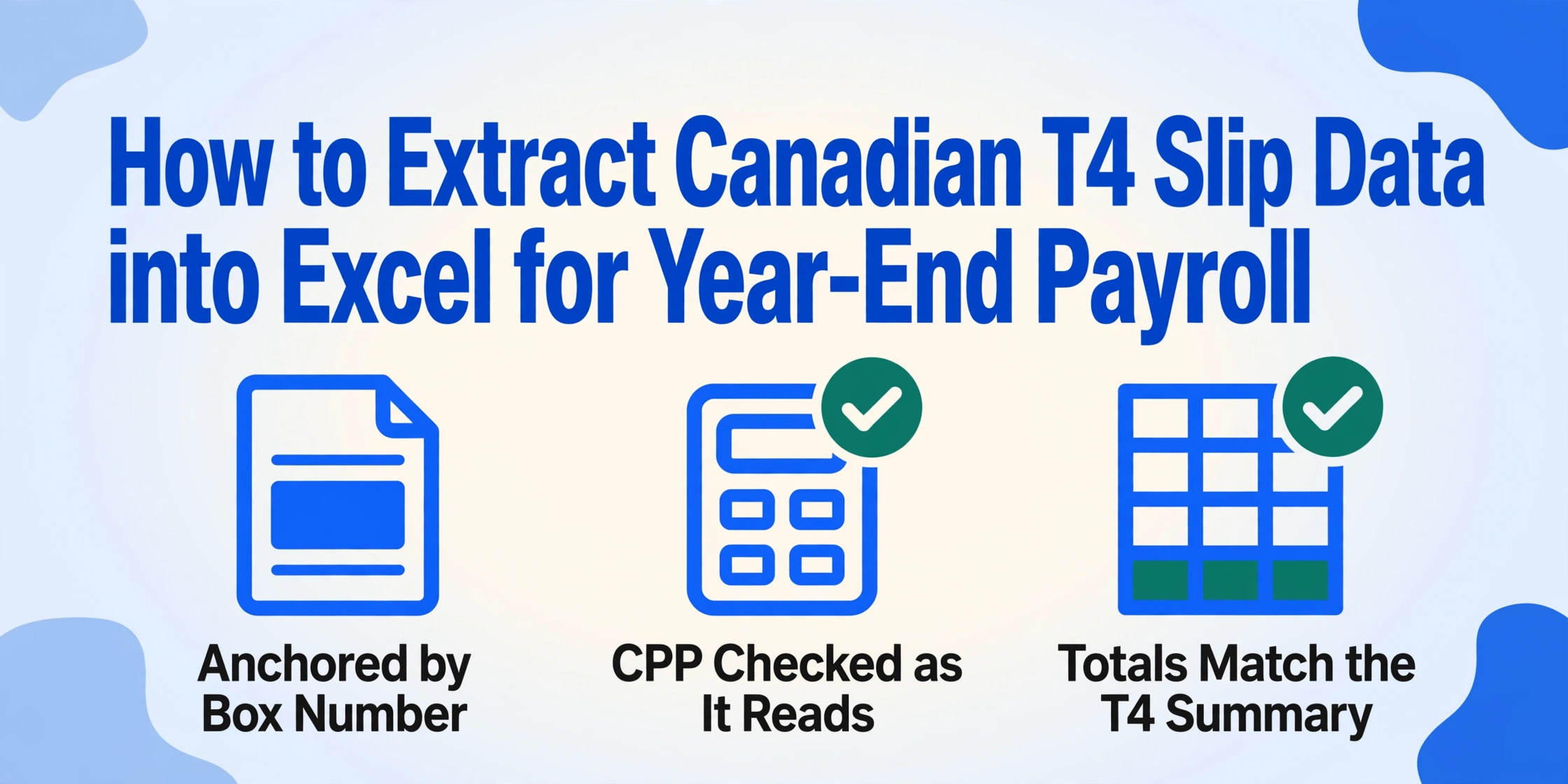
By the last day of February every year, every Canadian employer must issue a T4 (Statement of Remuneration Paid) to each employee who earned more than $500 in the calendar year and file the T4 Summary with the Canada Revenue Agency. That deadline converts roughly 19 million T4 slips into a national payroll event — and for firms without fully integrated payroll-to-accounting feeds, it also converts into a manual data entry marathon. A mid-sized company running payroll on Ceridian Dayforce or ADP Canada with 200 employees spends the last two weeks of February retyping Box 14 employment income, Box 22 income tax deducted, Box 16 CPP contributions, and Box 18 EI premiums from printed or emailed T4 PDFs into a year-end reconciliation spreadsheet. At two minutes per slip — locating the right box on each payroll provider's slightly different T4 layout, confirming the CPP pensionable earnings match the contribution amount, checking that Box 14 plus taxable benefits equals the T4 Summary total — that is over six hours of pure transcription in a compliance window where every hour counts.
Key Takeaways
- 200 T4 slips at two minutes each devours six hours of a February compliance window in pure retyping — and zero of those minutes are spent on the payroll math that actually matters.
- Those six hours aren't consumed by tax calculations or reconciliation logic — they're burned relearning where each payroll provider printed Box 16 on its form, for CPP contribution data that is identical across Ceridian, ADP, and QuickBooks.
- Name your columns once — "Box 14 Employment Income," "Box 16 CPP," "Box 18 EI" — and the AI reads every T4 by box meaning rather than box position, across every payroll provider you use now and any you onboard later.
What's on a T4 — and Why Every Box Number Matters for Your Spreadsheet
The T4, formally the Statement of Remuneration Paid, is a statutory information return governed by the CRA's Employers' Guide RC4120. Its content is not a suggestion from payroll software designers — it is prescribed by the Income Tax Act, and every substitute T4 layout must carry the same numbered boxes. The calendar year runs January 1 to December 31, and each T4 covers that full twelve-month period for each employee.
Understanding what each Box reports — rather than just knowing its number — determines whether your extracted spreadsheet reconciles against your T4 Summary on the first pass or generates an afternoon of cross-referencing against payroll registers. Here are the fields that matter for most year-end reconciliation work:
Identity & Reference Fields
- Employee Name & Address — must match the employee's CRA record. A surname mismatch can cause the CRA's data-matching to flag the slip.
- Social Insurance Number (SIN) — nine digits in the format XXX XXX XXX. The employee's identity key for all federal tax and benefit programs (CPP, EI, income tax).
- Employer's Business Number — the 15-character identifier (9-digit BN + RP0001) that anchors every T4 slip to the correct employer entity for CRA filing.
Income & Deduction Fields
- Box 14 — Employment Income — total gross employment income paid during the calendar year. This is the headline figure the employee reports on line 10100 of their T1 return. Must reconcile to your payroll register totals.
- Box 22 — Income Tax Deducted — total federal and provincial income tax withheld. The sum across all employees should equal the tax remitted to the CRA through your payroll account.
- Box 24 — EI Insurable Earnings — the maximum insurable earnings on which EI premiums were calculated, capped at the yearly maximum insurable earnings (YMIE).
- Box 26 — CPP/QPP Pensionable Earnings — the earnings on which CPP contributions were calculated, capped at the yearly maximum pensionable earnings (YMPE).
CPP & EI Contribution Fields
- Box 16 — Employee's CPP Contributions — the total CPP deducted from the employee's pay. For the 2025 tax year (reported on T4s filed by February 2026), the rate is 5.95% on pensionable earnings between the basic exemption of $3,500 and the YMPE of $68,500.
- Box 16A — Employee's CPP2 Contributions — added in 2024, this reports the second additional CPP contributions (4% rate) on earnings between the first ceiling (YMPE) and the second ceiling (YAMPE, $79,400 for 2025). If your payroll software has not been updated for CPP2 and lumps these contributions into Box 16, your totals will not reconcile against CRA remittances — this is a common silent failure that only surfaces when the T4 Summary disagrees with the CRA's own CPP contribution records.
- Box 18 — Employee's EI Premiums — the total EI deducted. For the 2025 tax year, the non-Quebec rate is 1.64% on insurable earnings up to the MIE of $65,700. The CRA multiplies Box 18 by the employer rate to verify your remittances. For the 2026 tax year (T4s you will prepare next year), the rate drops to 1.63% and the MIE rises to $68,900 — the rate change alone will cause a mismatch if your payroll system applies 2026 rates to a 2025 T4 reconciliation.
- Box 20 — RPP Contributions — registered pension plan contributions (both current and past service) that the employee can claim as a deduction on their T1. Appears only when the employee participates in a registered pension plan.
Deductions & Adjustments
- Box 44 — Union Dues — total union dues deducted, which the employee can claim as a deduction on line 21200 of their T1 return. Includes professional membership dues where the union is the bargaining agent.
- Box 46 — Charitable Donations — donations made through payroll deduction to registered charities. Reported separately so the employee can claim the charitable donation tax credit.
- Box 40 — Other Taxable Allowances and Benefits — the catch-all for everything from a taxable company car to group term life insurance premiums to employer-paid parking. This is the box most likely to be missed in manual reconciliation because it aggregates an invisible category.
- Box 52 — Pension Adjustment — the notional value of pension benefits accrued during the year. Reduces the employee's RRSP contribution room for the following year. Non-cash but carries a direct tax consequence.
The practical consequence of this Box structure is that a T4 extraction spreadsheet for 200 employees produces 200 rows and roughly 15 to 25 columns depending on how many optional boxes apply to your workforce. Manual entry across that grid — locating each numbered box on each slip, typing the value, confirming that Box 16 + Box 17 (employer CPP) together reconcile to the payroll system's CPP remittance total — is where the six hours go.
The core extraction principle: You name the columns your spreadsheet needs — "Box 14 Employment Income," "Box 16 CPP," "Box 18 EI," "Box 22 Tax Deducted" — and the AI locates each value on each T4 by understanding what the box label means, not where it sits on the page. The same column definition works across Ceridian, ADP, QuickBooks Canada, Wagepoint, Rise, and any other payroll software's substitute T4 layout because the AI reads the box semantics, not the form template.
Why the Same T4 Data Looks Different Across Canadian Payroll Software
If every T4 looked identical — same box positions, same label placement — extraction would be a solved problem with any template-based OCR tool. But the CRA's specification for substitute T4 forms permits variations in format and layout, and every major payroll software provider exercises that permission.
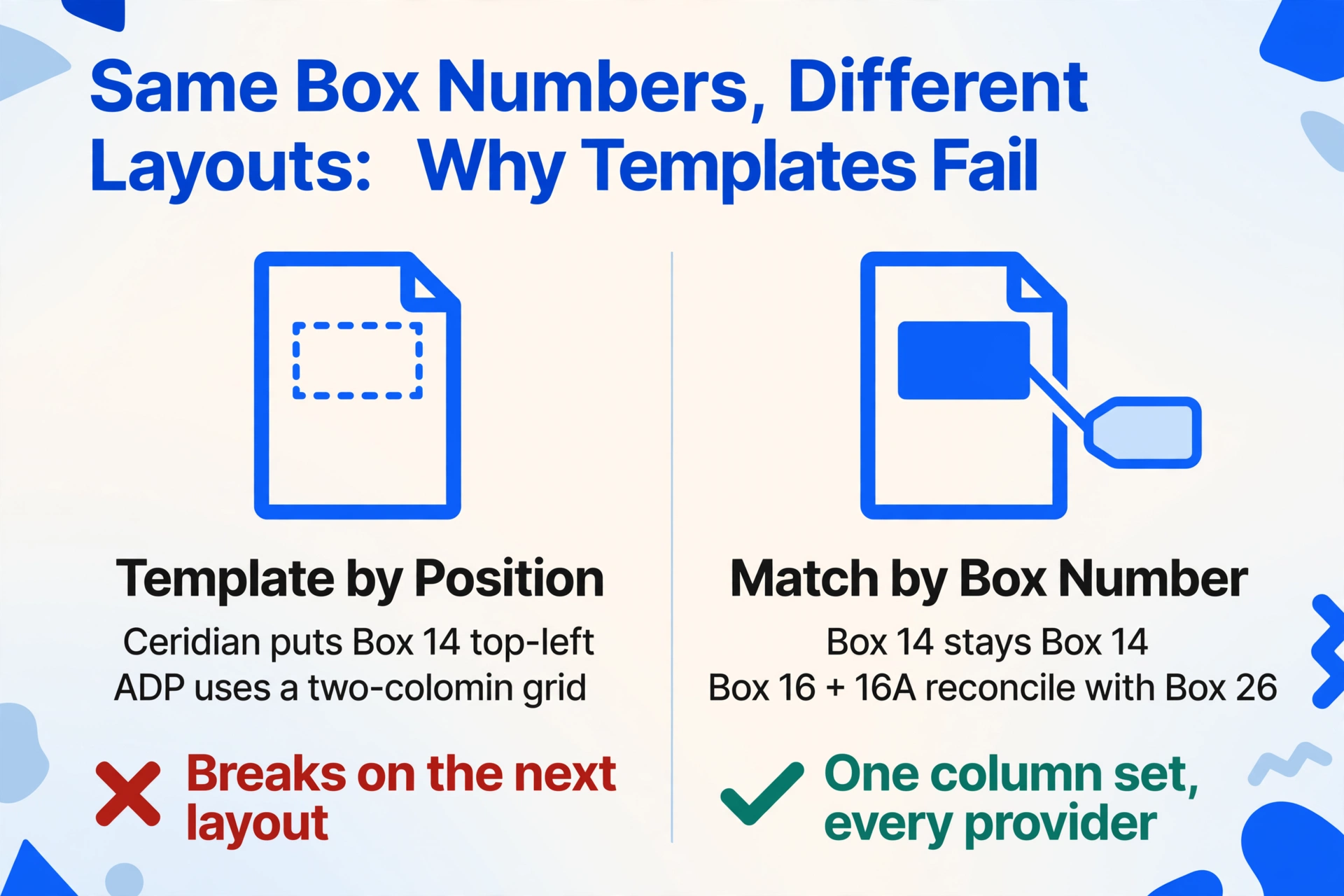
Ceridian Dayforce might print Box 14 in the top-left quadrant with the SIN in a separate header block. ADP Canada's Workforce Now might arrange the boxes in a two-column grid. QuickBooks Canada might stack them vertically. Wagepoint might use a simplified layout with boxes grouped by category (income together, deductions together). Rise uses yet another arrangement. The paper size, font, and box placement are all at the software provider's discretion — the only constraint is that all boxes must appear on the form.
This is not a bug. It exists because employers have used different payroll software for decades, and the CRA's approach is to mandate the data content rather than the visual layout. The result for anyone doing extraction is that every payroll provider's T4 is a layout variant of the same underlying data schema — and a template-based extraction tool that trained on Ceridian's layout will fail on ADP's.
Box 16 and Box 17 make this visible in a way that costs real time. The employee CPP contribution (Box 16) and employer CPP contribution (Box 17) must reconcile with each other and with the Box 26 pensionable earnings figure. A T4 from Ceridian might print these as adjacent lines in a deductions block. A T4 from QuickBooks might place Box 16 in a "Deductions" column and Box 17 entirely elsewhere. A template looking for "two adjacent CPP boxes" catches one format and misses the other. Semantic extraction — reading by meaning rather than by position — handles both layouts because it understands that "Box 16" and "Box 17" are independent data points regardless of their visual proximity.
Files are processed securely and not stored.
Setting Up Your T4 Extraction Workflow
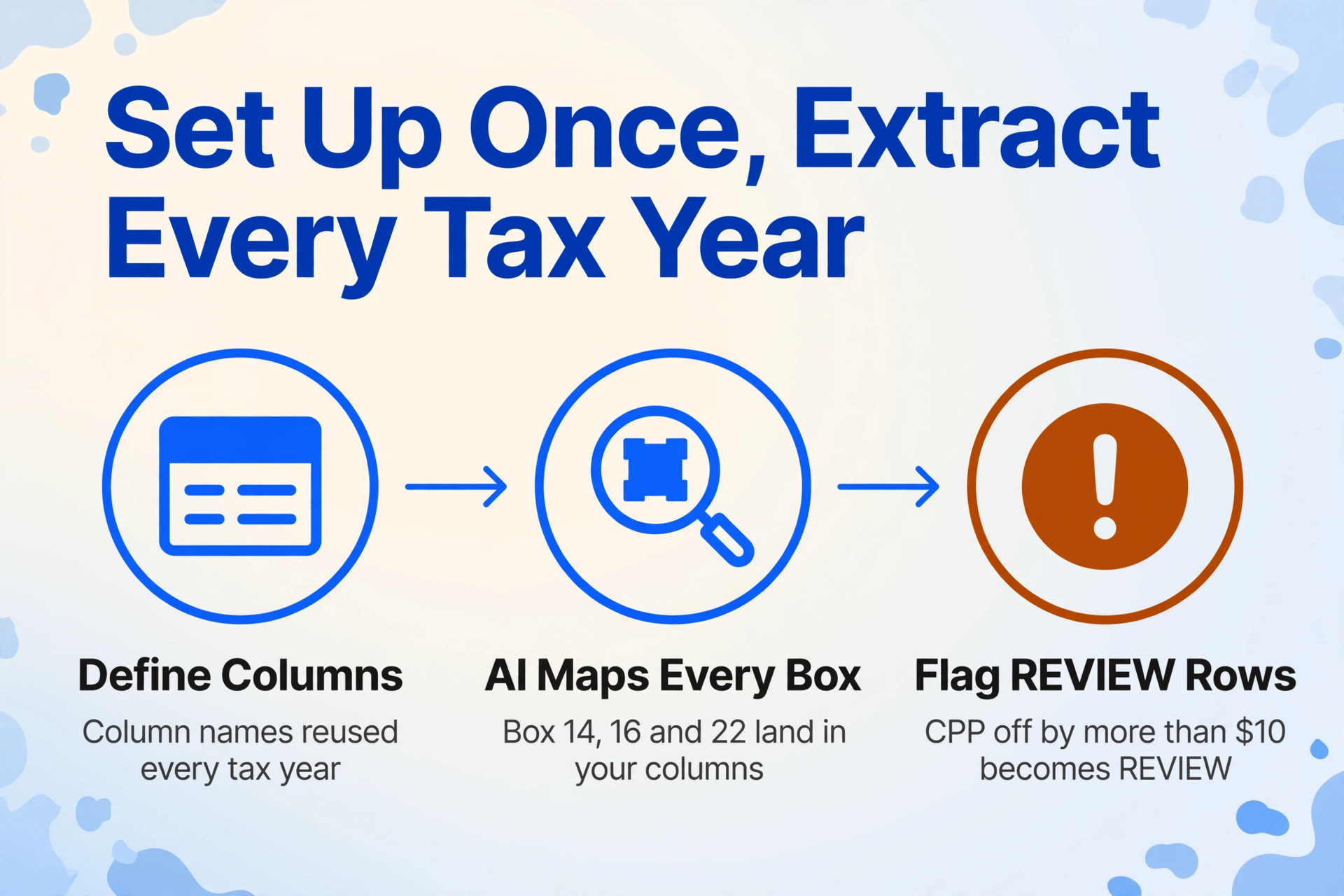
The workflow that replaces manual T4 transcription has three steps, and the configuration step — defining your columns — is what you do once and reuse for every tax year, every payroll provider, and every batch of employees.
Define your output columns
Type the field names you want extracted — exactly as you want them to appear as column headers. For a reconciliation workbook, a practical starting set is: Employee Name, SIN, Box 14 (Employment Income), Box 22 (Income Tax Deducted), Box 16 (CPP Contributions), Box 16A (CPP2 Contributions), Box 18 (EI Premiums), Box 20 (RPP Contributions), Box 24 (EI Insurable Earnings), Box 26 (CPP Pensionable Earnings), Box 44 (Union Dues), Box 46 (Charitable Donations), Box 40 (Other Taxable Benefits). This is Custom Column Extraction: you define the output schema, and the AI maps each slip's boxes to your columns — the same column names work across every payroll provider's T4 layout because the AI matches by box number and semantic meaning, not by template position.
For immediate validation during extraction, add a Computed Column: define a column like "CPP Check (if Box 16 + Box 16A matches Box 26 × 5.95% within $10 then 'OK' else 'REVIEW')" — the AI performs the calculation as it extracts and flags rows where the CPP contribution does not align with the reported pensionable earnings. This catches over-contribution errors (a common complaint on forums like r/cantax and r/PersonalFinanceCanada) before you open the spreadsheet, rather than after you have already filed with the CRA.
Upload all T4 PDFs in one batch
Drop in the full folder — 200 PDFs, a mix of Ceridian-printed, ADP-printed, QuickBooks-printed, and scanned paper T4s. Batch processing handles them all in a single job: each slip is processed independently, and all results are merged into one unified spreadsheet. Files can be PDF exports from payroll software, scans of printed T4 slips, or phone photos of paper copies — the AI handles all three.
Export, validate, and reconcile
Download the Excel file — one row per employee, columns in the order you defined. Run the validation checks: do Box 14 totals across all employees equal your payroll register? Does Box 22 total match your annual tax remittance? Does Box 16 × (employer rate / employee rate) = Box 17? Flag discrepancies for review, correct the source pay records if needed, and file the T4 Summary with the CRA using the extracted data — no need to re-read the original slips.
This workflow works for any number of employees and any mix of payroll providers. The column definition is reusable across tax years because the CRA's Box structure changes only when legislation changes — and when it does, you add the new Box to your definition without rebuilding the rest. For the equivalent workflow applied to Australian and UK year-end payroll documentation, see our guides on PAYG payment summary extraction, AU BAS data extraction, and UK P60 payroll reconciliation.
Once the extraction is complete, the validation phase is where a payroll professional's expertise actually belongs — not in the retyping. The National Payroll Institute (NPI) recommends a structured reconciliation before filing: verify that Box 14 totals across all T4s match the payroll register, that Box 22 equals the annual tax remittance on your PD7A statement, and that Box 16 + Box 17 (employer CPP) together reconcile to the CRA's CPP remittance records. If you skip these checks and the CRA's data-matching program flags a discrepancy, the correction process — amended T4s, revised T4 Summary, reissued employee copies — eats far more time than the validation pass would have.
Edge Cases: When a T4 Is Not Standard
Quebec Employees and the RL-1 Split
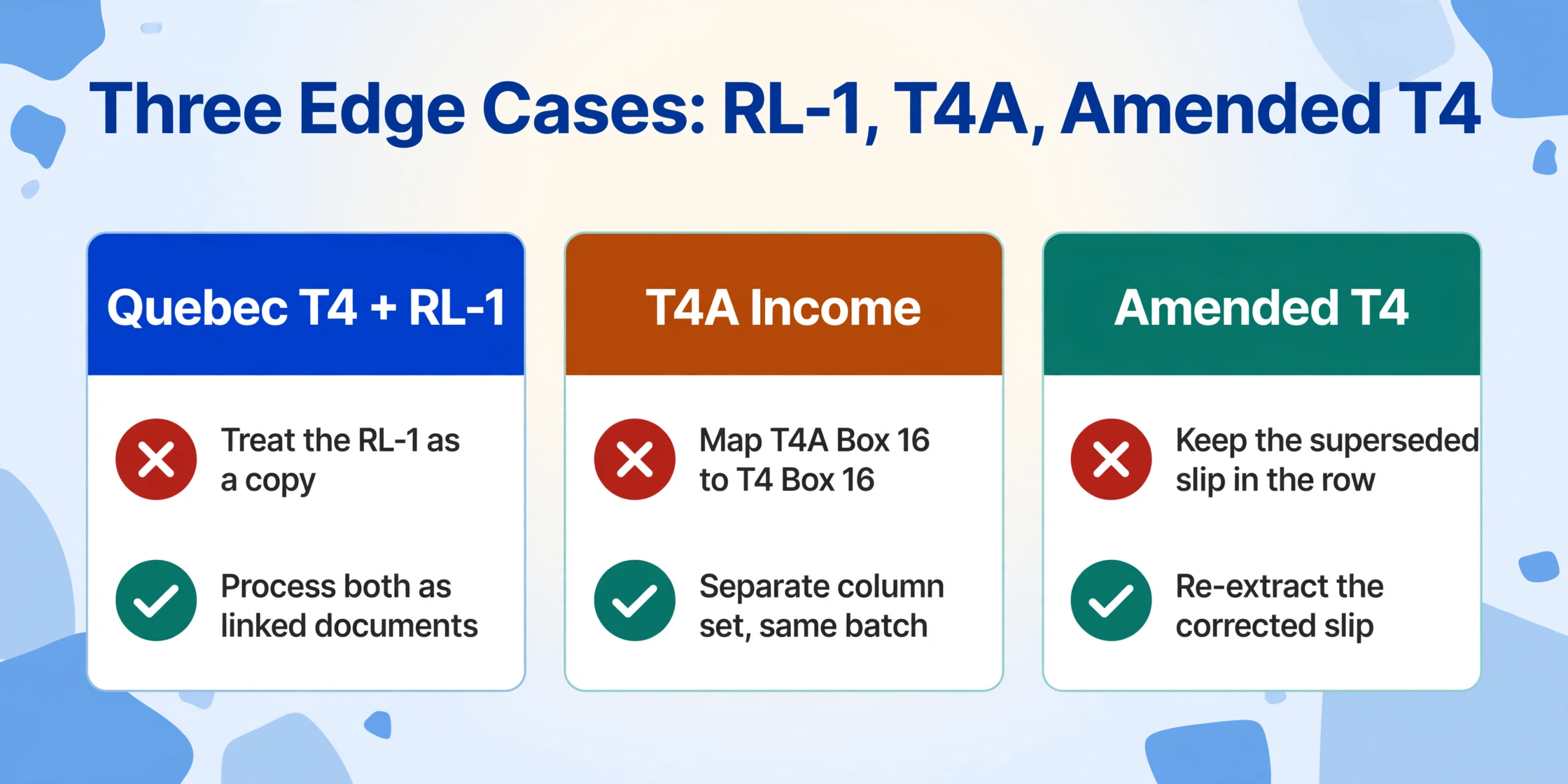
Employees working in Quebec receive both a federal T4 and a Relevé 1 (RL-1) from Revenu Québec. The two forms overlap but do not duplicate: Box 14 on the T4 reports total employment income including Quebec-source income, while the RL-1 provides provincial-level detail including Quebec Pension Plan (QPP) contributions at a different rate than CPP. QPP operates at a higher contribution rate (6.40% in 2025 versus 5.95% for CPP) and carries its own annual maximum. For payroll reconciliation purposes, the T4 and RL-1 must be processed as linked documents — the T4's Box 14 minus the RL-1's employment income equals income earned outside Quebec, which matters for employees who worked in multiple provinces during the calendar year.
T4A Supplement for Non-Standard Payments
When an employee also received pension income, retiring allowances, research grants, or self-employed commissions during the calendar year, the employer issues a T4A (Statement of Pension, Retirement, Annuity, and Other Income) in addition to the T4. The T4A has its own Box structure — Box 16 for pension income, Box 26 for retiring allowances, Box 28 for other income — and the two slips together form the employee's complete income picture. For extraction, treat the T4 and T4A as separate documents with separate column definitions in the same batch — the AI populates whichever columns it finds on whichever slip, leaving blanks where a box does not apply.
Corrected and Amended T4s
If the CRA rejects a filed T4 — typically because the SIN does not match, the Business Number is wrong, or a key box's total disagrees with the T4 Summary — the employer must issue an amended T4 and refile. The amended slip carries the same Box structure with updated values. For extraction, an amended T4 reads identically to the original — the AI extracts whatever values are printed on the slip. The difference is the employer's obligation to flag the amended version in the reconciliation spreadsheet, ensuring the final submission to the CRA uses the corrected figures. A computed column flagging "Amended" versus "Original" based on a checkmark on the slip header keeps the audit trail clean.
Multi-Province Employment
For employees who worked in more than one province during the calendar year — a common scenario in industries like construction, trucking, and remote camp operations — the T4 should report provincial allocations separately. The CRA's T4 slip includes boxes for province of employment and the employment income attributable to each province. If your payroll software prints province-by-province breakdowns (some do, some aggregate), the extraction columns must capture the province code and corresponding income separately for each jurisdiction. Provincial tax rates and brackets vary — Alberta at 10% on the first bracket, Ontario at 5.05%, Nova Scotia at 8.79% — so the province allocation affects the employee's tax liability and must be correct.
FAQ
Does extraction work when T4 slips arrive as scanned paper copies?
Yes. The extraction engine reads scanned paper T4s, PDF exports from payroll software, and phone photos of printed slips equally — the AI identifies boxes by their numbers and labels, not by the input medium. A T4 slip printed by Ceridian and scanned by the payroll team is read the same way as a PDF exported directly from QuickBooks. The only requirement is that the scan or photo is legible — the same requirement as a human reading the slip.
Can the extraction handle the French-language boxes on T4s issued in Quebec?
Yes. T4 slips for Quebec employees are bilingual — each box is labelled in both English and French (e.g., "Employment income / Revenus d'emploi"). The extraction engine reads both languages equally and maps the box values to the English column names you define. The underlying Box numbers (14, 16, 18, 22, etc.) are identical in both languages and serve as the anchor identifier.
What about the T4 Summary — can I extract from that too?
The T4 Summary (form T4SUM) is a separate employer-level document that aggregates all individual T4 slips — total employment income, total CPP contributions, total EI premiums, total income tax deducted. For reconciliation, you should compare the extraction spreadsheet's column totals against the T4 Summary values. The extraction is performed on individual T4 slips, and the spreadsheet's SUM functions provide the aggregate. If the aggregate disagrees with the T4 Summary, the discrepancy is in the source slips, not in the extraction — the same discrepancy a manual reconciliation would catch, but in minutes instead of hours. For the UK equivalent of this year-end reconciliation problem, see our guide on UK P60 data extraction for payroll reconciliation.
What if the T4 data I extract doesn't match what employees see on their pay stubs?
Every February, r/cantax and r/PersonalFinanceCanada fill with posts from employees whose T4 Box 14 employment income does not match their year-end pay stub. The most common causes: taxable benefits (employer-paid group life insurance, parking, gym memberships) were included in Box 14 but not visible on the pay stub, or a bonus paid in December was processed in the January pay run and fell into the next tax year. For the employer performing reconciliation, the extraction spreadsheet makes these mismatches visible at a glance — sort by the variance between the extracted Box 14 and your payroll register's gross earnings column, and every row with a discrepancy is the next case to investigate. Catching these before filing means correcting the slip rather than issuing an amended T4 after the CRA sends a matching-program query letter, which typically arrives months after you thought the tax year was closed.
What happens if an employee's SIN on the T4 doesn't match CRA records?
The CRA's T4 filing system validates each SIN against its database and rejects slips where the SIN does not match the name or date of birth on file. When the extraction catches a SIN that is clearly malformed — wrong number of digits, missing a digit group — flag it before filing. But a SIN that passes format validation can still fail the CRA's name-matching check, and the only way to prevent that rejection is to verify each SIN against the employee's SIN confirmation letter or the CRA's payroll SIN verification service before filing. The extraction output serves as the verification checklist — each row is one employee, and the SIN column is the field you check.