How to Extract AU TFN Declaration Data for
Payroll Setup (2026 Guide)
A single unchecked box on the NAT 3092 costs an $85,000 employee about $155 per week in lost take-home pay. Question 8 — "Do you want to claim the tax-free threshold from this payer?" — tells your payroll system whether to apply the $18,200 tax-free band or withhold at 47% from dollar one. That decision lives on a two-page form every new hire fills out within their first month. The form is simple. Getting its contents into your payroll system without a transcription mistake — across 10, 30, or 50 new starters — is where the bottleneck actually sits.
Key Takeaways
- Your new hires hand you handwritten paper forms, myGov PDF printouts, phone photos, and payroll-software outputs — four visually incompatible formats carrying the same ATO-mandated TFN data.
- The ATO tells employers not to accept TFN data by email yet requires employees to print digital myGov forms before handing them over — standardising the submission channel is structurally impossible.
- Semantic extraction reads field meaning not page position — a handwritten TFN in blue ink and a typed myGov PDF both land in the same spreadsheet column, one row per employee, ready for payroll.
What the TFN Declaration Controls — and What Happens When It's Wrong
The Tax File Number Declaration (NAT 3092) is the first tax document every Australian employee completes. Under the ATO's TFN declaration rules, employers must have a completed form on file — or withhold at the top marginal rate. The form is not an application for a TFN. It is a declaration that tells the payer how much tax to withhold under the PAYG withholding system. Every field on it feeds into a specific withholding decision, and the consequences of getting one wrong range from annoyed employees to ATO data-matching flags that take months to resolve.
Most employer guides describe the form by listing what boxes to tick. That is useful for the person filling it out. For the person entering that data into payroll software, the priority is understanding what each field does downstream — because that downstream effect is what determines whether a transcription error becomes a problem the employee notices this pay cycle, or a problem the ATO notices at EOFY.
| Field on NAT 3092 | Payroll System Effect | Consequence of Error |
|---|---|---|
| TFN (9 digits) | Primary identifier for ATO cross-referencing. Controls whether standard or top-rate withholding applies. The ATO authorises collection under the Taxation Administration Act 1953. | One wrong digit or missing TFN → employer must withhold 47% from all payments (including Medicare levy). Employee notices immediately when their first payslip is 40% lighter than expected, and payroll gets an urgent email. |
| Residency Status (Australian resident / foreign resident / working holiday maker) | Determines which tax table the payroll system uses. Australian residents get the $18,200 tax-free threshold and marginal rates from 16%. Foreign residents are taxed at 30% from dollar one with no tax-free threshold. Working holiday makers (visa 417/462) pay 15% up to $45,000. | A foreign resident mistakenly classified as Australian resident → under-withholding throughout the year → employee owes the ATO at lodgement. A working holiday maker classified as resident → wrong rate for an entire visa period. |
| Tax-Free Threshold Claim (Question 8: Yes/No) | Yes → payroll applies $18,200 annual threshold (approx. $350/week). No → tax withheld from the first dollar earned. Can only be claimed from one payer at a time. | Employee with two jobs claims threshold from both payers → under-withholding → tax bill at EOFY. Part-year resident not adjusted → threshold of $13,464 + ($4,736 × months ÷ 12) incorrectly calculated. |
| HECS/HELP or Other Study Loan (Question 9: Yes/No) | Yes → additional withholding at the marginal rate above the repayment threshold. For 2025-26, repayments begin at $67,000 income (15c per $1 above the threshold, then higher rates at upper bands). For 2026-27, the threshold rises to $69,528. | Employee with a $45,000 HELP debt earning $75,000 answers No → zero additional withholding → approximately $1,200 shortfall at lodgement. The employer is not liable — but the employee's tax return becomes a financial shock they blame the onboarding process for. |
| Employment Basis (full-time / part-time / casual / labour hire) | Affects leave accrual calculations and, for casual employees, whether the Casual Employment Information Statement must be provided under Fair Work Act provisions. | Casual misclassified as part-time → incorrect leave accrual → payroll reconciliation issue at termination. |
| Senior/Pensioner Tax Offset (Question 10) | Reduces withholding for eligible recipients of Australian Government pensions or allowances. | Offset claimed but employee ineligible → under-withholding → employee owes difference at lodgement. |
A separate ATO withholding declaration (NAT 3093) handles mid-employment changes — an employee who develops a HELP debt, changes residency, or wants to adjust their tax-free threshold claim. That form shares the same field set and the same data entry workflow.
The data entry problem is not the form's complexity — it is its consequence: A TFN Declaration has roughly 15 data points. A company hiring 20 new staff in a quarter generates 300 individual fields to transcribe. One digit transposed in a TFN, one residency status misread, one unchecked HECS flag — each error creates a real-dollar payroll correction that costs more to fix than it would have cost to prevent.
Why the Same NAT 3092 Data Looks Different on Every Payroll Desk
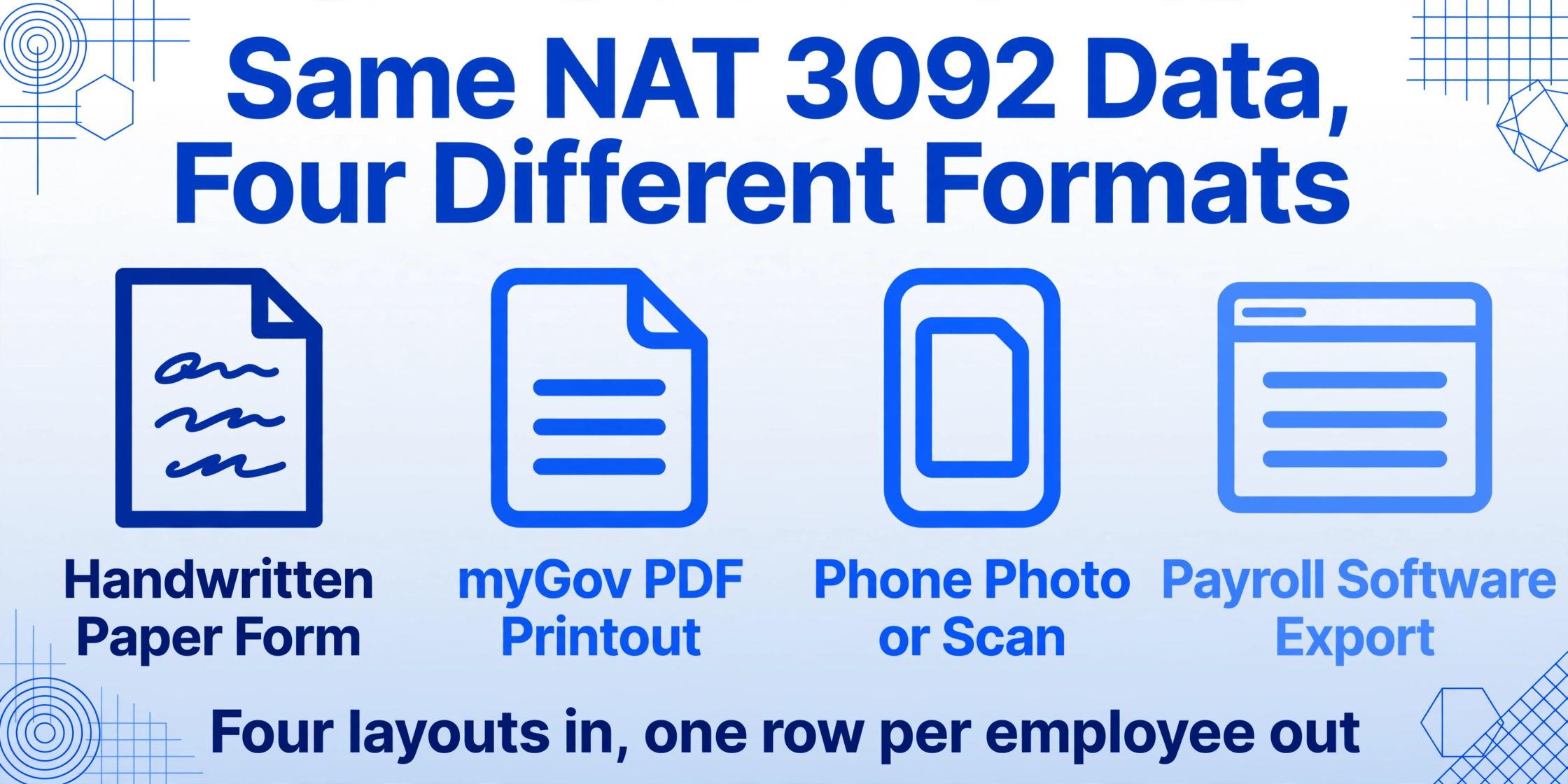
If every TFN Declaration arrived as a clean, typewritten ATO-printed form, data entry would be tedious but structurally predictable — the TFN is always in the same box, the tax-free threshold question is always at the same position. That is not what lands on a payroll officer's desk.
The ATO's new employee commencement forms can be completed digitally through myGov and ATO online services — the employee fills in the form, prints a tax-and-super details summary, and hands it to the employer. But these digital summaries are printed before they become a payroll input because the ATO explicitly tells employers not to accept TFN data via email (it is not a secure channel under the Privacy Act 1988 TFN Rule).
In practice, a single onboarding batch contains multiple visual formats:
- Paper NAT 3092 — the official ATO triplicate form, completed by hand in blue or black pen. Handwriting varies from careful block capitals to barely legible cursive across a two-page layout.
- Digital myGov printout — the employee's ATO online services summary, formatted as a government PDF with different field placement from the paper form. Clean and typed, but the layout bears no resemblance to the paper NAT 3092.
- Scanned or photographed forms — a photo of the paper form taken on a phone and emailed (despite ATO guidance against it), or a scan from the office printer. Angles vary, shadows obscure checkbox marks.
- Payroll-software-generated versions — platforms like Employment Hero, KeyPay, and Deputy generate their own digital TFN Declaration capture with a branded layout. Xero Payroll processes the ATO's online form data directly into its payroll engine, but other HRIS tools may output their own formatted record.
The data is the same. The layout is not. A template-based OCR tool trained on the myGov printout PDF will fail on a handwritten paper form — and vice versa. This is the same cross-format fragmentation that affects end-of-year payroll reconciliation, a problem covered in detail in our guide on PAYG payment summary extraction for payroll reconciliation, where five different software layouts for the same ATO-mandated certificate create the same extraction challenge. The UK equivalent — the P45 leaver form — shares this pattern: a government-defined data set, rendered in multiple payroll software layouts, pushed back into a new employer's payroll system through manual keystrokes.
Step 1: Collect All Declarations into a Single Processing Batch
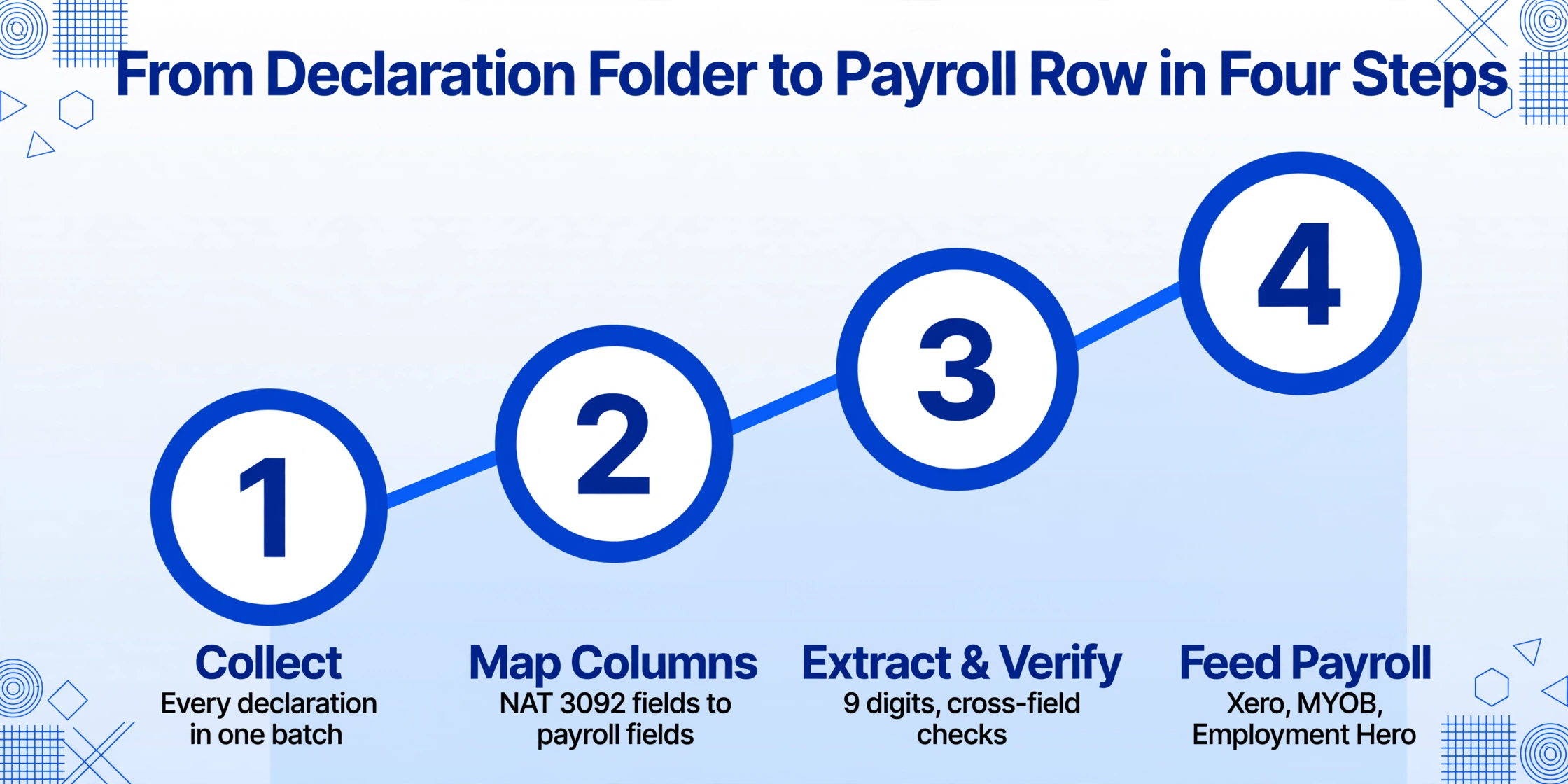
Before extraction, gather every TFN Declaration for the current onboarding group. This sounds obvious, but the compliance layer matters — TFN information is protected under the Privacy Act 1988 TFN Rule, and the ATO requires employers to use secure methods for storing and disposing of TFN information. Scanned forms must be clear and not altered in any way. A payer must retain a copy of the signed form for the current and following financial year, and if a payee submits a new declaration, the previous one must be kept for the current and following financial year as well.
Acceptable input formats for extraction:
The key distinction from most document processing workflows: you are not processing these forms one at a time as they trickle in. Batch them. Every form in the folder gets processed together, and the output is a single spreadsheet where each row is one employee's declaration. That means no partial entries, no "I'll type the rest in later" — the entire onboarding cohort closes at once.
Security note: The ATO's guidance on TFN declarations states that scanned forms must be clear and not altered. Do not edit, crop, or retouch TFN Declaration images before extraction — the unaltered scan satisfies the retention requirement while also serving as the extraction input.
Step 2: Map TFN Declaration Fields to Extraction Columns
This is the step that turns a generic extraction tool into a TFN Declaration processor. The column names you type define what the output spreadsheet looks like — and those column headers become the exact fields your payroll software expects.
Working with the NAT 3092, a practical column definition set for Xero Payroll — the platform used by over 60% of Australian businesses — looks like this:
| Your Column Name | Corresponding Xero Payroll Field | Source on NAT 3092 |
|---|---|---|
| Employee Full Name | Employee name | Question 2 — Family name, Given names |
| Tax File Number | Tax File Number (9 digits) | Question 1 |
| Date of Birth | Date of birth | Question 3 |
| Home Address | Residential address | Question 5 |
| Residency Status | Tax status (Resident / Foreign resident / Working holiday maker) | Question 7 |
| Tax-Free Threshold Claimed | Tax-free threshold (Yes/No) | Question 8 |
| HELP or Other Study Loan | Study and training support loan (Yes/No) | Question 9 |
| Employment Basis | Employment type | Question 6 |
For MYOB Business, the field mapping is nearly identical — the labels differ slightly (MYOB uses "Tax Status" rather than "Residency Status," "HECS/HELP Debt" rather than "Study and training support loan") but the core data points are the same. A single column definition handles both platforms because the AI reads field meaning rather than position. An employee name appears as "Given names + Family name" on the myGov printout and "Full Name" on a handwritten paper form — the same extraction logic produces the same structured output regardless of which format the original arrives in.
This approach — defining columns once and reusing them across any document format — is what ImageToTable.ai calls Custom Column Extraction: you type the field names you want as column headers, and the AI locates the corresponding values on each document by understanding what the field means semantically, not where it sits on the page. A handwritten TFN in blue ink in the top-right box of a paper form and a typed TFN in a myGov PDF summary are both understood as "Tax File Number" and extracted to the same output column. This is the same semantic extraction principle used for processing structured government forms across different country tax codes — from Australian BAS data extraction for GST reporting to UK payroll documentation.
If you also collect the Superannuation Standard Choice Form (NAT 13080) alongside the TFN Declaration, add columns for the super fund choice: "Super Fund Choice (Default / Own / SMSF)," "Super Fund Name," "Super Fund USI," and "Super Fund Member Number." This brings both onboarding forms into one extraction pass, producing a single spreadsheet that covers the entire tax-and-super setup for every new hire.
Step 3: Extract and Verify the Data
With the documents gathered and columns defined, extraction runs in one batch. Upload all declaration files together — paper scans, myGov printouts, phone photos — and the tool processes each independently, pulling out the values matching your column definitions.
Files are processed securely and not stored.
The output is a single spreadsheet: each row is one employee, each column matches a field you defined. Forty new hire declarations produce forty rows of structured data ready to enter into payroll.
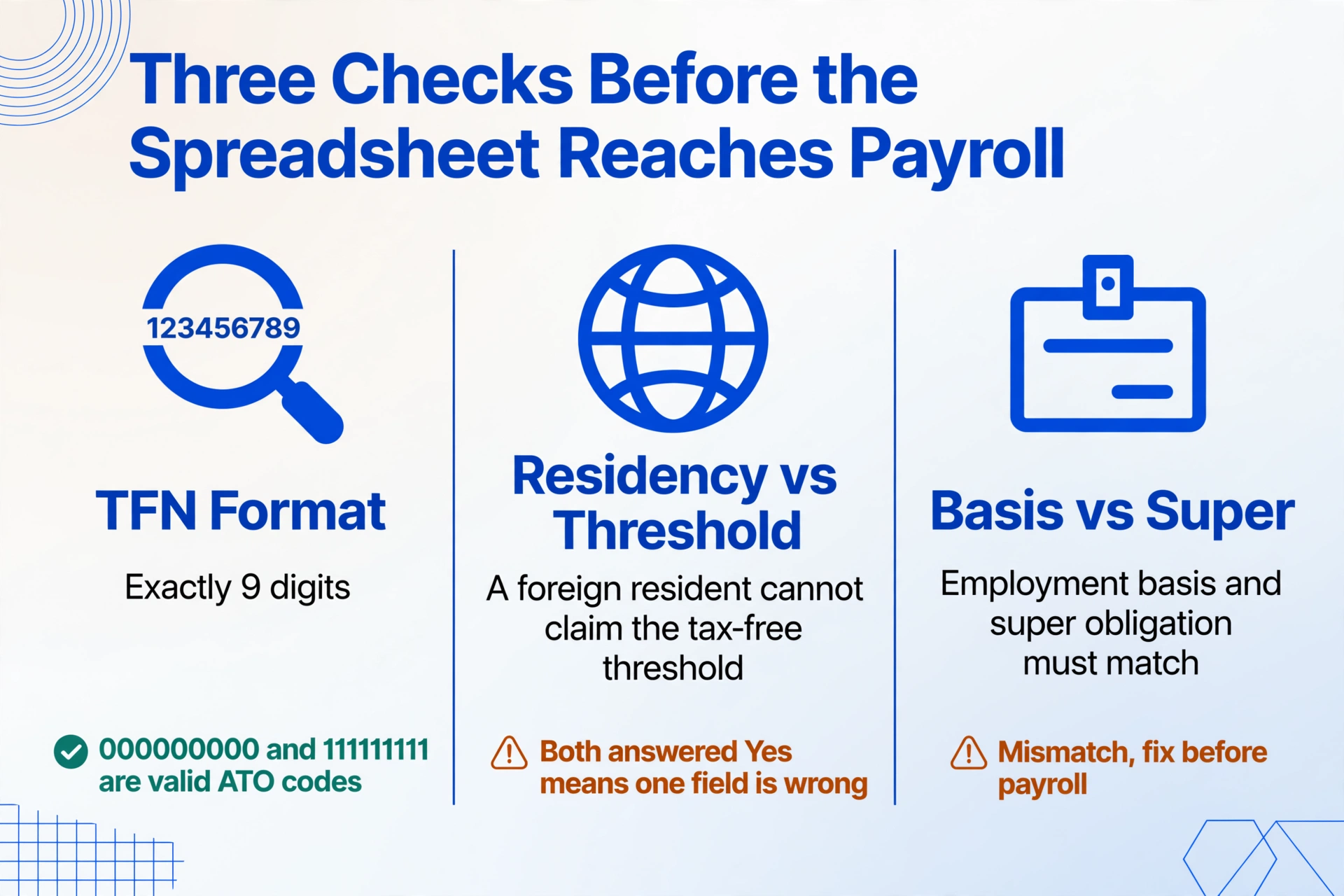
Before transferring to payroll, run these verification checks — each of which is significantly faster on a single spreadsheet than on forty separate paper forms:
Step 4: Feed the Verified Data into Your Payroll System
The extraction spreadsheet now contains every new hire's tax profile in a structured format. Transferring to payroll depends on which system you use.
Xero Payroll: Each row in the spreadsheet corresponds to one employee record. In Xero, navigate to Payroll → Employees → select the employee → Employment tab → Taxes. Enter the TFN, residency status, tax-free threshold claim, and study loan status from the corresponding spreadsheet row. Xero automatically applies the correct PAYG withholding tables and STP reporting categories.
MYOB Business: Go to Payroll → Employees → select employee → Payroll details tab → Tax file number declaration section. MYOB uses the same ATO tax tables as Xero, so the data fields are functionally identical — only the interface navigation differs.
Employment Hero: The platform captures TFN and super details during the digital onboarding flow. If you are processing paper declarations for employees who did not complete the digital flow, enter the extracted data under People → Employee → Employment Details → Tax Information.
The benefit of having the data extracted into a spreadsheet first — rather than keying it directly into payroll — is that the spreadsheet serves as both a working document and an audit record. When an employee disputes their PAYG withholding six months later, or when the ATO asks for evidence of the original TFN Declaration, the spreadsheet row plus the scanned original form provide a complete, traceable record in seconds. Under the Privacy Act 1988 TFN Rule, you must retain the signed form for the current and following financial year — the extraction spreadsheet does not replace that obligation but makes satisfying it trivially fast.
Processing 30 New Hire Declarations in One Pass
Australian businesses hiring at scale — seasonal retail, hospitality venues opening for summer, aged care facilities staffing new wings — process TFN Declarations in batches of 20 to 50 at a time. In these scenarios, the bottleneck is not the complexity of any individual form but the cumulative time of entering 15 fields across 40 forms.
The extraction approach handles this at the batch level naturally. Fifty forms uploaded together produce fifty rows in one spreadsheet. The column definitions you set up for the first batch apply unchanged to every subsequent batch — same fields, same output structure, same verification checks. The time per employee drops from roughly 3 to 5 minutes of manual transcription to under 30 seconds of verification. For a hospitality group onboarding 40 casual staff for a summer venue, that is the difference between payroll setup stretching across an entire afternoon and payroll setup finishing before the first coffee gets cold.
If you are processing across multiple hiring rounds — perhaps a February intake, an April intake, and a June intake — the workflow scales without reconfiguration. Each batch produces its own spreadsheet. At EOFY, when you need a complete personnel record for every employee who worked during the financial year, those spreadsheets merge together in minutes rather than requiring a file-by-file reconstruction of who was hired when and what they declared.
Reusable extraction setup: The column names you define for the NAT 3092 work for every subsequent onboarding batch — and for the NAT 3093 Withholding Declaration when existing employees update their details. The fields are the same. The only thing that changes between batches is the names and numbers on the forms.
FAQ
Can the tool validate TFNs against ATO records?
No. TFN validation against ATO records requires either Single Touch Payroll (STP) integration or a direct ATO API connection. Payroll software with STP Phase 2 — Xero, MYOB, Employment Hero — validates TFNs as part of the reporting process. The extraction tool provides the TFN value from the declaration form; the payroll system confirms it against ATO records. If the TFN is rejected during STP reporting, check the original declaration form for transcription errors, correct the digit, and resubmit. The ATO's TFN withholding rules require top-rate withholding within 28 days if a valid TFN is not provided.
What happens if an employee's declaration shows they have a study loan but my payroll system does not support automatic HECS/HELP withholding?
Under ATO rules, employers must withhold additional amounts for study and training support loans when notified by the employee via the TFN Declaration (Question 9) or a Withholding Declaration (NAT 3093). Most Australian payroll platforms — Xero, MYOB, Employment Hero, KeyPay — support automatic HECS/HELP withholding based on the employee's repayment income. If your system does not, the ATO publishes weekly tax tables including HELP components that allow manual calculation. For 2025-26, the first repayment threshold is $67,000 — if the employee earns below this, no additional withholding applies regardless of the Yes/No flag.
How does this compare to using the ATO's online employee commencement forms directly in payroll software?
For employees who complete the ATO's digital forms through myGov and whose payroll software (Xero, MYOB) can automatically ingest the data — that is the most efficient path. The extraction workflow covers the cases where the digital flow does not apply: paper forms from employees without myGov access, scanned declarations from previous years that need to be digitised, new hires who completed the form in person but whose data needs to enter a payroll system that does not automatically receive ATO online service data. It also covers the scenario where an employer processed paper forms historically and now needs to digitise the archive for record-keeping compliance — the TFN Rule under the Privacy Act 1988 requires secure storage of signed forms for the current and following financial year.
Does the extraction handle the Super Standard Choice Form (NAT 13080) as well?
Yes — as a separate batch with its own column definition. The Super Choice Form collects the fund name, USI (Unique Superannuation Identifier), member number, ABN, and the employee's choice (default fund, existing account, or self-managed super fund). Define columns for these fields and process the super forms alongside or after the TFN Declarations. The Super Guarantee rate is 12% from 1 July 2025, with a quarterly maximum contribution base of $62,500 per quarter ($7,500 maximum SG contribution per quarter, per employee). If an employee does not choose a super fund, employers must request the employee's stapled super fund from the ATO before contributing to a default fund.
What do I do if an employee has not provided a TFN after 28 days?
Under the ATO's TFN withholding schedule, after 28 days without a valid TFN or evidence that one has been applied for, you must withhold at 47% (top marginal rate plus Medicare levy) from all payments. If the employee has applied for a TFN and indicates this on the declaration (Question 1 — print 'X' in the appropriate box), they have 28 days to provide it. During those 28 days, you withhold at the standard rate based on the information available. After day 28, no TFN means top-rate withholding. When the employee eventually provides their TFN, adjust withholding from that point forward — previous over-withholding is reconciled when the employee lodges their tax return.