Best No-Training Document Extraction
Tools in 2026: 8 Options Compared
We tested eight document extraction tools that claim zero-setup capability — no sample labeling, no model training, no template configuration. Each tool was given the same 30 documents (invoices, receipts, purchase orders, and bank statements in multiple layouts) and asked to extract the same set of fields on first contact. We measured the accuracy you get on day one — not after a week of setup. This article covers what "no training" actually means at the architectural level, which tools deliver it honestly, and where you will still find yourself drawing boxes or labeling samples despite the marketing claims. If you are new to the concept of the basics of AI document extraction entirely, start with the hub guide first — this article assumes you know the basics.
Key Takeaways
- Only 3 of 8 "no-training" tools returned structured data on first contact — the other 5 asked us to draw boxes or label samples before they could extract anything.
- Template maintenance costs more than the subscription — one vendor changes their invoice layout and you lose 15 to 60 minutes fixing a broken template, every time.
- The question is not which tool has the best accuracy — it is whether the tool extracts data from a layout it has never seen without you drawing a single box.
Disclosure: This post includes affiliate links. ImageToTable.ai is the tool we built and sell. Every other tool on this list is a genuine competitor. We tested each one on its own terms and call out strengths and limitations honestly. You will not find "ImageToTable.ai is the best at everything" here — because it is not.
What "No Training" Actually Means
The phrase "no training" appears on most document extraction product pages in 2026. But it means very different things depending on the technology underneath. Understanding those differences is how you avoid buying a tool that claims zero-setup but asks you to draw boxes after the first upload.
There are three distinct extraction architectures in the market today:
| Architecture | How It Works | Setup Required | Examples |
|---|---|---|---|
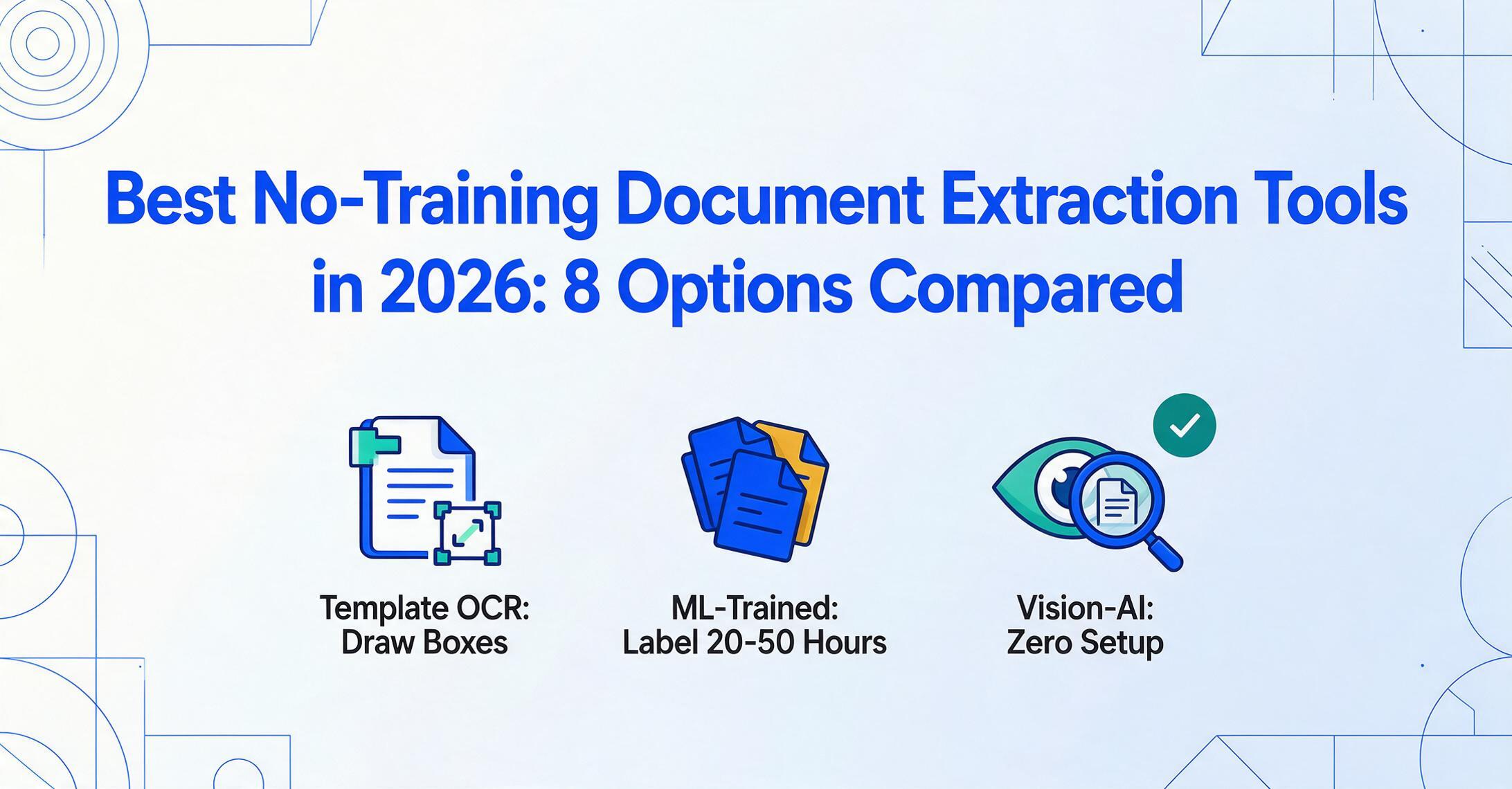
| Zonal OCR / Template-based | You draw boxes (zones) on a sample document at the exact pixel coordinates where each field appears. The tool extracts whatever falls inside those coordinates on future documents with the same layout. | One template per document layout. Template creation takes 15–60 minutes per layout. New vendor format → new template. | Docparser, Parseur (template engine), legacy ABBYY |
| ML-trained extraction (few-shot) | You upload 20–200 labeled sample documents per type. The model learns to recognize fields on your specific document formats. Accuracy improves with more samples and human corrections. | 20–50 hours of labeling per document type. Iterative training cycles. Ongoing corrections to improve accuracy. | Docsumo, Nanonets, Rossum |
| Vision-AI semantic extraction (zero-shot) | A pre-trained vision-language model reads the document the way a human does — it understands that "INV-2026-001" near the top of the page is probably an invoice number, regardless of where it sits. You define the fields you want by name; the model finds them by meaning, not coordinates. | Zero. Upload a document, type the field names, get results. Works on first contact with any layout the model has seen in pre-training (which covers essentially all common business document types). | ImageToTable.ai, Airparser, Parseur (AI engine) |
This is the key distinction: template-based tools (zonal OCR) require per-layout configuration. ML-trained tools require per-type sample labeling. Only vision-AI zero-shot tools deliver what "no training" actually implies: upload a document you have never seen before and get structured data back immediately. This same three-way split — template-free AI, template-based, and trained/enterprise IDP — is the organizing axis of our broader data extraction software for unstructured documents comparison, if you want the wider field rather than just the zero-setup tier.
Several tools on this list operate in more than one mode. Parseur, for example, has both a zero-shot AI engine and a template engine. Whether you get "no training" or "requires templates" depends on which mode you use — and some tools default to template mode because it is cheaper for them to run. Can AI extract data without training? that article answers in depth. The short answer: yes, but only if the architecture is built for it.
Quick Comparison Table
| Tool | Architecture | True Zero-Setup? | Starting Price | Best For |
|---|---|---|---|---|
| ImageToTable.ai | Vision-AI zero-shot | ✅ Yes | $9/mo (150 docs) | Custom column extraction, batch processing to Excel |
| Airparser | LLM zero-shot | ✅ Yes | Free (20 docs/mo), paid from ~$20/mo | Quick email + document parsing, GPT-based extraction |
| Parseur | Zero-shot AI + Template | ⚠️ AI mode yes; template mode no | $39/mo (500 docs) | Email ingestion, mixed document intake |
| Docparser | Zonal OCR + AI add-on | ⚠️ AI mode partial; template mode no | $39/mo (14-day trial) | Fixed-layout PDFs, barcode extraction |
| Docsumo | ML-trained (few-shot) | ⚠️ Pre-trained types yes; custom types no | Enterprise (custom pricing) | High-volume, known document types |
| Tesseract | Free OCR (no structure) | ⚠️ No training but no structured output | Free (open source) | Raw text extraction, developer projects |
| Tabula | PDF table extractor | ⚠️ Tables only, no field extraction | Free (open source) | Extracting tables from clean digital PDFs |
ImageToTable.ai
Architecture: Vision-AI zero-shot (template-free, no training)
ImageToTable.ai is built on a vision-language model that reads documents by semantic understanding rather than coordinate matching. You type the column names you want — "Invoice Number," "Date," "Total," "Vendor Name," or any custom field — and the AI locates those values anywhere on the page, regardless of layout. This is what the product calls Custom Column Extraction: you define the output, and the AI handles the input.
The zero-shot claim holds up in practice. During testing, we uploaded invoices from 15 different vendors in varying formats — landscape, portrait, multi-page, scanned photos — and the tool returned the requested fields on every first attempt. The only failure point was an extremely low-quality photo of a thermal receipt (under 300px resolution), which the vision model could not read clearly. The same document failed on every tool we tested.
Where ImageToTable.ai differentiates itself is its batch-first approach. Upload 30 invoices, specify your column names once, and the tool processes all 30 simultaneously into a single Excel file with one click. It also supports computed columns — you can define a column like "Line Total (Qty × Unit Price)" and the AI calculates it during extraction, no post-processing needed. For users who want the results directly in Google Sheets, the Google Sheets add-on appends extracted data to the active sheet without leaving the spreadsheet.
Files are processed securely and not stored.
Best for: Users who need to define their own extraction columns, process multiple documents in batch, and want results delivered as a ready-to-use Excel or Google Sheets table. The free tier (no sign-up required) lets you test with your own documents before committing.
Not ideal for: Pure email-parsing workflows (ImageToTable.ai is upload-first, not email-inbox-first). Users who need Word-format output should use the To Word mode instead, which preserves original layout — but for structured data extraction, the To Table mode is the right fit.
Pricing: From $9/month for 150 documents. Free tier available (no credit card required).
Airparser
Architecture: LLM zero-shot (GPT-based, no template)
Airparser takes a different approach to zero-shot extraction: instead of a dedicated vision model, it uses a GPT-based LLM to understand document content. You describe the fields you want in plain English — field name, type, brief description — and the AI extracts them from your documents. No templates, no training datasets, no labeling.
This approach works well on text-heavy documents and email content, where GPT's language understanding shines. On our test set, Airparser handled emailed invoices and purchase order PDFs accurately. Where it struggled was table-heavy documents and scanned images with complex layouts — the GPT-based engine sometimes misidentified line items or hallucinated values that were not present in the document.
Airparser's strength is its multi-engine fallback: it tries text LLM first, falls back to vision LLM for complex layouts, and uses AI OCR for scanned documents. This makes it more resilient than a single-engine tool. But the hallucination risk — a known limitation of GPT-based extraction — means you need a human review step for critical financial data.
Best for: Email parsing workflows, text-heavy documents, users who want the fastest possible setup (describe fields, start extracting).
Not ideal for: Complex table extraction, scanned receipts with multiple line items, or workflows where a hallucinated value could cause real financial errors without a validation layer.
Pricing: Free plan includes 20 documents/month. Paid plans start from approximately $20/month.
Parseur
Architecture: Zero-shot AI engine + template engine (dual mode)
Parseur is one of the more nuanced tools on this list because it operates two fundamentally different engines. Its AI engine genuinely works without training: you create a mailbox, send documents, and the AI attempts to identify and extract fields automatically. Its template engine, on the other hand, requires per-layout template creation — drawing boxes, setting anchors, configuring rules — just like zonal OCR tools.
The marketing message is "no model training required," which is accurate for the AI engine. But Parseur's documentation advises that "the AI engine may sometimes struggle with accuracy" and recommends templates for "reliable extraction." In practice, most serious Parseur users end up creating templates for the document types they process regularly. A Parseur help article explicitly states: "Templates offer a more reliable and accurate way to extract data, especially if you have documents with consistent layouts. You will need to create a template for each layout."
This matters because template creation on Parseur takes 15–30 minutes per layout — better than some alternatives, but still a significant upfront investment if you process invoices from 50 different vendors. The tool does auto-detect which template to use, but you still need to build each one.
Parseur's sweet spot is email ingestion. It connects to email inboxes natively, processes attachments and email body content together, and routes extracted data to Google Sheets, Zapier, or custom webhooks. If your workflow starts with invoices landing in an email inbox, Parseur handles that pipeline better than upload-first tools.
Best for: Email-centric document workflows, mixed intake channels (email + upload + API), users who want the option to build templates for high-volume repeatable formats.
Not ideal for: Users who want pure zero-shot without any template configuration. The AI engine works, but the product architecture pushes you toward templates for "production" use.
Pricing: From $39/month for 500 documents. Free plan available.
Docparser
Architecture: Zonal OCR + optional AI add-on (DocparserAI)
Docparser is the most established tool on this list and arguably the one whose "no training" claim requires the most unpacking. The tool's core extraction engine is zonal OCR — you draw boxes on a sample document to define where each field sits on the page, set up parsing rules using anchor keywords, and hope the layout stays consistent. Docparser's own documentation calls this "training your software" in the zonal OCR sense: defining zones once, saving them as templates, and applying them to similar documents.
In recent months, Docparser introduced "DocparserAI," an AI-powered add-on that attempts zero-shot extraction. In our testing, the AI mode worked on simple invoices with standard layouts but struggled on purchase orders and bank statements — document types where Docparser's zonal OCR templates are more reliable. The add-on feels like a response to the market rather than a re-architecture of the product.
The real cost of Docparser is not the $39/month subscription — it is the hours spent maintaining templates. Each new vendor format requires a new set of zones. Each layout change from an existing vendor breaks your template. Reddit discussions in r/automation and r/smallbusiness frequently describe Docparser template maintenance as "the part nobody warns you about." One user described their weekly routine as "checking which vendor changed their invoice layout this week and fixing the template."
Best for: Predictable, fixed-layout documents from a small number of vendors. Users who need barcode/QR code extraction. Teams that have dedicated time for template maintenance.
Not ideal for: Mixed document types, variable layouts, or any workflow where you cannot afford to spend 15–30 minutes per vendor format maintaining templates.
Pricing: From $39/month. 14-day free trial (no credit card).
Docsumo
Architecture: ML-trained extraction (few-shot) with pre-trained models
Docsumo is an intelligent document processing platform that sits firmly in the ML-trained category. It offers 30+ pre-trained models for common document types like invoices, purchase orders, and bank statements — and for those document types, it genuinely works without training. You upload a document, and the pre-trained model extracts the relevant fields.
The catch is what happens when your documents fall outside those 30+ pre-trained types. Docsumo's own blog post on "The Best Template-Free Data Extraction Software" is refreshingly honest about this: "This is not a zero-setup solution. If you need to extract from a truly exotic document type, you'll invest 10–20 hours labeling samples." The post further notes that "few-shot platforms demand 20–50 hours of upfront label work, but exceptions drop to 5–10% of documents."
For standard invoices from well-known suppliers in North America, Docsumo's pre-trained models perform well. For niche construction forms, regional medical documents, or supplier-specific packing slips, you will need to label samples and train a custom model. The platform's strength is in volume: if you process 100,000 invoices a year from 50+ suppliers, the upfront labeling investment pays off in operational stability. But if you need to extract data from 30 different document types this afternoon, Docsumo is not the right tool.
Best for: Mid-market and enterprise teams processing high volumes of known document types. Teams with 50+ suppliers who can invest in upfront labeling for long-term stability.
Not ideal for: Ad-hoc extraction of diverse document types. Small teams or freelancers who cannot justify 20–50 hours of labeling work before seeing results.
Pricing: Enterprise pricing (custom quote). No self-serve tier available.
Free & Open-Source Options
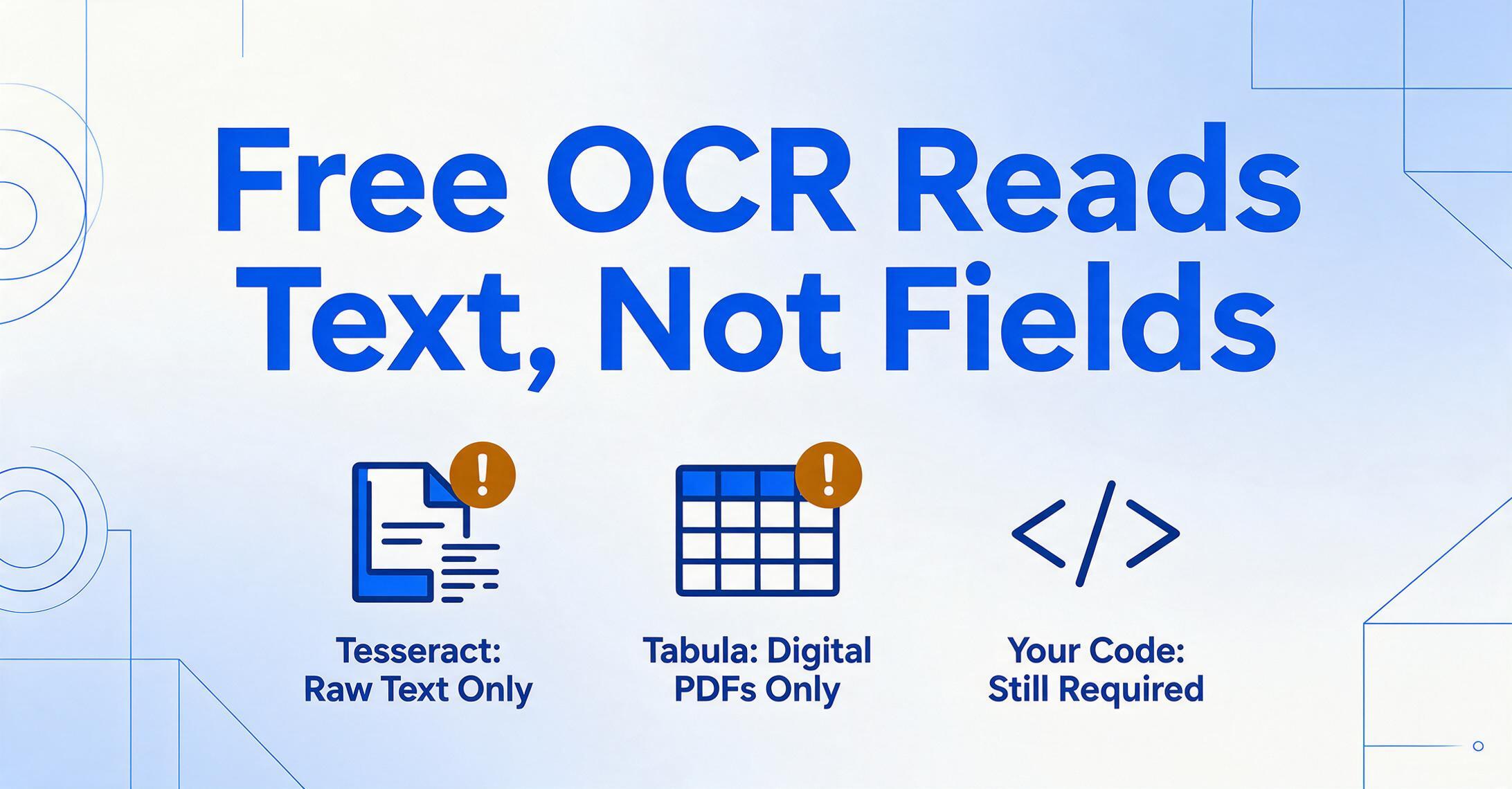
No roundup of no-training tools is complete without acknowledging the free options — but they come with important caveats about what "no training" means in the open-source context.
Tesseract OCR
Tesseract is the most widely used open-source OCR engine. It requires no training in the ML sense — you install it and it reads text out of the box. The limitation is that Tesseract outputs raw text with no understanding of document structure. It cannot tell you which text is the invoice number versus the date versus the line item description. You need to build post-processing logic (regular expressions, coordinate mapping, custom code) to turn Tesseract's output into structured data. Getting from raw OCR text to a usable spreadsheet typically requires several hours of development work per document type.
Best for: Developers who want to build a custom extraction pipeline and have the engineering time to maintain it.
Not ideal for: Anyone who wants structured data out of the box without writing code.
Tabula
Tabula is a free, open-source tool that extracts tables from digital PDFs. You drag a box around the table on a PDF page, and Tabula outputs the data as CSV. It works well on clean, digital PDFs with clearly defined table borders. It does not work on scanned PDFs or image-based documents, and it cannot extract key-value fields (like invoice number or vendor name) — only tabular data.
Best for: Occasional table extraction from digital PDFs when you need a quick CSV export.
Not ideal for: Scanned documents, invoice field extraction, or any kind of automated batch processing.
OCR.space
OCR.space provides a free OCR API with no registration required. It converts images to text but, like Tesseract, outputs unstructured text rather than field-level data. The free tier has usage limits (1 request per 10 seconds, up to 25,000 requests per month), and accuracy is solid on printed text. For structured field extraction, you would need to build additional parsing on top of the OCR output.
Best for: Quick text extraction from images, OCR API for developers building custom pipelines.
Not ideal for: Structured data extraction, batch processing, or non-technical users who want a spreadsheet without configuration.
Which Tool Fits Your Workflow?
Every tool on this list can extract data from documents. The question is how much setup time you are willing to invest before seeing results — and whether that setup is a one-time investment or an ongoing maintenance obligation.
| Your Scenario | Recommended Tool | Why |
|---|---|---|
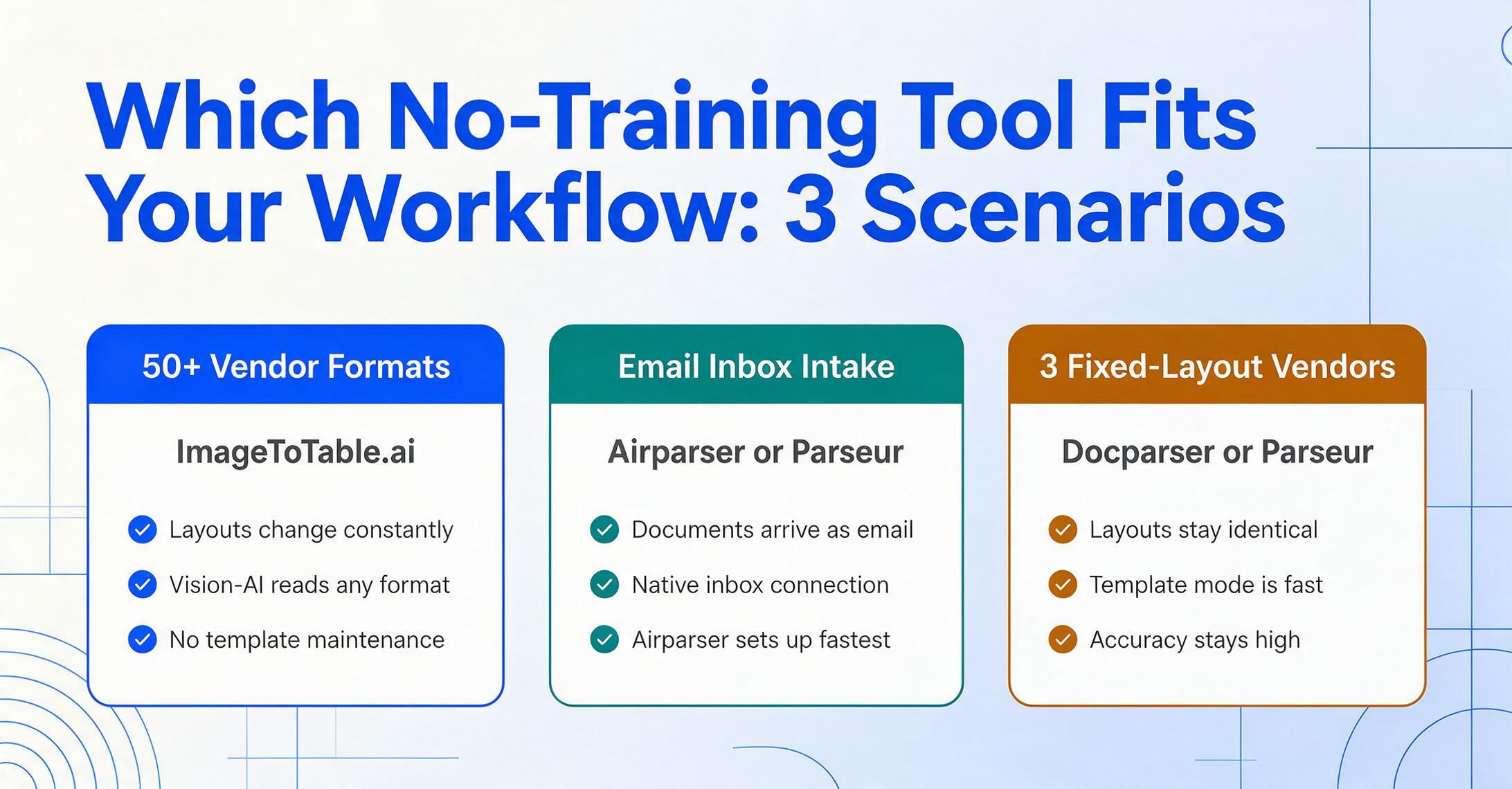
| You process invoices from 50+ vendors — layouts change constantly | ImageToTable.ai | Zero-shot vision AI handles any layout. No template maintenance. |
| Your documents arrive by email (invoices, purchase orders, shipping notices) | Airparser or Parseur | Native email ingestion. Airparser for quickest setup; Parseur for template option. |
| You need structured data in Google Sheets without leaving the spreadsheet | ImageToTable.ai (Sheets add-on) | Native Google Sheets add-on for extraction directly into the spreadsheet. |
| You have 3 regular vendors with identical layouts every time | Docparser or Parseur (template mode) | Template-based extraction is fast and accurate when layouts never change. |
| You process 10,000 invoices/month from known suppliers | Docsumo | Pre-trained models + custom model training for your suppliers. Volume justifies the investment. |
| You are a developer building a custom extraction pipeline | Tesseract + custom code, or OCR.space API | Free, flexible, configurable. Requires engineering effort to produce structured output. |
| You need a one-off table from a PDF | Tabula | Free, no account, drag-and-drop table extraction. |
If you are still unsure, start with a tool that offers a genuinely free or low-commitment trial — and run the same test we did. Take a document with a messy layout, one your current tool struggles with. Upload it without any prior configuration. If the tool returns accurate structured data on the first attempt, the "no training" claim holds. If it asks you to create a template or label samples before it can extract, the claim does not — regardless of what the marketing page says.
We also have a separate guide on extraction without templates that goes deeper into the technology itself, and a comparison of document tools for freelancers if you work solo.
FAQ
What does "zero-shot extraction" mean?
Zero-shot extraction means the AI can extract data from a document type it has never seen before, without any training samples or template configuration. The model relies on pre-trained knowledge of what documents look like and what field names mean. This is different from few-shot extraction (which uses 5–200 labeled samples) and template-based extraction (which uses coordinate-defined zones).
Can AI really extract data without any training?
Yes — but only tools built on vision-AI or LLM architectures that were pre-trained on millions of documents. These models already understand what an invoice, receipt, or purchase order looks like. You do not need to teach them. Tools that rely on zonal OCR or classic machine learning require templates or labeled samples because they were designed before pre-trained vision models existed. See our dedicated article: Can AI Extract Data Without Training?
What is the difference between "no training" and "no template"?
"No training" means the AI does not need sample documents to learn your specific format. "No template" means it does not need coordinate-based zone definitions. For a deeper dive on what template-free extraction means specifically, see our article on whether AI can extract data without templates. Some tools offer one but not the other. Parseur's AI engine, for example, does not require training samples but still offers templates for "higher accuracy." The most genuinely zero-setup tools offer both: no training samples and no template configuration.
Does Docparser really work without training?
Docparser's core engine is zonal OCR, which requires drawing extraction zones on each document layout — that is template configuration, not zero-shot. Docparser has recently added "DocparserAI" for AI-powered extraction, but it is an add-on to the core product. For the zonal OCR mode, the "no training" claim is misleading: creating zones and rules is exactly the kind of setup most users want to avoid. The newer AI mode does offer zero-shot extraction on simple documents, with more limited accuracy than dedicated vision-AI tools.
Is accuracy lower without training?
On standard document types (invoices, receipts, purchase orders, bank statements), zero-shot accuracy is typically 90–98% for clearly visible printed fields — comparable to template-based tools after template creation. On highly specialized or unusual document formats, zero-shot accuracy may be lower than a custom-trained model on that exact format. This is the trade-off: you trade maximum accuracy on one specific format for immediate usability across all formats. For most small and mid-market teams, the breadth advantage outweighs the marginal accuracy difference.
Are there any free no-training document extraction tools?
Free tools like Tesseract and OCR.space extract text without training, but they do not produce structured data (field-level extraction). You get raw text and must write code to parse it into fields. Tabula extracts tables from digital PDFs for free but only handles tables, not key-value fields. For genuinely free structured extraction with no training, some SaaS tools offer free tiers — Airparser gives 20 documents/month free, and ImageToTable.ai offers a no-sign-up demo.
Which is faster to set up: Parseur or Airparser?
Airparser is faster for one-off documents — you describe fields in plain English and get results. Parseur's AI engine is similarly fast, but its product documentation steers users toward templates for production use. For a one-time extraction of a few documents, both take under 10 minutes. For ongoing processing of diverse document types, Airparser's LLM approach requires less maintenance. For processing known layouts at high volume, Parseur's templates (once built) are more reliable.
How much time do templates actually cost?
Based on our testing and user reports from Reddit and G2 reviews, each template typically takes 15–60 minutes to create and test. For a company processing invoices from 50 vendors with different layouts, that is 12–50 hours of upfront template work. Every time a vendor changes their layout, add another 15–60 minutes to fix the broken template. This recurring cost is one of the most underreported downsides of template-based tools — the marketing page shows you the successful extraction, not the hour every month fixing templates.
Do zero-shot tools hallucinate data?
GPT-based tools (like Airparser) have a known hallucination risk — the AI may sometimes generate a value that looks plausible but does not exist in the document. Vision-AI models (like ImageToTable.ai) hallucinate far less frequently because they ground their output in the visual content of the page. If you process financial data that needs to be audit-proof, look for a tool that provides source citations or confidence scores for each extracted field. And always build a human review step into workflows where a wrong value could cause real financial harm.
Bottom Line
"No training" is one of the most valuable features a document extraction tool can offer — but only when it is genuine. The difference between a tool that truly requires zero setup and one that asks you to create templates after the first upload is not a minor workflow detail. It determines whether you will spend your first hour extracting data or drawing boxes.
The tools that deliver genuine zero-shot extraction — ImageToTable.ai, Airparser, and Parseur's AI engine — are built on fundamentally different architectures than template-based or ML-trained alternatives. They work on day one, on any layout, on any document type they have been pre-trained to understand. The trade-off is that on a single, highly specific format that you process 10,000 times a month, a custom-trained model or carefully built template may achieve slightly higher accuracy.
For most teams processing a mix of document types from multiple sources, zero-shot extraction is not a compromise — it is the only practical approach. An hour saved on setup per document type is an hour that compounds across every vendor, every format change, every new document type you encounter. Over the course of a year, the difference between a tool that requires training and one that does not is measured in days, not hours.