Shopify Order Confirmation Emails Hold
the Row You Need
Every Shopify sale generates an order confirmation email, and that email already contains the order number, the customer, the line items, the shipping address, and each line of the total. None of that data is missing from your inbox. What is missing is a row. A message confirms that an order happened, but it cannot be sorted by date, summed by product, or handed to a supplier as a packing list.
Shopify will export your orders to CSV from the admin, and for a one-time pull of your own store's history that export is the right tool. It does not solve the running record: the notifications that arrive all day, a second sales channel, the warehouse lead who needs a list without an admin login, or the fields the fixed export columns leave out. This article covers what is actually inside a Shopify order email, where pulling that data out by hand breaks down, and how to turn each arriving email into a structured row.
Key Takeaways
- No attachment comes with a standard Shopify order confirmation, because the fields you need are the message body itself.
- A field audit found errors in 86% of the spreadsheets it examined, which is why manual order entry breaks on volume rather than on care.
- Route the notifications to a single inbox and type the column names once, and each arriving email lands as a row.
What a Shopify Order Confirmation Email Actually Contains
Shopify generates order notifications from a template that pulls live order data through Liquid variables, so the email is a rendered view of the order record rather than an image to be read. Shopify's notification variables reference lists what those templates can reach: the order number as the customer sees it (#1004) and in its raw form (1004), a separate confirmation_number that some stores display instead, the customer's email, the shipping and billing addresses, and line_items that each carry a product title, variant, SKU, quantity, and price. The totals arrive as distinct values too: subtotal, shipping, tax, duties, discount, and the grand total, alongside financial status and, when payment terms are set, a due date.
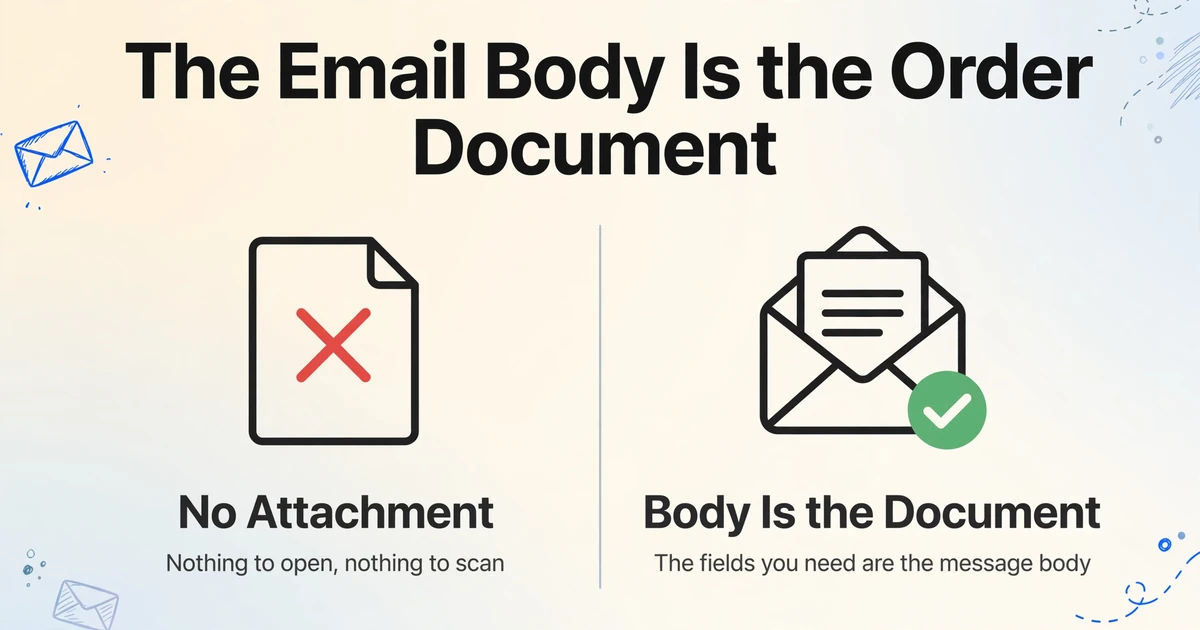
The practical consequence is that the order data is not a field sitting next to a label you can anchor to. It is an HTML layout that a template produced. A standard Shopify order confirmation carries no attachment, so there is nothing to open and nothing to scan. The message body is the order document.
An order email has nothing to open. The fields you need are the message body itself.
Why the Same Order Renders Differently in Every Store
The reason one fixed set of parsing rules cannot cover Shopify order emails is that the template is designed to be edited. In Settings > Notifications, a store can rewrite the Liquid in its order confirmation, and Shopify documents the pieces merchants add most often: a duties line for stores that collect duty and import taxes, a payment terms block that prints an amount due and its due date, and line item custom properties such as care instructions or engraving text attached to specific products.
Branding changes the render as well. The logo URL and accent color come from the email customization settings, and each line item's title, variant, and properties are printed by the merchant's own loop. Currency follows the store or the market, so an order total reads as USD, EUR, or GBP depending on where the buyer is. A store can also show the random confirmation_number instead of the sequential order name, which means the identifier in the email is not always the number you expect.
The template a shopper receives is not the only one that matters. Shopify's staff new-order notification is a separate template, and the shipping confirmation carries tracking data the original confirmation does not yet have. That is why a parser built on the labels from one sample order fails as soon as the store changes a heading, and why a seller's question about whether their theme matters has a real answer: the layout is store-specific and the labels can be renamed.
Why Shopify's Own Export Is a Different Tool
Shopify's built-in export lives on the Orders page and writes a CSV of your order data, and for your own store's history it is free, complete, and hard to beat. If a one-time dump is what you need, use it. What it is not is a record that updates as orders arrive. Shopify's help documents the mechanics: an export of up to 50 orders, or the current page, downloads straight to your device, while more than 51 orders or a date-based export is emailed to you instead. The columns are fixed, the transaction history contains only captured payments, and there is no field selection and no schedule.
The gap widens when the source is not the export. A staff notification email reaches whoever you add as a recipient, with no admin access required. A second marketplace or a wholesale supplier sends its own order email that the Shopify export never sees. A warehouse team that needs a packing list should not be handed a store login. In each of those cases the email is the source of truth, and the job is to turn it into rows that keep arriving.
Where Pulling Orders Into a Sheet Goes Wrong by Hand
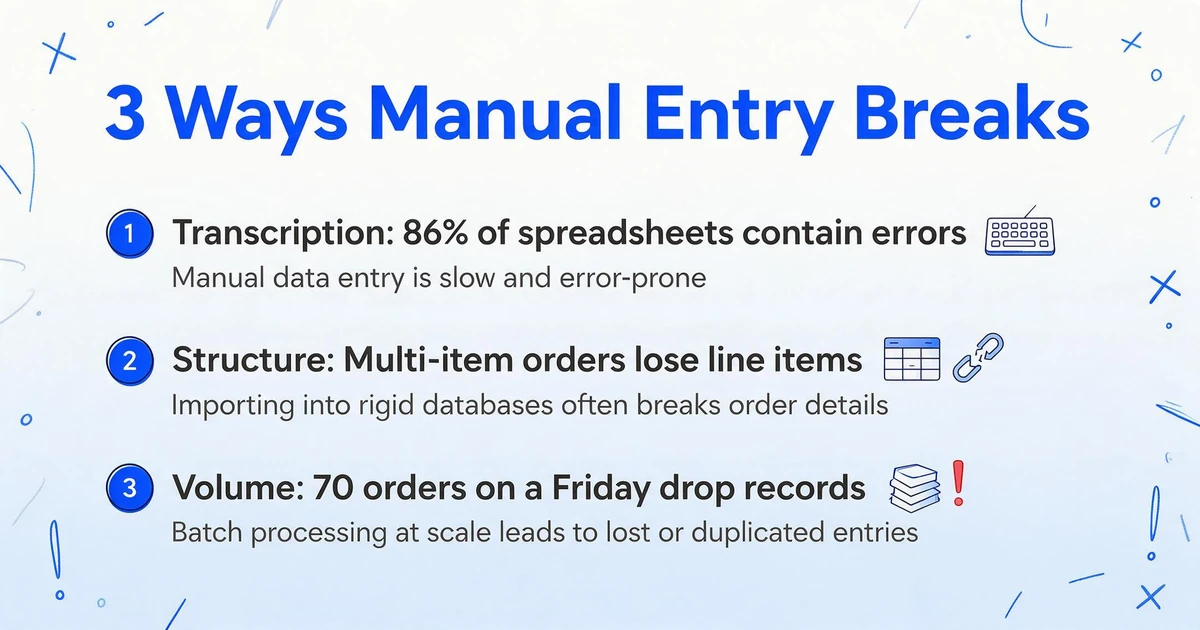
Manual extraction fails in three predictable places, and the first is transcription. Typing an order number, a customer name, and a total into a sheet is a simple task repeated far past the point where attention holds. The error research is blunt about the result: field audits collected by Panko found errors in at least 86% of the spreadsheets examined, and controlled experiments found errors in 51%. The finding is not that people are careless. It is that re-keying data by hand runs into a cognitive limit, and no amount of caution removes it.
The second is order structure. A multi-item order is a header plus a repeating block of line items, and a flat sheet forces a decision. Shopify's own CSV export puts one row per line item and leaves the order-level fields, including the total, blank on every row after the first. That is why exported sheets end up with a double-counted revenue figure when someone fills the total down. Copying by hand from an email flips the problem: it is easy to keep the order number and total and quietly lose the third and fourth line items.
The third is volume. Under real order flow, a manual process does not degrade gracefully. It drops records. A small grocery store described the failure on an r/shopify thread: "We transfer some order info (order number, value, location and region) onto an excel sheet, which we then use that to split the orders between drivers dependent on location. We have a very popular sale every Friday and we can get up to 70 orders... Understandably if everything is done manually, orders are missed." Seventy orders in one day is not a large store. It is simply more than a person can copy accurately while also doing anything else.
The Fix: Route the Emails, Name the Columns
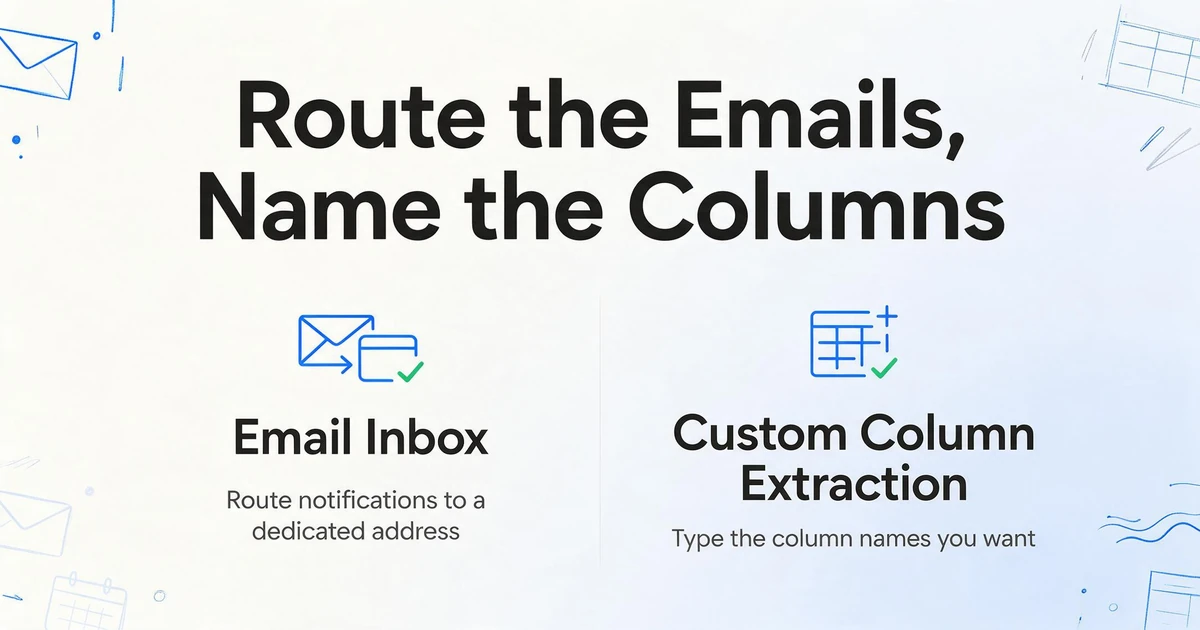
The data already arrives by email, so the work is to make arrival produce a row. Two ImageToTable.ai capabilities carry that step. The first is Email Inbox, a dedicated address for your account. You share it with your store, or set a forwarding rule so your notifications land there, and messages enter your processing queue without anyone downloading or uploading a file. Because the order data is in the message body, you set the inbox to read the body, or the body and any attachment together if a store also sends a PDF invoice. Auto-Process runs extraction the moment a message arrives, and a sender whitelist keeps mailing lists and unrelated mail from becoming rows you have to delete.
The second is Custom Column Extraction. You type the column names you want, such as Order Number, Order Date, Customer Name, Customer Email, Shipping Method, Item Count, Line Items, Subtotal, Shipping, Tax, Discount, Order Total, Currency, and Financial Status. The AI reads each email and locates those values by understanding what they mean, so the same column set works across a default template, a customized one, and a staff notification, with no rule per store. The names you type become the headers of your sheet.
The setup is a short list of settings you configure once, not per order:
Route the notifications to the inbox
In Shopify, go to Settings > Notifications > Staff notifications, add a recipient, and enter the dedicated inbox address. Or forward your existing order notifications from Gmail or Outlook with a filter. Every order email then lands in one queue.
Set the inbox to read the body
Choose body-only for standard order emails, or body and attachment together if the store also sends a PDF invoice. This is the setting that matches where Shopify puts the order.
Turn on Auto-Process and the whitelist
Auto-Process starts extraction on arrival. The sender whitelist limits the queue to your store's sender address or the address you forward from, so unrelated mail never competes with orders.
Name the columns once
Enter the fields you actually use. A fulfillment team needs order number, name, address, and line items. Accounting needs date, discount, tax, shipping, and total with the payment status. Save the set as a template and bind it to the inbox.
Add a computed check
Define a column such as Line Item Check that sums the line totals and outputs the difference when the sum does not equal the printed order total. The computation runs during extraction, so an exception shows up in the sheet instead of hiding in the email.
Export the batch
Each email becomes one row under your headers, and the batch exports as Excel, CSV, or JSON. If your team works in Google Sheets, send the output there directly and skip the file.
Files are processed securely and not stored.
One shape is worth being explicit about. The natural output is one row per order email, with the line items held in a Line Items column. If you need one row per product for SKU-level reporting, that split happens in the sheet after export, where the formula is visible and easy to check.
What the Output Looks Like
A finished batch is one table with one row per order and the fields you named as its columns. The example below uses a handful of columns for readability, but the sheet holds every column you defined.
| Order Number | Order Date | Customer | Items | Total | Status |
|---|---|---|---|---|---|
| #10482 | 2026-10-03 | Lena Ford | 2 | $84.00 | paid |
| #10483 | 2026-10-03 | Marcus Bell | 4 | $149.50 | paid |
| #10484 | 2026-10-03 | Rachel Kim | 1 | $32.00 | pending |
The values in the table are examples. Order Number and Order Date come from the message body, the item count and line items are read from the item table inside it, and Total is the printed order total. Dates and amounts are standardized during extraction, so the file is ready for reporting without a cleanup pass. Once the sheet is live, sums, pivots, and sorts work on columns no one typed by hand.
What This Does Not Do
It is not a Shopify integration. ImageToTable.ai reads the emails you route to it. There is no app-store connector, no native Shopify connection, and no write-back to your store. Nothing is pushed back into Shopify and no order status is changed. The output is a spreadsheet, and the store remains the system of record.
It reads email, not chat. Order details sent by text message or WhatsApp are a different channel. The Email Inbox only sees what reaches its address by email, so those messages need to be forwarded once they exist as a document.
It extracts; it does not reconcile. The tool fills columns and can run the line-item check described above, but it does not match an order against a bank deposit, tie a refund to a specific order, or verify that a shipping charge is correct. Those are judgments, and they stay in the sheet and with a person.
A full historical dump is still the export's job. For migrating years of past orders, Shopify's CSV export is the right source. This workflow earns its place on the ongoing flow of new orders, the second channel, and the people who need the data without store access.
Accuracy is high, not perfect. We state up to 99% accuracy on printed table data, which is our own figure for a specific input type. Review Mode and Bbox verification exist for the fields that carry money: hover an extracted cell and its source region highlights on the original message, and an edited value can be reverted to the AI's read.
If you want the surrounding workflow, the email parser that reads a whole message covers the general case, and extracting ecommerce order data from screenshots handles the version that arrives as an image instead of an email. When the confirmation lands as a text message rather than an email, the SMS order confirmation walkthrough covers that channel, and sending extraction results into Google Sheets covers the destination most teams use.
Frequently Asked Questions
Does this work if my store uses a custom theme or a customized order confirmation template?
Yes. The extraction reads values by meaning rather than by matching labels or positions, so a renamed heading, a reordered layout, or an added duties line does not require a new rule. You define the column names once and the same set applies to every order template your store sends.
Where does the order data live, in the email body or an attachment?
In the body. A standard Shopify order confirmation is an HTML message with no attachment, so the inbox is set to read the message body. If a store also attaches a PDF invoice, switch to the body-and-attachment setting and both are read into the same row.
Can it read the staff new-order notification as well as the customer confirmation?
Yes. Staff new-order notifications are generated from a separate template, but they carry the same order data: order number, customer, line items, and totals. Because the columns are matched by meaning, the same setup captures whichever template you route to the inbox.
How are multi-item orders handled?
Each order email becomes one row, and the line items are captured in a Line Items column. If you need one row per product for SKU-level reporting, split that column in the spreadsheet after export, where the formula is visible and easy to check.
Can it pull order totals in different currencies?
Yes. Currency is extracted as a column, and post-processing standardizes dates and amounts so a store selling in USD, EUR, and GBP produces one consistent sheet. If you need every row in a single currency, add a computed column that applies the exchange rate you use.
Is there a free trial?
Signing up is free and includes credits to test with your own orders. Forward a few order emails, watch the columns fill, and judge the output before paying. The demo on this page runs without an account.
The Order Was Never Missing From Your Inbox
It is tempting to treat a stuck order as a filing problem, as if a tidier mailbox or a more careful copy-paste would fix it. The order was never missing. It arrived on time and sat in a format that only a person could turn into a record, so it became payable, or pickable, only when someone remembered. Move the record creation to the moment of arrival, and the question stops being whether anyone remembered and becomes whether the row is there. That is a check a system can run while the team does something else.