Print Job Order Problems Start at Intake,
Not on the Press
A reprint usually traces back to one line that never made it into the job ticket. Everything after it, the make-ready, the plate, the run, the finishing, is the shop correctly executing the instructions it was handed. That is what makes order entry the highest-leverage step in a print job: it is the last point at which the whole job is still cheap to change.
Key Takeaways
- A reprint is decided at order entry, not on the press, at the last point where the whole job is still cheap to change.
- Forty times a day, the front desk is not bad at reading an order, it is being asked to hold every spec straight between phone calls.
- The role shifts from typing a blank ticket to checking a structured row, where each named column links back to the page it came from.
Where a Print Job Order Turns Into a Reprint
Inside a print business, the customer's order becomes an internal record called a job ticket (also a job bag or docket). That ticket carries the specifications the shop needs to produce the work: finished size, stock, quantity, ink, finishing, due date. The print MIS generates it, but it cannot generate what nobody typed into it.
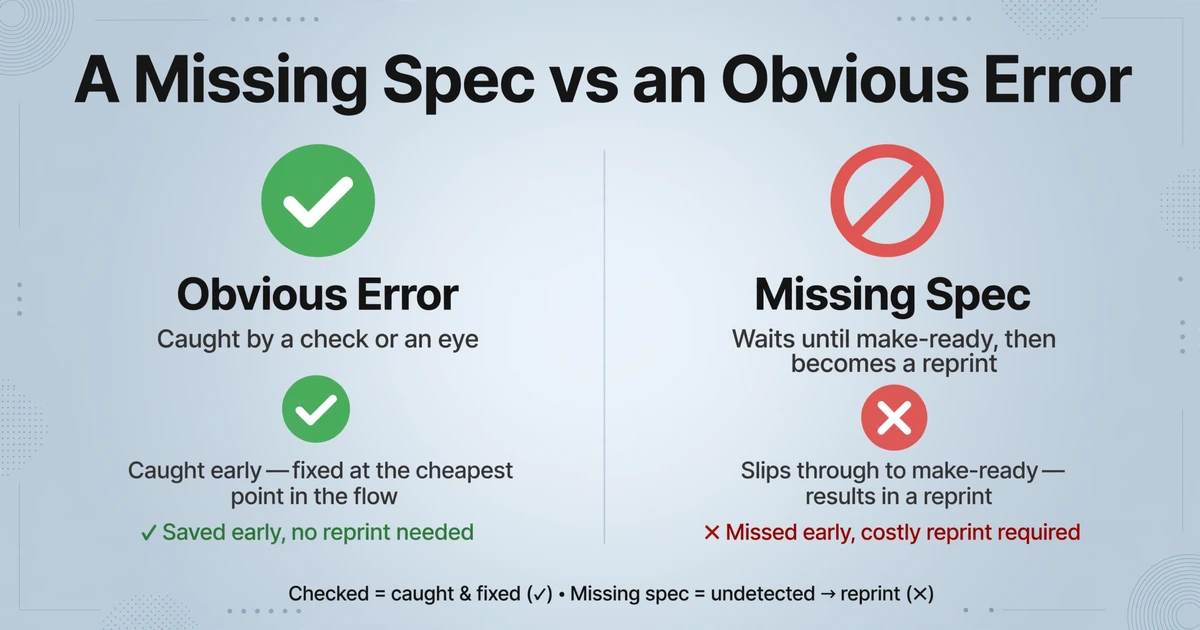
The failure that costs the most is not a number that is obviously wrong. A wrong total usually gets caught because it trips a check or an eye. The expensive one is a field that is simply absent. The fold the customer mentioned in a reply is never carried over. The quantity is read as 500 when the order said 5,000. The stock is entered as the house sheet when the customer asked for a coated one. Nothing in the ticket looks broken, so nothing stops the job.
A missing spec does not fail a validation rule. It waits until make-ready, when the plates are made and the press is loaded, and then announces itself as a reprint. That is the most expensive place in the workflow to learn about a mistake that was made at the cheapest one.
The cost is not only the wasted stock and press time. It also lands on the schedule, on the delivery date the customer was promised, and on the trust that decides whether that customer sends the next order. None of that shows up in the ticket. It shows up weeks later as a customer who stopped calling.
The Path a Job Order Takes Before the Press
Before a print job reaches a press, it passes through at least four pairs of hands, and each one works from the same record the order-entry step created.
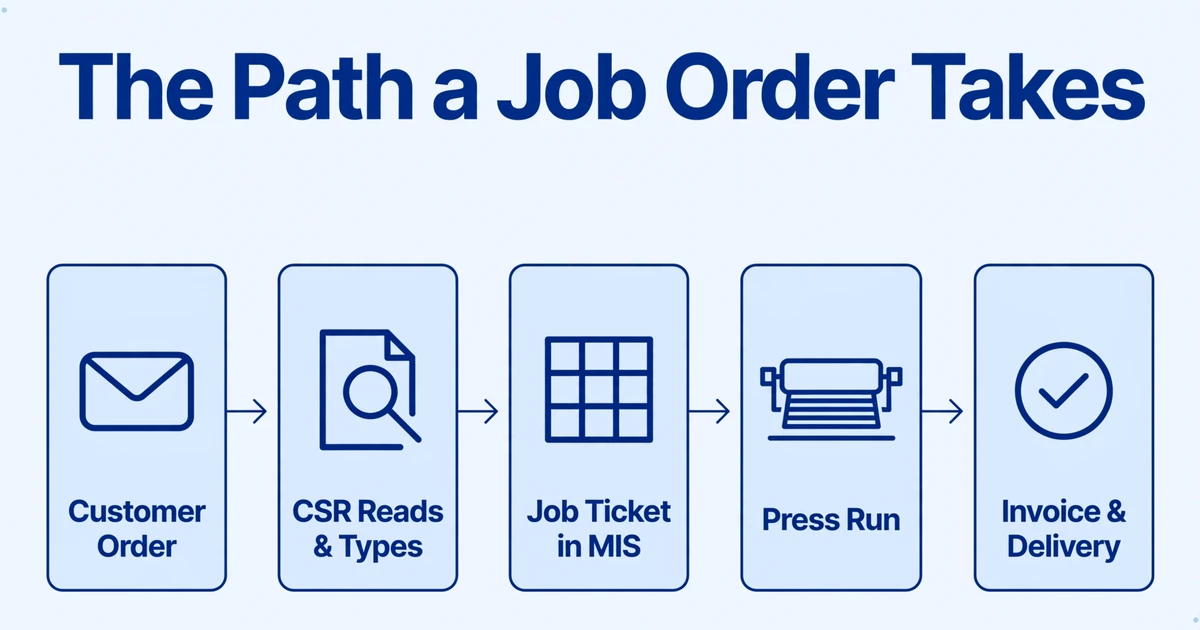
The order arrives however the customer prefers to send it: an email thread with the real spec in the third reply, a PDF purchase order, a fax, a scan of a handwritten job request, a file dropped through a customer portal. A CSR or estimator reads it and rebuilds it inside the print MIS, the software the business runs on. Common systems in commercial shops include EFI Pace, Avanti Slingshot, eProductivity Software (ePS), Tharstern and PrintSmith. The MIS does not read the order. It stores the version the CSR typed.
From there the job becomes a printed job ticket for the floor, a prepress check of the supplied files, a slot on the production schedule, a press run, a finishing pass, and finally an invoice. The planner schedules from the ticket. The operator sets up from the ticket. Billing pulls from the same record. One field wrong or missing at the top propagates through every one of those steps.
You would expect this to have been automated by now. FESPA's 2025 Print Census, drawing on 774 businesses across 89 countries, found that where print businesses do automate, it concentrates on workflow tools, web-to-print platforms and prepress, and that nearly half report no automation at all. Production and prepress absorbed the investment. Order intake, still a person reading a document by eye, mostly did not.
Shops are not indifferent to this. PRINTING United Alliance reports that three-quarters of U.S. printers struggle to hire qualified press and bindery operators. A tight labor market leaves the front office thinner, not thicker, at exactly the moment order volume is climbing.
Why Order Entry Resists Automation
Order entry is hard to automate because every customer invents a different job order. Template-based parsing, the older approach, captures values at fixed coordinates on a known layout. It works when the same document arrives from the same source in the same shape. A print shop is the opposite situation. The same job can arrive as one customer's PDF purchase order, another's plain-text email, a third's scanned paper form, and a reprint request that says only "same as last time."
Maintaining a template per customer and per form is a job in itself, and it breaks the first time a customer redesigns the form or moves the spec out of the attachment and into the email body. The workaround becomes a person reading the order and typing it in, which brings the problem back to human transcription under interruption.
Reading a job order is not the hard part. Anyone at the front desk can find the quantity and the due date. The hard part is doing it forty times a day, between phone calls, without dropping the one detail buried on page three. One print professional described the daily reality on r/CommercialPrinting, asking how much time the front office still spends "manually translating unstructured data into structured job tickets," and naming the usual culprit: "the specs buried in a 3-page email thread, the 'previous job' details trapped in a legacy PDF, or a customer's weirdly formatted Excel spreadsheet." The question that follows is the one this article is about: how often does a production error happen because "a detail was buried in a file and missed during the initial entry?"
The order-entry error that hurts is silent. A missed fold or a swapped stock does not trip any check, so the job keeps moving and the mistake is discovered when the press is already running.
That is the gap worth closing. The goal is to remove the re-typing entirely, so the specs are captured as they appear on the document and can be checked before they become a job. In print job order data extraction, that distinction is the whole point: a faster typist still drops a field, while a structured row can be verified.
The Fields That Decide How a Job Runs
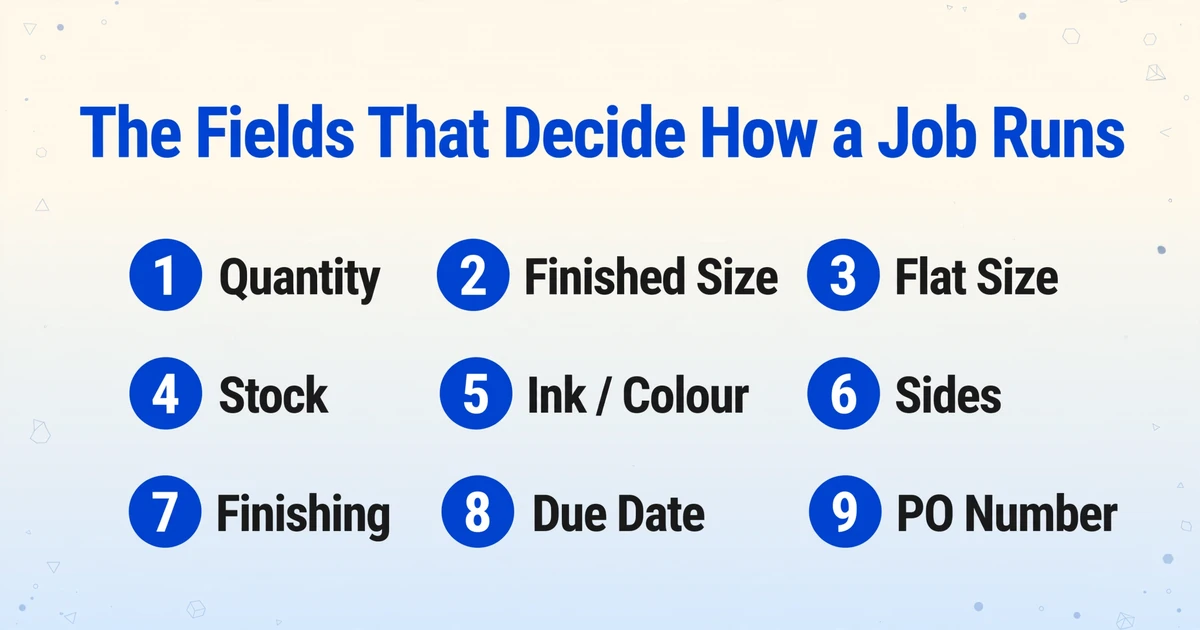
A print job ticket is a short document with an unusually high cost per field. These are the fields worth naming as extraction columns, in the vocabulary a real order uses.
| Field | How orders usually phrase it | What a miss costs |
|---|---|---|
| Job / order number | Order no., job name, reference | The ticket cannot be tied back to the order; reprints and reorders lose their history. |
| Customer and PO number | Bill-to, PO #, account | Billing cannot match the invoice to the buyer's paperwork. |
| Quantity (and overs) | 500, 1M, "run 5% over" | Under-run forces a second setup; over-run burns stock and time. |
| Finished size (and flat size) | 8.5x11 finished, A4, cut to | Imposition and cutting are wrong; the job is the wrong size leaving finishing. |
| Substrate / stock | 100lb gloss, 350gsm, brand name, "same as last time" | Wrong sheet changes colour and feel, and may not be in the house inventory. |
| Ink / colour | CMYK, 4/4, PMS 186 | A colour match is rejected and the run is spoiled or remade. |
| Sides | 1-sided, duplex, 4/4 | Half the job is printed on one side or back-to-front is wrong. |
| Finishing | saddle stitch, perfect bind, fold, drill, pad, shrink wrap | Finishing is booked wrong and the job is rerouted or rerun. |
| Due date / delivery | by Friday, ship 10/20, ASAP | A missed deadline and expedited freight to recover it. |
One field deserves a note of its own: flat size versus finished size. A saddle-stitched booklet measuring 8.5 x 11 finished has a flat size of 11 x 17. If the order gives only one number and the ticket records the wrong one, the imposition is wrong before the press starts. Naming both columns, and letting the AI find both where they appear, is the difference between catching that and reading it on press.
A print job order behaves like a sales order that happens to be produced in-house, and when it arrives as the buyer's own form it is effectively a purchase order. The extraction pattern is the same one covered in pulling sales order fields into a spreadsheet and in extracting purchase order data. What changes here is the document: a print ticket has fields most order forms never carry, and a missing one has a physical cost.
Turning a Job Order Into Structured Rows You Can Check
The intake step becomes automatable when the tool reads for meaning instead of position. This is what ImageToTable.ai calls Custom Column Extraction: you type the column names you want, such as "Quantity," "Finished Size," "Stock," or "Due Date," and the AI locates each value anywhere on the page by understanding what it means, not by matching a fixed layout. The names you type become the header row of the output, so the table is shaped like your ticket from the first pass. It is the mechanism that makes job order automation for printing practical, because one column set covers every customer's format.
Because the reading is semantic, one set of columns works across every customer's format. A PDF purchase order from one buyer, a faxed scan from another, and a handwritten job request from a third all resolve into the same row, with no template built for any of them. That is the practical answer to the format problem that makes order entry hard to automate in the first place.
The workflow itself has four moves.
Collect the day's orders
Upload job orders, or let them arrive on their own. Documents can be forwarded into a dedicated Email Inbox that processes attachments automatically, or collected through a Collection Link a customer can open to upload a spec sheet without an account. Batch processing means uploading the day's orders together and merging them into one table, instead of working file by file: drop the whole folder in at once and get every job back as a row.
Name the columns like the ticket
Use the field names from the table above: Quantity, Finished Size, Flat Size, Stock, Ink, Sides, Finishing, Due Date, PO Number. Add computed columns where useful, so the extraction does arithmetic as it reads, such as a sheet count derived from quantity and up, or a line total from quantity and unit price.
Check a value against the page
In Review Mode, click any extracted cell and the original job order highlights the spot that value came from. Since the dangerous error is a field that is wrong or missing rather than a job that fails outright, being able to verify a spec against the source without re-reading the whole order is what makes a spot check practical instead of a second manual pass.
Export one row per job
The output is a standard XLSX or CSV file, with each job order as one row and your column names as the headers. It can be staged in a spreadsheet for review or mapped into the import format your MIS accepts. When a single order spans several pages or arrives as a separate spec sheet and order form, Multi-Page Merge folds the pages back into that one row.
Files are processed securely and not stored.
How the Rows Meet the MIS You Already Run
The extracted rows are built to line up with the system you already run, not to replace it. Being precise about where the handoff happens is part of choosing this route honestly.
ImageToTable.ai does not write directly into EFI Pace, Avanti Slingshot, ePS, Tharstern or any other print MIS. Its output is a structured file: XLSX, CSV or JSON. From there the row is either reviewed in a spreadsheet and imported through the MIS's own order-entry or import path, or handed to a developer. The v1 API returns structured JSON and can notify your system through a webhook when processing finishes, which is the route for wiring the intake step into a custom job-management workflow without a person in the middle. If the office already lives in spreadsheets, the Google Sheets add-on writes results straight into the active sheet.
This is the same shape as the broader problem of moving data between the software that takes orders and the software that runs production. A job order generated outside the shop, and a production document like a manufacturing timesheet, both need the same thing: a reliable way to turn a document into fields the system on the other side can accept. The overview of document automation across an operation covers that wider picture. Here, the whole value is concentrated in one step, which is why it is worth doing well rather than doing everywhere.
What This Does Not Do
What the approach cannot do matters as much as what it can, because an inflated promise at intake is just another kind of missing spec.
It cannot invent a spec that is not on the page
If the job order does not state the stock, the extraction cannot produce it. The AI reads what the customer sent. It does not know that your shop always uses the 100lb house sheet unless the order says so.
Implicit and shorthand orders still need a human
"Same as last time" is a sentence, not a specification. Extraction captures the phrase accurately and hands it to you. Resolving it against job history stays with your team.
It does not price, schedule or post
No estimating, no production scheduling, no imposition, no writing into the MIS. The output stops at the structured row. Everything the MIS or the estimator does with that row stays where it belongs.
Poor scans and unusual handwriting deserve a check
Vision models read printed and handwritten text, but a badly faded fax or an unusual scrawl is exactly where a spot check earns its place. Review Mode exists to make that check fast, not to make it optional.
FAQ
Can it read a faxed or scanned job order?
Yes. Scans, faxes, phone photos and PDFs are all read the same way, and the extraction is not tied to the layout of any one of them. The quality of the source matters: a clean scan or a well-lit photo gives better results than a third-generation fax, and the values can be checked against the page in Review Mode before the row is used.
Does it work if every customer sends a different job order form?
That is the case it is built for. Because the columns are matched by meaning rather than by position, one column setup covers every customer's format, including email bodies with the spec written out in prose. There is no template to create per customer and nothing to rebuild when a form changes.
Can it write directly into our print MIS?
No. The output is a structured XLSX, CSV or JSON file. You import it through your MIS's own order-entry or import path, or a developer wires the v1 API into a custom workflow. Direct connectors into systems like Pace, Avanti or ePS are not part of the product, so the honest expectation is a clean, reviewable row rather than an automatic post into the MIS.
Which job order fields should I name as columns?
Start with the ones that carry the most cost if they are wrong: Quantity, Finished Size, Flat Size, Stock, Ink, Sides, Finishing, Due Date and PO Number. Job name, customer and job number are useful for tracing the row back to the order. Add computed columns for arithmetic your team currently does by hand, such as a sheet count or a line total.
Can it handle a job order spread across several pages?
Yes. If the order and a separate spec sheet arrived as different pages of the same submission, Multi-Page Merge groups them back into one row so the fields from all pages land together. It can group by a tracked value such as the job number, or by a fixed number of pages.
What if the order arrives as the email body with no attachment?
That is a supported intake channel. The Email Inbox can be set to read the message body instead of, or alongside, its attachments, which covers the customer who writes the spec straight into the email rather than attaching a form.
Reading a job order this way keeps the person in the intake step and gives them a structured row to check instead of a blank ticket to fill from scratch. That is how the spec buried on page three gets caught while it is still a row and not yet a reprint.
Put a day's job orders into one table, name the fields your ticket actually needs, and check each value against the source before it becomes a job. See how it handles your own orders.