Receipts, Bills and Invoices Enter
QuickBooks Desktop as a File
QuickBooks Desktop has a bank feed and an Excel import button, and neither will take a folder of supplier invoices and post it as vendor bills. That is not a reading problem. A vision model pulls the vendor, date, and total off a scan without much trouble. The problem is the shape. QuickBooks Desktop accepts transactions in one specific file format, and a stack of receipts is not it.
Key Takeaways
- Reading a receipt is not the hard part, the real wall is the exact file shape QuickBooks Desktop demands before it will post a transaction.
- A folder of mixed receipts, bills and invoices is really three imports wearing a single label, and each one needs a different set of fields from the same page.
- One vendor name that misses an exact match can make QuickBooks quietly open a phantom bank account in your books, which is why the sheet has to be correct before the import runs.
The gap shows up the moment someone tries to cross it. A bookkeeper whose vendor issues up to 50 bills a day asked Intuit's own community how to bulk-import them, and the answer was blunt: there is no good way to do this built into QuickBooks. The same thread points to IIF files as the workaround, and Intuit's product guidance says something similar in different words: you import lists from Excel or CSV, but bills and invoices go in another way.
So the job splits in two. First you turn a mixed pile of receipts, bills, and invoices into one consistently shaped data file. Then QuickBooks Desktop's own import reads that file and creates the transactions. This article covers both halves, and it is explicit about which half a tool like ours does and which half belongs to QuickBooks.
Three Documents, Three Different QuickBooks Transactions
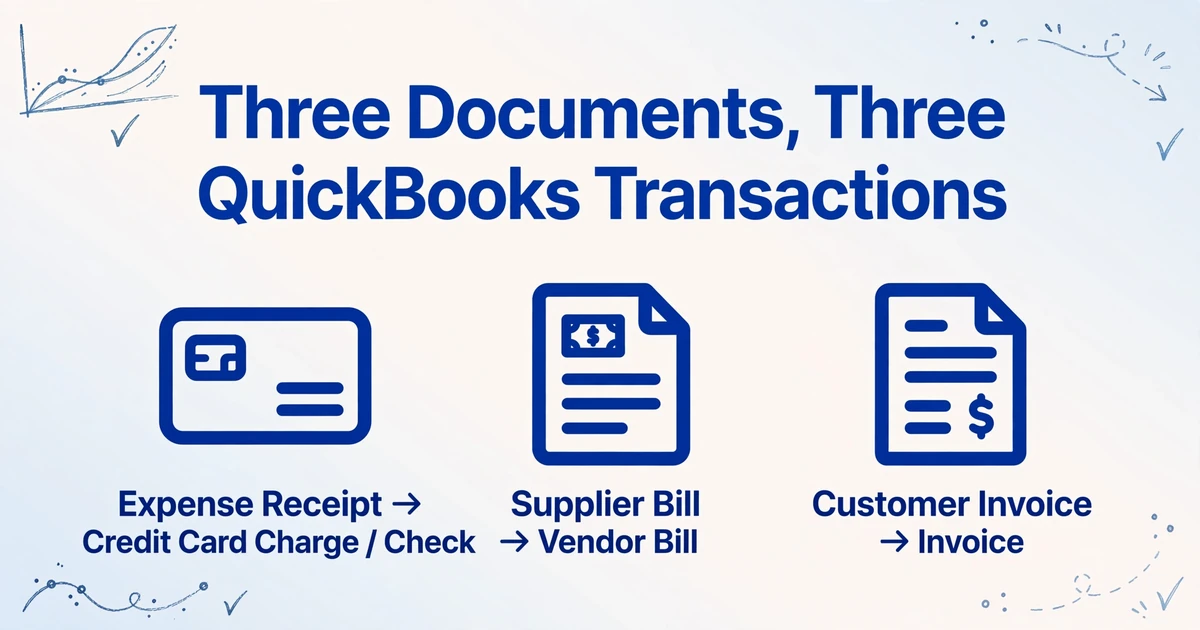
The word receipt is doing two jobs in this search, and only one of them is about money going out.
In QuickBooks, an expense receipt is proof of a purchase your business already paid for. A sales receipt is a transaction that records money you collected from a customer. When people search for how to import receipts into QuickBooks Desktop, they almost always mean the first kind: the supplier slip, the fuel docket, the card payment that needs a backup document. The second kind records revenue, which is a separate entry with its own rules.
The confusion does not stop there. A document that looks like "an invoice" can move in either direction, and QuickBooks gives it a different transaction depending on which way the money flows. Match the document to the wrong transaction and the import will either fail or post to the wrong side of the books.
| What you have | What it becomes in QuickBooks Desktop | Why |
|---|---|---|
| Expense receipt, already paid by card, cash, or bank | A credit card charge or a check, depending on how it was paid | The money is already gone; QuickBooks needs the payee, date, expense account, and amount |
| Supplier bill or invoice you have not paid yet | A vendor bill entered under Vendors > Enter Bills, posting to Accounts Payable | This is money you owe, and it needs a due date |
| Invoice you issued to a customer | An invoice under Customers > Create Invoices, posting to Accounts Receivable | This is money owed to you, and it needs customer and line items |
| Item receipt (goods delivered before the bill) | An item receipt, matched to the bill when it arrives | Inventory has arrived but the payable has not |
The field sets behind those four rows are not the same. A vendor bill needs a vendor, a bill date, the amount, a due date, a reference number, and at least one expense account or item line. An expense receipt needs a payee, a date, an account, and an amount, but no due date. An invoice needs a customer and line items, not a vendor. Extract all three document types with one generic set of columns and at least one of the resulting transactions will be missing a field QuickBooks requires.
A folder of mixed documents is not one import. It is three imports wearing a single label, and the extraction step has to know which is which.
What QuickBooks Desktop Will Actually Import
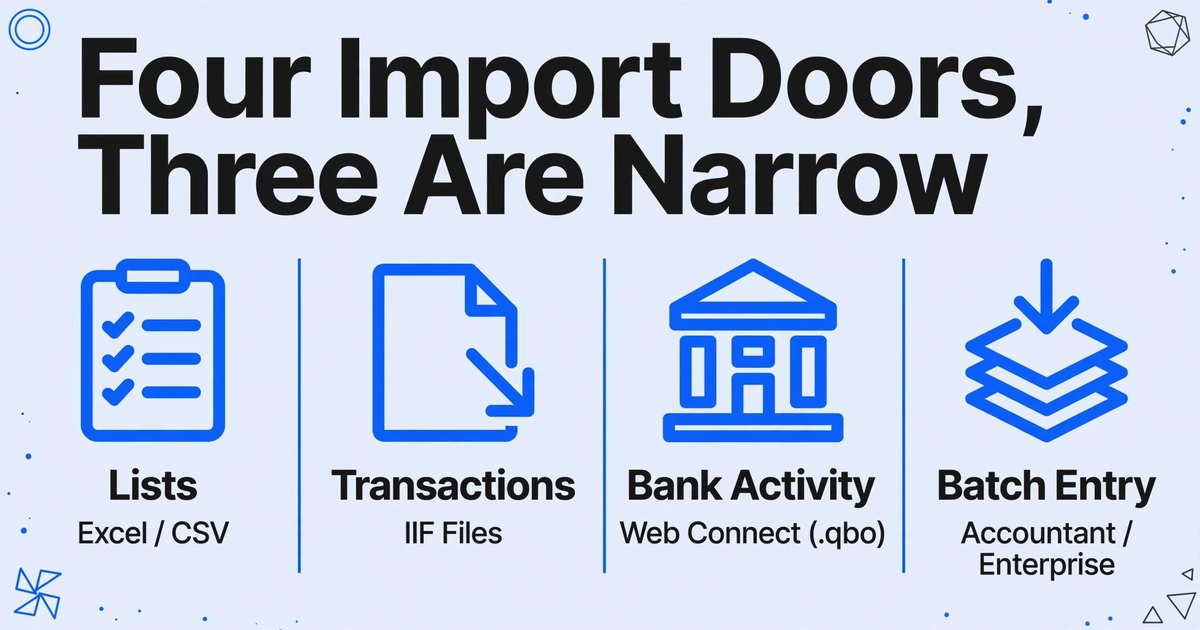
QuickBooks Desktop does not have a single import door. It has four, and three of them are narrow.
Lists such as customers, vendors, items, and the chart of accounts come in from Excel or CSV. Transactions come in as IIF (Intuit Interchange Format) files, imported through File > Utilities > Import > IIF Files. QuickBooks Desktop Accountant and Enterprise editions can also enter transactions by batch, while Pro and Premier lean on IIF. Bank and credit card activity arrives through a Web Connect (.qbo) file in the bank feed.
The line that matters most is the one Intuit draws between lists and transactions. Intuit's Excel import guidance covers Customer, Vendor, Items, and Chart of Accounts, and states that this import "cannot be used to import transactions (invoices, bills, etc...)." A clean spreadsheet is exactly the right output for the extraction step, but it is not, on its own, something QuickBooks Desktop will post as vendor bills. That last conversion is a separate move.
IIF is a tab-separated text file. A transaction is written as a main line (TRNS), one or more split lines (SPL), and an end marker (ENDTRNS), with column headers in the first rows. The separators have to be real tabs, the field order has to match the headers, and the account names have to match what is already in the company file. Intuit's IIF overview is explicit that the format is exact and the error checking is limited: get it wrong and you either see an error, or the data imports incorrectly with no warning at all.
| Transaction | Fields it needs | Document that supplies them |
|---|---|---|
| Vendor bill | Vendor, bill date, amount, due date, reference number, expense account or item line | Supplier invoice or bill |
| Check / credit card charge | Payee, date, expense account, amount | Expense receipt already paid |
| Customer invoice | Customer, date, item, quantity, rate, amount | Invoice you issued |
Notice where the work lands. Every field in that table has to be captured from a document before the import screen opens. A bill with no due date, or an expense with no account, is not a formatting problem you fix after importing. It is a field the extraction step had to find on the page in the first place.
It is worth separating the destination from the data. QuickBooks Desktop's import is the destination, and it is built to accept transactions in the shapes above. The extraction step is what produces the values for those shapes from documents that share nothing in common, and it is where most of the manual effort actually sits. If this is a recurring monthly job across client books, the same division of labor shows up wherever accountants automate data entry, and the document extraction is the part that is worth automating first.
Where the Hand-Built Import Breaks
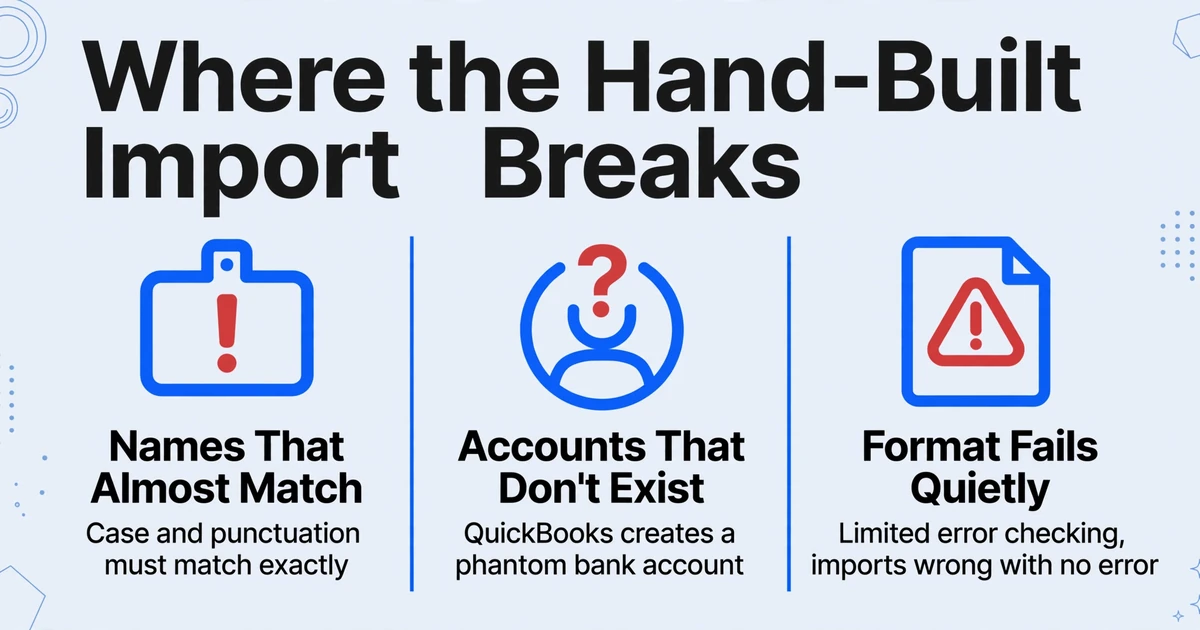
The failures cluster in the same three places: names that almost match, accounts that do not exist, and a format that fails quietly.
Names have to match exactly. QuickBooks Desktop matches on case and punctuation, so "Office Supplies" is not the same as "office supplies," "Meals & Entertainment" is not "Meals and Entertainment," and a stray trailing space is enough to break a line. Sub-accounts have to match in full, separated by colons, so "Auto:Fuel" is not "Fuel." When a vendor name or an account name comes off a supplier's PDF and does not match the vendor list or the chart of accounts, the row fails.
Accounts have to exist before you import. Intuit's IIF overview warns that if a transaction references an account that is not already in the company file, QuickBooks creates it, and the account it creates is a bank account. One misspelled expense account can quietly add a phantom bank account to the balance sheet. That kind of error survives the import and surfaces in a reconciliation weeks later, when nobody remembers which file caused it.
Most import failures are not detection failures. They are the result of a clean document being turned into a file with a name that does not match what QuickBooks already has.
The format fails quietly. Intuit's documentation notes that importing IIF files "provides only limited error checking," and that an incorrect format may raise an error or may import incorrectly "with no error." A wrong amount, a debit and credit entered the wrong way round, or a date in a different order can all land in the books without a complaint. The only defense is the state of the file going in.
Volume multiplies the odds. Fifty bills a day is fifty chances for a name to mismatch or a line to group wrong. Multi-line bills add their own trap: every line of one bill has to share the same reference number, or QuickBooks reads the set as several separate bills. On a single small import it is a nuisance; across a month of a client's vendor bills it becomes an afternoon.
The cost behind that handling is not small. Ardent Partners' 2025 benchmark puts the average all-in cost to process one supplier invoice at $9.84, and the gap between that and a best-in-class process is explained almost entirely by how much of the work never reaches a person. Every hour spent re-typing or re-checking a document is the part that compounds across a month of bills.
The import is not the end. IIF does not link transactions. An imported invoice and its payment still have to be linked by hand in Receive Payments or Pay Bills. QuickBooks also does not update a transaction that already exists, so importing the same document twice creates a duplicate rather than correcting the first one. All of this means the file that goes in has to be right the first time, because fixing it after is manual work again.
Build One Consistent Sheet Before QuickBooks Takes Over
The extraction step has one job: take documents that share nothing, format-wise, and return one set of columns shaped for the transaction you are building.
This is where ImageToTable.ai's Custom Column Extraction applies. Instead of drawing a box around "Total" on each supplier's layout, you type the column names you want, such as Vendor, Invoice Date, Due Date, Amount Due, Tax, and Expense Account. The AI reads each document and finds the matching value by understanding what the field means, not where it sits on the page. You can reuse the same column names on every vendor's format, so a batch of differently laid-out bills comes back as rows in a single sheet rather than one file per document.
Several mechanisms in the tool map directly onto the failure points above. Batch processing uploads the whole folder at once and merges the results into one Excel file, which is the difference between one import file and forty. Data standardization cleans dates, amounts, and reference numbers into one consistent format, which is exactly what an IIF import is unforgiving about. Multi-Page Merge folds a bill or statement that arrived as several scans back into a single record, so one document does not become three. Inferred columns let you ask for an Expense Account or Category column that the AI suggests from the document's content even when the field is not printed. Computed columns handle the arithmetic, such as splitting a gross amount into net and tax or calculating a line total, so the sheet carries answer fields instead of raw numbers.
Files are processed securely and not stored.
The output is CSV, Excel, or Google Sheets, and that boundary is deliberate. The clean sheet is what a person or an importer then maps into QuickBooks Desktop's own import shape: IIF for Pro and Premier, batch entry on Accountant and Enterprise, or the bank feed for card and bank activity. If the stack is mostly supplier invoices, extracting invoice data to Excel is the closer starting point; for a shoebox of receipts, extracting receipt data works the same way. When the volume comes in as a folder rather than a handful, batch-processing invoices into one sheet is the pattern that keeps the columns aligned across vendors. The import itself stays QuickBooks' job.
There is a related case worth knowing about, because it hits the same import wall from a different direction. When the documents are old printed ledgers rather than vendor bills, the columns are debit, credit, and running balance instead, but the destination has the same exact-match discipline. The workflow for digitizing printed ledgers for QuickBooks and Xero shows how that is handled, and why the running balance has to be verified before the file ever reaches the accounting software.
What This Workflow Does Not Do
The honest boundary is the point of this article, so it is worth stating plainly.
- ImageToTable.ai does not generate IIF files. It produces CSV, Excel, and Google Sheets output. The IIF file, if you need one, is built from that sheet by you or by a separate importer.
- It does not connect to, sync with, or post into QuickBooks Desktop. There is no live link to the company file. The import is QuickBooks' own step.
- It does not match your extracted names to your company file. If "Acme Supply Co." is stored as "Acme Supply Co" in QuickBooks, that mismatch is still yours to fix before the import.
- It does not import, link, or reconcile anything. It cannot check a new bill against the bills already in QuickBooks, so duplicate control stays with you.
- It does not attach the original images. QuickBooks Desktop takes transaction data in these imports, not the receipt image alongside it, so the source documents stay where you keep them.
If what you need is a one-click sync that writes bills straight into the company file, that is a different class of tool, usually one that reads the QuickBooks API or runs inside the product. What extraction buys is the part in front of that: a consistent, standardized sheet built from documents that arrived in a dozen shapes. It turns the unpredictable step, reading and normalizing the documents, into a repeatable one, and leaves the predictable step, the import itself, to the software that owns it.
FAQ
Can I import receipts into QuickBooks Desktop from a CSV?
Not as transactions, and not in Pro or Premier. QuickBooks Desktop's Excel and CSV import covers lists such as customers and vendors, not invoices or bills. Transactions go in through IIF files, and Accountant and Enterprise editions also offer batch transaction entry.
Does ImageToTable.ai create IIF files for QuickBooks Desktop?
No. It outputs CSV, Excel, or Google Sheets. You use that clean sheet to build the IIF file, bring it into an edition that supports batch entry, or hand it to whoever does your QuickBooks posting.
What fields does QuickBooks Desktop need from a supplier bill?
A vendor, the bill date, the amount, the due date, a reference number, and at least one expense account or item line. Missing a required header field stalls the import.
Why does my IIF import fail with "Account Not Found"?
QuickBooks matches account and vendor names exactly, including case, punctuation, whitespace, and full sub-account paths. If the name in the file is not already in the company file, the import fails, and for a missing account QuickBooks may create a new one instead.
Can QuickBooks Desktop link an imported invoice to its payment?
No. An IIF import does not link transactions. After the import you still link the invoice and its payment in Receive Payments or Pay Bills.
Can I batch-import vendor bills into QuickBooks Desktop?
Yes, through IIF or batch entry, but volume raises the error rate. Every name has to match the company file, and every multi-line bill's rows have to share one reference number so they group into a single bill.
The Shape Is the Job
A supplier bill is easy to read and hard to place. The reading is the part the vision models solved. The placing is the part QuickBooks Desktop controls, with exact name matching, a tab-delimited format, and little patience for a missing field. Separate those two steps and the job stops being mysterious. Extract the mixed stack into one consistently shaped sheet, check the names against what QuickBooks already holds, and let QuickBooks' own import turn the sheet into transactions.
Test it on a month of your own receipts, bills, and invoices. Name the columns for the fields QuickBooks asks for, extract them in one batch, and see what a single consistent sheet looks like before the import.
Try it on your documents