QuickFile Books the Defaults
Your Purchase CSV Leaves Blank
QuickFile's purchase import rarely fails. It reads the CSV you hand it, fills whatever you left blank with a default, and reports that the import is complete. The VAT rate column is empty, so it assumes the standard rate. The nominal code column is empty, so every purchase lands in general purchases. The supplier name is a few characters off, so it quietly opens a second supplier record. The wizard behaved exactly as documented, and the accounting is where the damage turns up.
Key Takeaways
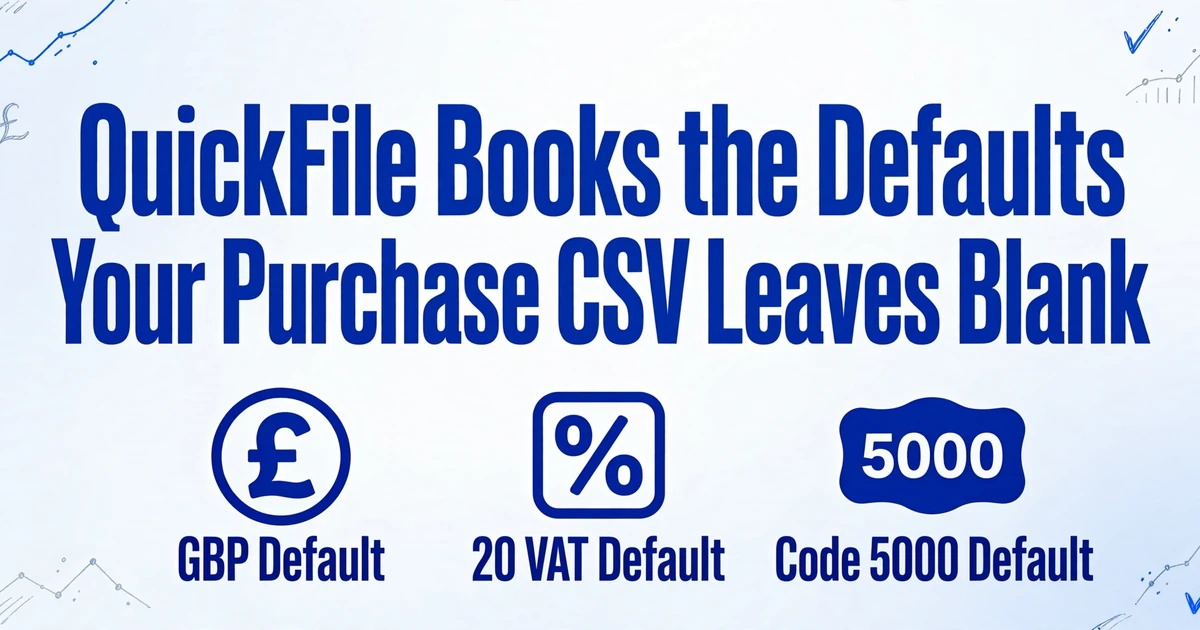
- The QuickFile wizard behaves exactly as documented, reports the import as complete, and leaves the damage to surface in your accounting.
- Leave the VAT rate or nominal code blank and it fills them for you, applying 20% to a zero-rated bill and posting every purchase to 5000.
- Type QuickFile's field names as your extraction columns in ImageToTable.ai and the wizard auto-maps them, then test a sample with a zero-rated line before the full import.
What QuickFile's purchase import actually accepts
QuickFile gives you three routes for a supplier invoice, and they are not interchangeable. Choosing the wrong one for the material you hold is the first place a month of bookkeeping goes sideways.
The route most bookkeepers land on for bulk work is the Data Import Wizard, under Account Settings. It reads a CSV of invoices you have already arranged in rows. QuickFile caps it at a maximum of 250 invoices per file, and if your header row matches its field names exactly, the wizard maps the columns for you rather than making you drag each one into place (QuickFile, importing sales and purchase invoices).
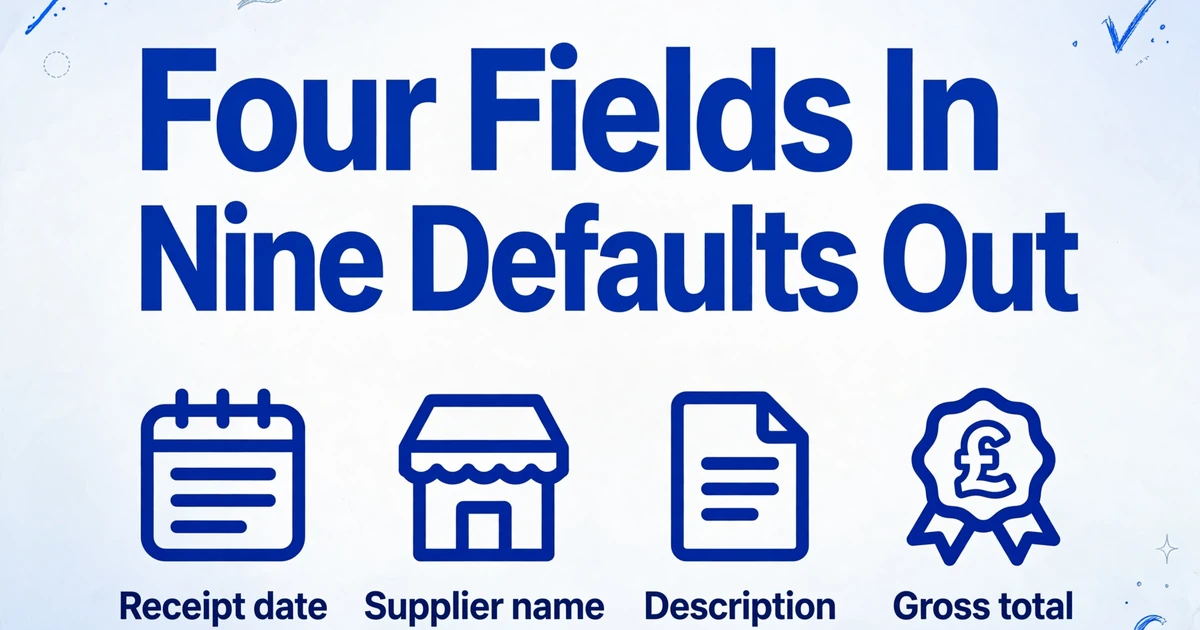
For purchase invoices the CSV needs four fields at minimum: Receipt date, Supplier name, Description, and Total gross amount. Nine more are optional, and the optional ones do the real work: Currency, Exchange rate, Supplier Ref., Term in days, VAT total, VAT rate, Purchase nominal code, Paid date, and Paid account nominal code.
Each optional field carries a default, and this is the mechanism that decides whether your import is clean or quietly wrong. Leave Currency out and QuickFile assumes GBP. Leave the VAT fields out on a VAT-registered account and it assumes the standard rate. Leave Purchase nominal code out and the purchase posts to 5000, general purchases. Leave Paid date out and the invoice is created unpaid. QuickFile's own rule for the VAT rate is strict: it has to be a bare number, not a decimal and not a percentage, so "20.00%" has to be written as "20".
Two more rules bite before the wizard even starts. The supplier name must exactly match a supplier already in QuickFile, or the import creates a new one, which is how one supplier ends up with two records. And the purchase nominal code has to be the number on its own, not the label. Writing "6201 - Advertising" fails; writing "6201" works. The code also has to sit in a range QuickFile allows on a purchase, which covers the purchases (5xxx) and direct expenses (6xxx) ranges, most overheads, and fixed assets, but not wages, depreciation, or control accounts.
The other two routes are narrower. The Receipt Hub is QuickFile's built-in capture layer: you upload receipts and invoices directly, email them to a dedicated address, or use the mobile app, and QuickFile's AI reads the date, supplier, net, VAT, and gross, then looks for a matching open purchase to tag the document against (QuickFile, AI-powered receipt analysis). It is built for document-by-document review, and its limits reflect that: when it cannot find an itemised VAT breakdown it may infer VAT at the standard rate and mark it as estimated, and documents longer than five pages are ignored. The third route, Import to QuickFile, only applies when another QuickFile user sends you the invoice, and it works for new GBP invoices only.
The work divides cleanly between people. The bookkeeper or accounts assistant prepares the file, codes it, and runs the import. The accountant owns the VAT treatment, the nominal code choices, and the year end. The import format in QuickFile lives against the company, so a workbook that imports cleanly into one client can fail in the next.
What a UK purchase invoice has to carry first
A purchase invoice is not a document you can summarise however you like. Under HMRC's VAT record rules, a full VAT invoice has to state a sequential number, the time of supply, the date of issue, the supplier's name, address and VAT number, the customer's name and address, a description of the goods or services, the quantity, the rate of VAT and the amount payable excluding VAT for each item, the gross total excluding VAT, and the total VAT chargeable in sterling (HMRC, VATREC5010). The standard rate of VAT in the UK is 20%, and you cannot reclaim the input tax without a valid invoice to support it.
That is why the three money columns in your CSV are not filler. The gross total comes from the invoice. The VAT rate and VAT total have to reflect what the supplier actually charged. When a supplier sells zero-rated and standard-rated goods on the same invoice at different rates, a single purchase row can only carry one rate and one VAT total, and the net you hand QuickFile has to reconcile to the paperwork.
The distinction matters more than retyping an amount. A correct VAT figure feeds the VAT return and the input tax claim. A wrong one either overstates your claim or drops legitimately recoverable VAT. On a zero-rated supplier bill, an import that silently applies 20% creates a VAT claim that the invoice does not support, and nobody notices until an inspection.
Where a hand-built purchase CSV breaks
The failures repeat often enough to name. Each one starts in the sheet, not in QuickFile.
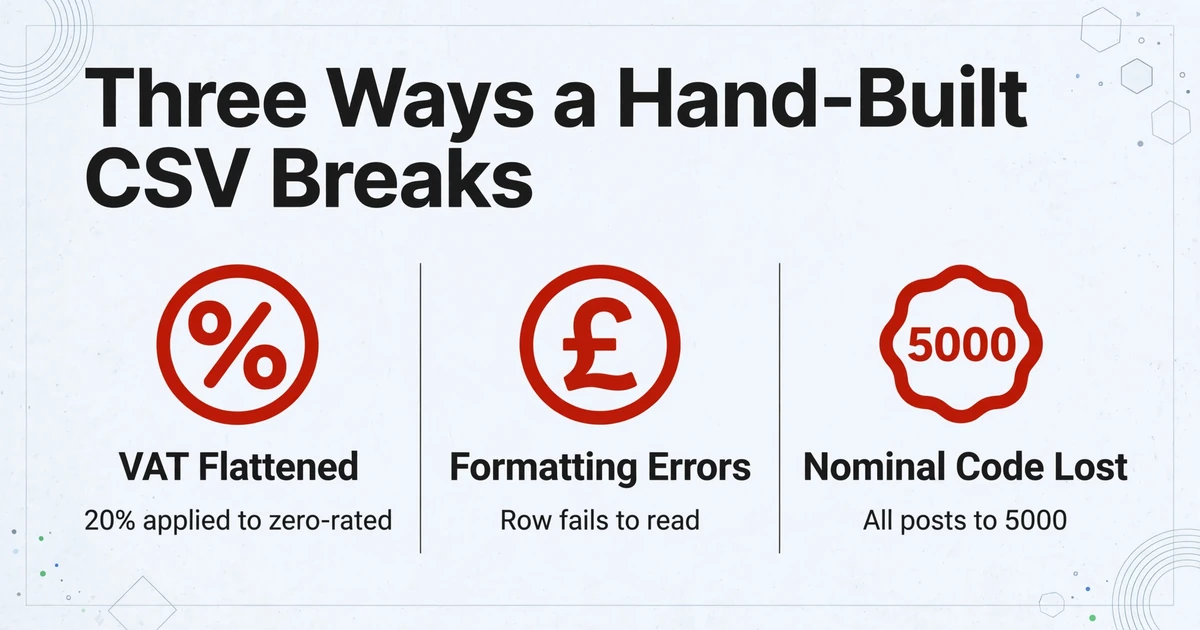
VAT gets flattened. A purchase CSV row records one VAT rate and one VAT total. A multi-line invoice that mixes zero-rated and standard-rated lines cannot be represented in a single row, and if you omit the VAT rate column entirely, QuickFile falls back to the standard rate. The reason is that a blank cell and a text value both fail to parse as a number, and a rate QuickFile cannot read is treated like a missing one. The safest sheet writes 20 as a number and fills the VAT total from the invoice.
Formatting turns into errors. The amount columns have to be plain numbers. A "£" left in a cell from an accounting format, a blank row in the middle of the file, or a hidden character carried over from a copied export can stop the row from reading at all. QuickFile's community threads on import errors trace a large share of them back to exactly these invisible problems, and the fix is a clean, consistent column, not a re-typed file.
Nominal code meaning gets lost. Leave the column empty and every purchase is coded to 5000, general purchases. Your profit and loss then shows a business that spends everything on general purchases, and the accountant has to unpick the category from the source documents at year end. Put the code and the label together and the import rejects the row. A nominal code can exist in your Chart of Accounts and still be refused by the bulk import because it falls outside the ranges purchases accept.
Supplier names drift. Matching is exact, so "Widgets Ltd", "Widgets Limited" and "Widgets Limited." become three supplier records. Once that happens, supplier statements and purchase analysis split across duplicates, and the cleanup falls to whoever reconciles the account next.
The batch limit shapes the wrong thing. At 250 invoices per file, a busy month needs splitting. A split that is done by hand at the end of the month, from a folder of PDFs, is where consistency slips: one file uses a nominal label, the next uses the number, one carries the VAT rate as text.
Underneath all of it is the same upstream bottleneck. A bookkeeper on r/Bookkeeping described processing roughly 800 printed invoices and 500 to 600 email PDFs a month and then having to "type them all up into a spreadsheet to import them into an archaic bespoke system" (r/Bookkeeping). The typing-into-a-spreadsheet step is the bottleneck, and it is the step that decides whether every column above is right. The same reference-integrity rules explain why supplier data breaks at import in accounting and ERP systems generally, not only in QuickFile.
Building the purchase CSV QuickFile will accept
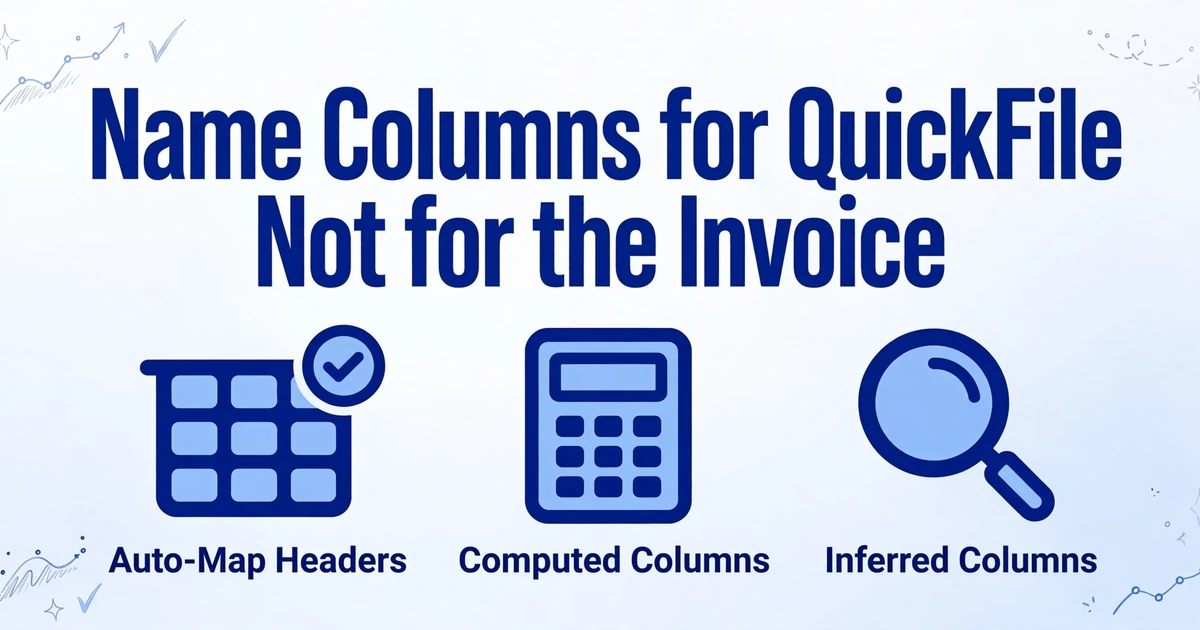
Build it in the order QuickFile reads it, not the order the invoices arrive in. Work backwards from the wizard's field list. Take the exact field names from the QuickFile guide, because those names are what let a header row auto-map. A purchase file wants Receipt date, Supplier name, Description, Total gross amount, Supplier Ref., VAT total, VAT rate, and Purchase nominal code, at minimum. That list is your specification, and the sheet should be produced to it rather than bent into it after the fact.
Work through these steps in order before you open the wizard.
Pull the exact field names
Take them from the QuickFile purchase import guide: Receipt date, Supplier name, Description, Total gross amount, Supplier Ref., VAT total, VAT rate, and Purchase nominal code. These names are what let the wizard auto-map your header row.
Name your columns after them
Type those names as your extraction columns in ImageToTable.ai. The output inherits them as its header row, so the wizard maps the file without you dragging columns into place.
Set clean value formats
Make the VAT rate a bare number, so 20 rather than "20%" or "0.20", and standardise amounts as plain figures with no currency symbol, so no cell fails to parse.
Batch-extract every invoice
Upload the month's supplier invoices in one batch. The batch merges every document into a single table with consistent headers, rather than one file per invoice.
Split at 250 rows without changing the format
Cut the merged table into files of 250 invoices or fewer, and keep the field names, column order, and formatting identical in every split so each import behaves the same way.
Test a short sample first
Import a sample that includes a zero-rated line and a standard-rated line, then open the resulting purchases and check the VAT total, the nominal code, and the supplier match against the source before you run the rest.
This is where the column names do more work than the extraction. ImageToTable.ai uses Custom Column Extraction: instead of drawing a box around each field or matching a fixed template, you type the column names you want, such as "Receipt date", "Supplier name", "Total gross amount", "VAT total", "VAT rate", and "Purchase nominal code", and the AI finds each value by understanding what it means, not where it sits on the page. Because the column names you type become the headers of the output, naming them after QuickFile's fields turns the wizard's mapping into a one-to-one match.
Two column types handle the values the invoice does not print as a single clean figure. Computed columns let the AI calculate during extraction, so a column such as "Net Amount (Gross minus VAT)" or a VAT check comes back as an answer in the output instead of needing an Excel pass after export. Inferred columns let the AI fill a value the document does not state, for example a "Category (Travel/Software/Office/Fixed asset)" column read from the supplier and the line description. The category label is not a QuickFile nominal code, and it is not meant to be: it standardises the coding decision so the accountant's nominal mapping can be applied consistently across the sheet.
The output format matters as much as the fields. Extraction can standardise dates, amounts, and numbers on the way out, so amounts land as plain figures without a currency symbol and the VAT rate stays a number. That removes the two silent killers: a "£" that stops a row from parsing and a "20%" that fails as a rate.
Then use the batch behaviour to your advantage. Batch processing means one upload of many supplier invoices produces a single merged table, so a month of PDFs becomes one file rather than one file per invoice. Split it into 250-row imports only at the QuickFile end, and keep the column order and formatting identical across the splits. Before you trust the file, review it: bbox-assisted review highlights where each extracted value came from on the original invoice, so a supplier name read one character short or a VAT amount taken from the wrong line is visible without re-reading the page. Then import a short sample that deliberately includes a zero-rated line, a standard-rated line, and a mixed-rate invoice. Open the resulting purchases and check the VAT total, the nominal code, and the supplier match against the source.
Once the purchase file flows cleanly, the same output feeds the rest of the process. If you need a review workbook before the import, you can merge a batch of supplier invoices into one Excel file, or pull the same invoice fields into Google Sheets, and if the wider goal is to stop rekeying in the first place, start with invoice processing that begins from the document. The pattern of building a file to a destination system's fields is the same one behind importing purchase invoices into other accounting software, where the tax regime differs but the mapping discipline does not.
What this approach does not do
Be clear about the boundary. ImageToTable.ai produces the structured CSV or Excel file. It does not import into QuickFile, does not connect to your QuickFile account, and does not post purchases, choose the VAT treatment, decide the nominal code, or file a VAT return. The import step is still QuickFile's, and it still follows QuickFile's rules.
The master data still has to exist. If a supplier is already in QuickFile, the name in your sheet has to match it exactly, or the import will create a new supplier. If you would rather store the source document against the purchase, that is Receipt Hub work, and documents over five pages will need another route because receipt analysis ignores them. And on a dense handwritten supplier bill, extraction can read the handwriting, but the accuracy is not the same as on a printed invoice, so a review step stays in place for those pages.
One QuickFile limitation is worth planning around rather than fighting: the purchase CSV builds a single line per invoice, so a multi-line supplier invoice with different VAT rates or cost categories cannot be carried through the bulk purchase import intact. Where that detail matters, keep the line detail in the review file and create the purchase through the route that preserves it.
Frequently asked questions
Can I import purchase invoices into QuickFile directly from a PDF?
Not directly. The Data Import Wizard reads a CSV, so a PDF has to become structured rows first. You can upload the PDF to the Receipt Hub and create the purchase from there one document at a time, or extract the supplier invoices into a QuickFile-shaped CSV and import that in bulk. The two stages are separate, and the second one still follows QuickFile's rules.
What format should the VAT rate be in the QuickFile purchase CSV?
A bare number. Write 20 for the standard rate, not "20%", not "0.20", and not "No VAT". QuickFile's own guide states the rate must be a number, and a value it cannot read as a number is treated like a missing one, which falls back to the standard rate on a VAT-registered account.
What happens if I leave the purchase nominal code blank?
QuickFile assumes 5000, general purchases, for that row. The purchase imports without an error, but your expense categories all collapse into one code. Fill the column with the number alone, for example 6201 rather than "6201 - Advertising", and check that the code is one QuickFile allows on a purchase.
Will QuickFile create a supplier if the name does not match?
Yes. Matching against existing suppliers is exact, so a name that differs even slightly creates a new supplier record. That is how duplicate suppliers appear and why supplier statements later fail to reconcile. Match the spelling in QuickFile before building the sheet.
How many purchase invoices can I import at once?
A maximum of 250 invoices per CSV file. For a busier month, split the file and keep the field names, column order, and formatting identical across each split so the imports behave the same way.
Does this work for multi-line supplier invoices?
With care. The purchase CSV builds one line per invoice, so a single row can only carry one VAT rate and one nominal code. If an invoice mixes zero-rated and standard-rated lines, or splits across several cost categories, keep the line detail in the review workbook and record the purchase through a route that preserves it.
Is the extracted file accurate enough to import without checking?
Check a sample first. Extraction reads printed and handwritten documents from PDF, JPG, PNG, and scans, with up to 99% accuracy on printed table data, but VAT amounts and supplier names are exactly the fields where a single character changes the accounting. Review a short sample that includes a zero-rated and a standard-rated line, then run the full file.
The sheet is the import
The point to hold onto is that QuickFile's purchase import can only be as right as the file it reads. Every defaulted VAT rate, every purchase dumped into general purchases, and every duplicated supplier is set before the wizard opens. When the columns are named for QuickFile's fields and the values are extracted straight from the invoices, the import stops being the risky step and goes back to being the quick one it looked like on the first day.
Test it on a month of your own supplier invoices. Name the columns for QuickFile's purchase fields, extract them in one batch, and import a short sample before you run the rest.
Upload your supplier invoices