Why Importing Purchase Invoices into BUSY
Fails at the Sheet
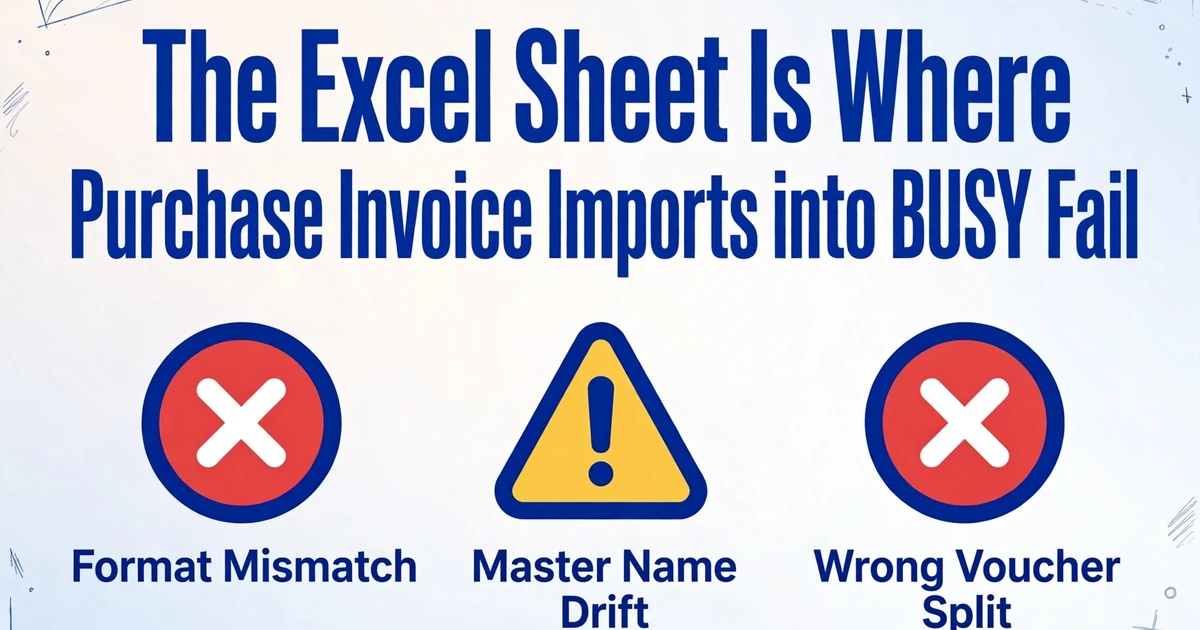
BUSY's Excel importer is quiet. It accepts a workbook, reports that the import is finished, and lets you find the damage later, voucher by voucher: one supplier bill split into four, a purchase inside the State booked with IGST, a party name that spawned a second ledger because it did not match the master. The importer behaved exactly as configured. What it cannot rescue is the workbook, assembled by hand from a folder of supplier PDFs. That workbook is where almost every failed BUSY purchase import is decided.
Key Takeaways
- One supplier bill landing as four vouchers is not an importer bug, because BUSY behaves exactly as configured.
- The wrong GSTIN (your supplier's tax ID) is already in the workbook before BUSY is ever opened.
- ImageToTable.ai turns the BUSY field names you type into extraction columns, so the format mapping becomes a one-to-one match.
How the BUSY purchase import actually runs
BUSY has a native route for this, and it is shorter than most people expect. Under Administration, open Data Export/Import and choose Import Vouchers from Excel. Select Purchase as the voucher type. Then click Configure to build a format. BUSY's own documentation walks the same path and ends with the mechanical inputs: the Excel file path, the sheet number, and the starting and ending rows (BUSY import help).
A format is not a universal template that BUSY ships with the software. It is a saved map between one workbook's columns and the fields of one voucher type, stored against the company you are importing into. The same workbook can import cleanly into one BUSY company and fail in the next, because the map lives with the company, not with the spreadsheet.
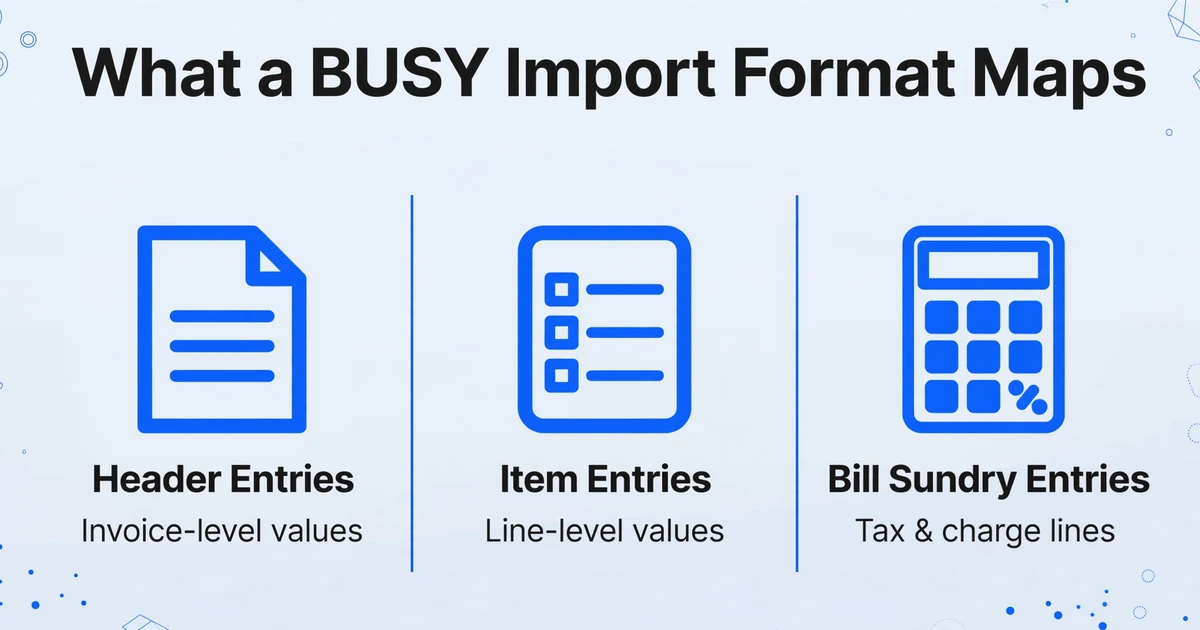
Inside that format, fields are grouped. Header entries carry invoice-level values such as the voucher date, party name, and supplier invoice number. Item entries carry the line-level values: item name, quantity, unit, rate, amount, and HSN code. Bill sundry entries carry the tax and charge lines, including CGST, SGST, and IGST. A Key Fields group supplies defaults for mandatory cells when the workbook leaves them blank, which is why a flawed sheet can import without a single error and still be wrong.
The work also divides cleanly between people. The bookkeeper or purchase assistant prepares the workbook. The accountant owns the format and decides the purchase type, the purchase ledger, and the GST reporting basis. The person who built the format usually runs the import, because a map saved against the wrong company or the wrong period is a failure mode of its own.
None of those steps is difficult. The difficulty sits one stage earlier, in the columns themselves.
What a purchase invoice has to carry before BUSY sees it
A purchase invoice is not a document you can summarise however you like. Under Rule 46 of the CGST Rules, 2017, a tax invoice has to carry a defined set of particulars: the supplier's name, address and GSTIN, a consecutive serial number, the date of issue, the recipient's details and GSTIN, the HSN or SAC code, a description of the goods or services, quantity and unit, the taxable value, the rate of tax, the amount of tax charged under each head, the place of supply and the name of the State for an inter-State supply, and whether tax is payable on reverse charge (CBIC, CGST Rule 46).
Two of those particulars decide whether a BUSY import lands cleanly. The first is the tax split. A supply within the same State is charged as CGST plus SGST. A supply across State lines is charged as IGST. The same supplier selling the same item can switch between the two heads depending only on where the goods are shipped, so a workbook that assumes one split will be wrong for part of the batch.
The second is the place of supply. On an inter-State invoice the State name has to appear, and BUSY's format exposes a GST Report Basis setting that chooses whether reporting reads the party master or the billing and shipping details on the voucher. That choice is a company-level accounting decision, not a spreadsheet preference. Set it wrong and the tax can sit correctly in the voucher while the return reports something different.
Getting any of this wrong costs more than retyping. Since the 2022 amendment to Section 16 of the CGST Act, input tax credit is a derived right tied to what appears in your GSTR-2B statement. GSTR-2B is built from the supplier's GSTR-1 filings and matched against your purchase register on supplier GSTIN, invoice number, invoice date, taxable value, and tax amount (GST portal, GSTR-2B advisory). A GSTIN typo or a tax amount sitting in the wrong head is not a cosmetic flaw. It is a mismatch that can hold up credit for the period, which is the real reason the GST columns deserve the same care as the invoice total.
Where manual invoice entry into BUSY breaks
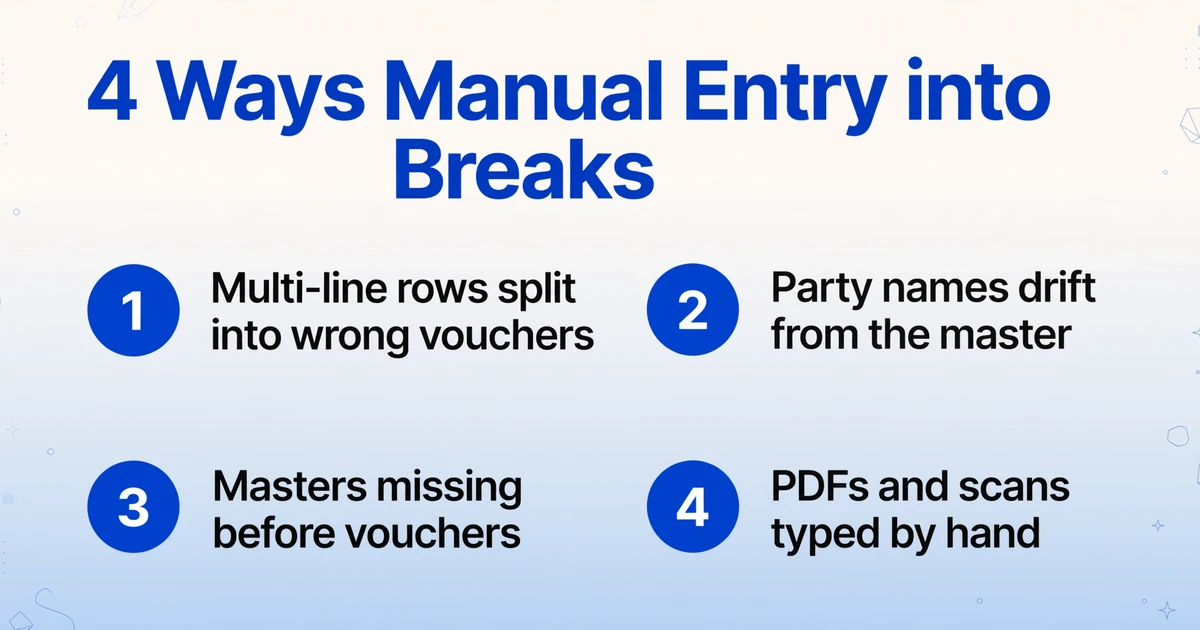
The failure points repeat often enough to name. Multi-line invoices are the first. A supplier bill with six items is one Purchase voucher in BUSY, but six rows in a worksheet. The format exposes an Add New Voucher control that sets where BUSY starts a new voucher, and BUSY's help does not declare one setting that fits every workbook structure. Get the grouping wrong and six items become six vouchers, or two separate bills merge into one.
Master names are the second. BUSY's import troubleshooting is direct: party names, item names, units, purchase types, and bill-sundry names have to match the masters already in the company. It also caps account and item names at 40 characters and requires the date format to match BUSY's own (BUSY import troubleshooting). If "Sharma Traders Pvt Ltd" in your sheet does not match the party master exactly, the import errors or quietly creates a duplicate, and now one supplier has two ledgers.
The order of imports is the third. Masters have to exist before the vouchers that reference them, either imported separately or created during the voucher import. A workbook that assumes the party is already there will fail against a fresh company. The fourth point is the source itself. Supplier invoices arrive as PDFs and scans, each from a different billing system, with tax split into two columns in one layout and lumped into a single total in the next. Someone reads them and types them.
On r/IndiaBusiness, a small-business owner described the routine as "switching between all of these, copying details, and trying not to make mistakes," adding that it is "honestly tiring, especially for small teams without a full-time accounts person" (r/IndiaBusiness). That is the stage where a wrong GSTIN or a dropped line item enters the data, long before BUSY is opened. If the pattern feels familiar from another system, the underlying mechanics are the same set of reference-integrity rules behind most accounting and ERP import failures.
Building the sheet BUSY will accept
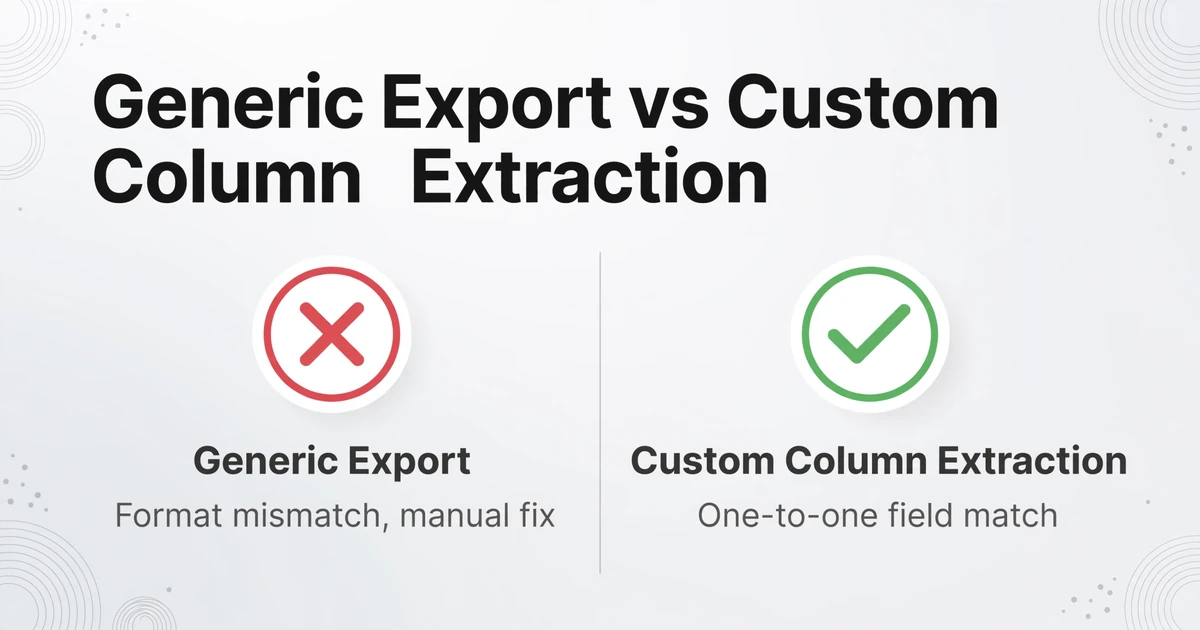
The fix starts one step earlier, with the workbook built to the format rather than the format bent to whatever a tool happened to export. Work backwards. Open the saved format, list the BUSY fields it expects, and note the Excel column each one maps to. That list is your specification. Then produce the data to that specification instead of producing a generic invoice export and hoping it fits.
This is where naming your extraction columns matters more than the extraction itself. ImageToTable.ai uses Custom Column Extraction: rather than drawing rectangles around each field or matching a fixed template, you type the column names you want, such as "Party Name", "GSTIN", "HSN/SAC", "Taxable Value", "CGST", "SGST", and "IGST", and the AI locates each value by understanding what it means, not where it sits. Because the column names you type become the headers of the output, naming them after the BUSY fields turns the format mapping into a one-to-one match.
For a purchase import, request one row per line item and repeat the invoice-level fields on every row. Invoice number, date, party name, GSTIN, and place of supply stay constant across the item rows, while item name, HSN, quantity, unit, rate, and line amount change. That is the shape BUSY expects when several rows should fold into one voucher. The tool processes files in a batch and merges them into a single Excel sheet, so a month of supplier bills produces one workbook rather than one file per invoice.
Two column types do extra work here. Computed columns let the AI calculate during extraction, so you can request a column such as "Line Total (Qty × Unit Price)" or a taxable-value check and get the answer in the output instead of editing after export. Inferred columns let the AI fill a value the invoice does not print, for example a "Supply Type (Intra-State/Inter-State)" column judged from the place of supply, which is exactly the distinction that decides CGST plus SGST versus IGST.
Then verify before you trust. Bbox-assisted review highlights where each extracted value came from on the original invoice when you click a cell, so a wrong GSTIN or a tax amount read from the wrong line is visible without re-reading the whole page. Finally, import a sample. Take a current backup, then point BUSY at a short row range that includes a multi-item bill, a purchase inside the State with CGST and SGST, and an inter-State purchase with IGST. Open the resulting vouchers and check the boundaries, the GST heads, the place of supply, and the totals against the source invoices. Only then run the full file.
Once purchase invoices flow in as clean rows, the same approach carries through to the rest of the process, including automating the accounts payable workflow. If your first goal is simply a spreadsheet you can work from, you can extract invoice data into Excel, or handle purchase orders the same way, and reshape the columns once the BUSY format is in front of you.
What this approach does not do
Be clear about the boundary. ImageToTable.ai produces the structured workbook. It does not post Purchase vouchers, select the purchase type or the purchase ledger, decide the GST treatment, or change anything inside BUSY. Those decisions stay with the accountant and the company configuration, and no clean workbook will be accepted into a format that was never configured.
The master data still has to exist. If the party or item is not already in BUSY, enabling "create new masters" is a choice you make in the import window, not something the extraction decides, and importing masters first is still the safer order. A sample import is not optional either, because BUSY can accept a workbook and still produce wrong vouchers. The check is on the vouchers, not on the success message.
This also does not reconcile GSTR-2B for you. BUSY has its own reconciliation of GSTR-2A and GSTR-2B against the purchase register, and the value of clean imported rows is that the reconciliation finally has something accurate to match. On a dense handwritten bill, extraction can read the handwriting, but the accuracy is not the same as on a printed tax invoice, so a review step stays in place for those pages.
Frequently asked questions
Can I import purchase invoices into BUSY directly from a PDF?
No, not directly. BUSY's importer reads Excel through its Import Vouchers from Excel utility, so a PDF has to become structured rows first. Extraction turns one supplier invoice into line-level rows that match your saved format, and then BUSY imports those rows. The two stages are separate, and the second one still follows BUSY's own rules.
Does BUSY want one row per invoice or one row per line item?
One row per line item is the workable shape for a multi-line purchase, with the invoice-level fields repeated on each row. Set the Add New Voucher control so BUSY starts a new voucher at the first line of each bill, and test that setting on a bill with several items before trusting it across the whole batch.
What happens if the party name in my sheet does not match BUSY?
BUSY's troubleshooting asks for the same spelling and format as the existing masters. A mismatch can error the row or create a second party ledger. Match the master names, keep account and item names inside 40 characters, and use the date format BUSY expects.
Do I have to import masters before vouchers?
Yes, or create them during the voucher import. BUSY's guidance is to import Account and Item masters separately first, then import the vouchers that reference them, so the keys already exist when the vouchers arrive.
Will BUSY decide CGST/SGST versus IGST on its own?
It follows the purchase type and the GST Report Basis you set in the format, which are accounting choices inside the company. That is why a sample containing both a local purchase and an inter-State purchase is the only reliable way to confirm your settings before a full run.
Does this work for handwritten supplier bills?
Extraction reads printed and handwritten documents from PDF, JPG, PNG, and scans. Handwriting and low-quality scans carry more risk than a printed tax invoice, so keep the review step for those pages and compare a sample against the originals.
The sheet is the import
The point to keep is simple: BUSY's importer can only be as right as the workbook it reads. Every GSTIN, every split between CGST and SGST versus IGST, and every voucher boundary is decided before the import screen ever opens. When those values are extracted straight into columns named for your saved format, the import stops being the risky part and goes back to being the quick step it looked like on the first day.
Test it on a month of your own supplier invoices. Name the columns for your BUSY fields, extract them in one batch, and compare the resulting vouchers against the bills.
Start with your own invoices