BUSY Imports Bank Statements
It Cannot Choose What to Post
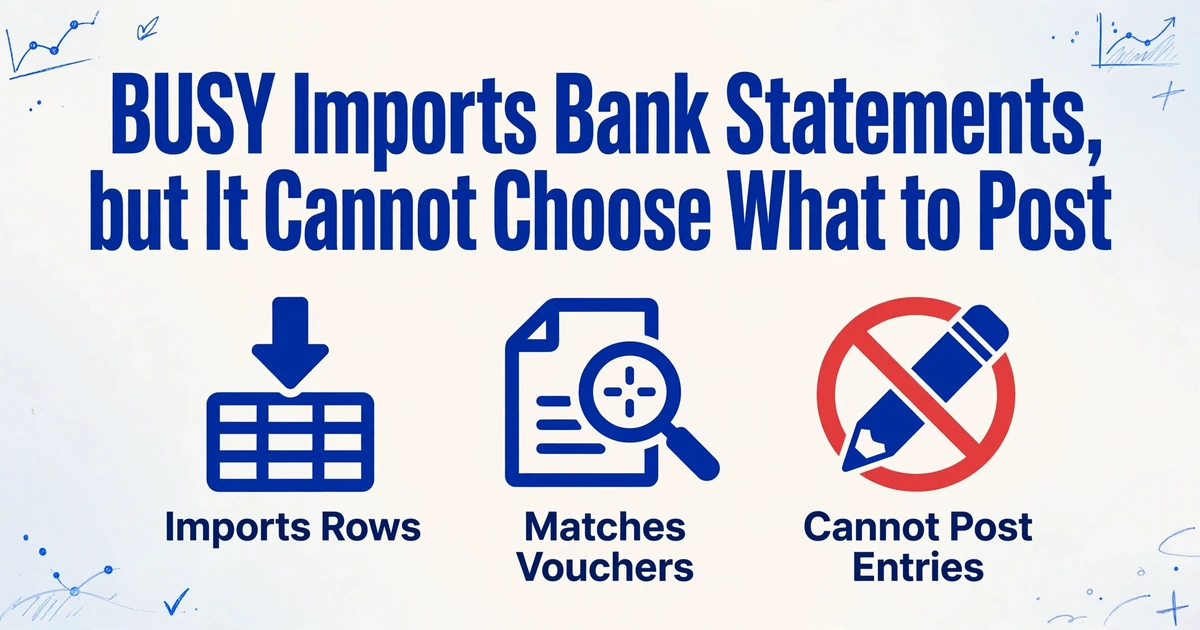
BUSY 21 loads a month of bank transactions in seconds and auto-reconciles whatever it can match. The trap is what it leaves on the screen afterwards. An unmatched line can be a transaction your books never recorded, or one they recorded last week under a narration the matcher could not connect to the statement. Post the first kind and the books stay correct. Post the second and you have created the duplicate voucher you will find at month end, delete, and reconcile a second time.
Key Takeaways
- Unmatched is not the same as missing in a BUSY bank statement import.
- BUSY matches on amount and date, so a payment already recorded under a different narration sits in the unmatched pile looking like a new one.
- Ask for Reference and Value Date by name in ImageToTable.ai and the duplicate voucher never gets created.
The duplicate is not an importer defect. BUSY does exactly what the file and the settings tell it to do. The mistake happens one step earlier, when someone treats a statement line that did not match as a transaction that does not exist. The two are not the same, and telling them apart is the real job behind bank statement import.
The three jobs hiding behind "bank statement import"
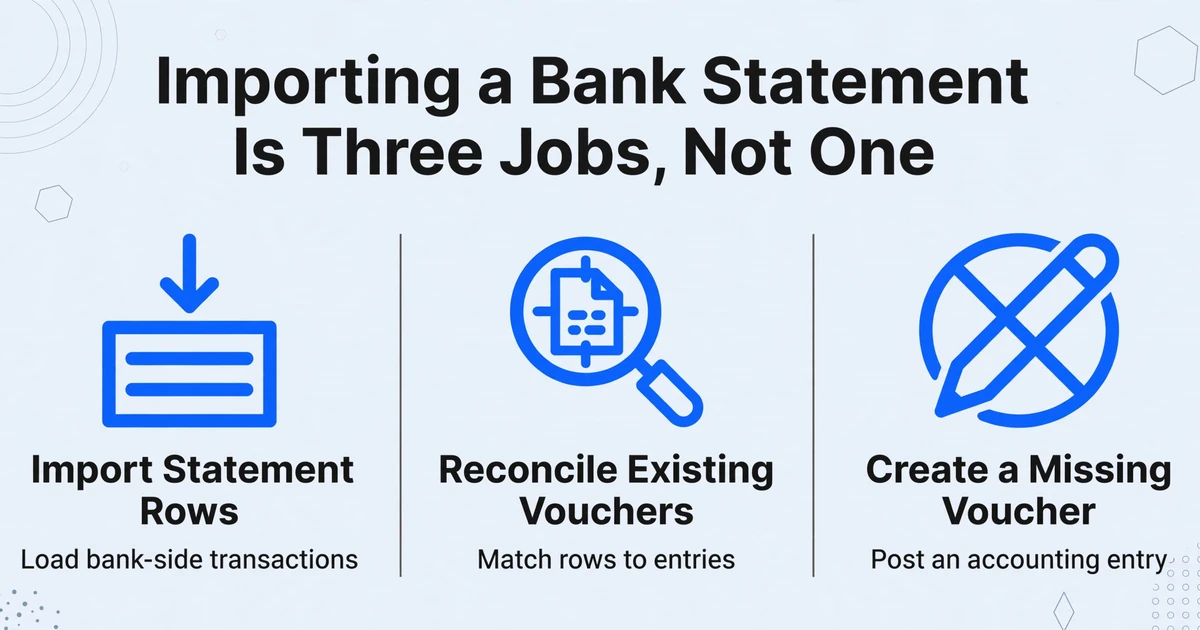
"Import the bank statement" sounds like one task. In BUSY it is three, and they carry different risks. Keeping them separate is what stops a routine import from turning into a duplicate posting.
| Job | What it does | Who owns the decision |
|---|---|---|
| Import statement rows | Load the bank-side transactions into the Bank Statement utility in the layout BUSY expects | The bookkeeper or articles who prepare the file |
| Reconcile existing vouchers | Match those rows to the Receipt, Payment or Contra entries already in the books, and stamp a clearing date | Whoever runs bank reconciliation, under the accountant's rules |
| Create a missing voucher | Post an accounting entry, but only after deciding the transaction is genuinely absent from the books | The accountant, because the voucher type and ledger are choices |
The importer does the first job and assists with the second. It cannot do the third, because a debit on a statement could be a supplier payment, a bank charge, a loan instalment, a transfer between accounts, or a reversal of an earlier failed transaction. The file alone does not say which. A bank line is evidence that money moved. It is not an instruction for how to record it.
BUSY's own help treats the consequences as a cleanup exercise. Its reconciliation FAQ tells you to find duplicate vouchers and delete them with F8, and to enter an entry that shows on the statement but is missing from BUSY manually through the transaction menu (BUSY bank reconciliation FAQ). That is an after-the-fact fix. The article you are reading is about making the decision before the voucher exists.
What BUSY actually wants in the file
BUSY 21 added a dedicated utility under Administration, Data Export/Import, Bank Statement. The product page is blunt about the input: it imports a bank statement in Excel or CSV format only (BUSY 21). A PDF or a scanned passbook is not something the utility reads. It has to become a spreadsheet first.
Within the utility you choose a predefined bank format or configure one that matches the columns in your file, set a default account for blank entries, and load the rows from Excel. BUSY's release notes record the path by version. Release 10.5 introduced the bank statement utility, release 11.6 added automatic reconciliation from Excel statements and more default bank formats, and release 12.2 added single-column debit and credit support, automatic FIFO adjustment of bill references at import, and a larger narration map (BUSY 21 release notes). The same release notes note that BUSY Online can import the statement directly from a Google Sheet.
Auto-reconciliation matches what the file lets it match. The matcher works from the amount and the date, and the release notes show references being adjusted on a FIFO basis as rows are imported. That matters because two genuine transactions can share an amount and a date: a salary run, two supplier payments, or a batch of UPI settlements. The reference is what distinguishes them. If the reference was dropped on the way from PDF to spreadsheet, the matcher has less to work with, and fewer lines land in the cleared section.
| Column in the file | Why the import and the match depend on it |
|---|---|
| Transaction date and value date | Matching runs on amount and date. A reformatted or swapped date breaks the match before it starts |
| Reference, such as UTR, cheque number or transaction ID | Separates two transactions of the same amount. BUSY adjusts bill references automatically on a FIFO basis during import |
| Narration | Keeps the counterparty and the channel readable (NEFT, IMPS, UPI) for the exception review. BUSY allows up to 255 characters for the short narration map |
| Debit and credit, or a single signed amount | Confirm the bank's direction convention before mapping. BUSY supports single-column and double-column statements |
Where duplicate postings actually come from
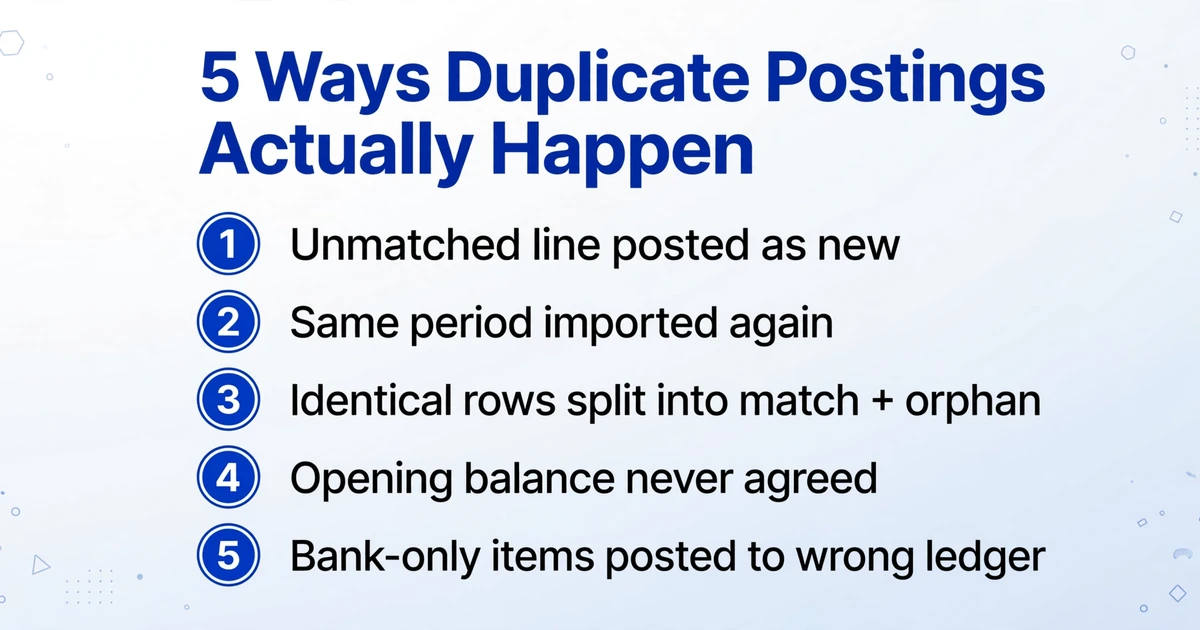
The word "duplicate" makes it sound like a row was imported twice. More often the second copy is created by a decision, and it is the part of Indian accounting software bank reconciliation that no importer can make for you. Five situations account for most of it.
Most teams that import bank statements into BUSY once a month meet all five.
The unmatched line that gets posted. A payment was already recorded, but with a narration or a date that did not line up with the statement. The matcher leaves it unmatched. Someone treats "unmatched" as "missing" and posts a new voucher. Now the same payment sits in the books twice.
The same period imported again. A month is imported, a few exceptions are fixed, and the file is re-imported to catch what was missed. The rows that were already matched one time through do not announce themselves on the second pass.
Same amount, same date, no reference. Two real transactions that look identical to a matcher become one match and one orphan. The orphan looks missing, and posting it is the natural move.
An opening balance that never agreed. BUSY's reconciliation FAQ lists the usual causes of a beginning and ending balance that will not match: last year's entries not carried forward correctly, uncleared items, bank charges not accounted for, and timing differences between the books and the statement. When the opening figure is wrong, everything below it looks wrong too, and the temptation to post "missing" transactions grows.
Bank-only items. Charges, interest, reversals, and inter-account transfers are not supplier or customer entries. They belong in specific ledgers, and posting them as if they were ordinary receipts or payments creates entries that do not belong there.
On r/CharteredAccountants, the question comes up in the reader's own words: practitioners are asked how accounting firms "handle bank-statement data entry during busy audit/tax periods" once a client sends only a PDF (r/CharteredAccountants). The data entry is the visible part. The part that decides whether the reconciliation stays clean is the set of fields that entry carries into BUSY.
Building the rows BUSY will reconcile
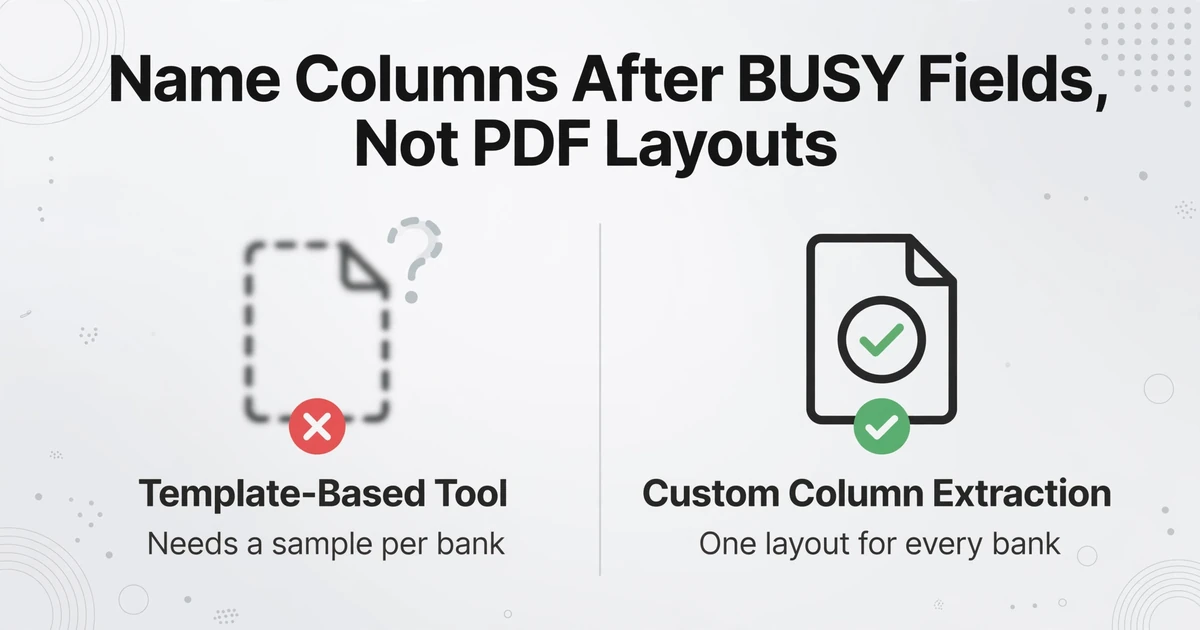
The fix starts one step earlier, with the spreadsheet built to the shape the utility expects rather than assembled from whatever a PDF viewer copied. Work backwards: list the fields the chosen BUSY format maps, and produce the data to that list. Then the mapping is a one-to-one match instead of a series of guesses about which column holds the debit.
This is where naming the extraction columns matters as much as the extraction itself. ImageToTable.ai uses Custom Column Extraction: you type the column names you want, such as "Transaction Date", "Value Date", "Reference", "Narration", "Debit", "Credit", and "Signed Amount", and the AI locates each value by understanding what it means, not where it sits on the page. The column names you type become the headers of the output, so naming them after the BUSY fields turns the format setup into a direct match. Unlike a template-based tool that needs a sample and a trained model per bank, there is nothing to configure per layout; a cooperative bank's statement and a private bank's export are read the same way.
A month of statements does not have to be one file per statement. Batch processing takes multiple uploads in one go and merges them into a single spreadsheet, so every account and every month's PDF can land in one sheet before it is cut to the BUSY import period.
Two column types carry their weight here. Computed columns let the AI calculate during extraction, so you can ask for a single signed amount derived from the debit and credit columns, or a running-balance check against the statement's own figures, and get the answer in the output instead of fixing it afterwards. Inferred columns let the AI fill a value the statement does not print, such as a "Channel (NEFT/IMPS/UPI/Cheque)" column judged from the narration. Both run across a batch, not one file at a time.
Data standardization is the quiet one. Dates arrive as 01/04/2026 in one bank's export and 2026-04-01 in the next, and amounts arrive with thousands separators, a trailing "Cr", or a minus sign. The tool normalizes dates, amounts, and reference numbers to one format on export, which is exactly what BUSY's date matching needs. Before any of it is trusted, Bbox-assisted review highlights where each extracted value came from on the original statement when you click a cell, so a reference or an amount read from the wrong line is visible without re-reading the page.
Two paths make the handoff easier. Statements that arrive password protected can be forwarded to the account's Email Inbox, where saved passwords are tried automatically before the file enters the queue. And because BUSY Online imports a statement directly from a Google Sheet, the statement-to-Google-Sheets path can feed that route without a download step. For desktop BUSY, export to a clean CSV or Excel file and point the utility at it.
Run the first import as a controlled test. Limit it to the exact account and statement period. Check the first and last transaction dates and the row count against the source. Confirm the debit and credit direction. Open the same-amount rows and make sure each matched the intended voucher. Record the exceptions so the next person does not repeat the review. If this is your first time mapping statement fields, the broader bank statement extraction guide walks through the columns in more detail, and the purchase side is covered in importing purchase invoices into BUSY, a different document with different fields.
List the fields your BUSY format maps
Open the bank format you selected in BUSY and write down every column it expects, in order: the date fields, the reference, the narration, and whether the amount comes as separate debit and credit columns or one signed figure.
Name the extraction columns after those fields
In ImageToTable.ai, type column names that match the BUSY list, such as "Transaction Date", "Value Date", "Reference", "Narration", "Debit", "Credit", and "Signed Amount". The names you type become the output headers, so the format setup is a direct match.
Batch-upload every account and month
Add all the statements for the period in one batch so they merge into a single spreadsheet, instead of exporting one file at a time and stitching the sheets together by hand.
Standardize dates, amounts, and references
Set one date format, strip thousands separators and trailing "Cr" from amounts, and keep reference numbers as text so BUSY reads each one as an identifier rather than a number it will round or reformat.
Test one account and period before the full import
Import a single account and statement period, then check the first and last transaction dates, the row count, and the debit and credit direction against the source statement.
Record the exceptions
Note every row that did not match, the reason, and how it was resolved, so the next import starts from that list instead of repeating the review.
What this approach does not do
Be clear about the boundary. ImageToTable.ai produces the structured spreadsheet. It does not connect to your bank, import into BUSY, post Receipt, Payment or Contra vouchers, choose the voucher type or the ledger, set clearing dates, or reconcile anything. There is no BUSY integration to promise. Those decisions stay where they belong, with the accountant and the company's configuration.
The accounting judgment still has to be applied. Whether a receipt carries a TDS deduction, whether GST on a bank charge is claimable, and whether a transfer is a contra entry are decisions a bank statement cannot make for you. The value of clean rows is that the judgment is applied to complete data, not that it can be skipped.
A successful import is not proof the vouchers are right. BUSY's own troubleshooting handles duplicates and missing entries after the import, which is why a sample run and a review of the cleared and uncleared sections remain part of the routine. Extraction can read printed and handwritten statements, but a low-quality scan carries more risk than a clean digital PDF, so those pages keep their review step.
Frequently asked questions
Can I import a bank statement PDF directly into BUSY?
No. BUSY's Bank Statement utility works from a spreadsheet, and BUSY Online can import from a Google Sheet. A PDF or a scanned passbook has to become structured rows first. The two stages are separate: extraction produces the spreadsheet, and then BUSY imports it under its own rules.
Why did my BUSY import create duplicate entries?
Usually because a statement line that failed to match was treated as missing and posted as a new voucher, or because the same period was imported more than once. BUSY's reconciliation report surfaces duplicates, and the standard cleanup is to delete the duplicate voucher. Preserving the reference and date fields in the file reduces how often a recorded transaction fails to match in the first place.
Does BUSY reconcile bank statements automatically?
Yes, since release 11.6 BUSY can automatically reconcile bank entries from an Excel statement, and later releases added single-column debit and credit support and automatic FIFO adjustment of references. Automatic reconciliation matches what it can and leaves the rest for review. It does not decide whether an unmatched line should become a new voucher.
What columns does the spreadsheet need?
At minimum, the transaction date, a reference, a narration, and the amount with its direction. Keeping the value date and a separate debit and credit column, or one signed amount, makes the mapping unambiguous. Name your extraction columns after the fields in your chosen BUSY format so the mapping is one to one.
Can the AI reconcile the entries inside BUSY for me?
No. The tool extracts the statement into structured rows and standardizes the formats. Importing those rows, matching them to existing vouchers, choosing the voucher type and ledger, and clearing entries all stay in BUSY and with the accountant. The gain is cleaner input, not an automated posting decision.
What about password-protected or scanned statements?
Password-protected PDFs can be forwarded to the account's Email Inbox, where saved passwords are tried automatically before processing. Scanned statements and passbooks can be extracted too, including handwriting, but keep the review step for those pages and compare a sample against the originals.
The file decides the reconciliation
BUSY will import the rows and reconcile the ones it can match. What it cannot do is know that a particular debit already sits in your books under a different narration. That knowledge lives in the reference and the date that must survive the trip from a PDF to the spreadsheet. Put those fields into the rows and the duplicate never gets created. Lose them, and you spend the next month end deleting vouchers you did not need to post.
Take one month of your own statements, name the columns for your BUSY format, and extract them in a single batch. Compare the resulting rows against the statement before any of them reach the import screen.
Prepare your next statement batch