Sage Pastel Bank Statement Import
Begins in Your Spreadsheet
Sage's own help documentation is direct about the moment after a statement file loads: "The system hasn't yet imported these transactions into the cash book." Bank Manager has read your rows and set them on a staging screen. It will not move them further until every line is allocated. The import that fails at month end almost never fails here. It fails earlier, in the file you handed over.
Key Takeaways
- The Pastel import that fails at month end almost never fails at the import. It was already broken in the file you handed over.
- Bank Manager never reads your bank statement. It reads a file shaped to the statement provider you selected, and one blank column past Amount is enough to reject it.
- Loading a statement is not posting it. Bank Manager stages the lines until every one is allocated, and only the final Update changes the cash book.
The error that stops most attempts at a Sage Pastel bank statement import, "The CSV file should only have 3 columns: Date, Description and amount", is the visible end of a mismatch between your file and the statement provider you selected. Bank Manager does not read your bank statement. It reads a file whose shape the provider expects, and if the two do not agree the transactions never reach the staging screen at all.
Why Bank Manager Blames the File, Not the Statement
Bank Manager is an add-on module, not a bank reader. It takes a statement file and reconstructs the cash book entries from it. The dropdown beside "Statement Provider" is what tells it which layout to expect. Sage's South African knowledgebase describes the module as an add-on that imports downloaded bank statements into Sage 50cloud Pastel.
That distinction matters because it changes where you look when something breaks. A rejected file is usually not a broken statement. It is a file built to the wrong contract. In the Sage Community Hub thread "CSV import in Bank Manager", a user works through exactly this. He had built an Excel sheet with the banking transactions, run his reconciliation in Excel, converted the file to CSV, and still could not upload it into Pastel Xpress. His words: "still cant upload it successfully into pastel express, version 19 build 19.3.3." The layout looked complete. The contract was not.
Pastel's Bank Manager is a staging tool, and the statement provider is the contract your file has to satisfy before staging can begin.
The Four Control Points in a Pastel Bank Import
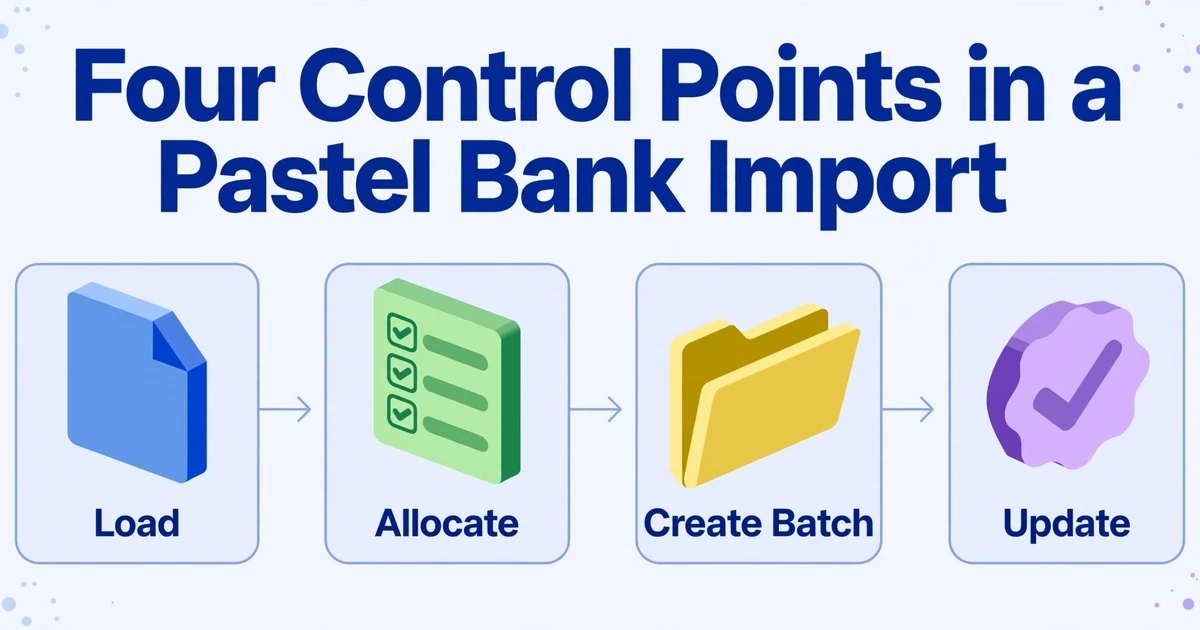
Sage's "Using the Bank Manager" article sets out the sequence: open Process, then Cash Book, then Process Cash Book, then click Pastel Bank Manager. Choose the Statement Provider and the Statement File, then click OK and Continue to view the transactions. The caution on that page is the part people miss. The system has not yet imported anything into the cash book, and you have to allocate every line first.
Loading is the first of four separate decisions, and only the last one changes your books. Treating the whole thing as a single "import" is how a clean-looking run ends up with an unposted batch, or a posted batch that was never reviewed. The four stages, and who really owns each one, look like this.
| Stage | What happens | Who decides |
|---|---|---|
| Load | Bank Manager reads the file under the chosen provider, sorts the lines into Payments and Receipts, and stages them | Bookkeeper, who prepared the file and picks the provider |
| Allocate | Each line waits for a general ledger, customer or supplier account, plus tax and project fields where they apply | Bookkeeper, working inside the chart of accounts |
| Create Batch | The allocated lines are grouped into payment and receipt batches | Bookkeeper |
| Update | The batches are posted into the cash book and the entries become real | Accountant or senior reviewer, after a backup |
The allocation stage is where Bank Manager earns its keep. Recurring transactions can be mapped once and reused, and Sage records the rules with priority levels from 1 (highest) to 10 (lowest). The guidance is to key a mapping on a stable phrase such as "bank charges" rather than a figure that changes every month. Mapped transactions then appear in grey on the next import. Two constraints are worth knowing before month end: Bank Manager is a single-user module, so only one person can be in it at a time, and transaction splits apply only to the current import, so a split has to be redone when the same transaction recurs in a later file.
Sage also handles some bookkeeping automatically once a batch is created. Transactions inside the current financial year get the correct period assigned, while anything outside it lands in Period 99, which is the signal that a date sits outside the financial year. References are autogenerated in a day/month/unique-number-per-day format, which is convenient for the system but not for reconciliation, so many practices overwrite the reference when a transaction needs a memorable one.
The Statement Provider Is a Contract, Not a Bank Name
The provider describes the file layout, not the bank that holds the account. A Standard Bank export, an FNB export and a generic CSV all reach Bank Manager through the same dropdown, but each one is a different contract. Selecting Standard Bank tells Bank Manager to expect the fields and control records in a Standard Bank file. If you hand it a homemade three-column CSV instead, the rows may look sensible in Excel and still be refused, because the provider was never the right one for that file.
For a South African bookkeeper there are three practical routes:
Native bank export, native provider
If the bank offers a Pastel or Bank Manager download for the account and period, use that file with the matching named provider. This preserves the bank's own transaction structure and is the least work.
Generic three-column CSV
If your bank is not in the list, or you already have the transactions in a spreadsheet, use the CSV (Bank Manager) provider with the Date, Description, Amount layout Sage documents. This is the route most PDF imports take.
PDF only
When the statement arrives as a PDF, a scan or a phone photo, there is no file to import yet. It has to become a spreadsheet in the contracted layout first, and that preparation is the subject of the rest of this article.
The Three-Column Rules Excel Hides From You
Sage's "CSV (Bank Manager) format" article is short and exact. Open Excel, enter the headings in row 1, put Date in column A, Description in column B and Amount in column C, then save the file as CSV (Comma delimited). That is the entire generic contract. The difficulty is not the idea, it is that a spreadsheet hides several ways to break it.
The most common rejection has nothing to do with your numbers. Sage's own knowledgebase documents the "should only have 3 columns" error, and the cause is blank columns sitting to the right of Amount. Excel keeps those cells in the saved file, and Bank Manager reads them as extra columns to import. The fix is to select every blank column beyond your data range, delete it, save again and close the file. A workbook can look perfectly tidy on screen and still carry those empty columns into the CSV.
| Part of the file | What Bank Manager expects | What breaks it |
|---|---|---|
| Columns | Date, Description, Amount in A, B and C, nothing after C | Blank columns kept past Amount, or a fourth real column |
| Date | One consistent order with a four-digit year, matching the company's regional settings | Two-digit years, mixed orders, or a text date Excel has not recognised |
| Amount | A signed number: receipts positive, payments negative, decimal point, no symbol | Currency symbols, thousands commas, or a "Cr" that never became a sign |
| Description | The payee and reference, clean and readable | Truncated or code-only descriptions, double spaces, very long strings |
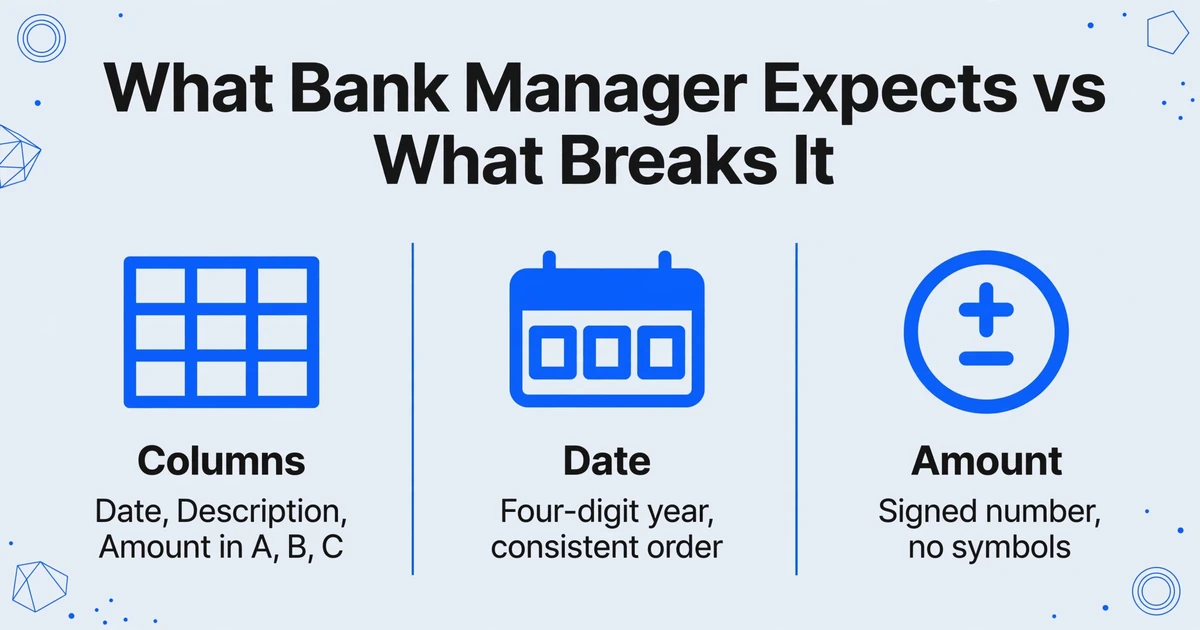
Three columns is not the whole contract. The date order, the sign on every amount and the description text all have to survive the trip into the file.
The sign convention deserves its own check. Sage's own Bank Manager walk through is explicit that receipt transactions should carry a positive amount and payments a negative one. South African statements often mark credits with a "Cr" and leave debits unsigned, so a file copied straight from a statement can arrive with every payment looking like income. Reconcile the first import against the statement closing balance before mapping anything.
Descriptions are not cosmetic either. Bank Manager's mappings match on keywords in the description, so a file whose descriptions were truncated, replaced by a bank transaction code, or padded with double spaces gives the rules nothing reliable to grip. Keeping the full payee reference in the description is what makes next month's import allocate itself.
Building a Compliant CSV From a PDF Statement
When the only source is a PDF or an image, the job is to reproduce the three-column contract from a document that was never built to feed it. The old path is retyping the lines, or copying from a PDF viewer into Excel and repairing the result. Both put a person between the statement and the file, which is where the split rows, the drifted signs and the missing reference come from.
ImageToTable.ai approaches it from the other direction. Instead of a template drawn around a particular bank's layout, it uses Custom Column Extraction: you type the column names you want, such as Date, Description and Amount, and the AI locates each value by understanding what it means rather than where it sits on the page. The names you type become the headers of the output, so naming them exactly Date, Description and Amount turns the provider contract into a direct match instead of a mapping exercise.
Three more capabilities carry their weight here. Batch processing takes multiple statement files in one go and merges them into a single spreadsheet, so several months or accounts can land in one sheet before it is trimmed to the import period. Computed columns let the AI calculate during extraction, which is how a statement with separate debit and credit columns becomes a single signed Amount. Data standardization normalises dates, amounts and reference numbers to one format on export, which is exactly what the date and sign rules ask for. Before any of it is trusted, the review view highlights where each extracted value came from on the original statement when you click a cell, so a reference read from the wrong line is visible without re-reading the page.
Password-protected statements, which are common for business banking PDFs, do not need manual unlocking. Forwarded to the account's Email Inbox, saved passwords are tried automatically before the file enters the processing queue. If a statement is a dense scan or a phone photo, the higher model tiers are there for handwriting and complex layouts, while the standard tier covers most printed transaction tables.
Decide the route before you touch the file
Check whether the bank offers a native Pastel or Bank Manager download for this account and period. If it does, use that with the named provider and skip the rest of these steps. If it does not, you are building the generic CSV (Bank Manager) file.
Write down the contract first
Keep the three headings in order, Date, Description, Amount, and note the date order and sign convention your company needs. The contract is decided before extraction, not after it.
Name your extraction columns to match
In ImageToTable.ai, type "Date", "Description" and "Amount" as the column names. Add a Balance column if you want to check totals while you work, knowing you will delete it before saving. The names you type become the output headers.
Upload every statement in one batch
Add all the PDFs and scans for the period together. Batch processing merges them into one spreadsheet, and data standardization brings the dates and amounts to a single format as they are read.
Produce the signed Amount
If the statement splits debits and credits, ask for a single Amount column where payments are negative and receipts positive. A computed column returns the signed figure in the output instead of leaving it to be fixed in Excel afterwards.
Trim to exactly three columns and verify
Delete anything after column C, remove report titles, opening and closing balance lines and subtotals, then export to CSV. Save it as CSV (Comma delimited), close it, and check the first and last transaction dates and the row count against the source before you browse to it in Bank Manager.
The extraction itself is only half the handoff, which is why the exported file can also be produced as Excel or written straight into Google Sheets if that is where you keep the working copy. For the deeper mechanics of reading statements, columns and formats, the bank statement extraction guide covers the same ground without the Pastel-specific ending. If you also work with desktop accounting software outside South Africa, the workflow for importing bank statements into Indian accounting software covers the same file-preparation problem against BUSY.
What This Approach Does Not Do
Be clear about the line. ImageToTable.ai produces the structured spreadsheet from the statement. It does not connect to your bank, import into Sage Pastel or Bank Manager, select a statement provider, allocate lines to ledger accounts, create batches, or update the cash book. There is no Pastel integration to promise, and no automated posting.
The accounting judgement stays where it belongs. Whether a debit is a supplier payment, a bank charge, a loan instalment or an inter-account transfer is a decision the statement cannot make for you, and neither can an extraction tool. What clean rows change is the input to that decision: the allocation screen opens with complete lines and stable descriptions, so the mapping rules can do their job and the accountant reviews rather than repairs.
A successful import is also not proof the batches are correct. Bank Manager will warn when the same statement looks like it has already been imported, but it does not check for duplicates across different files, so importing overlapping periods still creates work for you. The sample run and the check against the statement closing balance remain part of the routine.
Frequently asked questions
Can Sage Pastel import a PDF bank statement directly?
No. Bank Manager reads a statement file with a structure the selected statement provider recognises, and a PDF is not that file. The statement has to become structured rows in the contracted layout first. The two stages are separate: extraction produces the spreadsheet, and Bank Manager imports and posts it under its own rules.
Why does my CSV fail with "should only have 3 columns"?
Almost always because of blank columns sitting to the right of Amount. Excel preserves them in the saved CSV and Bank Manager reads them as extra columns. Select every empty column past your data, delete it, save as CSV (Comma delimited), close the file and try again. A fourth real column, such as Balance or Reference, causes the same message.
Why are all the amounts reversed after I import?
The sign convention was lost on the way into the file. Bank Manager expects receipts positive and payments negative. If a statement marks credits with "Cr" and prints debits unsigned, a straight copy leaves money out looking like money in. Reconcile the first import against the closing balance before you map anything.
Can I import an older statement period?
Yes. Bank Manager accepts any date range in the file. Import periods in order and avoid overlapping them, because it does not check for duplicates across separate files. Transactions outside the current financial year are assigned Period 99, which is your signal that the date falls outside the year you are working in.
What date format does Bank Manager need?
One consistent order with a four-digit year, matching your company's regional settings. South African files normally use DD/MM/YYYY. The risk is not the slash but the ambiguity: a two-digit year, a mixed order, or a date Excel has stored as text can all be misread. Set the format once across the whole column and check the first and last rows before import.
Does ImageToTable.ai import into Sage Pastel?
No. It extracts the statement into CSV, Excel or JSON and standardises the formats. Choosing the provider, loading the file, allocating each line, creating the batches and updating the cash book all happen in Bank Manager and stay with the bookkeeper and accountant. The gain is a file that passes the provider contract the first time, not an automated posting.
The File Decides the Reconciliation
Bank Manager will load whatever you give it and stage the lines for allocation. What it cannot do is repair a file that never matched the provider you chose, or know that a payment marked "Cr" was meant to be money out. That information has to survive the trip from the statement to the CSV. When the three columns, the date order and the sign are right before you click OK, the import is a short piece of admin. When they are wrong, the error message is only the first of the problems you will meet before the cash book agrees with the bank.
Take one month of statements that only exist as PDFs, name the three columns your provider contract needs, and extract them in a single batch. Check the dates, signs and row count against the statement before any of it reaches Bank Manager.
Prepare your statement batch