Why Are My Dates Showing as
Numbers in Excel? 4 Causes & How to Fix Serial Date Problems
You just extracted a batch of invoices or receipts — the data looks right in the preview, dates like "03/15/2023" and "2023-01-28" all there. Then you open the exported Excel file and instead of dates you see 44927, 44954, 45001. You are not alone — this is one of the most common post-extraction frustrations, and it has nothing to do with whether your tool read the date correctly. The date was read correctly. What happened next is an Excel problem, not an extraction problem.
Key Takeaways
- 44927 isn't a broken date — it IS January 15, 2023. Excel stores every date as a serial number counting from January 1, 1900, and that five-digit number means your extraction tool read the date correctly. Only the display instruction is missing.
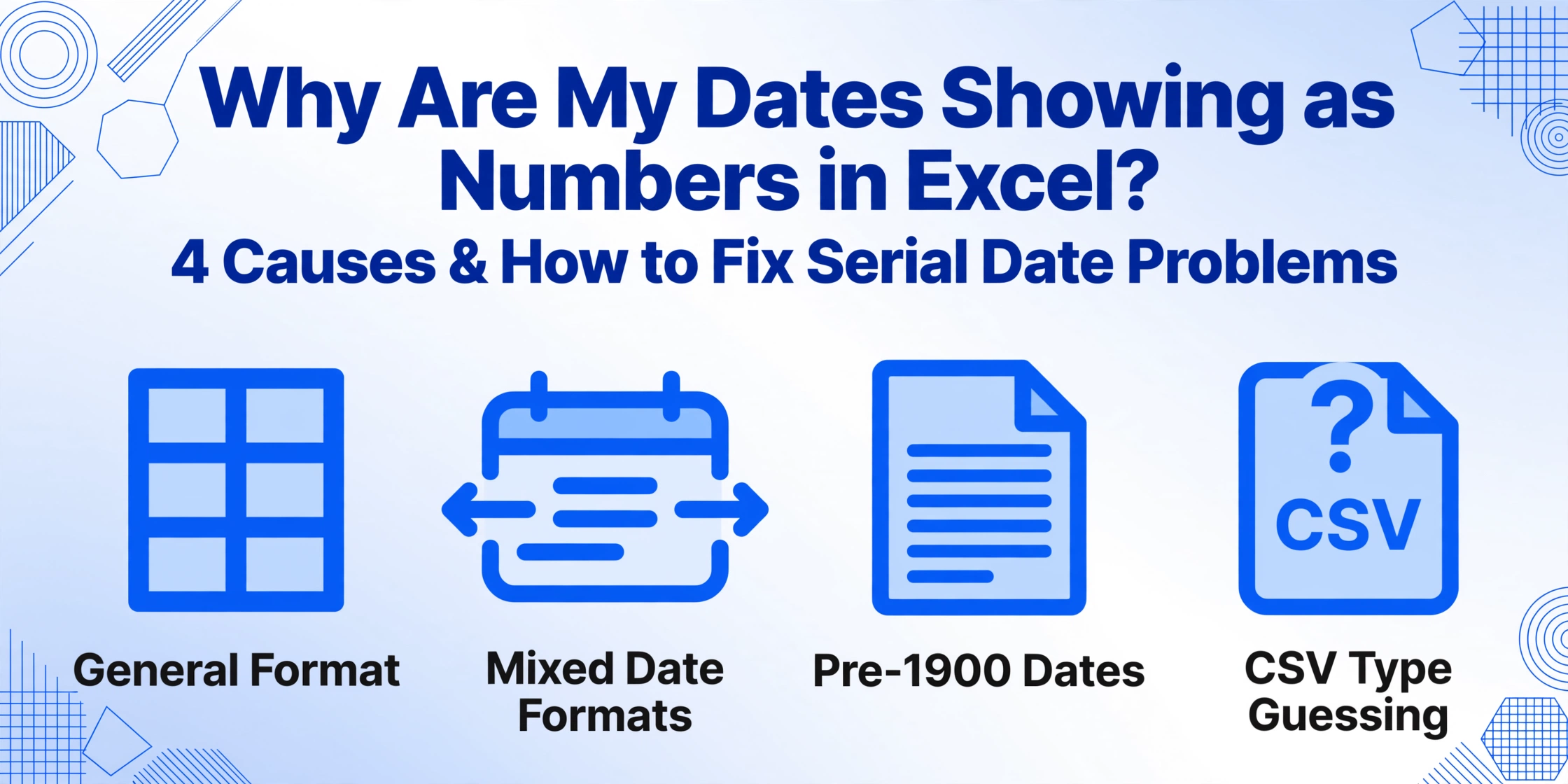
- There are exactly four things that cause serial numbers to appear, and three are locale and format issues you can fix in under a minute — column formatting, mixed regional date formats, and CSV type-guessing. The fourth, pre-1900 dates, is Excel's own hard limit and is best handled by treating those entries as text.
- Start at Ctrl+1 → Date — that alone fixes most cases. For mixed formats, Text to Columns with an explicit MDY/DMY/YMD setting forces Excel to re-interpret every value the same way. Prevent the problem entirely by normalizing date output to ISO 8601 (yyyy-mm-dd) before the data hits your spreadsheet.
The Short Answer: What Is an Excel Serial Date?
Excel does not actually store dates as dates. Every date you see — "January 15, 2023" or "03/15/2023" — is stored internally as a plain integer called a serial number. January 1, 1900 is serial number 1. January 2, 1900 is 2. July 5, 2011 is 40729. Each day adds 1. The date you see in a cell is just a display format applied to that underlying number.
This design exists so you can do arithmetic: =A1+1 gives you the next day, =B1-A1 gives you the number of days between two dates. It is clever and useful — until the display format is missing, and you are staring at 44927 instead of a date.
When the serial number shows up raw, it means one thing: Excel does not know this cell contains a date. It is treating the number as a regular number. Why that happens — and there are four distinct reasons — determines how you fix it.
Cause 1: The Column Format Is Not Set to Date
Symptoms
Every date in the column shows as a 5-digit number (44927, 44954, etc.). The numbers look like they belong in a count sequence — because they do. When you click a cell, the formula bar might show "1/15/2023" or "44927" depending on how the data was imported.
Root Cause: General Format
When data lands in an Excel cell, the cell has a number format that tells Excel how to display the value. The default format for new or empty cells is General. General format displays a number as a plain integer. It does not know that 44927 is a date — to General format, 44927 is just the number forty-four thousand nine hundred twenty-seven. The date serial number is there, stored correctly underneath. But without the Date format instruction, Excel shows the raw number.
This is by far the most common cause. It happens most often when data is pasted into a worksheet that has not been pre-formatted, when a CSV file is opened directly (CSV files contain no formatting information), or when an extraction tool writes numeric values to cells that were previously empty or used for other data types.
The Fix
This is the easiest fix of all four causes:
- Select the column containing the serial numbers.
- Press Ctrl+1 (or right-click → Format Cells).
- Under Category, select Date.
- Choose your preferred date format from the list (e.g.,
*3/14/2012for US-style,*14/3/2012for European). - Click OK.
The serial number stays the same — Excel just starts displaying it as a date. If you see ##### after changing the format, the column is too narrow. Double-click the right edge of the column header to auto-fit.
This fix works 100% of the time for Cause 1 because the data type is correct — only the display format was wrong.
Cause 2: Mixed Date Formats from Extraction (US vs ISO vs EU)
Symptoms
Some dates in the column display correctly while others show as serial numbers. Or dates seem to have swapped days and months — "03/15/2023" displays as "3/01/2023" (March 1 instead of March 15). Some cells might show a date while the cell next to it, from the same source document, shows a serial number. The pattern is inconsistent and confusing.
Root Cause: Format Ambiguity During Import
When your AI extraction tool writes dates, it may output them in different formats depending on the source document. One invoice might have "03/15/2023" (US: month/day/year), another from a European supplier might have "15/03/2023" (EU: day/month/year), and a third might use ISO 8601 "2023-03-15" (year-month-day). When these mixed-format dates land in a CSV or Excel file, Excel tries to interpret each one using your system's locale settings.
Here is where it breaks: if your system locale expects MM/DD/YYYY and the extraction wrote "15/03/2023," Excel may interpret "15" as the month — an impossible month 15 — and convert it to text or a serial number. If the extraction wrote "03/15/2023" but your locale expects DD/MM/YYYY, Excel reads "03" as the day and "15" as the month, producing a completely wrong date. The result is a column where some dates parse correctly (the ones whose format happens to match your locale) while others turn into serial numbers or wrong dates.
The Fix
The most reliable fix is to normalize the output format at the extraction stage. If your extraction tool lets you specify date output format, set it to ISO 8601 (yyyy-mm-dd). ISO 8601 is unambiguous: Excel interprets "2023-03-15" the same way regardless of locale. Tools like ImageToTable.ai offer intelligent data post-processing that can automatically normalize dates to a consistent format before the file is generated.
If the data is already in your spreadsheet, use Text to Columns with a specified date format:
- Select the problem column.
- Go to Data → Text to Columns.
- Choose Delimited → Next → uncheck all delimiters → Next.
- Under Column data format, select Date and choose the format that matches your data (MDY, DMY, or YMD).
- Click Finish.
This forces Excel to re-parse the text as a date using the format you specify, bypassing locale guessing. For a formula-based approach, =DATEVALUE(A1) can also convert text-looking dates to proper serial numbers, after which you apply Date format.
Cause 3: Pre-1900 Dates That Excel Cannot Handle
Symptoms
Old dates — birth dates from historical records, land title dates from the 1800s, patent filing dates, or vintage document dates — display as text or refuse to format as dates. You might see "April 12, 1887" stored as text, or the cell shows a serial number but formatting it as Date produces an incorrect year. The problem is specific to dates earlier than January 1, 1900.
Root Cause: The 1900 Date System Boundary
Excel's default date system starts on January 1, 1900 (serial number 1). Any date before that has no valid serial number. This is a hard limit built into Excel's architecture — it is not a bug, and it cannot be fixed with formatting. The 1900 date system was chosen for compatibility with Lotus 1-2-3 (and includes a famous leap year bug: Excel treats February 29, 1900 as a valid date even though it never existed, to maintain Lotus compatibility).
For Mac users, Excel offers an alternative: the 1904 date system, which starts on January 1, 1904. Switching to the 1904 system shifts the boundary by four years, but dates before 1904 still have no serial number. It also creates a 1,462-day offset with any workbook using the 1900 system — meaning dates you copy between workbooks will shift by four years. This is not a practical solution for most users.
When your extraction tool reads a pre-1900 date from a historical document, it has two choices: output it as text (which can look fine but cannot be used in date calculations) or try to create a serial number (which fails because the date is outside the valid range). Neither is ideal, but text output is the safer choice because at least the value is preserved.
The Fix
There is no way to make Excel natively store pre-1900 dates as real dates. The practical approach depends on what you need to do with the data:
- For display and reference only: Keep the date as text. It will not participate in date arithmetic, but it will display correctly and can be sorted alphabetically (though chronological sorting will not work).
- For calculations that need the year: Store the year, month, and day in separate numeric columns. You can then use formulas to compare or calculate durations manually.
- For a unified date column across mixed records: Use a custom format that displays the text as-is, or store dates after 1900 as real dates and pre-1900 dates as text in a separate column flagged by a helper formula.
- For Google Sheets users: Google Sheets supports a wider date range (starting from 1899-12-30 in its default system), but dates before that still face similar limitations.
The honest answer: if your workflow regularly involves pre-1900 dates, consider whether Excel is the right tool for the analysis portion of that workflow, or whether a database or specialized historical data tool would better serve your needs.
Cause 4: Date vs Text Confusion in CSV Export
Symptoms
You export your extraction results as a CSV file. When you open it in Excel, some dates look correct while others are serial numbers. The same extraction exported as XLSX works fine. Or every date in the CSV shows as a serial number, but formatting the column does nothing — the cells remain stubbornly numeric.
Root Cause: CSV Has No Type Information
A CSV file is pure text — comma-separated values with no metadata about whether a value is a date, a number, or text. When you open a CSV in Excel, the software has to guess the data type of each column based on the values it finds. This guessing game is where the trouble starts.
Here is the exact mechanism: The extraction tool writes the date as text — say, "03/15/2023" — into the CSV file. Excel opens the file, sees a value that looks like a date, and tries to convert it to a serial number. For values where the conversion is unambiguous (your locale matches the format), Excel succeeds — it stores the serial number and applies a default date format. For values where the format is ambiguous or the conversion fails, Excel may store the raw text, store it as a number, or apply an incorrect conversion.
The problem gets worse when the same column mixes date formats. Some rows have "03/15/2023" (interpreted correctly), others have "2023-03-15" (interpreted differently), and still others have "15/03/2023" (interpreted as invalid → stored as text). You end up with a column that has mixed data types — some real dates (serial numbers with Date format), some text, and some plain numbers — which makes sorting, filtering, and date arithmetic unreliable.
The Fix
The safest approach is to import the CSV properly rather than double-clicking to open it:
- Open a blank workbook in Excel.
- Go to Data → From Text/CSV (or Get Data → From File → From Text/CSV).
- Select your CSV file.
- In the preview window, select the date column and explicitly set its data type to Date (using the dropdown next to the column header).
- Click Load.
This tells Excel exactly what type each column is before it tries to interpret the data. Excel still uses your locale for the date format, but at least every value in the column is treated consistently — no mixed types.
If the CSV is already open and the damage is done, use the =TEXT(A1, "yyyy-mm-dd") formula to convert the serial number back to a date string, or =DATEVALUE(TEXT(A1, "mm/dd/yyyy")) for cells where the serial number is stored as a number but not recognized as a date. A more thorough approach: use Power Query (Data → From Table/Range) to reload the data with explicit type definitions.
Four Fixes That Cover All Causes
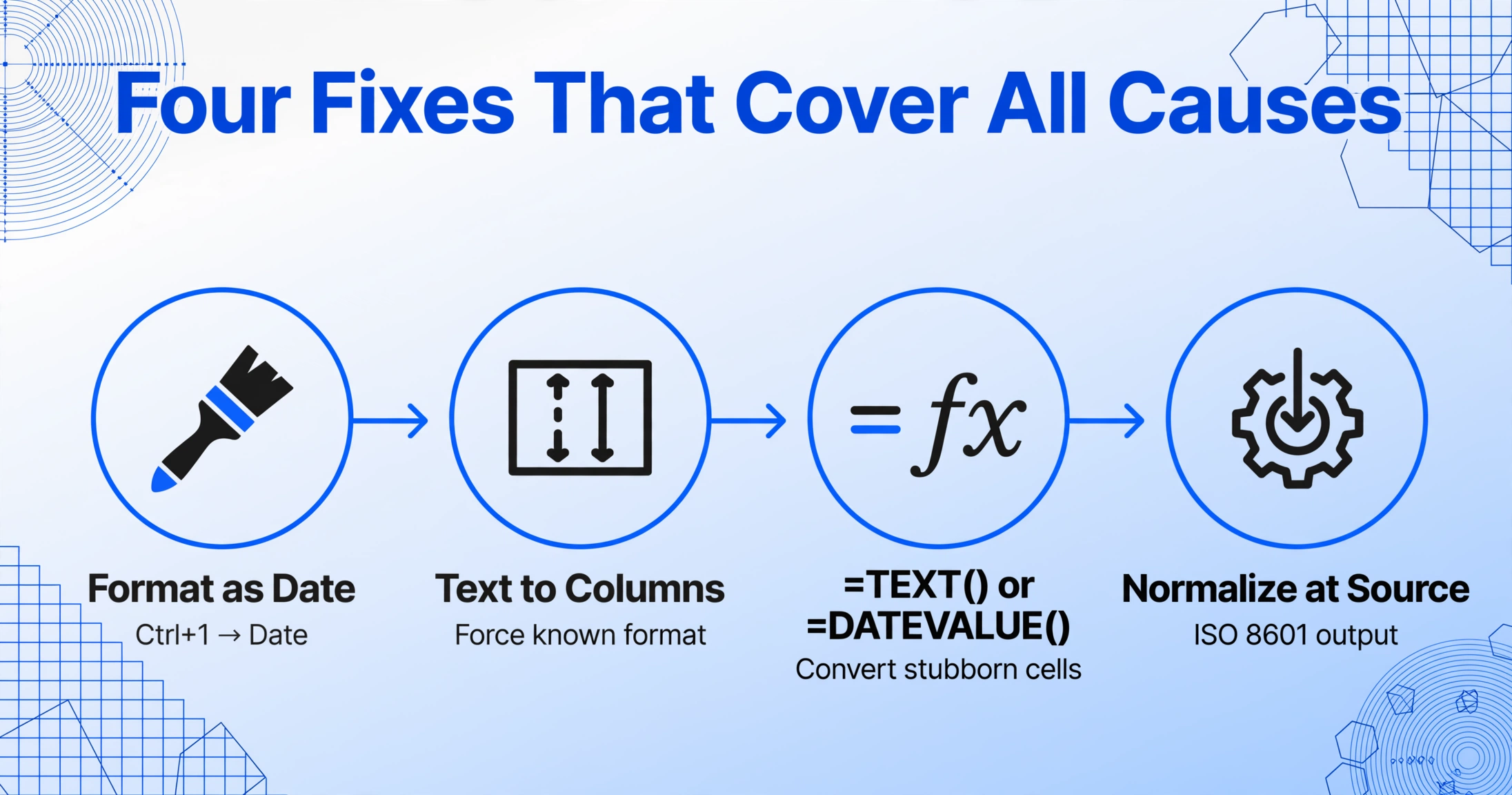
Each cause above has its own targeted fix. But if you deal with extracted dates regularly, here is a single workflow that handles all four causes in sequence — from the simplest check to the most thorough cleanup.
Select the entire column, press Ctrl+1, choose Date. If that alone fixes it, Cause 1 was your problem. If some dates still look wrong, proceed to Step 2.
Select the column, go to Data → Text to Columns → Delimited → Next → uncheck all delimiters → Next → choose Date and pick the format your data uses (MDY, DMY, or YMD). This forces Excel to re-interpret the date text using a known format, bypassing locale guessing. Fixes Cause 2.
For cells that remain as serial numbers after formatting: =TEXT(A1,"yyyy-mm-dd") converts the serial number to a clean date string. For text-looking dates that refuse to convert: =DATEVALUE(A1) forces Excel to recognize them. Works across Causes 2 and 4.
The root fix: tell your extraction tool to output dates in ISO 8601 format (yyyy-mm-dd). This format is unambiguous across locales and eliminates Causes 2 and 4 at the source. ImageToTable.ai's intelligent data post-processing can automatically normalize dates to ISO 8601 during extraction, so the data lands in your spreadsheet ready to use — no post-processing needed. Pre-formatting your target columns as Date before pasting data also prevents Cause 1.
How to Prevent Serial Date Issues Before Extraction
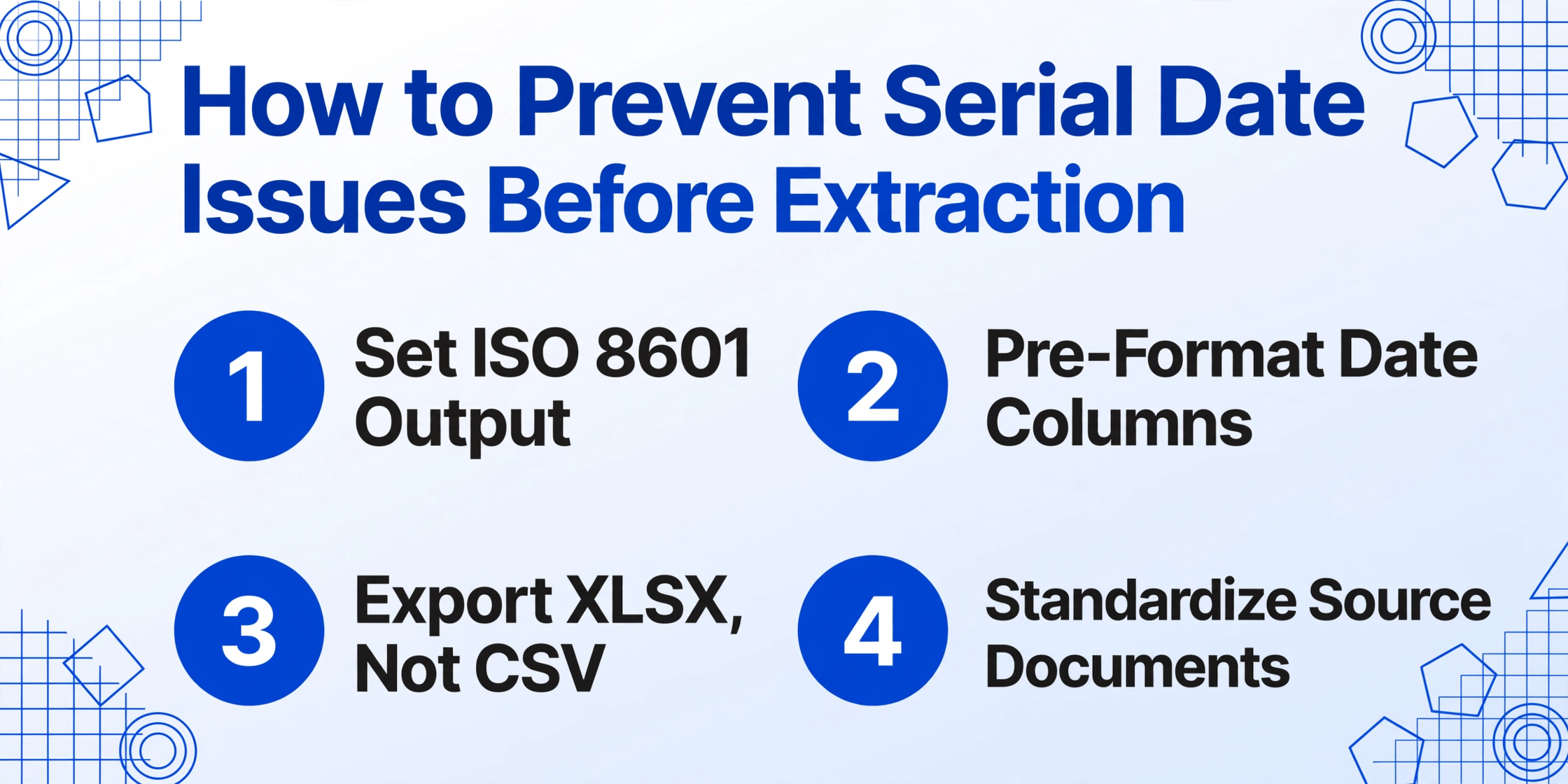
The cleanest fix is one you never need to apply. Here is how to set up your extraction workflow so serial date problems do not happen in the first place:
- Specify date output format in your tool. If your extraction tool supports output formatting — and many modern tools with Custom Column Extraction do — set dates to ISO 8601 (
yyyy-mm-dd). This is the single most effective prevention step because it creates a consistent, unambiguous format that Excel handles correctly regardless of locale. - Pre-format your target spreadsheet. Before pasting or importing extraction results, format the date columns as Date in Excel. This way even if the data arrives as serial numbers, Excel already knows they are dates. For Google Sheets users, the Google Sheets Add-on from ImageToTable.ai writes extracted data directly into a live sheet where column types can be pre-configured.
- Export as XLSX instead of CSV. Excel files (.xlsx) preserve formatting and data type information. If your extraction workflow gives you the choice, XLSX eliminates the type-guessing problem that CSV introduces.
- Use a single date format across your input documents. If you control the document ingestion process (e.g., you are processing invoices from known suppliers), standardizing the date format at the document level prevents mixed-format issues at the extraction level. This is not always possible with diverse source documents, but when it is, it eliminates Cause 2 entirely.
For detailed guidance on building a reliable batch extraction pipeline — including validation steps that catch date formatting issues before they reach your reports — see our guide on why table extraction breaks and how to fix it, which covers post-extraction validation workflows that apply equally to date fields.
When to Escalate: Not Every Date Problem Has a Quick Excel Fix
Most serial date problems are fixable in a few seconds with the methods above. But some scenarios call for a different approach:
- Pre-1900 dates are a regular part of your data. As discussed in Cause 3, this is a hard limit of Excel's date system. If your workflow involves historical documents, genealogical records, or archival data, consider preprocessing to separate pre-1900 entries or using a database that supports a wider date range.
- You process hundreds of files per week and every batch has date issues. At this volume, manual post-processing in Excel is not sustainable. The fix needs to happen at the extraction stage — either through ISO 8601 normalization built into your tool, or through a post-processing script that standardizes dates before the data reaches your spreadsheet.
- The date format itself is ambiguous in the source document. Some documents use two-digit years ("03/15/23") or numeric month-day codes without separators. Even the best extraction tools can only read what is on the page — if the source format is ambiguous, the extracted output will be too. In these cases, set clear column-specific format rules in your extraction tool to disambiguate before output.
- Your ERP or accounting system rejects extracted date data. If the serial date problem is downstream — your ERP expects dates in a specific format that extraction is not producing — the fix may require configuring the ERP import template rather than adjusting Excel. See our troubleshooting guide for why ERP systems reject extraction output for a deeper look at format compatibility between extraction tools and business systems.
Frequently Asked Questions
Why does my extracted date show as 44927 instead of a date?
Because Excel stores dates as serial numbers counting from January 1, 1900. The number 44927 is how Excel internally represents that specific date. It appears as a plain number when the cell format is "General" instead of "Date." Select the cell, press Ctrl+1, and apply a Date format to fix it. If you also see mixed formats in the same column, some values may need re-parsing with Text to Columns.
Can I stop Excel from converting my numbers into dates in the first place?
Yes. Pre-format the column as Text before pasting or importing data (Ctrl+1 → Text). This tells Excel to treat everything as literal text, preventing automatic date conversion. Alternatively, use Data → From Text/CSV to import with explicit column type assignments — this gives you control over whether each column is treated as date, text, or number. In Excel 365, you can also go to File → Options → Data and disable automatic data conversion for specific patterns, though this setting is limited to newer versions.
Does Google Sheets have the same serial date problem?
Partially. Google Sheets also stores dates internally as serial numbers, but its date system starts on December 30, 1899. The same Causes 1, 2, and 4 apply — column formatting, mixed date formats, and CSV ambiguity — but Cause 3 (pre-1900 dates) has a slightly wider range. Google Sheets also provides a =TO_DATE() function that can convert serial numbers to dates. The Google Sheets Add-on from ImageToTable.ai writes extracted data directly to a sheet with proper type handling, bypassing CSV import issues entirely.
Why do some dates in my column look correct while others are serial numbers?
This is almost certainly Cause 2 — mixed date formats. When different source documents use different date formats (MM/DD/YYYY vs DD/MM/YYYY vs YYYY-MM-DD), Excel interprets them inconsistently. Values that match your locale's format are converted correctly; values that do not may end up as serial numbers, text, or wrong dates. Use Text to Columns with a specified date format to force consistent interpretation, or fix the root cause by normalizing date output format at the extraction stage.
Can I use =DATEVALUE() to fix all serial date problems?
=DATEVALUE() is effective for converting text that looks like a date into a serial number that Excel recognizes — handy for Cause 2 and Cause 4. However, it cannot fix Cause 1 (the serial number is already the correct type, just not formatted as Date) or Cause 3 (pre-1900 dates fall outside the valid range). For Cause 1, simply apply a Date format — no formula needed. For pre-1900 dates, DATEVALUE will return a #VALUE! error because the date is outside Excel's supported range.
I formatted the column as Date but nothing changed. What now?
This means the values are stored as text, not as numeric serial numbers. Text values look like dates but Excel treats them as strings — formatting has no effect. Check with =ISTEXT(A1) — if it returns TRUE, the value is text. Fix with =DATEVALUE(A1) to convert text to a serial number, then apply Date format. For many cells at once, use Text to Columns with Date as the column format to batch-convert them.
My extraction tool outputs dates in XLSX format. Can I still get serial date problems?
Yes, because the tool itself may write the date as a serial number without setting the cell format to Date in the XLSX. This is less common than CSV issues but happens. The fix is the same — select the column, apply Date format. If it happens consistently, check whether your extraction tool has an output format setting for date columns. Tools with intelligent data post-processing, like ImageToTable.ai, automatically apply sensible formats to date columns during XLSX generation, reducing the chance of serial number display.
Serial date numbers are not a sign that your extraction tool failed — they are a sign that Excel's display format and the extraction output did not align. In most cases, the fix takes seconds once you know which cause is at play. The better long-term answer is to normalize date output at the extraction stage so the data arrives in your spreadsheet ready to use.
Run a test with your own documents — see whether the dates land correctly the first time.