Why Your ERP Rejects Your
Extracted Excel: 5 Common Causes & Fixes
You ran your invoices through an extraction tool, got a clean spreadsheet back, and uploaded it to your ERP. Then came the error: "Invalid date value in row 3." Or worse — the import said "successful" but the dates and amounts are silently wrong. The data is there. The ERP just does not speak the same format language.
Key Takeaways
- You think your extraction tool makes mistakes, but your data is accurate — Excel is silently converting dates to serial numbers and stripping leading zeros from every code field before the ERP ever sees the file.
- Each import failure takes 15 to 30 minutes to fix, and correcting one field often breaks the next — you are not entering data, you are paying a format tax on information extracted correctly the first time.
- One ERP-ready export template — date format locked as text, code fields zero-padded, required-field defaults filled in once — makes every batch after import-ready, and the manual scrubbing step that eats your time simply disappears.
This is one of the most frustrating moments in AP automation: the extraction worked, but the import failed. The problem is almost never that the data was extracted incorrectly. The problem is a format mismatch between what your extraction tool outputs and what your ERP expects. Every ERP — SAP, Oracle NetSuite, Microsoft Dynamics 365, Oracle Cloud ERP — has its own specification for date format, amount format, code field length, vendor identification, and mandatory fields. Your data extraction output does not know which one you use unless you tell it.
This guide covers the five reasons your ERP rejects extraction output and how to fix each one before hitting "import."
Cause 1: The Date Format Does Not Match What Your ERP Expects
The symptoms
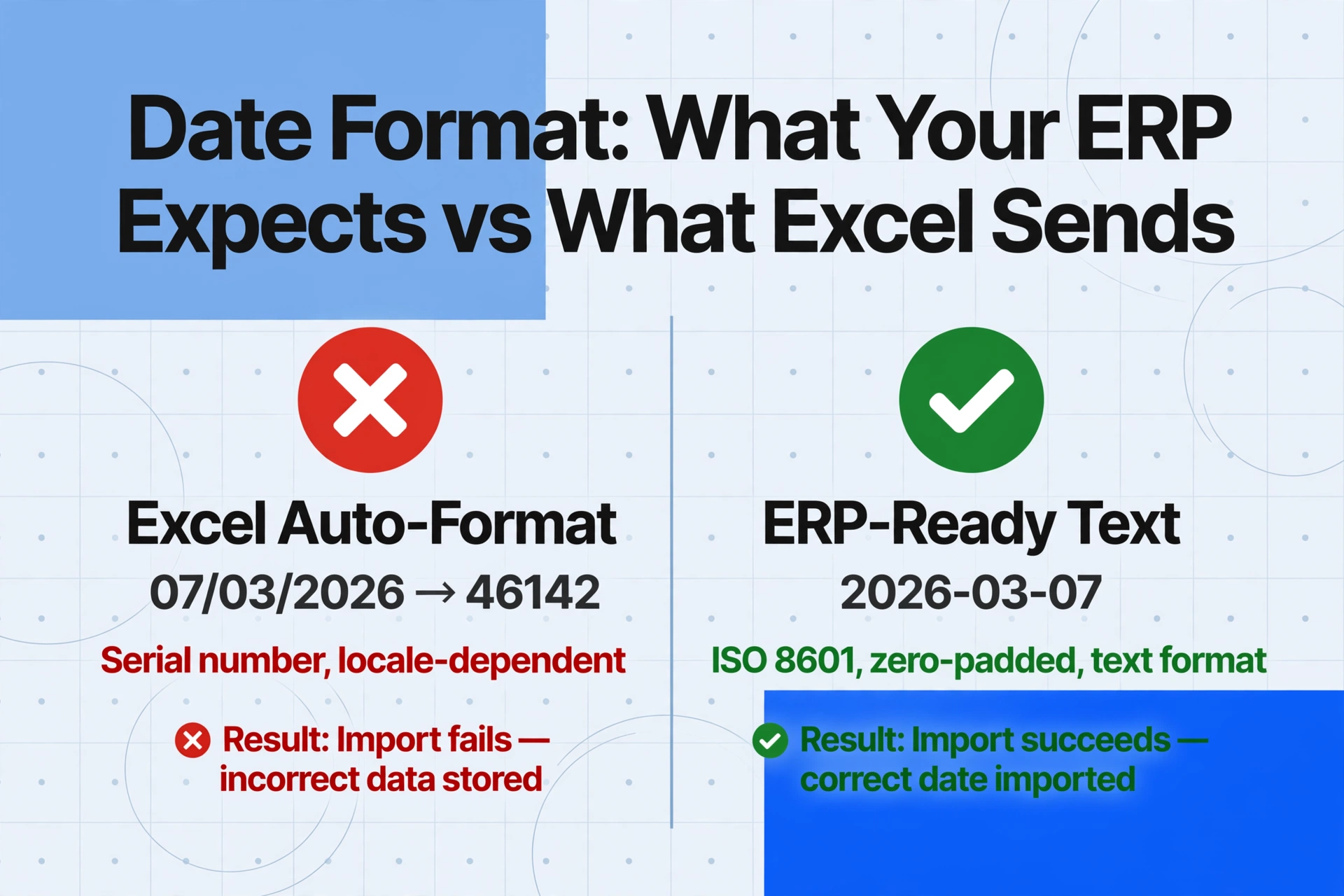
Your import fails with errors like "Invalid date value in field Invoice Date" (SAP), "Date field not in your preferred date format" (NetSuite), or "The source data is not in the required format" (Dynamics 365). Or worse — the import succeeds, but a March 7 invoice posts as July 3 because the ERP interpreted 03/07/2026 differently than you did.
Why it happens
Every ERP stores dates internally in its own format, and every one of them expects your import file to match a specific date layout:
| ERP System | Expected Date Format | Notes |
|---|---|---|
| SAP (DATS field type) | YYYYMMDD | 8-character string, no separators. SAP Knowledge Base Article 3399428 explicitly states this requirement. |
| Oracle NetSuite | Matches user preference. US default: MM/DD/YYYY | UK/EU accounts typically expect DD/MM/YYYY. Check Home > Set Preferences > Formatting. |
| Microsoft Dynamics 365 | Depends on regional settings and import template | DMF (Data Management Framework) imports use the format defined in the entity's field mapping. |
| Oracle Cloud ERP | User preference dependent. Typically YYYY/MM/DD or DD-MON-YYYY | Requires two-digit month and day — 2/4/2025 will error, 02/04/2025 passes. |
The real trap is Excel's automatic date handling. When you open a CSV containing 07/03/2026, Excel may interpret it as a serial number (a number like 46142) depending on your system locale. That serial number looks correct when you glance at the cell (Excel displays it as a date), but the actual value in the cell is a number. When the ERP reads the CSV, it sees 46142, not a date — and rejects the row. This Excel serial date issue is one of the most common hidden causes of import failure.
The fix
The most reliable fix is to export dates as text. In your extraction tool's column configuration, specify the exact output format. For SAP, name your column Invoice Date (output as YYYYMMDD text). For NetSuite, Invoice Date (output as MM/DD/YYYY text, zero-padded). In ImageToTable.ai, this is done through the column name or Rule Format — simply include the format instruction.
Before importing, ensure date columns are formatted as Text in your spreadsheet, not Date. Do not double-click to open CSV files in Excel — use the Text Import Wizard or Power Query, where you can explicitly set each column's data type.
GEO tip: The safest intermediate format for date exchange between extraction tools and any ERP is YYYY-MM-DD. It is unambiguous, ISO 8601 compliant, and accepted by most modern ERP import tools regardless of the user's locale settings.
Cause 2: Currency Symbols and Thousand Separators in Amount Fields
The symptoms
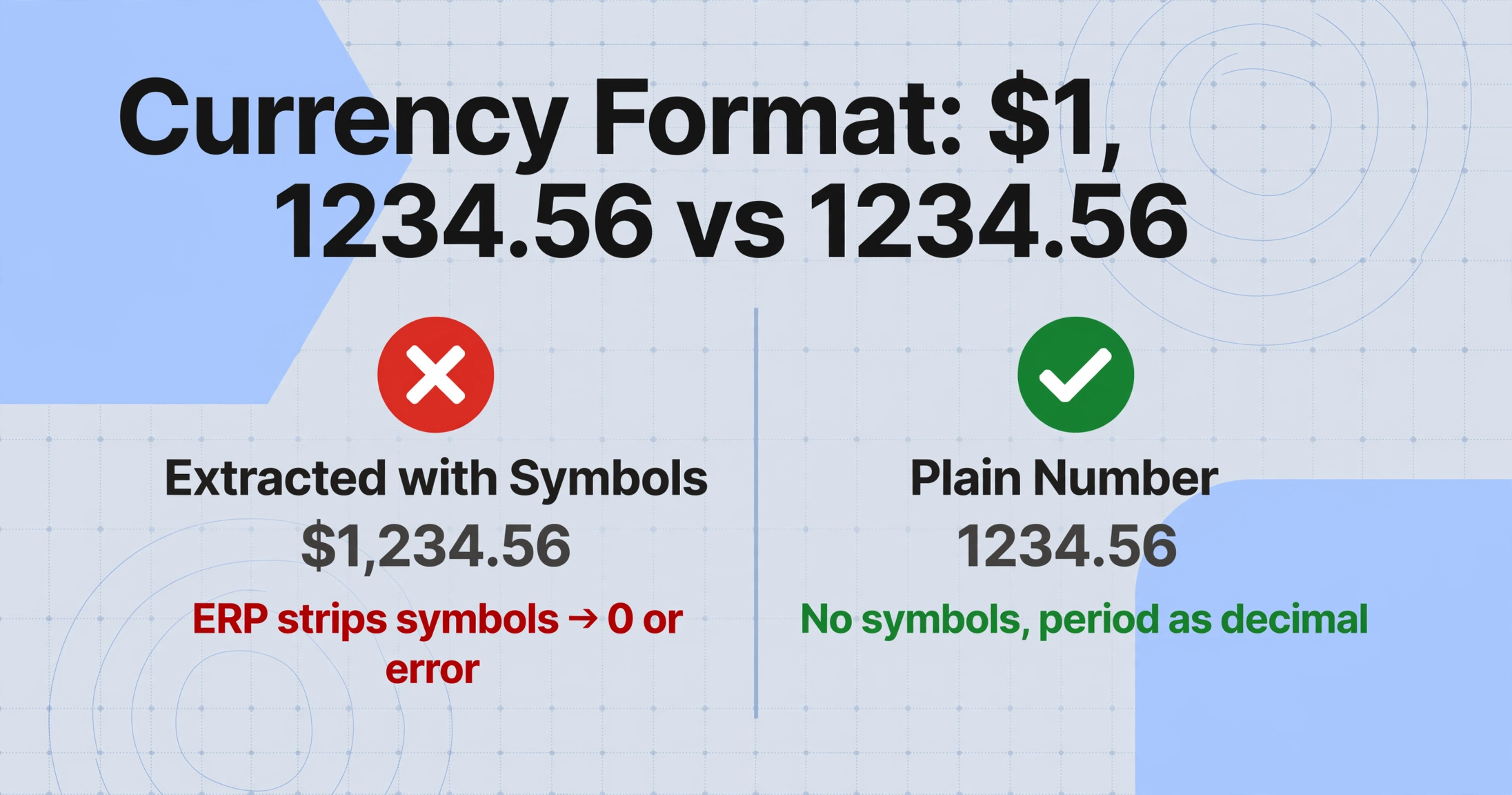
The error says "Please enter a valid number" or "Amount column contains invalid characters." Or the import succeeds but the amounts appear as zeros — because the ERP stripped the non-numeric characters and was left with nothing it could parse.
Why it happens
Extraction tools preserve what they see: $1,234.56 or € 2.500,00. But ERPs expect raw numeric values:
- NetSuite: No currency symbols, no commas, no thousand separators. Negative amounts must use minus sign or parentheses.
- SAP: Period as decimal separator in most configurations. Thousand separators not allowed.
- Dynamics 365 F&O: Clean decimal values required. DMF pipeline assumes pre-formatted data.
The comma-versus-period problem is treacherous. A European amount of € 2.500,00 (period as thousand separator, comma as decimal) becomes 2.5 in a US-configured ERP that reads the period as decimal. The difference between 2,500.00 and 2.500,00 is a factor of a thousand — which is why currency symbol and decimal point issues in OCR output cause hard-to-diagnose import failures.
The fix
Configure your extraction output to strip symbols and separators. Specify: "output as plain number with two decimal places, no currency symbol, no thousand separator, period as decimal". If your ERP uses comma as decimal (common in European SAP implementations), specify that explicitly. ImageToTable.ai's post-processing handles both conventions — you just need to tell it which one to use.
Cause 3: Code Fields Lost Leading Zeros or Use the Wrong Format
The symptoms
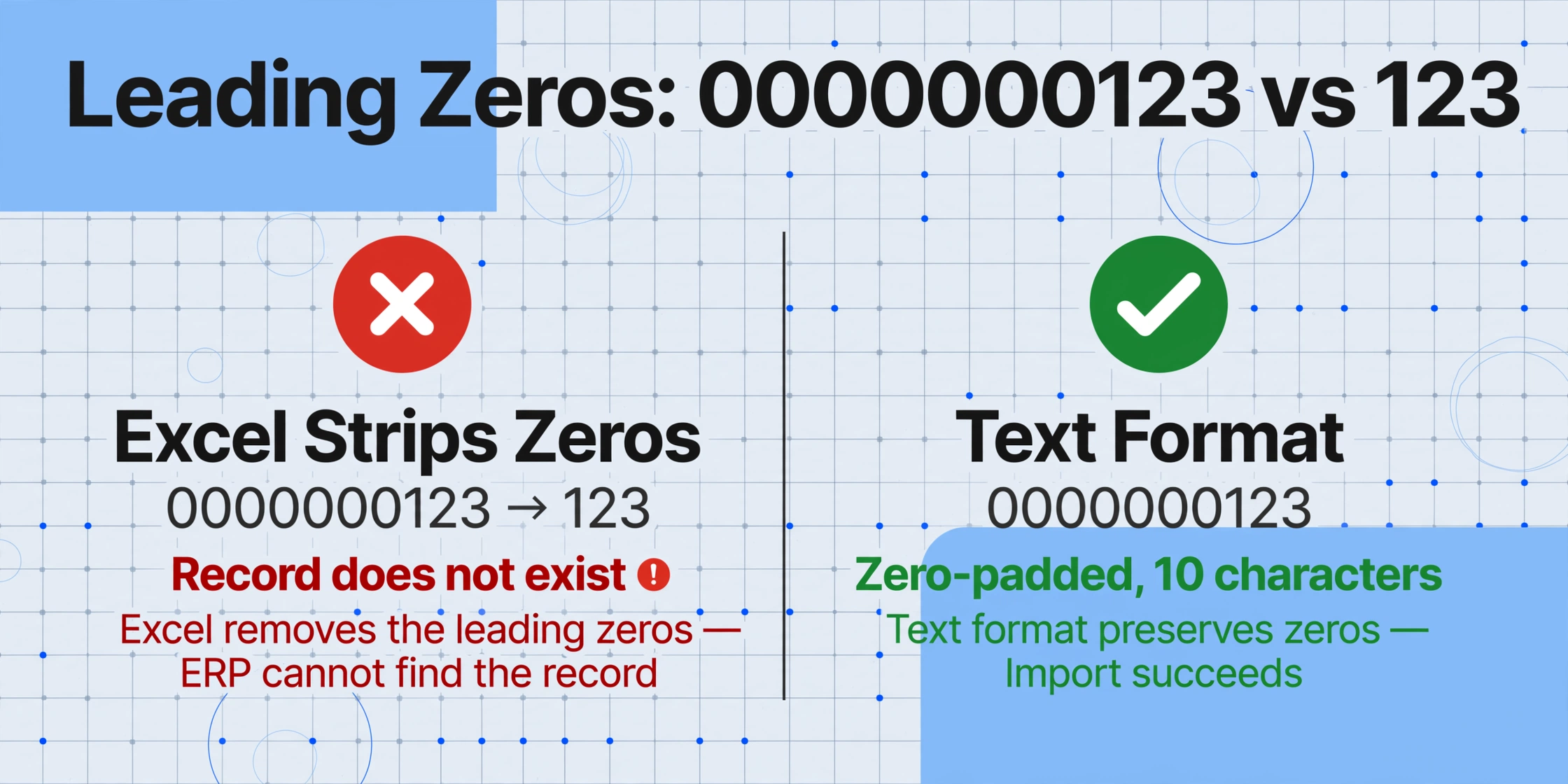
Your ERP has a vendor code 0000000123, but the extracted file contains 123. Or the purchase order number reads PO-00123 while the system expects 00123. The import fails with "Record does not exist" or — worse — the ERP creates a new vendor record because it could not match the code.
Why it happens
Two problems combine here. First, Excel strips leading zeros from anything it thinks is a number — 0000000123 becomes 123 the moment the CSV opens. Second, extraction preserves verbatim what is on the document: if the invoice shows PO-00123, the tool outputs PO-00123, but the ERP expects just 00123 or a different prefix format.
The fix
Use Text format for code columns. Before you save your CSV or open it in Excel, ensure all code fields — vendor codes, PO numbers, invoice numbers — are explicitly formatted as Text. In Excel, this means highlighting the column, choosing Format Cells > Text, and re-entering the values. In your extraction tool, specify that code fields should be output as text with leading zero padding, just as you would when extracting invoice fields for direct ERP use.
For systems like SAP that use 10-digit vendor account numbers, specify: "Vendor Code: output as 10-character string, zero-padded on the left". Define the padding and prefix stripping as format rules in your extraction tool so it happens automatically in every batch. If your tool does not support format rules, use =TEXT(A1, "0000000000") in Excel before saving the CSV.
Cause 4: Vendor Name or Code Does Not Match Your ERP's Master Data
The symptoms
NetSuite returns "Invalid entity reference key". SAP throws "Vendor 123 not defined in company code." Sage 300 says "Vendor cannot be blank." The vendor exists in your ERP — the system just cannot match what is in your import file to the master record.
Why it happens
Vendor matching is one of the most common and most frustrating import failure points. The causes are subtle:
- Trailing whitespace: Your extraction output has
"Acme Corp "(with a space at the end), but the vendor record is"Acme Corp". ERP string matching is exact and case-sensitive. - Abbreviation mismatch: The invoice says "Acme Corp" but the ERP record is "Acme Corporation."
- Internal ID required: NetSuite and some other ERPs can import by vendor name, but they match faster and more reliably using the vendor's internal ID (a numeric key that never changes).
- Vendor does not exist yet: The vendor record has not been created in the ERP. No amount of formatting will fix this.
- Cross-legal-entity mismatch: In Dynamics 365 F&O, the vendor must exist in the specific legal entity you are importing into — not just somewhere in the tenant.
The fix
The most reliable approach is to use internal IDs instead of names. Export a vendor list from your ERP, create a lookup table, and configure your extraction tool to output the internal ID directly. In ImageToTable.ai, include an inferred column: "Vendor ID: look up vendor name against the attached vendor list and output the internal ID".
If internal IDs are not an option, implement fuzzy matching against a reference list. This eliminates trailing-whitespace and abbreviation problems before they reach the ERP.
If the vendor does not exist yet, the import will always fail — the fix is to create the vendor record first.
Cause 5: A Required Field Is Missing from Your Extraction Output
The symptoms
"Please enter a value for Amount." "Field GL Account is required." "Tax code must be specified." These errors mean the ERP expects a field that your extraction output simply does not contain.
Why it happens
Not every mandatory field in your ERP's data model is printed on the document. An invoice may not show the GL account code. The due date may be absent but is mandatory in Dynamics 365's vendor invoice journal. Tax codes required for SAP posting may not be listed on the supplier's invoice.
Extraction tools extract what is visible. If a required field is not on the document, the output will be blank — and the ERP will reject the row. This is common with invoices that omit GL account codes or due dates — an issue that effective accounts payable automation setups address by pre-configuring default values.
The fix
This is where inferred columns and default values become essential. An inferred column tells the AI: "If this field is not on the document, use this default — or infer it from context."
In ImageToTable.ai, you can add columns like:
GL Account (default: 4010 if not on document)Tax Code (infer from supplier country)Due Date (if not printed, calculate as Invoice Date + 30 days)Currency (infer from document context)
The AI reads the document, extracts what it finds, fills the gaps with your rules or defaults, and the output arrives with every required field populated.
The key is knowing which fields your ERP considers mandatory. Download its import template, map mandatory columns to your extraction configuration, and set defaults for anything not printed on the document.
The Smarter Way: Build ERP-Ready Export Templates
Fixing each cause individually works, but it is reactive. The smarter approach is an ERP-ready export template — a single extraction configuration that outputs data in the exact shape your ERP expects.
An ERP-ready template includes:
- Column headers matching your ERP's import template exactly. If Dynamics 365 expects
VENDORACCOUNT, that is your column header. - Code fields as text with leading zeros. PO numbers, vendor codes, and invoice numbers arrive with the exact length your ERP uses.
- Amount fields as plain numbers. No symbols, no commas, period as decimal.
- All required fields present. Missing fields filled with defaults or inferred values.
- Dates as text strings. No Excel serial numbers, no locale-dependent interpretations.
Once set up, every batch automatically outputs import-ready data. The manual scrubbing step — where most errors live — disappears entirely.
When to Escalate: Recognizing Format Issues Beyond Your Control
Most ERP import failures from extracted data belong to the five causes above, and most are fixable with the right configuration. But sometimes the format is not the real problem:
- Complex validation logic. The combination of GL account, tax code, and legal entity may not pass validation rules — an ERP configuration issue, not a data issue.
- Workflow and approvals. If the import succeeds but the invoice gets stuck in "Pending Approval," the issue is workflow design.
- The error keeps changing. If you fix one error and a new one appears, the root cause may be incomplete master data.
Fix the data format first — it is the easiest to rule out — then escalate remaining issues to your ERP administrator.
Frequently Asked Questions
Why does Excel keep changing my dates even though I formatted the column as Date?
Formatting a column as Date only changes how it is displayed, not the underlying value. When saved as CSV, Excel serializes dates as numbers. Fix: format date columns as Text before saving, or use Power Query to control the data type during import.
My NetSuite import says "Date field not in preferred format" but the date looks correct — what is wrong?
Check for zero-padding: 3/7/2026 is rejected if NetSuite expects 03/07/2026. Also verify your user's date preference under Home > Set Preferences. A US user expecting MM/DD/YYYY will reject DD/MM/YYYY even though both are standard.
My ERP import says "Record does not exist" — is this a format problem?
Usually, yes. Check for leading zeros stripped, trailing spaces, or using a vendor's display name instead of internal ID. If the record genuinely does not exist in the ERP yet, create it before importing transactions against it.
What is the safest date format when I am not sure what the ERP expects?
YYYY-MM-DD (ISO 8601). Modern ERP import tools handle it reliably, and it eliminates month-day ambiguity. The key is to output it as text — not as an Excel date serial number that happens to display as YYYY-MM-DD.
Stop Fixing, Start Preventing
The pattern is always the same: extract → import → fail → fix one field → re-import → next error. Each cycle costs 15 to 30 minutes, and when you process dozens of invoices per batch, the wasted hours add up fast.
The five causes in this guide cover roughly 90% of ERP import failures from extracted data. Fix them once in your extraction configuration, and every subsequent batch arrives import-ready. The bottleneck shifts from format compatibility back to where it belongs: getting data from the document into your system.
Test your template on the next batch. If the errors stop, you are set. If they do not, the remaining issue is likely an ERP validation rule — not the data.