TD Bank Statements Lose the Sign
Before They Reach Excel
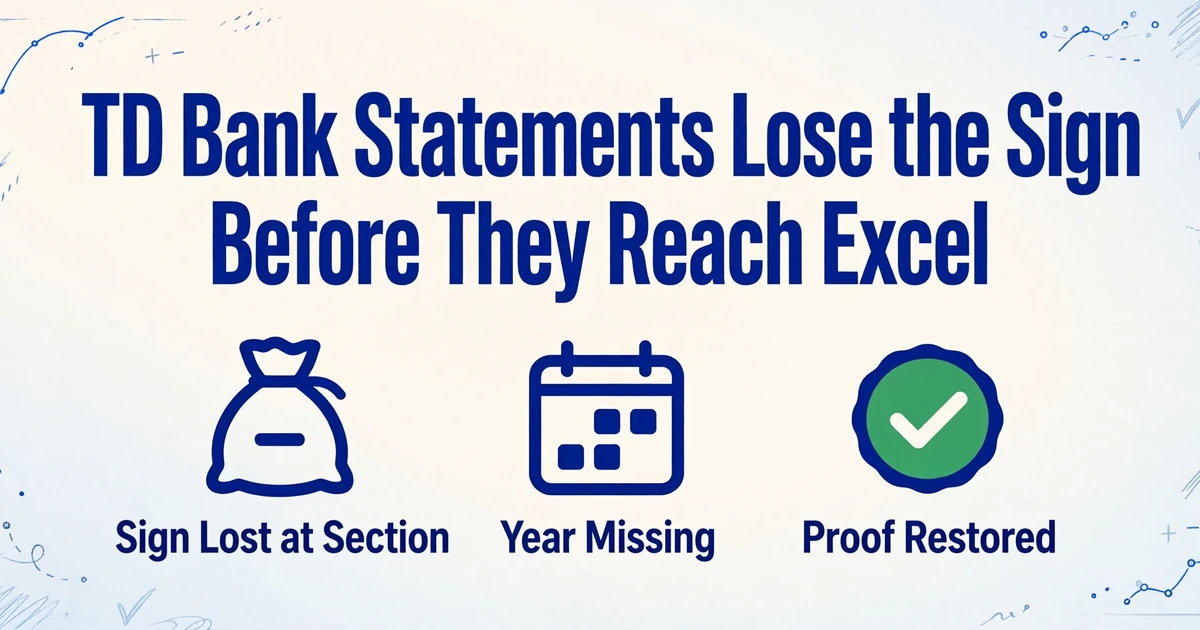
Read a TD Bank statement the way a spreadsheet reads it and the first thing you notice is what the rows leave out. The amount has no sign. The date has no year. No balance sits beside the transaction. All three facts are on the page, in the section heading, the Statement Period line and the Daily Balance Summary, so a copy and paste can collect every transaction and still produce a file whose totals are wrong.
The repair is a column list built from the statement's structure, and the same list works on both layouts described below.
Key Takeaways
- Every TD Bank statement amount prints positive, so a clean copy turns each payment into a deposit.
- Excel fills in the missing year on January rows, and a cycle opening 12/18 can carry two years in one statement.
- Statement Period and Section are the columns that carry the proof, and the Account Summary is where you test it.
A TD Bank statement separates the rows from the proof
A TD statement prints the transaction list and the evidence for it in different places. The evidence sits in an Account Summary at the top, a subtotal under each activity section, and a Daily Balance Summary at the end.
The Account Summary carries the Beginning Balance, one total per activity type, the Ending Balance and the Days in Period. Those totals are the month's proof, and the extracted rows have to reproduce them.
Daily Account Activity groups transactions by type. Every amount prints positive, and the heading decides direction: Electronic Deposits and Other Credits add, while Checks Paid, Electronic Payments and Other Withdrawals subtract. A Subtotal closes each section.
The Daily Balance Summary is a separate grid of dates and balances, one line per date that had activity, so two payments on the same day net to one line. That grid is where a running balance lives, which is why no row carries one.
TD's own teaching sample of a checking statement prints a plain ledger layout: Date, Description, Debits and Credits columns with a Balance by Date table underneath. Some TD statements follow that shape, and it changes what you can check. A balance on every row lets you test the rows against themselves; subtotals move the proof to section level.
| Element | Where it prints | What it gives the spreadsheet |
|---|---|---|
| Account Summary | Page 1, above the activity | Beginning and ending balance, plus one total per activity type |
| Section headings | Above each group of transactions | The direction of every amount below |
| Checks Paid | Its own section | Date, serial number and amount, sorted by cheque number |
| Daily Balance Summary | End of the statement | One balance per date with activity, for proving the rows |
Four places the rows break on the way to a spreadsheet
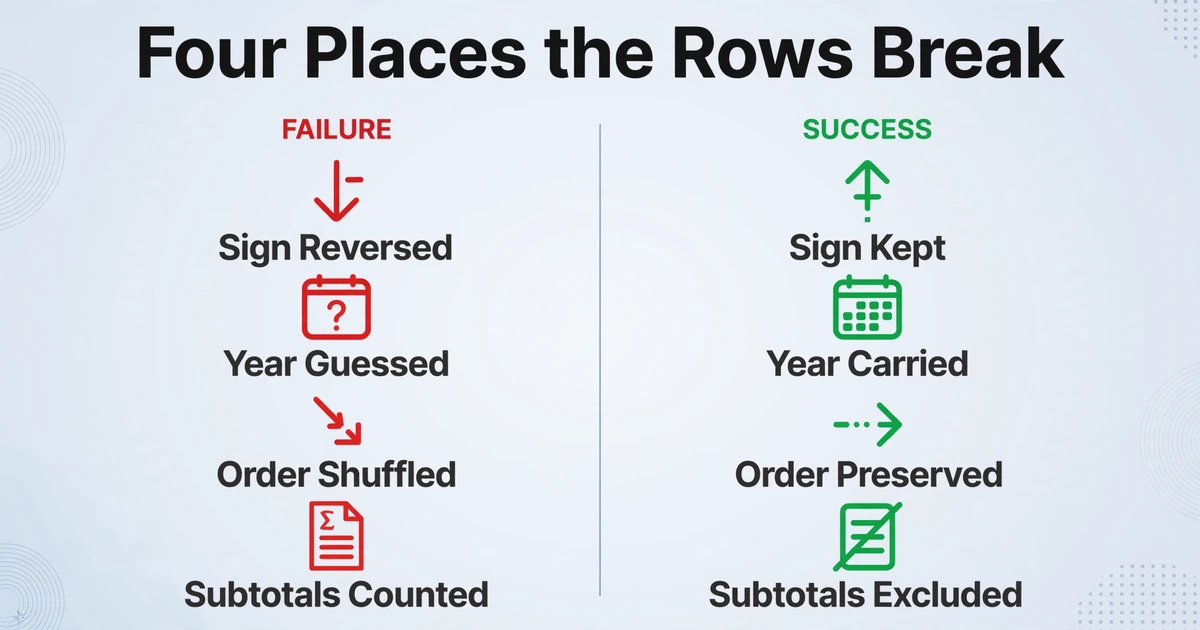
None of these failures comes from a misread character. Each comes from losing the context that made the characters mean something, which is why the output can look clean and still fail its own arithmetic.
The sign disappears first. With every amount printed positive, pasting the rows into a single Amount column turns every payment into a deposit. QuickBooks Online accepts three columns with money out written as a negative number, or four with separate Credit and Debit (Intuit). Xero wants one signed Amount column (Xero Central). Neither can recover a sign dropped at the section heading, so the file imports with every direction reversed.
The year is missing, and the cycle crosses one. Rows print MM/DD. The year lives in the Statement Period line, and TD's sample covers 33 days, so one statement normally carries two months. Once a year it carries two years: a cycle opening 12/18 and closing 1/17 has December rows and January rows on the same document. Handed 01/05 with no year, Excel applies its own idea of the current year, and nothing on the page looks wrong.
Row order and row edges move. Sections are grouped by type, so the file is not chronological even when every amount is right. Checks Paid usually prints in serial-number order rather than date order and often puts two cheques side by side on one line. Descriptions wrap, spreading an authorisation stamp, a card fragment and the merchant name across two lines. Flatten the page and the cheque pair becomes one row.
Rows that are not transactions get counted. Subtotal lines, the Daily Balance Summary grid and the How to Balance worksheet all resemble table content to a parser with no idea what a subtotal is. One Subtotal row left in the data doubles that section, and the error survives a glance.
A TD statement is a proof document. The rows are the data, and the proof is everything printed around them.
The column set that keeps the proof attached
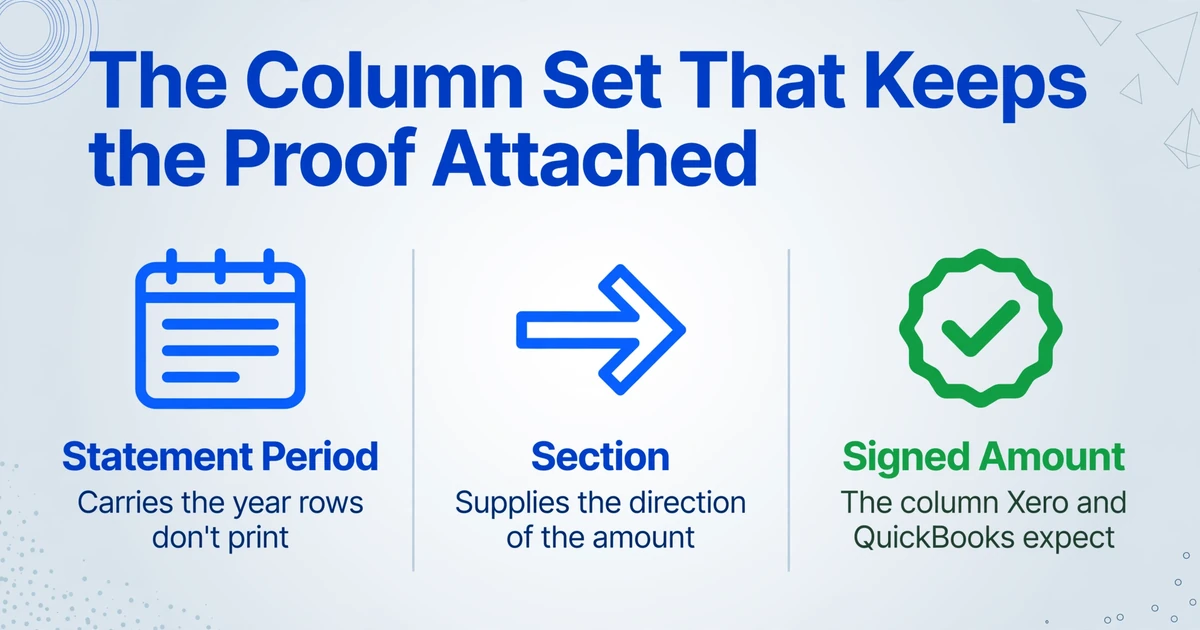
Name the columns after what each field means on the page. The first seven earn their place by surviving one of the four failures above; the last is for review and reporting.
| Column | Where it comes from | Why it stays in the output |
|---|---|---|
| Statement Period | The period line under the account number | Carries the year the rows do not print |
| Posting Date | Leftmost column of each activity row | Kept as printed, MM/DD, for checking against the page |
| Section | The heading above the row | Supplies the direction of the amount |
| Description | The description cell, including its wrapped line | The field bank matching actually uses |
| Check Number | Serial No. in Checks Paid, or CHECK # in a description | Separates two payments of the same amount |
| Debit / Credit | The amount column, read against its section | Keeps the printed direction for a four-column import |
| Signed Amount | Calculated from Debit and Credit | The one column Xero and a three-column QuickBooks file expect |
| Category | Judged from the description | Optional, for review and reporting rather than import |
Statement Period is the most valuable column and the one most often skipped. With it, a January row on a December cycle can be dated correctly before anything is imported. Without it, the only year in the file is the one Excel invented, and the first question an accountant asks about a December close becomes unanswerable.
This is Custom Column Extraction in practice, the approach ImageToTable.ai uses. You type the column names you want, and the AI locates each value by understanding what it means rather than where it sits. The names become the headers of the output. Nothing is drawn around a field and no sample set is trained, so the same list works on the sectioned layout and the older ledger layout.
Two column types go beyond what a plain list can do. A computed column can subtract Debit from Credit on every row, so the signed amount is ready before export, and a conditional version can output the gap when a printed total and the rows it read disagree. An inferred column can assign a Category from the description in the same pass. Both run across a batch.
A five-step pass from PDF to a checked spreadsheet
One account per batch is the arrangement that fails least often. The order below follows it, and it answers a recurring cost: at the May 2024 median wage of $23.66 an hour for bookkeeping clerks (BLS), one hour of retyping per client per month is about $284 a year per client.
Download the statement, not a screenshot
Statements & Documents keeps seven years of statements (TD Bank), and a closed account has no archive. A screen capture drops the section headings and the period line.
Identify the layout before you upload
Subtotal lines and section headings mean the sectioned layout; a balance on every row means the ledger layout. Note the Statement Period and the Days in Period, since that range is the year you will need later.
Name the columns from the table above
Type the list once and reuse it. One account per batch keeps the output clean; if you merge accounts, add an Account column and check a row from page two onward. A year of statements in one batch lands in one sheet.
Check the rows against the page
Click a cell in review and the region it came from is highlighted on the original page. Spot-check the first row of each section, every row with an empty amount, and any description short enough to have lost its second line.
Export and prove the month
Keep the XLSX as the review copy and export CSV for the import, preserving the raw Description in the XLSX after the import column is cleaned. Then run the checks below.
Files are processed securely and not stored.
The three checks, in the order that finds errors fastest. Reproduce the month first: Beginning Balance plus every credit section, minus every debit section, equals Ending Balance, and a difference of one cent means a row, a fee or a subtotal is missing. Next, sum the rows section by section, which localises a loss to one group of transactions. Then compare the running total of your rows against the Daily Balance Summary line for the date with the most activity.
A sectioned statement gives you more places to check, not fewer. The Account Summary proves the month, and each Subtotal proves a group of rows inside it.
A ledger-style statement allows a cheaper test: each row's balance should equal the previous balance plus or minus the amount. The Wells Fargo statement walkthrough shows that continuity check in detail, and the HSBC UK walkthrough covers a bank running several layouts at once.
What your accounting software will do to the file
The spreadsheet is an intermediate, and the two common destinations disagree about what a bank file should look like.
| Destination | What it accepts | What to change first |
|---|---|---|
| QuickBooks Online | Three columns with money out negative, or four with Credit and Debit; no numbers in Description and special characters removed | Map to four columns. TD descriptions carry card fragments and asterisks, so clean the upload column and keep the raw string beside it |
| Xero | One Amount column, income positive and expenses negative, balance rows deleted, one file per account | Map Signed Amount, drop the summary and subtotal rows, and leave the period columns out of the file |
| TD's own QBO / QFX export | Recent activity for checking, savings and money market accounts | Use it when the months sit inside the export window and the destination is QuickBooks or Quicken |
TD's own export deserves a plain statement. When the months you need are recent and the destination is QuickBooks or Quicken, the bank's file is the cleaner input, because the bank already decided the dates and the signs. The PDF route earns its place when the month is outside the export window, the account is closed, you only have a scanned paper copy, or the document is a credit card statement with no balance column. The generic bank statement extraction workflow covers the same decision for accounts outside TD.
One more check before the import: which TD. TD Bank, N.A. issues US statements in USD, while TD Canada Trust issues Canadian statements in CAD from its own portal with its own layout. The header and the currency tell you which one you hold, and importing a CAD statement into a USD account creates a currency problem no column mapping fixes.
What stays a reconciliation task
Extraction ends when the rows are complete and proved. Reconciliation begins when someone decides what each row is. That separation is what makes a handoff to an accountant possible.
The account holder supplies the statements, the bookkeeper extracts them and runs the checks, and the accountant or owner decides how each transaction is treated. In a small business one person holds all three roles, and the decisions still happen in that order.
A debit can be a supplier payment, an owner draw, a transfer between the client's own accounts, a bank fee, or the reversal of a failed payment. The page records that money moved and to whom. It does not record which ledger account should carry it, and bank rules, a chart of accounts and a conversation with the client do that work.
TD prints a 60-day window, counted from the first statement that showed the problem, for reporting an error in an electronic transfer. That deadline is the practical argument against letting statements accumulate: three months of unread statements means three months of decisions made after the window has closed.
Where this stops
ImageToTable.ai reads the statement and returns rows. It does not connect to TD Bank, log in, pull a feed, post to a ledger, or reconcile the account, and a clean export is not evidence that the books are right.
Three document limits are worth knowing before the first batch. Credit card statements use a different summary and print no balance per row, so ask for a card-specific column set. A digital PDF is the easy case; a skewed scan or a photo of a long statement needs a closer pass over the amount column and the wrapped descriptions. Layouts also change by account and over time, which is why the review step never becomes optional.
Keep the PDF. TD describes its online statements as legally binding, and the spreadsheet is a working copy that proves completeness through the Account Summary. When a lender or an auditor asks for the record, the statement is the record and the spreadsheet is the analysis built on it.
Frequently asked questions
Can I download a TD Bank statement as a CSV?
The statement itself is a PDF. Online banking also offers a transaction download in spreadsheet, QBO or QFX format for recent activity, and that file is not the closed statement period. One r/tdbank thread describes a CSV download whose transactions looked nothing like the PDF statement. If the period or the balance grid matters, start from the PDF.
Why are all the amounts positive after I convert my statement?
Because the section decided the sign and the section heading was left behind. Ask for a Section column plus separate Debit and Credit columns, then derive a signed amount instead of mapping the printed Amount column straight into your accounting software.
Why is the year wrong on the January rows?
TD statement cycles are ranges rather than calendar months, so a cycle that opens in December closes in January. The rows print MM/DD only, and a spreadsheet fills the missing year with its own assumption. Extract the Statement Period and set the year on the closing-month rows before the import.
Can I import the TD Bank PDF straight into QuickBooks Online?
No. A manual upload takes CSV, QFX, QBO or OFX, and QuickBooks applies its own format rules on top. The PDF has to become rows first, in a three-column or four-column shape. Xero has the same requirement in a different form: one signed Amount column.
Does this work for TD Canada Trust statements?
The column list still applies, because it describes fields rather than positions, but the document comes from a different bank. Canadian statements are issued in CAD from EasyWeb with their own summary block. Review the first rows against the page and keep CAD and USD accounts in separate files.
How do I handle two cheques printed on one line?
Give Check Number its own column and expect one row per cheque. Checks Paid prints in serial-number order, and an asterisk beside a number marks a break in the sequence rather than belonging to the number. Drop the asterisk and match the cheque row count to the count printed in the section header.
The rows were never the whole document
A TD statement was built to be proved, not imported. The period line, the section headings and the balance grid are what make the printed figures mean anything, and a copy and paste leaves all three behind. Carry them into the columns and the spreadsheet can be proved the way the page can.
Take one month of your own TD statements, name the columns from the list above, and check the Account Summary before any of it reaches your books.
Check a TD statement