Month-End Expense Crunch:
How to Close Without Chasing Receipts
Half of all finance teams need more than five business days to close the books each month, according to Ledge's 2025 month-end close benchmarks survey of 100 finance professionals across SaaS, healthcare, and manufacturing. The five-day threshold matters because it's the line between a close that wraps within the first week of the new month — and one that bleeds into week two, compressing the window for analysis, forecasting, and the next month's preparation. Within those five-plus days, the single most underestimated time sink isn't bank reconciliations or accrual calculations. It's expense reports. Not the policy review. Not the approval routing. The raw, manual act of turning a stack of receipts — photographed, scanned, crumpled, emailed — into rows in a spreadsheet or general ledger.
Key Takeaways
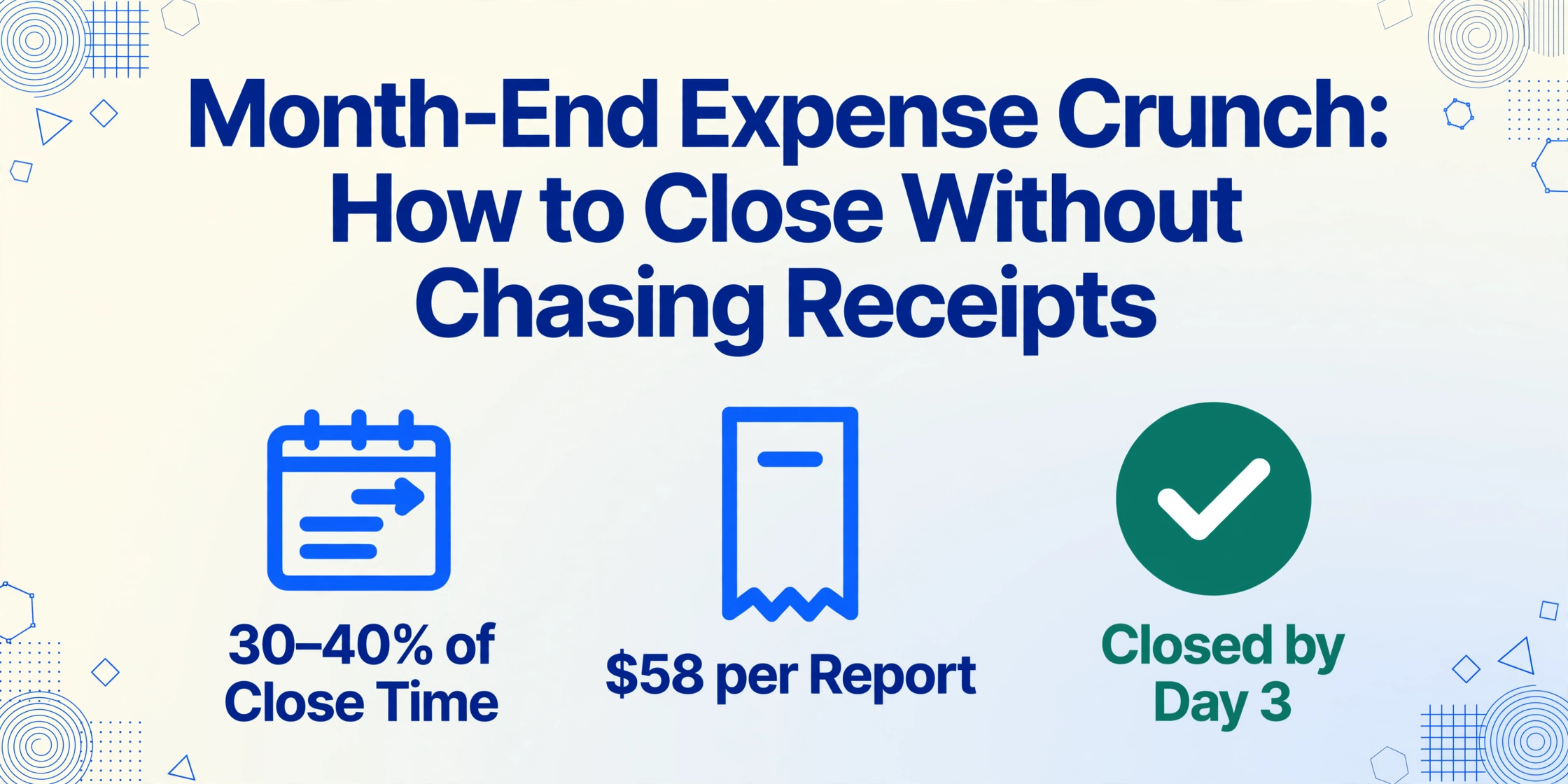
- Expense report processing consumes 30–40% of month-end close time for mid-market finance teams, yet appears as a single checklist bullet.
- A single manual expense report costs $58 and takes 18 minutes — totaling 60 hours of finance time per month for a 100-employee company.
- Error rates climb under month-end pressure: 19% of reports contain mistakes costing an additional $52 and 18 minutes each to correct.
- A submission deadline on the 25th enforced through frictionless upload prevents the dependency chain that stretches a 4-day close into a 7-day one.
- Batch column-name extraction compresses 50 receipts from 15 hours of manual entry into 90 minutes of review by working semantically, not by fixed coordinates.
Why Expense Reports Are the Silent Month-End Bottleneck
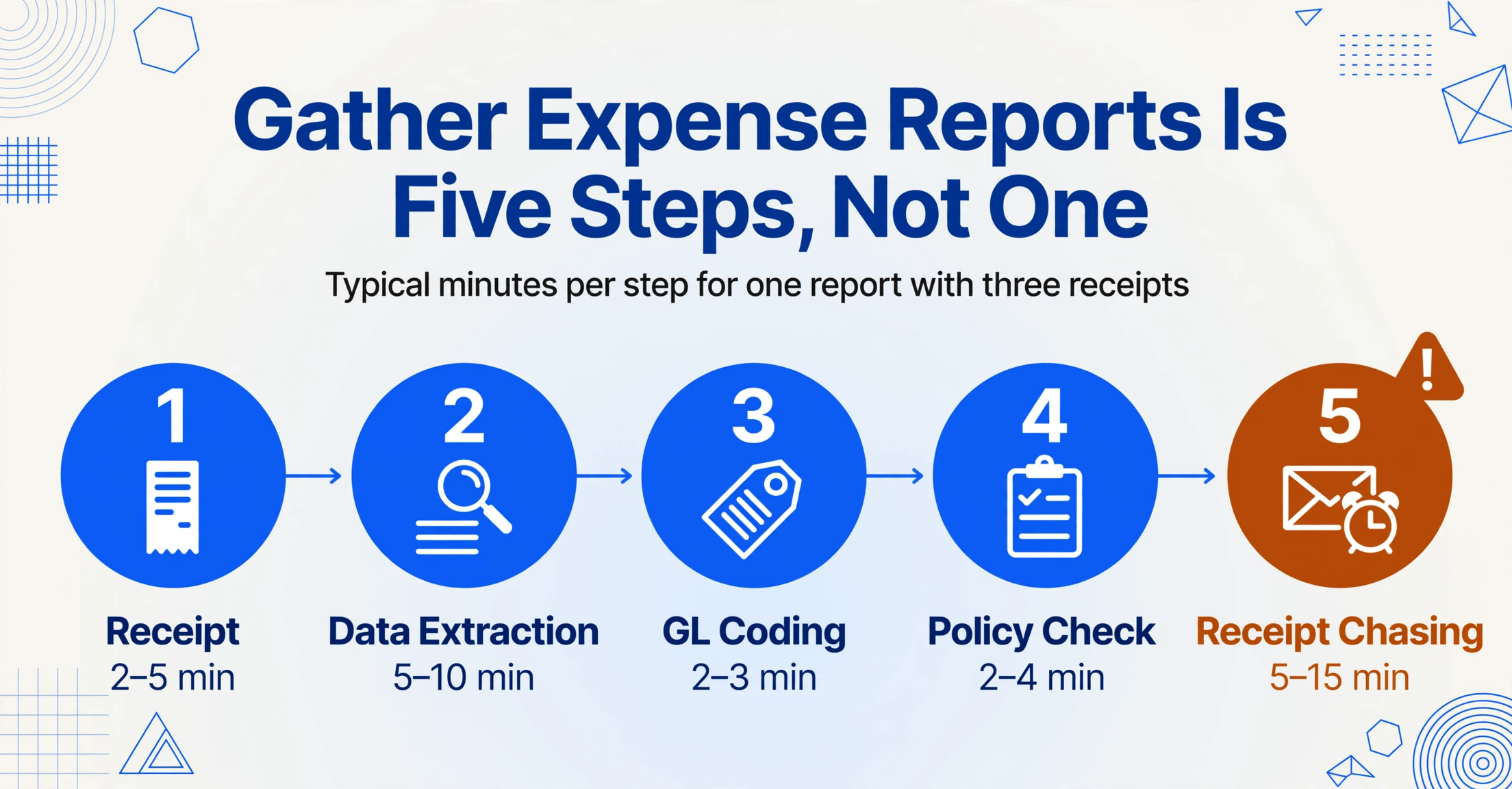
Every month-end close checklist mentions expense reports. Usually as one bullet among twenty. "Gather employee expense reports." "Verify expense report compliance." "Post expense reimbursements." The checklist structure makes expense processing look like a single discrete task — something you check off and move past. In reality, those three words conceal a pipeline of interdependent sub-tasks that can consume 30–40% of total close time for mid-market finance teams with significant field or sales headcount.
The pipeline, stripped to its actual steps, looks like this for a single expense report with three receipts attached:
| Step | Task | Typical Time (Minutes) | What's Actually Happening |
|---|---|---|---|
| 1 | Receipt receipt | 2–5 | Employee submits via email, Slack, or expense app. Receipt is a phone photo, sometimes rotated 90°, sometimes a screenshot of a forwarded email attachment. OCR quality varies wildly. |
| 2 | Data extraction | 5–10 | Finance or employee reads the receipt image and manually types: merchant name, date, amount, expense category, and any line-item detail. This is the step that the word "gather" hides. |
| 3 | GL coding | 2–3 | Assign correct general ledger account code. If the employee guessed wrong, finance corrects it. Entertainment vs. meals (50% deductible) vs. office supplies — mistakes here create tax and audit exposure. |
| 4 | Policy check | 2–4 | Verify amount against policy limits, check for duplicate submissions, confirm receipts match claimed amounts, flag missing receipts. |
| 5 | Receipt chasing | 5–15 | If any receipt is missing, unreadable, or doesn't match the claimed amount — email employee, wait for response, re-review. This step is the most variable and the most dangerous during month-end: it introduces dependency on people who are not on the finance team's deadline. |
| 6 | Approval routing | 3–5 | Manager reviews and approves. If the manager is on leave or traveling, the report stalls. Month-end coincides with quarter-end travel for many sales managers. |
| 7 | Posting | 1–2 | Enter reconciled amounts into ERP or accounting system. |
The total: 20 to 44 minutes per report, depending on receipt quality and whether any are missing. APQC benchmarking data pegs the average at roughly 18 minutes per expense report processed manually. For a company with 100 employees submitting two reports per month, that's 3,600 minutes — 60 hours — of finance time consumed by expense processing alone in a single month. During month-end, those 60 hours compete directly with bank recs, accrual calculations, and financial statement preparation.
The pipeline is fragile in ways that other close tasks are not. A bank reconciliation can be started, paused, and resumed — the data doesn't change. An expense report pipeline depends on live inputs from people outside finance: employees who took a photo of a restaurant receipt three weeks ago and forgot to submit it, or forwarded it at 9:47 PM on the 31st with the subject line "sorry forgot." Every missing receipt creates a dependency chain that finance cannot resolve alone. And during month-end — when the clock is running and every delayed report pushes the close deadline further — those dependencies are not just inconvenient. They are the mechanism by which a 4-day close becomes a 7-day close.
What Processing a Single Expense Report Actually Costs in Minutes — and Dollars
The APQC 18-minute benchmark is useful as a baseline, but it understates the problem because it averages across all reports, including clean, single-receipt submissions that take 5 minutes. The real damage during month-end comes from the tail — the reports with four receipts, one of which is a faded thermal-printed parking stub that nobody can read, or a foreign-language restaurant bill where the employee forgot to note the exchange rate.
The cost dimension is even more revealing. The GBTA Foundation benchmarked expense report processing at $58 per report, with 20 minutes of combined employee-and-finance time. Nineteen percent contain errors, which cost an additional $52 and 18 minutes to correct. A deeper breakdown of what drives that $58 figure and a per-employee cost model is available in our analysis of manual expense report processing costs, but the headline is straightforward: for a 150-employee company with 1.2 reports per person per month, annual processing cost exceeds $146,000 — on the administrative overhead alone, before a single dollar is reimbursed.
The month-end multiplier makes these numbers worse. During the close window, finance teams process expense reports in batch mode under time pressure — which means context-switching between reports, rushing through review steps, and making classification decisions faster than they would mid-month. The error rate climbs. The correction cost compounds. And because corrections require circling back to employees who have already mentally moved on from their expense report, response times stretch from hours to days. A corrected report submitted on the 3rd might not be resolved until the 7th — at which point the close deadline has already passed.
This is why the APQC median close time of 6.4 business days, cited by CFO.com referencing APQC's Open Standards Benchmarking, is simultaneously a useful benchmark and a misleading number. It doesn't tell you that the last two of those 6.4 days are often spent purely on expense report cleanup — chasing the final 15% of submissions, resolving the last batch of receipt discrepancies, and manually entering data that should have been digitized on day one.
The Pre-Close Window: What to Do Before the Deadline Clock Starts
The single highest-leverage change most finance teams can make to their month-end expense process is not a technology change. It is a timeline change. Move the employee submission deadline to the 25th of the month — or, for companies with a persistent late-submission problem, the 22nd — and hold it.
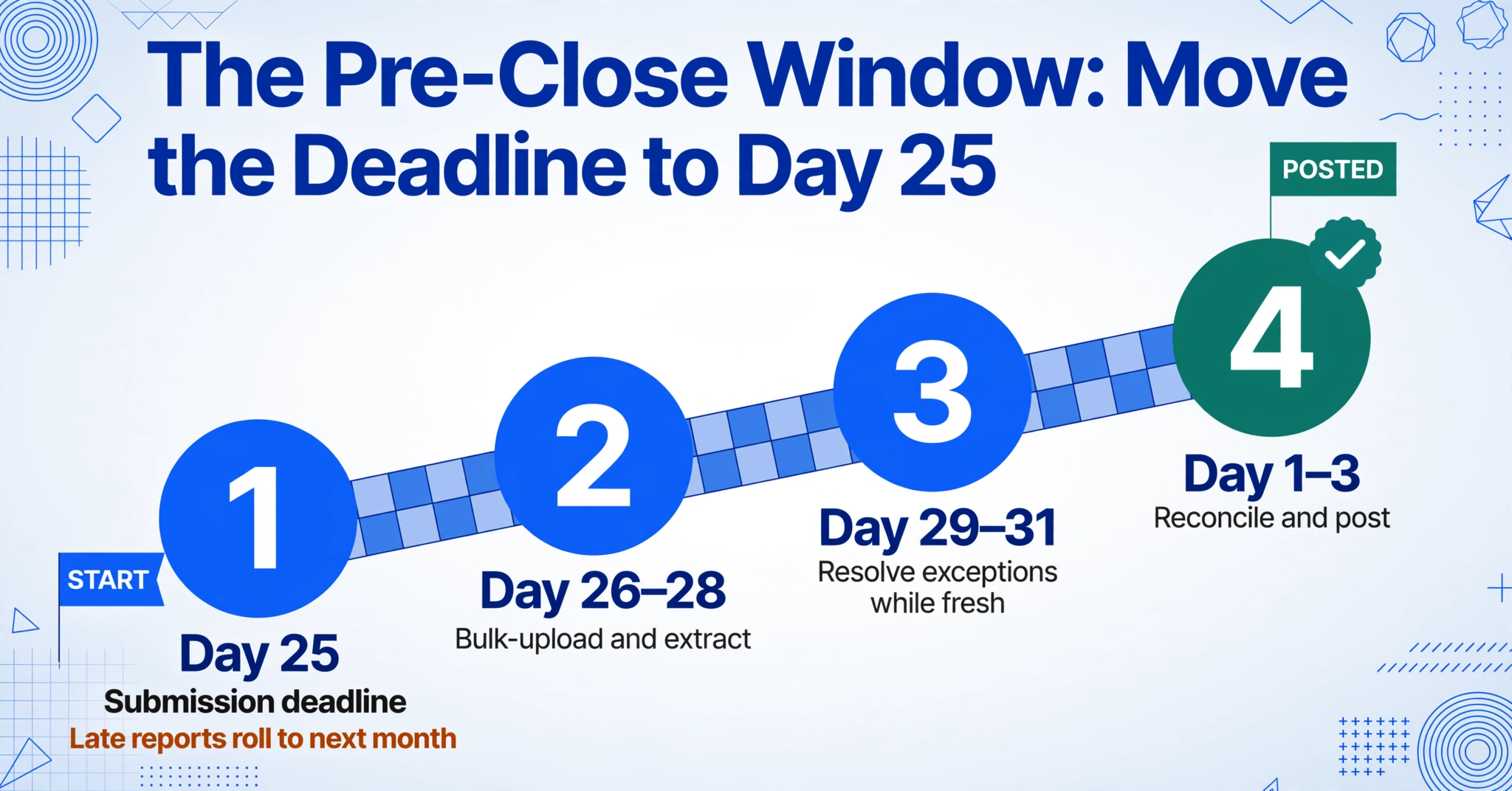
This sounds obvious. Most companies already have a deadline. The difference is in enforcement architecture. A deadline that lives in an email or a policy document is a suggestion. A deadline backed by a system that auto-closes the submission window — or, more practically, that removes the friction from submission so thoroughly that hitting the deadline is easier than missing it — changes behavior. Here is what the pre-close window should look like:
- Day 25: Employee submission deadline. All expense reports for the current month must be submitted with receipts attached. After this date, late submissions go into next month's cycle unless pre-approved by the controller.
- Day 26–28: Finance pre-processing window. Bulk-upload all submitted reports, run extraction, flag exceptions. This is the window where AI extraction compresses what would otherwise be 2–3 days of manual data entry into a single session.
- Day 29–31: Exception resolution. Finance contacts employees about missing receipts or policy violations. Since the transactions are still fresh (within days, not weeks), employees can resolve issues quickly.
- Day 1–3 (next month): Final reconciliation and posting. By the time the month officially ends, 85–90% of expense data is already extracted, validated, and coded. The close window is spent on review and final entries — not on primary data capture.
The mechanism that makes this timeline feasible where it wasn't before is a Collection Link: a shareable URL that lets employees upload receipts directly into the finance team's processing queue without logging into an expense system, installing an app, or creating an account. They open the link, enter a short verification code, and upload — from their phone, their desktop, or a forwarded email. The receipts land in a single queue, ready for batch processing. No email attachments to download. No Slack DMs with "here's my receipt from last week." No spreadsheets with mismatched receipts linked by filename. The Collection Link moves the submission bottleneck from "did the employee get around to it" to "are the receipts in the queue."
One Upload, One Export: Processing a Full Month of Submissions in One Pass
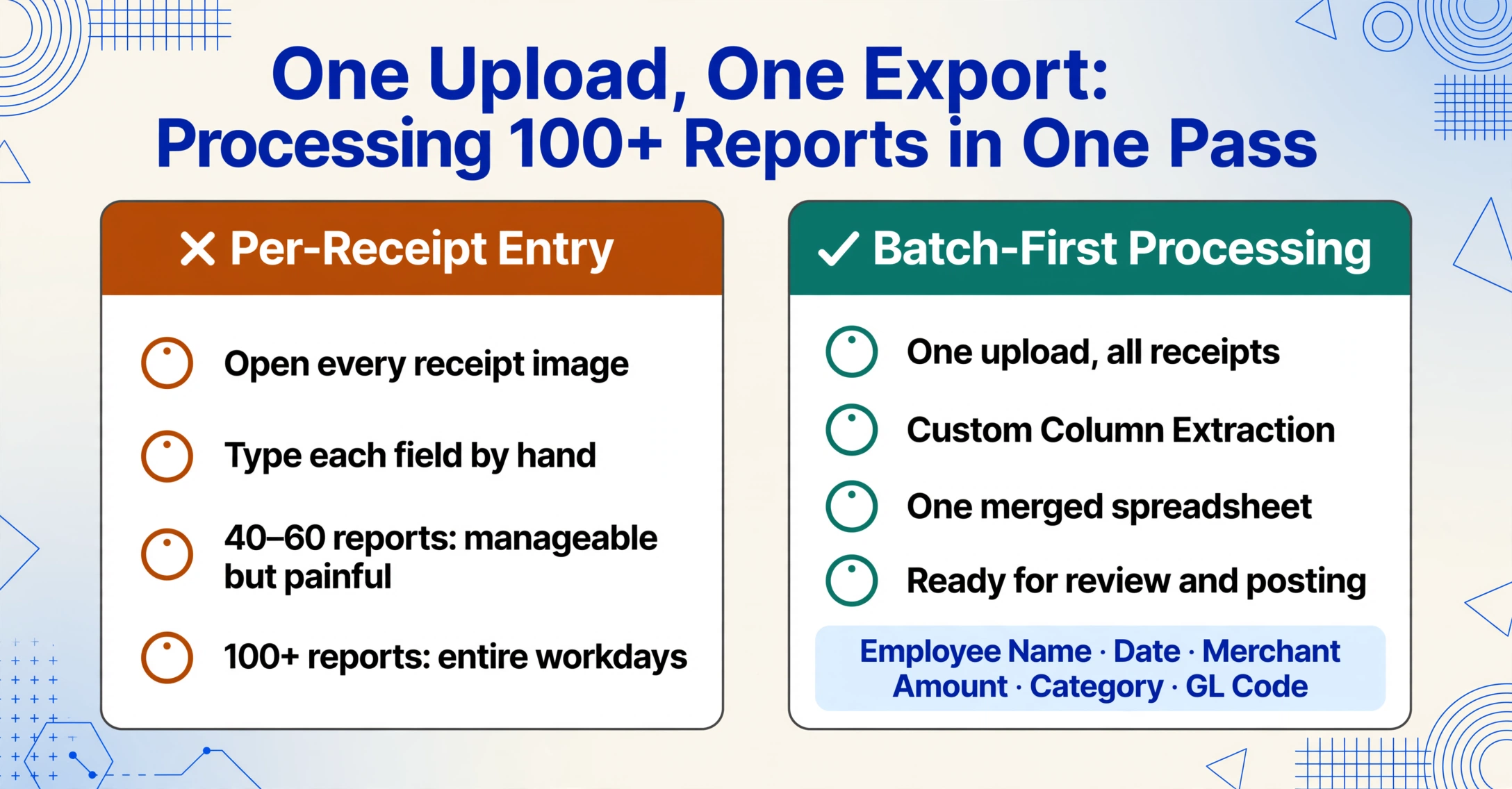
Once receipts are collected, the bottleneck shifts from collection to extraction. The traditional path through this phase — open each receipt image, read the vendor name, date, and amount, transcribe into the expense system or spreadsheet — doesn't scale. At 40–60 reports per month, it's manageable but painful. At 100+, it consumes entire workdays. The alternative is batch extraction: upload all submissions at once, tell the tool which fields to extract from each receipt, and get a single merged spreadsheet back.
This is where column-name extraction changes the workflow. Instead of opening each receipt individually and typing data into cells, you define the columns you want — "Employee Name," "Date," "Merchant," "Amount," "Category," "GL Code" — and the AI reads every receipt in the batch, locates each field by understanding what it means (not where it sits on the page), and populates the corresponding column. The output is a single Excel file with every expense report summarized in one table, ready for review and posting.
Files are processed securely and not stored.
The column-name approach eliminates the template dependency that makes traditional OCR brittle with expense reports. Receipt formats vary wildly — a Square POS receipt looks nothing like a hotel folio, which looks nothing like a hand-scribbled taxi receipt from a driver who writes in half-cursive Turkish. Template-based OCR tools fail on format variation because they rely on fixed coordinates. Column-name extraction bypasses this by working semantically: the AI looks for "the date this transaction occurred" not "the text at pixel coordinates (340, 120)." For a full breakdown of how this works across the receipt variability that finance teams actually encounter, see our guide to extracting expense report data from scanned PDFs.
For teams processing monthly batches of employee expense reports, the efficiency gain is multiplicative. Processing 50 single-receipt reports individually might take a finance team 15 hours at 18 minutes each. Uploading all 50 as a single batch, specifying columns once, and reviewing a merged output — with extraction taking 5–10 seconds per page — compresses that 15-hour task into roughly 90 minutes of review time. The extraction itself runs in the background; the finance team's role shifts from data entry operator to exception reviewer.
A 3-Day Expense Close Workflow That Finance Teams Can Actually Follow
The month-end close doesn't need to be a 6-day ordeal. Here is a three-day expense close workflow that assumes batch extraction is handling the data capture layer and the finance team's time is spent on review and decision-making — the activities that actually require human judgment.
Day 1: Collect and Extract
Morning: Close the Collection Link. All expense submissions received up to the deadline are in one queue. No straggler emails to hunt down, no Slack messages with receipt attachments to forward. Upload the full batch to the extraction tool. Specify column names: Employee, Date, Vendor, Amount, Category, Department, GL Code, Receipt Image Link. Run extraction. By noon, you have a single spreadsheet with every receipt's data extracted and organized — 20, 50, or 100 reports collapsed into one table. Afternoon: Initial review pass. Flag rows where the extracted amount doesn't match an obvious receipt pattern (e.g., a dinner receipt extracted as $450 instead of $45.00 — decimal errors are rare with AI extraction but worth a spot check on high-value items). Identify reports with missing required fields.
Day 2: Review Exceptions and Reconcile
Morning: Resolve flagged exceptions. Contact employees about the 5–10% of reports that have issues — missing receipt for a $200+ expense, merchant name that doesn't match the claimed category, duplicate submission of the same receipt. Because the extraction already gave you structured data in a reviewable format, you're not discovering these issues during data entry — you're reviewing a completed extraction for outliers. That's a fundamentally different task: faster, less error-prone, and less likely to miss something. Afternoon: Run category and GL code review. If you used inferred columns — where the AI reads the receipt content and assigns a category like "Meals" or "Travel" even when the receipt doesn't have a category field — spot-check 10–15% of classifications for accuracy. Adjust any miscategorized items. Run a total-by-department summary to catch obvious anomalies (e.g., Engineering department with $12,000 in travel for a month when no engineers traveled).
Day 3: Finalize and Post
Morning: Final approval pass. Route the completed spreadsheet or the extracted data through the expense system's approval workflow — or, if posting directly to the ERP, prepare journal entries with supporting documentation attached (each row in your spreadsheet references the original receipt image). Afternoon: Post expense entries to the general ledger. Lock the period for expense transactions. Generate the expense reconciliation report for the controller or CFO review. By end of Day 3, expenses are closed, posted, and reconciled — freeing Days 4 and 5 for the rest of the close process: bank reconciliations, accruals, financial statement preparation, and variance analysis.
This workflow rests on one structural change: extraction happens as a fast, automated batch process at the beginning of the close, not as slow, manual data entry distributed across the entire window. The finance team's time is spent on the activities that add value — review, exception handling, analysis — not on reading receipt images and typing numbers into cells. For most mid-market teams, this shift alone cuts 2–3 days from the expense component of the close.
What About Paper Receipts, Scanned PDFs, and Multi-Currency Expenses?
Month-end doesn't hand you a clean set of perfectly legible digital receipts. It hands you whatever employees happened to collect over the past 30 days. That includes:
- Paper receipts scanned on office multifunction printers: 200 DPI, often skewed, sometimes with the top half of the receipt cut off because the employee didn't align it on the scanner bed. AI extraction handles these better than template OCR because it doesn't need the entire document — it locates fields by semantic understanding, not by scanning a full-page layout.
- Thermal-printed receipts that have faded: The text on older thermal receipts becomes illegible to the human eye within 6–12 months. If an employee submits a 9-month-old receipt for a late expense claim, the image may show faint gray streaks where text used to be. AI extraction can sometimes recover text that is invisible to human readers by working with the contrast patterns that remain, but it is not magic — if the thermal ink has completely degraded, no extraction tool can recover it. This is an argument for faster submission cycles, not better extraction alone.
- Foreign-language receipts: An employee on a business trip to Japan submits a restaurant receipt entirely in Japanese. The AI reads the receipt in its native language and extracts the date, amount, and vendor name — no translation required, because the output is the structured data, not a translated document. The amount is extracted as a number (with currency identified if the symbol is present), and the vendor name is extracted as-is (which is what you want — "すき家" in the vendor column is more useful for audit purposes than a machine-translated approximation).
- Multi-currency scenarios: If your expense policy requires employees to submit the original receipt in local currency with a converted amount, the AI extracts the original amount and currency from the receipt. The conversion step remains a policy decision for finance — the AI identifies what's on the document, not what the reimbursement rate should be.
These edge cases are not rare during month-end — they are the primary reason expense processing takes longer than expected. A batch of 80 reports might contain 15 thermal-printed receipts on the verge of illegibility, 8 foreign-language restaurant bills, and 12 scanned PDFs with alignment issues. Standard OCR tools throw errors on these; column-name extraction processes them alongside clean digital receipts in the same batch, flagging low-confidence extractions for manual review rather than halting the pipeline. For teams evaluating whether AI extraction or traditional expense management apps handle this variability better, the differentiator is not whether errors occur — they will — but whether the system processes the 90% of clean receipts automatically and funnels the 10% of edge cases to a review queue, or makes you process everything manually because it can't tell which is which.
Frequently Asked Questions
Does AI extraction enforce our expense policy automatically?
No — and it shouldn't be expected to. Policy enforcement involves judgment calls: a $95 dinner in Manhattan may be within policy while the same amount in Omaha exceeds it. AI extraction captures what's on the receipt — vendor, date, amount, line items — and structures it for review. The review step is where policy enforcement happens. What AI changes is that the reviewer starts with structured, searchable data rather than a folder of receipt images. Spotting a policy violation in a spreadsheet sorted by amount is substantially faster than finding it by flipping through receipts one at a time.
Can the AI assign GL codes or do I need to review every one?
You can configure inferred columns — custom fields where the AI assigns a value based on what it reads in the document — to suggest categories or GL codes. For example, a column named "GL Code (options: 6100-Meals, 6200-Travel, 6300-Supplies, 6400-Entertainment)" tells the AI to read the receipt and choose the appropriate code. The AI's classification accuracy is high for clear-cut cases (a restaurant receipt → 6100-Meals; an airline ticket → 6200-Travel) but can be ambiguous for mixed categories (a meal during travel could be either 6100 or 6200 depending on your policy). The recommended workflow is to let the AI assign codes during extraction, then spot-check a sample during review — treating the AI's output as a time-saving first pass, not a guaranteed final answer.
Does the extracted data integrate with our ERP or accounting software?
The extraction output is Excel (XLSX), CSV, or JSON — formats that every ERP and accounting platform can import. Tools like QuickBooks, Xero, NetSuite, Sage, and SAP all support CSV or Excel imports for journal entries and expense data. The extraction tool itself does not push data directly into your ERP via API; the workflow is extract → export → import. For Google Sheets users, the Google Sheets add-on writes extracted data directly into a spreadsheet, which can then serve as the import source for your accounting system.
How large a batch can I process at once?
There is no hard technical limit on batch size, but practical workflow considerations apply. Uploading 100–200 receipt images in a single batch is well within normal operating range and processes in minutes. Beyond that, the upload and review time (not the extraction time) becomes the bottleneck — scrolling through 500 rows of extracted data in Excel to spot-check is less efficient than processing two smaller batches with focused review passes. For teams processing very high volumes, splitting into batches by department or cost center makes review more manageable.
What happens when we need receipt images for an audit?
The extracted spreadsheet includes the data from each receipt, but the original receipt images should be retained separately — either in your expense management system, a cloud storage folder, or attached as image links in the spreadsheet itself. If you include a "Receipt Image" column in your extraction request (a column that captures a reference to the source file), each row in your output can reference which image it came from, making it straightforward to locate the original during an audit.