How to Batch Team Expense Reports
into Google Sheets in One Afternoon
According to a 2015 GBTA Foundation study that remains the industry's most-cited benchmark, the average expense report costs $58 to process and takes 20 minutes from submission to completion. Processing one report takes 20 minutes. Processing thirty doesn't take 600 minutes; it takes the better part of a week, because the format switching, the missing receipt follow-ups, and the categorization guesswork compound as the session drags on, and each report starts to take longer than the one before it. At month-end close, when the books are due within days, you don't have a week to spend on expense reports alone.
The 1-vs-30 Gap: Why One Report Is 20 Minutes and Thirty Is a Week
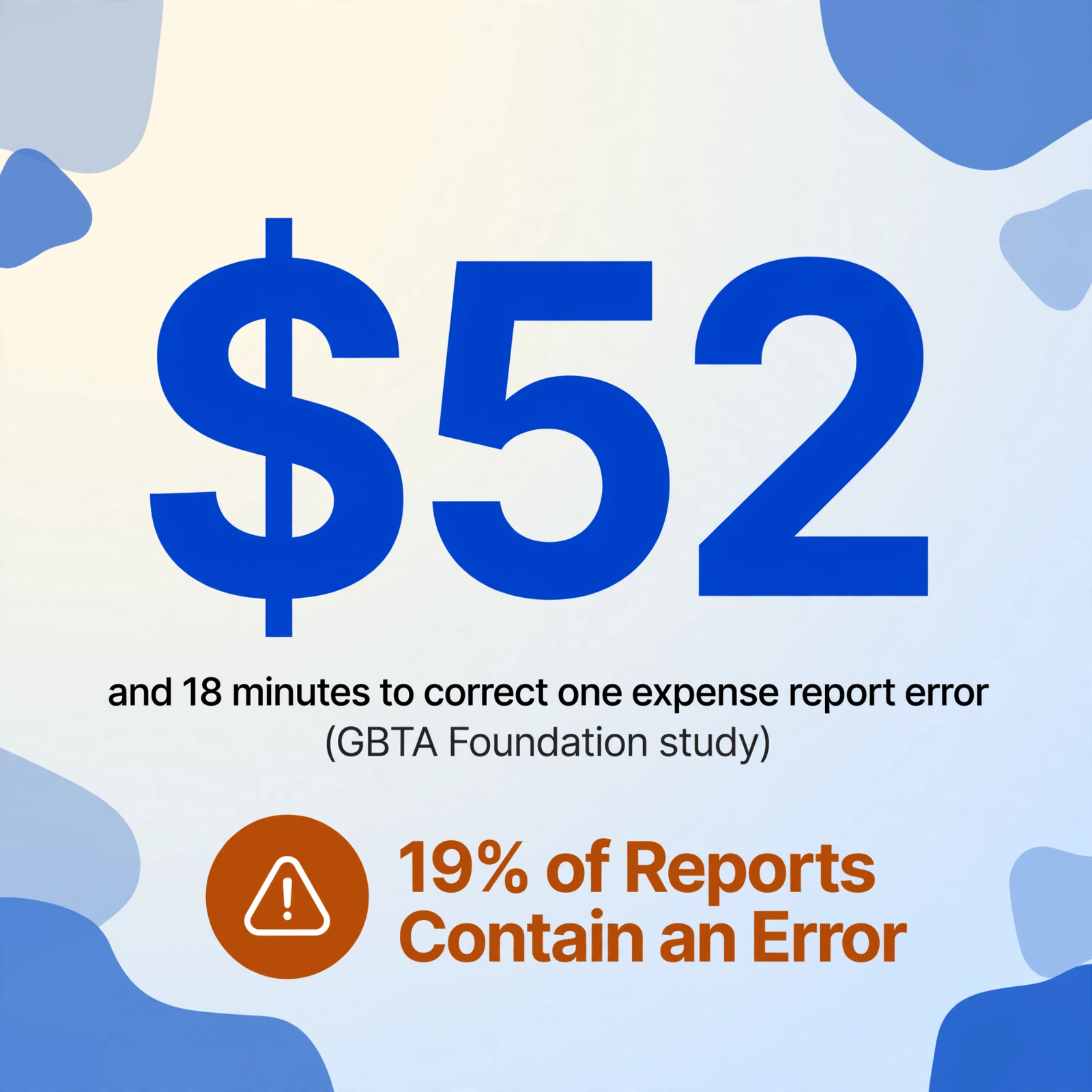
The same study found that 19% of expense reports contain errors that take an additional 18 minutes and $52 each to correct (GBTA Foundation study). Run those numbers for a team of eight people submitting one report each per month: that's approximately 5 hours of monthly labor on expense processing alone. For a small business office manager responsible for the books at month-end, expense reports are one line item on a longer close checklist that includes bank reconciliation, AP aging, payroll, and financial statement prep. With the median month-end close running 6.4 calendar days (APQC Open Standards Benchmarking), a 5-hour expense report detour eats more than a full morning of close time.
Three things make batch expense reports scale non-linearly with volume, and none of them is typing speed:
- Format switching cost. Employee A submits a photo of a dinner receipt from a Toast POS restaurant. Employee B sends a PDF of a hotel folio with charges split across three nights. Employee C forwards a flight booking confirmation as an email screenshot. Your brain has to context-switch between three completely different layouts to find the same fields (date, amount, vendor, purpose) — and that switching cost compounds with each report. By report 15, you're making mistakes you wouldn't make on report 3.
- Missing information chase. About one in five expense reports is missing required information: a receipt, a business purpose, or a client project code. With one report, you email the employee and get it in 5 minutes. With thirty reports and eight employees, you're running eight parallel chase threads, and the close clock is ticking.
- Categorization drift. When you enter 30 reports manually, your own categorization gets less consistent over the session. A "team lunch with a client" at 9:15 AM gets coded as "Meals & Entertainment." The same expense at 4:45 PM might get coded as "Client Meeting" because your attention is fading. The spreadsheet looks complete. The category totals are unreliable.
The efficiency cliff arrives partway through a batch. Before it, you're in "this isn't so bad." After it, each additional report takes longer than the one before, and the error rate climbs. Batch processing isn't a nice-to-have at month-end; it's the difference between closing on time and closing late.
What Breaks at Volume: Three Structural Problems
The individual tasks in expense report processing are straightforward. The volume makes them structurally unstable. Here are the three failure points that only become visible when you're processing a full team's monthly submissions.
1. Mixed Formats From Multiple People
A single-receipt extraction tool optimizes for one format at a time — and most of them do it well. The month-end problem is different: you're not looking at one format. You're looking at eight employees' worth of different spending habits, different receipt sources, and different report formats.
One employee photographs physical receipts from restaurants, gas stations, and office supply stores — each receipt from a different POS system with its own layout. Another employee forwards all their email confirmations as PDF attachments — hotel bookings, flight itineraries, software subscription renewals. A third employee uses a company card that generates a monthly statement, and their "expense report" is a spreadsheet with line items and no attached receipts. These three streams land on your desk as a single pile labeled "month-end expenses."
The tooling response to this is the core design principle behind column-name extraction: instead of training a separate template for each receipt layout (the approach used by traditional OCR tools that require you to draw bounding boxes around fields), you define what you want once — "Date," "Employee," "Vendor," "Amount," "Category," "Business Purpose" — and the AI locates those values on each document by understanding what they mean, not where they sit. A date is a date whether it's in the top-left corner of a restaurant receipt or buried in a flight confirmation email. A dollar amount is a dollar amount whether it's preceded by "$" or "Total:" or nothing at all. This format-independence is what makes batch processing work across the format diversity of a real team's submissions.
2. Categorization Inconsistency Across Reports
Every employee categorizes their own expenses differently, and that's before you, the person doing the books, apply your own interpretation on top. What one employee calls "Office Supplies," another calls "Equipment." What one calls "Client Meeting," another calls "Team Lunch" — and you need both to map to "Meals & Entertainment" for your P&L.
Even within a single person's batch, categorization drifts. A $12 meal with a vendor at 9 AM gets coded one way. A $14 meal with a vendor at 4 PM gets coded differently because categorization is a cognitive process, not a mechanical one — and cognitive processes degrade over a multi-hour data entry session.
The solution is to separate the categorization logic from the data entry session. Inferred columns let you define a category column once — for example, Category (options: Meals/Transport/Office Supplies/Software/Travel/Lodging) — and the AI applies it uniformly across every report in the batch. The categorization rule runs the same way on report 1 as it does on report 30. You set the policy once; the tool enforces it consistently. This eliminates categorization drift entirely, and it also means the employee doesn't need to categorize anything — the system handles it from the receipt content.
3. The Collection Timeline: A 30-Day Trickle That Crashes at Month-End
Expense reports don't arrive in a neat stack on the first of the month. They trickle in — one on the 3rd, two on the 12th, a flurry on the 28th when someone realizes they haven't submitted all month. If you process each one as it arrives, you're context-switching between expense entry and your other month-end tasks. If you wait until they're all in, you're processing 30 reports in a compressed window — the last two days of close — with no buffer for errors.
The IRS accountable plan rules add a compliance dimension to this timeline. Under IRS Publication 463 and Treasury Regulation §1.62-2, tax-free reimbursements require employees to substantiate expenses with receipts and business purpose documentation within 60 days of incurring the expense. When collection is a manual chase, that 60-day clock is burning while receipts sit in wallets and inboxes. And the IRS considers 60 days a "reasonable period" — miss it, and the reimbursement can be reclassified as taxable wages. The tax risk doesn't come from getting the math wrong. It comes from the collection process being too slow.
So the restructuring is to collect continuously and process in one batch, instead of collecting at month-end and processing then. The rest of this article shows how to build it.
The Batch Workflow: Collect All Month, Process Once
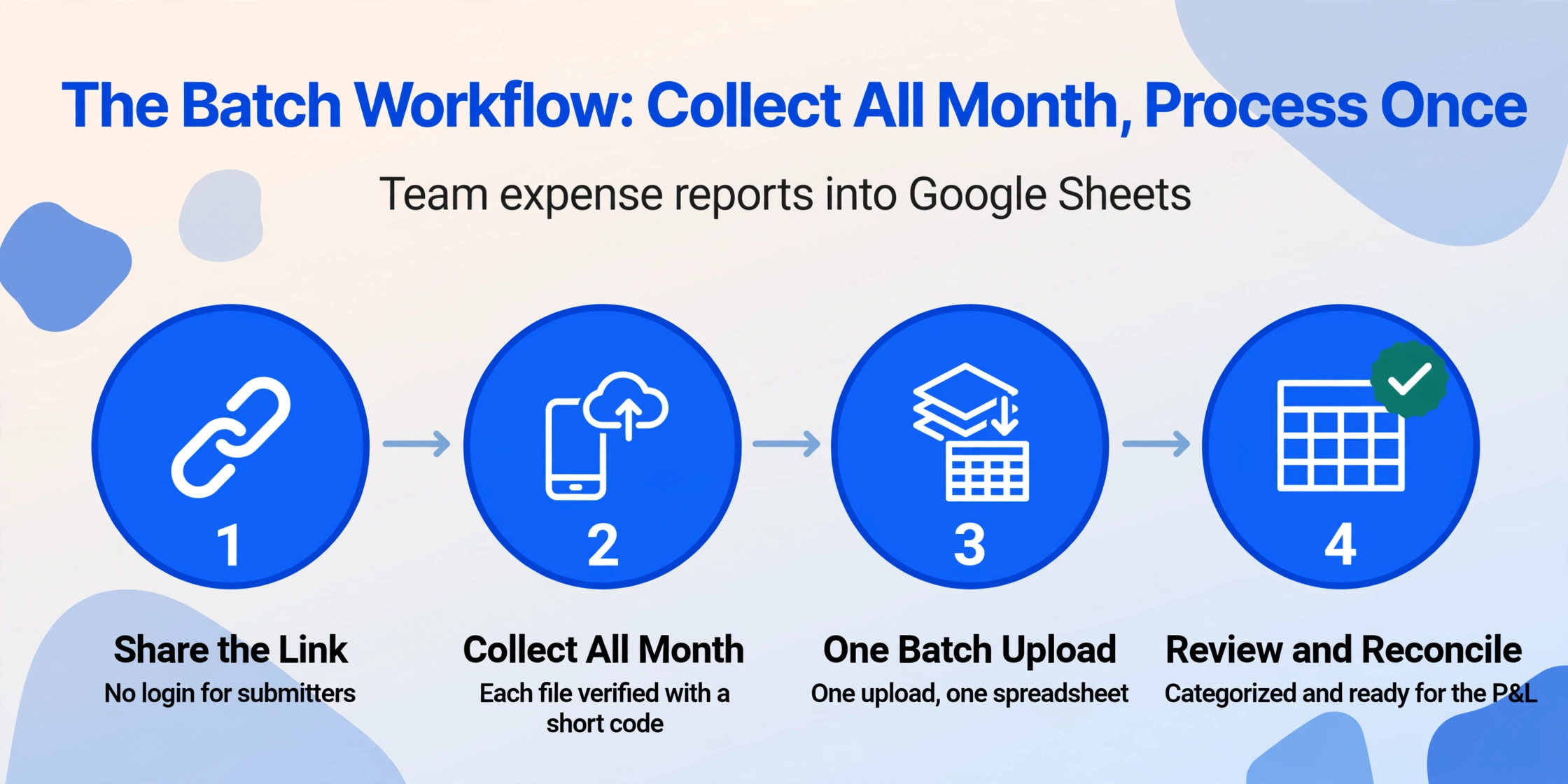
The month-end expense report Google Sheets workflow has three phases, and the most important one happens before month-end even starts. Here's how to set it up in the sidebar.
Phase 1: The Collection Link — Accumulate Submissions All Month
A Collection Link is a shareable URL that lets anyone upload files directly into your processing queue — no account creation, no login, no app download required for the sender. You generate the link once, share it with your team (email it, pin it in Slack, put it in the team wiki), and throughout the month, employees upload their expense reports and receipts as they incur them.
Each submission is verified with a short code before upload. Files land in your account's processing queue and wait there. You don't touch them until month-end. But they're collected — the IRS substantiation clock stops, the "I lost the receipt" problem disappears, and your month-end pile is already assembled before the month is over.
This is fundamentally different from asking employees to email receipts or drop them in a shared folder. Email scatters submissions across threads. Shared folders end up with inconsistent filenames, duplicate photos, and files that someone moved or renamed. A Collection Link gives you one intake point with a clean queue. For a deeper walkthrough of this workflow, see our guide to collecting employee expenses with Collection Link and Sheets.
Phase 2: The Sidebar Batch Session — One Upload, One Spreadsheet
Month-end arrives. Your queue has 25-30 submissions accumulated over the month. Now you open the Google Sheets add-on sidebar and process everything in a single session. For the full capability rundown — supported field types, formats, and plan details — see the Google Sheets add-on overview.
Unlike one-at-a-time receipt scanners that ask you to review and confirm each extraction before moving to the next one, the sidebar batch upload lets you select all files in the queue and process them together. You define the column structure once — Date, Employee, Vendor, Amount, Category, Business Purpose, Payment Method, Project/Client — and the AI applies that structure to every file in the batch. The results merge into a single spreadsheet, with one row per expense item.
Files are processed securely and not stored.
The column design is the architectural decision that determines whether your month-end output is useful or just a different kind of messy. Here's the recommended column set for a team expense report batch:
| Column | Why It Matters at Month-End | IRS / Compliance Note |
|---|---|---|
| Date | Assigns expense to the correct accounting period | Required for substantiation (IRS Pub 463) |
| Employee | Ties each expense to the right person for reimbursement | Links expense to accountable plan participant |
| Vendor | Identifies the payee — first thing an auditor cross-checks | IRS Pub 583: records must identify payee |
| Amount | The reimbursement value — ensure it's the final total, not a subtotal | Must match the receipt total |
| Category | Maps expenses to P&L lines for financial reporting | Required for "ordinary and necessary" classification |
| Business Purpose | Explains why the expense was incurred | IRS accountable plan: must state business connection |
| Payment Method | Reconciles with bank and credit card statements | Supports proof of payment (receipt + statement) |
| Project / Client | Enables job-cost tracking and client billing | Varies by industry; supports project accounting |
You're not opening each file, verifying each field, and clicking "next." You select all files, click process, and walk away. The tool runs through the queue. When it's done, you have a single sheet with every expense rowed up in the same columns — regardless of whether the source was a PDF hotel folio, a photo of a lunch receipt, or a screenshot of a flight confirmation. For a walkthrough of setting up the shared tracker itself, see our guide to building a team expense tracker in Google Sheets.
On accuracy: Printed receipt data extraction can reach up to 99% accuracy for clear, well-lit documents. Handwritten tips, heavily creased thermal paper, and very low-contrast photos will reduce that figure, and those are the files to expect corrections from. If a batch leans on handwriting or marginal scans, raise the account's processing tier before submitting it. The Standard tier covers most printed receipts; the Advanced and Premium tiers run a stronger vision model tuned for dense handwriting and complex layouts. The tier is fixed when the batch is submitted, so a month that runs mostly clean digital receipts at Standard and one messy pile at Premium doesn't change the setting for everything else. For the batch itself, process everything, scan the output for obvious gaps such as empty cells in the Amount column, and correct the few rows that need attention rather than reviewing every row. A 30-report batch typically needs a handful of corrections. The same 30 reports entered by hand spread their errors across the whole sheet and have to be proofread cell by cell.
Post-Processing: Review, Categorize, Reconcile
The batch extraction produces a single spreadsheet. The post-processing step turns that spreadsheet into a month-end deliverable — categorized, reconciled, and ready for the P&L.
Categorization With Inferred Columns: Set the Rules Once
Manual categorization is the biggest consistency risk in batch expense processing. Even within a single batch session, your own judgment drifts — which is why accounting departments use standardized chart-of-account codes rather than free-text categories.
Inferred columns solve the categorization consistency problem at the extraction layer. Instead of extracting expense data and then categorizing it afterward, you define a category column as part of the extraction itself — for example:
Category (options: Meals & Entertainment / Travel & Lodging / Office Supplies / Software & Subscriptions / Transport & Mileage / Client Gifts / Other)The AI reads each receipt, understands what was purchased, and assigns the appropriate category — and it applies the same judgment logic to receipt 1 as it does to receipt 30. You set the category schema once. The tool enforces it uniformly. This is the difference between a spreadsheet with consistent category columns and one where "Lunch — $14.50" ended up as "Meals" on row 3 and "Team Event" on row 22.
If you need expenses to map to a specific chart of accounts structure, you can extend the approach with Computed Columns — for example, a rule that maps "Meals & Entertainment" to account code 6050, "Travel & Lodging" to 6100, and so on. The output spreadsheet arrives with both the human-readable category and the accounting system code.
The 10-Minute Anomaly Scan
Before you hand the spreadsheet to your accountant or feed it into your P&L, run a structured verification pass: a targeted scan for the anomalies that batch processing makes structurally likely, not a line-by-line review.
- Sort by Amount, check the extremes. The highest and lowest values reveal the most common batch errors: a $1,200 hotel stay that extracted as $12.00 because the AI misread a decimal, or a $0.00 expense that was actually a blank receipt photo.
- Filter for blank cells in critical columns. A blank Vendor or Amount means the extraction failed on that field entirely. In a 30-report batch, a couple of these is normal. Fix them manually; don't re-run the batch.
- Scan for duplicate expenses. Sort by Date and Amount. Two rows with the same vendor, same date, and identical amount are almost certainly the same expense submitted twice — once as a photo and once as an email forward. Flag and remove, or note for the employee.
- Check category assignments on borderline items. A gas station snack coded as "Meals & Entertainment" is probably correct. A gas station fill-up coded as "Meals" is wrong and needs a quick fix. Scan the Category column for obvious mismatches — this takes 60 seconds.
- Verify the row count. If you expected 28 expense items and the spreadsheet has 31, three expenses may have been split across two rows each (typically multi-line receipts). If you have 22, some files may have been unreadable or blank.
This verification pass takes about 10 minutes on a 30-report batch, against the better part of an hour to proofread the same data entered by hand. The scan works because the five checks above point at the failure modes batch extraction actually produces, so you look where the errors are instead of reading every row.
1 vs 30: The Real Numbers Behind Manual vs. Batch Processing
The efficiency gap between processing one expense report and thirty isn't theoretical. Here's how the numbers break down when you compare manual entry in Google Sheets against a batch workflow using the sidebar add-on:
| Metric | 1 Report (Manual) | 30 Reports (Manual) | 30 Reports (Batch Add-on) |
|---|---|---|---|
| Time to process | ~20 minutes | ~10 hours (with switching cost) | ~5 minutes extraction + 10 minutes review |
| Format switching | Zero — one format | Compounds: each new format adds cognitive load | Zero — AI handles format diversity transparently |
| Category consistency | Not applicable | Drifts across session; manual judgment varies | Uniform — inferred columns apply the same rule to all 30 |
| Missing receipt chase | ~5 minutes per missing item | An hour or more of follow-ups across 8 employees | Reduced — receipts collected continuously via Collection Link |
| Error rate | 19% of manual reports contain an error (GBTA) | Higher, and errors spread across the sheet | Clustered in low-quality source files, so review can target them |
| Cost (at $25/hr labor) | ~$8.33 | ~$250.00 | Extraction cost only, plus a short review pass |
| Month-end close impact | Minimal | Extends the close timeline | Fits into a single afternoon |
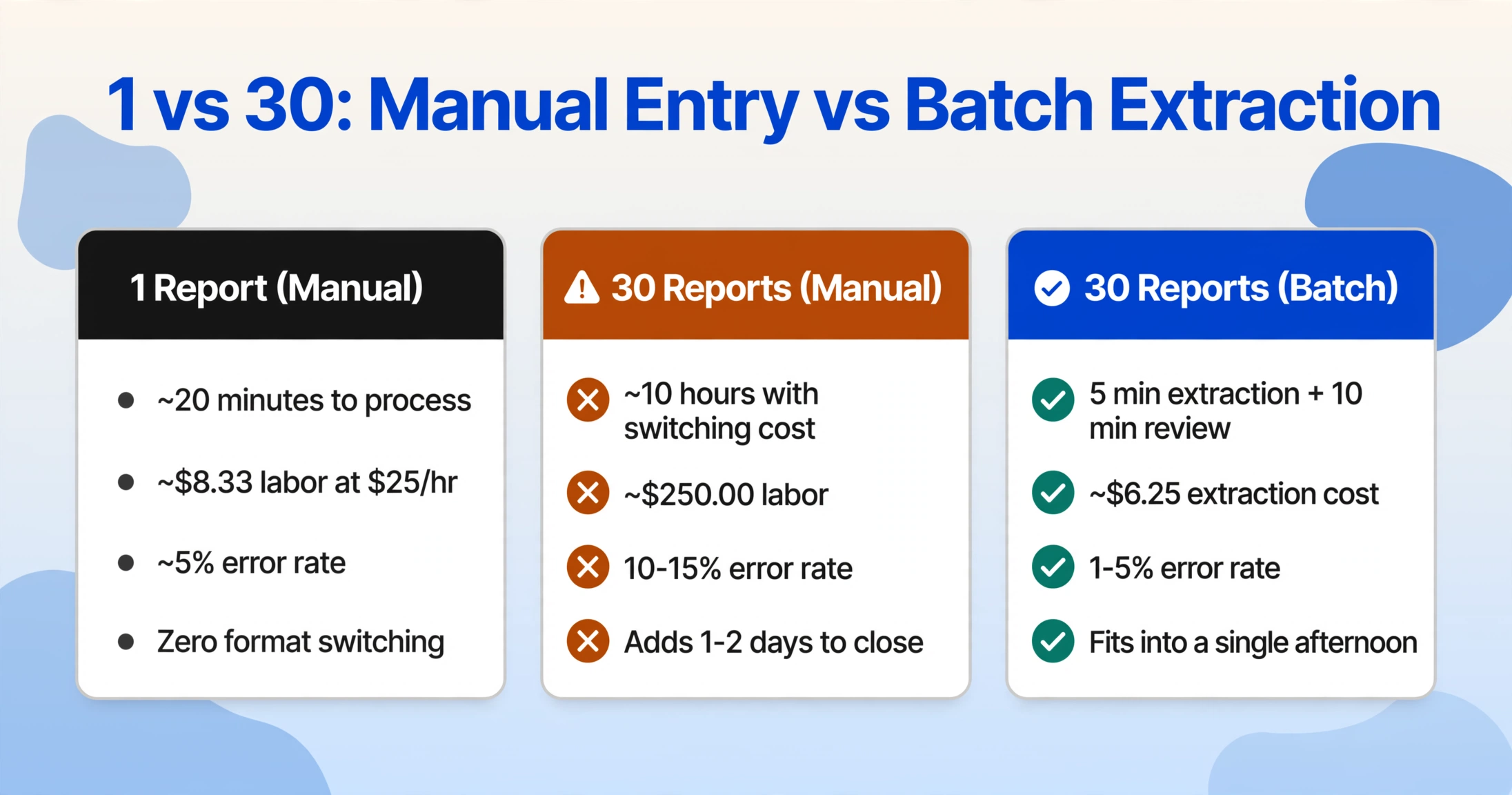
The error rate column is the most telling number in this table. Manual entry across 30 reports produces errors that are randomly distributed: a transposed digit on row 7, a wrong category on row 19, a doubled amount on row 26. Finding them requires proofreading every single cell. Batch extraction errors are concentrated in the low-quality source files instead: faded thermal paper, heavily creased receipts, photos taken in bad lighting. You know where to look, which makes verification faster and more reliable.
The IRS accountable plan rules put a deadline on this comparison: under IRS Publication 463 and Treasury Regulation §1.62-2, reimbursements must be substantiated within 60 days of the expense. A manual 10-hour processing timeline means you might not catch a missing receipt until day 55, leaving no time to retrieve it before the window closes. A batch workflow that processes everything in an afternoon on day 30 gives you 30 days of buffer for any missing documentation.
Frequently Asked Questions
Can the Google Sheets add-on handle expense reports in different formats — PDFs, photos, screenshots — in the same batch?
Yes. The add-on uses column-name extraction, which identifies data by meaning rather than by layout or format. A dinner receipt photo from a phone camera, a PDF hotel folio, and a screenshot of a flight confirmation all produce rows in the same output spreadsheet with data in the same columns — because the AI understands that "total amount" means the same thing regardless of whether it appears on a Square POS receipt or a Marriott folio.
How do my employees submit their expense reports before month-end?
Through a Collection Link — a shareable URL you generate once and distribute to the team. Employees open the link, enter a verification code, and upload their receipts or expense reports directly. Files land in your queue. No app install, no account creation, no login required for the submitter. This is the intake mechanism that makes continuous collection possible — and it's the subject of our full guide on Collection Link workflows.
How accurate is batch extraction compared to manual data entry?
For clear, well-lit printed receipts, extraction accuracy can reach up to 99%. Handwritten amounts, heavily faded thermal paper, and very low-resolution photos reduce that, and the Advanced or Premium processing tier is the lever for a batch full of them. The difference from manual entry is less the absolute error rate than where errors land. Manual entry errors are randomly distributed across the sheet and require full proofreading. Batch extraction errors cluster in low-quality source files, so your verification pass can target those files specifically. A batch of 30 typically needs a handful of corrections, not a cell-by-cell review.
Does the add-on handle categorization, or do I need to categorize each expense afterward?
The add-on handles categorization during extraction through Inferred Columns. You define a category column with your preferred options — the AI reads each receipt and assigns the appropriate category automatically. The same categorization rule is applied to every expense in the batch, eliminating the inconsistency that plagues manual categorization across large volumes. You can review and adjust any miscategorized items in the post-processing scan.
What happens if two employees submit the same expense — can the batch processing detect duplicates?
The tool doesn't automatically flag duplicates during extraction, but the post-processing scan catches them reliably: sort the output by Date and Amount, and any two rows with the same vendor, same date, and identical amount are almost certainly the same expense submitted from two angles. The fix takes 10 seconds — delete the duplicate row. This is one of the items in the step-by-step anomaly scan described above.
Is this IRS-compliant for employee reimbursements under an accountable plan?
Yes. Under IRS Publication 463 and Revenue Ruling 2003-106, electronic receipts and electronic expense reports are explicitly compliant for substantiation under an accountable plan — provided they capture the required elements: amount, date, time, place, and business purpose. The column structure recommended in this article includes all five required fields. The 60-day substantiation window makes the batch workflow particularly relevant: collecting receipts continuously via a Collection Link means employees substantiate within days of incurring the expense, not weeks later.
Can I set up the sheet once and reuse it every month?
Yes. The Google Sheets add-on remembers your column configuration, so you set up your expense report column schema once — Date, Employee, Vendor, Amount, Category, Business Purpose, Payment Method, Project — and reuse it every month. The Collection Link persists across months as well. The initial setup takes about 15 minutes. Every subsequent month-end, you open the sheet, open the sidebar, batch the submissions from the queue, and run the 10-minute verification pass. The workflow gets faster with repetition.
Collect expense reports all month. Process them all in one afternoon. Stay inside Google Sheets the whole time.