Why Your Invoice Line Item Math
Is Wrong After Extraction
Your invoice extractor got the vendor name, invoice number, and grand total right. But when you spot-check the line items, something is off: row 3 shows Qty 4, Unit Price $150.00, Line Total $300.00 — $300 short. Yet each individual field looks clean. The AI did not misread anything. It mis-paired something.
Key Takeaways
- Your AI invoice extractor reports 99% field confidence and the Qty × Price math is still wrong — because per-field confidence scores measure readability, not whether a unit price belongs to row 2 or row 3.
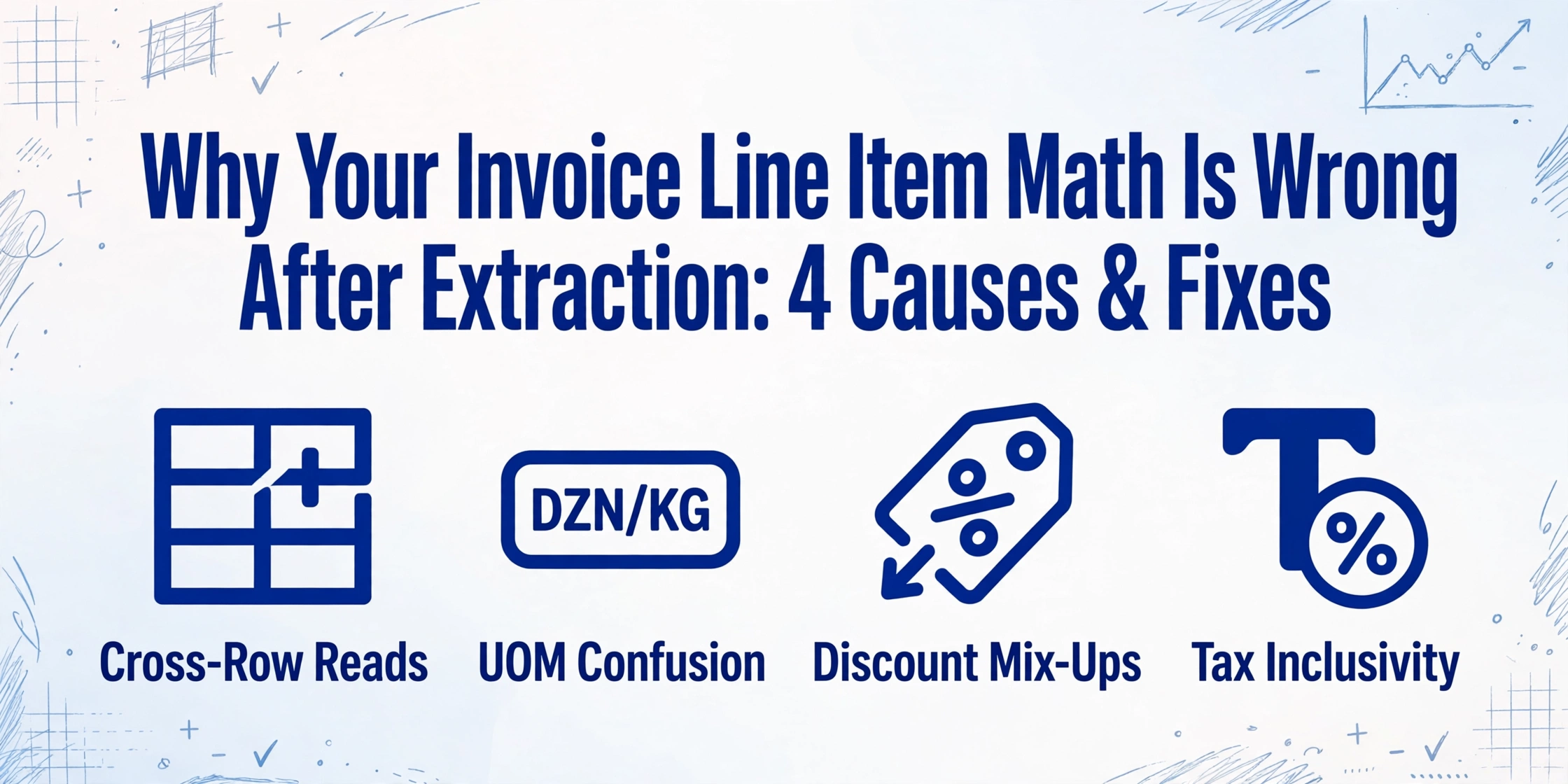
- Qty × Price mismatches follow just four patterns — and the magnitude and direction of the deviation reveals whether the AI cross-paired rows, missed a unit-of-measure multiplier, or confused pre-discount with post-discount amounts.
- One formula column — =ROUND(Qty×UnitPrice,2) — catches all four patterns, and the five minutes it takes to add it tells you more about extraction quality than any confidence score.
This is the quietest failure mode in AI invoice extraction. The AI achieves 98%+ accuracy on individual fields — it reads quantities, unit prices, and line totals correctly as standalone values. But cross-field consistency is a fundamentally different challenge. A vision model that can read "$150.00" off a page with high confidence cannot automatically know whether that $150.00 belongs to row 2's unit price, row 3's line total, or the section subtotal. When these relationships break, line-item math stops adding up, and the error is invisible to per-field confidence scores.
A 2025 study on Docling and LlamaExtractor confirms the gap: consistency checks (line items + tax = total) failed on 20% of invoices — mostly those with complex multi-tax scenarios or non-standard formatting (arXiv 2510.15727v1). If you are seeing quantity × price mismatches in your output, your invoices likely fall into one of four distinct patterns.
Cause 1: The AI Paired Qty from Row 1 with Price from Row 2
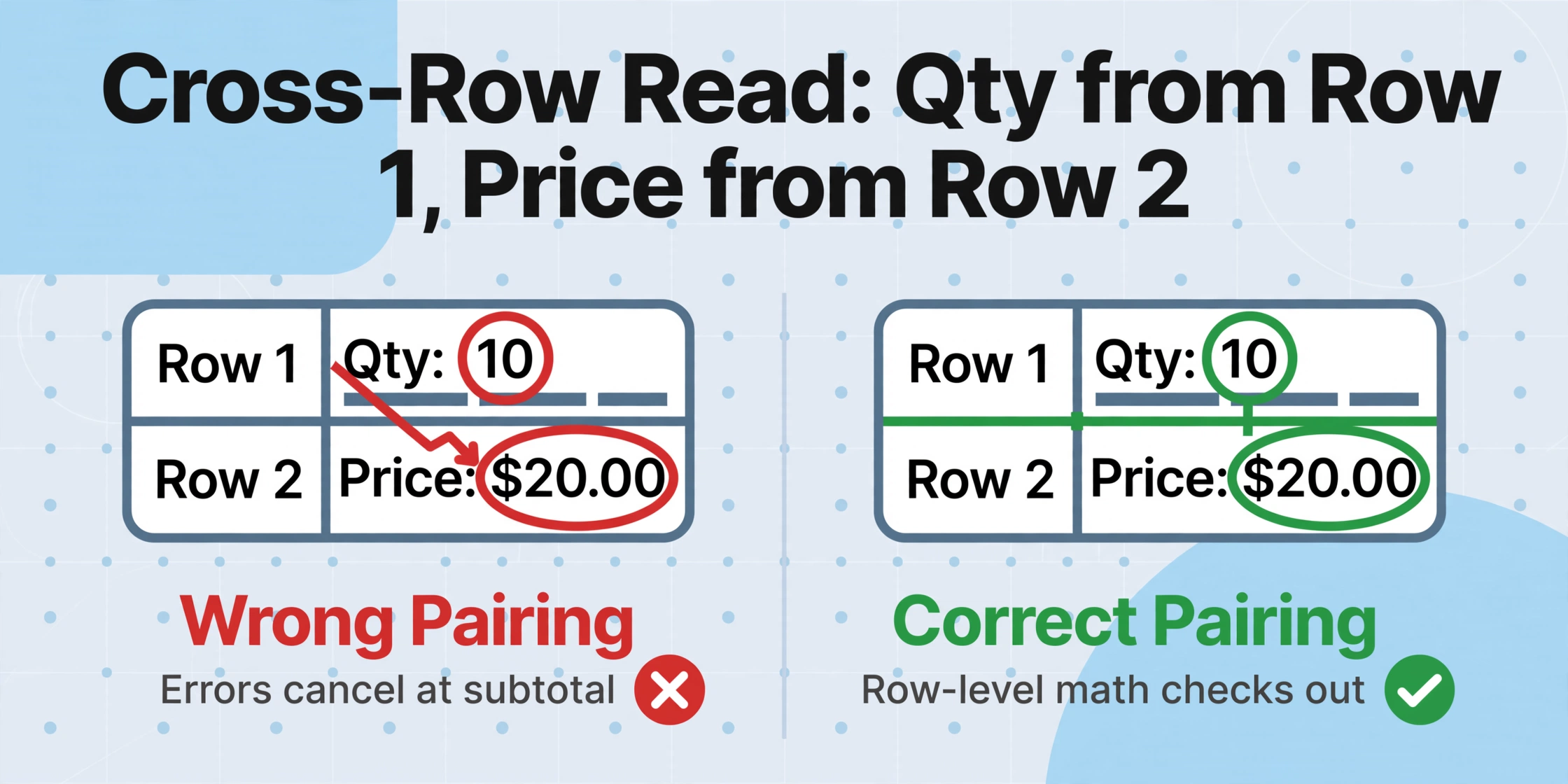
Dense line-item tables are the most common source of cross-row pairing errors. When an invoice has 15+ line items with no visible row separators — just stacked rows of text — the AI's spatial reasoning must decide exactly where one row ends and the next begins. A shift of a few pixels can cause the model to associate row N's quantity with row N+1's unit price.
Symptom: Individual line items have wrong math, but the sum of all Qty × Price calculations equals the invoice subtotal. This tells you the values are all correct — they are just paired to the wrong neighbors.
Cross-row reads happen most often in three scenarios:
- No visible row borders: Invoices that use white-space-only row separation. The AI guesses where boundaries fall and sometimes guesses wrong.
- Multi-line descriptions: A product description that wraps to two lines pushes subsequent rows down. The AI may map the continuation text as a new row, shifting all following pairs.
- Merged cells in the table header: A header row with merged column labels can confuse the AI's column-count detection, causing it to misalign the entire table structure from the start. See how merged cells break table extraction for a deeper breakdown.
How to catch it: Run a row-level validation formula (detailed in the framework section below). Cross-row reads produce a distinctive fingerprint — some rows overstate the total, some understate it, and the errors cancel out at the subtotal level.
Cause 2: Unit of Measure Confusion — "12" Is Not Always 12 Pieces
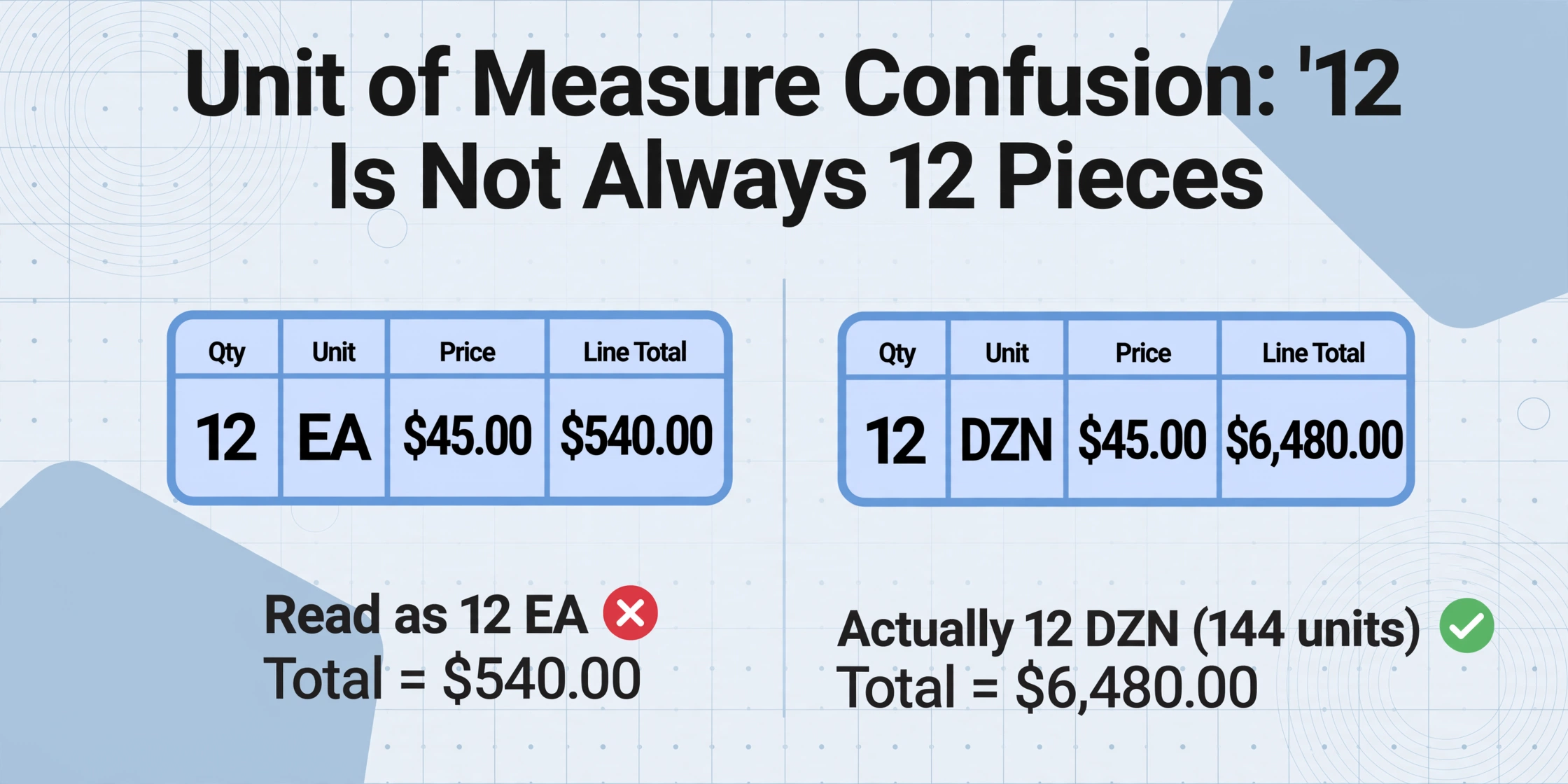
A quantity of "12" on an invoice line is ambiguous without its unit of measure. Is it 12 pieces? 12 dozen (144 units)? 12 kilograms? 12 linear feet at $3.75 per foot? The number itself is clean, but the AI cannot multiply 12 by a unit price unless it knows what "12" represents.
Unit of measure (UOM) confusion produces two distinct error patterns:
- UOM in a separate column: Some invoices have a "UOM" column (EA, DZN, KG, FT) between the quantity and unit price fields. If the AI fails to read or associate this column, it treats "12 DZN" (144 units × price) as "12 EA" (12 units × price), producing a line total that is 1/12 of what it should be.
- UOM embedded in the description: Many invoices write "12 × CASE" or "12 @ CASE PRICE" inside the description field. The AI reads "12" into the quantity column but has no mechanism to understand that this "12" means "12 cases of 6 units each." The resulting Qty × Price total will be off by the case multiplier.
This error is deceptive because the numbers look internally consistent. Qty = 12, Unit Price = $45.00, Line Total = $540.00 — the math works. But if the invoice actually says "12 dozens at $45.00 per dozen" and the AI read it as 12 pieces, the total is off by a factor of 12. The AI extracted plausible numbers that happen to fail the business reality check.
Unit-related extraction issues compound when the source document has missing decimal points or ambiguous currency symbols — a missing decimal in the unit price magnifies any UOM misalignment.
How to catch it: Cross-reference line total against a price book or historical average for the same item. A unit price of $45.00 on an item that historically costs $7.50 per unit is a red flag — the AI may have read the UOM as "EA" when it was actually "BOX (6 EA)." For invoices without historical data, flag any line where Qty × Unit Price produces a round number that deviates from expected price ranges.
Cause 3: Pre-Discount vs Post-Discount Line Amount Confusion
Invoices use multiple conventions for displaying line-item totals. Some show the gross (pre-discount) amount on the line and apply discounts at the invoice footer. Others calculate the net (post-discount) amount directly on the line and summarize a "total discounts" figure separately. AI extraction models often cannot tell which convention a particular invoice uses, especially when the column header says simply "Amount."
Example: Line item shows "Qty 10, Unit Price $50.00, Amount $475.00." The math checks out at 10 × $47.50, but the unit price reads $50.00. What happened? The invoice applies a 5% line-level discount ($2.50/unit) and shows the net amount on the line while displaying the gross unit price. The AI extracted both values correctly — they just belong to different stages of the discount calculation.
Three discount conventions are common enough to cause regular extraction confusion:
- Line-level discount, line shows gross: The line displays Qty × Full Price. Discount is applied at the invoice footer. The AI extracts the line total as-is, and Qty × Price matches. No mismatch here — but the discount amount is invisible at the line level.
- Line-level discount, line shows net: The line displays Qty × (Full Price − Discount). The unit price column still shows $50.00, but the line amount reflects the discounted value. Qty × $50.00 ≠ Line Total, even though every field reads correctly.
- Mixed convention on the same invoice: Some line items have discounts, some do not. The AI applies a uniform interpretation to all rows, causing some to match and some to fail.
How to catch it: The signature of this error is that Qty × Unit Price consistently overstates the Line Total by a fixed percentage across multiple lines. If you see "Amount = Qty × Price × 0.95" as a pattern on discounted lines while non-discounted lines match, the invoice uses net-on-line display. Flag these and confirm with the vendor's discount terms rather than assuming extraction error.
Cause 4: Tax-Inclusive vs Tax-Exclusive Line Amounts Mixed in One Invoice
Invoices in VAT/GST jurisdictions often mix inclusive and exclusive pricing on the same document. Some line items include tax in the displayed amount (common for consumer goods or B2C sales). Others show the tax-exclusive amount with VAT calculated at the footer (standard for B2B). An AI model that applies a single interpretation to all line items will produce a mismatch on the mixed-type rows.
Many invoices do not label individual lines as "incl. VAT" or "excl. VAT." The distinction is implied by the customer type, product category, or jurisdiction — a nuance that even accounting software like Xero and AutoEntry handles with dedicated toggle switches precisely because it is non-trivial.
Three real-world scenarios drive this error:
- Mixed-supply invoices: A single invoice from a hotel, for example, lists room charges (subject to VAT at the standard rate) alongside service fees (VAT-exempt) and parking (reduced rate). Each line may be displayed inclusive or exclusive depending on the supplier's accounting system, creating an inconsistent extraction target.
- International invoices: A US supplier bills a UK customer. The invoice shows line amounts in USD (no VAT) but the footer applies a reverse-charge VAT note. The AI trained primarily on domestic invoice patterns may interpret the tax-free line amounts differently.
- Credit notes and adjustments: Correction lines that reference original inclusive/exclusive amounts create a mismatch when the AI applies a consistent tax interpretation to all rows.
The arXiv invoice extraction study found that consistency failures were "concentrated in invoices with complex multi-tax scenarios" — these are exactly the mixed-inclusive/exclusive documents that produce Qty × Price ≠ Line Total without any individual field being wrong.
How to catch it: Check whether the mismatch rate correlates with specific tax codes or product categories on the same invoice. If lines with VAT code "S" (standard rate) all check out but lines with code "Z" (zero-rated) show a consistent deviation of exactly the VAT percentage, the AI is applying the wrong inclusiveness assumption to the zero-rated items.
The Fix: A 3-Layer Validation Framework for Line-Item Consistency
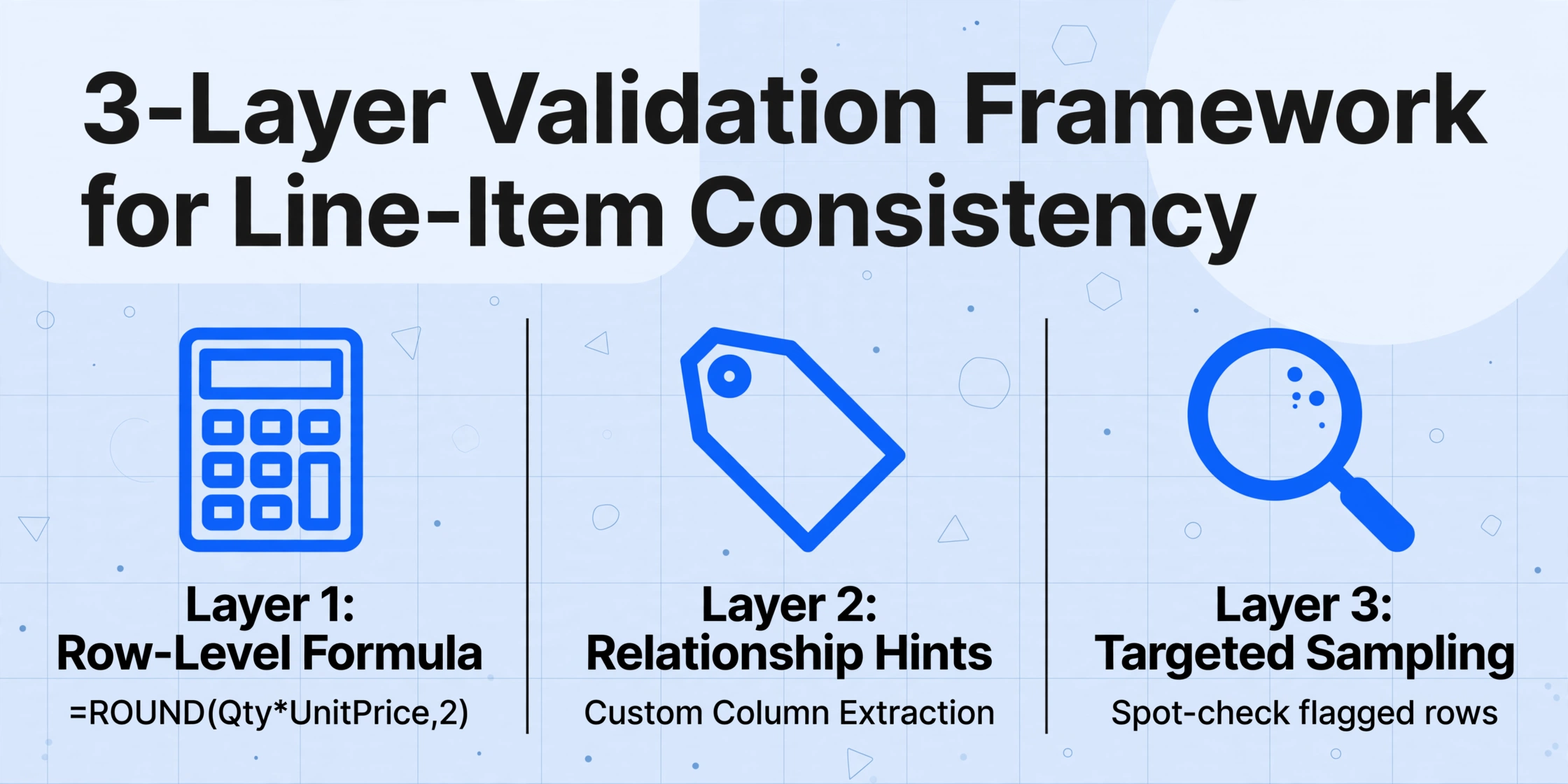
Each of the four causes above produces a different fingerprint in the extracted data. A systematic validation framework catches all of them — and makes visible what per-field confidence scores cannot.
Layer 1: Row-Level Validation Formula
The fastest catch-all is a formula column:
=ROUND(Qty*UnitPrice,2)Compare against the extracted Line Total. Flag rows where the difference exceeds $0.01, using a conditional format:
=ABS(ROUND(A2*B2,2)-C2)>0.01The direction and magnitude of the deviation tell you which cause:
- Errors cancel across rows → Cause 1 (cross-row read). The values are all present, just paired wrong.
- Consistent factor deviation (e.g., always off by 0.5, 6, or 12) → Cause 2 (UOM confusion). The factor is the unit-of-measure multiplier.
- Consistent percentage deviation → Cause 3 (discount confusion). The percentage matches the discount rate.
- Deviations tied to specific tax codes → Cause 4 (tax inclusiveness confusion). The deviation percentage matches the applicable VAT/GST rate.
Layer 2: Field Relationship Hints for the AI
When configuring extraction, help the AI understand field relationships by being explicit about what belongs together. ImageToTable.ai's Custom Column Extraction works semantically — you tell it the columns you want, and the AI locates each value by understanding what it means. To improve cross-field pairing:
- Use descriptive column names: "Unit Price (per item)" and "Line Total (Qty × Unit Price)" help the AI distinguish per-unit from per-line values.
- Define a computed column as a cross-check: Create
Line Total Validation (Qty × Unit Price)— the AI extracts the values and runs the math, surfacing mismatches during extraction rather than after export. - Set format rules for numeric fields: Specify that quantities are whole numbers unless a decimal is present, and unit prices always have two decimals. This constrains ambiguous interpretation.
Layer 3: Targeted Spot-Check Sampling
Even with formula checks, some errors slip through — particularly when Qty × Price happens to equal a plausible but incorrect Line Total. Targeted spot-check sampling closes the gap. For every batch, manually verify: all rows flagged by Layer 1, 10% of passed rows (to catch coincidental correct totals), and one invoice per vendor (systemic formatting quirks). This catches 95%+ of math mismatches while requiring manual review of less than 15% of data.
When to Escalate: The 5% Threshold
If your validation framework flags more than 5% of line items across a batch, the problem is likely systemic — a consistent pattern of cross-field misalignment that no amount of validation formula tweaking will fix at the line-item level.
Three scenarios warrant escalation:
- Single-vendor concentration: 70%+ of flagged rows come from one vendor. That vendor's layout is incompatible with your current approach. Pre-process these invoices or route them to a different pipeline.
- Multi-tax complexity: Invoices with 3+ tax rates or mixed inclusive/exclusive amounts. Even the best models fail on these 20% of the time (per the arXiv study). Flag for manual review by a tax-specialist AP clerk rather than trying to fix the extraction.
- Low-quality source documents: If flags appear across all four patterns simultaneously, the root cause is poor OCR rather than relationship confusion. Address source quality first — see decimal and currency extraction fixes.
The threshold protects your team from an endless tuning cycle. If extraction achieves 98%+ on independent fields and 95%+ on cross-field consistency, that is functional for most AP workflows — the remaining 5% is cheaper to handle via exception routing than to eliminate entirely.
FAQ
Does a Qty × Price mismatch always mean extraction error?
No. Some invoices genuinely show line amounts that do not equal Qty × Unit Price — because of volume discounts applied at the line level, promotional pricing, or package deals where the unit price on the line is an average, not the per-item price. Always verify against the original invoice before treating a mismatch as an extraction error.
Can I trust the grand total if line items have math mismatches?
Not automatically. If Cause 1 (cross-row read) is in play, the errors cancel out and the grand total may still be correct. But for Causes 2–4, the grand total is likely wrong because the underlying line amounts feed into the subtotal and total calculations. Always resolve line-level mismatches before using the extracted totals for payment.
Why does my AI tool report 99% confidence on fields that are mis-paired?
Because confidence scores measure individual field readability, not cross-field logical consistency. A vision model can be 99% confident that "$150.00" appears at a certain position on the page — and that confidence does not change whether the $150.00 is a unit price or a line total. Cross-field validation is a separate step that no confidence score replaces.
How do I handle UOM confusion across different vendors?
Standardize your extraction output by adding a separate "UOM" column to your extraction template. Include a clear format instruction: "Extract the unit of measure (EA, DZN, KG, FT, CASE, BOX) from the same row and output it as a separate column." This makes the UOM visible in your output so you can build conversion rules into your spreadsheet rather than relying on the AI to interpret units automatically.
The Line Item Is the Unit of Truth in AP
Header-level extraction — vendor name, invoice number, grand total — has become commodity-accurate. The frontier where quality still varies meaningfully is at the line-item level, where field relationships matter as much as field values. The AI reads individual numbers correctly, but the assignment to the right columns and rows depends on the model understanding document semantics. That semantic understanding is improving rapidly, but it is not yet at the level where cross-field validation can be skipped. The framework — formula column + relationship hints + targeted sampling — is the appropriate process for any extraction workflow that feeds payment or reconciliation.
Set up the formula column on your next batch. The five minutes it takes to add =ROUND(Qty*UnitPrice,2) and a conditional format will tell you more about your extraction quality than any confidence score.