Get a Client's Address and Order Number
From an iMessage Screenshot
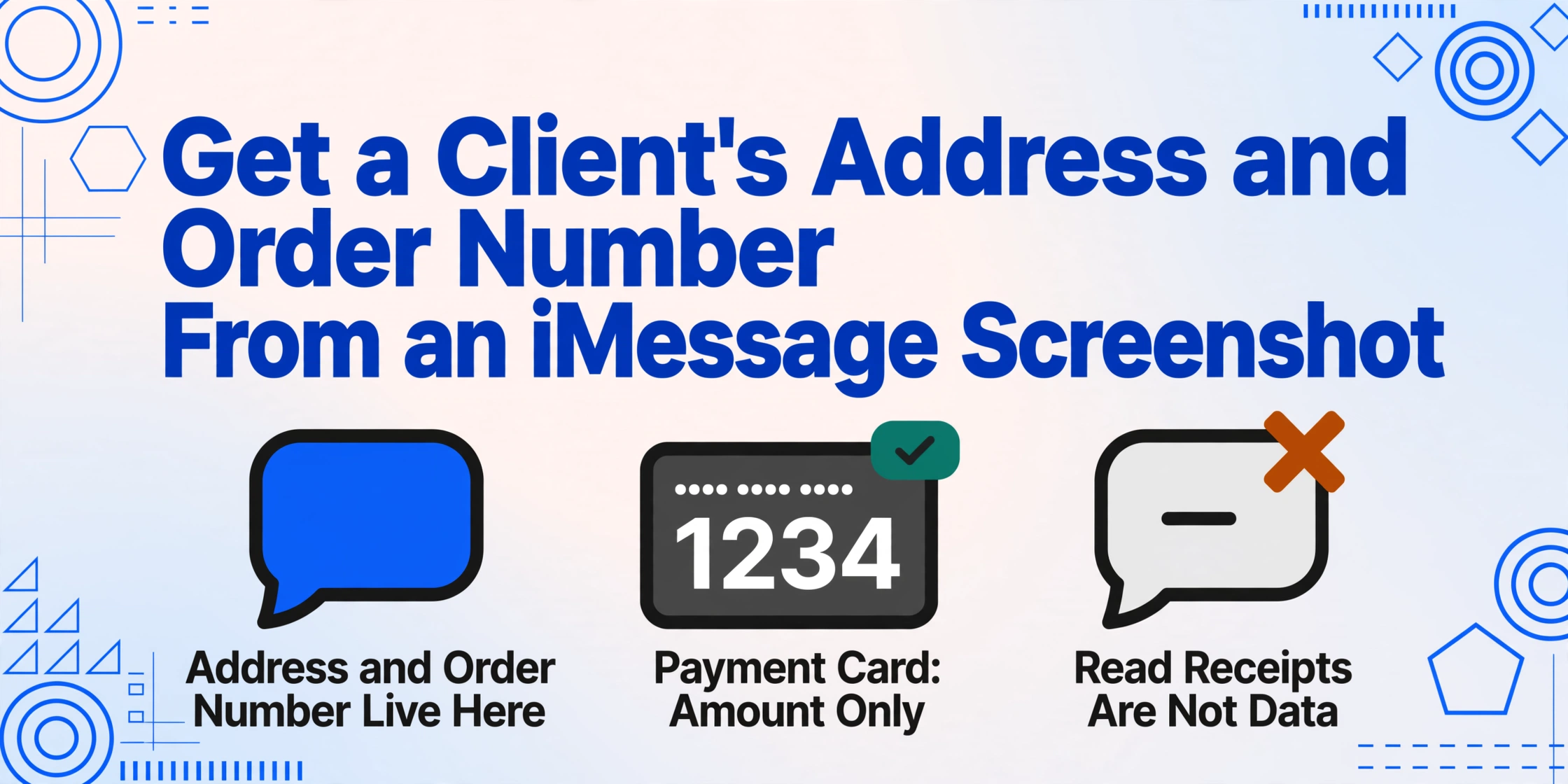
A customer messages you through iMessage — their address, their order details, and maybe an Apple Pay Cash payment all land in the same chat thread. You screenshot it to keep a record. Now you have a single image that contains three kinds of visual data: plain text bubbles with an address and order number, a styled Apple Pay Cash card showing the payment confirmation, and read receipts or typing indicators adding visual noise around the edges. The address and order number are in there, but they are mixed in with content that looks nothing like a shipping form or an invoice.
Key Takeaways
- An iMessage screenshot looks clean — blue bubbles and clear text — so extracting a shipping address from it should be the easiest extraction task of all.
- But iMessage layers in Apple Pay Cash cards, read receipts, typing indicators, and link previews — and traditional OCR reads the word "Read" as if it were a line in your delivery address.
- Visual AI classifies each UI element by function — it knows the dark card is a payment confirmation and the blue bubble is a message — so only the address and order number you named come through cleanly.
Why iMessage Is a Different Extraction Scenario Than WhatsApp
If you have read the WhatsApp Business guide to pulling addresses from chat screenshots, you know the basic problem: a chat message is not a form, and the data you need is embedded in conversational text. iMessage shares that core challenge — the address and order number are in messages, not in structured fields — but it adds three complications that WhatsApp does not have.
First, iMessage is iOS-only, which means the screenshots come from a single operating system with consistent chat bubble styling — blue for iMessage, green for SMS — but also with platform-specific visual elements that WhatsApp lacks. Read receipts appear as "Read" labels beneath messages. Typing indicators show an animated ellipsis. Reactions (Tapbacks) float inline above messages as icon badges. None of these carry the data you need, but they take up visual space that a traditional OCR engine would need to disambiguate.
Second, iMessage supports Apple Pay Cash — Apple's built-in peer-to-peer payment system. When someone pays via Apple Pay Cash, the confirmation appears in the chat as a styled dark card, not as a plain text bubble. The amount, the recipient's name, and the transaction status are rendered inside a compact black card with large white text and a colored status badge. Visually, this card shares nothing with the chat bubbles around it. A screenshot that captures both an address in a regular blue bubble and a payment card in the same view contains two completely different visual formats in one image.
Third, iMessage generates rich link previews — when someone pastes a URL, the chat creates a card with a page title, description, and thumbnail. If a customer pastes a link to their order page, that preview becomes another visual element that looks like it might contain address data but typically does not.
The result is an image where the data you need sits in a mix of differently styled UI elements, all of which look like they might contain useful information. The extraction method needs to tell the difference between the bubble containing the address, the card showing the payment amount, and the preview that contains only a link.
Three Common iMessage Order Scenarios
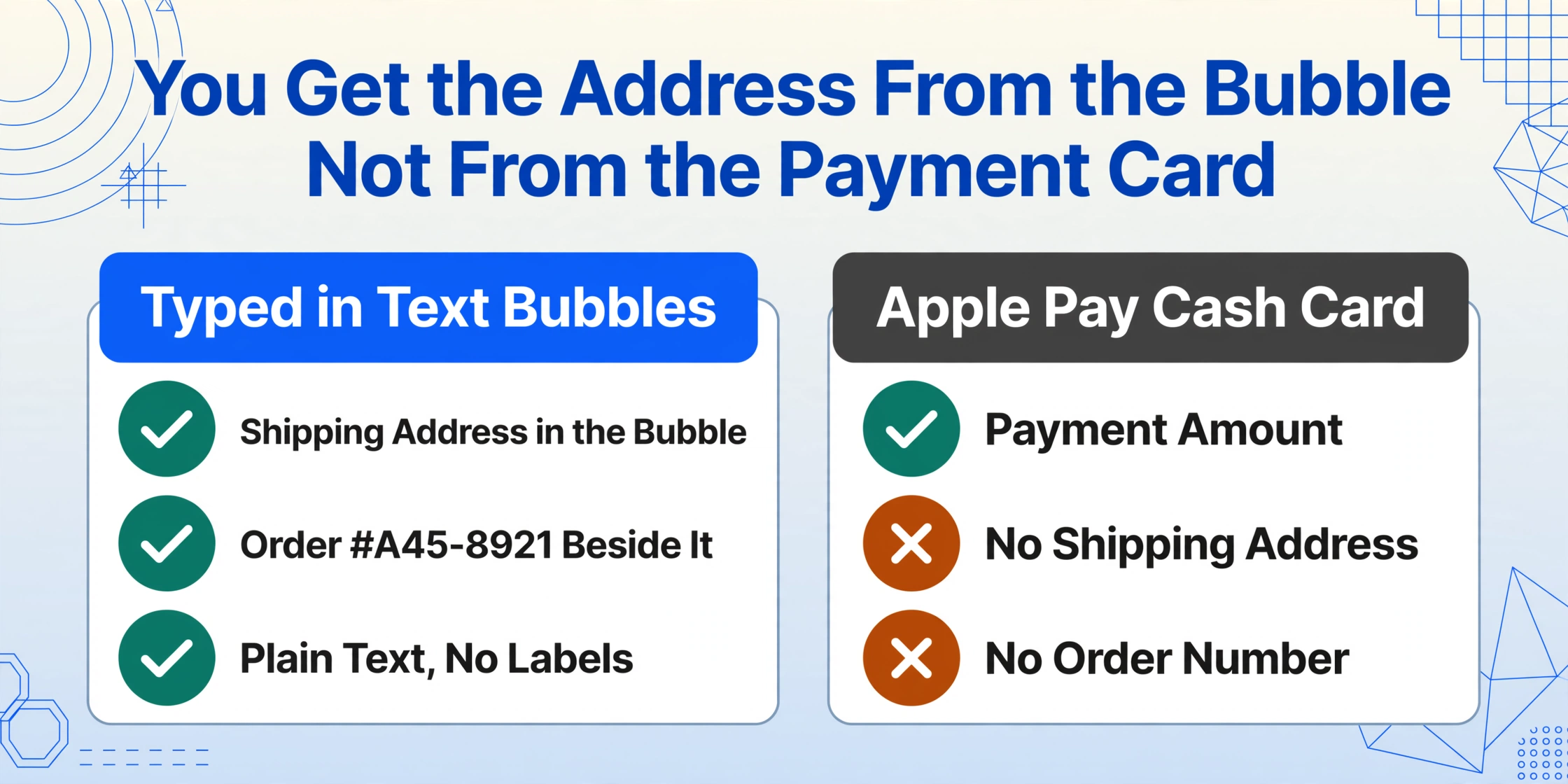
Not every iMessage order screenshot looks the same. The visual layout changes depending on how the customer submitted their information and whether a payment was involved.
Scenario 1: Address and Order Number in Text Bubbles
The customer types their address and order details as plain messages in the conversation. The address appears in a standard blue iMessage bubble:
"Can you ship to 3421 Maple Street, Apt 4B, Portland, OR 97202? Order #A45-8921"
The address and order number may be in the same message or split across two consecutive messages. The bubble text is plain — no formatting, no labels. The address follows a standard pattern (street, city, state, ZIP) that the extraction engine can recognize by structure, and the order number is identifiable by its alphanumeric format and its proximity to the order context. This scenario is the most straightforward: just the chat bubbles with the sender name and time stamps as the only surrounding elements.
Scenario 2: Apple Pay Cash Payment Card in the Chat
When a customer also pays via Apple Pay Cash within the same conversation, the chat thread contains a dark card that is visually distinct from all surrounding bubbles. The card has a black background and displays the dollar amount in large centered white text, the recipient or sender name, a status badge ("Sent," "Delivered," "Pending"), and an optional note at the bottom.
The important thing to understand is what the Apple Pay Cash card does not contain. It shows the payment amount and the person involved, but it does not include the shipping address or the order number. Those remain in the text bubbles above or below the card. If you are extracting data from a screenshot that includes both, you need separate columns for the address (from the text bubbles), the order number (also from the text bubbles), and the payment amount (from the card).
This is a notable distinction from WhatsApp Business, where payment information is typically shared as plain text — "I sent $85 to your number" — rather than as a rendered card. The card format makes the payment confirmation more visually prominent, but it is also segregated from the other information in a way that makes it easier to extract separately, provided the extraction engine can recognize the card as a distinct visual component.
Scenario 3: Order Link With Preview Card
Some customers share their order by pasting a URL from the retailer's website. iMessage generates a rich link preview that appears as a card in the chat — a thumbnail, page title, and description in a rounded container. The actual address and order number may appear in the text bubble accompanying the link, or they may be accessible only by following the link. The preview card itself typically does not show the full shipping address or a complete order number. If the customer sent the link without typing the address separately, the data is simply not visible in the screenshot. This is a limitation that applies to any extraction method: if the information is not rendered on screen, it cannot be extracted.
Reading Through iMessage's Visual Noise
An iMessage screenshot can include read receipts, typing indicators, Tapbacks (emoji reactions), message effects, time stamps, and contact avatars. These elements are visual noise if your goal is the address and order number. Traditional OCR engines that process the image left-to-right read "Read" as text, the typing indicator as periods, and emoji reactions as Unicode characters — all mixed into the same output stream as the address. The result is a block of text where "3421 Maple Street" and "Read" and "..." appear in sequence, requiring manual cleanup.
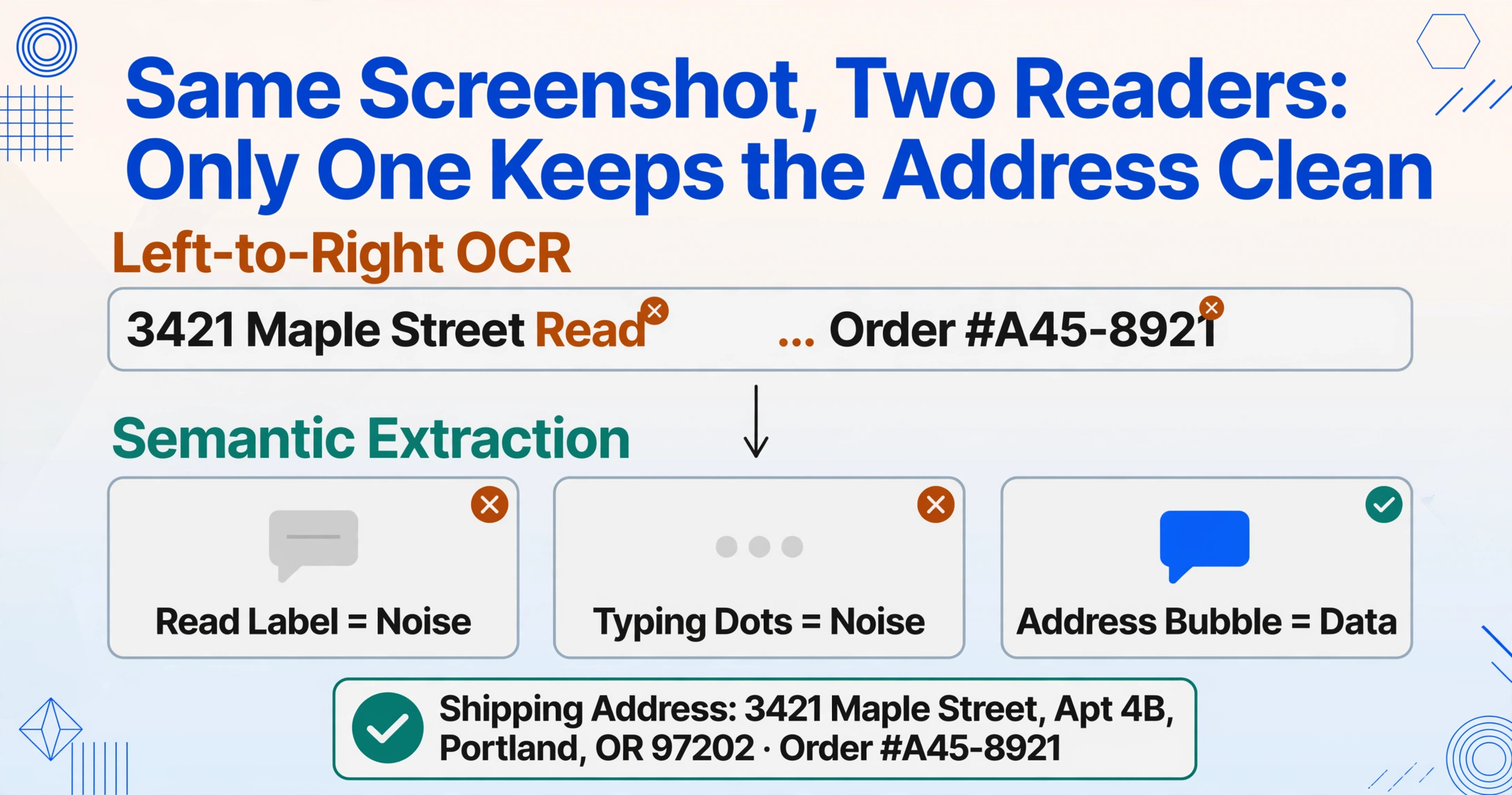
Visual language models process the screenshot differently. They interpret the image as a complete visual scene and recognize the semantic role of each element — "this is a read receipt label" versus "this is a chat bubble containing an address" — before reading the text inside each region. The read receipt text does not contaminate the address extraction, and the typing indicator does not appear as garbled characters in the output. Each UI component is classified by its visual function, not just by the text it contains.
The same principle — that a screenshot is not a table, but the data can still be extracted by understanding what each part of the image represents — applies to the iMessage interface as much as it applies to payment screenshots. The specific difference here is that iMessage's visual noise consists of interactive UI elements, not document content, and the extraction method must distinguish between the two.
What You Can Extract and What You Cannot
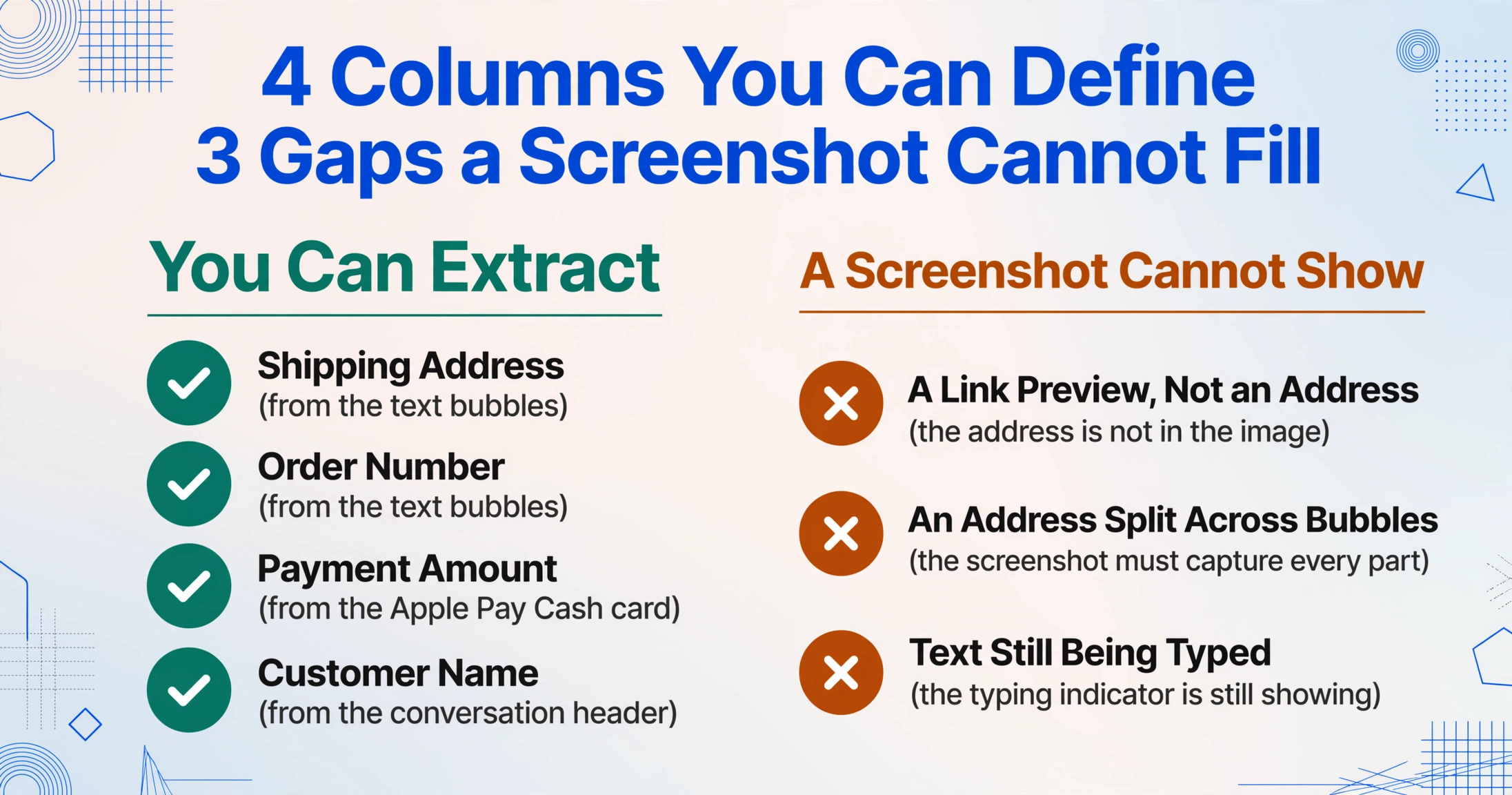
Defining the right column names is the only step needed to specify what comes out of the screenshot. For an iMessage order screenshot, the relevant columns are Shipping Address, Order Number, Payment Amount (from an Apple Pay Cash card), and Customer Name (from the conversation header). The extraction engine reads each column definition, locates the corresponding value by understanding the semantic role of each visual element, and outputs one row per screenshot. A batch of 15 iMessage screenshots from different customers, each with different message formats and Apple Pay Cash cards, produces a single table with 15 rows.
There are limits to be aware of. Apple Pay Cash card data only includes the transaction amount — not the shipping address or order number. Those are in the text bubbles and must be extracted separately. If the screenshot captures a link preview instead of a typed address, the address is simply not visible in the image. Multi-message threads where the address is spread across several bubbles require the screenshot to capture enough of the conversation to include all parts. And read receipts and typing indicators — while they do not interfere with semantic extraction — make it harder to define the visual region of interest if the screenshot was taken before the customer finished typing.
For batch processing, the workflow is the same as with any other screenshot category. Upload the images, define the columns once, and process them together. A batch containing iMessage screenshots mixed with SMS order confirmations — where the data is purely plain text — follows the same column structure, and the extraction method adapts to the visual format of each input image individually.
Frequently Asked Questions
Can I extract the Apple Pay Cash transaction ID from a card screenshot?
The Apple Pay Cash card in iMessage displays the dollar amount, the recipient name, and a status badge. The full transaction ID is not shown on the card — it is accessible by tapping the card and viewing the transaction history in Wallet, but that data is not visible in a single screenshot of the conversation. You would need a separate screenshot of the Wallet details to capture the transaction ID.
What if the customer sends their address as a contact card instead of typing it?
iMessage allows sharing a contact card (vCard) that appears as a contact preview bubble. The extraction engine can read the address text displayed on that preview. Define an "Address" column, and the engine will extract whatever address text is visible on the contact card. The full structured contact data is not available from a screenshot alone.
Do message effects like invisible ink affect extraction?
Invisible ink messages appear blurred until tapped. If a screenshot is captured while the message is still blurred, the text underneath is not readable by any extraction method. Confetti and other full-screen effects add visual overlay but do not obscure text — semantic extraction generally handles them by separating overlay content from text regions.
Can I process iMessage and WhatsApp screenshots in the same batch?
Yes. Define your columns once — "Shipping Address," "Order Number," "Payment Amount" — and upload both together. The engine reads each screenshot independently, recognizing the visual layout of iMessage blue bubbles and Apple Pay Cash cards as easily as WhatsApp green bubbles. The output table merges all rows into a single spreadsheet with data from each source correctly columned.
What if the address spans multiple chat bubbles?
If a customer types their street address in one message and the city and ZIP in the next, the address is split across two bubbles. The engine reads the full visible conversation area and can combine text from adjacent messages sent by the same person if they together form a complete address. To improve reliability, take the screenshot to include both messages rather than capturing each bubble separately.
An iMessage screenshot holds the same information as a shipping label or an order form — but it arrives in a mix of blue text bubbles, dark payment cards, and interactive UI elements that no traditional document was designed to look like. The extraction method that works here is the same one that works across the entire category of chat screenshots: define the fields you need, and let the AI recognize each piece of data by what it means, not by what visual container it sits inside.