Pull the Address and Order Number
From a WhatsApp Business Chat
WhatsApp Business chat is how millions of small businesses around the world take orders every day. A customer messages you — "I need three units, deliver to 123 MG Road, Bangalore" — and you screenshot the conversation to keep a record. The address, the order number, and the quantity are all right there in the chat bubble. But they are also trapped there — in free-form text that sits inside a messaging thread, not a form, not a receipt, not a document of any kind.
Key Takeaways
- Everyone assumes a WhatsApp bubble cannot be parsed like a form — the delivery address is just a sentence not a field and the order number floats somewhere in the same message.
- OCR reads every character but understands nothing — it flattens "Rua Augusta, 1500" and "Order #4" into the same undifferentiated string because no form layout tells it which text is which.
- Semantic extraction reads by meaning — it separates addresses from order numbers across four countries' formats in one batch with no per-country templates.
Where the Address and Order Number Actually Live
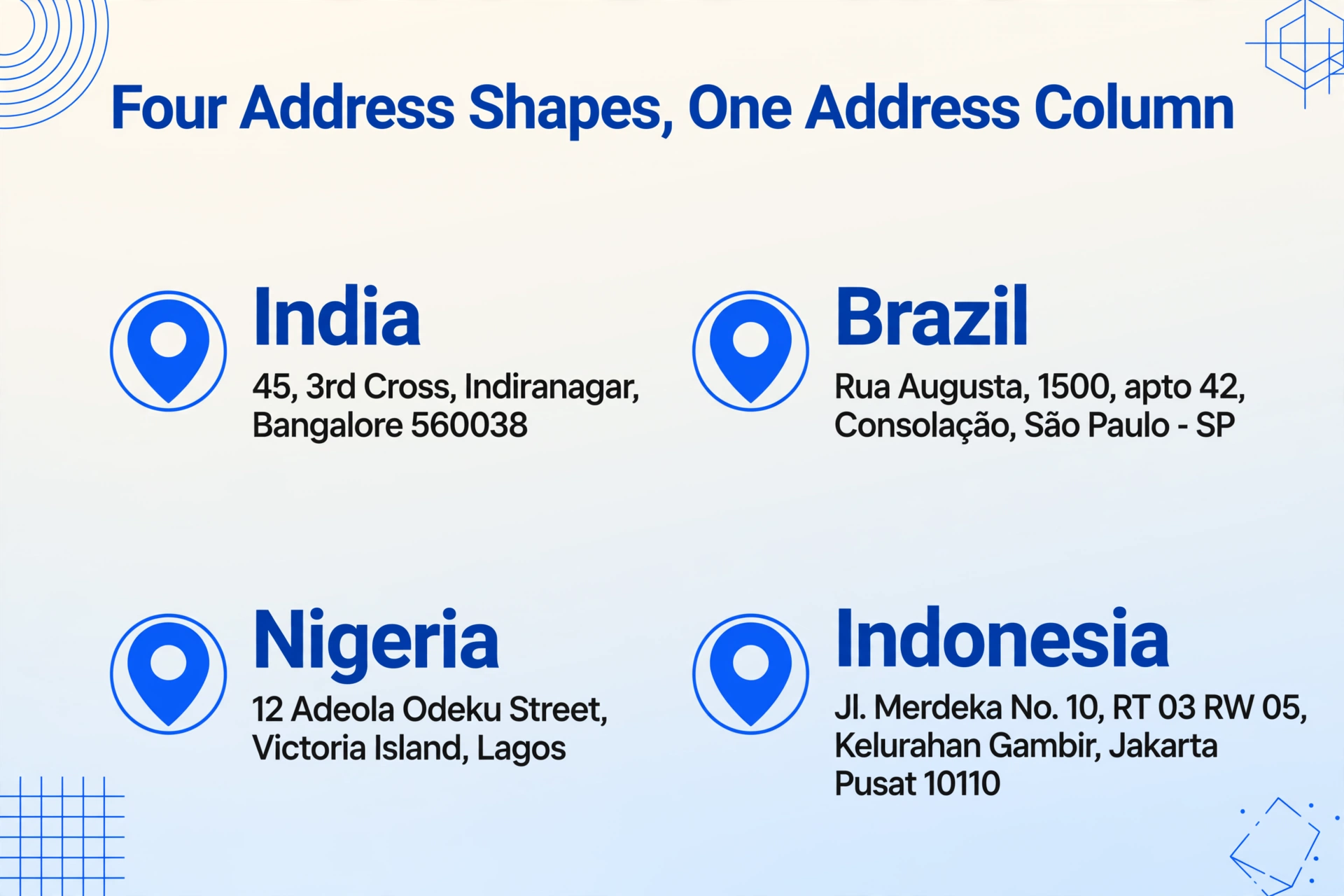
A WhatsApp Business chat thread is a sequence of message bubbles. The customer's messages appear on one side (green on Android, blue on iOS), the business replies on the other. Each bubble contains whatever the customer typed — plain text, emoji, sometimes a photo of the products themselves. There is no "address field" and no "order number field." There is just a sentence that says something like:
"Hi, I want 2 t-shirts size L and 1 pair of jeans size 32. Deliver to 45, 3rd Cross, Indiranagar, Bangalore 560038. Order #4."
The address, the items, the quantity, and the order number all live in the same bubble — sometimes spread across a few messages in the same conversation. The address format itself varies completely by country and region:
India
"45, 3rd Cross, Indiranagar, Bangalore 560038, Karnataka" — six-digit PIN code, locality/cross street system common, postal code awareness is not universal in rural areas.
Brazil
"Rua Augusta, 1500, apto 42, Consolação, São Paulo - SP, 01304-001" — CEP (eight-digit postal code), bairro (neighborhood) is mandatory context, complemento (apartment/block) is critical for delivery.
Nigeria
"12 Adeola Odeku Street, Victoria Island, Lagos" — six-digit postal code, many rural areas use landmark-based directions instead of formal street names.
Indonesia
"Jl. Merdeka No. 10, RT 03 RW 05, Kelurahan Gambir, Jakarta Pusat 10110" — Jl. prefix for streets, RT/RW neighborhood system, five-digit postal code.
The problem is not just that the address has no dedicated field. It is that every country writes its address differently, and WhatsApp treats them all identically — as raw text typed into a chat bubble. There is no standard, no template, no predictable position on the screen.
Why Traditional OCR Can't Pull Chat Data
Take a screenshot of a WhatsApp Business chat and run it through a traditional OCR engine. The output is a block of text in reading order — top to bottom, left to right. You get the timestamp at the top of the screen, the business profile name, the customer's phone number, the message bubble content, your reply, the next message. Everything is mixed together because OCR reads character positions, not meaning.
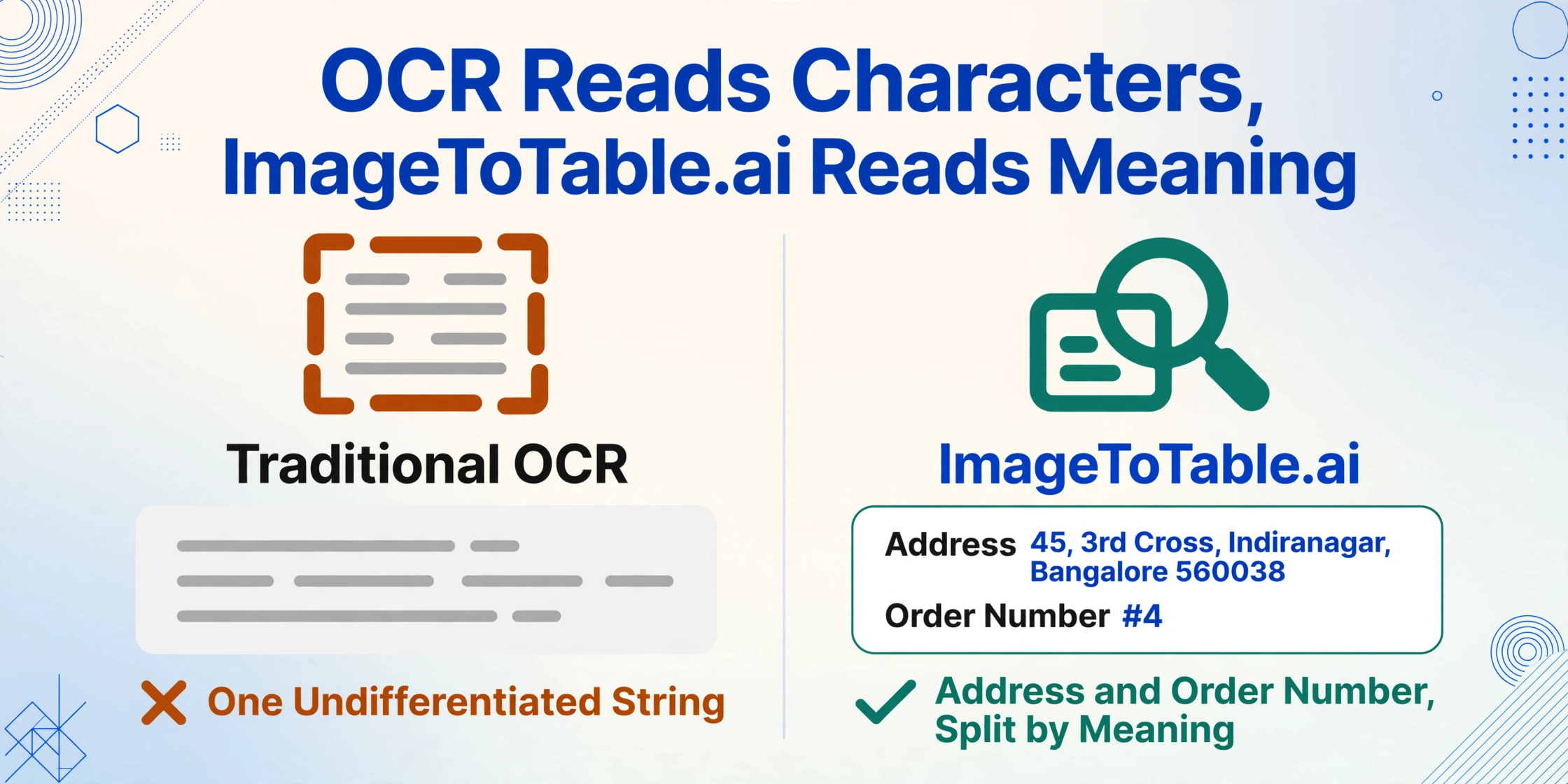
A traditional OCR tool does not know that "Rua Augusta, 1500" is an address and "apto 42" is the apartment number. It does not know that "Order #4" is a reference identifier. It reads all of it as one undifferentiated string and leaves you to pick out the pieces yourself. If the customer sent three messages in a row — first listing items, then the address, then the order number — the output is a concatenated mess that requires manual parsing to untangle.
This is not a limitation of OCR resolution or accuracy. It is a fundamental mismatch between how OCR works (finding shapes that look like letters) and what the user actually needs (understanding which text means what). Chat screenshots do not have form fields, labels, or structured layouts — they have conversation, and conversation requires comprehension.
Semantic Extraction — Reading a Chat by Meaning
ImageToTable.ai uses a different approach. Instead of scanning the image for text coordinates, it looks at the screenshot the way a person would: it reads the content, understands what each piece of information means, and extracts exactly what you asked for.
You define the output columns — Address, Order Number. The AI reads the screenshot and finds the text that matches each column by semantic role, not by position. It identifies the address because it recognizes the elements that make text function as a delivery location — street names, city names, postal codes, neighborhood identifiers — even when those elements appear in a sentence alongside product names and quantities.
This is what the Custom Column Extraction paradigm does: you define what you want, and the AI finds it by meaning. It works across all the address format variations shown above because it does not need to know in advance what a "Brazilian address" looks like. It understands the concept of an address — the street, the number, the city, the postal code — and identifies them wherever they appear in the chat text.
No templates. No sample documents to upload first. No per-country address format training. You upload the screenshot, type the column names, and the AI reads the chat.
The same semantic approach works no matter which messaging app the order arrives in. The column definitions stay the same; only the chat interface changes. The same extraction applies to order addresses in iMessage screenshots, to Korean addresses in KakaoTalk screenshots, to Japanese addresses in LINE screenshots, and to Chinese delivery addresses in WeChat chat screenshots — each platform has its own visual layout, but the data inside the bubbles reads the same way.
Files are processed securely and not stored.
What Comes Out — One Row per Order
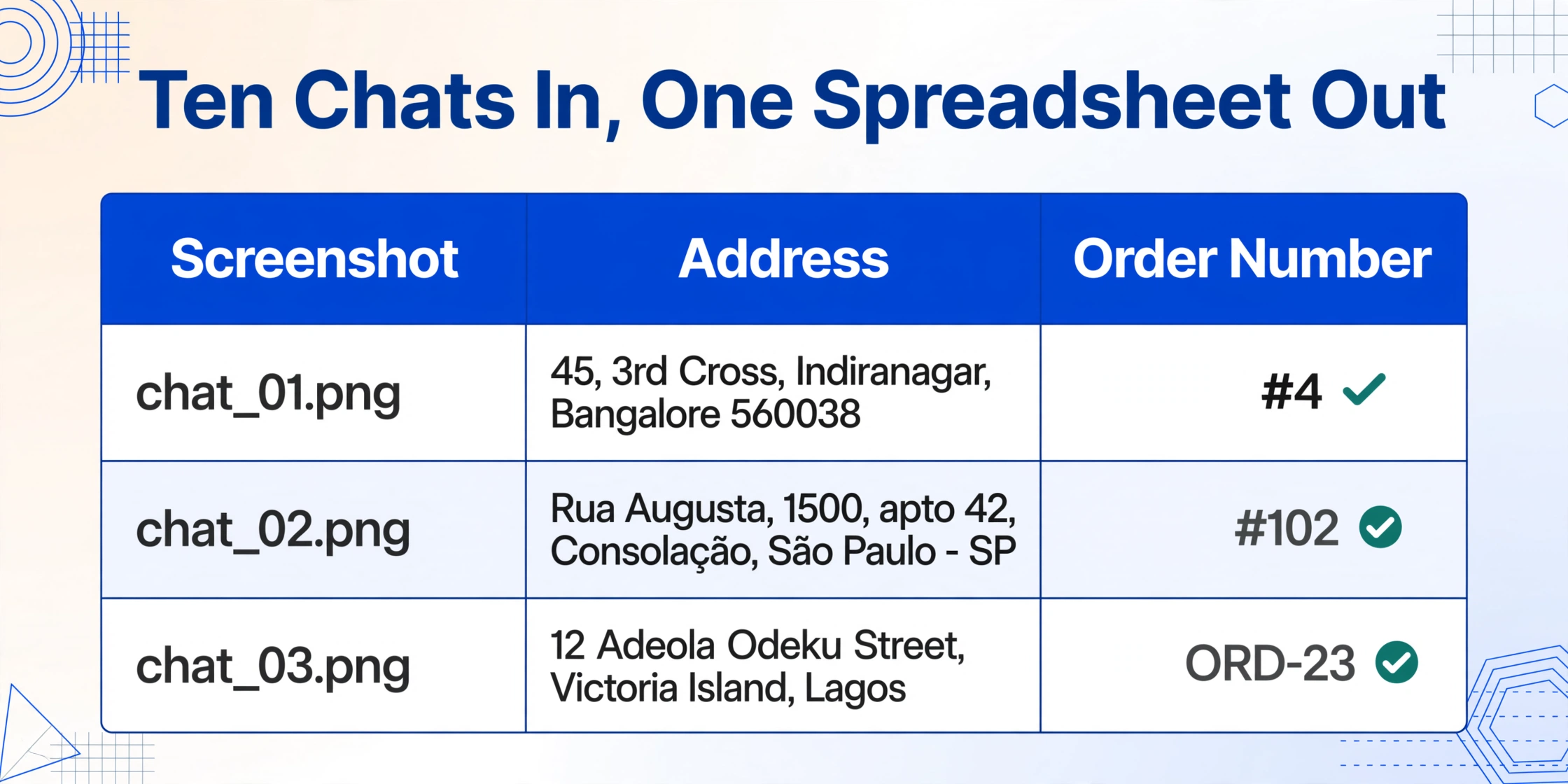
Upload a batch of WhatsApp Business chat screenshots — say, ten orders received in a single day. Each screenshot goes through the same extraction with the same column definitions. The output is a single spreadsheet where every row represents one order:
| Screenshot | Address | Order Number |
|---|---|---|
| chat_01.png | 45, 3rd Cross, Indiranagar, Bangalore 560038 | #4 |
| chat_02.png | Rua Augusta, 1500, apto 42, Consolação, São Paulo - SP | #102 |
| chat_03.png | 12 Adeola Odeku Street, Victoria Island, Lagos | ORD-23 |
The table merges orders from different countries with completely different address formats into a single, consistent structure. You can add more columns — Customer Name, Phone Number, Items Ordered, Quantity — by simply adding them to your column list. The AI reads the same screenshots again, this time finding the customer's name from the chat header or the message content, extracting the phone number from the text, and listing the items the customer requested.
A single batch can include screenshots from customers in India, Brazil, Nigeria, and Indonesia — processed together, extracted together, delivered in one spreadsheet. No per-country setup, no format-specific templates.
Where It Falls Short — Honest Boundaries
Chat screenshots are the most unstructured input this tool handles. Semantic extraction works well, but it is not magic. These are the real limitations:
Address split across multiple messages. A customer sends the street in one message, the city in the next, and the PIN code in a third — all with business replies in between. A single screenshot may not capture all of them. The solution is to screenshot the full conversation thread (scroll capture if available) so the AI has the complete context.
Voice messages instead of text. If a customer sends their address as a voice note, there is no text to extract from the screenshot. Voice transcription is a separate capability not included in screenshot extraction. You would need the customer to type the address or transcribe the voice note separately.
Vague or landmark-based addresses. "Send to the usual place" or "near the big mosque in Surulere" contain no extractable address components. The AI correctly identifies that no formal address exists in the text — it will flag this rather than fabricate one. These orders still need a follow-up message to confirm delivery details.
Multiple addresses in one screenshot. A customer asking for delivery to two separate locations in the same order — "send half to my office and half to my home" — creates ambiguity. The extraction returns both addresses, but you need to decide how to map them to your order structure. Adding a Delivery Label column ("office" / "home") can help disambiguate.
Emoji and stickers. While the AI can read emoji as context cues (a 📍 pin next to text signals "this is location-related"), sticker images covering address text create a blind spot. The text behind a sticker is not visible in the screenshot.
These are not reasons to avoid chat extraction. They are the realistic boundaries that any tool operating on chat screenshots faces. Knowing them lets you design your screenshot workflow around them — capture full conversation scrolls, ask customers to type addresses for critical orders, flag vague directions for follow-up.
What This Means for Your Order Workflow
The real cost of manual WhatsApp order processing is not the act of typing an address into a spreadsheet. It is the accumulation — the ten orders a day that each need the address and order number copied out, the backlog on Monday morning, the order you processed twice because you lost track of which messages you had already handled, the delivery that went to the wrong location because you misread a similar-sounding street name in a customer's message.
One small food business owner on Reddit described it simply: "I was spending way too much time manually copying WhatsApp orders into spreadsheets." Another, running a water distribution business, noted that every customer places orders through WhatsApp and everything is handled manually — a bottleneck that grows with every new customer added.
Moving from manual copy-paste to screenshot-based extraction changes the workflow at the point where the information enters your system. The screenshot is already the record — you take it to preserve the customer's message. Instead of then reading that screenshot and retyping the details, you upload it directly. The address and order number land in your spreadsheet without passing through your keyboard. The order confirmation that used to take a minute per customer can be processed at the same time you take the screenshot.
The spreadsheet becomes more useful, too. Once addresses are in a structured column, you can sort by city to group deliveries by route, filter by order number range to check a batch, or export a subset to send to your delivery team. The order numbers that were scattered across chat threads become a single list you can scan in seconds.
Frequently Asked Questions
Can ImageToTable.ai extract an address from a WhatsApp Business chat screenshot?
Yes. Define a column called "Address" (or "Delivery Address") and upload the chat screenshot. The AI reads the customer's message content and extracts the text that functions as a delivery address — street name, city, postal code, and any additional location details. It works across different address formats (India, Brazil, Nigeria, Indonesia, and others) because it identifies address components by what they mean, not by a predefined template.
What if the address and order number are in separate chat messages?
The tool reads the entire screenshot. If the customer's address is in one bubble and the order number appears in your reply ("Thanks, #4 confirmed"), the AI can locate both as long as they are visible in the same screenshot. For a long conversation thread where the information spans multiple screens, take a scroll capture or multiple screenshots and include them in the same batch — the AI processes each screenshot independently and you can merge the results.
Does it work with addresses in languages other than English?
Yes. The AI reads the text as it appears in the screenshot, regardless of language. A Brazilian address written in Portuguese ("Rua Augusta, 1500, Consolação") or an Indian address in Hindi script works the same way — the AI identifies the components that make it an address. The column name you use ("Address") is in English, but the extracted values come out as written in the chat, preserving the original language and formatting.
Can I extract other fields like customer name, phone number, or items ordered?
Yes. Add any column name you need — "Customer Name," "Phone Number," "Items," "Quantity," "Total Amount" — and the AI reads the screenshot for matching information. Customer name may come from the WhatsApp profile header or from the message content. Phone numbers are recognized by their digit pattern. Items and quantities are extracted from the order description in the chat text. You are not limited to address and order number; the column list defines what comes out.
What happens when a customer sends only a vague address, like "the usual place"?
The AI returns what it finds. If the text contains no identifiable address components — no street name, city, or postal code — the extracted value will be empty or flagged. The tool does not fabricate data. For vague delivery instructions, the best practice is to capture the order in the screenshot and follow up with the customer for a full address before dispatching. The extraction saves you the typing for the orders where customers do provide a clear address, which is most of them.
The address and order number are already in the screenshot — every time you capture a WhatsApp order conversation. The question is whether you type them again or let the AI read them. One approach keeps you in a cycle of copy-paste. The other turns the screenshot itself into the input of your order workflow. The same principle that applies to extracting data from payment screenshots applies here: the data is there even when the interface isn't a document — you just need a tool that reads by meaning, not by position.
No sign-up required • Files are processed securely and not stored