How to Extract Revolut
Multi-Currency Statements to Excel
Revolut statements are different from any traditional bank statement. A single account can hold GBP, EUR, USD, and eight other currencies simultaneously — but when you request a statement, you get one PDF per currency, not one consolidated view. Each PDF has its own running balance, its own transaction list, and its own exchange rate lines for every currency conversion. This article walks through the complete workflow: downloading your per-currency PDFs, extracting every transaction with the currency context intact, and merging them into a single Excel workbook that reflects your actual multi-currency financial picture.
Key Takeaways
- A three-currency Revolut account means three separate PDFs per month — 36 files a year, each with its own balance that don't add up to anything on their own.
- Currency exchange cross-references appear on two different PDFs with different transaction IDs — the most error-prone part of manual reconciliation is matching pairs that were never designed to be matched.
- Define extraction columns once with an inferred Currency field — the same column set reads GBP, EUR, and USD statement layouts without separate templates.
Why Revolut Multi-Currency Statements Resist a Simple Spreadsheet
If you hold balances in more than one currency on Revolut — a GBP account for UK expenses, a EUR account for EU client payments, and a USD account for US subscriptions — you already know that Revolut issues a separate PDF statement per currency. This is documented in Revolut's own help centre: each currency account generates its own statement with its own opening balance, transaction list, and closing balance. A GBP statement shows only GBP transactions. A EUR statement shows only EUR transactions. The currency exchange that moved £500 from your GBP account to your EUR account appears as two transactions on two different PDFs — a debit on the GBP statement and a credit on the EUR statement.
This per-currency design is intentional. It makes each individual statement clean: one currency, one running balance, no conversion columns. But it creates a consolidation problem that traditional single-currency bank accounts never produce. Your financial reality is a single multi-currency portfolio. Your statement archive is three separate PDFs that don't add up to anything.
Beyond the per-currency split, Revolut statements include transaction types that traditional bank statements don't handle: Savings Vaults and Pockets transfers appear as internal movements between your main balance and sub-accounts; crypto and commodities trades appear as buy/sell lines; RevPoints rewards show on Metal and Ultra tier statements; and disposable virtual card transactions carry a different card reference than your physical card. Every one of these is a distinct line item that a generic extraction approach is likely to misclassify or drop.
The core issue is not that Revolut doesn't let you export data — it does, including native CSV and even Excel format through the app. The issue is that these exports maintain the per-currency separation and include the raw metadata fields that most bookkeeping workflows don't need and can't use cleanly. The PDF format, which you'd submit to HMRC or your accountant, is the authoritative version — but getting its data into a spreadsheet where you can actually work with it is where the workflow breaks.
How Revolut Issues Multi-Currency Statements
Understanding what you're working with before you start extracting saves time downstream. A Revolut statement follows a consistent structure regardless of currency, but carries format quirks that matter for extraction.
Per-Currency PDFs
Each currency account generates its own PDF statement. If you hold GBP, EUR, and USD balances, requesting a statement for the previous month produces three separate PDFs — one per currency. The statement header identifies the currency clearly, and the running balance resets to the opening balance for that specific currency account. The IBAN at the top of each statement is the relevant one for that currency (a UK sort code and account number for GBP, a Lithuanian IBAN for EUR, etc.).
Currency Exchange Transactions as Paired Rows
When you exchange money between currencies within Revolut, the transaction appears differently depending on which statement you're reading. On the source currency statement, it appears as a debit with the description "Exchanged to [target currency]" and the exchange rate. On the target currency statement, it appears as a credit with "Exchanged from [source currency]" — but it carries a different transaction ID. If you're reconciling across statements, these paired rows require explicit attention to avoid double-counting or missing the link between them.
Vaults, Pockets, and Savings
Pocket transfers (formerly Vaults) appear on your statement as internal transfers — a debit from your main currency balance to the Pocket, and a credit when money returns. Savings Vaults follow a different pattern: money moves from your Revolut e-money account to a trust account held at a partner bank. These transfers show on your statement as outbound transactions, but the funds remain your asset. A generic extraction that treats every transaction as income or expense will miscategorise these.
Crypto, Commodities, and RevPoints
Crypto purchases and commodities trades (gold, silver) appear as buy/sell transactions with the trade amount in your statement currency. RevPoints rewards show on Metal and Ultra tier statements as small credit amounts in the statement currency — typically mistaken for cashback or refunds if you're not looking for them. Disposable virtual card transactions carry a different card suffix than your physical card, which matters when categorising spending by card type.
Business Account Variations
Revolut Business statements add employee card transactions, category columns, and reference fields. Business accounts also support programmable API-based transaction exports in CAMT.053 (XML) and MT940 (TXT) formats for enterprise accounting system integration — but the standard PDF statement remains the common format for most SMEs.
The diversity of transaction types within a single Revolut statement is the reason a one-size-fits-all CSV export rarely gives you clean data. Each transaction type has a slightly different format in the description line, and a tool that doesn't understand what it's reading will either drop the nuance or mislabel it.
The Manual Workflow: What Actually Takes Time
If you've ever tried to manually copy Revolut statement data into Excel, the specific friction points are worth naming because they explain why this task takes longer than you'd expect and why the errors are hard to catch.
Opening three PDFs and aligning them. A GBP statement with 80 transactions, a EUR statement with 45, and a USD statement with 30 — that's 155 rows you need to type or copy-paste. But you can't simply paste them one after another because the running balances don't carry over between currencies. Each set needs its own column indicating the currency, and the exchange transactions between them need to be flagged so you don't count the same value twice.
The exchange rate gap. When £500 leaves your GBP account as "Exchanged to EUR @ 1.17," the €585 that arrives in your EUR account appears on a different PDF with a different reference number. If you copy the GBP statement first and the EUR statement later, the connection between those two rows is whatever mental note you made while switching files. An r/excel user described this exact pattern: "I spent an hour matching FX transactions across two Revolut statements by date and amount — only to find I'd matched a £200 transfer to a €200 deposit that happened on the same day but was unrelated."
Pocket and Vault movements. Money moved into a Holiday Fund Pocket shows as a debit on your main statement, but it's not an expense — it's a internal reallocation. If your extraction method doesn't distinguish "Transfer to Pocket" from "Card Payment," your expense summary will be inflated by however much you saved. A Pocket transfer back to your main balance shows as a credit that looks like income. The statement's description column is the only differentiator.
Timestamps in UTC. Revolut statements use UTC by default. A transaction that occurred at 11 PM UK time (BST) on July 15 shows as July 16 on the statement. If your accounting runs on local time, every transaction near the day boundary needs a date check — and when you're working across three currencies with transactions spread across the 24-hour cycle, the cumulative date drift becomes significant.
Each of these friction points is individually small. Together, they turn what should be a 20-minute data-gathering exercise into a 90-minute session of cross-referencing, double-checking, and second-guessing — and the most experienced bookkeepers know that the errors you make at minute 85 are the ones you won't catch until a quarter-end reconciliation fails.
Step-by-Step: Extract Revolut Multi-Currency Data into Excel
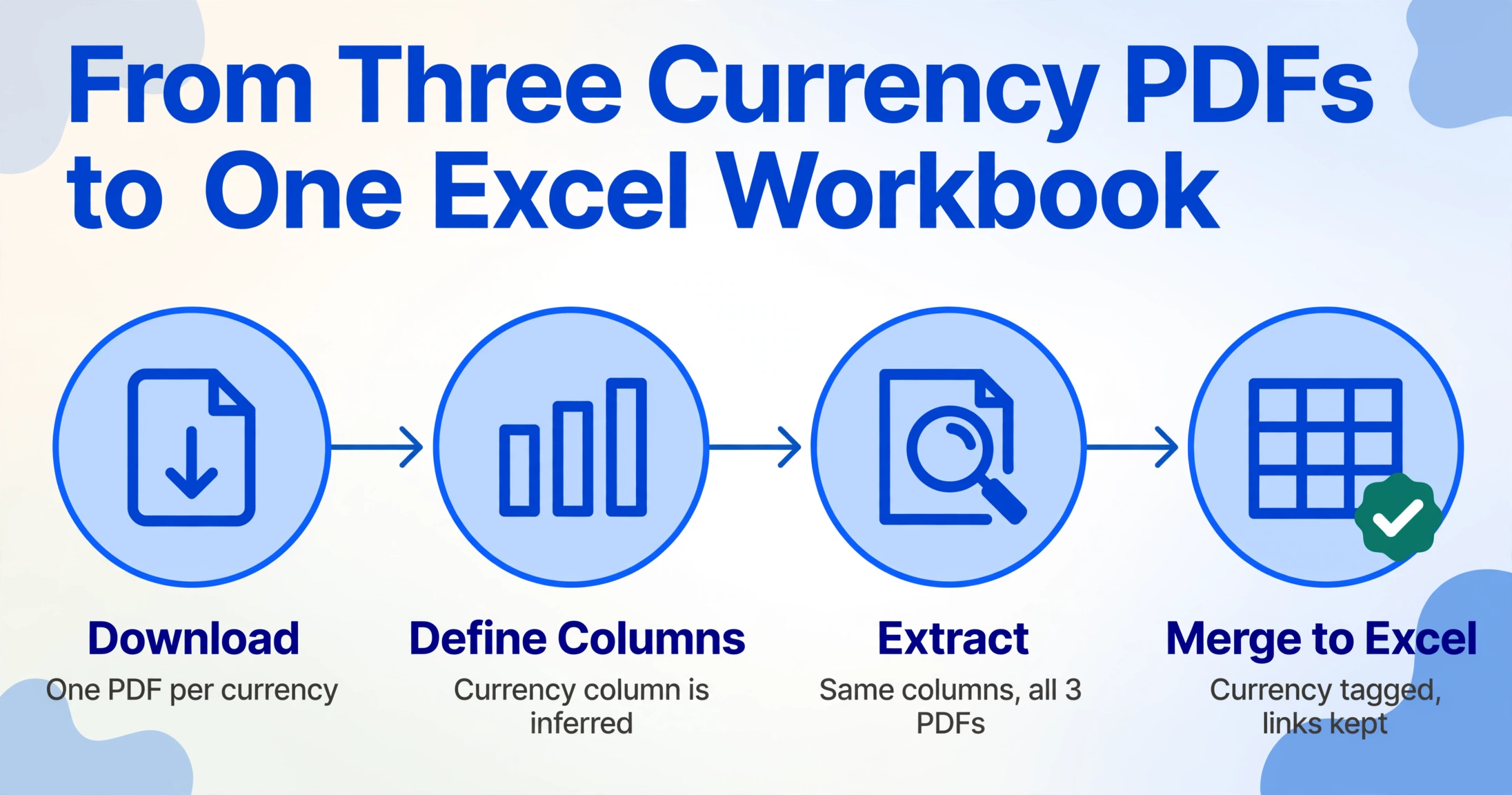
The following workflow takes your per-currency Revolut PDFs and produces a single, structured Excel workbook — with each transaction tagged by its source currency and exchange links preserved.
In the Revolut app: tap Home → Accounts → select the currency (GBP, EUR, USD, etc.) → tap More (...) → Statement → choose the timeframe → select PDF format → Generate. Repeat for each currency you hold. You'll end up with a folder of files like revolut-gbp-statement.pdf, revolut-eur-statement.pdf, and revolut-usd-statement.pdf.
Upload the first PDF and enter the column names you want. For multi-currency consolidation, include a Currency column — this is an inferred column: the bank statement PDF doesn't print "GBP" next to every row; the AI reads the statement header and fills in the currency for each transaction. Define columns like: Date, Description, Debit, Credit, Balance, Currency (options: GBP/EUR/USD). Optionally add Transaction Type (options: Card Payment/Top-up/Exchange/Vault/Pocket/Crypto/Refund) — another inferred column that reads the description and classifies it.
Process each PDF through the extraction tool. Because the tool reads visually — understanding what columns mean rather than memorising where they sit on the page — the same column definition works across all three currency PDFs regardless of small layout differences between GBP, EUR, and USD statement formats. Each extraction produces a structured output with consistent column headers.
Copy the extracted rows from each currency into a single Excel sheet. The Currency column keeps each row tagged to its source — filter by Currency to see only GBP, EUR, or USD transactions. The Transaction Type column lets you filter out internal movements (Vault/Pocket transfers) from actual income and expenses. Add a Running Balance (GBP equivalent) column if you need a consolidated view of your total cash position across currencies using the exchange rate from each transaction date.
Filter for rows where Transaction Type = "Exchange." Each pair — a debit in the source currency and a credit in the target — should have matching amounts after applying the stated exchange rate. Use a Cross-Reference ID column and paste the exchange rate from the description into an FX Rate column. This is the step where manual workflows typically introduce errors, but with both rows already extracted and in the same workbook, the verification is a 5-minute spot-check rather than a 30-minute cross-file search.
Here is the tool handling a bank statement — the same column definition works for GBP, EUR, and USD statements interchangeably:
Files are processed securely and not stored.
Why Semantic Extraction Handles Multi-Currency Better Than Templates
The reason multi-currency Revolut statements cause problems for most extraction tools is not that the data is complex — it's that the extraction method assumes a fixed layout. Template-based and zonal OCR tools work by memorising that "the date sits at column 1, row position 2.3 inches from the top." When the same tool encounters a GBP statement with one layout and a EUR statement with a slightly different column alignment (or a USD statement with a different page margin), the memorised coordinates produce wrong readings. The AI reads by semantic meaning: it identifies the column headers — Date, Description, Amount — then reads the values under them, regardless of their position on the page.
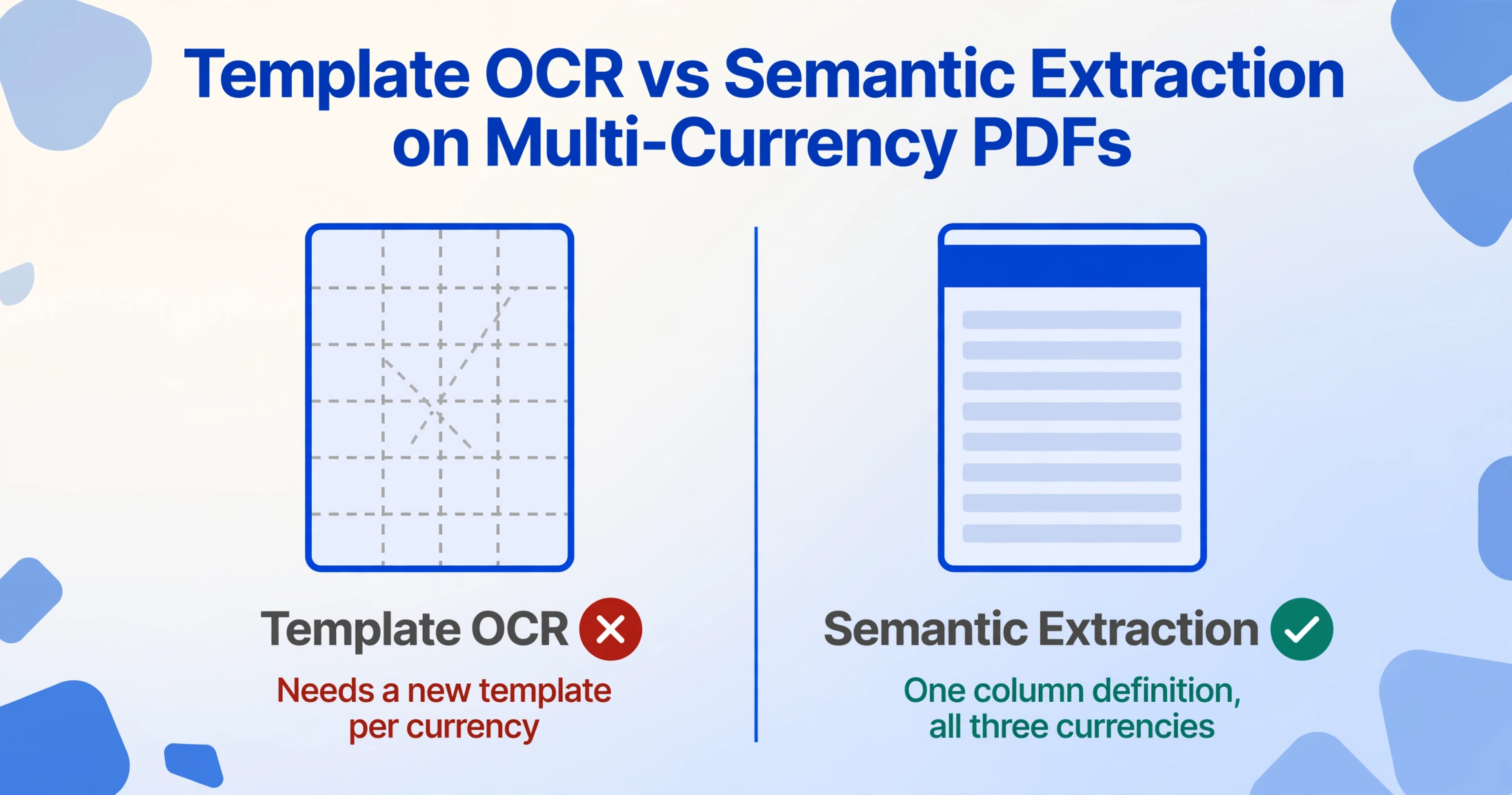
This distinction is the difference between being able to define your extraction columns once and use them across all three currency PDFs, versus needing to create a separate template for each currency. For a user holding four or five currencies (GBP, EUR, USD, JPY, CHF), the template approach multiplies the setup work with each new currency. Semantic extraction does not.
The inferred column capability extends this further. A Currency column inferred from the statement header, a Transaction Type column inferred from description patterns, a Spending Category column inferred from merchant names — none of these exist as printable fields on the statement, but they're the columns that actually make the consolidated workbook useful for analysis. Template-based tools cannot generate data that isn't physically printed on the page.
Batch Processing: 12 Months × 3 Currencies
The workflow above handles a single month across multiple currencies. The real efficiency gain appears when you scale to 12 months — because a full year of multi-currency financial data is what your accountant needs for tax preparation, not a single month's snapshot.
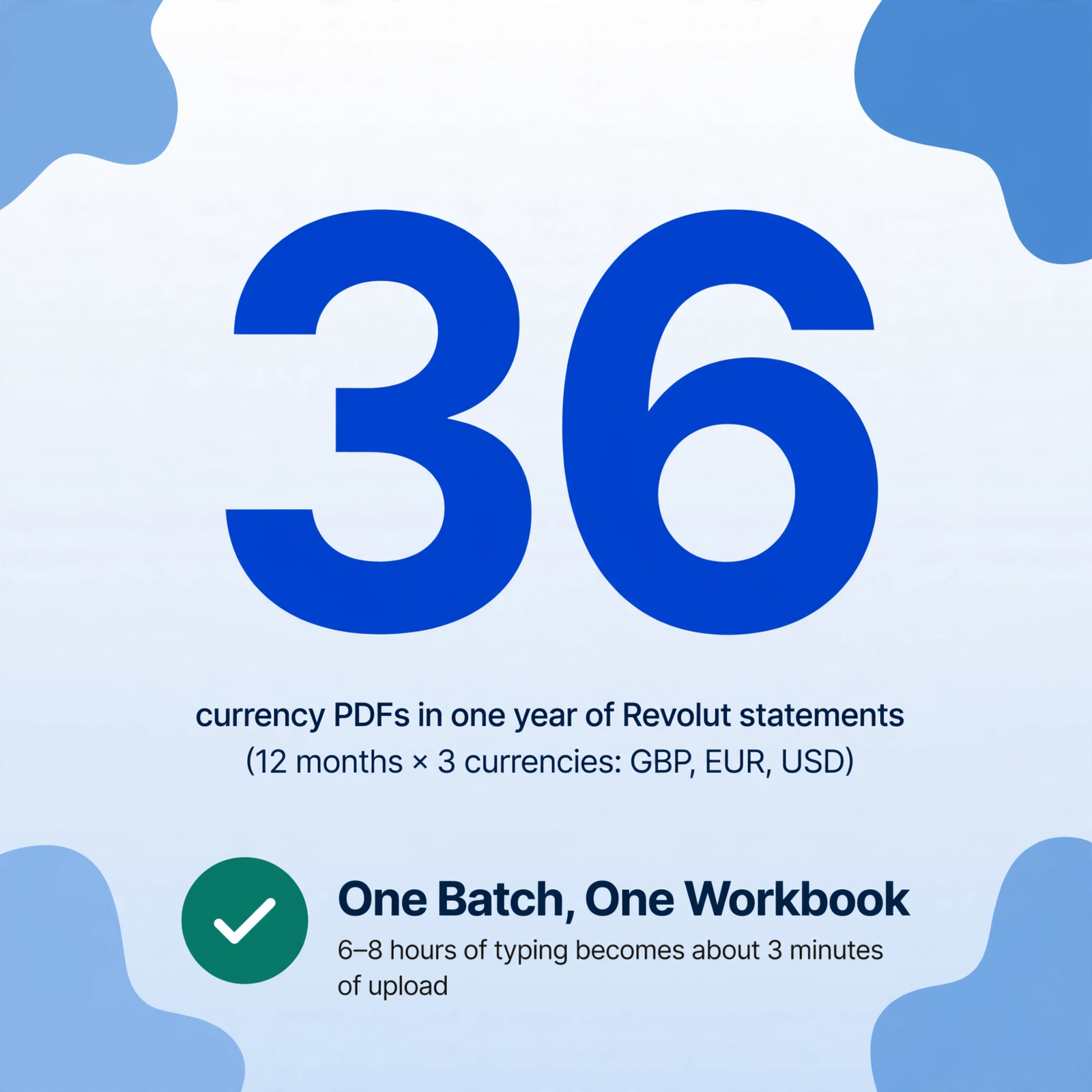
For a Revolut user holding GBP, EUR, and USD accounts, a full year means downloading 36 separate PDFs (12 months × 3 currencies). Each PDF has 20–80 transactions depending on activity level. Manually typing or copy-pasting 36 files into a combined workbook is not a reasonable task — it's roughly 6–8 hours of data entry before any categorisation or reconciliation begins.
Batch processing changes this: upload all 36 PDFs in one pass using a shared column definition, extract everything, and the output is a single spreadsheet containing every transaction from every currency across the entire year — with the Currency column preserving the source context for each row. The extraction time drops from 6 hours of typing to roughly 3 minutes of upload and 5–10 seconds per statement of processing. The 36-month batch we described in the batch bank statement guide applies here, extended by the multi-currency dimension.
The key structural difference in a multi-currency batch is that you cannot simply sum all rows into a single total — GBP, EUR, and USD amounts are not additive. Your consolidated workbook should maintain separate subtotal sections per currency, plus a GBP-equivalent column that applies the transaction date's exchange rate to non-GBP amounts if you need a single-currency cash flow view. Excel's SUMIF function, filtered by the Currency column, handles this cleanly: =SUMIF(CurrencyRange, "EUR", DebitRange) gives you total EUR outflows without mixing currencies.
For a deeper treatment of the batch workflow at scale — including the exact threshold where manual processing breaks down and how to structure a year-end reconciliation across multiple account formats — see the monthly cash flow batch processing guide. For the fundamental extraction technique that applies to any single-statement scenario, start with the UK bank statement extraction guide.
Frequently Asked Questions
Does Revolut offer a built-in way to get a consolidated multi-currency statement?
No. Revolut issues one statement per currency account. You can download individual statements for each currency through the app (Home → Accounts → select currency → More → Statement → select timeframe → Generate). There is no option to generate a single PDF that shows all currencies in one view. The consolidated view is something you build yourself by extracting each currency's PDF and merging the outputs — which is the workflow this article describes.
Can I use Revolut's built-in CSV export instead of PDF conversion?
Yes, Revolut offers CSV export through the app. The CSV includes multi-currency columns, exchange rate fields, and card metadata that can confuse accounting software like Xero or QuickBooks — a known issue documented by several accounting integration guides and Revolut's own help community. If you're importing directly into an accounting platform, the CSV may require cleaning. The PDF statement, which you can extract with a visual AI tool, produces cleaner structured output because the AI reads the formatted PDF layout rather than parsing the CSV's raw field structure.
How does the extraction handle Vault and Pocket transfers?
The extraction reads the transaction description, which includes the Pocket or Vault name (e.g. "Transfer to Holiday Fund Pocket"). If you include a Transaction Type inferred column in your column definition, the AI classifies these as internal transfers rather than income or expense. This prevents them from inflating your spending or income totals. Pocket transfers back to your main balance appear as credits with matching descriptions, and the AI assigns the same transaction type.
Do crypto and commodities transactions appear in the extracted data?
Yes. Crypto purchases and commodities trades appear in your statement with the trade amount in your statement currency and the description indicating the asset (e.g. "BTC Buy" or "Gold Buy"). The extraction reads these as regular transaction rows. If you add a Transaction Type inferred column with an option for "Crypto" or "Commodities," the AI classifies them based on the description pattern. Note that crypto transactions may have separate fee lines that also appear in the statement.
Does the extraction work with Revolut Business account statements?
Revolut Business statements follow the same underlying format as personal statements, with the addition of employee card transactions, category fields, and reference numbers. The same extraction workflow works: download the PDF per currency, define your column names (adding a Category column if you want the AI to read the printed category field), and extract. Business accounts also support XML (CAMT.053) and TXT (MT940) exports for direct accounting software integration, but the PDF extraction route is the most format-flexible option.
What if my Revolut statement is password-protected?
Revolut does not password-protect standard statement PDFs by default. If you have enabled additional security settings that encrypt your documents, you will need to enter the password before the extraction tool can read the file. The extraction engine supports password-protected PDFs — enter the password at upload time, and the tool unlocks and extracts in a single pass.
Can I extract statements from Revolut and other banks into the same workbook?
Yes — this is where column-name extraction becomes a consolidation tool rather than just a conversion tool. Define a set of standard columns (Date, Description, Debit, Credit, Balance, Currency, Account Name) and process Revolut PDFs alongside statements from any other bank. The AI reads each document's format independently and outputs data into your chosen column structure. The Account Name column lets you filter or pivot by institution. This is covered in more detail in the multi-bank reconciliation guide.
Is the extracted data accurate enough for tax filing?
For printed text fields — dates, amounts, descriptions — extraction accuracy reaches up to 99% on digitally generated PDFs. The extracted spreadsheet is your working document for bookkeeping and categorisation. The original statement PDFs from Revolut remain the authoritative records for tax authorities (HMRC under Compliance Handbook, IRS under Publication 583). Keep both: the extracted Excel for your workflow, the original PDFs for audit evidence.
A multi-currency Revolut account is one of the most flexible banking tools available for international transactions — but that flexibility produces a statement archive that traditional extraction methods can't consolidate. The gap isn't that the data is missing. It's that the data is scattered across separate PDFs, each in a different currency, each with its own running balance, connected by exchange transactions that appear twice in different formats. The curation below puts it directly: you define the output structure once — the columns you need — and the AI reads each currency's PDF by understanding what the data means, not where it sits on the page. What changes is that consolidating 36 monthly PDFs across three currencies goes from a weekend project to a 30-minute workflow.
Want the full workflow? Our guide to bank statement data extraction covers multi-page statements, running balance validation, and batch processing for any bank — step by step.