5 Vendor Quotes, One Comparison Table:
How to Review Pricing Without Copy-Pasting
A procurement professional on Reddit described their quarterly vendor review: "5 suppliers, 5 PDF formats, 1 comparison spreadsheet. The template takes 15 minutes to set up. Filling it in takes 3 hours." Their comparison template works fine — conditional formatting, weighted scoring, the whole thing. The bottleneck is getting the data out of the PDFs and into the template. That step, not the template design, is where most quote comparison workflows break down.
The Real Bottleneck in Quote Comparison Isn't the Spreadsheet
Search "vendor quote comparison" and you'll find dozens of Excel templates. Weighted scoring matrices. Conditional formatting by price. Pivot tables by supplier. Radar charts for multi-criteria evaluation. These are all solved problems — a competent Excel user can build a comparison sheet in 20 minutes.
The unsolved problem, the one that keeps procurement teams working late on Fridays, is data entry. Five vendor quotes come in as five PDF attachments. Each PDF has its own layout: Vendor A puts unit prices in column 3 of a table on page 2. Vendor B itemizes everything in a vertical list on page 1. Vendor C sends a scanned image of a handwritten quote form. Your comparison spreadsheet doesn't care about any of this — it just needs numbers in cells — but you have to be the bridge between "five messy PDFs" and "one clean spreadsheet."
A procurement manager in r/procurement asked how other teams handle this. The top answers were variations of: Excel filters, VLOOKUP, and "manually copy/paste." Not because there aren't tools — because the tools that exist either demand per-vendor template setup (defeating the purpose of automation) or are full procurement suites that small and mid-size teams can't justify.
The real cost: A procurement professional on r/procurement detailed a standard RFP process with nine manual steps. Step 5 — "comparing inclusions/exclusions between what the suppliers offered and what we requested" — was singled out as the most time-consuming. "Some suppliers just sent us brochures of what's included instead of filling our standardized forms." This isn't a tool gap; it's a format gap that template-based extraction can't close.
The "Same Item, Different Name" Problem
Even after you get the data into a spreadsheet, there's a second layer of friction: semantic alignment. Three suppliers bidding on the same RFQ line item will describe it three different ways. "500HP Electric Motor, 3-Phase" from Supplier A. "Drive Unit, 500 Horsepower, Three-Phase" from Supplier B. "Motor 500 HP 3PH" from Supplier C. A VLOOKUP sees different strings. A pivot table sees different categories. A human has to read all three, recognize they're the same item, and manually align the rows.
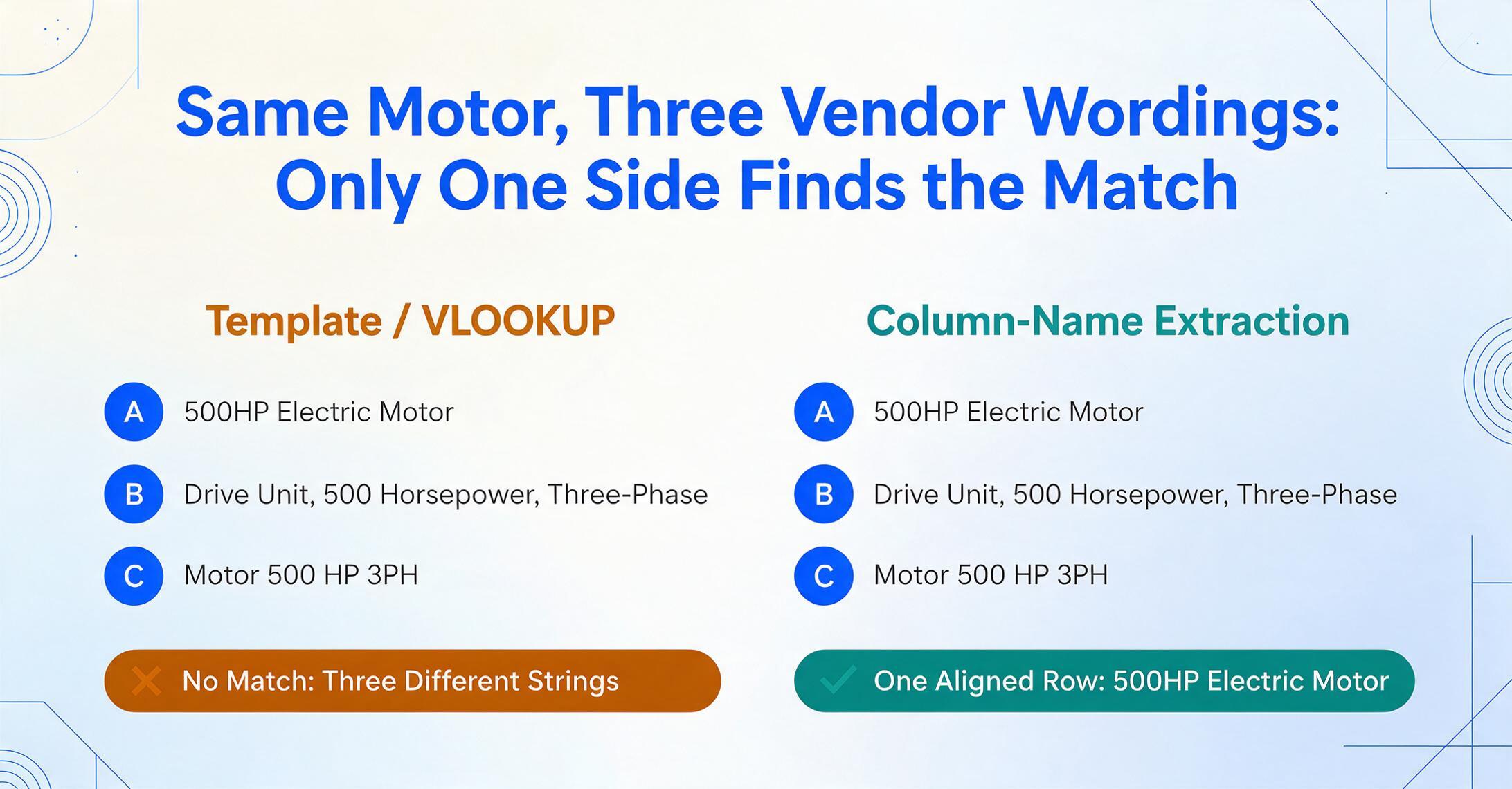
For a 10-line-item RFQ, this is annoying. For a construction project with 450 line items — which is what the ProQsmart blog describes in its case studies — aligning item descriptions across three bids is three days of grueling spreadsheet work. The comparison template was supposed to save time; instead, it became a data normalization project.
The underlying problem is that format diversity isn't just about page layout — it's about vocabulary. Different suppliers use different ERP systems, different naming conventions, different abbreviations. Template-based extraction tools can handle the layout problem by mapping pixel coordinates to fields, but they have no answer for the vocabulary problem. If Supplier A calls it "Item Code" and Supplier B calls it "SKU," a template says "column not found." A human understands they mean the same thing.
How Column-Name Extraction Unifies Quote Data from Any Format
Column-name extraction solves both problems — layout variance and vocabulary variance — with a single mechanism. Instead of telling the tool where to find data on each supplier's PDF, you tell it what data you want. You define your comparison columns once: "Item Description / Supplier Name / Quantity / Unit Price / Line Total / Lead Time / Payment Terms." The AI locates each value in every document by understanding what it means, not where it sits.
For the vocabulary problem, the AI maps semantically equivalent terms. If your column is named "Item Description," it recognizes that "Product Name," "Description of Goods," "Item," and "Material" in the vendor's document all refer to the same concept. You don't maintain a synonym list. You don't configure mappings per supplier. The AI's language understanding handles the alignment — the same way a human reading the documents would recognize that "Drive Unit, 500 HP" and "500HP Electric Motor" describe the same procurement item.
This is the difference between extraction and understanding. Traditional OCR extracts text strings. Template tools extract field values by position. Column-name extraction extracts data points by semantic role — which means it works across any quote format without per-supplier configuration, and it aligns items across suppliers without manual row matching. For a field-by-field breakdown of what to extract from a vendor quote — from header data like quote number and validity date down to line-item specs — see our complete vendor quote extraction guide.
Files are processed securely and not stored.
Batch Processing: From 5 PDF Quotes to One Comparison Table
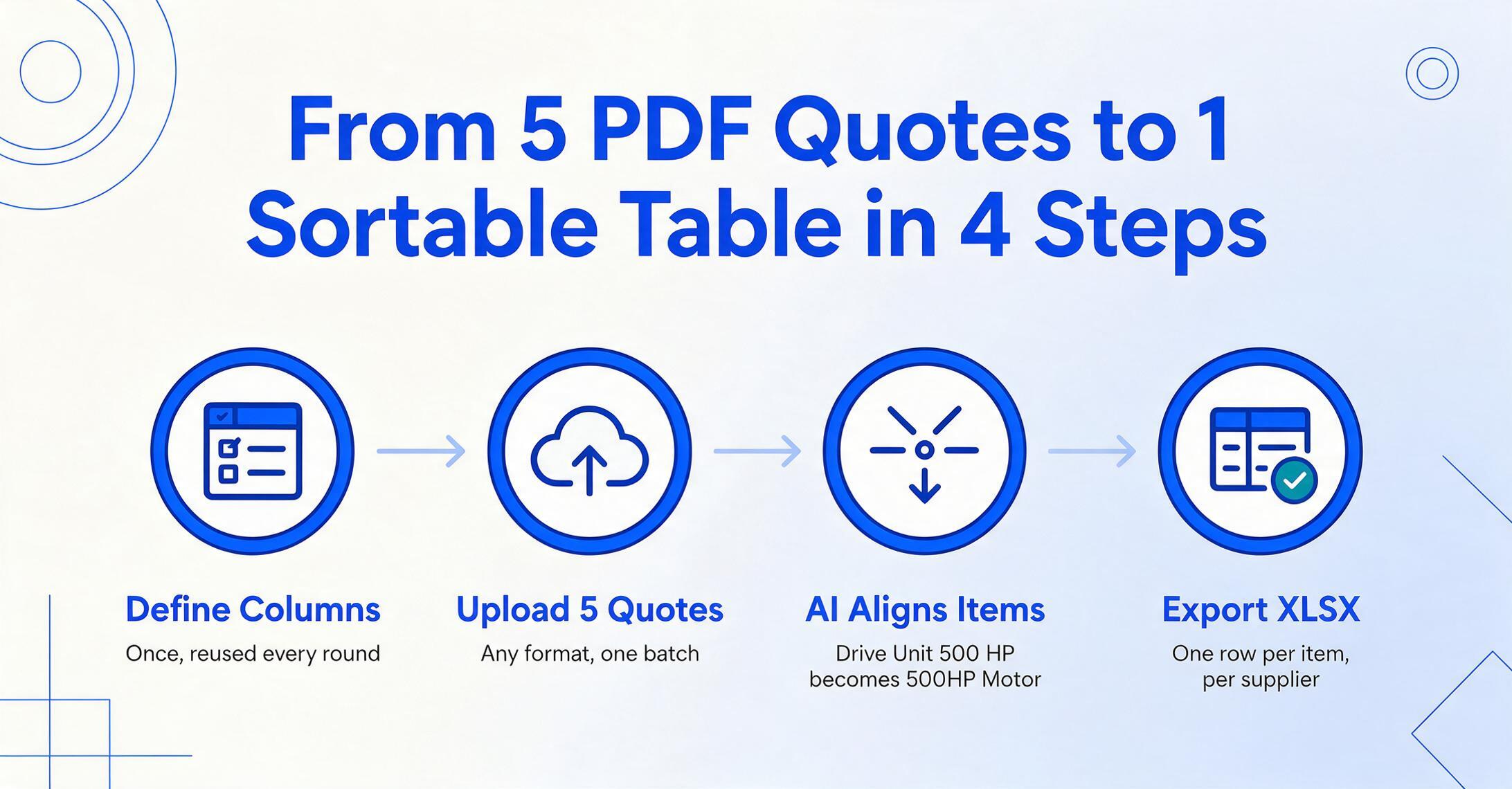
Here's how the batch comparison workflow works in practice — from receiving vendor PDFs to having a sortable comparison table ready for your weighted scoring:
Define your comparison columns. Enter the fields you need to compare across vendors: "Supplier Name / Item Description / Quantity / Unit Price / Line Total / Lead Time (Days) / Payment Terms / Delivery Terms." These become your spreadsheet headers. Set this up once; reuse for every RFQ round.
Upload all vendor quotes in one batch. Drag in Supplier A's ERP-generated PDF, Supplier B's email-sent Excel, Supplier C's scanned handwritten quote — any mix of formats. The batch processes them together, not one at a time.
AI extracts and aligns. Each quote is processed against your column definitions. Items are semantically aligned — "Drive Unit 500 HP" from Supplier A maps to "500HP Electric Motor" from Supplier B in the output. Missing data points appear as empty cells; no error, no template mismatch.
Export the comparison table. Download as XLSX. The output has one row per line item per supplier, with a Supplier Name column identifying each row's source. Add your own weighted scoring formulas on top, filter by item, sort by price — the data is structured exactly how your comparison process expects it. If your team works in Google Sheets instead of Excel, see how the same batch workflow lands directly in a Google Sheets comparison table.
For a typical 5-vendor, 20-line-item RFQ, the entire process — from PDF upload to comparison-ready spreadsheet — completes in under 10 minutes. With manual data entry, the same task takes 2–3 hours, and that's before you start aligning item descriptions across vendors.
Compare the workflows: The traditional route is: receive quotes by email → download PDFs → open each one → manually type item descriptions, quantities, prices, lead times, and terms into your comparison sheet → notice Supplier B uses different names → manually re-align rows → apply your scoring formulas. The column-name extraction route is: receive quotes → upload batch → review extracted table → apply scoring formulas. The extraction step replaces two to three hours of copy-paste with seconds of AI processing.
Get Quotes Straight from Vendors Without Hunting Through Your Inbox
Before you can compare quotes, you need to collect them. If your current process is "email each vendor → wait for replies → download PDF attachments → save to folder → upload to comparison tool," you've automated half the pipeline but left the most tedious half untouched.
Which fix works better depends on whether you're inviting vendors to submit quotes, or they're just going to keep emailing you the way they always have.
If you're sending out an RFQ and want a page you control for vendors to submit through, Collection Link handles it: you generate a unique URL, include it in your RFQ email, and vendors open the link, enter a short verification code, and upload their quote. The files land in your processing queue directly, with no email download, no folder organization, and no chasing attachments. Vendors don't need accounts or logins, just a browser.
If vendors are going to keep sending quotes by email no matter what you do, Email Inbox skips the link step entirely. Every account gets a dedicated inbox address, so you can hand it to vendors directly, or forward your own inbox's incoming quotes over as they arrive; attachments land in your processing queue on their own, with no upload page for anyone to remember. Turn on Auto-Process with a bound comparison template and extraction starts the moment a quote comes in, instead of sitting until you open the file. A sender whitelist keeps that inbox limited to addresses you've approved, so it doesn't turn into a general dumping ground for unrelated mail.
Either path closes the same loop: quotes arrive without manual downloading, batch processing extracts the data, and Excel output feeds your comparison template. The only human step left is the one that actually requires judgment: reviewing the comparison and choosing the best supplier.
What Quote Formats Does This Work On?
Column-name extraction is format-agnostic because it reads context, not layout:
- ERP-generated PDFs — SAP, Oracle, NetSuite output. Each system formats quotes differently; the AI adapts automatically.
- Excel spreadsheets — Some vendors send quotes as XLSX attachments. These process the same way as PDFs.
- Scanned paper quotes — Smaller suppliers sometimes fax or mail printed quotes. A phone photo or scanner PDF works as input.
- Email body quotes — Vendors who type quotes directly in an email. Screenshot → upload → extract.
- Mixed-format batches — Upload all five vendor quotes together regardless of format. The AI processes each independently and merges results.
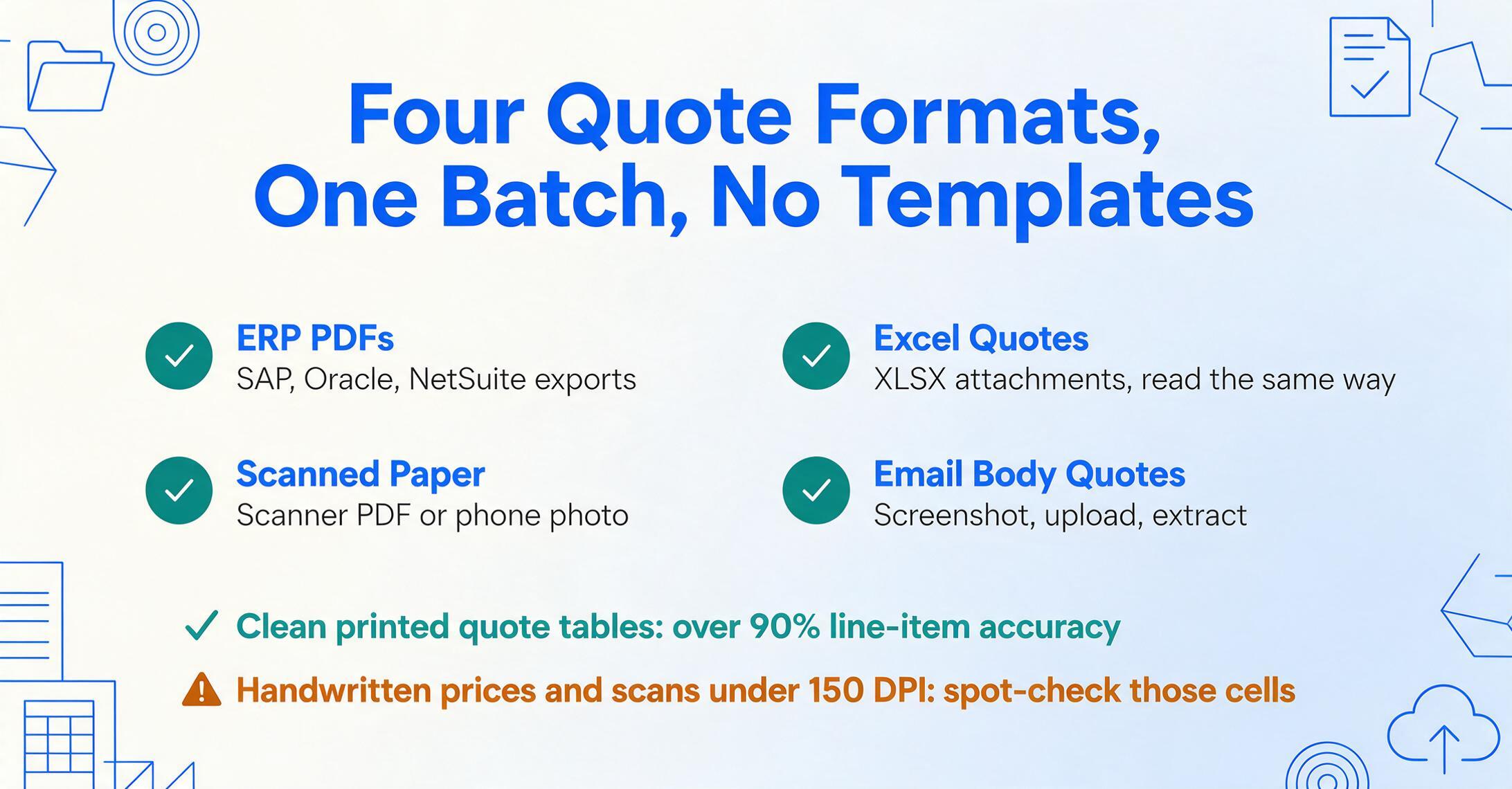
Where accuracy drops: Heavily formatted tables with merged cells, handwritten prices (as opposed to printed), and very low-resolution scans (below 150 DPI) will reduce extraction accuracy for those specific cells. For clean, printed quote tables — which describes the vast majority of vendor quotes — extraction accuracy exceeds 90% for line items. Handwritten or heavily annotated quotes may require manual spot-checks on the extracted data.
Frequently Asked Questions
What if suppliers use different units — e.g., one quotes "per unit" and another quotes "per 100"?
The AI extracts the values and units as they appear in the document. It does not automatically convert units (e.g., "per 100" to "per unit") — that level of normalization is something you'd handle in your comparison spreadsheet with a conversion formula. What it does do is preserve the unit-of-measure field so you can see the discrepancy and calculate the conversion yourself. The AI won't silently normalize "per 100" to "per 1" and give you a misleadingly low unit price.
Can this detect if a vendor left out a line item from the RFQ?
Indirectly, yes. Since the output is structured as a comparison table with consistent columns, you can quickly compare the number of line items per supplier or filter for missing items. The AI doesn't automatically flag scope gaps — that requires knowing your RFQ line items as a reference set — but a quick row-count comparison in the output spreadsheet makes omissions obvious.
How does this handle multi-currency quotes?
The AI extracts currency codes (USD, EUR, GBP, etc.) alongside amounts and preserves them in a Currency column. It does not convert currencies to a single baseline at current exchange rates. You can add an exchange-rate conversion column in your comparison spreadsheet to normalize all prices to your reporting currency. The extraction layer gives you accurate, unaltered values; the comparison logic layer is where you apply FX conversions.
Do I need to configure anything per vendor?
No. The column definitions you set up once work across all vendors. There's no template building, no training phase, no per-supplier field mapping. This is the fundamental difference between column-name extraction and template-based quote processing tools. For a Reddit user in r/automation who described being "back to manual Excel work comparing FOB vs CIF pricing" after trying template-based automation, this difference is the reason to switch approaches.
Should I use Collection Link or Email Inbox to receive vendor quotes?
It depends on who's initiating the exchange. Collection Link fits an active RFQ: you want one trackable page for a defined group of vendors to submit to. Email Inbox fits vendors who are already in the habit of just emailing you a quote, and you'd rather not ask them to change that; you give them a dedicated inbox address instead, and quotes land in your processing queue without anyone uploading anything. The two aren't exclusive. Some teams use Collection Link for new-vendor RFQs and Email Inbox for repeat suppliers who already have their contact on file.
What about quotes that include terms and conditions on separate pages?
The AI processes the full document. If your column definitions include fields like "Payment Terms" or "Delivery Terms," it will locate these wherever they appear — in the header, in a separate section, or on a terms-and-conditions page. You don't need to tell the AI which page contains which field; it scans the entire document contextually.
How does this compare to using VLOOKUP or Power Query to merge quotes?
VLOOKUP and Power Query assume your quote data is already in spreadsheet format — they're tools for merging, not extracting. If your vendor quotes arrive as PDFs, these tools don't help until you've manually entered the data. Column-name extraction solves the step before merging: getting structured data out of unstructured documents. Once extracted, the XLSX output can be loaded into Power Query for further transformation if needed — the two approaches are complementary, not competing.
For the foundational approach — defining comparison columns and understanding why template-based extraction fails on mixed vendor formats — start with how to extract vendor quote data into a comparison table.
Try the vendor quotation to Excel extraction tool to turn any quote PDF into a comparison-ready spreadsheet in seconds.