Extract Vendor Quotes Into Google Sheets
for Side-by-Side Comparison
Institute for Supply Management data from May 2026 shows US manufacturing PMI at 54.0 — the fifth consecutive month of expansion (ISM). Procurement teams are sourcing. The comparison work that follows hasn't changed in twenty years: someone opens five PDF quotes, finds the same data points in each one, and types them into a spreadsheet column by column. The spreadsheet is efficient. The part before the spreadsheet — getting numbers out of supplier PDFs — is the bottleneck that comparison templates never addressed. This article covers a Google Sheets add-on workflow that removes that bottleneck: sidebar upload → structured data directly into your active sheet, without leaving the tab where your comparison already lives.
Key Takeaways
- 30 to 45 minutes — that's how long it takes to manually type data from five PDF supplier quotes into an Excel comparison template. Every single RFQ.
- The comparison template's efficiency ceiling isn't your proficiency — it's the template itself. Templates were designed to score and weight, not to read PDFs. Better formulas won't make extraction one second faster.
- One sidebar add-on. Upload five differently formatted PDFs and data lands directly at the bottom of your active sheet. Your MIN/MAX formulas and conditional formatting finally have data rows to work with — ImageToTable.ai turns extraction from a tax you pay before analysis into an auto-populated step.
Why Your Vendor Quote Comparison Template Still Needs Manual Data Entry
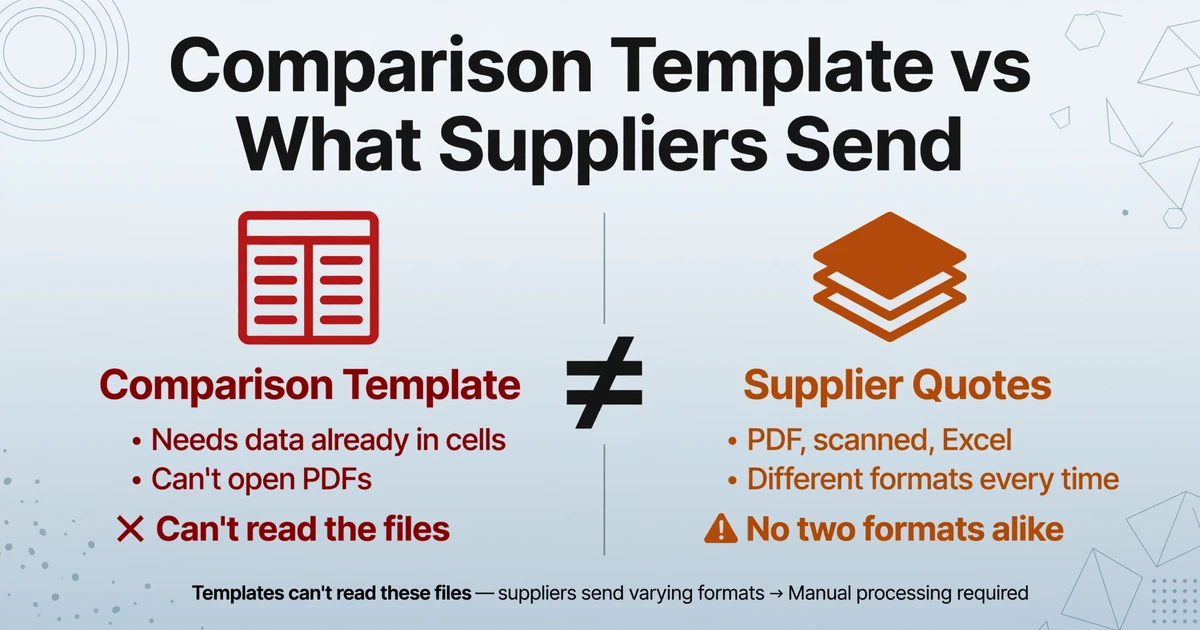
Download any vendor comparison template — from Smartsheet, Asana, Xappex, or the one your finance team built in Excel three years ago — and they all share the same architecture: weighted criteria columns, scoring formulas, and a ranking summary that highlights the best supplier. Templates like Xappex's free Vendor Comparison Template offer predefined criteria fields, customizable weighting factors, and a built-in formula for calculating final rankings. They are genuinely useful for the comparison step. They are completely useless for the step before it.
The comparison template sits at the end of a chain that starts with an RFQ and passes through an inbox of supplier responses. Each supplier sends a different format: one outputs a formatted PDF from SAP Ariba, another emails a scanned printed quotation with a handwritten signature, a third attaches an Excel spreadsheet with pricing on a different sheet than terms. The template cannot open any of these files. It cannot find a unit price inside a PDF paragraph or locate a delivery lead time on a second page of a scanned document. It can only receive data that a human has already transferred into it.
This is why a procurement professional on Reddit asked: "How do you guys compare 5 different PDF quotes without losing your mind? Is there a tool, or is everyone just copy-pasting into Excel?" (r/procurement). The question reveals the structure of the problem: the tools exist for comparison, but the extraction is still manual. In another r/procurement thread, a user describes the reality: "Every time you request quotes, you get 3–5 responses in completely different formats, PDFs, Excel sheets, scanned docs, even email text."
The disconnect is architectural. Comparison templates were built for the evaluation phase. Data extraction was never in their scope. And because procurement software like Coupa and Jaggaer bundles both extraction and evaluation into one enterprise platform, the assumption spread that extraction requires an ERP migration — a false trade-off that leaves thousands of small and mid-size teams stuck with copy-paste because they're not ready to replace their entire procurement stack.
The comparison template isn't the bottleneck. The step where someone reads numbers off five differently formatted PDFs and types them into the template is. A Google Sheets add-on fixes that step without changing the rest of your workflow.
The Add-on Workflow: From PDF Quotes to Comparison Sheet in One Tab
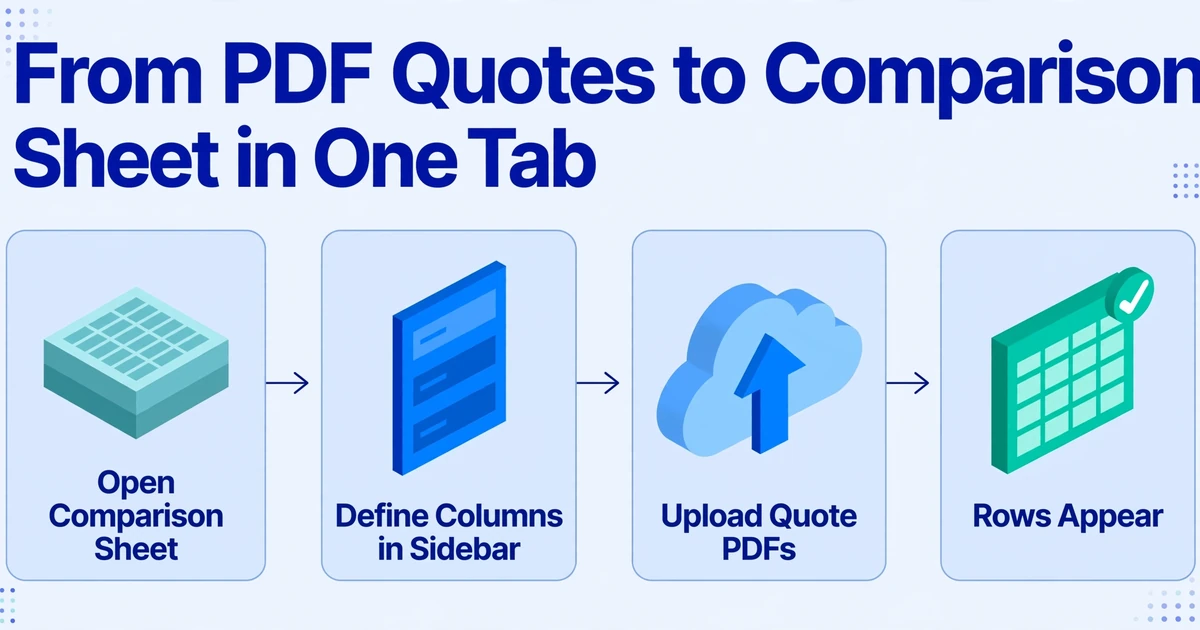
Most document extraction tools follow the same architecture: you leave your spreadsheet, open a separate web dashboard, upload files, process them, download results, then re-upload or copy-paste into your comparison sheet. At each boundary you lose context. A Google Sheets add-on inverts this: the extraction engine lives inside your spreadsheet as a sidebar panel — a narrow pane you open from the Extensions menu that sits to the right of your data. You upload quote PDFs through the sidebar. Extracted data lands in the next row of whatever sheet is currently active. There is no export step because the destination is already open. For the full capability rundown — supported field types, formats, and plan details — see the Google Sheets add-on capability page.
Here's what the full workflow looks like when you're comparing five supplier quotes:
1. Open your comparison sheet. This is the spreadsheet you already use — the one with your weighted criteria columns, your MIN/MAX formulas for unit price comparison, your conditional formatting that highlights the lowest total. Nothing about it changes. The add-on is adding rows to it, not replacing it.
2. Define your extraction columns in the sidebar. Type the field names that match the data you need from each quote: Unit Price, MOQ (minimum order quantity), Lead Time, Payment Terms, Quote Validity. These become the columns the AI searches for in every uploaded quote — regardless of how each supplier labels or positions those values. (If you've used Custom Column Extraction on the ImageToTable.ai website — the mechanism where you type column names and the AI locates matching values by understanding what they mean rather than where they sit — the add-on uses the same engine, but results append directly to your active sheet.)
3. Upload your supplier quotes. Drag the PDFs, scanned images, or Excel files into the sidebar. One at a time or selected all at once. Supplier A's SAP-generated PDF with labeled table columns, Supplier B's email screenshot with pricing in body text, Supplier C's scanned form with handwritten quantities — all go into the same upload queue. The add-on accepts PDF, JPG, PNG, WebP, and AVIF.
4. Extract. The AI reads each quote, locates the values matching your column names, and appends them as new rows at the bottom of your active sheet. Supplier A's "Unit Rate (Qty 500+)" and Supplier B's per-unit cost buried in a paragraph and Supplier C's handwritten number in a form box all land in the same "Unit Price" column. One row per supplier. No manual typing.
5. Your comparison formulas fire automatically. The new rows populate the same weighted scoring calculations you already built. If your template uses a formula like =MIN(E2:E6) to find the lowest unit price, it now has five values instead of zero. Your conditional formatting highlights the winner. The comparison step — the part templates were designed for — finally has data to work with.
Files are processed securely and not stored.
The time difference between the two approaches scales with quote volume. A five-supplier RFQ with twenty line items each requires roughly 100 manual cell entries — unit prices, quantities, lead times, terms — across five PDFs. Manual entry takes 30 to 45 minutes of focused copy-paste. The sidebar workflow completes the same extraction in under two minutes of upload time plus AI processing. As the batch extraction comparison demonstrated, processing time is measured in seconds per document, not minutes per value.
The computation doesn't stop at extraction. If you need to compare total landed costs — unit price × quantity + shipping + any per-supplier handling fees — you can use a Computed Column: define the formula in a column name (e.g., "Landed Cost (Unit Price × Qty + Freight)") and the AI performs the calculation during extraction, outputting the result directly. What lands in your sheet is not raw data waiting for Excel formulas — it's the comparison-ready number you need.
Setting Up Your Quote Comparison Columns
The most important decision in this workflow is what you tell the AI to extract. The column names you type in the sidebar determine what data comes back. If you type "Price," the AI returns whatever price it finds — which might be the unit price, the total, or the price after discount, depending on the document. Specificity matters.
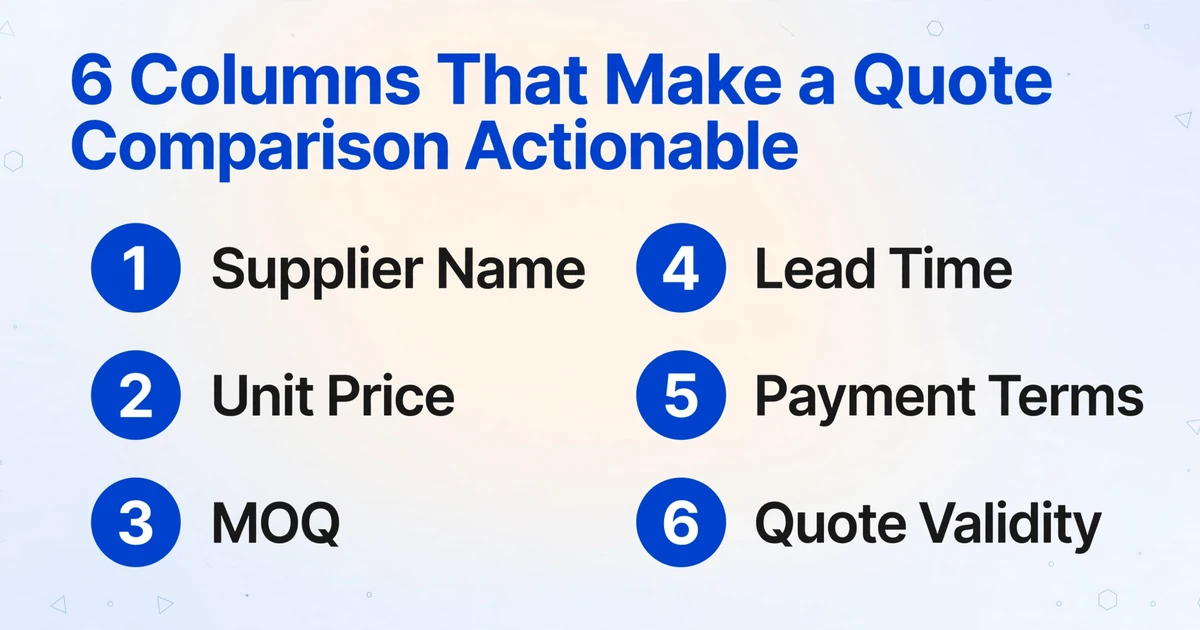
For a procurement comparison, these are the fields that produce an actionable comparison table:
| Column Name | What the AI Looks For | Why It Matters in Comparison |
|---|---|---|
| Supplier Name | Company name on letterhead or header | Identifies the row — every comparison needs a vendor column |
| Unit Price | Per-unit cost for the quoted item | Primary comparison dimension — the number most RFQs are scored on |
| MOQ | Minimum order quantity (any labeling variant) | A supplier with a lower unit price but 5× your needed volume isn't cheaper |
| Lead Time | Delivery timeline (days, weeks, or date) | Production schedules don't care about cost savings if stock arrives late |
| Payment Terms | Net 30, Net 60, 2/10 Net 30, etc. | Cash flow impact — Net 60 from Supplier A vs Net 15 from Supplier B matters |
| Quote Validity | Expiration date of the quote | A quote that expires in 7 days can't anchor a decision that takes 3 weeks |
These six columns produce a comparison table that covers price, volume constraints, timeline, cash flow impact, and decision window — the five dimensions that a procurement decision actually depends on. You can add more columns for shipping cost, warranty period, or any other field that matters to your specific RFQ. The AI will search for each value in each document independently.
If a supplier's quote doesn't contain a particular field — for example, Supplier C's quote is a simple price sheet with no payment terms — the corresponding cell in your output table will be empty. You follow up with Supplier C to fill the gap. The extraction doesn't invent data; it reports what it finds and leaves blanks where it doesn't find anything.
Handling Suppliers Who Send Different Formats
In an ideal procurement process, every supplier fills out your standardized RFQ template and returns identical Excel sheets. In practice, r/procurement threads show this rarely happens. One commenter advises: "Send them an excel template. For the Excel template: what are your non-negotiable fields (top ~10) you require before a quote is 'comparable'?" Another replies with the reality: suppliers ignore the template and send their own format anyway.
The add-on handles format variance not by imposing a format on suppliers but by extracting data semantically from whatever format arrives. Three mechanisms make this possible:
Semantic extraction, not template matching. The AI identifies a unit price by understanding that "$4.20" next to "per unit" or "unit rate" or "each" is a unit price — regardless of whether it appears in a table cell, a paragraph sentence, or a handwritten annotation on a scanned form. It doesn't look at coordinates; it reads for meaning. This is the same column-name extraction approach that handles vendor invoices and receipts in the invoice add-on workflow — define what you want, and the AI locates it wherever your supplier put it.
Multi-page awareness. A supplier quote is rarely a single page. Pricing might be on page 1, terms on page 2, delivery schedule on an attached annex. The AI reads every page in sequence. If the quote validity date is buried on page 3 of a PDF, it's found.
Mixed-format batch processing. Upload five quotes from five suppliers — three PDFs, one scanned image, one Excel spreadsheet — in a single batch. The AI processes each independently, identifies the format, reads the content, and merges results into a unified output. Each supplier row in your comparison table might have come from a completely different source format. The output doesn't distinguish because the column structure is what you defined, not what any supplier provided.
The practical implication: you stop negotiating format compliance with suppliers. Whether a supplier sends an ERP-generated PDF, a phone photo of a handwritten quotation, or an email body screenshot, the extraction produces the same structured output — your columns, your comparison table.
Beyond Unit Price — Extracting MOQ, Lead Time, and Payment Terms
An RFQ comparison that only compares unit prices is a procurement mistake disguised as efficiency. The Chartered Institute of Procurement & Supply (CIPS) defines procurement benchmarking as evaluating "total cost of ownership, compliance and risk management, cycle times and lead times, defect rates and quality standards" — not just upfront pricing. The cheapest unit price combined with a 12-week lead time and Net 7 payment terms may cost more in production disruption and working capital than a marginally higher unit price with 2-week delivery and Net 60.
This is where the column-name approach becomes especially valuable. You're not limited to extracting prices. You define the dimensions that matter for your procurement decision, and the AI finds them across every supplier's documents. Three columns that change the comparison:
MOQ (Minimum Order Quantity). A supplier quotes $3.20/unit with MOQ 5,000. Your order is 1,000 units. The $3.20 price is irrelevant because you can't meet the minimum. Many comparison templates only capture the quoted price and miss the volume constraint. Extracting MOQ as a separate column makes the mismatch visible immediately.
Lead Time. Supplier A quotes 14 days. Supplier B quotes 45 days. If your production schedule depends on material arriving within 3 weeks, Supplier B is not a viable option regardless of price. Lead time extraction turns a logistics detail into a comparison dimension. Manual quote extraction often skips this field because it's usually on a different page than pricing — but the AI reads every page.
Payment Terms. "2/10 Net 30" from one supplier versus "Net 15" from another creates a working capital differential that often exceeds the price gap. For a $50,000 order, the difference between paying in 15 days versus 30 days is two weeks of float — roughly $200 at current commercial interest rates. Small per-unit savings can be erased by unfavorable payment terms. Extracting payment terms as structured data lets you factor cash flow into the scoring matrix.
These fields don't require separate configuration. You type the column names once in the add-on sidebar, and the AI searches for all of them in every uploaded quote. The result is a comparison table with columns that decision-makers actually need, populated automatically from documents that were never designed to be compared.
FAQ
Can the add-on handle non-English vendor quotes?
Yes. The underlying AI model reads text in multiple languages and extracts values into the column names you defined in English. A Japanese supplier's quote with "単価" (unit price) and "納期" (delivery date) produces the same "Unit Price" and "Lead Time" columns as an American supplier's PDF. The extraction is language-agnostic; the output schema is what you specify.
What if two suppliers quote different items — how does the comparison work?
If you upload quotes for different products in the same batch, the AI extracts each as a separate row. The comparison is valid only when all suppliers are quoting the same specification. The add-on doesn't perform item matching across suppliers — it extracts what each document contains. You should verify that all quotes reference the same RFQ before using the extracted data for decision-making.
Does the add-on work offline? What about data security?
The add-on requires an internet connection — extraction is performed by cloud-based AI. Files are processed in transit and not stored after extraction completes. The connection uses your API Key for authentication, and usage counts against your account plan quota. The underlying architecture is the same as the website's processing pipeline, just accessed through the Sheets sidebar instead of a browser tab.
Can I extract line-item details, or just header-level fields?
You can extract line items. If your quote comparison requires item-level detail — individual SKU prices, per-item quantities, per-item lead times — add columns like "Item Description," "Item Quantity," and "Item Unit Price." The AI reads line-item tables and populates one row per line item, with the supplier name repeated across rows. This gives you a granular comparison where you can filter by supplier and item. For more on batch item-level extraction, see the batch vendor quote extraction guide.
What Actually Changes When Extraction Moves Into the Sidebar
The shift isn't just about speed. It's about where the extraction work happens relative to where the comparison work happens.
When extraction is a separate step — open PDF, read values, switch to Sheets, type — the comparison sheet is a destination you arrive at after processing. You do the work of data entry, then you get to use your comparison formulas. The extraction is a tax you pay before the real analysis can begin.
When extraction happens inside the sidebar, the comparison sheet is the starting point. You open your sheet, open the sidebar, upload quotes, and rows appear. Your formulas fire. Your conditional formatting activates. What was a passive template becomes a live pipeline — the same spreadsheet that was waiting for data is now collecting it.
This changes which documents get extracted. When extraction requires 30 minutes of manual work per RFQ, procurement teams ration it: they only extract what they absolutely need, and they skip quotes that seem unlikely to win. When extraction takes seconds through a sidebar, the threshold drops to zero: every quote gets extracted, every supplier gets a fair comparison row. The quality of the procurement decision improves not because a better formula was built, but because more data was surfaced.
The best procurement decision is the one made with complete data. The add-on workflow makes completeness the default — not by adding effort, but by removing the step that makes effort the barrier.
Try It on Your Next RFQ
The next time you send out an RFQ and the responses come back as five differently formatted PDFs, open your comparison sheet, load the add-on, and upload them. Watch the columns populate. Watch your scoring formulas find new rows. The template you already built finally has the data it was designed to compare.
The add-on is available from the Google Workspace Marketplace. Connect your API Key and start extracting directly into your active sheet.