Sending Parsed Data to HubSpot
Is a Column-Mapping Job
Salesforce's State of Sales research found that reps spend about 28 percent of their week actually selling, and manual data entry is one of the largest blocks eating the rest (Salesforce). Most productivity studies stop at that number. They rarely trace it back to where the typing starts, which is usually a document or an email that never had a chance to become a CRM record on its own.
A lead inquiry, a signed contract, a supplier invoice, or a scanned ID does not arrive as a filled HubSpot row. It arrives as email body text, a PDF attachment, or a phone photo, and somewhere between that message and the record, a person reads it and keys it into properties. This article is about the pipeline that closes that gap: how to send parsed data to HubSpot automatically, which HubSpot object each document belongs to, and where the mapping work actually lives.
Key Takeaways
- The hard part of getting documents into HubSpot is not the integration, it is what you name the extraction columns.
- Field mapping usually comes last, after the parser has named the fields, so
inv_totalandrefstill need a human translation that a single template edit can break. - Name your columns after HubSpot's own properties, and the import, the Zap, or the API call has nothing left to translate.
What HubSpot's Own Tools Do With an Inbound Document
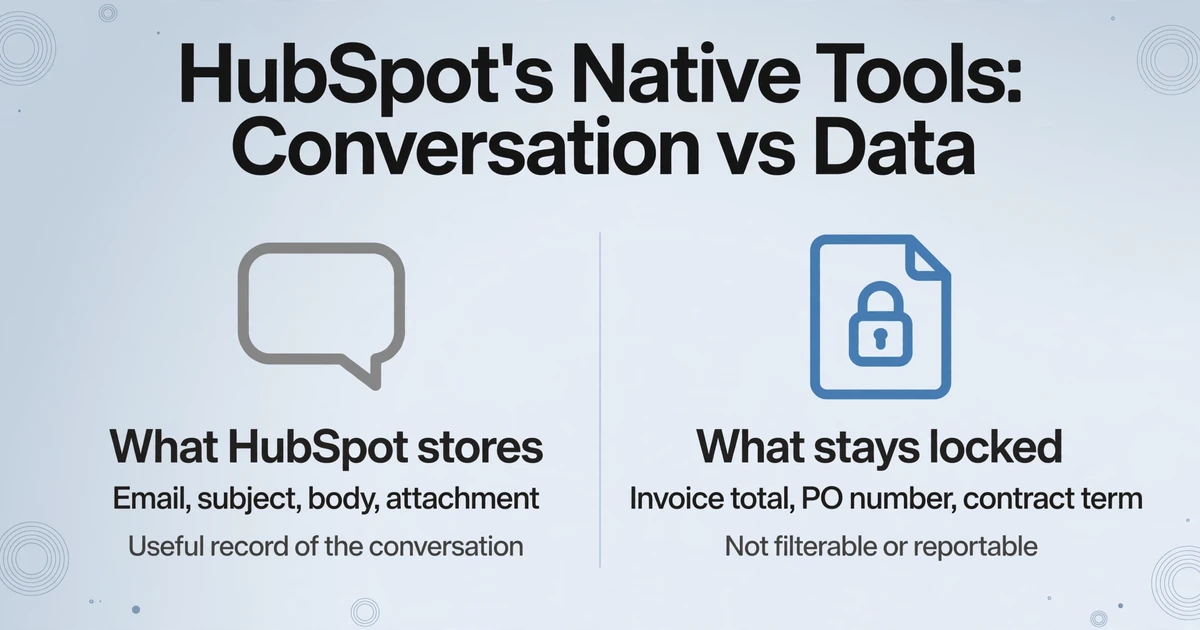
HubSpot's connected inbox gets the email into the CRM; it does not get the document's data into the record's fields. When you forward an invoice or a lead email to HubSpot's logging address, the message is stored and displayed on the contact or deal timeline, with its sender, subject, and body text, and any attachment lives in the record's Attachments section. That is a useful record of the conversation. It is not structured property data you can filter, report on, or trigger a workflow from.
HubSpot's built-in AI is narrower than the feature name implies. The setting that fills contact details from emails scans an email signature and can pick up a phone number in the body, but it only writes a fixed list of basic contact properties: first name, last name, phone, job title, mobile number, fax, city, state, country, zip code, and street address. It only fills a property when that property is empty and has never been edited by a user, and it does not create contacts (HubSpot Knowledge Base). It will not turn an invoice total, a purchase order number, a contract's term length, or a table of line items into custom properties.
The native layer records what conversation happened; the document's own facts stay locked in the attachment. The invoice number and the PO reference will not become HubSpot properties unless a step upstream extracts them as named fields first.
Ops teams describe this exact gap in their own words. In the r/hubspot thread on avoiding manual copying from documents, the poster put it plainly: "if I get a document with someone's details, I still have to read it and fill the fields in HubSpot myself. It works, but it takes time and typos happen. Is everyone just doing copy/paste, or is there a better workflow?"
Contact, Deal, or Company: Pick the Destination First
The HubSpot object decides which columns you need, so decide the object before you decide the automation tool. HubSpot enforces a small set of required properties when records are created: a Contact needs an Email, a Company needs a Name or a Company domain name, and a Deal needs a Deal name, a Pipeline, and a Deal stage. To update an existing record instead of creating a duplicate, the row also needs a unique identifier, which for contacts is the email address and for companies is the company domain name (HubSpot Knowledge Base). Knowing these before extraction prevents the common trap of pulling forty fields from a document and then finding you cannot import any of them.
| Document | Target HubSpot object | Columns that matter |
|---|---|---|
| Lead or inquiry email, contact form | Contact, and usually Company | email, firstname, lastname, phone, company, message |
| Business card or ID scan | Contact | firstname, lastname, jobtitle, company, email, phone |
| Signed contract or proposal | Deal, associated to the Contact | dealname, amount, closedate, contract term |
| Supplier invoice or purchase order | Deal, or a custom object | invoice number, vendor, amount, due date, PO reference |
The practical rule is simple: if the document represents a person or company entering your system, target a Contact or Company. If it represents a transaction or a commercial event, target a Deal. The Company record is often the one you can skip extracting, because HubSpot can associate or create a company from a contact's work email domain automatically, matching the domain to the Company domain name property (HubSpot Knowledge Base). Push a Contact with [email protected] and the acme.com company link appears on its own, without a separate company row.
The inverse is the mistake to avoid: sending every inbound document into a new Contact and a new Deal. Statements, utility bills, and recurring notices belong on the Company or a custom object, not in the sales pipeline. Which object a document belongs to is a judgment about your process, and no automation tool can make it for you.
The Mapping Actually Happens in the Column Names
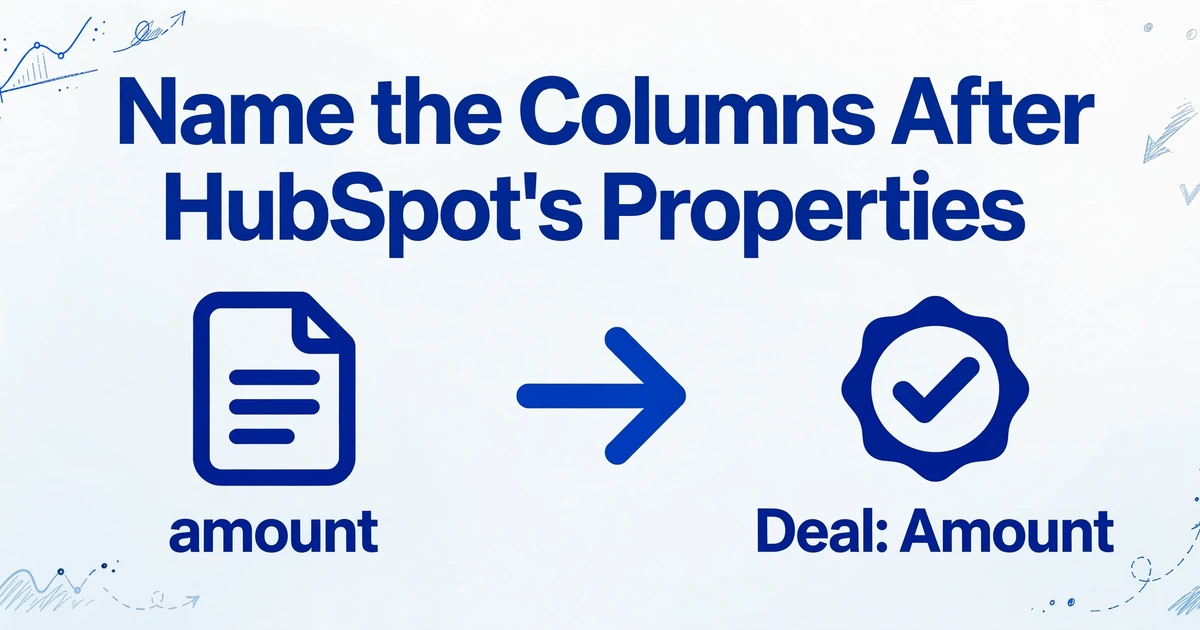
Every guide puts field mapping after extraction, but by then the expensive decision is already made. If the parser hands you fields named vendor_name, inv_total, and ref, then a human still has to work out that inv_total means the Deal's Amount property and ref means a custom PO property. That translation is the brittle part of every workflow, and it moves instantly whenever a template is edited.
ImageToTable.ai reverses the order with Custom Column Extraction: instead of drawing boxes around fields on a known layout, you type the column names you want, and the AI reads each document to find the values that match those names by meaning. An email body, a scanned invoice, and a photographed ID all have different layouts, but if you name a column email, the AI finds the email address in any of them. No per-source template, and a redesign of the sender's format does not break the extraction.
Because you choose the names, you can choose them to be HubSpot's internal property names. Do that, and the automation step has nothing to translate. The column firstname maps to the Contact property firstname. The column email is both a value and the Contact's unique identifier for deduplication. The columns dealname, amount, and closedate line up with the Deal fields HubSpot needs to create the record. This is the same discipline as aligning extracted columns to any target system's import format, which the inventory system integration walkthrough covers from the procurement side.
| Extraction column name | HubSpot target | Why it matters |
|---|---|---|
email | Contact: Email | Required to create, and the deduplication key for updates |
firstname, lastname | Contact: First/Last name | Basic identity on the record |
company | Contact: Company name | Supports the automatic company association |
dealname | Deal: Deal name | One of three properties HubSpot requires to create a Deal |
amount | Deal: Amount | The value the pipeline, not just the record, depends on |
closedate | Deal: Close date | Keeps the record on the right timeline |
One caution that saves cleanup later: only extract what you will actually use. A column that no HubSpot property consumes is a column someone will end up mapping by hand or deleting. The structured data entry workflow makes the same point from the capture side, that the value of extraction comes from a defined output shape rather than from pulling every value on the page.
Three Ways to Get the Rows into HubSpot
Once the columns match the destination, there are three realistic ways to move the rows, and they differ mostly in who triggers them and how much setup they carry.
Path one: a file import. HubSpot's import tool accepts a .csv or .xlsx file with a header row whose columns correspond to HubSpot properties. If the extraction output lands directly in a spreadsheet, the sheet is the import file, and the work becomes selecting the object, mapping headers, and choosing the unique identifier. This is the right path for bulk historical data or for teams that only sync on a schedule. Extraction that lands in Google Sheets removes the download-and-reformat step, and the same pattern applies to screenshot data sent to a spreadsheet destination.
Path two: a no-code connector. Zapier, Make, and n8n all treat a completed parse as a trigger, then map the extracted fields to a HubSpot action. The action that matters is "create or update," not "create," because it prevents a new duplicate each time the same contact sends a second document. Zapier handles that lookup for you when you set the email as the deduplication key; Make needs a search step and a router to branch between update and create. This path needs no developer and is the best fit for low to moderate volume. Its cost is the chain itself: three tools stitched together can break the moment someone edits a workflow.
Path three: a direct API call. For teams with a developer, the extraction service exposes a public REST API, the v1 API, which accepts document uploads, returns structured JSON, and can fire a webhook when a batch finishes so your code does not have to poll for status. From there, the JSON is posted to HubSpot's CRM API, using the contacts upsert endpoint keyed on email for deduplication and batch endpoints to stay inside rate limits. There is no per-task middleware fee and no dependency on a third-party connector, at the cost of owning the glue code. This is the path for higher volumes and for teams that already route records into other systems.
The Capture Step Comes Before Any of Them
All three paths assume the document is already in a queue, and that is the first thing to break. Lead emails land in a shared inbox, invoices land in a personal one, ID scans arrive by text message, and none of them is anywhere near a parser. The capture layer is what funnels those sources into one place.
ImageToTable.ai gives every account a dedicated inbox address, which is what the Email Inbox feature is: forward a supplier invoice, a client form, or your own email to that address and the attachment lands in your processing queue with no upload page involved. Turn on Auto-Process with a saved column template and extraction begins the moment mail arrives. A sender whitelist keeps unrelated mail out of the queue, password-protected PDFs are unlocked with passwords you have saved in advance, and processing can be set to read attachments only, the email body only, or both. That last option matters because some suppliers paste invoice data straight into the message text with no attachment at all (email parsing options).
When the documents have to come from other people rather than your own inbox, a Collection Link is a shareable address that lets a vendor, client, or field worker upload files after entering a short code, with no account required. Files land in the same processing queue, which means a document pipeline can start from three different capture points and still produce one shape of row, the same architecture laid out in the document extraction pipeline overview.
What Still Needs a Human
A pipeline that extracts documents and writes CRM records is not the same as a pipeline that writes correct records, and the difference lives in a few decisions that automation should not make alone.
Deduplication is a policy, not a setting. Decide the unique identifier before the first row arrives, email for contacts and company domain for companies, and use an action that updates rather than creates. A pipeline without that step will faithfully create a second Jane Smith the second time Jane emails.
High-value or ambiguous rows deserve a review pass. A contract with unusual terms, or an invoice above a threshold, is cheap to eyeball before it reaches the pipeline and expensive to correct afterward. Handwriting falls in the same bucket: printed documents extract at very high accuracy, but a hurried signature or an ID photo is exactly where an AI guess is worth a second look.
Not every document is a Deal. The object decision above is the most common place a well-built pipeline quietly degrades the CRM, by flooding the sales pipeline with recurring statements that never belonged there.
Consent is separate from data. Getting a contact into HubSpot does not grant permission to email or text them. Marketing email and automated texts carry their own rules, and the extraction layer deliberately has no opinion about them.
Frequently Asked Questions
Does HubSpot natively parse email or PDF data into custom properties?
No. HubSpot's built-in AI can fill a short list of basic contact properties from an email signature or a phone number in the body, and it will not create contacts or read an invoice, purchase order, or contract into custom properties. Turning document content into properties requires an extraction step upstream, then a file import, a no-code connector, or an API call.
Can extracted data go straight into HubSpot, or does it have to be a CSV?
Both work. The file-import path uses a CSV or XLSX. The direct path posts JSON to HubSpot's CRM API and needs a developer; the contact upsert endpoint handles deduplication by email on the server side. No-code connectors sit in between and are the usual choice for teams without engineering support.
How do I stop the pipeline from creating duplicate contacts?
Use a create-or-update action and set the email address as the unique identifier. In a file import, map the Email column to the contact's unique identifier so HubSpot matches existing records instead of adding new ones. For companies, the equivalent identifier is the company domain name.
Can it read both the email body and the attachment?
Yes. Processing can be configured to read attachments only, the email body only, or both together. That covers the realistic mix where some senders attach a PDF and others write the details directly into the message.
Does this require a developer?
Not for the import or no-code paths. A developer is only needed for the direct API route, and that route is typically chosen for higher volumes or when the same extracted data also feeds another internal system.
The piece every HubSpot integration guide skips is that the mapping problem is solved the moment you name your extraction columns after HubSpot's own properties. Do that, and the Zap, the import, or the API call becomes a pass-through instead of a translation job.
Once the columns match HubSpot's objects, the pipeline has one remaining variable: the volume and variety of documents arriving each week. Start with the capture point that already exists in your inbox, define the handful of columns HubSpot actually consumes, and let the connector do the rest. Try it on one of your own lead emails or invoices and see which columns come back.