Real Estate Showing Emails to One Sheet,
Reschedule and All
A showing confirmation is the only message in the thread that tells the showing agent how to get into the property, and those details sit in the message body rather than in an attachment. ShowingTime's help documentation describes the confirmation as carrying the keybox type and location, the showing instructions, and the access details (ShowingTime). The lockbox guide for BrokerBay sends agents to the same place: open the showing confirmation email to find the code, which is valid only for the confirmed appointment. Read as a calendar notice, the message looks like a time and an address. Read as an access record, it is the document the appointment depends on.
The volume is not a corner case. ShowingTime manages nearly four million showings each month across 1.2 million active listings (ShowingTime support), and each one leaves a confirmation somewhere in an inbox. Teams that keep a showing sheet are trying to turn that stream into a record they can sort, report from, and hand to a CRM. The hard part is not reading an address. It is keeping the record true after a showing moves.
Key Takeaways
- One showing can produce five emails, and only one of them proves you can get in the door.
- A reschedule arrives as a new request, so the old row keeps a time that no longer exists and still looks finished.
- Fifteen minutes of spreadsheet work splits the log from the current view, and that is the step most teams skip.
A Showing Confirmation Carries the Access Details, Not Just the Time
The fields a team needs are already in the email body, generated from the listing worksheet at the moment the appointment is confirmed. What changes between platforms is less the field set than the wording, the order, and whether a given field made it into this particular message.
| What the email carries | Where it sits | What changes between platforms |
|---|---|---|
| Property address and MLS number | Top of the body, above the appointment details | Both are almost always present; the label and order change, and some templates split the address across two lines |
| Showing date and time window | Body, usually the boldest block | Some show a start and end time, others show a start plus a duration, so an end time may have to be derived or left blank |
| Showing agent and mobile number | Body, near the appointment block | The person attending may be a coverage or showing agent rather than the buyer's agent who requested the appointment |
| Listing agent and co-agent | Body, often in a contact section | The co-agent can be missing entirely when the listing was pulled before the co-list was added |
| Showing instructions | Body paragraph, sometimes labeled "Additional Instructions" | Free text, and it can be absent when the listing changed after the platform's one-time MLS pull |
| Keybox type and location | Body, near the access section | Supra, SentriLock, Master Lock, or a combination box; the location note is written by the listing side and varies wildly |
| Access code or one-day code | Body, or a link to the lockbox app | BrokerBay puts the code in the confirmation; SentriLock access runs through SentriKey, so the email may carry the appointment and instructions while the unlock happens in the app |
| Status: confirmed, rescheduled, cancelled | Subject line and body | The sender and the layout stay nearly identical across all three, which is why status is the field most often lost |
ShowingTime includes the instruction text in the confirmation email, but that text cannot be adjusted at the moment the agent confirms the request; a correction has to go out as a separate message, which appears differently in the showing agent's inbox (ShowingTime instructions). Each message is a snapshot, and the correction is a second snapshot that does not look like the first.
The confirmation is the access record for one appointment. Treat it as a calendar notice and the keybox location, the instructions, and the code stay buried in the inbox.
One Showing Generates Several Emails, and Only One Is the Confirmation
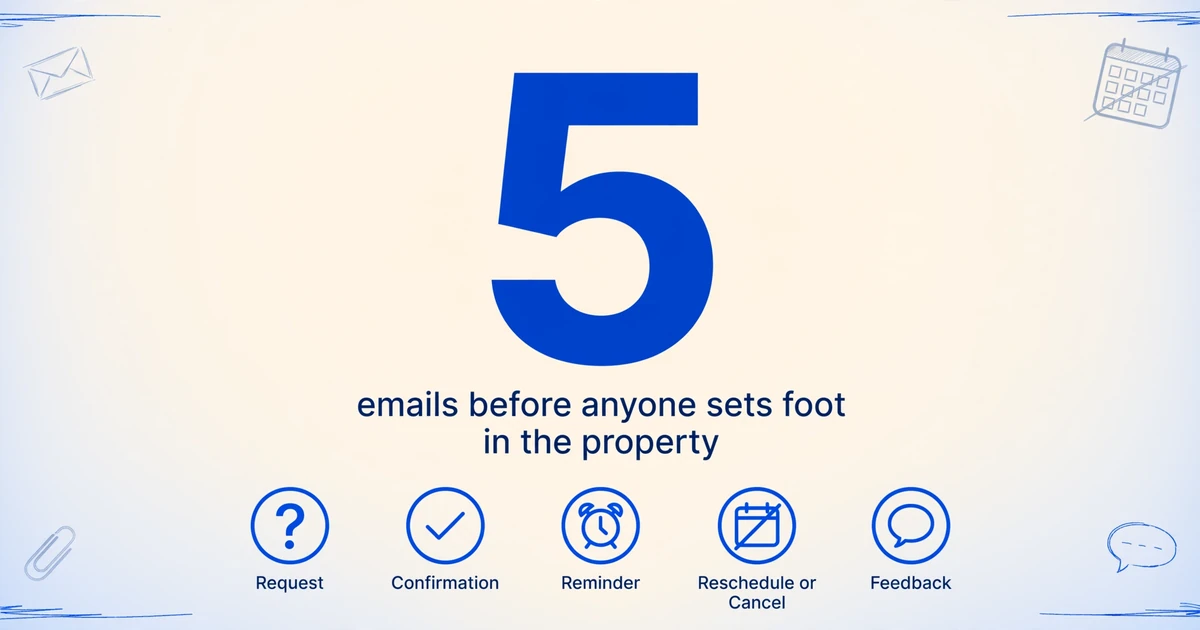
A single appointment can produce five messages before anyone sets foot in the property: the request, the confirmation, a reminder, a reschedule or cancellation if something moves, and a feedback request afterward. They come from the same platform, with similar subjects, and on ShowingTime the confirmation can display the listing agent's name as the sender rather than the platform's.
The volume is familiar to anyone who has run a Saturday tour. One buyer's agent described the experience on r/realtors as a "BARRAGE of emails telling you the agent got the request, saw the request, thought about the request, ate a sandwich near the request." Every one of those messages is a candidate row if the pipeline is built on "new email in, new row out."
NAR's 2025 generational trends report puts the buyer side in perspective: buyers searched for a median of 10 weeks and looked at a median of seven homes (NAR, 2025). Seven homes means at least seven appointments, across however many listing sides and platforms those homes use. A single listing's sheet therefore receives messages from many different agents, with different naming habits and different platform templates.
A lead email is an inquiry that has to become a contact record. A showing confirmation is an appointment that already exists, and the sheet is trying to mirror it, which is why the real estate lead email workflow solves a different problem. The confirmation's job is to prove access for a specific window, and only one of the five messages does that.
If every email becomes a row, the sheet fills with requests that were later declined, confirmations that were later moved, and feedback requests that carry no access detail at all. The confirmation is the row worth keeping. The cancellation is the row that changes the truth. A Status column is what lets you keep both without pretending they are the same event.
Where the Sheet and the Showing System Stop Agreeing
The sheet and the showing system rarely disagree because a field was read wrong. They disagree because of how the platforms issue and revise confirmations, and each of those structures produces a specific kind of stale row.
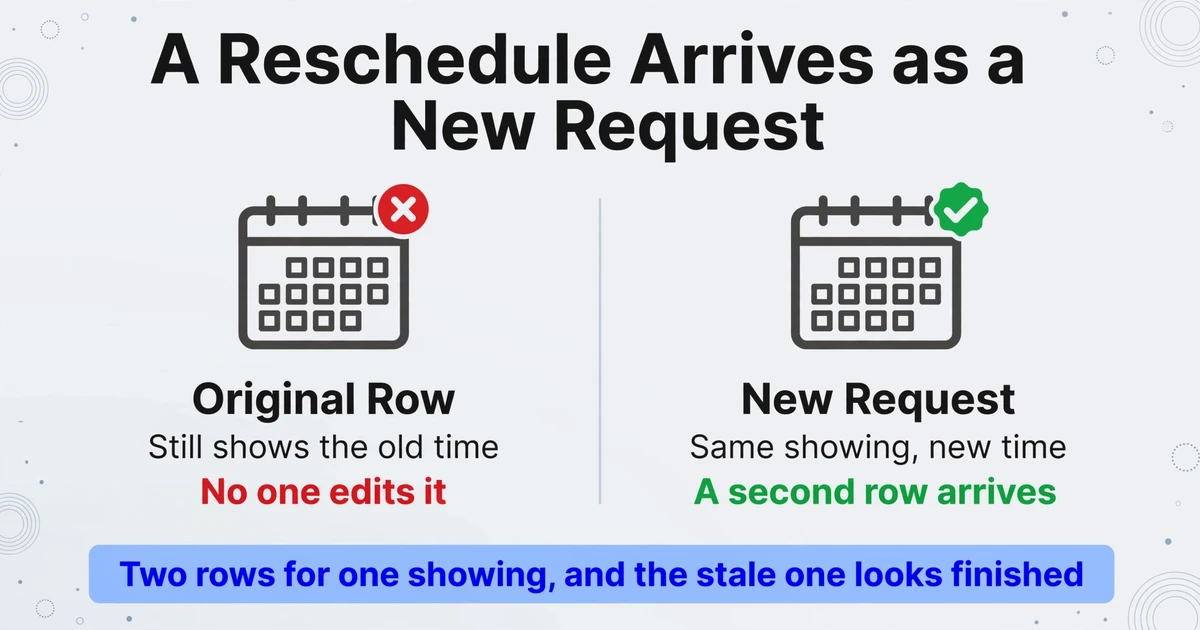
A reschedule arrives as a new request, so the old row never changes
In ShowingTime, rescheduling an appointment sends a new appointment request with the rescheduling information to the listing agent for confirmation (ShowingTime reschedule). The original row is not edited by anyone. It stays in the sheet with a time that no longer exists, and it stays there because it looks finished.
A stale row does not look stale. It has an address, a time, and an agent, which is exactly what a correct row has.
The update competes with everything else on a Saturday, and a row that looks finished never announces that it is out of date. No error message appears to say the old time was never replaced.
Co-agent and instructions are pulled once from the MLS and then stop updating
ShowingTime does an initial, one-time pull of the listing data, including the co-list agent and the showing instructions. Changes made in the MLS afterward are not automatically picked up (co-list agent; instructions). A listing that adds a co-agent after it goes live can keep sending confirmations with a blank co-agent field, and a listing whose instructions change can keep sending the old ones, or none at all.
No extraction setting recovers a field the email never contained. A blank co-agent in the sheet is a signal about the listing worksheet, not a signal about the reading. The useful response is to flag the blank and fix it in the showing platform, rather than to rerun the extraction and expect a different result.
The access code expires with the appointment it was issued for
Master Lock's BrokerBay lockbox guide is explicit that the code in the confirmation is valid only for the confirmed appointment (Master Lock Vault guide, 2022). That turns a duplicate row into a real-world failure: the showing agent opens the sheet, reads the code from the earlier row, drives to the property, and the box will not open.
A duplicate row costs a minute of cleanup. A stale code costs a drive, a late showing, and a buyer standing on the porch. This is the reason the sheet needs a current view, not just a log.
Who Touches a Showing, and Which Fields Each Role Owns
Six people can touch one appointment, and each one owns a different part of the record. Writing the sheet as if a single "you" maintains everything is how the handoffs get missed.
| Role | What they do | What they own in the sheet |
|---|---|---|
| Buyer's agent | Requests the showing and holds the client relationship; may send a coverage agent instead | The buyer-side contact, and often the name of the person actually attending |
| Showing agent | Meets the buyer, unlocks the property, secures it on the way out, reports back | Access notes and the outcome of the visit, if the team logs them |
| Listing agent | Sets the showing instructions, access method, and restrictions on the listing | Address, MLS number, instructions, keybox type, and the listing-side contact |
| Listing coordinator or assistant | Confirms requests, chases feedback, builds the weekly seller activity report | The log itself: status, reschedules, and whether a row is current |
| Seller | May confirm appointments and receive showing notifications in the platform's app | Nothing in the sheet, but they are the audience for the report built from it |
| Transaction coordinator | Takes over once the listing goes under contract and assembles the transaction file | Reads the showing activity for context; does not maintain the log |
Once the ownership is explicit, the column set follows. The listing coordinator owns status and reschedules. The listing agent owns instructions and access, which means a blank there is an upstream fix. The showing agent owns the field notes that never appear in the confirmation at all.
The Column Set That Holds Across ShowingTime, SentriLock and BrokerBay
The column set has to describe an appointment, not an email. Type these names once, and the same set reads all three platforms because the values are found by meaning rather than by position in a fixed template.
| Column | Why it earns its place |
|---|---|
| Platform | ShowingTime, SentriLock, or BrokerBay; the first filter when a format question comes up |
| Appointment or confirmation number | The cleanest key for matching a reschedule to its original, when the email shows one |
| Property address | The field every report and every agent conversation starts with |
| MLS number | Joins the showing to the listing record without relying on an address match |
| Showing date | Separate from the time so the sheet sorts correctly |
| Start time | The value a showing agent actually needs at the door |
| End time | Often derivable from a duration; worth a column because the next appointment depends on it |
| Status | Confirmed, rescheduled, or cancelled; the column that keeps a log from pretending every message is current |
| Showing agent | The person who needs access, who may not be the agent who requested the appointment |
| Showing agent mobile | The number the listing side calls when the box will not open |
| Listing agent | The owner of the instructions and the person to call when they are wrong |
| Co-agent | Frequently blank because of the one-time MLS pull; a blank here is a to-do, not a data error |
| Keybox type and location | Supra, SentriLock, Master Lock, or combination; the physical detail that gets someone in |
| Access notes | Alarm, gate, pets, lockbox placement; the free-text field that prevents a second trip |
| Showing instructions | The listing side's conditions, kept verbatim because paraphrasing loses the constraint |
| List price at time of showing | A snapshot, useful in a seller report; not a current price field, so label it as of the showing date |
Decide deliberately whether the lockbox code belongs in the sheet. A sheet shared with a team, a virtual assistant, or a CRM sync is a much wider distribution than a confirmation email. If the team only needs to know where the box is and that the code is in the confirmation, an access notes column with "code in confirmation email" is enough. If the code has to be stored, restrict the sheet and clear old rows once the appointment passes. Where the platform issues a one-day code, it expires with the appointment, so carrying it forward has no operational value. A static combination code is a different problem, and storing it in a shared sheet deserves a harder look.
How the Emails Reach the Sheet Without Forwarding Each Message
What people call the ShowingTime to Google Sheets setup is really an email route: the platform sends a confirmation, an inbox reads it, and the sheet receives the row. The connection is the inbox, because none of the three platforms writes showings into your spreadsheet. A dedicated email address plus one forwarding rule replaces the manual forward, and the extraction reads the message body where the access details already sit.
ImageToTable.ai's Email Inbox gives every account its own address. Mail sent there lands in a processing queue without anyone logging in, and the two settings that matter here are what it reads and who it accepts mail from. The default reads real attachments and ignores the body, which is the wrong default for a confirmation that has no useful attachment. That default exists for mail that carries a real file, which is the case the attachment-first email data extraction workflow is built for, and showing confirmations are the opposite case. Switching to body only or attachments and body makes the message itself the input; the body-only extraction workflow explains the mode in more detail.
From there, Custom Column Extraction is what removes the per-platform template. You type the column names you want, such as Property Address, Showing Date, Start Time, Status, and Showing Agent, and the AI finds each value by understanding what it means rather than where it sits on the page. The names you type become the headers of the output. The same column set reads a ShowingTime confirmation, a BrokerBay confirmation, and a SentriLock appointment notice without a separate rule for each format.
Define the column set once
Start from the appointment-level columns above. Leave out fields no platform sends, such as feedback text, and add them later only if a real email carries them.
Set an auto-forward rule for platform mail
In Gmail or Outlook, forward mail from the platform senders to the dedicated inbox address. This is the step that removes the manual forward from every confirmation. One rule per platform sender is enough.
Switch the inbox off the attachment-only default
Choose body only if confirmations arrive as message text, or attachments and body if some platforms attach a PDF as well. On the default setting, a confirmation with no attachment produces an empty row.
Whitelist the platform addresses, not the display names
A ShowingTime confirmation can display the listing agent's name as the sender while the address belongs to the platform. Filter on the address, or the whitelist will reject the exact mail you want.
Bind the template and turn on auto-process
With the column set saved as a template, auto-process starts extraction when mail arrives. Without a bound template, the messages sit in the queue until someone starts them by hand.
Append to the sheet or export for the CRM
The Google Sheets add-on appends extracted rows to the active sheet without leaving Sheets. If the destination is a CRM, export the batch as CSV or pull it through the API; every mainstream real estate CRM imports CSV.
The same pipeline shape works for a single listing or a batch of them: rows accumulate in one table, with the platform column separating the sources. The mechanics of the email-to-spreadsheet handoff, including what to do when a supplier sends both a body and an attachment, are covered in the email-to-sheet pipeline breakdown.
Keeping One Row per Showing After the Reschedule
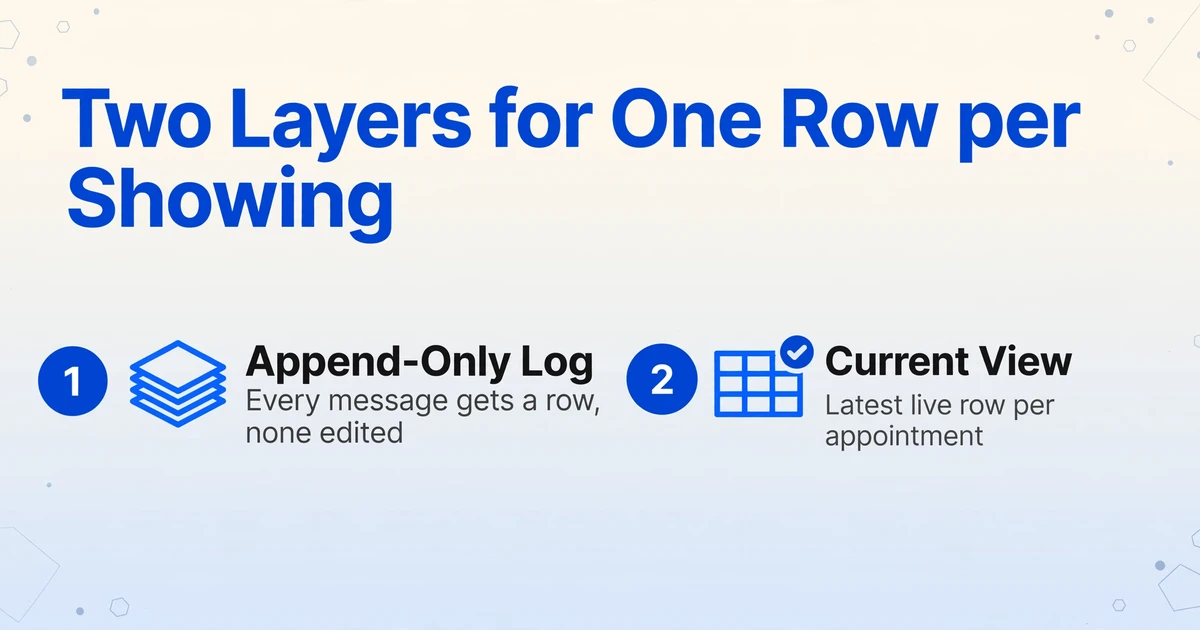
One row per showing needs two layers: an append-only log and a current view. Extraction appends a row for each message it reads. It does not edit or delete an earlier row, so the reconciliation has to live in the spreadsheet, not in the extraction.
Layer one is the log. Every confirmation, reschedule, and cancellation gets a row, and no row is ever edited. This is the audit trail: it proves what the platform sent and when. Keeping it append-only also means a mistaken correction is visible instead of silently overwriting the original.
Layer two is the current view. It reads the log, keeps the latest live row for each appointment, and hides the superseded ones. In Google Sheets, a helper column on a copy of the log does the work: sort by the appointment number and by status date, then count earlier rows with the same key. A formula such as =COUNTIFS($B$2:$B2,$B2)>1 flags every row after the first, and filtering the flag to FALSE leaves one row per appointment.
If the platform issues a new confirmation number for a reschedule, the old and new rows will not share a key. Match on property address plus showing agent instead, and keep the row whose status is later. If a cancellation arrives, decide the policy before the first one: either exclude it from the current view and leave it in the log, or show it as cancelled so the listing side can see why the slot disappeared.
Fifteen minutes of spreadsheet work separates a log from a current view. It is also the step most teams skip, which is why the sheet goes stale while the extraction keeps working perfectly.
What This Does Not Do
The pipeline reads email and does not run the showing, so its boundary needs to be clear before anyone builds a report on top of it.
- No native platform integration. There is no ShowingTime, SentriLock, or BrokerBay connector, no API pull from the showing platform, and no way to book, confirm, reschedule, or cancel an appointment from the sheet.
- No calendar or lockbox control. The pipeline does not write to Google Calendar or Outlook, and it does not open, assign, or manage a lockbox. It records what the platform sent.
- No in-place update. A reschedule produces a new row. Keeping one current row per showing is the two-layer spreadsheet step above, not an automatic behavior.
- The platform report is still the per-listing record. ShowingTime's Listing Activity Report includes showing agent information, notes, and feedback, and its homeowner version deliberately omits the showing agent details (Listing Activity Report). Use the sheet for the cross-platform, cross-listing, team, and CRM view the platform report does not provide, not as a replacement for it.
- The inbox is only as complete as the notification settings. SentriKey sends showing notifications to its Message Center even when email is deselected (SentriKey guide). If someone on the listing side has turned email off, the confirmation exists but never reaches the pipeline.
- It is not a CRM. Output is a spreadsheet or JSON. Follow Up Boss, kvCORE, and similar systems import CSV, and a direct push is a job for the API, not a built-in connector.
The log also ends where the transaction file begins. Once the listing goes under contract, the showing activity becomes context for the closing document package, which has its own completeness rules and its own place to live.
FAQ
Can one column set read ShowingTime, SentriLock, and BrokerBay emails together?
Yes, as long as the values are present in the message body. The three platforms use different wording and field order, and Custom Column Extraction finds each value by meaning rather than by position, so one set of column names covers all three. A notification that only says "log in to view your appointment" and carries no details cannot produce fields, because the values are not in the message.
Do the confirmations need a PDF attachment?
No. The confirmation is sent as message content rather than as a PDF to detach, which is why the attachment-only default returns nothing useful. Set the inbox to body only or attachments and body so the message text is read directly.
Can it update the row when a showing is rescheduled or cancelled?
No. Each message becomes a new row. Keeping a current view means filtering the append-only log to the latest live row per appointment, which is the two-layer approach described above. The extraction does not edit or delete a previous row.
What if the co-agent is missing from the email?
The pipeline will leave the field blank, because the value is not there. This usually means the showing platform pulled the listing before the co-agent was added, and it will keep sending the blank until the co-agent is added inside the showing platform. Treat the blank as a listing-side to-do, not an extraction error.
Can it write directly into Follow Up Boss or kvCORE?
Not natively. The output is a spreadsheet or JSON, and the standard path is a CSV import into the CRM. Teams that need a direct push use the REST API and a webhook as their own bridge.
Is it safe to keep lockbox codes in a shared sheet?
Usually not. A shared sheet reaches further than the confirmation email did. Store the keybox location and the instruction "code in confirmation email" unless the team genuinely needs the code in the sheet; if it does, restrict access and clear rows after the appointment, because a one-day code is dead once the appointment passes.
A showing sheet is a record of appointments, not a list of emails. Once the sheet is keyed on the appointment, a reschedule stops being an exception and becomes a status change.
That shift is what makes the sheet usable for the weekly seller report, the team dashboard, and the CRM import. Test it on one confirmation from each platform and see which fields come back, and which ones the email never contained. Try it on a real showing confirmation.