PDF, Scanned Image, or Photo:
Can AI Extract the Same Fields from All Three?
The short answer is yes. With ImageToTable.ai, you type the column names once — "Invoice Number", "Vendor Name", "Total Amount" — and upload files in any format. The AI reads the document, finds the matching values, and fills your columns. You don't set up templates per supplier, you don't switch workflows per file type, and your column names don't change when the input format does. What does change is the preprocessing pipeline running silently behind the scenes — and understanding when extraction quality drops is what keeps your spreadsheet accurate.
For a general introduction to invoice field extraction and how column-name extraction works across any vendor layout, see our guide to extracting invoice fields automatically.
Key Takeaways
- Column-name extraction locates fields by meaning, not coordinates — the same column names work across PDFs, scans, and photos without per-format templates.
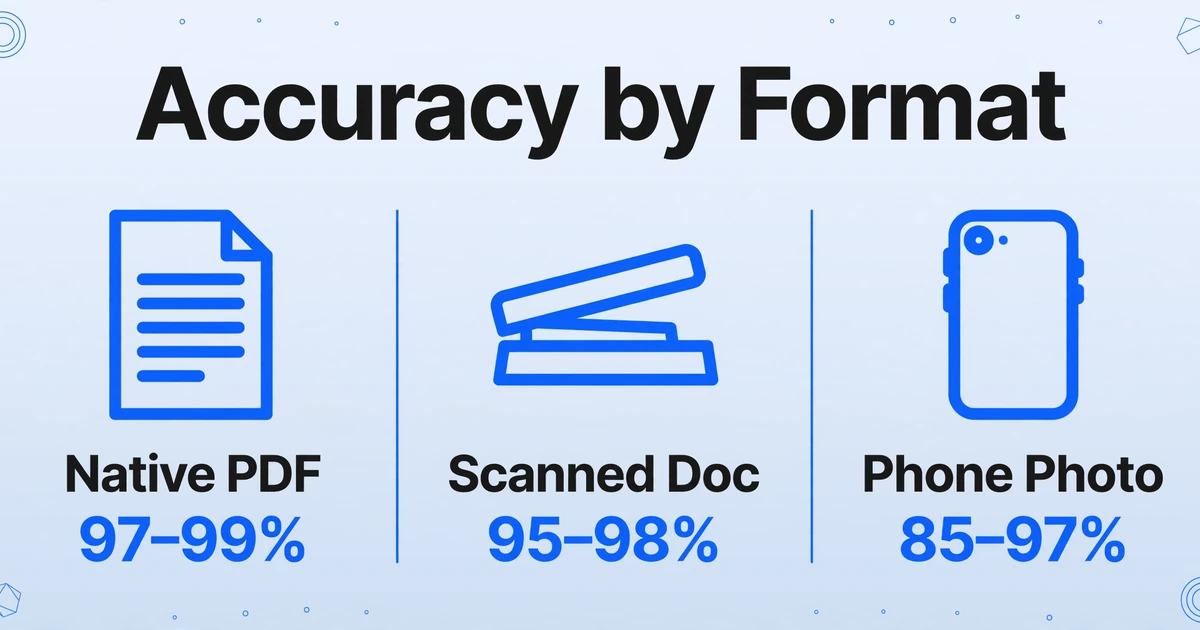
- The accuracy gap between formats — 97–99% for native PDFs versus 85–97% for smartphone photos — comes from preprocessing difficulty, not extraction logic.
- A PDF created by scanning contains no embedded text layer and behaves like a scanned image, not a native PDF — the file extension says nothing.
- Pre-sorting documents by format before processing is unnecessary overhead when column-name extraction produces identical output structures from any source.
- Handwritten text accuracy depends on individual handwriting style, not tool capability — review handwritten fields before they enter a downstream workflow.
How Column-Name Extraction Works (Across Any Format)
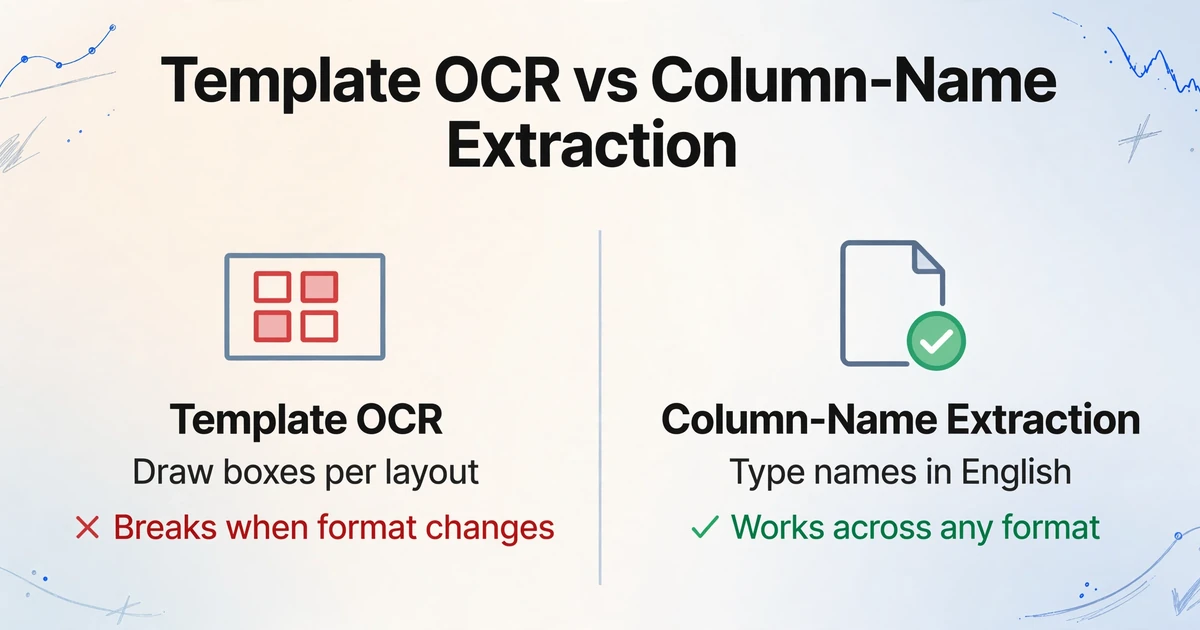
Most document extraction tools work backward from the document layout. Zonal OCR platforms make you draw rectangles around each field on a sample page. Template-based systems store a layout per supplier. When the document format changes — or when you're working with a photo instead of a PDF — the template breaks and you start over.
ImageToTable.ai works the other way. You define what you want to extract — column names typed in plain English — and the AI locates those fields inside each document by understanding the content, not by matching pixel coordinates. A "Total Due" line item appears in different positions on different invoices, but the AI recognizes it semantically regardless of where it sits on the page.
This means the same column names work on a native PDF from QuickBooks, a scanned archive document, and a smartphone photo of a receipt. The extraction logic doesn't change. The AI's job just gets harder as it moves through the preprocessing pipeline — and it's useful to know where the quality ceiling is for each format before you build it into a workflow.
For the complete step-by-step workflow — from uploading invoices to defining columns to exporting clean Excel — see our guide to automating invoice processing with AI.
Try It: Drop In a PDF, Scan, or Photo
Type a few column names — say "Invoice #", "Date", "Total" — then upload from any format:
Files are processed securely and not stored.
What Actually Changes Between Formats
| Format | Text source | Preprocessing steps | Quality variables | Typical accuracy (structured data) |
|---|---|---|---|---|
| Native PDF | Embedded text layer | Parse → extract | File encoding, compression artifacts | 97–99% |
| Scanned document | Image → OCR → text | OCR conversion → extract | DPI, scan alignment, document condition | 95–98% (at 300 DPI) |
| Smartphone photo | Image → preprocess → OCR → text | Deskew, enhance → OCR → extract | Lighting, angle, focus, shadows, glare | 85–97% (highly variable) |
One important nuance: a PDF created by scanning a physical document is not a native PDF. It looks like a PDF in your file manager, but it contains no embedded text layer — just a compressed image. It behaves exactly like a scanned document for extraction purposes. This surprises users who assume all PDFs are equivalent. The file extension tells you nothing about the presence of a text layer. ImageToTable.ai detects this automatically and switches to OCR behind the scenes — you don't need to pre-classify your uploads.
For a deeper look at how AI extraction differs from traditional character-level OCR at the architecture level, the AI vs. traditional OCR comparison covers the mechanism in more detail.
Format-by-Format: What to Expect in Practice
Native PDFs generated by accounting software, ERP systems, or invoicing platforms (QuickBooks, SAP, FreshBooks) consistently hit the high end of the accuracy range. The text layer is clean, machine-readable, and structured. This is the format where you can batch-process hundreds of files with near-zero manual correction. Edge cases — PDFs using unusual font encoding or text rendered as paths — are rare but behave like images when they appear.
Scanned documents at 300 DPI from a flatbed scanner perform close to native PDFs on clean originals. The performance gap between a well-scanned document and a native PDF is usually not meaningful for standard business documents scanned within the past decade. Quality degrades with document age (faded ink, yellowed paper) and physical damage (folds running through text fields). For faded originals, 400–600 DPI can partially compensate for reduced contrast. When you're processing scans in ImageToTable.ai, a quick spot-check of the oldest or most damaged files in a batch is usually sufficient — the rest tend to be fine.
Smartphone photos have the widest accuracy range because capture conditions vary so much. A photo taken with the document laid flat under even lighting, roughly centered and in frame, approaches scanned document quality. The same document photographed at a 30° angle with a shadow across half the page will produce noticeably worse results on the obscured fields. The useful property of vision model failures: when a field can't be reliably extracted from a photo, the result is usually blank or visibly wrong rather than plausible-looking but incorrect — easy to catch during review rather than silently propagating into your data.
Five Factors That Actually Affect Field Extraction Quality
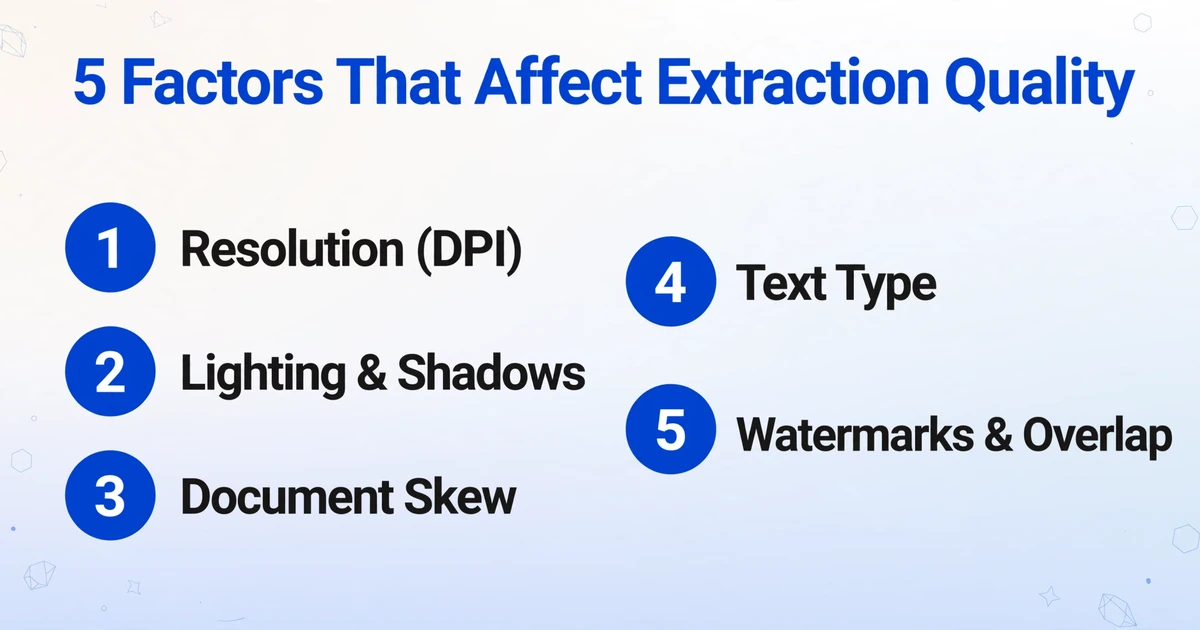
Format type sets a baseline range. These five factors determine where within that range you land — and most of them are under your control before the file ever reaches the AI:
1. Resolution (DPI) — The most controllable variable for scanned documents. Scanning at 300 DPI can improve OCR accuracy by up to 50% compared to lower resolutions. Below 150 DPI, character-level errors compound and dense table cells become unreliable. If you're building a scanning workflow for a document archive, DPI is the one setting worth standardizing before anything else.
2. Lighting and shadows (photos) — Uneven lighting creates false edges that disrupt character segmentation. A shadow crossing a row of numbers can cause the entire row to misparse. The fix is simple: lay the document flat on a contrasting surface under even ambient light rather than a direct overhead source or flash.
3. Document skew — A page photographed or scanned at more than a few degrees off-horizontal degrades line segmentation accuracy significantly. ImageToTable.ai applies automatic deskew correction, but extreme angles (30°+) still produce errors in dense tables. For phone captures, frame the document roughly centered and parallel to the image edge.
4. Text type: printed vs. handwritten — Printed text at normal business font sizes (8pt+) performs well across all three formats. Handwritten text is a qualitatively different challenge: accuracy depends on individual handwriting style, not tool capability, and results vary widely. For handwritten fields — quantity tally sheets, handwritten receipts — always review the extracted values before they enter a downstream workflow.
5. Watermarks and overlapping elements — Vision language models handle these better than traditional character-level OCR because they understand context: a "PAID" stamp across a vendor name isn't part of the vendor name. Heavy watermarks directly over data-dense table cells still reduce accuracy on the affected fields, but isolated stamps and logos rarely cause problems.
When Your Documents Are a Mix of All Three
This is the actual scenario most finance and operations teams face. A supplier sends PDF invoices by email. Archived records from two years ago are scanned TIFF files converted to PDF. Field staff submit expense receipts as phone photos. Running separate workflows for three input types — or pre-sorting before upload — is the kind of overhead that accumulates invisibly over time.
With column-name extraction in ImageToTable.ai, you specify your fields once, upload files in any combination of formats, and receive a single merged Excel file where each row corresponds to one source document regardless of its original format. The output table structure is identical whether the source was a SAP-generated PDF or a photo of a handwritten receipt.
The practical implication: you don't need to pre-sort documents by format. The only time format matters is when you're setting accuracy expectations for a batch — a pile of clean supplier PDFs will have more uniform results than a mixed batch that includes low-light phone photos captured under variable conditions.
For teams receiving documents from field staff or external contributors across multiple channels, batch processing lets you upload those mixed-format files together and merge the results into a single spreadsheet without manual sorting. The Collection Link feature extends this further — recipients upload directly to your processing queue without needing an account.
Frequently Asked Questions
Can AI extract data from a handwritten invoice or receipt photo?
Yes, with lower accuracy than printed text. Vision language models can read handwriting, but results depend heavily on individual handwriting style. Clear, separated print-style handwriting performs significantly better than cursive. For handwritten documents, review extracted values — especially numeric fields and dates — before using them downstream. Fields with visually similar characters (1 vs. l, 0 vs. O) are the most common source of errors.
Does a PDF created by scanning behave the same as a digitally generated PDF?
No. A PDF created by scanning a physical document contains no embedded text layer — it's a compressed image in a PDF wrapper. It performs like a scanned document, not a native PDF. The .pdf extension doesn't indicate the presence of a text layer. ImageToTable.ai handles this automatically: if a PDF has no text layer, it falls back to OCR without you having to flag it.
What resolution should I scan documents at for best field extraction results?
300 DPI is the standard threshold and where accuracy stabilizes for most business documents. Scanning at 600 DPI produces larger files without meaningful accuracy improvements on clean, well-preserved originals. For older or faded documents with small font sizes, 400–600 DPI may help recover detail that 300 DPI misses.
Can I batch-process a mixture of PDFs, scans, and photos together?
Yes. You set your column names once in ImageToTable.ai, upload files in any combination of formats, and download a single merged Excel file. Each row represents one source document. No pre-sorting, no separate workflows, no per-format templates.
Does portrait vs. landscape orientation affect extraction accuracy?
Orientation itself doesn't reduce accuracy — both are handled correctly. The issue is significant skew within the chosen orientation: a document photographed 25° off-vertical will produce worse results than the same document shot straight-on in either orientation. Keep the document roughly parallel to the image edge.
What happens when a photo has a shadow across part of the document?
Shadows reduce local contrast, making character segmentation harder in the affected region. A shadow on a blank margin has minimal impact. A shadow crossing a row of numbers or a labeled field is more problematic — extracted values for those fields are likely to be blank or visibly wrong, which makes them easy to catch during review rather than silently incorrect. When retaking the photo isn't possible, even indirect lighting (away from the document plane) is the most effective single improvement.
Try ImageToTable.ai With Your Own Documents
The embedded demo above works immediately — type a few column names, drop in any PDF, scan, or photo. For guidance on how to structure column names for the most consistent extraction across varied document layouts, the field extraction guide covers naming conventions and edge cases in detail.
No credit card required. Supports PDF, JPG, PNG, and WebP.