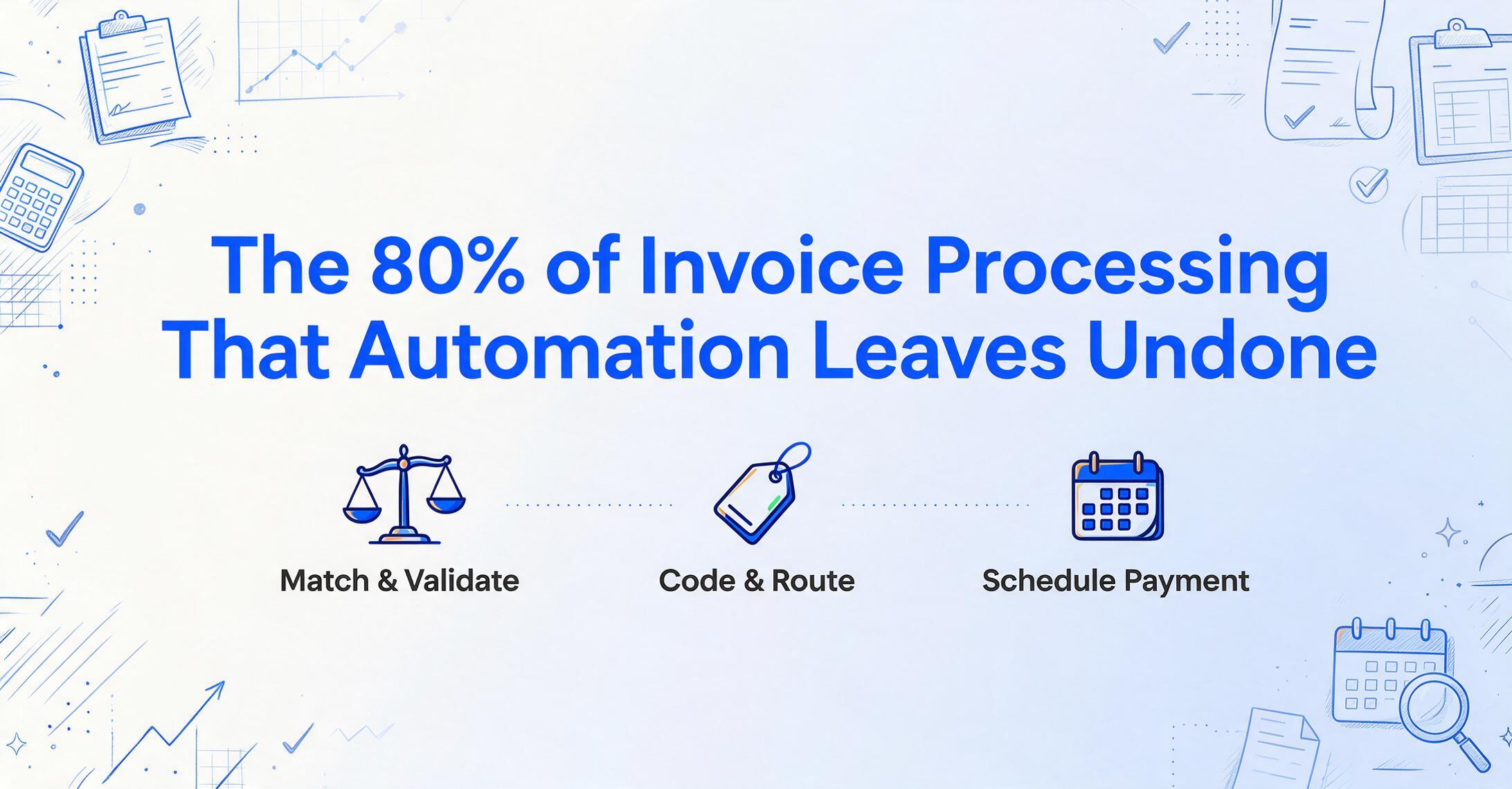
The 80% of Invoice Processing
That Automation Leaves Undone
According to Vic.ai's 2025 AI Momentum Report, 37% of accounts payable professionals still cite manual data entry as their top pain point — more than slow approvals, high processing costs, or late payments. That's a striking number in 2026, given how many "invoice automation" tools have been on the market for years. But talk to anyone actually processing invoices, and a different picture emerges. As one Reddit user in r/Accounting put it: "Extraction is maybe 20% of the problem on a good day. The real time sink is everything around it — matching to the right PO, figuring out why totals don't match, chasing approvals, handling exceptions." Most automation tools solve the first 20% and call it done.
Key Takeaways
- Most invoice automation tools solve only the easiest 20% — pulling text off a page — and leave the matching, validation, and approval steps that consume the other 80% of your time completely untouched.
- The five-to-one cost gap between best-in-class AP teams at $2.78 per invoice and everyone else at $12.88 has nothing to do with better OCR — it comes from automating everything that happens after extraction.
- A full pipeline from ingestion to payment scheduling cuts per-invoice cost below $1.00, and the biggest savings come from invisible losses that manual processes never catch: missed early payment discounts alone can total $140,000 a year on $10 million in payables.
Where Invoice Automation Actually Breaks Down
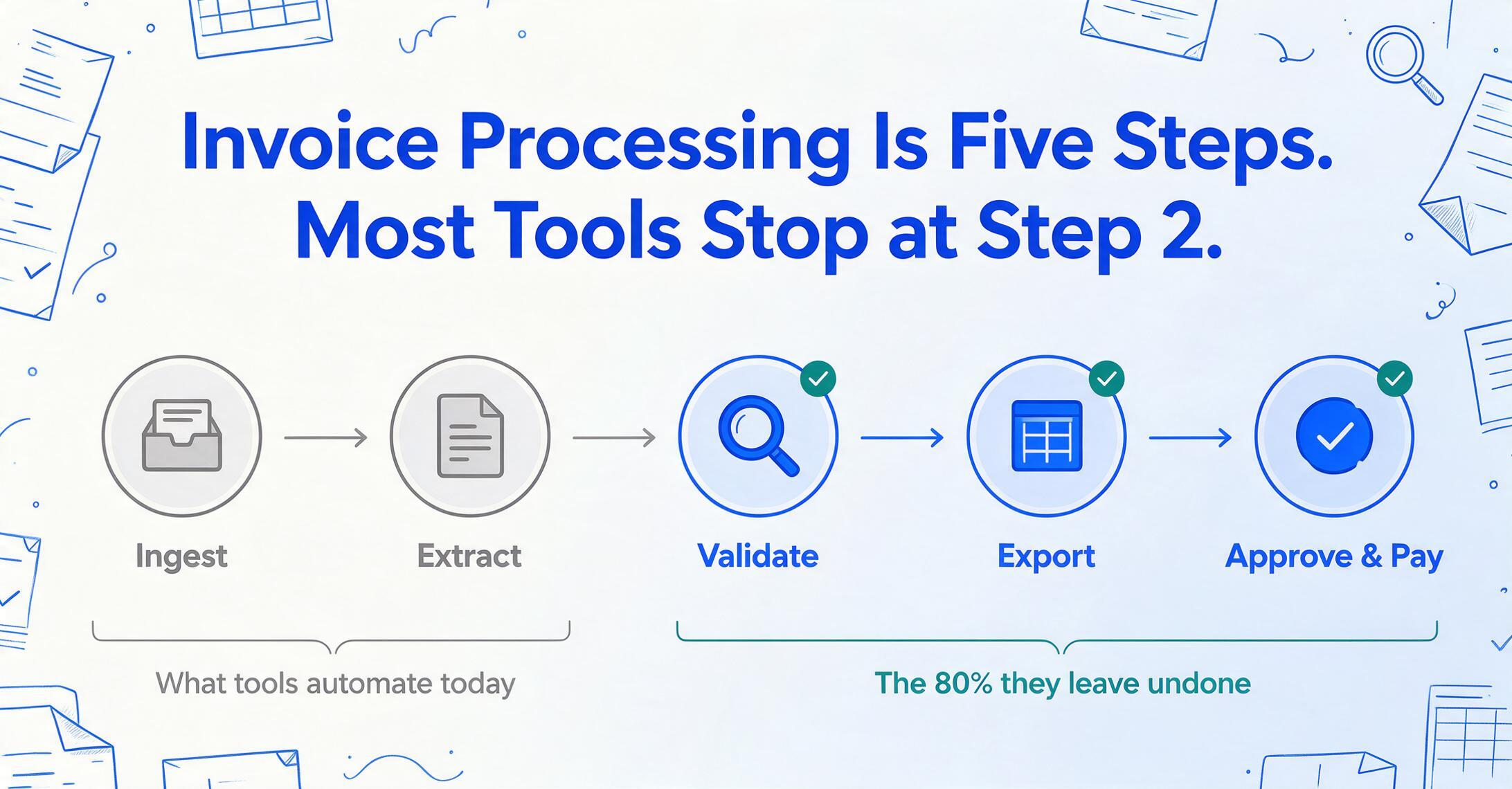
Most invoice automation articles — and most tools — follow the same script: upload a PDF, extract the vendor name, number, date, and total, export to Excel. Done. The problem is that's not how invoice processing works in practice.
After extraction, real AP teams are doing three-way matching against purchase orders and goods receipts, standardizing dates from whatever format the vendor used, catching duplicate invoice numbers, routing invoices to the right approver, coding expenses to the correct general ledger account, and entering everything into accounting software before payment can even be scheduled. None of that happens in the extraction step.
The numbers bear this out. APQC's 2024-2025 benchmarking data puts the median cost to process a single invoice at $21.40 for the overall median and $10.18 for top-quartile organizations. Ardent Partners' latest research shows best-in-class AP teams process invoices at $2.78 each compared to $12.88 for everyone else — nearly a five-to-one gap. The difference isn't that best-in-class teams have better OCR. It's that they've automated the whole pipeline, and that's what this guide covers.
Data capture and entry accounts for 30–35% of total invoice processing cost — the single largest line item. Exception handling is another 20–25%. Automating both together is where the economics shift.
Step 1: Get Every Invoice into One Place Before Processing Starts
A workflow that requires you to manually locate and upload each invoice isn't automated. The first structural improvement you can make — before touching any AI — is consolidating where invoices land.
Invoices arrive through different channels: email attachments (PDFs from the vendor), downloads from supplier portals, forwarded from colleagues, even photos someone took of a paper invoice with their phone. If your process starts with "find the file first," you're already losing time.
Three common ingestion patterns
Email forwarding
Set up a dedicated address ([email protected]). Vendors and colleagues forward invoices there. Everything arrives in one queue.
Cloud folder monitoring
Point your tool at a Google Drive or SharePoint folder. Drop files in; processing triggers automatically.
Collection Link
Send a link to vendors or remote staff. They upload directly — files land in your processing queue, no login required on their side. This is especially useful if you collect invoices from multiple suppliers who don't share your systems.
The goal here isn't complexity — it's centralization. Once every invoice hits the same intake point, the rest of the workflow becomes repeatable.
Step 2: Extract Data Without Building Templates Per Vendor
This is the step most "automation" articles spend all their time on, but the important distinction is how the extraction works. Traditional OCR tools — and many first-generation invoice processors — use template matching: you draw a box around the invoice number field on Vendor A's invoice template, and the tool remembers to look there next time. If Vendor A changes their layout, or you add Vendor B with a different format, the template breaks and needs rebuilding.
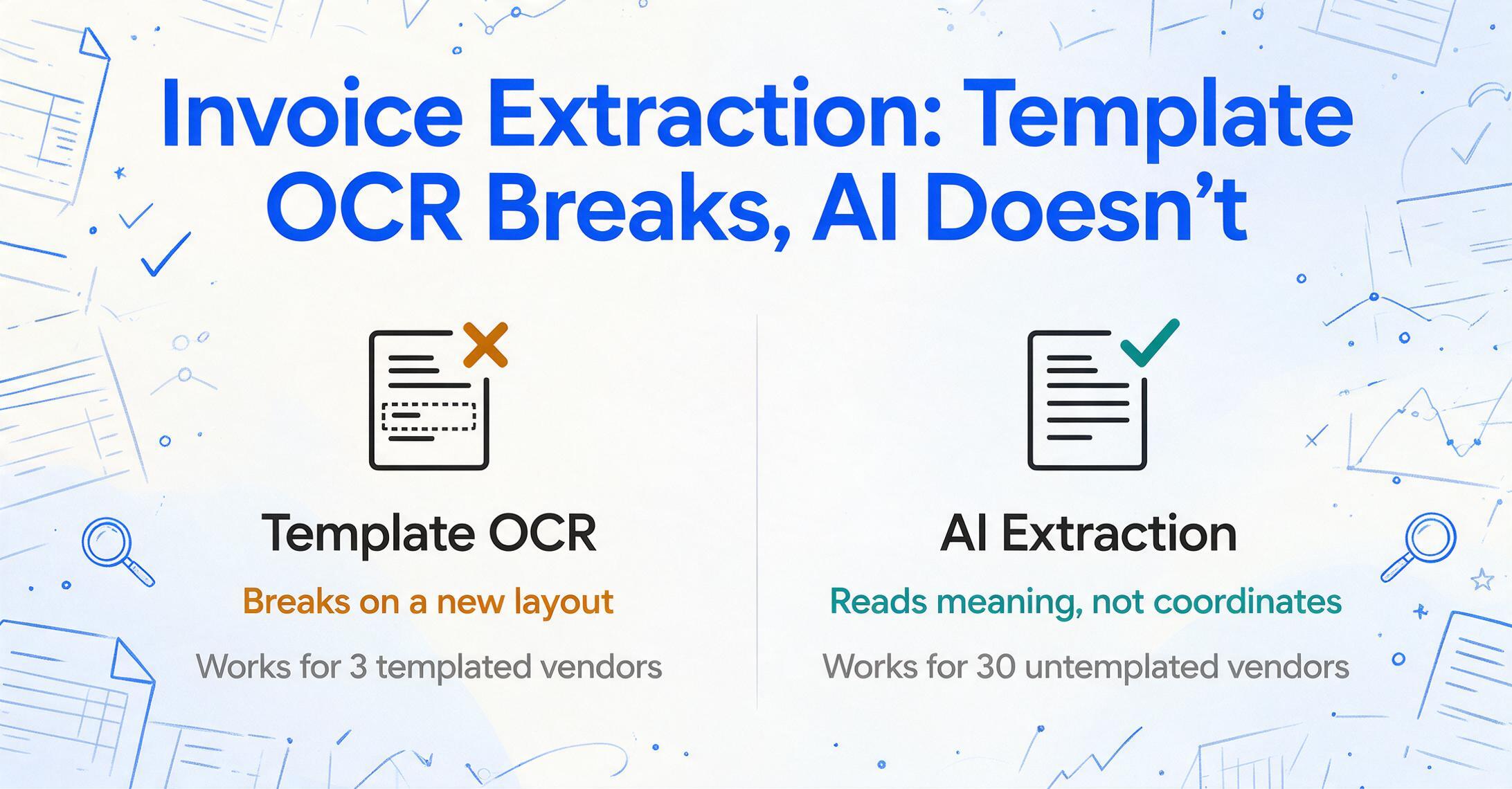
Modern AI-powered extraction works differently — see the invoice processing workflow for a step-by-step demo. Instead of template-based or zonal OCR (which remembers where data sits), Custom Column Extraction uses visual language models to understand what the data means — regardless of where it appears on the page. You specify the fields you want extracted ("Invoice Number," "Due Date," "Total Amount," "Line Items"), and the AI locates each value by understanding the document's content semantically rather than by matching coordinates.
This is the difference between a system that works for three vendors you've templated and one that works for thirty vendors you haven't. It's also why you shouldn't need to train a model on sample data or configure parsing rules per supplier — the AI reads each invoice as a human would, understanding context rather than memorizing positions.
Files are processed securely and not stored.
If you're dealing with batch processing — say, 50 vendor invoices at month-end — this template-free approach compounds quickly. Upload all 50 at once, define the columns once, and get a single unified spreadsheet rather than 50 individual extractions. For more on scaling this, see the guide to batch invoice processing.
Template-free extraction isn't "slightly faster OCR." It's a different paradigm: position-based recognition vs. semantic understanding. The second survives format changes. The first doesn't.
Step 3: Validate and Standardize Before Anything Touches Your Books
Extraction produces raw output. Different vendors format dates differently (MM/DD/YYYY, DD/MM/YYYY, 2026-06-22, "June 22, 2026"). Some use currency symbols ($, €, £). Some put the total before tax, others after. If you export raw extracted data directly into your accounting system, you're inheriting every vendor's formatting inconsistency and making it your problem.
The validation layer should handle at minimum:
Date standardization
All dates normalized to a single format (YYYY-MM-DD). No more sorting 03/04/2026 by month when some vendors mean March and others mean April.
Amount verification
Subtotal + tax should equal the total. If not, flag it. If the invoice total doesn't match the PO amount, flag it before payment — not during month-end reconciliation.
Duplicate detection
Same vendor + same invoice number = possible duplicate. A small accounting firm on Reddit reported a $5,000 duplicate payment that took weeks to recover — the breaking point that pushed them to automate.
Format rules and formatting
Strip out vendor-specific prefixes from invoice numbers ("INV-" vs "INV#"). Convert all amounts to your base currency. Fill in missing PO numbers from your records when possible.
At this stage, you can also apply Computed Columns — calculations that run during extraction rather than afterward in Excel. For example, a column defined as "Line Total (Qty × Unit Price)" produces the computed result directly in the output table. Or a column like "Category (options: Office Supplies/Software/Professional Services/Other)" has the AI infer the expense category from the invoice content even though no "Category" field appears on the document. This collapses what would normally be a separate manual classification step into the extraction itself.
Computed columns require defining the calculation logic — either directly in the column name (works in the demo above) or in a JSON Rule Format for complex multi-step derivations (available to logged-in users).
Step 4: Export to Where Your Data Actually Lives
Extracted and validated data sitting in your processing tool is the equivalent of a finished invoice sitting on someone's desk waiting to be typed in. The export step is where many workflows stall because people are still manually re-entering data from one system to another.
The destination depends on your stack. For small businesses and freelancers, the end point is often a spreadsheet — Excel or Google Sheets — used as a lightweight ledger or staging area before importing into QuickBooks or Xero. For mid-market teams, the data goes directly into the accounting platform. For larger organizations, the target is an ERP like NetSuite, SAP, or Microsoft Dynamics.
A useful capability here is batch export: processing 30 invoices and getting one output file, not 30 separate ones. The AI collects extracted data from every invoice in the batch and merges it into a single table — each row is one invoice, each column is a field you defined. This single-file output is what makes the difference between "I extracted the data" and "I can actually use the data."
Step 5: Close the Loop — Approvals, Coding, and Payment Scheduling
If you've made it this far with clean, validated data in your accounting system, you've automated the 80% that most tools ignore. The remaining automation layers — approvals, GL coding, and payment scheduling — are where you decide how fully hands-off the process becomes.
For small operations (under 200 invoices a month), these steps might stay manual by design — a five-minute review of 30 invoices processed automatically is reasonable and the human checkpoint has value. For teams processing 500+ invoices a month, the economics shift:
- Approval routing: Set rules based on amount thresholds and vendor categories. Recurring vendors under $500 auto-approved. New vendors or invoices over a threshold route to the appropriate manager. This alone is a major bottleneck solver — Ardent Partners' data shows best-in-class AP teams complete invoice processing in 3.1 days versus 17.4 days for the rest.
- GL coding: For recurring vendors, assign expense categories and cost centers automatically based on history. For new vendors, flag for manual coding. This is where AI can infer categories (as covered in Step 3) to reduce the coding gap.
- Payment scheduling: Calculate optimal payment dates based on terms and discount windows. Capture early payment discounts — the same Ardent Partners research shows companies with manual AP workflows capture only 20–30% of available early payment discounts compared to 80%+ for automated operations.
What works best in practice, as several Reddit threads from people who've built these systems confirm, is an exception-driven setup: auto-process the clean 70–80% of invoices end to end. Flag the rest with clear rules (PO mismatch, missing data, new vendor, duplicate suspicion). Route only those to a human. This gives you the speed of full automation without the risk of blind processing.
What This Workflow Looks Like at Different Scales
The same five-step workflow adapts differently depending on your volume and resources:
| Small (50–200/mo) | Mid (500–2,000/mo) | High Volume (2,000+/mo) | |
|---|---|---|---|
| Ingestion | Email forwarding + manual batch upload | Automated folder monitoring + Collection Link for vendors | API integration + automated intake from multiple channels |
| Extraction | Template-free AI, 1 batch/week | Continuous batch processing, predefined column sets | Straight-through processing for clean invoices, AI extraction for the rest |
| Validation | Quick manual spot-check (5 min/30 invoices) | Automated rules + human review of flagged items only | Full automated validation, exception-only human review |
| Export | Excel/Google Sheets, then import to QuickBooks/Xero | Direct export to QuickBooks/Xero/Sage | Direct ERP integration (NetSuite, SAP, Dynamics) |
| Approvals & Payment | Manual review (reasonable at this scale) | Rule-based auto-approval + payment scheduling | Full P2P automation with exception routing |
The inflection point is around 500 invoices a month. Below that, semi-automated extraction plus a manual review step is often the right balance of speed and control. Above 500, the cost of not automating the full pipeline becomes measurable — every additional invoice manually touched adds $12–$22 in labor cost. At 1,000 invoices a month, that's $12,000–$22,000 per month on data entry alone.
The Real ROI of Full Workflow Automation
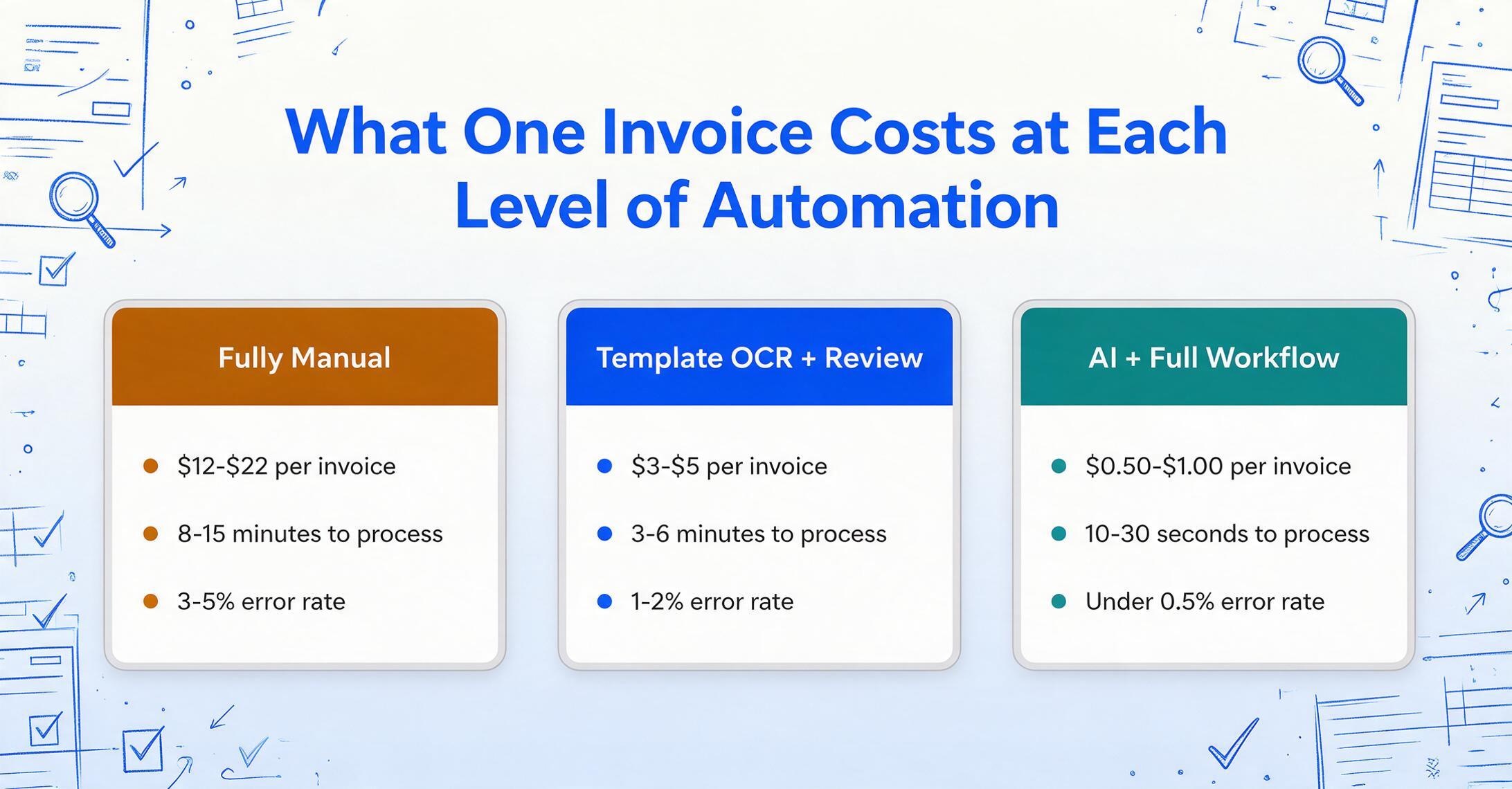
The cost numbers across the industry are consistent enough to be useful for planning:
| Automation Level | Cost per Invoice | Processing Time | Error Rate |
|---|---|---|---|
| Fully manual | $12–$22 | 8–15 minutes | 3–5% |
| Semi-automated (template OCR + manual review) | $3–$5 | 3–6 minutes | 1–2% |
| Fully automated (AI extraction + workflow) | $0.50–$1.00 | 10–30 seconds | Under 0.5% |
These aren't theoretical numbers. A Reddit user in r/AiAutomations documented their small accounting firm's transition from 15 hours a week of manual invoice processing to 45 minutes, with zero late payment penalties over six months. Their error rate dropped from 12–15 per month to fewer than one. They went from processing 200 invoices a month to handling 450 with the same team.
The savings aren't just in labor cost. Ardent Partners reports that companies with manual AP workflows capture only 20–30% of available early payment discounts. On $10 million in annual payables with standard 2/10 net 30 terms, missed discounts alone total $140,000–$160,000 per year. Automated workflows push capture rates above 80% by ensuring invoices are processed and approved within the discount window.
The largest cost savings from invoice automation don't come from eliminating data entry hours — they come from capturing early payment discounts, eliminating duplicate payments, and avoiding late fees. Data entry is the visible cost. These are the invisible ones.
Frequently Asked Questions
Can AI handle invoices from different vendors with completely different layouts?
Yes. That's the core difference between template-based OCR (which needs a template per vendor layout) and modern AI extraction (which reads invoices semantically). The AI understands that "Amount Due" on one invoice and "Total Payable" on another refer to the same thing. It doesn't need to be trained on each vendor's format. That said, extremely unusual or heavily stylized invoices may have lower accuracy on first pass — which is why the validation step exists.
How long does it take to set up an automated invoice workflow?
For a template-free tool, you can process your first batch of invoices in under an hour — upload files, define the columns you want extracted, and run the batch. Building the full pipeline (automated intake → extraction → validation → export → approvals) takes longer, but the extraction piece itself doesn't require weeks of template setup or model training. One Reddit user reported a 40-hour total setup for a complete workflow handling 200+ invoices a month across 15 clients. A simpler setup for a single company takes less.
What happens when the AI gets a field wrong?
This is why the validation step exists. Rather than trusting every extraction blindly, your workflow should flag low-confidence fields and surface them for review. In practice, a good extraction system gets standard fields (vendor name, invoice number, date, total) right 95–99% of the time on clean documents. Line items are harder — accuracy varies with table complexity. The goal isn't 100% touchless processing. It's reducing the manual work from "type every field" to "review the 5% that need attention."
Does this work with QuickBooks and Xero?
The data extraction and validation steps produce structured output (Excel, CSV, Google Sheets) that can be imported into QuickBooks, Xero, or any accounting software that accepts spreadsheet imports. Some tools offer direct integration — but even without it, batch-exporting clean data and importing it into your accounting platform is a 30-second step compared to hours of manual entry. For teams using Google Sheets, the add-on model writes extracted data directly into the active spreadsheet without leaving Sheets.
How many invoices do I need to process before automation makes financial sense?
A rough threshold: if you're processing 50+ invoices a month manually, automation pays for itself in the first quarter. At 50 invoices a month with a manual cost of $15 each, you're spending $750/month ($9,000/year) on data entry. An AI extraction tool at $9–$59/month reduces that to under $50/month in processing cost — a 93% reduction. Below 20 invoices a month, the time savings are real but the financial case is thinner. Above 500 a month, the economics become overwhelming — every month of delay costs thousands.
Can I use this workflow for documents other than invoices?
Yes. The same template-free extraction approach works for purchase orders, receipts, bank statements, packing slips, delivery notes, timesheets, inspection reports, and virtually any document type where you want to pull structured data from unstructured formats. You define the columns you want for each document type. For more on specific document types, see the guides on extracting invoice fields and batch document processing.
Invoice processing automation doesn't end at extraction. Most of the cost — and most of the savings — lives in the steps that come after. The tools that cover the full pipeline are what separate best-in-class AP teams processing at $2.78 per invoice from everyone else processing at $12.88. The gap isn't in OCR accuracy. It's in workflow completeness.
Test the extraction layer on your own invoices — define your fields, upload a batch, and see what comes out. Then look at what happens next in your current process and ask how many of those steps still require a human to open a file and start typing.